radio KIA RIO 2017 User Guide
[x] Cancel search | Manufacturer: KIA, Model Year: 2017, Model line: RIO, Model: KIA RIO 2017Pages: 449, PDF Size: 14.88 MB
Page 208 of 449
Features of your vehicle
4137
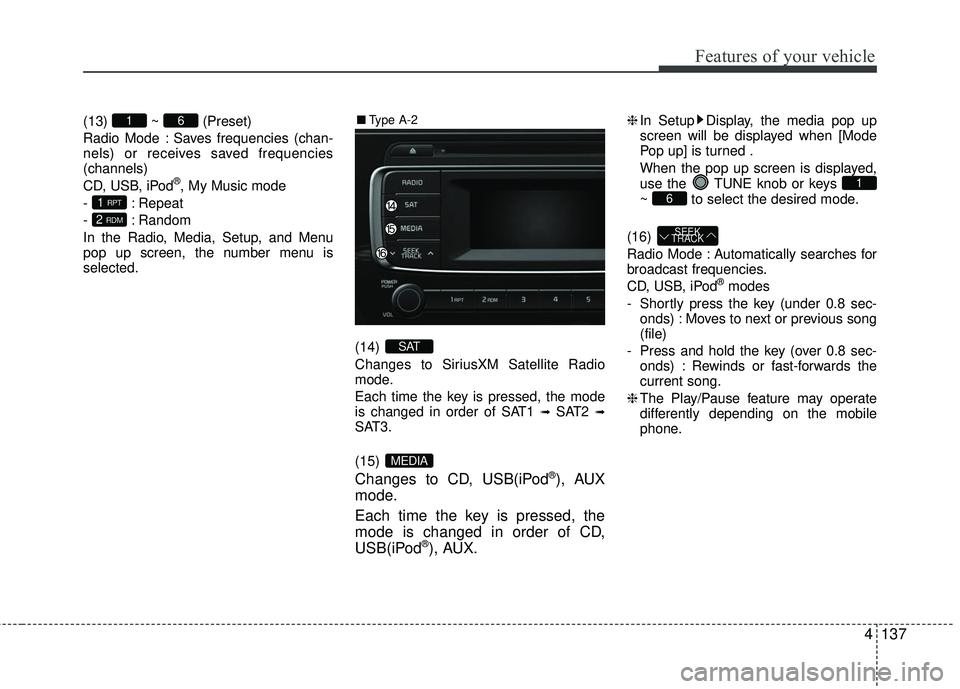
(13) ~ (Preset)
Radio Mode : Saves frequencies (chan-
nels) or receives saved frequencies
(channels)
CD, USB, iPod
®, My Music mode
- : Repeat
- : Random
In the Radio, Media, Setup, and Menu
pop up screen, the number menu is
selected.
(14)
Changes to SiriusXM Satellite Radio
mode.
Each time the key is pressed, the mode
is changed in order of SAT1
➟SAT2 ➟SAT3.
(15)
Changes to CD, USB(iPod®), AUX
mode.
Each time the key is pressed, the
mode is changed in order of CD,
USB(iPod
®), AUX.
❈ In Setup Display, the media pop up
screen will be displayed when [Mode
Pop up] is turned .
When the pop up screen is displayed,
use the TUNE knob or keys
~ to select the desired mode.
(16)
Radio Mode : Automatically searches for
broadcast frequencies.
CD, USB, iPod
®modes
- Shortly press the key (under 0.8 sec- onds) : Moves to next or previous song
(file)
- Press and hold the key (over 0.8 sec- onds) : Rewinds or fast-forwards the
current song.
❈ The Play/Pause feature may operate
differently depending on the mobile
phone.
SEEK
TRACK
61
MEDIA
SAT
2 RDM
1 RPT
61■ Type A-2
Page 209 of 449
Features of your vehicle
138
4
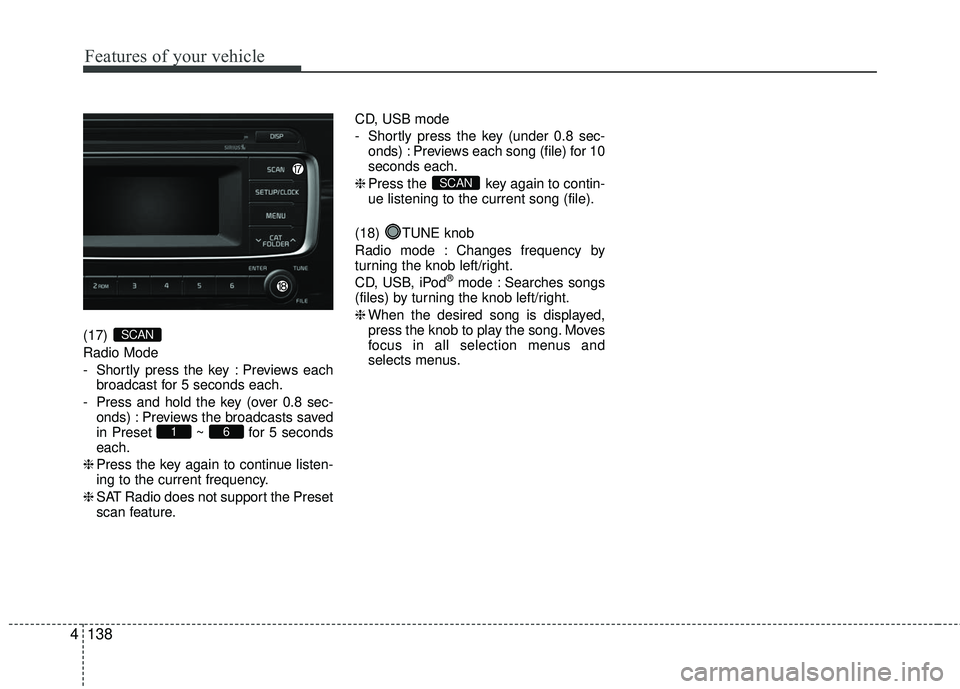
(17)
Radio Mode
- Shortly press the key : Previews each
broadcast for 5 seconds each.
- Press and hold the key (over 0.8 sec- onds) : Previews the broadcasts saved
in Preset ~ for 5 seconds
each.
❈ Press the key again to continue listen-
ing to the current frequency.
❈ SAT Radio does not support the Preset
scan feature. CD, USB mode
- Shortly press the key (under 0.8 sec-
onds) : Previews each song (file) for 10
seconds each.
❈ Press the key again to contin-
ue listening to the current song (file).
(18) TUNE knob
Radio mode : Changes frequency by
turning the knob left/right.
CD, USB, iPod
®mode : Searches songs
(files) by turning the knob left/right.
❈ When the desired song is displayed,
press the knob to play the song. Moves
focus in all selection menus and
selects menus.
SCAN
61
SCAN
Page 210 of 449
![KIA RIO 2017 User Guide Features of your vehicle
4139
SETUP
Display Settings
Press the key Select
[Display] through TUNE knob or
key Select menu through TUNE knob
Mode Pop up
[Mode Pop up] Changes /
selection mode
or ke](/img/2/40419/w960_40419-209.png "KIA RIO 2017 User Guide Features of your vehicle
4139
SETUP
Display Settings
Press the key Select
[Display] through TUNE knob or
key Select menu through TUNE knob
Mode Pop up
[Mode Pop up] Changes /
selection mode
or ke")
Features of your vehicle
4139
SETUP
Display Settings
Press the key Select
[Display] through TUNE knob or
key Select menu through TUNE knob
Mode Pop up
[Mode Pop up] Changes /
selection mode
or key to display the mode
change pop up screen.
Media Display
When playing an MP3 file, select the
desired display info from ‘Folder/File’ or
‘Album/Artist/Song’.
MEDIARADIO
OffOn
1 RPT
SETUP/CLOCK
Page 214 of 449
Features of your vehicle
4143
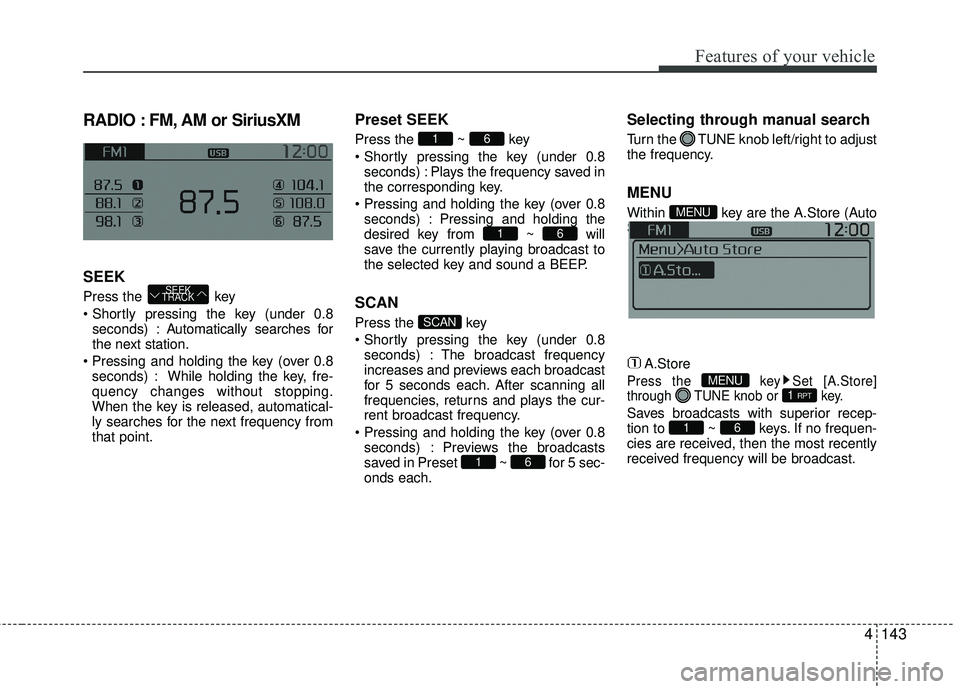
RADIO : FM, AM or SiriusXM
SEEK
Press the key
seconds) : A utomatically searches for
the next station.
seconds) : While holding the key, fre-
quency changes without stopping.
When the key is released, automatical-
ly searches for the next frequency from
that point.
Preset SEEK
Press the ~ key
seconds) : Plays the frequency saved in
the corresponding key.
seconds) : Pressing and holding the
desired key from ~ will
save the currently playing broadcast to
the selected key and sound a BEEP.
SCAN
Press the key
seconds) : The broadcast frequency
increases and previews each broadcast
for 5 seconds each. After scanning all
frequencies, returns and plays the cur-
rent broadcast frequency.
seconds) : Previews the broadcasts
saved in Preset ~ for 5 sec-
onds each.
Selecting through manual search
Turn the TUNE knob left/right to adjust
the frequency.
MENU
Within key are the A.Store (Auto
Store) and Info functions.
A.Store
Press the key Set [A.Store]
through TUNE knob or key.
Saves broadcasts with superior recep-
tion to ~ keys. If no frequen-
cies are received, then the most recently
received frequency will be broadcast.61
1 RPTMENU
MENU
61
SCAN
61
61
SEEK
TRACK
Page 215 of 449
Features of your vehicle
144
4
SiriusXM® Satellite Radio
information
Satellite Radio channels:
Enjoy SiriusXM Satellite Radio with a 3-
month trial subscription to the Sirius
Select package. You’ll get over 140 chan-
nels, including commercial-free music,
plus all your favorite sports, exclusive
talk, entertainment, and a selection of
premium programming. For more infor-
mation and a complete list of SiriusXM
channels, visit siriusxm.com in the
United States, siriusxm.ca in Canada, or
call SiriusXM at 1-888-539-7474.
Satellite Radio reception factors:
To receive the satellite signal, your vehi-
cle has been equipped with a satellite
radio antenna located on the roof of your
vehicle. The vehicle roof provides the
best location for an unobstructed, open
view of the sky, a requirement of a satel-
lite radio system. Like AM/FM, there are
several factors that can affect satellite
radio reception performance :
Antenna obstructions : For optimal
reception performance, keep the
antenna clear of snow and ice build-up
and keep luggage and other material
as far away from the antenna as possi-
ble. Terrain: Hills, mountains, tall buildings,
bridges, tunnels, freeway overpasses,
parking garages, dense tree foliage
and thunderstorms can interfere with
your reception.
SiriusXM Satellite Radio service:
SiriusXM is a subscription-based satellite
radio service that broadcasts music,
sports, news and entertainment pro-
gramming to radio receivers, which are
available for installation in motor vehicles
or factory installed, as well as for the
home, portable and wireless devices,
and through an Internet connection on
personal computer.
Vehicles that are equipped with a factory
installed SiriusXM Satellite Radio system
include :
Hardware and an introductory trial sub-scription term, which begins on the
date of sale or lease of the vehicle.
For a small upgrade fee, access to SiriusXM music channels, and other
select channels over the Internet using
any computer connected to the
Internet (U.S. customers only).
For information on extended subscrip-
tion terms, contact SiriusXM at 1-888-
539-7474. NOTE:
SiriusXM services require a subscrip-
tion sold separately, or as a package,
by Sirius XM Radio Inc. If you decide
to continue service after your trial, the
subscription plan you choose will
automatically renew thereafter and
you will be charged according to your
chosen payment method at then-cur-
rent rates. Fees and taxes apply. To
cancel you must call SiriusXM at 1-
866-635-2349. See SiriusXM Customer
Agreement for complete terms at
www.siriusxm.com. SiriusXM U.S.
satellite and data services are avail-
able only in the 48 contiguous USA,
DC and PR (with coverage limita-
tions). SiriusXM satellite service is
also available in Canada; see www.sir-
iusxm. ca. All fees and programming
subject to change. Sirius, XM and all
related marks and logos are trade-
marks of Sirius XM Radio Inc.
Page 216 of 449
Features of your vehicle
4145
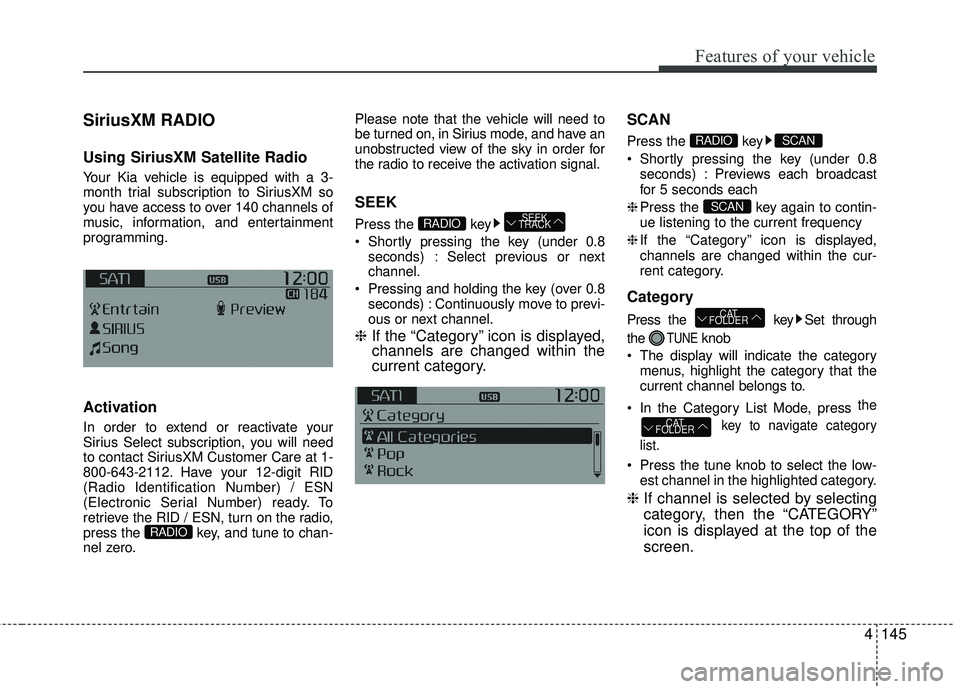
SiriusXM RADIO
Using SiriusXM Satellite Radio
Your Kia vehicle is equipped with a 3-
month trial subscription to SiriusXM so
you have access to over 140 channels of
music, information, and entertainment
programming.
Activation
In order to extend or reactivate your
Sirius Select subscription, you will need
to contact SiriusXM Customer Care at 1-
800-643-2112. Have your 12-digit RID
(Radio Identification Number) / ESN
(Electronic Serial Number) ready. To
retrieve the RID / ESN, turn on the radio,
press the key, and tune to chan-
nel zero.Please note that the vehicle will need to
be turned on, in Sirius mode, and have an
unobstructed view of the sky in order for
the radio to receive the activation signal.
SEEK
Press the key
Shortly pressing the key (under 0.8
seconds) : Select previous or next
channel.
Pressing and holding the key (over 0.8 seconds) : Continuously move to previ-
ous or next channel.
❈ If the “Category” icon is displayed,
channels are changed within the
current category. SCAN
Press the key
Shortly pressing the key (under 0.8
seconds) : Previews each broadcast
for 5 seconds each
❈ Press the key again to contin-
ue listening to the current frequency
❈ If the “Category” icon is displayed,
channels are changed within the cur-
rent category.
Category
Press the key Set through
the
TUNEknob
The display will indicate the category menus, highlight the category that the
current channel belongs to.
In the Category List Mode, press the
key to navigate category
list.
Press the tune knob to select the low- est channel in the highlighted category.
❈ If channel is selected by selecting
category, then the “CATEGORY”
icon is displayed at the top of the
screen.
CAT
FOLDER
CAT
FOLDER
SCAN
SCANRADIO
SEEK
TRACKRADIO
RADIO
Page 217 of 449
Features of your vehicle
146
4 Preset
Press the key ~
Shortly pressing the key (under 0.8
seconds) : Plays the frequency saved
in the corresponding key.
Pressing and holding the key (over 0.8 seconds) : Pressing and holding the
desired key from ~ will
save the current broadcast to the
selected key and sound a BEEP.
✽ ✽ NOTICE- Troubleshooting
1. Antenna Error
If this message is displayed, the anten-
na or antenna cable is broken or
unplugged. Please consult with your
Kia dealership.
2. No Signal If this message is displayed, it means
that the antenna is covered and that
the SiriusXM Satellite Radio signal is
not available. Ensure the antenna is
uncovered and has a clear view of the
sky.
Tune
Rotate TUNE knob : Changes the
channel number or scrolls category
list.
Press TUNE knob : Selects the menu.
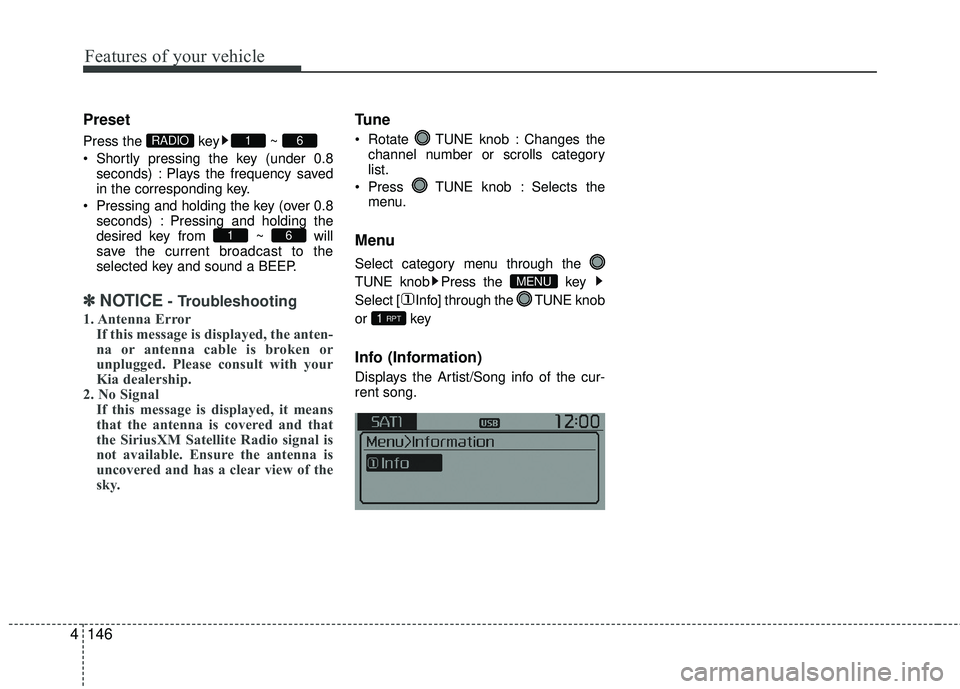
Menu
Select category menu through the
TUNE knob Press the key
Select [ Info] through the TUNE knob
or key
Info (Information)
Displays the Artist/Song info of the cur-
rent song.
1 RPT
MENU
61
61RADIO
Page 240 of 449
Features of your vehicle
4169
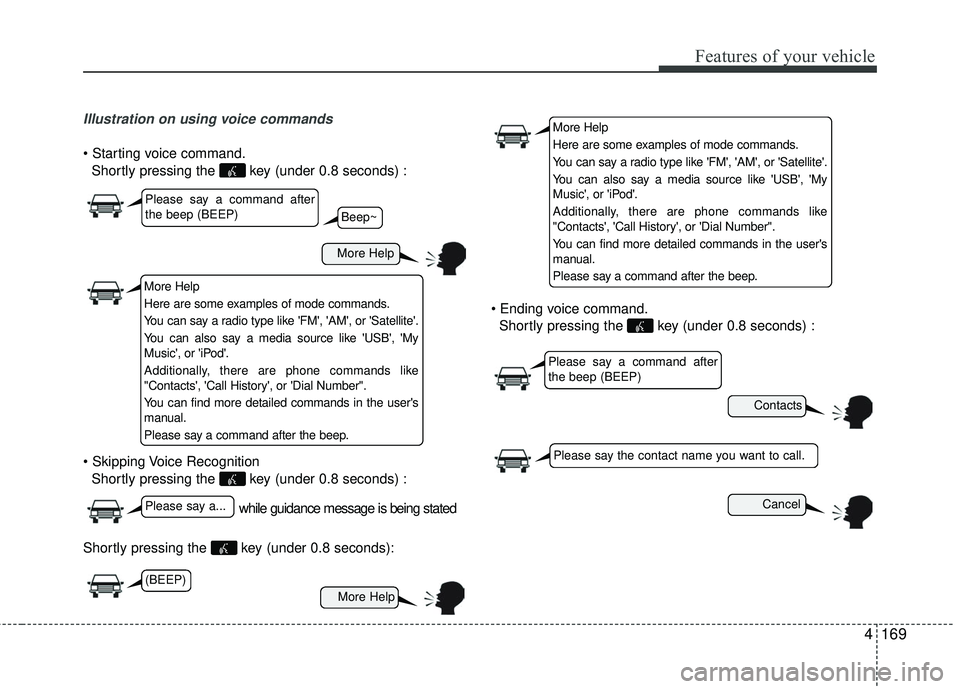
Illustration on using voice commands
Shortly pressing the key (under 0.8 seconds) :
Shortly pressing the key (under 0.8 seconds) :
Shortly pressing the key (under 0.8 seconds):
Shortly pressing the key (under 0.8 seconds) :
while guidance message is being stated
More Help
Contacts
Cancel
More Help
Please say a command after
the beep (BEEP)
Please say a...
Please say the contact name you want to call.
Beep~
More Help
Here are some examples of mode commands.
You can say a radio type like 'FM', 'AM', or 'Satellite'.
You can also say a media source like 'USB', 'My
Music', or 'iPod'.
Additionally, there are phone commands like
"Contacts', 'Call History', or 'Dial Number".
You can find more detailed commands in the user's
manual.
Please say a command after the beep.
More Help
Here are some examples of mode commands.
You can say a radio type like 'FM', 'AM', or 'Satellite'.
You can also say a media source like 'USB', 'My
Music', or 'iPod'.
Additionally, there are phone commands like
"Contacts', 'Call History', or 'Dial Number".
You can find more detailed commands in the user's
manual.
Please say a command after the beep.
Please say a command after
the beep (BEEP)
(BEEP)
Page 241 of 449
Features of your vehicle
170
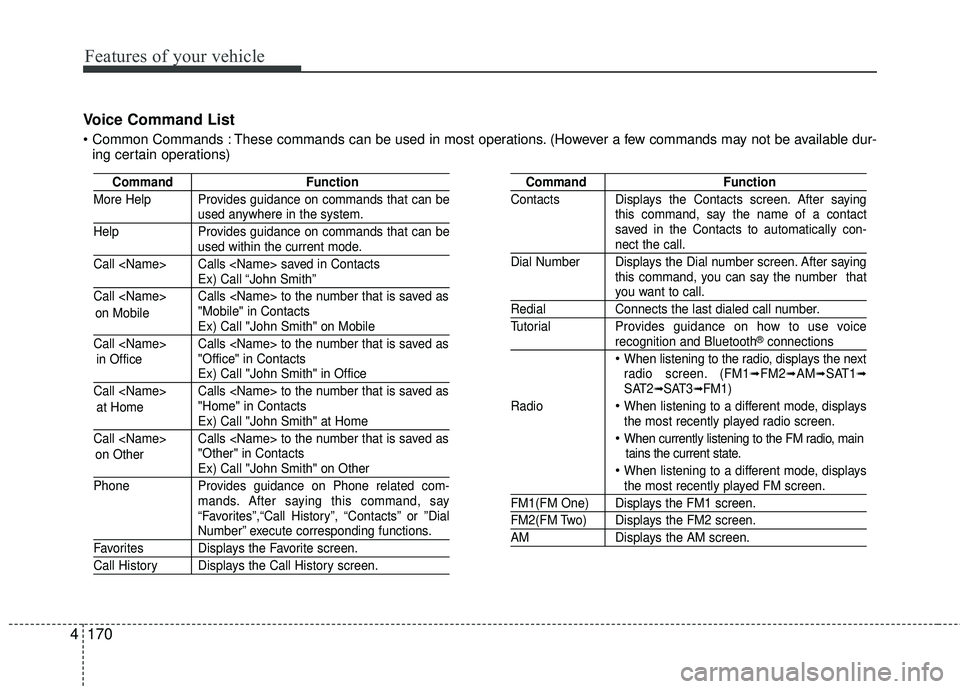
4 Voice Command List
These commands can be used in most operations. (However a few commands may not be available dur-
ing certain operations)
Command Function
More Help Provides guidance on commands that can be
used anywhere in the system.
Help Provides guidance on commands that can be
used within the current mode.
Call
Ex) Call “John Smith”
Call
Ex) Call "John Smith" on Mobile
Call
Ex) Call "John Smith" in Office
Call
Ex) Call "John Smith" at Home
Call
Ex) Call "John Smith" on Other
Phone Provides guidance on Phone related com- mands. After saying this command, say
“Favorites”,“Call History”, “Contacts” or ”Dial
Number” execute corresponding functions.
Favorites Displays the Favorite screen.
Call History Displays the Call History screen.
Command Function
Contacts Displays the Contacts screen. After saying this command, say the name of a contact
saved in the Contacts to automatically con-
nect the call.
Dial Number Displays the Dial number screen. After saying this command, you can say the number that
you want to call.
RedialConnects the last dialed call number.
Tutorial Provides guidance on how to use voice
recognition and Bluetooth®connections
When listening to the radio, displays the next
radio screen. (FM1➟FM2➟AM➟SAT1➟SAT2➟SAT3➟FM1)
Radio
When listening to a different mode, displays
the most recently played radio screen.
When currently listening to the FM radio, main tains the current state.
When listening to a different mode, displaysthe most recently played FM screen.
FM1(FM One) Displays the FM1 screen.
FM2(FM Two) Displays the FM2 screen.
AM Displays the AM screen.
on Mobile
in Office
at Home
on Other
Page 243 of 449
Features of your vehicle
172
4
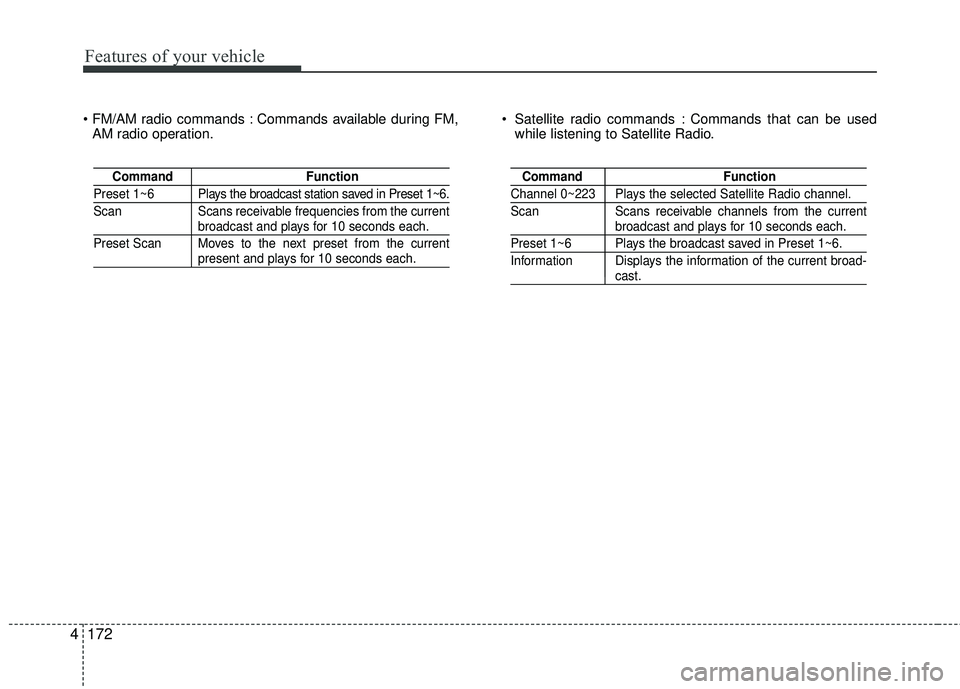
Commands available during FM,
AM radio operation. Satellite radio commands : Commands that can be used
while listening to Satellite Radio.
Command Function
Preset 1~6 Plays the broadcast station saved in Preset 1~6.
Scan Scans receivable frequencies from the current
broadcast and plays for 10 seconds each.
Preset Scan Moves to the next preset from the current
present and plays for 10 seconds each.
Command Function
Channel 0~223 Plays the selected Satellite Radio channel.
Scan Scans receivable channels from the current
broadcast and plays for 10 seconds each.
Preset 1~6 Plays the broadcast saved in Preset 1~6.
Information Displays the information of the current broad-
cast.