ECO mode KIA RIO 2017 Owner's Manual
[x] Cancel search | Manufacturer: KIA, Model Year: 2017, Model line: RIO, Model: KIA RIO 2017Pages: 449, PDF Size: 14.88 MB
Page 204 of 449
Features of your vehicle
4133
Voice Recognition (if equipped)
When using the voice recognition fea-
ture, only commands listed within the
user's manual are supported.
Be aware that during the operation of the voice recognition system, pressing
any key other than the key termi-
nate voice recognition mode.
For optimal voice recognition perform- ance, position your head below the
microphone above the driver’s seat
and maintain proper position when
speaking voice commands.
Within the following situations, voice recognition may not function properly
due to external sound.
- When the windows and sunroof are open
- When the blower AC/heater is set to high
- When entering and passing through tunnels
(Continued)(Continued)
- When driving on rugged and uneven roads
- During severe rain (heavy rains, wind- storms)
Phone related voice commands can be used only when a Bluetooth® Wireless
Technology device is connected.
When making calls by stating a name, the corresponding contact must be
downloaded and stored within the
audio system.
After downloading the Bluetooth® Wireless Technology phone book, it
takes some times to convert the phone
book data into voice information.
During this time, voice recognition may
not properly operate.
Pronounce the voice commands natu- rally and clearly as if in a normal con-
versation.
Page 207 of 449
Features of your vehicle
136
4
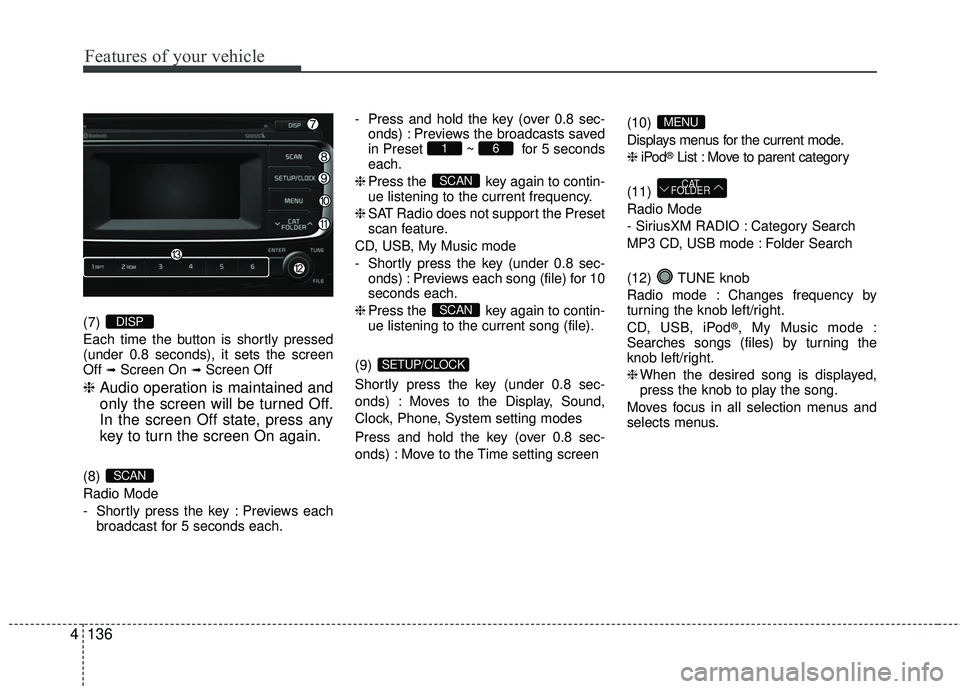
(7)
Each time the button is shortly pressed
(under 0.8 seconds), it sets the screen
Off
➟Screen On ➟Screen Off
❈ Audio operation is maintained and
only the screen will be turned Off.
In the screen Off state, press any
key to turn the screen On again.
(8)
Radio Mode
- Shortly press the key : Previews each
broadcast for 5 seconds each. - Press and hold the key (over 0.8 sec-
onds) : Previews the broadcasts saved
in Preset ~ for 5 seconds
each.
❈ Press the key again to contin-
ue listening to the current frequency.
❈ SAT Radio does not support the Preset
scan feature.
CD, USB, My Music mode
- Shortly press the key (under 0.8 sec- onds) : Previews each song (file) for 10
seconds each.
❈ Press the key again to contin-
ue listening to the current song (file).
(9)
Shortly press the key (under 0.8 sec-
onds) : Moves to the Display, Sound,
Clock, Phone, System setting modes
Press and hold the key (over 0.8 sec-
onds) : Move to the Time setting screen (10)
Displays menus for the current mode.
❈
iPod
®List : Move to parent category
(11)
Radio Mode
- SiriusXM RADIO : Category Search
MP3 CD, USB mode : Folder Search
(12) TUNE knob
Radio mode : Changes frequency by
turning the knob left/right.
CD, USB, iPod
®, My Music mode :
Searches songs (files) by turning the
knob left/right.
❈ When the desired song is displayed,
press the knob to play the song.
Moves focus in all selection menus and
selects menus.
CAT
FOLDER
MENU
SETUP/CLOCK
SCAN
SCAN
61
SCAN
DISP
Page 209 of 449
Features of your vehicle
138
4
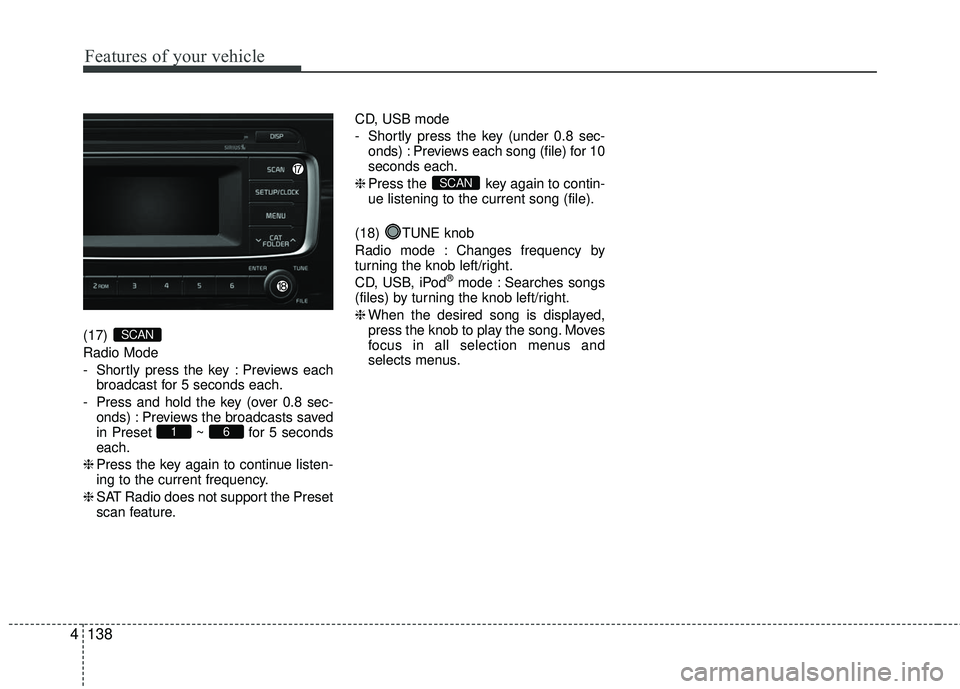
(17)
Radio Mode
- Shortly press the key : Previews each
broadcast for 5 seconds each.
- Press and hold the key (over 0.8 sec- onds) : Previews the broadcasts saved
in Preset ~ for 5 seconds
each.
❈ Press the key again to continue listen-
ing to the current frequency.
❈ SAT Radio does not support the Preset
scan feature. CD, USB mode
- Shortly press the key (under 0.8 sec-
onds) : Previews each song (file) for 10
seconds each.
❈ Press the key again to contin-
ue listening to the current song (file).
(18) TUNE knob
Radio mode : Changes frequency by
turning the knob left/right.
CD, USB, iPod
®mode : Searches songs
(files) by turning the knob left/right.
❈ When the desired song is displayed,
press the knob to play the song. Moves
focus in all selection menus and
selects menus.
SCAN
61
SCAN
Page 213 of 449
![KIA RIO 2017 Owners Manual Features of your vehicle
142
4
SYSTEM SETTINGS
Press the key Select
[System] Select menu through
TUNE knob
Memory Information
(if equipped)
Displays currently used memory and
total system memory.](/img/2/40419/w960_40419-212.png "KIA RIO 2017 Owners Manual Features of your vehicle
142
4
SYSTEM SETTINGS
Press the key Select
[System] Select menu through
TUNE knob
Memory Information
(if equipped)
Displays currently used memory and
total system memory.")
Features of your vehicle
142
4
SYSTEM SETTINGS
Press the key Select
[System] Select menu through
TUNE knob
Memory Information
(if equipped)
Displays currently used memory and
total system memory.
Select [Memory Information] OK
The currently used memory is displayed
on the left side while the total system
memory is displayed on the right side.
Prompt Feedback (if equipped)
This feature is used to change voice
command feedback between Normal and
Expert modes.
Select [Prompt Feedback] Set through
TUNEknob
On : This mode is for beginner users and provides detailed instructions dur-
ing voice command operation.
Off : This mode is for expert users and omits some information during voice
command operation. (When using
Expert mode, guidance instructions
can be heard through the [Help] or
[Menu] commands.
Language
This menu is used to set the display and
voice recognition language.
Select [Language] Set through TUNE knob
❈ The system will reboot after the lan-
guage is changed.
❈ Language support by region
- English, Francais, Espanol
SETUP/CLOCK
Page 216 of 449
Features of your vehicle
4145
SiriusXM RADIO
Using SiriusXM Satellite Radio
Your Kia vehicle is equipped with a 3-
month trial subscription to SiriusXM so
you have access to over 140 channels of
music, information, and entertainment
programming.
Activation
In order to extend or reactivate your
Sirius Select subscription, you will need
to contact SiriusXM Customer Care at 1-
800-643-2112. Have your 12-digit RID
(Radio Identification Number) / ESN
(Electronic Serial Number) ready. To
retrieve the RID / ESN, turn on the radio,
press the key, and tune to chan-
nel zero.Please note that the vehicle will need to
be turned on, in Sirius mode, and have an
unobstructed view of the sky in order for
the radio to receive the activation signal.
SEEK
Press the key
Shortly pressing the key (under 0.8
seconds) : Select previous or next
channel.
Pressing and holding the key (over 0.8 seconds) : Continuously move to previ-
ous or next channel.
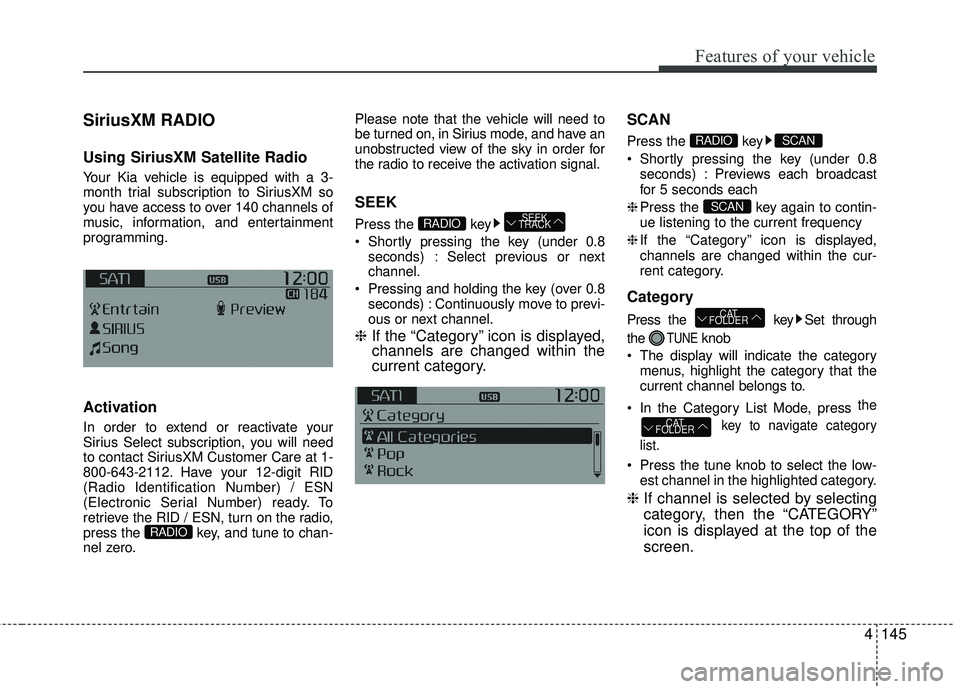
❈ If the “Category” icon is displayed,
channels are changed within the
current category. SCAN
Press the key
Shortly pressing the key (under 0.8
seconds) : Previews each broadcast
for 5 seconds each
❈ Press the key again to contin-
ue listening to the current frequency
❈ If the “Category” icon is displayed,
channels are changed within the cur-
rent category.
Category
Press the key Set through
the
TUNEknob
The display will indicate the category menus, highlight the category that the
current channel belongs to.
In the Category List Mode, press the
key to navigate category
list.
Press the tune knob to select the low- est channel in the highlighted category.
❈ If channel is selected by selecting
category, then the “CATEGORY”
icon is displayed at the top of the
screen.
CAT
FOLDER
CAT
FOLDER
SCAN
SCANRADIO
SEEK
TRACKRADIO
RADIO
Page 219 of 449
Features of your vehicle
148
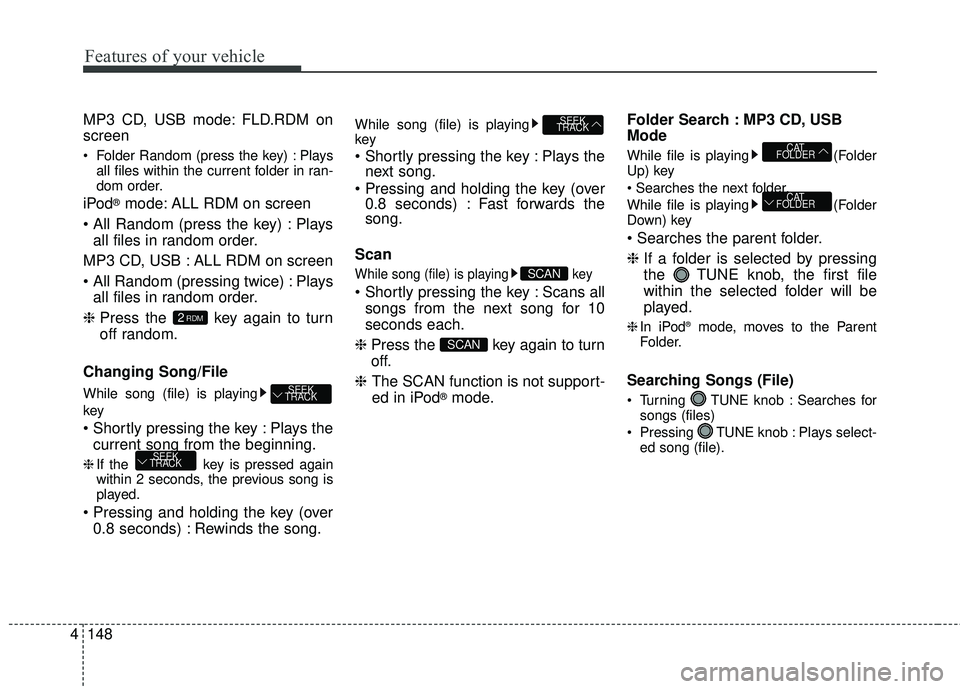
4 MP3 CD, USB mode: FLD.RDM on
screen
Folder Random (press the key) : Plays
all files within the current folder in ran-
dom order.
iPod®mode: ALL RDM on screen
Plays all files in random order.
MP3 CD, USB : ALL RDM on screen
Plays all files in random order.
❈ Press the key again to turn
off random.
Changing Song/File
While song (file) is playing
key
Plays the current song from the beginning.
❈ If the key is pressed again
within 2 seconds, the previous song is
played.
0.8 seconds) : Rewinds the song.
While song (file) is playing
key
Plays thenext song.
0.8 seconds) : Fast forwards the
song.
Scan
While song (file) is playing key
Scans all songs from the next song for 10
seconds each.
❈ Press the key again to turn
off.
❈ The SCAN function is not support-
ed in iPod
®mode. Folder Search : MP3 CD, USB
Mode
While file is playing
(Folder
Up) key
While file is playing (Folder
Down) key
❈ If a folder is selected by pressing
the TUNE knob, the first file
within the selected folder will be
played.
❈In iPod®mode, moves to the Parent
Folder.
Searching Songs (File)
Turning TUNE knob : Searches for songs (files)
Pressing TUNE knob : Plays select- ed song (file).
CAT
FOLDER
CAT
FOLDER
SCAN
SCAN
SEEK
TRACK
SEEK
TRACK
SEEK
TRACK
2RDM
Page 225 of 449
Features of your vehicle
154
4
PHONE
Before using the Bluetooth®Wireless
Technology phone features
Bluetooth®Wireless
Technology phone, you must first pair
and connect the
Bluetooth®Wireless
Technology mobile phone.
If the mobile phone is not paired or connected, it is not possible to enter
Phone mode. Once a phone is paired
or connected, the guidance screen will
be displayed.
If Priority is set upon vehicle ignition (IGN/ACC ON), the
Bluetooth®
Wireless Technology phone will be
automatically connected. Even if you
are outside, the
Bluetooth®Wireless
Technology phone will be automatically
connected once you are in the vicinity
of the vehicle. If you do not want auto-
matic
Bluetooth®Wireless Technology
phone connection, set the Bluetooth®
Wireless Technology power to OFF.
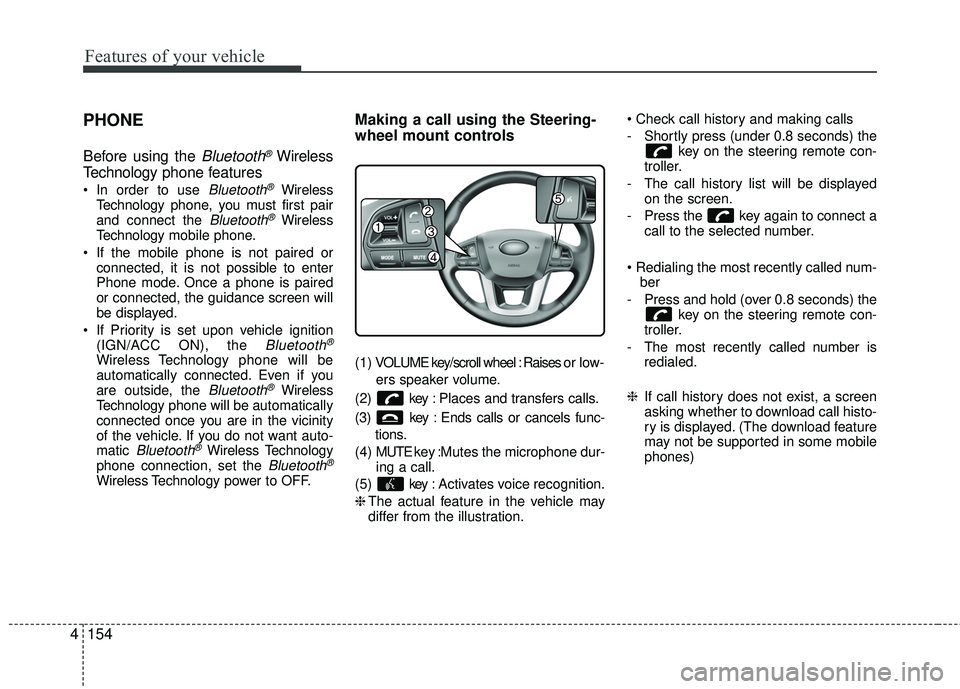
Making a call using the Steering-
wheel mount controls
( 1 ) VOLUME key/scroll wheel : Raises o r l ow -
ers speaker volume.
(2) key : Places and transfers calls.
(3) key : Ends calls or cancels func- tions.
(4) MUTE key : Mutes the microphone dur-
ing a call.
(5) key : Activates voice recognition.
❈ The actual feature in the vehicle may
differ from the illustration.
- Shortly press (under 0.8 seconds) the
key on the steering remote con-
troller.
- The call history list will be displayed on the screen.
- Press the key again to connect a call to the selected number.
ber
- Press and hold (over 0.8 seconds) the key on the steering remote con-
troller.
- The most recently called number is redialed.
❈ If call history does not exist, a screen
asking whether to download call histo-
ry is displayed. (The download feature
may not be supported in some mobile
phones)
Page 238 of 449
![KIA RIO 2017 Owners Manual Features of your vehicle
4167
VOICE RECOGNITION
Using Voice Recognition
Starting Voice Recognition
Shortly press the key on the steer-
ing wheel. Say a command.
If prompt feedback is in [ON], then](/img/2/40419/w960_40419-237.png "KIA RIO 2017 Owners Manual Features of your vehicle
4167
VOICE RECOGNITION
Using Voice Recognition
Starting Voice Recognition
Shortly press the key on the steer-
ing wheel. Say a command.
If prompt feedback is in [ON], then")
Features of your vehicle
4167
VOICE RECOGNITION
Using Voice Recognition
Starting Voice Recognition
Shortly press the key on the steer-
ing wheel. Say a command.
If prompt feedback is in [ON], then the
system will say “Please say a command
after the beep (BEEP)”
If prompt feedback is in [OFF] mode,then the system will only say “(BEEP)”
To change Prompt Feedback [On]/[Off], go to
[System] [Prompt Feedback]
For proper recognition, say the com- mand after the voice instruction and
beep tone.
Contact List Best Practices
1) Use full names vs. short or singlesylla- ble names (“John Smith” vs. “Dad”,
“Smith Residence” vs. “Home”)
2) Avoid using special characters or hyphens (@, &, #, /, -, *, +, etc.)
3) Avoid using acronyms (“In Case Emergency” vs. “ICE”)
4) Spell words completely, no abbrevia- tions (“Doctor Goodman” vs. “Dr.
Goodman”)
Skipping Prompt Messages
While prompt message is being stated
Shortly press the key on the steer-
ing remote controller
The prompt message is immediately
ended and the beep tone will sound.
After the “beep”, say the voice command.
Re-starting Voice Recognition
While system waits for a command
Shortly press the key on the steer-
ing remote controller
The command wait state is immediately
ended and the beep tone will sound.
After the “beep”, say the voice command.
SETUP/CLOCK
Page 239 of 449
Features of your vehicle
168
4
ENDING VOICE RECOGNITION
While Voice Recognition is operating
Press and hold the key on the steer-
ing remote controller
any steering wheel control or a different
key will end voice command.
command, say “cancel” or “end” to end
voice command.
command, press and hold the key
on the steering wheel to end voice com-
mand.
Voice Recognition and Phone
Contact Tips:
The Kia Voice Recognition System may
have difficulty understanding some
accents or uncommon names. When
using Voice Recognition to place a call,
speak in a moderate tone, with clear pro-
nunciation.
To maximize the use of Voice
Recognition, consider these guidelines
when storing contacts :
Use full names vs. short or single syl- lable names (“John Smith” vs. “Dad”,
“Smith Residence” vs. “Home”)
Avoid using special characters or hyphens (@, &, #, /, -, *, +, etc.)
Avoid using acronyms (“In Case Emergency” vs. “ICE”)
Spell words completely, no abbrevia- tions (“Doctor Goodman” vs. “Dr.
Goodman”)
Page 240 of 449
Features of your vehicle
4169
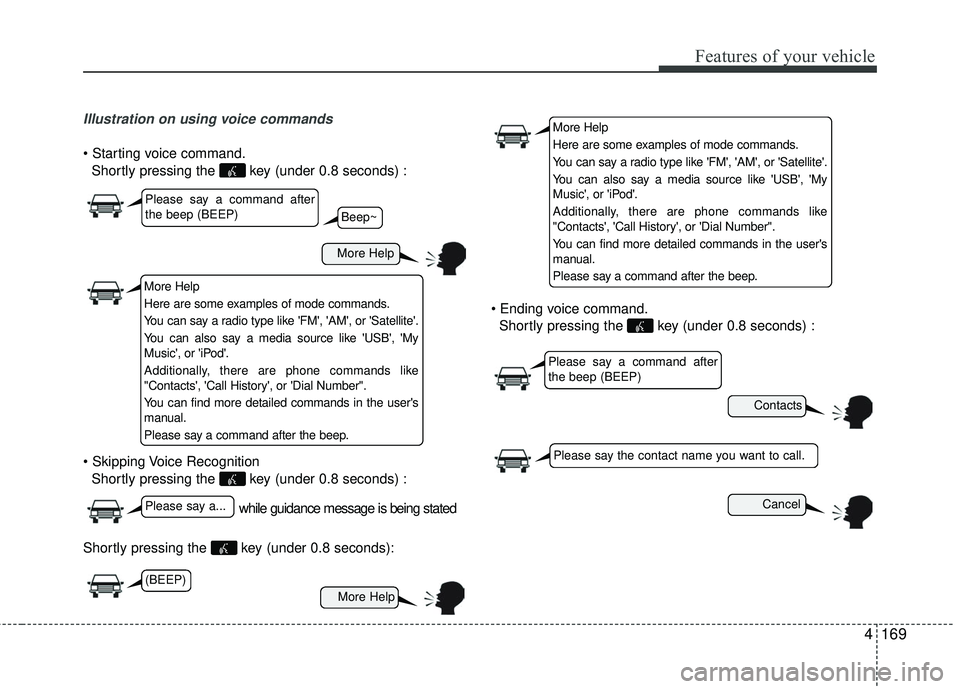
Illustration on using voice commands
Shortly pressing the key (under 0.8 seconds) :
Shortly pressing the key (under 0.8 seconds) :
Shortly pressing the key (under 0.8 seconds):
Shortly pressing the key (under 0.8 seconds) :
while guidance message is being stated
More Help
Contacts
Cancel
More Help
Please say a command after
the beep (BEEP)
Please say a...
Please say the contact name you want to call.
Beep~
More Help
Here are some examples of mode commands.
You can say a radio type like 'FM', 'AM', or 'Satellite'.
You can also say a media source like 'USB', 'My
Music', or 'iPod'.
Additionally, there are phone commands like
"Contacts', 'Call History', or 'Dial Number".
You can find more detailed commands in the user's
manual.
Please say a command after the beep.
More Help
Here are some examples of mode commands.
You can say a radio type like 'FM', 'AM', or 'Satellite'.
You can also say a media source like 'USB', 'My
Music', or 'iPod'.
Additionally, there are phone commands like
"Contacts', 'Call History', or 'Dial Number".
You can find more detailed commands in the user's
manual.
Please say a command after the beep.
Please say a command after
the beep (BEEP)
(BEEP)