audio KIA RIO 2017 Owner's Manual
[x] Cancel search | Manufacturer: KIA, Model Year: 2017, Model line: RIO, Model: KIA RIO 2017Pages: 449, PDF Size: 14.88 MB
Page 218 of 449
Features of your vehicle
4147
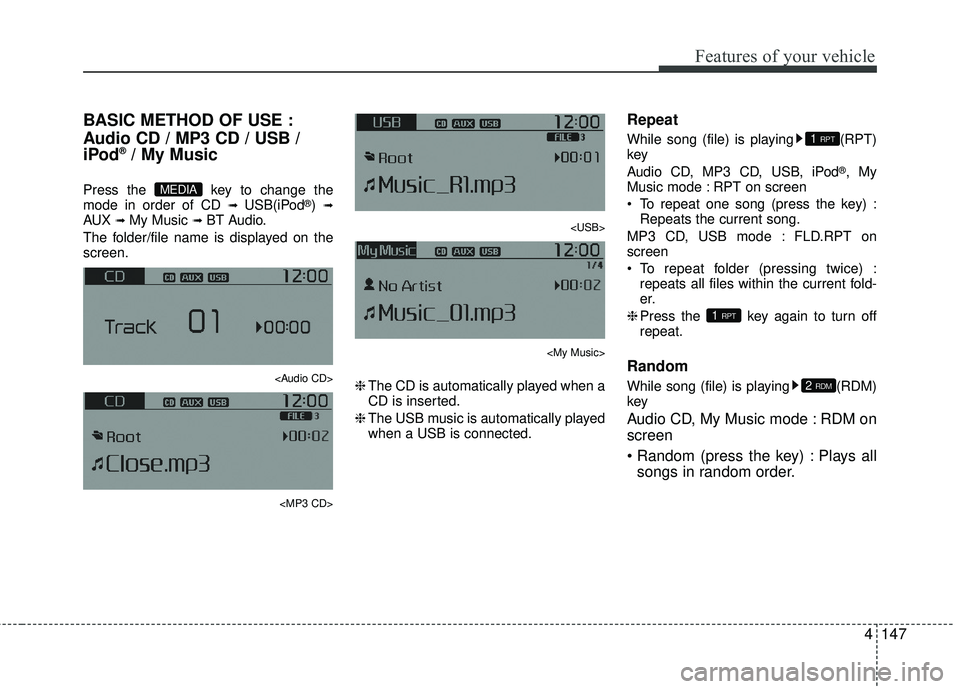
BASIC METHOD OF USE :
Audio CD / MP3 CD / USB /
iPod
®/ My Music
Press the key to change the
mode in order of CD ➟ USB(iPod®) ➟AUX ➟ My Music ➟ BT Audio.
The folder/file name is displayed on the
screen.
Page 220 of 449
![KIA RIO 2017 Owners Manual Features of your vehicle
4149
MENU : Audio CD
Press the Audio CD mode key to
set the Repeat, Random, Information
features.
Repeat
Press the key Set [ RPT]
through the TUNE knob or key
to repeat th](/img/2/40419/w960_40419-219.png "KIA RIO 2017 Owners Manual Features of your vehicle
4149
MENU : Audio CD
Press the Audio CD mode key to
set the Repeat, Random, Information
features.
Repeat
Press the key Set [ RPT]
through the TUNE knob or key
to repeat th")
Features of your vehicle
4149
MENU : Audio CD
Press the Audio CD mode key to
set the Repeat, Random, Information
features.
Repeat
Press the key Set [ RPT]
through the TUNE knob or key
to repeat the current song.
❈ Press RPT again to turn off.
Random
Press the key Set [ RDM]
through the TUNEknob or key to
randomly play songs within the current
CD.
❈ Press RDM again to turn off. Information
Press the key Set [ Info]
through the TUNEknob or key to
display information of the current song.
❈ Press the key to turn off info
display.
MENU : MP3 CD / USB
Press the MP3 CD / USB mode
key to set the Repeat, Folder Random,
Folder Repeat, All Random, Information,
and Copy features.
Repeat
Press the key Set [ RPT]
through the TUNEknob or key to
repeat the current song.
❈ Press RPT again to turn off. Folder Random
Press the key Set [ F.RDM]
through the TUNE knob or key
to randomly play songs within the current
folder.
❈
Press F.RDM again to turn off.
Folder Repeat
Press the key Set [ F.RPT]
through the TUNEknob or key to
repeat songs within the current folder.
❈ Press F.RPT again to turn off.
All Random
Press the key Set [ A.RDM]
through the TUNEknob or key to
randomly play all songs within the CD /
USB.
❈ Press A.RDM again to turn off.
4MENU
3MENU
2 RDM
MENU
1 RPTMENU
MENU
MENU
3MENU
2 RDMMENU
1 RPT
MENU
MENU
Page 223 of 449
Features of your vehicle
152
4
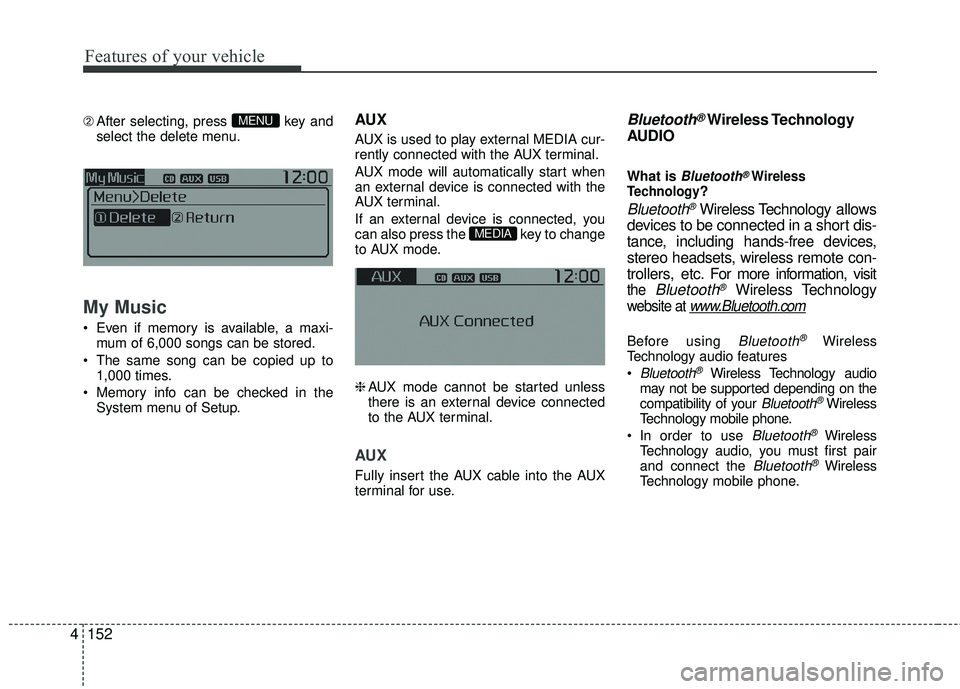
➁ After selecting, press key and
select the delete menu.
My Music
Even if memory is available, a maxi- mum of 6,000 songs can be stored.
The same song can be copied up to 1,000 times.
Memory info can be checked in the System menu of Setup.
AUX
AUX is used to play external MEDIA cur-
rently connected with the AUX terminal.
AUX mode will automatically start when
an external device is connected with the
AUX terminal.
If an external device is connected, you
can also press the key to change
to AUX mode.
❈AUX mode cannot be started unless
there is an external device connected
to the AUX terminal.
AUX
Fully insert the AUX cable into the AUX
terminal for use.
Bluetooth®Wireless Technology
AUDIO
What is Bluetooth®Wireless
Technology?
Bluetooth®Wireless Technology allows
devices to be connected in a short dis-
tance, including hands-free devices,
stereo headsets, wireless remote con-
trollers, etc. For more information, visit
the Bluetooth®Wireless Technology
website at www.Bluetooth.com
Before using Bluetooth®Wireless
Technology audio features
Bluetooth®Wireless Technology audio
may not be supported depending on the
compatibility of your
Bluetooth®Wireless
Technology mobile phone.
In order to use
Bluetooth®Wireless
Technology audio, you must first pair
and connect the
Bluetooth®Wireless
Technology mobile phone.
MEDIA
MENU
Page 224 of 449
Features of your vehicle
4153
The Bluetooth®word mark and logos
are registered trademarks owned by
Bluetooth SIG, Inc. and any use of such
marks by Kia is under license. Other
trademarks and trade names are those
of their respective owners. A Bluetooth
®
enabled cell phone is required to useBluetooth®Wireless Technology.
Bluetooth®Wireless Technology
audio
can be used only when the [Audio
Streaming] of Phone is turned .
Starting Bluetooth®Wireless
Technology Audio
key to change the
mode in order of CD ➟ USB ➟ AUX ➟My Music ➟ BT Audio.
Bluetooth®
Wireless Technology audio w ill start
playing.
❈ Audio may not automatically start play-
ing in some mobile phones.
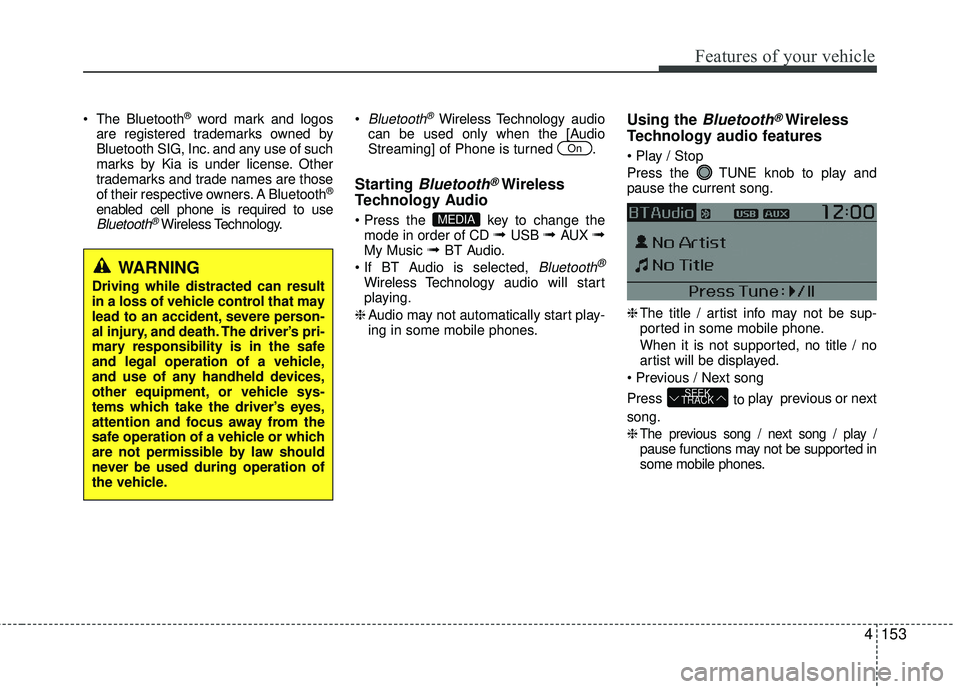
Using the Bluetooth®Wireless
Technology audio features
Press the TUNE knob to play and
pause the current song.
❈
The title / artist info may not be sup-
ported in some mobile phone.
When it is not supported, no title / no
artist will be displayed.
Press to play previous or next
song.
❈
The previous song / next song / play /pause functions may not be supported in
some mobile phones.
SEEK
TRACK
MEDIA
On
WARNING
Driving while distracted can result
in a loss of vehicle control that may
lead to an accident, severe person-
al injury, and death. The driver’s pri-
mary responsibility is in the safe
and legal operation of a vehicle,
and use of any handheld devices,
other equipment, or vehicle sys-
tems which take the driver’s eyes,
attention and focus away from the
safe operation of a vehicle or which
are not permissible by law should
never be used during operation of
the vehicle.
Page 226 of 449
Features of your vehicle
4155
Bluetooth®Wireless Technology
Pairing a
Bluetooth®Wireless
Technology Device
What is Bluetooth®Wireless
Technology Pairing?
Pairing refers to the process of synchro-
nizing your Bluetooth®Wireless
Technology phone or device with the car
audio system for connection. Pairing is
necessary to connect and use the
Bluetooth®Wireless Technology feature.
The Bluetooth®word mark and logos are
registered trademarks owned by
Bluetooth SIG, Inc. and any use of such
marks by Kia is under license. Other
trademarks and trade names are those
of their respective owners. A Bluetooth
®
enabled cell phone is required to useBluetooth®Wireless Technology
Pairing key / key on
the Steering Remote Controller
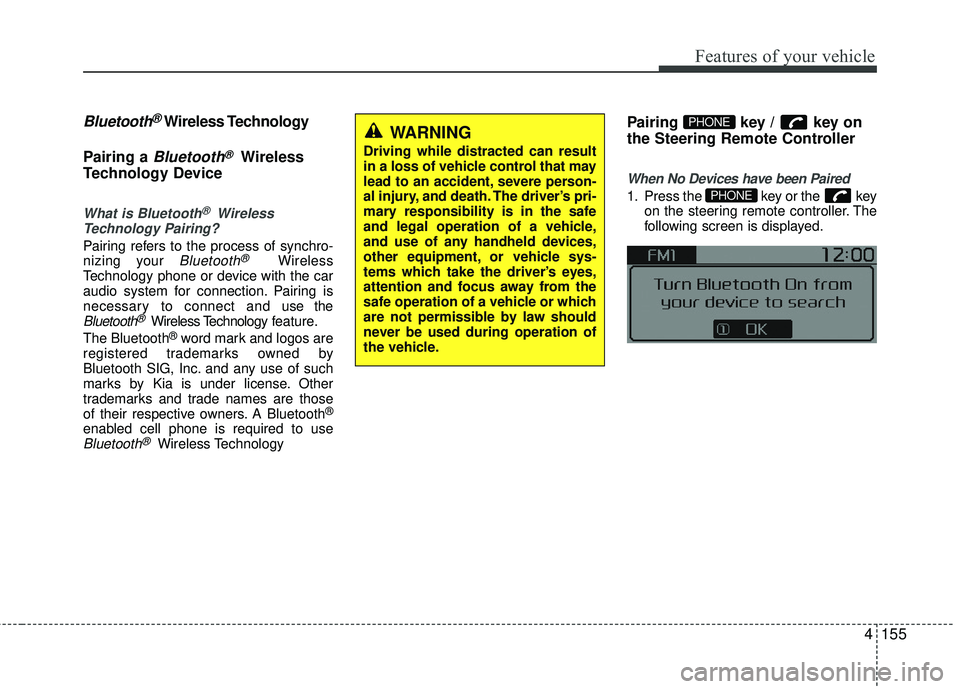
When No Devices have been Paired
1. Press the key or the key on the steering remote controller. The
following screen is displayed.PHONE
PHONEWARNING
Driving while distracted can result
in a loss of vehicle control that may
lead to an accident, severe person-
al injury, and death. The driver’s pri-
mary responsibility is in the safe
and legal operation of a vehicle,
and use of any handheld devices,
other equipment, or vehicle sys-
tems which take the driver’s eyes,
attention and focus away from the
safe operation of a vehicle or which
are not permissible by law should
never be used during operation of
the vehicle.
Page 227 of 449
![KIA RIO 2017 Owners Manual Features of your vehicle
156
4
2. Select [OK] button to enter the Pair
Phone screen.
1) Vehicle Name : Name of device as shown when searching from your
Bluetooth®Wireless Technology
device
2) Passkey](/img/2/40419/w960_40419-226.png "KIA RIO 2017 Owners Manual Features of your vehicle
156
4
2. Select [OK] button to enter the Pair
Phone screen.
1) Vehicle Name : Name of device as shown when searching from your
Bluetooth®Wireless Technology
device
2) Passkey")
Features of your vehicle
156
4
2. Select [OK] button to enter the Pair
Phone screen.
1) Vehicle Name : Name of device as shown when searching from your
Bluetooth®Wireless Technology
device
2) Passkey : Passkey used to pair the device
3. From your
Bluetooth®Wireless
Technology device (i.e. Mobile
Phone), search and select your car
audio system.
[Non SSP supported device]
(SSP: Secure Simple Pairing)
4. After a few moments, a screen is dis- played where the passkey is entered.
Hear, enter the passkey "0000" to pair
your
Bluetooth®Wireless Technology
device with the car audio system. [SSP supported device]
4. After a few moments, a screen is dis-
played 6 digits passkey. Hear, check
the passkey on your
Bluetooth®
Wireless Technology device and con-
firm.
5. Once pairing is complete, the follow- ing screen is displayed.
Some phones (i.e., iPhone
®, Android TMand
Blackberry®phones) may offer an option
to allow acceptance of all future Bluetooth connection requests
by default." and "Visit http://www.kia.com/us/en/content/owners/bluetoothfor
additional information on pairing your
Bluetooth-enabled mobile phone, and to
view a phone compatibility list. If
Bluetooth®Wireless Technology
devices are paired but none are cur-
rently connected, pressing the key or the key on the
steering wheel displays the following
screen. Select [Pair] button to pair a
new device or select [Connect] to connect
a previously paired device.
PHONE
Page 228 of 449
![KIA RIO 2017 Owners Manual Features of your vehicle
4157
Pairing through [PHONE] Setup
Press the key Select
[Phone] Select [Pair Phone] Select TUNE knob
1. The following steps are the same as those described in the section "W](/img/2/40419/w960_40419-227.png "KIA RIO 2017 Owners Manual Features of your vehicle
4157
Pairing through [PHONE] Setup
Press the key Select
[Phone] Select [Pair Phone] Select TUNE knob
1. The following steps are the same as those described in the section \"W")
Features of your vehicle
4157
Pairing through [PHONE] Setup
Press the key Select
[Phone] Select [Pair Phone] Select TUNE knob
1. The following steps are the same as those described in the section "When
No Devices have been Paired" on the
previous page.
Bluetooth®Wireless Technology fea-
tures supported within the vehicle are
as follows. Some features may not be
supported depending on your
Bluetooth®Wireless Technology
device.
- Outgoing/Incoming Handsfree calls
- Operations during a call (Switch to Private, Switch to call waiting, MIC
on/off)
- Downloading Call History
- Downloading Mobile Contacts
-
Bluetooth®Wireless Technology
device auto connection
- Bluetooth Audio Streaming
Up to five
Bluetooth®Wireless
Technology devices can be paired to
the Car Handsfree system.
Only one
Bluetooth®device can be
connected at a time.
Only one
Bluetooth®Wireless
Technology device can be connected
at a time.
Other devices cannot be paired while a
Bluetooth®Wireless Technology device
is connected. Only
Bluetooth®Wireless Technology
Handsfree and Bluetooth audio related
features are supported.
Bluetooth related operations are possi- ble only within devices that support
Handsfree or audio features, such as a
Bluetooth®Wireless Technology mobile
phone or a Bluetooth audio device.
If a connected
Bluetooth®Wireless
Technology device becomes discon-
nected due to being out of communica-
tion range, turning the device OFF, or a
Bluetooth®Wireless Technology com-
munication error, corresponding
Bluetooth®Wireless Technology
devices are automatically searched
and reconnected.
If the system becomes unstable due to communication errors between the car
Handsfree and the
Bluetooth®Wireless
Technology device, reset the device by
turning off and back on again. Upon
resetting
Bluetooth®Wireless
Technology device, the system will be
restored.
SETUP/CLOCK
Page 230 of 449
Features of your vehicle
4159
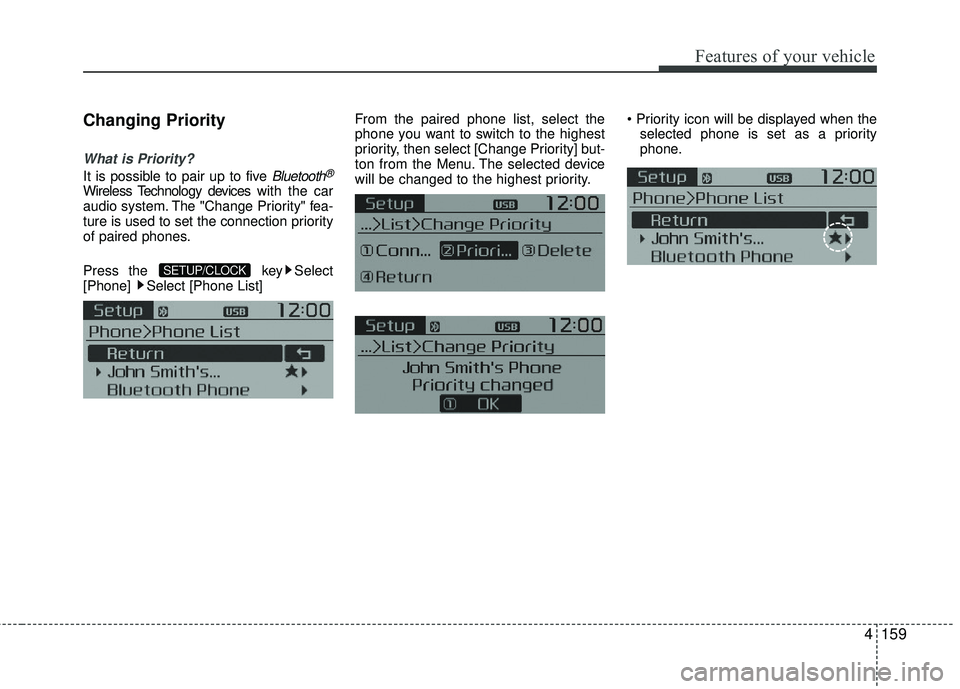
Changing Priority
What is Priority?
It is possible to pair up to five Bluetooth®
Wireless Technology deviceswith the car
audio system. The "Change Priority" fea-
ture is used to set the connection priority
of paired phones.
Press the key Select
[Phone] Select [Phone List] From the paired phone list, select the
phone you want to switch to the highest
priority, then select [Change Priority] but-
ton from the Menu. The selected device
will be changed to the highest priority.
selected phone is set as a priority
phone.
SETUP/CLOCK
Page 233 of 449
Features of your vehicle
162
4
✽ ✽
NOTICE
• When an incoming call pop-up is dis-
played, most Audio and SETUP mode
features are disabled. Only the call
volume will operate.
• The telephone number may not be properly displayed in some mobile
phones.
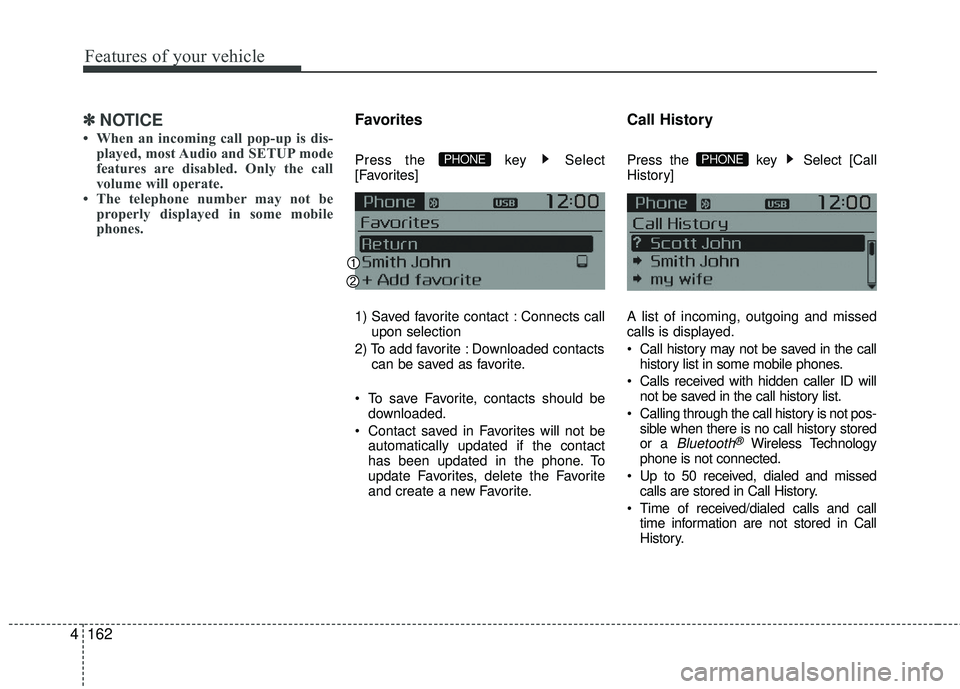
Favorites
Press the key Select
[Favorites]
1) Saved favorite contact : Connects call
upon selection
2) To add favorite : Downloaded contacts can be saved as favorite.
To save Favorite, contacts should be downloaded.
Contact saved in Favorites will not be automatically updated if the contact
has been updated in the phone. To
update Favorites, delete the Favorite
and create a new Favorite.
Call History
Press the key Select [Call
History]
A list of incoming, outgoing and missed
calls is displayed.
Call history may not be saved in the callhistory list in some mobile phones.
Calls received with hidden caller ID will not be saved in the call history list.
Calling through the call history is not pos- sible when there is no call history stored
or a
Bluetooth®Wireless Technology
phone is not connected.
Up to 50 received, dialed and missed calls are stored in Call History.
Time of received/dialed calls and call time information are not stored in Call
History.
PHONE PHONE
Page 234 of 449
![KIA RIO 2017 Owners Manual Features of your vehicle
4163
Contacts
Press the key Select
[Contacts]
The list of saved phone book entries is
displayed.
NOTE:
Find a contact in an alphabetical
order, press the key. Up to 1,000 co](/img/2/40419/w960_40419-233.png "KIA RIO 2017 Owners Manual Features of your vehicle
4163
Contacts
Press the key Select
[Contacts]
The list of saved phone book entries is
displayed.
NOTE:
Find a contact in an alphabetical
order, press the key. Up to 1,000 co")
Features of your vehicle
4163
Contacts
Press the key Select
[Contacts]
The list of saved phone book entries is
displayed.
NOTE:
Find a contact in an alphabetical
order, press the key. Up to 1,000 contacts saved in your
Bluetooth®Wireless Technology
phone can be downloaded into the car
contacts. Contacts that have been
downloaded to the car cannot be edit-
ed or deleted on the phone.
Mobile phone contacts are managed separately for each paired
Bluetooth®
Wireless Technology device (max 5
devices x 1,000 contacts each).
Previously downloaded data is main-
tained even if
the Bluetooth®Wireless
Technologydevice has been discon-
nected. (However, the contacts and call
history saved to the phone will be
deleted if a paired phone is deleted.)
It is possible to download contacts dur- ing Bluetooth streaming audio.
When downloading contacts, the icon will be displayed within the status bar. It is not possible to begin downloading a
contact list when the contact download
feature has been turned off within the
Bluetooth®Wireless Technology device.
In addition, some devices may require
device authorization upon attempting to
download contacts. If downloading does
not normally occur, check the
Bluetooth®Wireless Technology device
settings or the screen state.
The contacts download feature may not be supported in some mobile phones. For
more information of supported
Bluetooth®devices and function sup-
port, refer to your phone's user's manual.
MENU
PHONE