phone KIA RIO 2019 Owner's Manual
[x] Cancel search | Manufacturer: KIA, Model Year: 2019, Model line: RIO, Model: KIA RIO 2019Pages: 503, PDF Size: 10.4 MB
Page 251 of 503
Audio system
31
5
Precautions when connecting Bluetooth®
Wireless Technology devices
The vehicle supports the following
Bluetooth®Wireless Technology
functions. Some
Bluetooth®
Wireless Technology devices may
not support some functions.
1)
Bluetooth®Wireless Technology
Handsfree phone calls
2) Operations during a call (Private, Switch, Out Vol. controls)
3) Download call history saved to the
Bluetooth®Wireless Technology
device
4) Download contacts saved to the
Bluetooth®Wireless Technology
device
5) Automatic contacts/call history download when
Bluetooth®
Wireless Technology is connected
6) Automatic
Bluetooth®Wireless
Technology device connection
when the vehicle is started
7)
Bluetooth®Wireless Technology
audio streaming playback Before connecting the audio sys-
tem to your device, make sure your
device supports
Bluetooth®Wireless
Technology.
Even if your device supports
Bluetooth®Wireless Technology, a
Bluetooth®Wireless Technology
connection cannot be established
if the device’s
Bluetooth®Wireless
Technology function is switched off.
Search and connect with the
Bluetooth®
Wireless Technology function enabled.
Pair or connect
Bluetooth®Wireless
Technology devices to the audio
system with the vehicle at a standstill.
If a
Bluetooth®Wireless Technology
connection is lost due to abnormal
conditions while a
Bluetooth®
Wireless Technology device is connect-
ed (communication range exceed-
ed, device power OFF, communi-
cation errors, etc.), the disconnect-
ed
Bluetooth®Wireless Technology
device is searched for and auto-
matically reconnected. If you want to disable the
Bluetooth®
Wireless Technology device auto
connect function, turn the
Bluetooth®
Wireless Technology function OFF
on your device when you are not driv-
ing or when the car is parked.
Consult the user manuals for individ-
ual devices to see whether
Bluetooth® Wireless Technology is
supported.
Handsfree call quality and volume may vary depending on the type of
Bluetooth®Wireless Technology
device.
SC CAN (ENG) 5(audio).qxp 7/18/2018 6:02 PM Page 31
Page 252 of 503
Audio system
532 Some
Bluetooth®Wireless Technology
devices are subject to intermittent
Bluetooth®Wireless Technology
connection failures. In this case,
use the following method.
1) Turn the
Bluetooth®Wireless
Technology function off on your
Bluetooth®Wireless Technology
device ➟Turn it on and try again.
2) Delete the paired device from both the audio system and
Bluetooth®Wireless Technology
device, then pair again.
3) Power down your
Bluetooth®
Wireless Technology device ➟
Turn it on and try again.
4) Completely remove the battery from your
Bluetooth®Wireless
Technology device; reinsert it,
reboot, and attempt connection.
5) Restart the vehicle and reat- tempt connection.
Pairing a Bluetooth®Wireless
Technology device
Information on pairing Bluetooth®
Wireless Technology devices
Pairing refers to the process of pair-
ing
Bluetooth®Wireless Technology
cell phones or devices with the
system prior to connection. This is
a necessary procedure for
Bluetooth®
Wireless Technology connection
and usage.
Up to five devices can be paired.
Pairing the first Bluetooth
®Wireless
Technology device
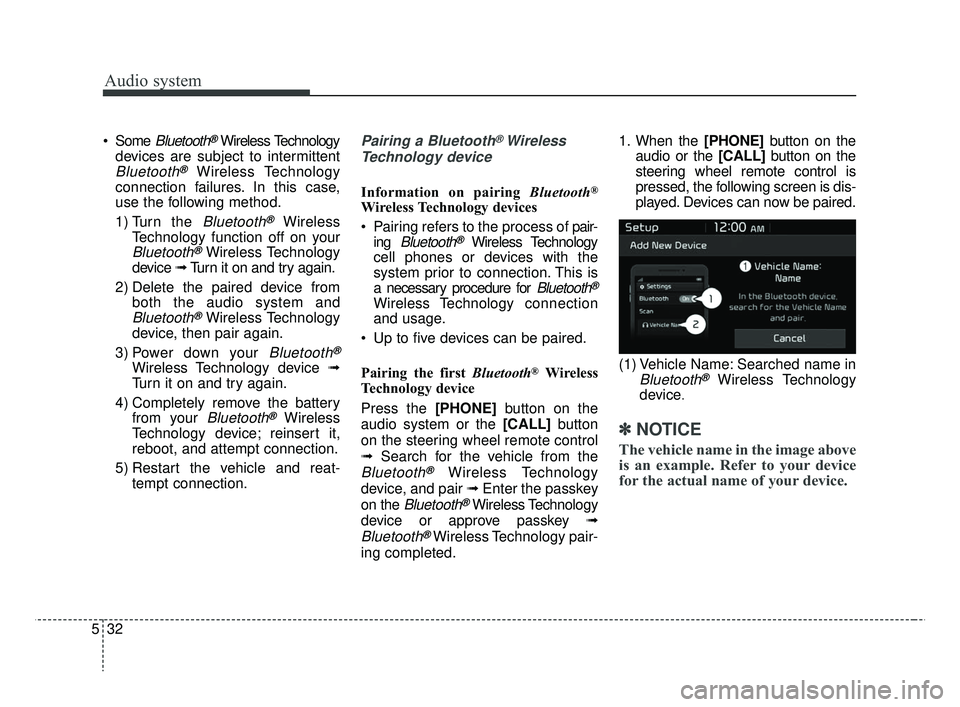
Press the [PHONE] button on the
audio system or the [CALL] button
on the steering wheel remote control
➟ Search for the vehicle from the
Bluetooth®Wireless Technology
device, and pair ➟ Enter the passkey
on the
Bluetooth®Wireless Technology
device or approve passkey ➟
Bluetooth®Wireless Technology pair-
ing completed. 1. When the [PHONE]
button on the
audio or the [CALL] button on the
steering wheel remote control is
pressed, the following screen is dis-
played. Devices can now be paired.
(1) Vehicle Name: Searched name in
Bluetooth®Wireless Technology
device
.
✽ ✽ NOTICE
The vehicle name in the image above
is an example. Refer to your device
for the actual name of your device.
SC CAN (ENG) 5(audio).qxp 7/18/2018 6:02 PM Page 32
Page 253 of 503
Audio system
33
5
2. Search for available
Bluetooth®
Wireless Technology devices in
the
Bluetooth®Wireless Technology
menu of your
Bluetooth®Wireless
Technology device (cell phone,
etc.).
3. Confirm that the vehicle name in your
Bluetooth®Wireless Technology
device matches the vehicle name
shown on the audio screen, then
select it.
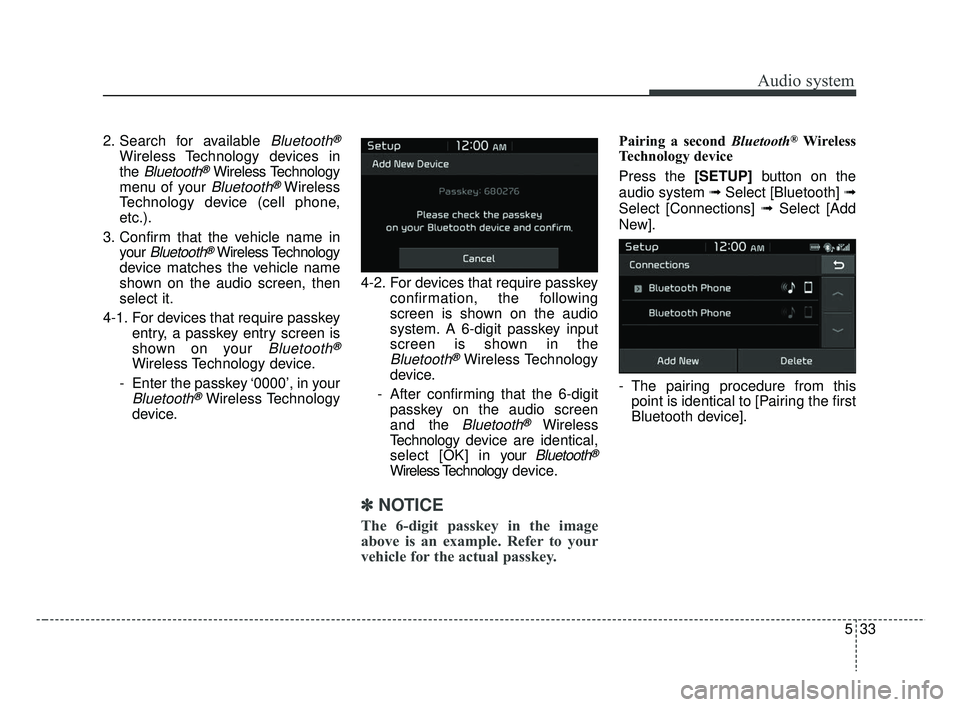
4-1. For devices that require passkey entry, a passkey entry screen is
shown on your
Bluetooth®
Wireless Technology device.
- Enter the passkey ‘0000’, in your
Bluetooth®Wireless Technology
device. 4-2. For devices that require passkey
confirmation, the following
screen is shown on the audio
system. A 6-digit passkey input
screen is shown in the
Bluetooth®Wireless Technology
device.
- After confirming that the 6-digit passkey on the audio screen
and the
Bluetooth®Wireless
Technology de vice are identical,
select [OK] in y our
Bluetooth®
Wireless Technology d e vice.
✽ ✽
NOTICE
The 6-digit passkey in the image
above is an example. Refer to your
vehicle for the actual passkey.
Pairing a second Bluetooth®Wireless
Technology device
Press the [SETUP] button on the
audio system ➟ Select [Bluetooth] ➟
Select [Connections] ➟ Select [Add
New].
- The pairing procedure from this point is identical to [Pairing the first
Bluetooth device].
SC CAN (ENG) 5(audio).qxp 7/18/2018 6:02 PM Page 33
Page 254 of 503
Audio system
534
✽ ✽NOTICE
•Bluetooth®Wireless Technology
standby mode lasts for three min-
utes. If a device is not paired within
three minutes, pairing is canceled.
Start over from the beginning.
• For most Bluetooth
®Wireless
Technology devices, a connection
is established automatically after
pairing. Some devices, however,
require separate confirmation
when connecting after pairing. Be
sure to check your Bluetooth
®
Wireless Technology device after
pairing to confirm that it has con-
nected.
Connecting Bluetooth®Wireless
Technology devices
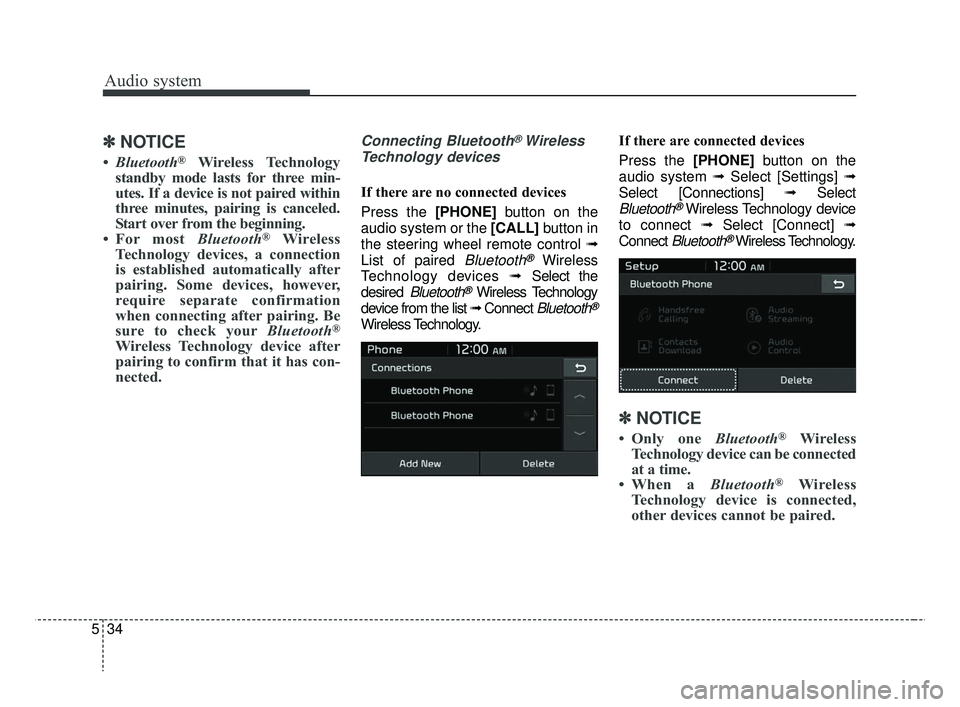
If there are no connected devices
Press the [PHONE] button on the
audio system or the [CALL] button in
the steering wheel remote control ➟
List of paired
Bluetooth®Wireless
Technology devices ➟Select the
desired
Bluetooth®Wireless Technology
device from the list ➟ Connect
Bluetooth®
Wireless Technology. If there are connected devices
Press the [PHONE]
button on the
audio system ➟ Select [Settings] ➟
Select [Connections] ➟Select
Bluetooth®Wireless Technology device
to connect ➟ Select [Connect] ➟
Connect
Bluetooth®Wireless Technology.
✽ ✽ NOTICE
• Only one Bluetooth®Wireless
Technology device can be connected
at a time.
• When a Bluetooth
®Wireless
Technology device is connected,
other devices cannot be paired.
SC CAN (ENG) 5(audio).qxp 7/18/2018 6:02 PM Page 34
Page 255 of 503
Audio system
35
5
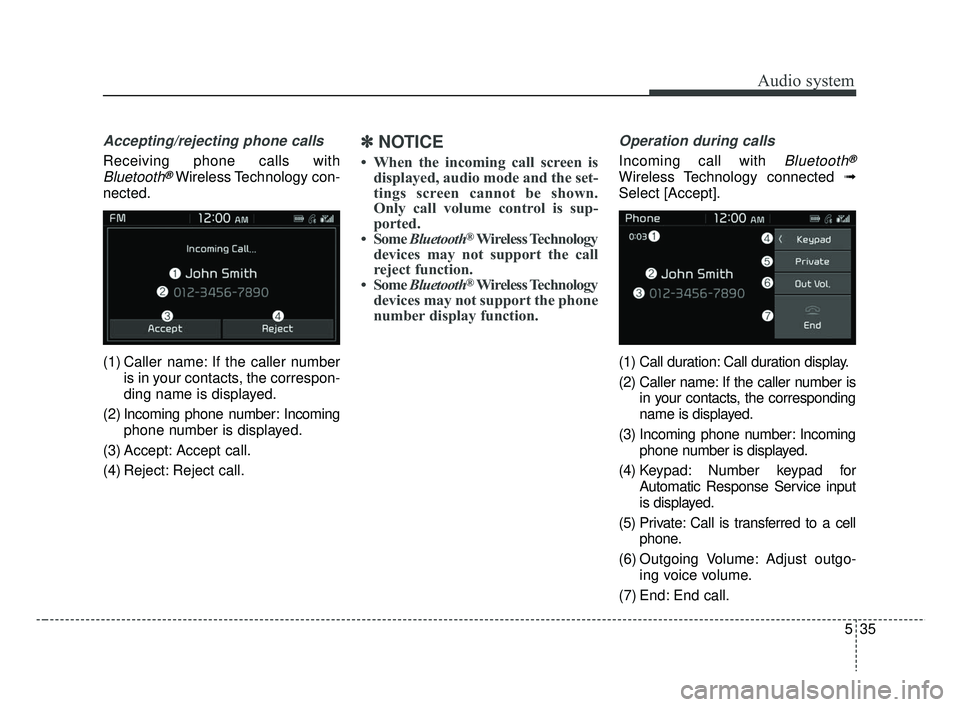
Accepting/rejecting phone calls
Receiving phone calls with
Bluetooth®Wireless Technology con-
nected.
(1) Caller name: If the caller number is in your contacts, the correspon-
ding name is displayed.
(2) Incoming phone number: Incoming phone number is displayed.
(3) Accept: Accept call.
(4) Reject: Reject call.
✽ ✽ NOTICE
• When the incoming call screen is
displayed, audio mode and the set-
tings screen cannot be shown.
Only call volume control is sup-
ported.
• Some Bluetooth
®Wireless Technology
devices may not support the call
reject function.
• Some Bluetooth
®Wireless Technology
devices may not support the phone
number display function.
Operation during calls
Incoming call with Bluetooth®
Wireless Technology connected ➟
Select [Accept].
(1) Call duration: Call duration display.
(2) Caller name: If the caller number is in your contacts, the corresponding
name is displayed.
(3) Incoming phone number: Incoming phone number is displayed.
(4) Keypad: Number keypad for Automatic Response Service input
is displayed.
(5) Private: Call is transferred to a cell phone.
(6) Outgoing Volume: Adjust outgo- ing voice volume.
(7) End: End call.
SC CAN (ENG) 5(audio).qxp 7/18/2018 6:02 PM Page 35
Page 256 of 503
Audio system
536
✽ ✽NOTICE
• Some Bluetooth®Wireless Technology
devices may not support the
Private function.
• The outgoing voice volume may vary depending on the type of
Bluetooth
®Wireless Technology
device. If the outgoing voice vol-
ume is too high or low, adjust the
Out Vol.
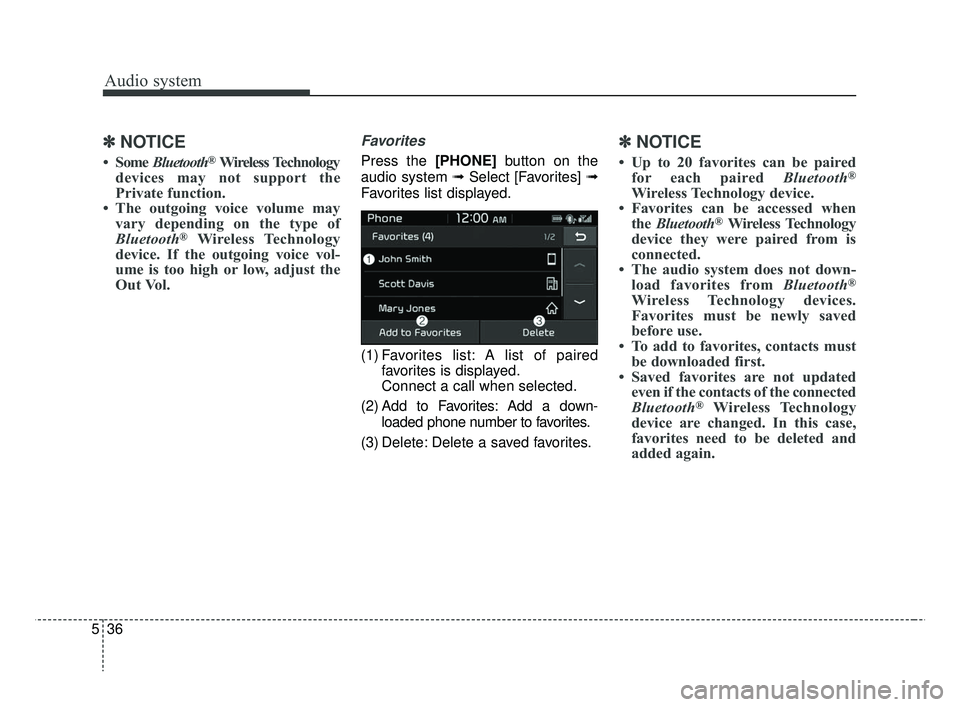
Favorites
Press the [PHONE] button on the
audio system ➟ Select [Favorites] ➟
Favorites list displayed.
(1) Favorites list: A list of paired favorites is displayed.
Connect a call when selected.
(2) Add to Favorites: Add a down- loaded phone number to favorites.
(3) Delete: Delete a saved favorites.
✽ ✽ NOTICE
• Up to 20 favorites can be paired
for each paired Bluetooth®
Wireless Technology device.
• Favorites can be accessed when the Bluetooth
®Wireless Technology
device they were paired from is
connected.
• The audio system does not down- load favorites from Bluetooth
®
Wireless Technology devices.
Favorites must be newly saved
before use.
• To add to favorites, contacts must be downloaded first.
• Saved favorites are not updated even if the contacts of the connected
Bluetooth
®Wireless Technology
device are changed. In this case,
favorites need to be deleted and
added again.
SC CAN (ENG) 5(audio).qxp 7/18/2018 6:02 PM Page 36
Page 257 of 503
![KIA RIO 2019 Owners Manual Audio system
37
5
Call history
Press the [PHONE] button on the
audio system ➟ Select [Call history]
➟ Call history is displayed.
(1) Call history: Display the down- loaded call history list.
Conne](/img/2/40414/w960_40414-256.png "KIA RIO 2019 Owners Manual Audio system
37
5
Call history
Press the [PHONE] button on the
audio system ➟ Select [Call history]
➟ Call history is displayed.
(1) Call history: Display the down- loaded call history list.
Conne")
Audio system
37
5
Call history
Press the [PHONE] button on the
audio system ➟ Select [Call history]
➟ Call history is displayed.
(1) Call history: Display the down- loaded call history list.
Connect a call when selected.
(2) Sort by: Sort by all calls, dialed calls, received calls or missed calls.
(3) Download: Download call history from connected
Bluetooth®Wireless
Technology devices.
✽ ✽ NOTICE
• Up to 50 dialed, received and
missed calls are saved.
• When the latest call history is received, the existing call history is
deleted.
Contacts
Press the [PHONE] button on the
audio system ➟ Select [Contacts] ➟
Select letter (ABC) ➟ Contacts dis-
played.
(1) Contacts: Display downloaded contacts.
Connect a call when selected.
(2) Download: Download contacts from connected
Bluetooth®
Wireless Technology devices.
✽ ✽NOTICE
• Only supported contacts format
can be downloaded and displayed
from the Bluetooth
®Wireless
Technology device, contacts from
some applications will not be
included.
• Up to 2,000 contacts can be saved.
• In some cases, additional confir- mation from your Bluetooth
®
Wireless Technology device is nec-
essary when downloading con-
tacts. If downloading of contacts
unsuccessful, consult your
Bluetooth
®Wireless Technology
device’s settings or the audio
screen to approve the download.
• Contacts without phone numbers are not displayed.
SC CAN (ENG) 5(audio).qxp 7/18/2018 6:02 PM Page 37
Page 258 of 503
![KIA RIO 2019 Owners Manual Audio system
538
Dial
Press the [PHONE]button on the
audio ➟Select [Dial].
(1) Phone number entry window: The phone number entered using the
keypad is displayed.
(2) Clear - Select to delete indivi](/img/2/40414/w960_40414-257.png "KIA RIO 2019 Owners Manual Audio system
538
Dial
Press the [PHONE]button on the
audio ➟Select [Dial].
(1) Phone number entry window: The phone number entered using the
keypad is displayed.
(2) Clear - Select to delete indivi")
Audio system
538
Dial
Press the [PHONE]button on the
audio ➟Select [Dial].
(1) Phone number entry window: The phone number entered using the
keypad is displayed.
(2) Clear - Select to delete individual digits.
- Press and hold to delete theentire phone number.
(3) Keypad: Enter phone number.
(4)
Bluetooth®Wireless Technology
phone name
- The name of the connected
Bluetooth®Wireless Technology
device is displayed.
- Contacts matching the keypad number/letter input are displayed.(5) Call
- Enter and select a phone num-ber to call.
- Select without entering a phone number to see the most recent
dialed call.
Connections (if equipped)
Press the [PHONE] button on the
audio ➟Select [Connections].
- For connections setting, refer to Setup ➟Select [Bluetooth] ➟
Select [Connections] page.
Setup
Press the [PHONE] button on the
audio ➟Select [Settings].
- For phone Setup, refer to Setup page ➟Select [Bluetooth].
WARNING- Distracted
driving
Driving while distracted can
result in a loss of vehicle control
that may lead to an accident,
severe personal injury, and death.
The driver's primary responsibili-
ty is in the safe and legal opera-
tion of a vehicle, and use of any
handheld devices, other equip-
ment, or vehicle systems which
take the driver's eyes, attention
and focus away from the safe
operation of a vehicle or which
are not permissible by law should
never be used during operation
of the vehicle.
SC CAN (ENG) 5(audio).qxp 7/18/2018 6:02 PM Page 38
Page 432 of 503
Maintenance
60
8
✽ ✽
NOTICE - Window tinting pre-
caution
Window tint(especially metallic
film) might cause communication
disorder or poor radio reception,
and malfunction of the automatic
lighting system due to excessive
change of illumination inside the
vehicle. The solution used might also
flow into electric, electronic devices
causing disorder and failure.
CAUTION
Visually inspect the battery cap
to ensure it is securely closed.If the battery cap is not securelyclosed, moisture may enter thesystem and damage the electri-cal components.
CAUTION - Remodeling
Prohibited
Do not try remodeling the vehi-cle in any way. It is illegal, andmay affect the vehicle's perform-ance, durability, and safety. Themanufacturer's warranty doesnot cover any problems causedby remodeling. Remodeling thevehicle can cause malfunction ofthe vehicle, wiring damage, bat-tery discharge, connector dam-age, or fire.
CAUTION
Do not disassemble nor assem-ble the multi fuse when it issecured with nuts and bolts.Incorrect or partial assemblytorque may cause a fire. Havethe vehicle checked by anauthorized Kia dealer.
CAUTION - Random
wiring prohibited when
retrofitting equipment
Use of random wiring in the vehicle might cause danger dueto failure and damage of thevehicle’s performance.
Using random wires especiallywhen retrofitting AVN or theftalarm system, remote enginecontrol, car phone or radiomight damage the vehicle orcause fire.
SC CAN (ENG) 8.qxp 7/18/2018 5:34 PM Page 60
Page 495 of 503
Index
2I
Air bag - advanced supplemental restraint system ........3-33Adding equipment to or modifying your air bag-equipped vehicle ..........................................3-61
Air bag warning label ................................................3-61
Air bag warning light ..................................................3-37
Curtain air bag ............................................................3-53
Driver's and passenger's front air bag ........................3-48
How does the air bag system operate ........................3-34
Inflation and non-inflation conditions of the air bag..3-55
Occupant detection system ........................................3-40
Side air bag ................................................................3-51
SRS Care ....................................................................3-60\
SRS components and functions ..................................3-37
Air cleaner ....................................................................8-29\
Filter replacement ......................................................8-29
Air conditioning system ..................................................9-6
Appearance care ............................................................8-99 Exterior care ................................................................8-99
Interior care ..............................................................8-104
Audio (with touch screen) ..............................................5-8 Feature of your audio ....................................................5-9
Media ........................................................................\
..5-20
Phone ........................................................................\
..5-30
Radio ........................................................................\
..5-15
Setup ........................................................................\
..5-39
SiriusXM ....................................................................5-18\
Audio system ..................................................................5-2
Antenna ........................................................................\
5-2
AUX, USB port ............................................................5-3
How vehicle audio works ............................................5-3
Automatic climate control system ..............................4-119 Automatic heating and air conditioning ..................4-120
Manual heating and air conditioning ........................4-121
System operation ......................................................4-126
Automatic transmission ................................................6-18 Automatic transmission operation ..............................6-18
Good driving practices ................................................6-23
Battery........................................................................\
....8-37 For best battery service ..............................................8-37
Recharging the battery ................................................8-38
Reset items ..................................................................8-39
Before driving ..................................................................6-4 Before entering vehicle ................................................6-4
Before starting ..............................................................6-4
Necessary inspections ..................................................6-4
Brake system..................................................................6-24 Anti-lock Brake System (ABS) ..................................6-29
Electronic Stability Control (ESC) ............................6-30
Good braking practices ..............................................6-37
Hill-start assist control (HAC) ....................................6-34
Parking brake ..............................................................6-26
A
B
SC CAN (ENG) Index.qxp 7/18/2018 5:31 PM Page 2