ESP KIA RIO HATCHBACK 2012 User Guide
[x] Cancel search | Manufacturer: KIA, Model Year: 2012, Model line: RIO HATCHBACK, Model: KIA RIO HATCHBACK 2012Pages: 385, PDF Size: 9.68 MB
Page 145 of 385
Features of your vehicle
70
4
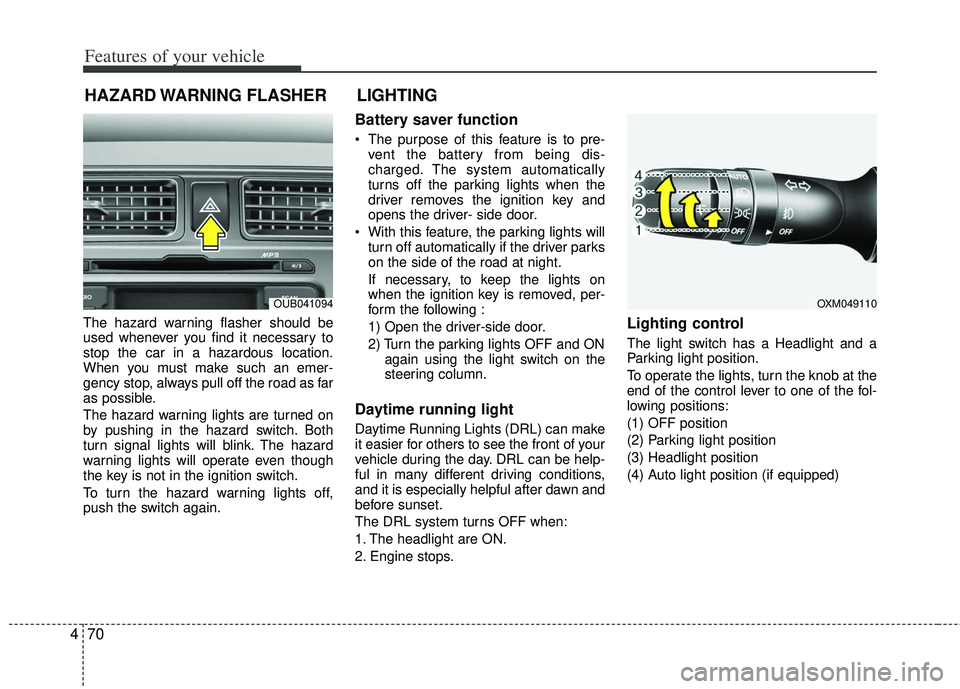
The hazard warning flasher should be
used whenever you find it necessary to
stop the car in a hazardous location.
When you must make such an emer-
gency stop, always pull off the road as far
as possible.
The hazard warning lights are turned on
by pushing in the hazard switch. Both
turn signal lights will blink. The hazard
warning lights will operate even though
the key is not in the ignition switch.
To turn the hazard warning lights off,
push the switch again.
Battery saver function
The purpose of this feature is to pre-
vent the battery from being dis-
charged. The system automatically
turns off the parking lights when the
driver removes the ignition key and
opens the driver- side door.
With this feature, the parking lights will turn off automatically if the driver parks
on the side of the road at night.
If necessary, to keep the lights on
when the ignition key is removed, per-
form the following :
1) Open the driver-side door.
2) Turn the parking lights OFF and ON again using the light switch on the
steering column.
Daytime running light
Daytime Running Lights (DRL) can make
it easier for others to see the front of your
vehicle during the day. DRL can be help-
ful in many different driving conditions,
and it is especially helpful after dawn and
before sunset.
The DRL system turns OFF when:
1. The headlight are ON.
2. Engine stops.
Lighting control
The light switch has a Headlight and a
Parking light position.
To operate the lights, turn the knob at the
end of the control lever to one of the fol-
lowing positions:
(1) OFF position
(2) Parking light position
(3) Headlight position
(4) Auto light position (if equipped)
HAZARD WARNING FLASHER
OXM049110
LIGHTING
OUB041094
Page 194 of 385
4119
Features of your vehicle
RADIO : FM, AM OR SIRIUS
Changing RADIO mode (FM, AM
or SIRIUS)
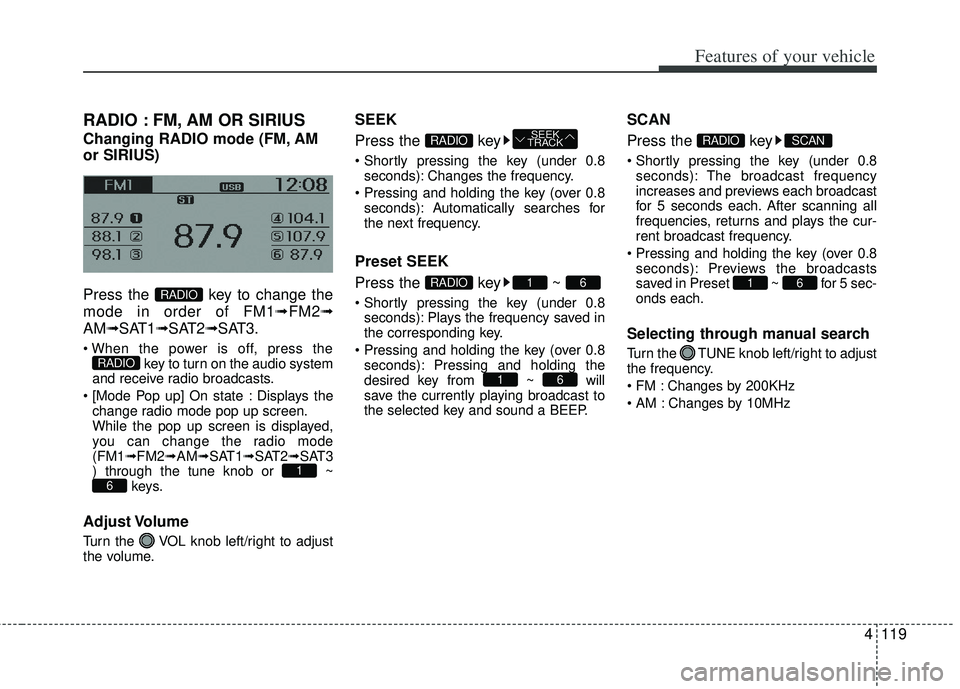
Press the key to change the
mode in order of FM1➟FM2➟
AM➟SAT1➟SAT2➟SAT3.
key to turn on the audio system
and receive radio broadcasts.
Displays the change radio mode pop up screen.
While the pop up screen is displayed,
you can change the radio mode
(FM1➟ FM2➟AM➟SAT1➟ SAT2➟SAT3
) through the tune knob or ~ keys.
Adjust Volume
Turn the VOL knob left/right to adjust
the volume.
SEEK
Press the key
seconds): Changes the frequency.
seconds): Automatically searches for
the next frequency.
Preset SEEK
Press the key ~
seconds): Plays the frequency saved in
the corresponding key.
seconds): Pressing and holding the
desired key from ~ will
save the currently playing broadcast to
the selected key and sound a BEEP.
SCAN
Press the key
seconds): The broadcast frequency
increases and previews each broadcast
for 5 seconds each. After scanning all
frequencies, returns and plays the cur-
rent broadcast frequency.
seconds): Previews the broadcasts
saved in Preset ~ for 5 sec-
onds each.
Selecting through manual search
Turn the TUNE knob left/right to adjust
the frequency.
Changes by 200KHz
Changes by 10MHz
61
SCANRADIO
61
61RADIO
SEEK
TRACKRADIO
61
RADIO
RADIO
Page 196 of 385

4121
Features of your vehicle
Satellite Radio channels:SIRIUS Satellite Radio has over 130 chan-
nels, including 69 channels of 100% com-
mercial-free music, plus sports, news, talk
and entertainment available nationwide in
your vehicle. For more information and a
complete list of SIRIUS Satellite Radio
channels, visit sirius.com in the United
States, sirius-canada.ca in Canada, or call
SIRIUS at 1-888-539-7474.
Satellite
Radioreception factors:
To receive the satellite signal, your vehi-
cle has been equipped with a satellite
radio antenna located on the roof of your
vehicle. The vehicle roof provides the
best location for an unobstructed, open
view of the sky, a requirement of a satel-
lite radio system. Like AM/FM, there are
several factors that can affect satellite
radio reception performance:
Antenna obstructions: For optimal reception performance, keep the anten-
na clear of snow and ice build-up and
keep luggage and other material as far
away from the antenna as possible.
Terrain: Hills, mountains, tall buildings, bridges, tunnels, freeway overpasses,
parking garages, dense tree foliage
and thunderstorms can interfere with
your reception.
SIRIUS Satellite Radio service:
SIRIUS Satellite Radio is a subscription-
based satellite radio service that broad-
casts music, sports, news and entertain-
ment programming to radio receivers,
which are available for installation in
motor vehicles or factory installed, as
well as for the home, portable and wire-
less devices, and through an Internet
connection on personal computer.
Vehicles that are equipped with a factory
installed SIRIUS Satellite Radio system
include:
Hardware and an introductory trial sub-scription term, which begins on the
date of sale or lease of the vehicle.
For a small upgrade fee, access to SIRIUS music channels, and other
select channels over the Internet using
any computer connected to the
Internet (U.S. customers only).
For information on extended subscrip-
tion terms, contact SIRIUS at 1-888-
539-7474.
NOTE:
Satellite Radio requires SIRIUS®com-
patible receiver and a subscription serv-
ice fee after trial period.
Vehicles without a factory-installed
radio receiver require hardware pur-
chase and installation. Please see your
dealer for further details. All fees and
programming subject to change.
Subscriptions governed by the SIRIUS
Terms & Conditions available at
www
.sirius.com / service terms.
Available only in the 48 contiguous
United States and the District of
Columbia. Service available in Canada;
see www
.siriuscanada.caKia shall not be responsible for any
such programming changes.
Satellite Radio Electronic Serial
Number (ESN):This 12-digit Satellite
Serial Number is needed to re-activate,
modify or track your satellite radio
account. You will need this number when
communicating with SIRIUS.
SIRIUS Satellite Radio information (if equipped)
Page 198 of 385
4123
Features of your vehicle
Preset
Press the key ~
seconds): Plays the frequency saved in
the corresponding key.
seconds): Pressing and holding the
desired key from ~ will
save the current broadcast to the
selected key and sound a BEEP.
✽ ✽ Troubleshooting
1. Antenna Error
If this message is displayed, the anten-
na or antenna cable is broken or
unplugged. Please consult with your
Kia dealership.
2. Acquiring Signal If this message is displayed, it means
that the antenna is covered and that
the SIRIUS Satellite Radio signal is
not available. Ensure the antenna is
uncovered and has a clear view of the
sky.
Tune
TUNE knob : Changes the
channel number or scrolls category list.
TUNE knob : Selects the menu.
Menu
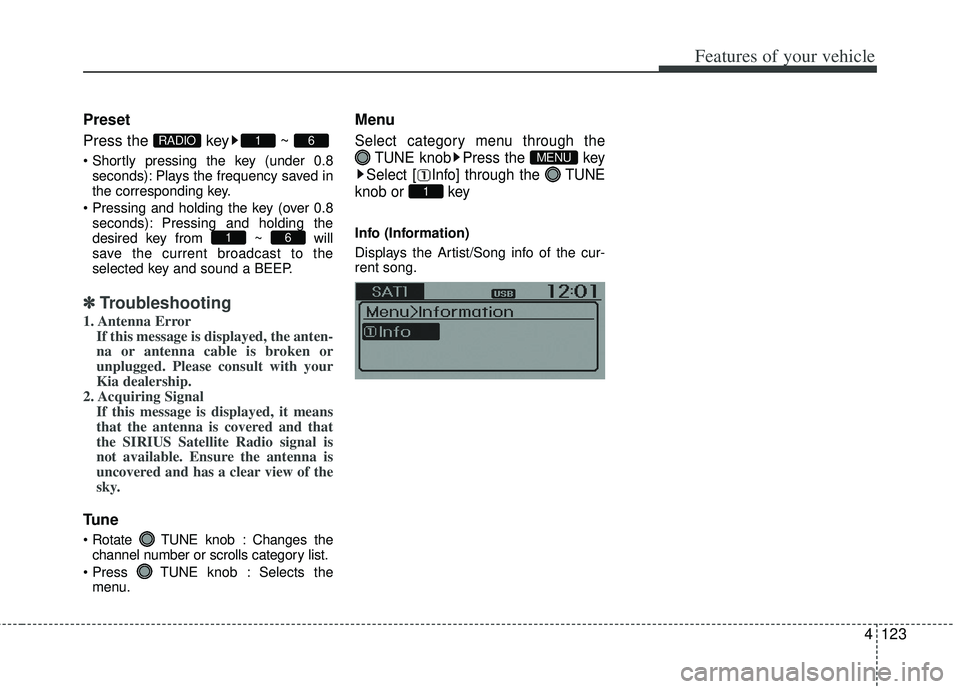
Select category menu through the
TUNE knob Press the key
Select [ Info] through the TUNE
knob or key
Info (Information)
Displays the Artist/Song info of the cur-
rent song.
1
MENU
61
61RADIO
Page 219 of 385
Features of your vehicle
144
4
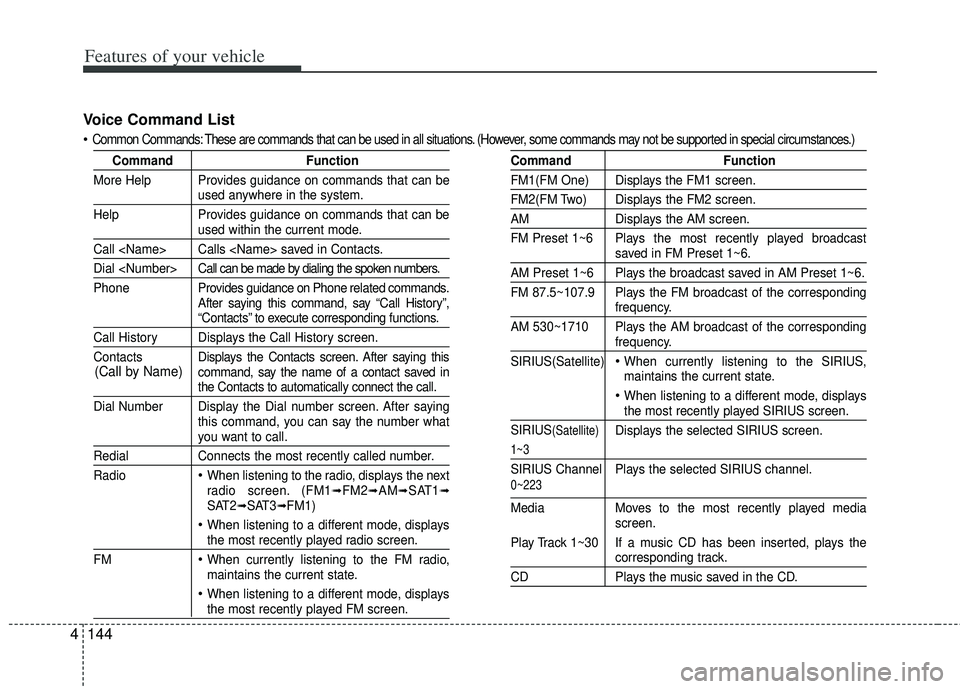
Voice Command List
Common Commands: These are commands that can be used in all situations. (However, some commands may not be supported in special c ircumstances.)
CommandFunction
More Help Provides guidance on commands that can be
used anywhere in the system.
Help Provides guidance on commands that can be
used within the current mode.
Call
Dial
Phone Pro vides guidance on Phone related commands.
After saying this command, say “Call History”,
“Contacts” to execute corresponding functions.
Call History Displays the Call History screen.
Contacts Displays the Contacts screen. After saying this
command, say the name of a contact saved in
the Contacts to automatically connect the call.
Dial Number Display the Dial number screen. After saying this command, you can say the number what
you want to call.
RedialConnects the most recently called number.
Radio
When listening to the radio, displays the next
radio screen. (FM1➟FM2➟AM➟SAT1➟SAT2➟SAT3➟FM1)
When listening to a different mode, displaysthe most recently played radio screen.
FM
When currently listening to the FM radio,
maintains the current state.
When listening to a different mode, displaysthe most recently played FM screen.
Command Function
FM1(FM One) Displays the FM1 screen.
FM2(FM Two) Displays the FM2 screen.
AMDisplays the AM screen.
FM Preset 1~6 Plays the most recently played broadcast
saved in FM Preset 1~6.
AM Preset 1~6 Plays the broadcast saved in AM Preset 1~6.
FM 87.5~107.9 Plays the FM broadcast of the corresponding
frequency.
AM 530~1710 Plays the AM broadcast of the corresponding
frequency.
SIRIUS(Satellite)
When currently listening to the SIRIUS,
maintains the current state.
When listening to a different mode, displaysthe most recently played SIRIUS screen.
SIRIUS
(Satellite)Displays the selected SIRIUS screen.
1~3
SIRIUS Channel Plays the selected SIRIUS channel.
Media Moves to the most recently played media
screen.
Play Track 1~30 If a music CD has been inserted, plays the
corresponding track.
CD Plays the music saved in the CD.
(Call by Name)
0~223
Page 220 of 385
4145
Features of your vehicle
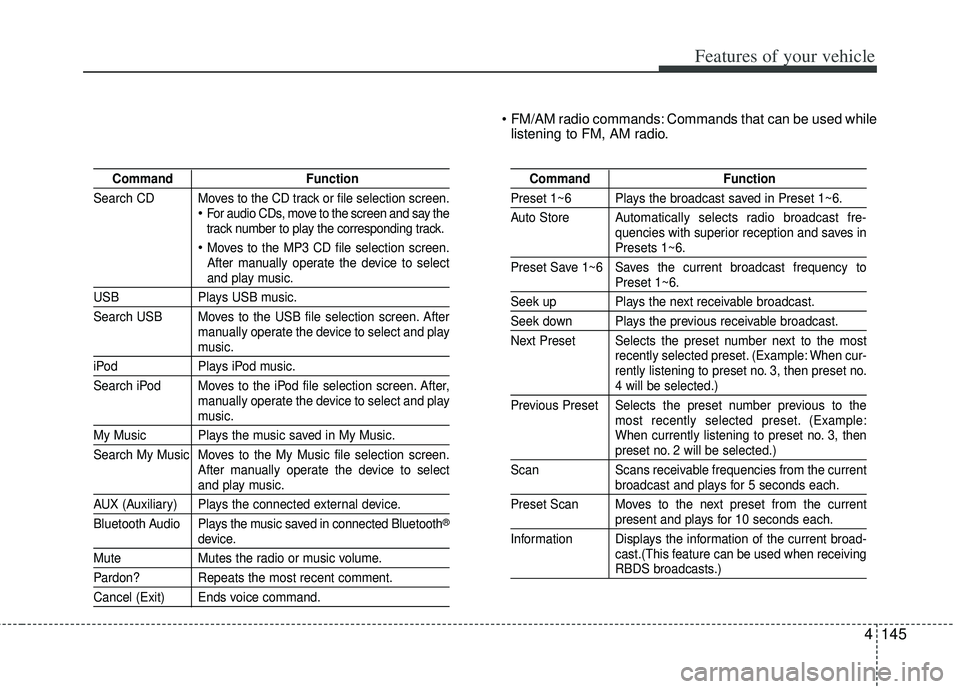
FM/AM radio commands: Commands that can be used whilelistening to FM, AM radio.
Command Function
Search CD Moves to the CD track or file selection screen.
For audio CDs, move to the screen and say the
track number to play the corresponding track.
Moves to the MP3 CD file selection screen.
After manually operate the device to select
and play music.
USB Plays USB music.
Search USB Moves to the USB file selection screen. After manually operate the device to select and play
music.
iPodPlays iPod music.
Search iPod Moves to the iPod file selection screen. After, manually operate the device to select and play
music.
My Music Plays the music saved in My Music.
Search My Music Moves to the My Music file selection screen.After manually operate the device to select
and play music.
AUX (Auxiliary) Plays the connected external device.
Bluetooth Audio Plays the music saved in connected Bluetooth
®
device.
MuteMutes the radio or music volume.
Pardon? Repeats the most recent comment.
Cancel (Exit) Ends voice command.
Command Function
Preset 1~6 Plays the broadcast saved in Preset 1~6.
Auto Store Automatically selects radio broadcast fre-
quencies with superior reception and saves in
Presets 1~6.
Preset Save 1~6 Saves the current broadcast frequency to
Preset 1~6.
Seek up Plays the next receivable broadcast.
Seek down Plays the previous receivable broadcast.
Next Preset Selects the preset number next to the most recently selected preset. (Example: When cur-
rently listening to preset no. 3, then preset no.
4 will be selected.)
Previous Preset Selects the preset number previous to the most recently selected preset. (Example:
When currently listening to preset no. 3, then
preset no. 2 will be selected.)
Scan Scans receivable frequencies from the current
broadcast and plays for 5 seconds each.
Preset Scan Moves to the next preset from the current
present and plays for 10 seconds each.
Information Displays the information of the current broad- cast.(This feature can be used when receiving
RBDS broadcasts.)
Page 221 of 385
Features of your vehicle
146
4
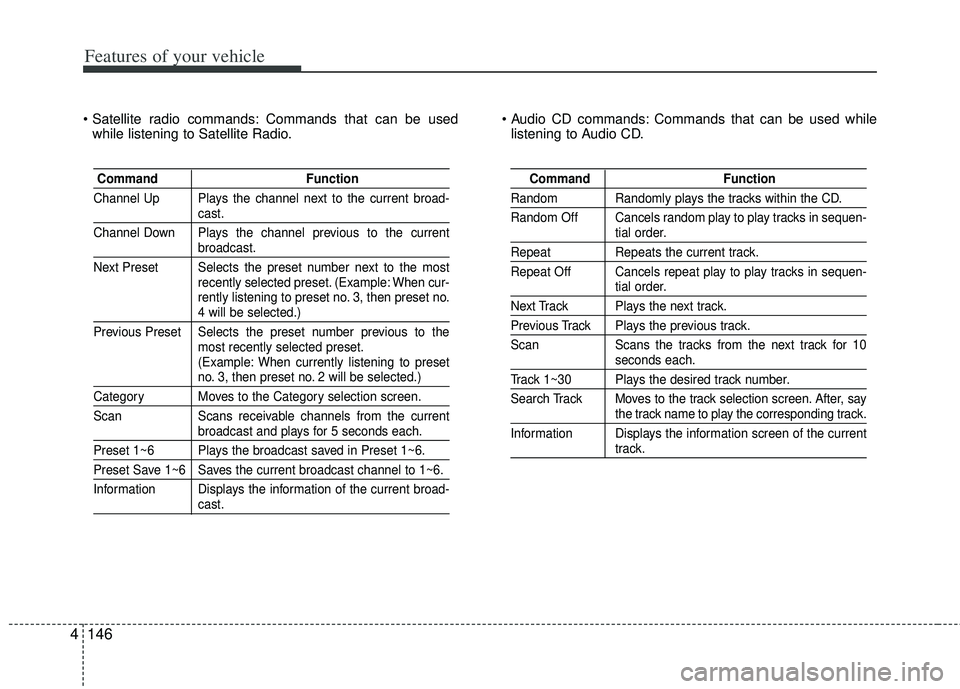
Commands that can be used
while listening to Satellite Radio. Commands that can be used while
listening to Audio CD.
Command Function
Channel Up Plays the channel next to the current broad-
cast.
Channel Down Plays the channel previous to the current
broadcast.
Next Preset Selects the preset number next to the most recently selected preset. (Example: When cur-
rently listening to preset no. 3, then preset no.
4 will be selected.)
Previous Preset Selects the preset number previous to the most recently selected preset.
(Example: When currently listening to preset
no. 3, then preset no. 2 will be selected.)
Category Moves to the Category selection screen.
Scan Scans receivable channels from the current
broadcast and plays for 5 seconds each.
Preset 1~6 Plays the broadcast saved in Preset 1~6.
Preset Save 1~6 Saves the current broadcast channel to 1~6.
Information Displays the information of the current broad-
cast.
Command Function
Random Randomly plays the tracks within the CD.
Random Off Cancels random play to play tracks in sequen-
tial order.
RepeatRepeats the current track.
Repeat Off Cancels repeat play to play tracks in sequen-
tial order.
Next Track Plays the next track.
Previous Track Plays the previous track.
Scan Scans the tracks from the next track for 10
seconds each.
Track 1~30 Plays the desired track number.
Search Track Moves to the track selection screen. After, say
the track name to play the corresponding track.
Information Displays the information screen of the current
track.
Page 226 of 385
53
Driving your vehicle
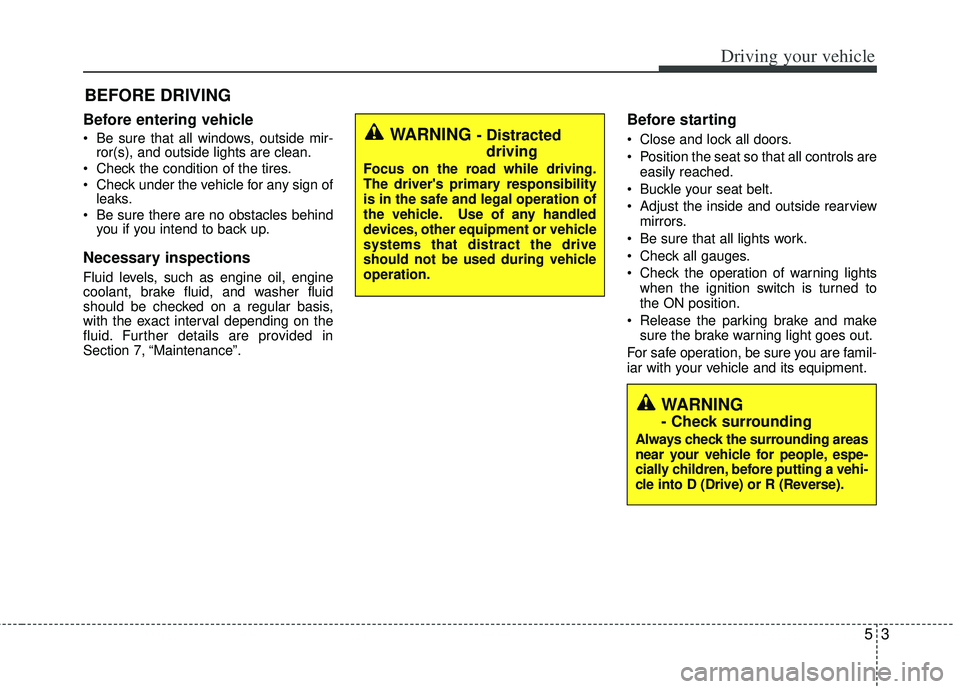
Before entering vehicle
• Be sure that all windows, outside mir-ror(s), and outside lights are clean.
Check the condition of the tires.
Check under the vehicle for any sign of leaks.
Be sure there are no obstacles behind you if you intend to back up.
Necessary inspections
Fluid levels, such as engine oil, engine
coolant, brake fluid, and washer fluid
should be checked on a regular basis,
with the exact interval depending on the
fluid. Further details are provided in
Section 7, “Maintenance”.
Before starting
Close and lock all doors.
Position the seat so that all controls are
easily reached.
Buckle your seat belt.
Adjust the inside and outside rearview mirrors.
Be sure that all lights work.
Check all gauges.
Check the operation of warning lights when the ignition switch is turned to
the ON position.
Release the parking brake and make sure the brake warning light goes out.
For safe operation, be sure you are famil-
iar with your vehicle and its equipment.
BEFORE DRIVING
WARNING - Distracted driving
Focus on the road while driving.
The driver's primary responsibility
is in the safe and legal operation of
the vehicle. Use of any handled
devices, other equipment or vehicle
systems that distract the drive
should not be used during vehicle
operation.
WARNING
- Check surrounding
Always check the surrounding areas
near your vehicle for people, espe-
cially children, before putting a vehi-
cle into D (Drive) or R (Reverse).
Page 237 of 385
Driving your vehicle
14
5
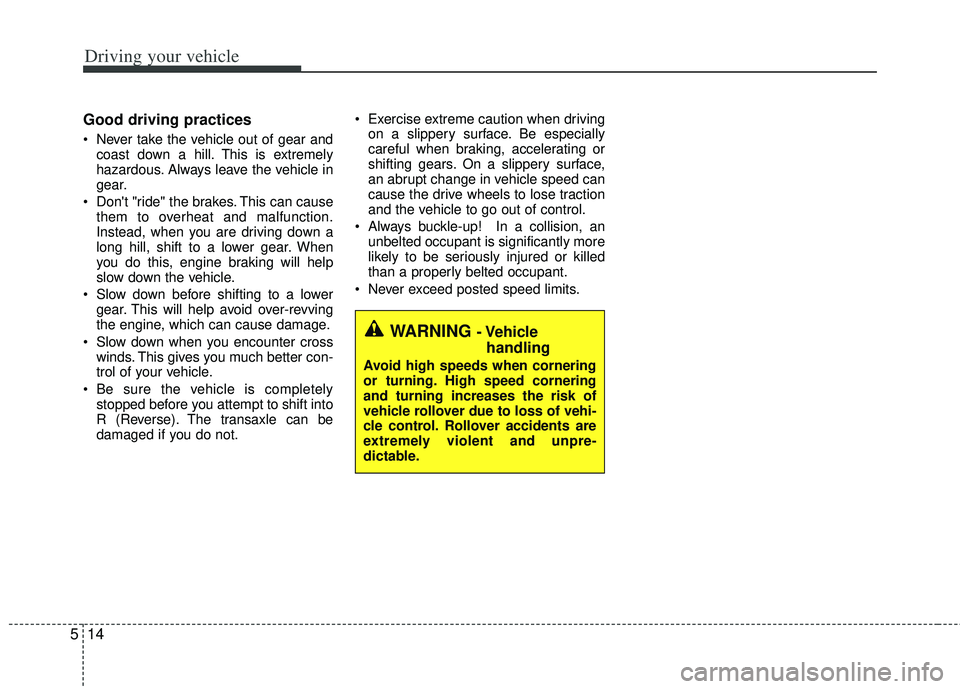
Good driving practices
Never take the vehicle out of gear and
coast down a hill. This is extremely
hazardous. Always leave the vehicle in
gear.
Don't "ride" the brakes. This can cause them to overheat and malfunction.
Instead, when you are driving down a
long hill, shift to a lower gear. When
you do this, engine braking will help
slow down the vehicle.
Slow down before shifting to a lower gear. This will help avoid over-revving
the engine, which can cause damage.
Slow down when you encounter cross winds. This gives you much better con-
trol of your vehicle.
Be sure the vehicle is completely stopped before you attempt to shift into
R (Reverse). The transaxle can be
damaged if you do not. Exercise extreme caution when driving
on a slippery surface. Be especially
careful when braking, accelerating or
shifting gears. On a slippery surface,
an abrupt change in vehicle speed can
cause the drive wheels to lose traction
and the vehicle to go out of control.
Always buckle-up! In a collision, an unbelted occupant is significantly more
likely to be seriously injured or killed
than a properly belted occupant.
Never exceed posted speed limits.
WARNING - Vehicle handling
Avoid high speeds when cornering
or turning. High speed cornering
and turning increases the risk of
vehicle rollover due to loss of vehi-
cle control. Rollover accidents are
extremely violent and unpre-
dictable.
Page 247 of 385
Driving your vehicle
24
5
Anti-lock brake system (ABS)
(if equipped)
ABS (or ESC) will not prevent accidents
due to improper or dangerous driving
maneuvers. Even though vehicle control
is improved during emergency braking,
always maintain a safe distance between
you and objects ahead. Vehicle speeds
should always be reduced during
extreme road conditions.
The vehicle should be driven at reduced
speeds in the following circumstances:
When driving on rough, gravel or
snow-covered roads
When driving on roads where the road surface is pitted or has different sur-
face heights.
Driving in these conditions increases the
stopping distance for your vehicle. The ABS continuously senses the speed
of the wheels. If the wheels are going to
lock, the ABS system repeatedly modu-
lates the hydraulic brake pressure to the
wheels.
When you apply your brakes under con-
ditions which may lock the wheels, you
may hear a “tik-tik’’ sound from the
brakes, or feel a corresponding sensation
in the brake pedal. This is normal and it
means your ABS is active.
In order to obtain the maximum benefit
from your ABS in an emergency situa-
tion, do not attempt to modulate your
brake pressure and do not try to pump
your brakes. Press your brake pedal as
hard as possible or as hard as the situa-
tion allows the ABS to control the force
being delivered to the brakes.
✽ ✽
NOTICE
A click sound may be heard in the
engine compartment when the vehicle
begins to move after the engine is start-
ed. These conditions are normal and
indicate that the anti-lock brake system
is functioning properly.
Even with the anti-lock brake system,
your vehicle still requires sufficient
stopping distance. Always maintain a
safe distance from the vehicle in front
of you.
Always slow down when cornering. The anti-lock brake system cannot pre-
vent accidents resulting from exces-
sive speeds.
On loose or uneven road surfaces, operation of the anti-lock brake system
may result in a longer stopping dis-
tance than for vehicles equipped with a
conventional brake system.