audio KIA RIO HATCHBACK 2012 Owner's Manual
[x] Cancel search | Manufacturer: KIA, Model Year: 2012, Model line: RIO HATCHBACK, Model: KIA RIO HATCHBACK 2012Pages: 385, PDF Size: 9.68 MB
Page 202 of 385
4127
Features of your vehicle
✽
✽NOTICE FOR USING THE
iPod®DEVICE
• Some iPod models may not support
communication protocol and files
may not properly play.
Supported iPod models:
- iPod Mini
- iPod 4th(Photo) ~ 6th(Classic)
generation
- iPod Nano 1st~4th generation
- iPod Touch 1st~2nd generation
• The order of search or playback of songs in the iPod can be different
from the order searched in the
audio system.
• If the iPod disabled due to its own malfunction, reset the iPod. (Reset:
Refer to iPod manual)
• An iPod may not operate normally on low battery.
• Some iPod devices, such as the iPhone, can be connected through
the -interface. The device must
have audio Bluetooth
®wireless
technology capability (such as for
stereo headphone Bluetooth
®wire-
less technology ). The device can
play, but it will not be controlled by
the audio system. (Continued)(Continued)
• To use iPod features within the audio,
use the cable provided upon purchas-
ing an iPod device.
• Skipping or improper operation may occur depending on the characteris-
tics of your iPod/Phone device.
• If your iPhone is connected to both the Bluetooth
®wireless technology
and USB, the sound may not be prop-
erly played. In your iPhone, select the
Dock connector or Bluetooth
®wire-
less technology to change the sound
output (source).
CAUTION IN USING THE
iPod®DEVICE
When connecting iPod with the
iPod Power Cable, insert the con-nector to the multimedia socket completely. If not inserted com-pletely, communications between iPod and audio may be interrupted.
When adjusting the sound effects of the iPod and the audio system, thesound effects of both devices willoverlap and might reduce or distortthe quality of the sound.
Deactivate (turn off) the equalizer function of an iPod when adjust-ing the audio system’s volume,and turn off the equalizer of the audio system when using theequalizer of an iPod.
When not using iPod with car audio, detach the iPod cable fromiPod. Otherwise, iPod may remain in accessory mode, and may notwork properly.
Page 204 of 385
4129
Features of your vehicle
BASIC METHOD OF USE :
Audio CD / MP3 CD / USB /
iPod / My Music
Press the key to change the mod
mode in order of CD➟USB(iPod)➟AUX➟My Music➟BT Audio.
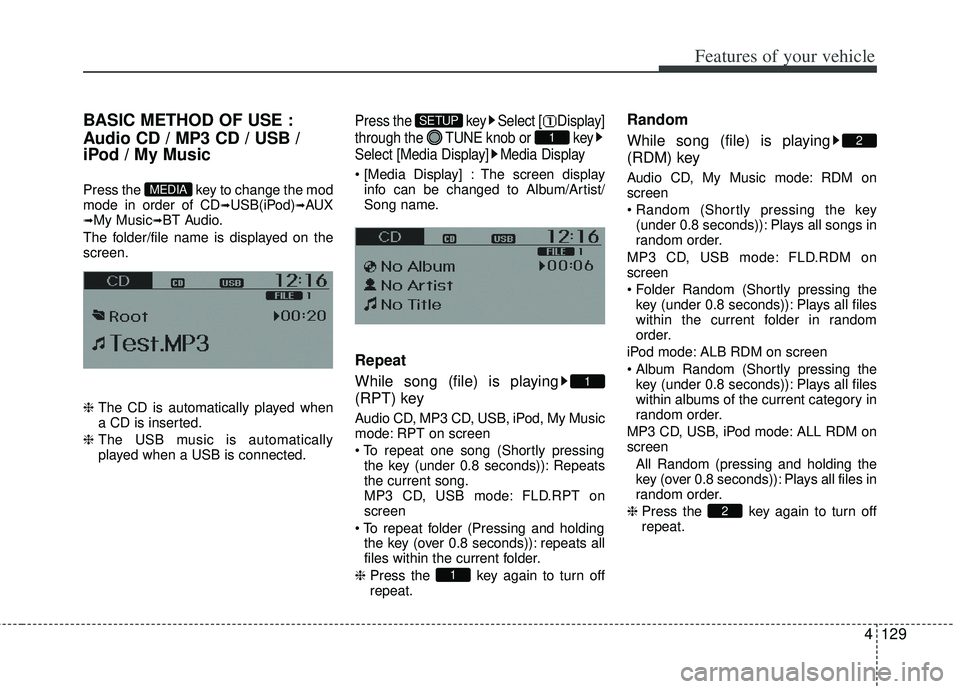
The folder/file name is displayed on the
screen.
❈ The CD is automatically played when
a CD is inserted.
❈ The USB music is automatically
played when a USB is connected.
Press the key Select [ Display]
through the TUNE knob or key
Select [Media Display] Media Display
The screen display
info can be changed to Album/Artist/
Song name.
Repeat
While song (file) is playing
(RPT) key
Audio CD, MP3 CD, USB, iPod, My Music
mode: RPT on screen
the key (under 0.8 seconds)): Repeats
the current song.
MP3 CD, USB mode: FLD.RPT on
screen
the key (over 0.8 seconds)): repeats all
files within the current folder.
❈ Press the key again to turn off
repeat.
Random
While song (file) is playing
(RDM) key
Audio CD, My Music mode: RDM on
screen
(under 0.8 seconds)): Plays all songs in
random order.
MP3 CD, USB mode: FLD.RDM on
screen
key (under 0.8 seconds)): Plays all files
within the current folder in random
order.
iPod mode: ALB RDM on screen
key (under 0.8 seconds)): Plays all files
within albums of the current category in
random order.
MP3 CD, USB, iPod mode: ALL RDM on
screen All Random (pressing and holding thekey (over 0.8 seconds)): Plays all files in
random order.
❈ Press the key again to turn off
repeat.
2
2
1
1
1
SETUP
MEDIA
Page 206 of 385
![KIA RIO HATCHBACK 2012 Owners Manual 4131
Features of your vehicle
MENU : Audio CD
Press the CD MP3 mode key to
set the Repeat, Random, Information
features.
Repeat
Press the key Set [ RPT]
through the
TUNEknob or
key to repeat the c](/img/2/57982/w960_57982-205.png "KIA RIO HATCHBACK 2012 Owners Manual 4131
Features of your vehicle
MENU : Audio CD
Press the CD MP3 mode key to
set the Repeat, Random, Information
features.
Repeat
Press the key Set [ RPT]
through the
TUNEknob or
key to repeat the c")
4131
Features of your vehicle
MENU : Audio CD
Press the CD MP3 mode key to
set the Repeat, Random, Information
features.
Repeat
Press the key Set [ RPT]
through the
TUNEknob or
key to repeat the current song.
❈ Press RPT again to turn off.
Random
Press the key Set [ RDM]
through the
TUNEknob or
key to randomly play songs within
the current folder.
❈ Press RDM again to turn off.
Information
Press the key Set [ Info]
through the
TUNEknob or
key to display information of the cur-
rent song.
❈ Press the key to turn off info
display.MENU
3
MENU
2
MENU
1
MENU
MENU
Page 211 of 385
Features of your vehicle
136
4
CAUTION IN USING
BLUETOOTH®WIRELESS
TECHNOLOGY CELLU-
LAR PHONE
Do not use a cellular phone or
perform Bluetooth®wireless tech-
nology settings (e.g. pairing a phone) while driving.
Some Bluetooth
® wireless tech-
nology-enabled phones may not be recognized by the system or fully compatible with the system.
Before using Bluetooth
®wireless
technology related features of the audio system, refer your phone’sUser’s Manual for phone-sideBluetooth
®wireless technology
operations.
The phone must be paired to the audio system to use Bluetooth®
wireless technology related fea-
tures.
You will not be able to use the hands-free feature when yourphone (in the car) is outside ofthe cellular service area (e.g. in a tunnel, in a underground, in amountainous area, etc.).
(Continued)
(Continued) If the cellular phone signal is poor or the vehicles interior noise istoo loud, it may be difficult to hearthe other person’s voice during acall.
Do not place the phone near or inside metallic objects, otherwise
communications with Bluetooth
®
wireless technology system orcellular service stations can be disturbed.
While a phone is connected through Bluetooth
®wireless technology
your phone may discharge quicker than usual for additional Bluetooth
®
wireless technology-rel ated opera-
tions.
Some cellular phones or other devices may cause interferencenoise or malfunction to audiosystem. In this case, store thedevice in a different location mayresolve the condition.
Phone contact names should be saved in English or they may notbe displayed correctly.
(Continued)
(Continued) If Priority is set upon vehicle igni- tion(IGN/ACC ON), the Bluetooth
®
wireless technology phone willbe automatically connected. Even if you are outside, theBluetooth
®wireless technology-
phone will be automatically con- nected once you are in the vicini-ty of the vehicle.
If you do not want automaticBluetooth
®wireless technology-
connection, turn the Bluetooth®
wireless technology feature off.
The hands-free call volume and quality may differ depending onthe mobile phone type.
Page 213 of 385
Features of your vehicle
138
4
Bluetooth®wireless technolo-
gy Audio
Before using Bluetooth®wireless
technology audio features
Bluetooth®wireless technologyaudio may not be supported depending
on the compatibility of your Bluetooth®
wireless technology mobile phone.
Bluetooth®wireless
technologyaudio, you must first pair
and connect the Bluetooth®wireless
technology mobile phone.
Bluetooth®wireless technologyaudio can be used only when the
[Audio Streaming] of Phone is turned .
❈ Setting
Bluetooth®wireless tech-
nology Audio Streaming : Press the
key Select [Phone] through
the tune knob or key Select
[Audio Streaming] through the
TUNE knob Set
/
Starting Bluetooth®wireless
technology
Audio
key to change the
mode in order of CD➟USB➟AUX➟My
Music➟BT Audio.
Bluetooth®
wireless technology audio will start
playing.
❈ Audio may not automatically start play-
ing in some mobile phones.
Using the Bluetooth®wireless
technology
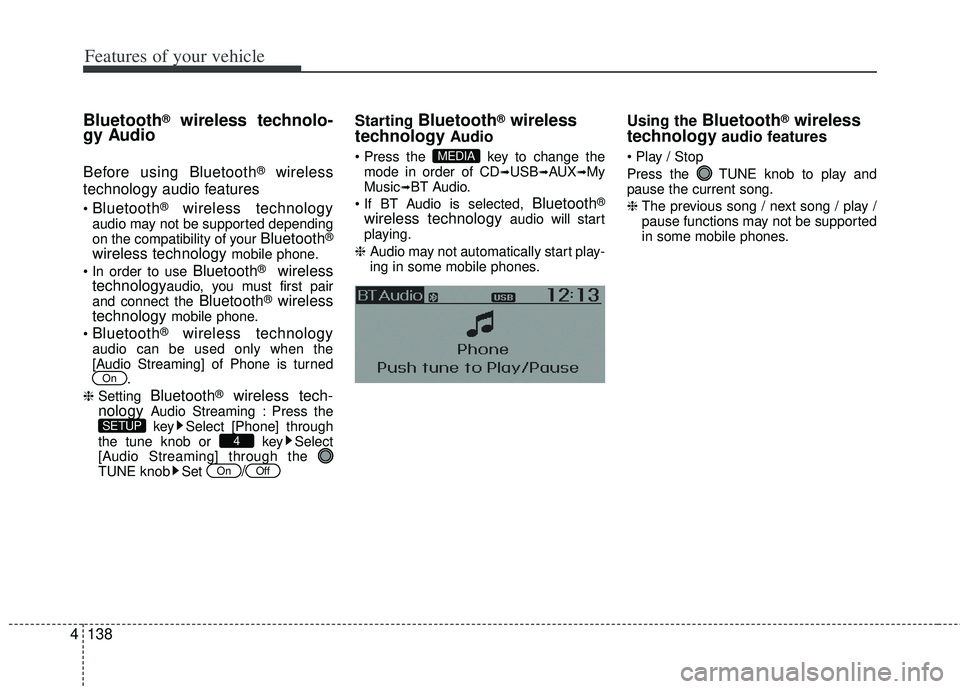
audio features
Press the TUNE knob to play and
pause the current song.
❈ The previous song / next song / play /
pause functions may not be supported
in some mobile phones.MEDIA
OffOn
4SETUP
On
Page 218 of 385
4143
Features of your vehicle
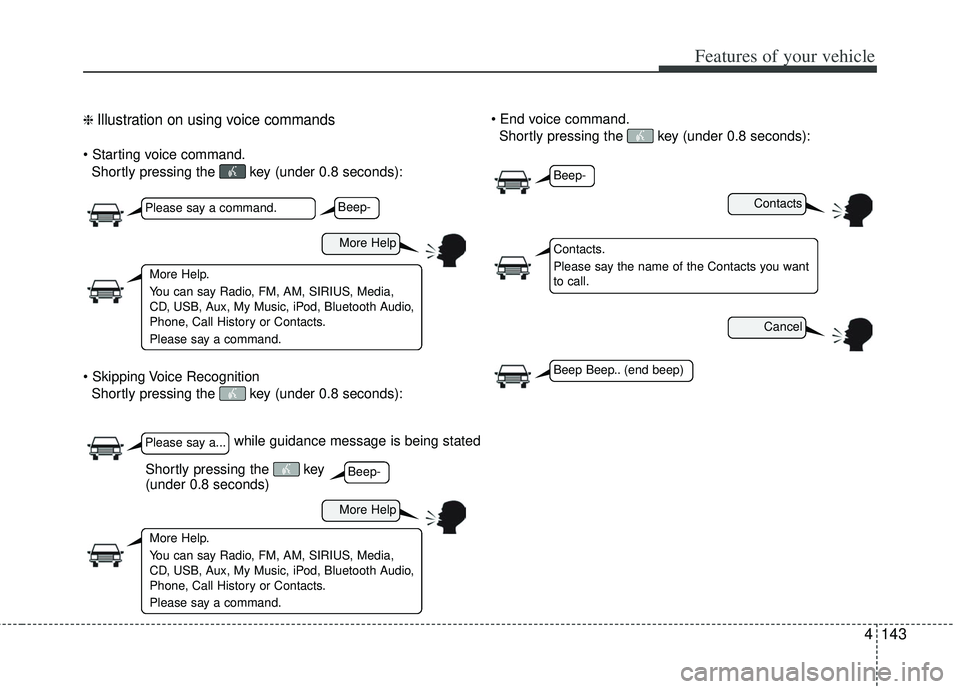
❈ Illustration on using voice commands
Shortly pressing the key (under 0.8 seconds):
Shortly pressing the key (under 0.8 seconds):
Shortly pressing the key (under 0.8 seconds):
while guidance message is being stated
Contacts
Cancel
More Help
More Help
Please say a command.
Please say a...
More Help.
You can say Radio, FM, AM, SIRIUS, Media,
CD, USB, Aux, My Music, iPod, Bluetooth Audio,
Phone, Call History or Contacts.
Please say a command.
More Help.
You can say Radio, FM, AM, SIRIUS, Media,
CD, USB, Aux, My Music, iPod, Bluetooth Audio,
Phone, Call History or Contacts.
Please say a command.
Contacts.
Please say the name of the Contacts you want
to call.
Beep-
Beep-
Beep-
Beep Beep.. (end beep)
Shortly pressing the key
(under 0.8 seconds)
Page 220 of 385
4145
Features of your vehicle
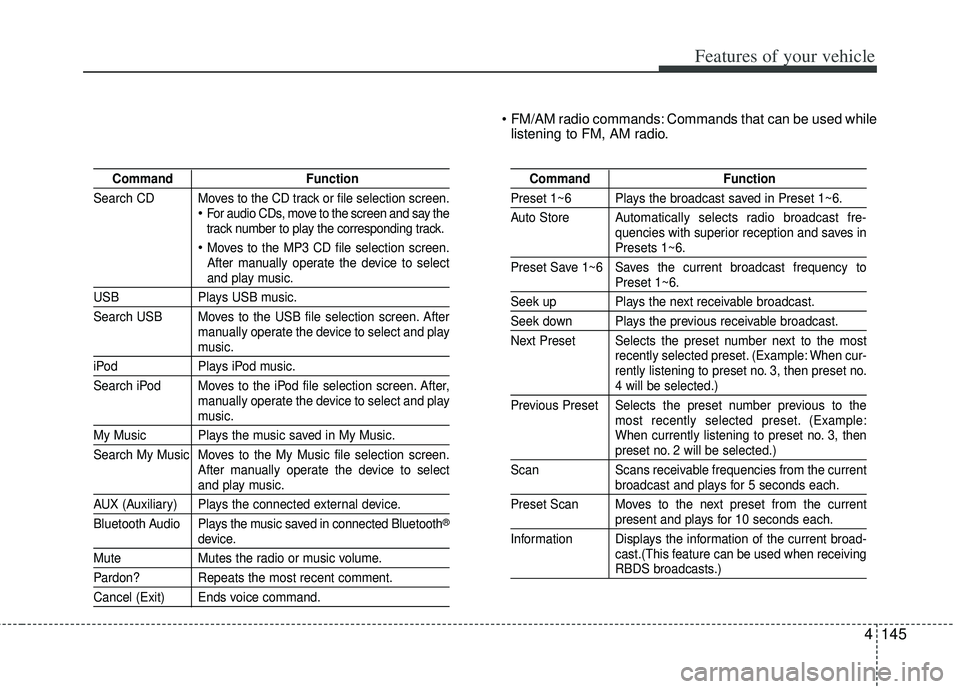
FM/AM radio commands: Commands that can be used whilelistening to FM, AM radio.
Command Function
Search CD Moves to the CD track or file selection screen.
For audio CDs, move to the screen and say the
track number to play the corresponding track.
Moves to the MP3 CD file selection screen.
After manually operate the device to select
and play music.
USB Plays USB music.
Search USB Moves to the USB file selection screen. After manually operate the device to select and play
music.
iPodPlays iPod music.
Search iPod Moves to the iPod file selection screen. After, manually operate the device to select and play
music.
My Music Plays the music saved in My Music.
Search My Music Moves to the My Music file selection screen.After manually operate the device to select
and play music.
AUX (Auxiliary) Plays the connected external device.
Bluetooth Audio Plays the music saved in connected Bluetooth
®
device.
MuteMutes the radio or music volume.
Pardon? Repeats the most recent comment.
Cancel (Exit) Ends voice command.
Command Function
Preset 1~6 Plays the broadcast saved in Preset 1~6.
Auto Store Automatically selects radio broadcast fre-
quencies with superior reception and saves in
Presets 1~6.
Preset Save 1~6 Saves the current broadcast frequency to
Preset 1~6.
Seek up Plays the next receivable broadcast.
Seek down Plays the previous receivable broadcast.
Next Preset Selects the preset number next to the most recently selected preset. (Example: When cur-
rently listening to preset no. 3, then preset no.
4 will be selected.)
Previous Preset Selects the preset number previous to the most recently selected preset. (Example:
When currently listening to preset no. 3, then
preset no. 2 will be selected.)
Scan Scans receivable frequencies from the current
broadcast and plays for 5 seconds each.
Preset Scan Moves to the next preset from the current
present and plays for 10 seconds each.
Information Displays the information of the current broad- cast.(This feature can be used when receiving
RBDS broadcasts.)
Page 221 of 385
Features of your vehicle
146
4
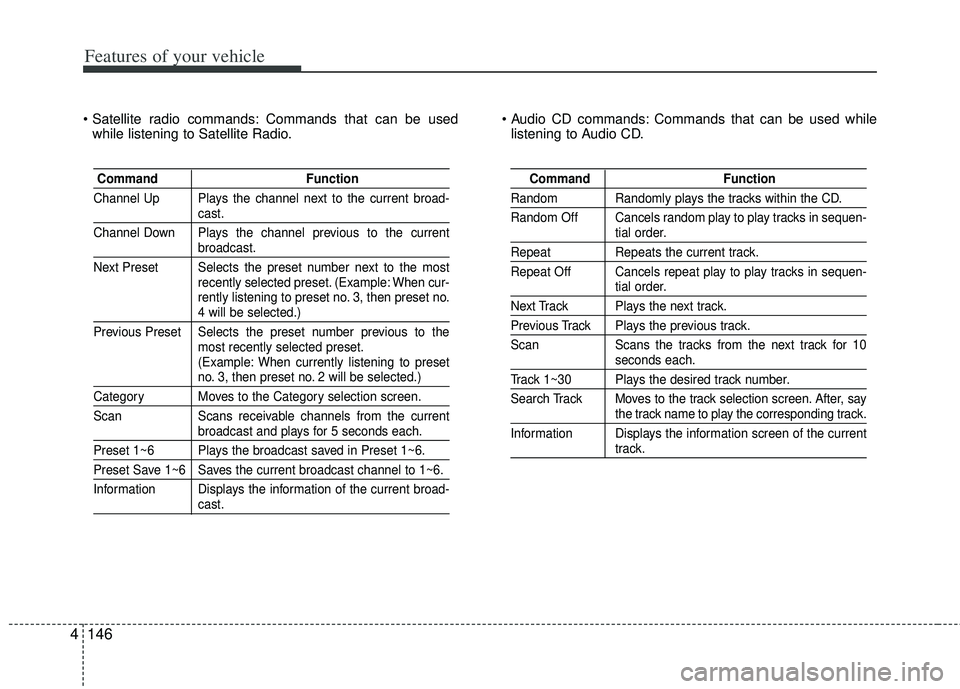
Commands that can be used
while listening to Satellite Radio. Commands that can be used while
listening to Audio CD.
Command Function
Channel Up Plays the channel next to the current broad-
cast.
Channel Down Plays the channel previous to the current
broadcast.
Next Preset Selects the preset number next to the most recently selected preset. (Example: When cur-
rently listening to preset no. 3, then preset no.
4 will be selected.)
Previous Preset Selects the preset number previous to the most recently selected preset.
(Example: When currently listening to preset
no. 3, then preset no. 2 will be selected.)
Category Moves to the Category selection screen.
Scan Scans receivable channels from the current
broadcast and plays for 5 seconds each.
Preset 1~6 Plays the broadcast saved in Preset 1~6.
Preset Save 1~6 Saves the current broadcast channel to 1~6.
Information Displays the information of the current broad-
cast.
Command Function
Random Randomly plays the tracks within the CD.
Random Off Cancels random play to play tracks in sequen-
tial order.
RepeatRepeats the current track.
Repeat Off Cancels repeat play to play tracks in sequen-
tial order.
Next Track Plays the next track.
Previous Track Plays the previous track.
Scan Scans the tracks from the next track for 10
seconds each.
Track 1~30 Plays the desired track number.
Search Track Moves to the track selection screen. After, say
the track name to play the corresponding track.
Information Displays the information screen of the current
track.
Page 223 of 385
Features of your vehicle
148
4
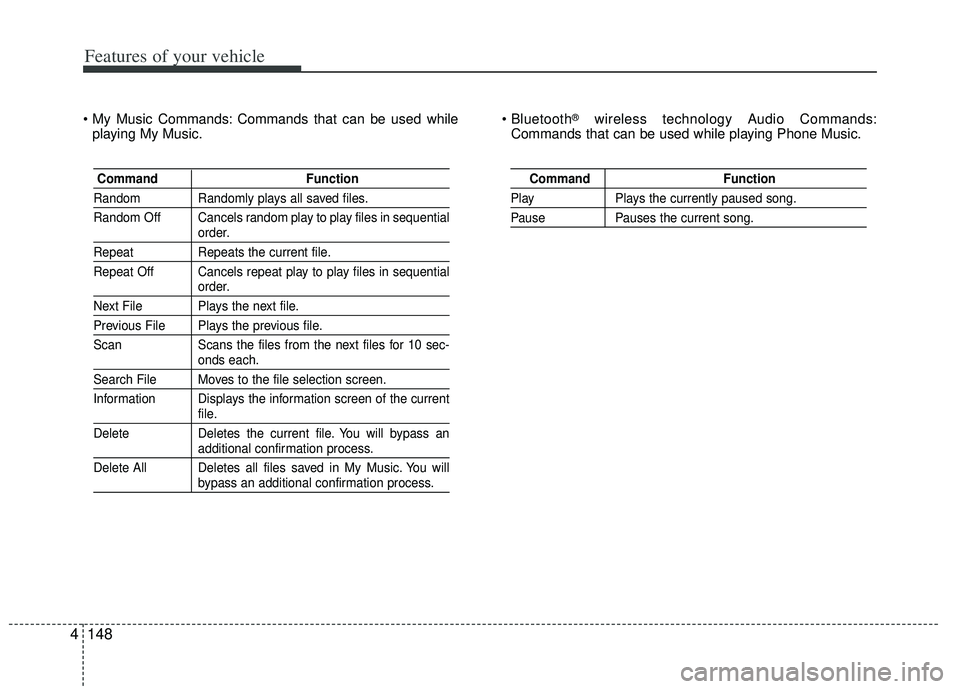
Commands that can be used while
playing My Music. ®wireless technology Audio Commands:
Commands that can be used while playing Phone Music.
Command Function
Random Randomly plays all saved files.
Random Off Cancels random play to play files in sequential
order.
RepeatRepeats the current file.
Repeat Off Cancels repeat play to play files in sequential
order.
Next File Plays the next file.
Previous File Plays the previous file.
Scan Scans the files from the next files for 10 sec-
onds each.
Search File Moves to the file selection screen.
Information Displays the information screen of the current
file.
Delete Deletes the current file. You will bypass an
additional confirmation process.
Delete All Deletes all files saved in My Music. You will
bypass an additional confirmation process.
Command Function
PlayPlays the currently paused song.
PausePauses the current song.
Page 345 of 385
Maintenance
36
7
Battery recharging
Your vehicle has a maintenance-free,
calcium-based battery.
If the battery becomes discharged in a
short time (because, for example, the
headlights or interior lights were left on
while the vehicle was not in use),
recharge it by slow charging (trickle)
for 10 hours.
If the battery gradually discharges because of high electric load while the
vehicle is being used, recharge it at 20-
30A for two hours. When recharging the battery, observe
the following precautions:
The battery must be removed from the
vehicle and placed in an area with
good ventilation.
Watch the battery during charging, and stop or reduce the charging rate if the
battery cells begin gassing (boiling)
violently or if the temperature of the
electrolyte of any cell exceeds 49°C
(120°F).
Wear eye protection when checking the battery during charging.
Disconnect the battery charger in the following order.
1. Turn off the battery charger main switch.
2. Unhook the negative clamp from the negative battery terminal.
3. Unhook the positive clamp from the positive battery terminal.
Before performing maintenance or recharging the battery, turn off all
accessories and stop the engine.
The negative battery cable must be removed first and installed last when
the battery is disconnected.
Reset items
Items should be reset after the battery
has been discharged or the battery has
been disconnected.
Auto down window (See section 4)
Sunroof (See section 4)
Trip computer (See section 4)
Climate control system (See section 4)
Clock (See section 4)
Audio (See section 4)