audio KIA RIO HATCHBACK 2014 Owner's Manual
[x] Cancel search | Manufacturer: KIA, Model Year: 2014, Model line: RIO HATCHBACK, Model: KIA RIO HATCHBACK 2014Pages: 446, PDF Size: 12.98 MB
Page 214 of 446
4143
Features of your vehicle
Bluetooth®Wireless Technology
The Bluetooth®word mark and logos
are registered trademarks owned by
Bluetooth SIG, lnc. and any use of
such marks by Kia is under license.
A
Bluetooth®enabled call phone is
required to use
Bluetooth®wireless
technology.
Before Using the Bluetooth®
Handsfree
What is Bluetooth®?
Bluetooth®refers to a short-dis-
tance wireless networking technol-
ogy which uses a 2.4GHz ~
2.48GHz frequency to connect var-
ious devices within a certain dis-
tance.
devices,
Bluetooth®phones, PDAs,
various electronic devices, and
automotive environments,
Bluetooth®allows data to be trans-
mitted at high speeds without hav-
ing to use a connector cable.
Bluetooth®Handsfree refers to a
device which allows the user to con-
veniently make phone calls with
Bluetooth®mobile phones through
the audio system.
Bluetooth®Handsfree may not be
supported in some mobile phones.
To learn more about mobile device
compatibility, visit www
.kia.com.
WARNING
Driving while distracted can
result in a loss of vehicle control
that may lead to an accident,
severe personal injury, and
death. The driver’s primary
responsibility is in the safe and
legal operation of a vehicle, and
use of any handheld devices,
other equipment, or vehicle sys-
tems which take the driver’s
eyes, attention and focus away
from the safe operation of a vehi-
cle or which are not permissible
by law should never be used dur-
ing operation of the vehicle.
Page 215 of 446
Features of your vehicle
144
4
When connecting aBluetooth®
Phone
with the mobile phone, check to
see that the mobile phone sup-
ports
Bluetooth®features.
Bluetooth®, the phone will not be
found during device searches if
the phone has been set to hidden
state or the
Bluetooth®power is
turned off. Disable the hidden
state or turn on the
Bluetooth®
power prior to searching/connect-
ing with the Head unit.
connected when the ignition on.
nection with your
Bluetooth®
device, turn off the Bluetooth®
feature within your mobile phone.
quality may differ depending on
the mobile phone.
the head unit with the mobile
phone.
Bluetooth®connection may
become intermittently discon-
nected in some mobile phones.
Follow these steps to try again.
1. Within the mobile phone, turn the
Bluetooth®function off/on
and try again.
2. Turn the mobile phone power Off/On and try again.
3. Completely remove the mobile phone battery, reboot, and then
again.
4. Reboot the
AudioSystem and
try again.
5. Delete all paired devices, pair and try again.
Handsfree call quality and volume may differ depending on the
model of your mobile phone.
Page 216 of 446
4145
Features of your vehicle
Bluetooth®Wireless Technology
Pairing a
Bluetooth®Wireless
Technology Device
What is Bluetooth®Wireless
Technology Pairing?
Pairing refers to the process of syn-
chronizing your
Bluetooth®Wireless
Technology phone or device with the
car audio system for connection.
Pairing is necessary to connect and
use the
Bluetooth®Wireless
Technology feature.
The
Bluetooth®word mark and logos
are registered trademarks owned by
Bluetooth SIG, Inc. and any use of
such marks by Kia is under license.
Other trademarks and trade names
are those of their respective owners.
A
Bluetooth®enabled cell phone is
required to use
Bluetooth®Wireless
Technology
WARNING
Driving while distracted can
result in a loss of vehicle control
that may lead to an accident,
severe personal injury, and
death. The driver’s primary
responsibility is in the safe and
legal operation of a vehicle, and
use of any handheld devices,
other equipment, or vehicle sys-
tems which take the driver’s
eyes, attention and focus away
from the safe operation of a vehi-
cle or which are not permissible
by law should never be used dur-
ing operation of the vehicle.
Page 217 of 446
Features of your vehicle
146
4
Pairing Key / Key
on the Steering Remote
Controller
When No Devices have been
Paired
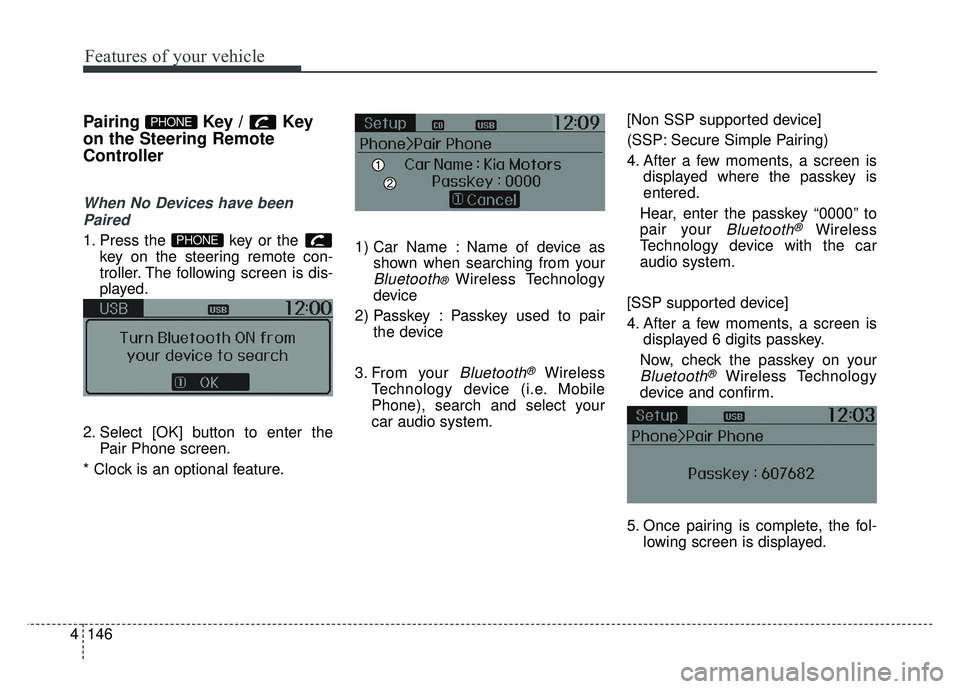
1. Press the key or the key on the steering remote con-
troller. The following screen is dis-
played.
2. Select [OK] button to enter the Pair Phone screen.
* Clock is an optional feature. 1) Car Name : Name of device as
shown when searching from your
Bluetooth® Wireless Technology
device
2) Passkey : Passkey used to pair the device
3. From your
Bluetooth®Wireless
Technology device (i.e. Mobile
Phone), search and select your
car audio system. [Non SSP supported device]
(SSP: Secure Simple Pairing)
4. After a few moments, a screen is
displayed where the passkey is
entered.
Hear, enter the passkey “0000” to
pair your
Bluetooth®Wireless
Technology device with the car
audio system.
[SSP supported device]
4. After a few moments, a screen is displayed 6 digits passkey.
Now, check the passkey on your
Bluetooth®Wireless Technology
device and confirm.
5. Once pairing is complete, the fol- lowing screen is displayed.
PHONE
PHONE
Page 219 of 446
![KIA RIO HATCHBACK 2014 Owners Manual Features of your vehicle
148
4
Pairing through [PHONE]
Setup
Press the key Select
[Phone] Select [Pair Phone]
Select TUNE knob
1. The following steps are the same
as the steps described in the
“W](/img/2/57980/w960_57980-218.png "KIA RIO HATCHBACK 2014 Owners Manual Features of your vehicle
148
4
Pairing through [PHONE]
Setup
Press the key Select
[Phone] Select [Pair Phone]
Select TUNE knob
1. The following steps are the same
as the steps described in the
“W")
Features of your vehicle
148
4
Pairing through [PHONE]
Setup
Press the key Select
[Phone] Select [Pair Phone]
Select TUNE knob
1. The following steps are the same
as the steps described in the
“When No Devices have been
Paired” section.
Bluetooth®Wireless Technology
features supported within the vehi-
cle are as follows. Some features
may not be supported depending
on your
Bluetooth®Wireless
Technology device.
- Outgoing/Incoming Handsfree calls
- Operations during a call (Switch to Private, Switch to call waiting,
MIC on/off)
- Downloading Call History
- Downloading Mobile Contacts
-
Bluetooth®Wireless Technology
device auto connection
- Bluetooth Audio Streaming
Bluetooth®Wireless
Technology devices can be paired
to the Car Handsfree system.
Bluetooth®device can be
connected at a time.
one
Bluetooth®Wireless
Technology device can be connect-
ed at a time.
while a
Bluetooth®Wireless
Technology device is connected.
Bluetooth®Wireless
Technology Handsfree and
Bluetooth audio related features
are supported.
possible only within devices that
support Handsfree or audio fea-
tures, such as a
Bluetooth®
Wireless Technology mobile phone
or a Bluetooth audio device.
Bluetooth®Wireless
Technology device becomes dis-
connected due to being out of com-
munication range, turning the
device OFF, or a
Bluetooth®
Wireless Technology communica-
tion error, corresponding
Bluetooth®
Wireless Technology devices are
automatically searched and recon-
nected.
due to communication errors
between the car Handsfree and the
Bluetooth®Wireless Technology
device, reset the device by turning
off and back on again. Upon reset-
ting
Bluetooth®Wireless
Technology device, the system will
be restored.
SETUP
Page 221 of 446
Features of your vehicle
150
4
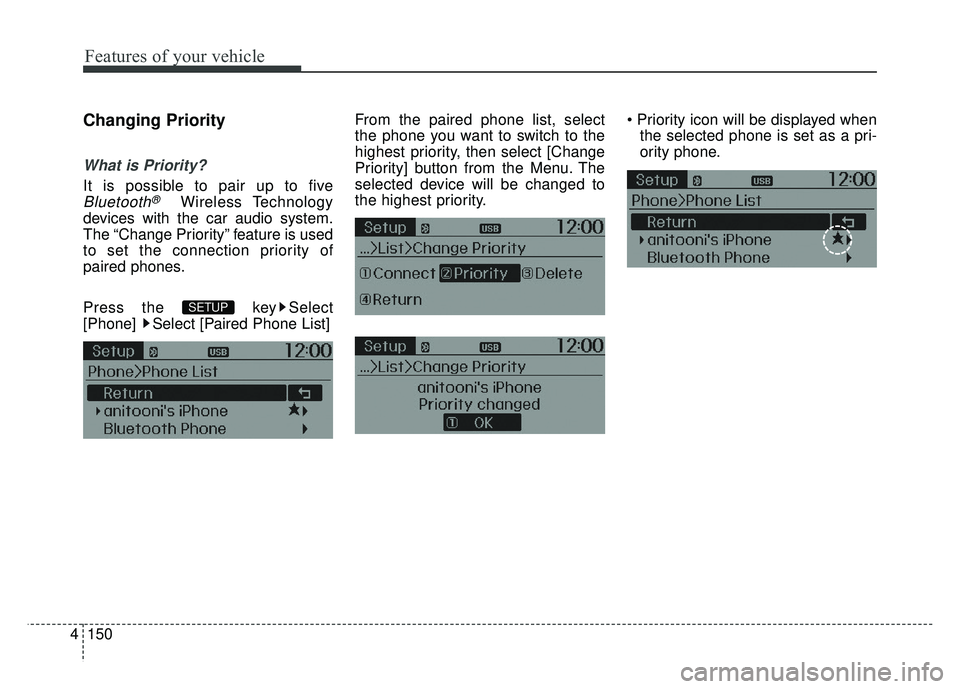
Changing Priority
What is Priority?
It is possible to pair up to five
Bluetooth®Wireless Technology
devices with the car audio system.
The “Change Priority” feature is used
to set the connection priority of
paired phones.
Press the key Select
[Phone] Select [Paired Phone List] From the paired phone list, select
the phone you want to switch to the
highest priority
, then select [Change
Priority] button from the Menu. The
selected device will be changed to
the highest priority.
the selected phone is set as a pri-
ority phone.
SETUP
Page 224 of 446
4153
Features of your vehicle
displayed, most Audio and SETUP
mode features are disabled. Only
the call volume will operate.
properly displayed in some mobile
phones.
mobile phone, the call mode will
automatically revert to Private
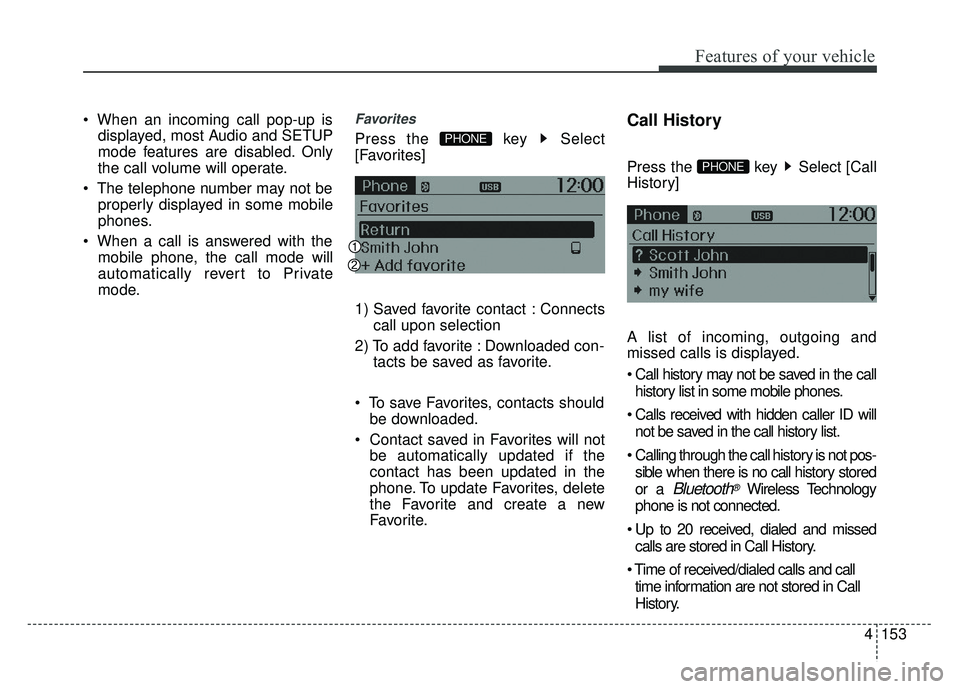
mode.Favorites
Press the key Select
[Favorites]
1) Saved favorite contact : Connects call upon selection
2) To add favorite : Downloaded con- tacts be saved as favorite.
be downloaded.
be automatically updated if the
contact has been updated in the
phone. To update Favorites, delete
the Favorite and create a new
Favorite.
Call History
Press the key Select [Call
History]
A list of incoming, outgoing and
missed calls is displayed.
history list in some mobile phones.
not be saved in the call history list.
sible when there is no call history stored
or a
Bluetooth®Wireless Technology
phone is not connected.
calls are stored in Call History.
time information are not stored in Call
History.
PHONE
PHONE
Page 225 of 446
![KIA RIO HATCHBACK 2014 Owners Manual Features of your vehicle
154
4
Contacts
Press the key Select
[Contacts]
The list of saved phone book entries
is displayed.
NOTE:
Find a contact in an alphabetical
order, press the key.
Bluetooth®W](/img/2/57980/w960_57980-224.png "KIA RIO HATCHBACK 2014 Owners Manual Features of your vehicle
154
4
Contacts
Press the key Select
[Contacts]
The list of saved phone book entries
is displayed.
NOTE:
Find a contact in an alphabetical
order, press the key.
Bluetooth®W")
Features of your vehicle
154
4
Contacts
Press the key Select
[Contacts]
The list of saved phone book entries
is displayed.
NOTE:
Find a contact in an alphabetical
order, press the key.
Bluetooth®Wireless Technology
phone can be downloaded into the
car contacts. Contacts that have
been downloaded to the car cannot
be edited or deleted on the phone.
aged separately for each paired
Bluetooth®Wireless Technology
device (max 5 devices x 1,000 con-
tacts each). Previously downloaded
data is maintained even if the
Bluetooth®Wireless Technology
device has been disconnected.
(However, the contacts and call his-
tory saved to the phone will be
deleted if a paired phone is delet-
ed.)
during Bluetooth streaming audio.
icon will be displayed within the sta-
tus bar.
loading a contact list when the con-
tact download feature has been
turned off within the
Bluetooth®
Wireless Technology device. In
addition, some devices may require device authorization upon attempt-
ing to download contacts. If down-
loading does not normally occur,
check the
Bluetooth®Wireless
Technology device settings or the
screen state.
not be supported in some mobile
phones. For more information of
supported
Bluetooth®devices and
function support, refer to your
phone’s user manual.
MENU
PHONE
Page 226 of 446
4155
Features of your vehicle
Bluetooth®Wireless
Technology Setting
The Bluetooth®word mark and logos
are registered trademarks owned by
Bluetooth SIG, Inc. and any use of
such marks by Kia is under license.
Other trademarks and trade names
are those of their respective owners.
A
Bluetooth®enabled cell phone is
required to use
Bluetooth®Wireless
Technology
Bluetooth®Wireless
Technology Setting
Pairing a New Device
Press the key Select
[Phone] Select [Pair Phone]
Bluetooth®Wireless Technology
devices can be paired with the audio
system.
For more information, refer to the
“Pairing through Phone Setup” sec-
tion within
Bluetooth®Wireless
Technology.
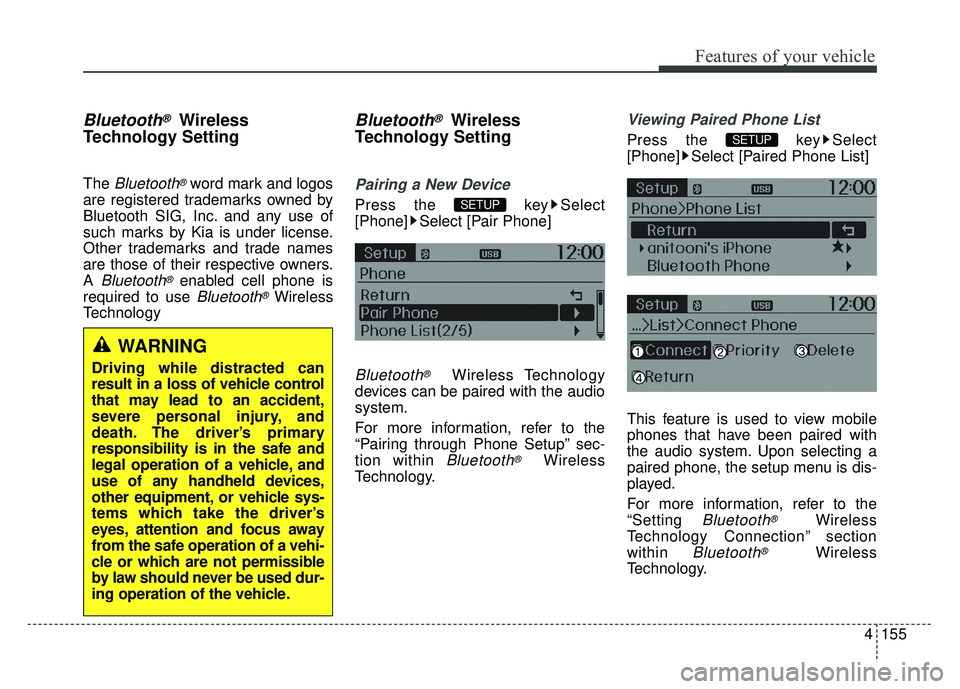
Viewing Paired Phone List
Press the key Select
[Phone] Select [Paired Phone List]
This feature is used to view mobile
phones that have been paired with
the audio system. Upon selecting a
paired phone, the setup menu is dis-
played.
For more information, refer to the
“Setting
Bluetooth®Wireless
Technology Connection” section
within
Bluetooth®Wireless
Technology.
SETUP
SETUP
WARNING
Driving while distracted can
result in a loss of vehicle control
that may lead to an accident,
severe personal injury, and
death. The driver’s primary
responsibility is in the safe and
legal operation of a vehicle, and
use of any handheld devices,
other equipment, or vehicle sys-
tems which take the driver’s
eyes, attention and focus away
from the safe operation of a vehi-
cle or which are not permissible
by law should never be used dur-
ing operation of the vehicle.
Page 228 of 446
![KIA RIO HATCHBACK 2014 Owners Manual 4157
Features of your vehicle
Audio Streaming
Press the key Select
[Phone] Select [Audio Streaming]
When Audio Streaming is turned on,
you can play music files saved in
your
Bluetooth®Wireless
Tech](/img/2/57980/w960_57980-227.png "KIA RIO HATCHBACK 2014 Owners Manual 4157
Features of your vehicle
Audio Streaming
Press the key Select
[Phone] Select [Audio Streaming]
When Audio Streaming is turned on,
you can play music files saved in
your
Bluetooth®Wireless
Tech")
4157
Features of your vehicle
Audio Streaming
Press the key Select
[Phone] Select [Audio Streaming]
When Audio Streaming is turned on,
you can play music files saved in
your
Bluetooth®Wireless
Technology device Technology
device through the audio system.
Outgoing Volume
Press the key Select
[Phone] Select [Outgoing Volume]
Use TUNE knob to adjust the out-
going volume level.
on a call, the volume can be changed by using the ,
key.
Turning Bluetooth System Off
Press the key Select
[Phone] Select [Bluetooth System
Off]
Once
Bluetooth®Wireless
Technology is turned off,
Bluetooth®
Wireless Technology related features
will not be supported within the audio
system.
turn
Bluetooth®Wireless
Technology back on, go to [Phone] and select “Yes”.SETUP
SETUP
TRACKSEEK
SETUP SETUP