audio KIA RIO HATCHBACK 2015 User Guide
[x] Cancel search | Manufacturer: KIA, Model Year: 2015, Model line: RIO HATCHBACK, Model: KIA RIO HATCHBACK 2015Pages: 447, PDF Size: 9.49 MB
Page 188 of 447
4117
Features of your vehicle
SYSTEM CONTROLLERS
AND FUNCTIONS
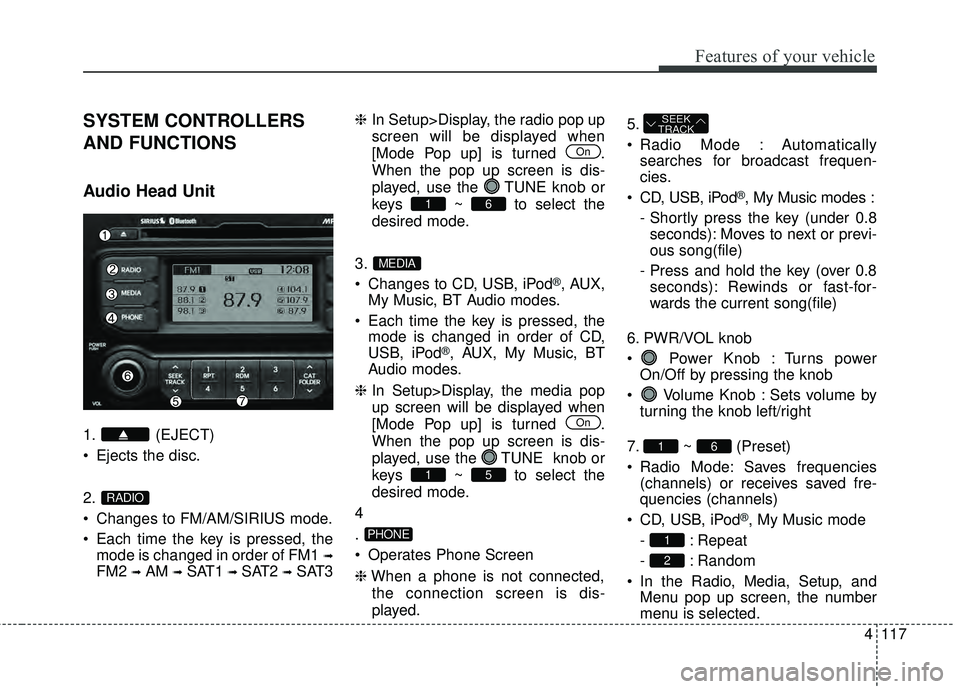
Audio Head Unit
1. (EJECT)
Ejects the disc.
2.
Changes to FM/AM/SIRIUS mode.
Each time the key is pressed, themode is changed in order of FM1
➟
FM2 ➟AM ➟SAT1 ➟SAT2 ➟SAT3 ❈
In Setup>Display, the radio pop up
screen will be displayed when
[Mode Pop up] is turned .
When the pop up screen is dis-
played, use the TUNE knob or
keys ~ to select the
desired mode.
3.
Changes to CD, USB, iPod
®, AUX,
My Music, BT Audio modes.
Each time the key is pressed, the mode is changed in order of CD,
USB, iPod
®, AUX, My Music, BT
Audio modes.
❈ In Setup>Display, the media pop
up screen will be displayed when
[Mode Pop up] is turned .
When the pop up screen is dis-
played, use the TUNE knob or
keys ~ to select the
desired mode.
4
.
Operates Phone Screen
❈ When a phone is not connected,
the connection screen is dis-
played. 5.
Radio Mode : Automatically
searches for broadcast frequen-
cies.
CD, USB, iPod
®, My Music modes :
- Shortly press the key (under 0.8 seconds): Moves to next or previ-
ous song(file)
- Press and hold the key (over 0.8 seconds): Rewinds or fast-for-
wards the current song(file)
6. PWR/VOL knob
Power Knob : Turns power On/Off by pressing the knob
Volume Knob : Sets volume by turning the knob left/right
7. ~ (Preset)
Radio Mode: Saves frequencies (channels) or receives saved fre-
quencies (channels)
CD, USB, iPod
®, My Music mode
- : Repeat
- : Random
In the Radio, Media, Setup, and Menu pop up screen, the number
menu is selected.
2
1
61
SEEK
TRACK
PHONE
51
On
MEDIA
61
On
RADIO
Page 189 of 447
Features of your vehicle
118
4
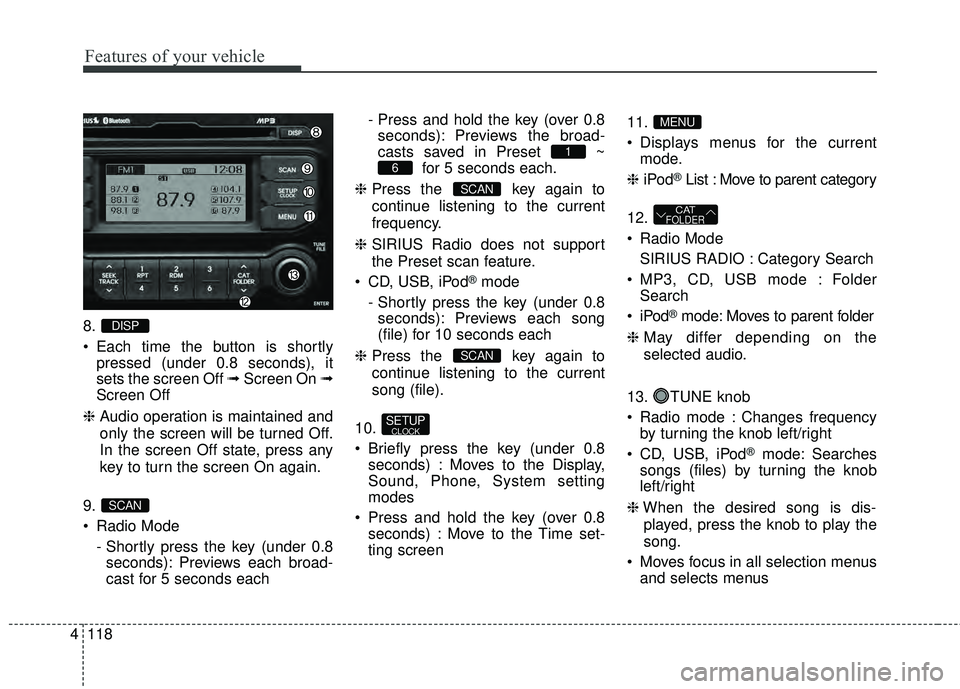
8.
Each time the button is shortly
pressed (under 0.8 seconds), it
sets the screen Off ➟ Screen On ➟
Screen Off
❈ Audio operation is maintained and
only the screen will be turned Off.
In the screen Off state, press any
key to turn the screen On again.
9.
Radio Mode - Shortly press the key (under 0.8seconds): Previews each broad-
cast for 5 seconds each - Press and hold the key (over 0.8
seconds): Previews the broad-
casts saved in Preset ~ for 5 seconds each.
❈ Press the key again to
continue listening to the current
frequency.
❈ SIRIUS Radio does not support
the Preset scan feature.
CD, USB, iPod
®mode
- Shortly press the key (under 0.8 seconds): Previews each song
(file) for 10 seconds each
❈ Press the key again to
continue listening to the current
song (file).
10.
Briefly press the key (under 0.8 seconds) : Moves to the Display,
Sound, Phone, System setting
modes
Press and hold the key (over 0.8 seconds) : Move to the Time set-
ting screen 11.
Displays menus for the current
mode.
❈ iPod
®List : Move to parent category
12.
Radio Mode SIRIUS RADIO : Category Search
MP3, CD, USB mode : Folder Search
®mode: Moves to parent folder
❈ May differ depending on the
selected audio.
13. TUNE knob
Radio mode : Changes frequency by turning the knob left/right
CD, USB, iPod
®mode: Searches
songs (files) by turning the knob
left/right
❈ When the desired song is dis-
played, press the knob to play the
song.
Moves focus in all selection menus and selects menus
CATFOLDER
MENU
SETUPCLOCK
SCAN
SCAN
6
1
SCAN
DISP
Page 202 of 447
4131
Features of your vehicle
It is recommended to disconnect
the external USB device when the
audio is turned off or in modes
other than USB.
(e.g, Radio, SIRIUS or CD)
Depending on the type and capac- ity of the external USB device or
the type of the files stored in the
device, there is a difference in the
time taken for recognition of the
device.
Do not use the USB device for pur- poses other than playing music
files.
Playing videos through the USB is not supported.
If you use devices such as a USB hub purchased separately, the
vehicle’s audio system may not
recognize the USB device. In that
case, connect the USB device
directly to the multimedia terminal
of the vehicle.
If the USB device is divided by log- ical drives, only the music files on
the highest-priority drive are recog-
nized by car audio.
(Continued)(Continued)
Some USB devices such as MP3
Player/Cellular phone/Digital cam-
era may be unrecognizable.
Charging through the USB may not be supported in some mobile
devices.
USB HDD or other USB types, may be liable to connection failures
due to vehicle vibrations.
(i-stick type)
Some non-standard USB devices (METAL COVER TYPE USB) can
be unrecognizable.
Some USB flash memory readers (such as CF, SD, micro SD, etc.) or
external-HDD type devices can be
unrecognizable.
Music files protected by DRM (DIGITAL RIGHTS MANAGE-
MENT) are not recognizable.CAUTION - USB JackDamage
The data in the USB memory
may be lost while using thisaudio.
Always back up importantdata on a personal storagedevice.
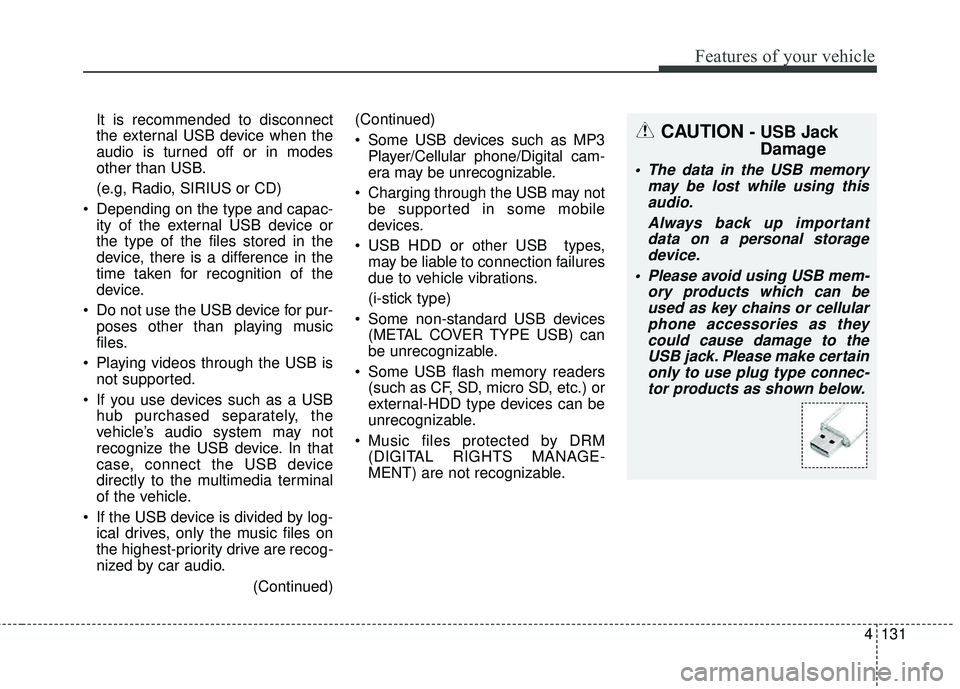
Please avoid using USB mem- ory products which can beused as key chains or cellularphone accessories as theycould cause damage to theUSB jack. Please make certainonly to use plug type connec-tor products as shown below.
Page 203 of 447
Features of your vehicle
132
4
BASIC METHOD OF USE :
Audio CD / MP3 CD / USB /
iPod
®/ My Music
Press the key to change the
mod mode in order of CD ➟
USB(iPod
®) ➟ AUX ➟ My Music ➟
BT Audio.
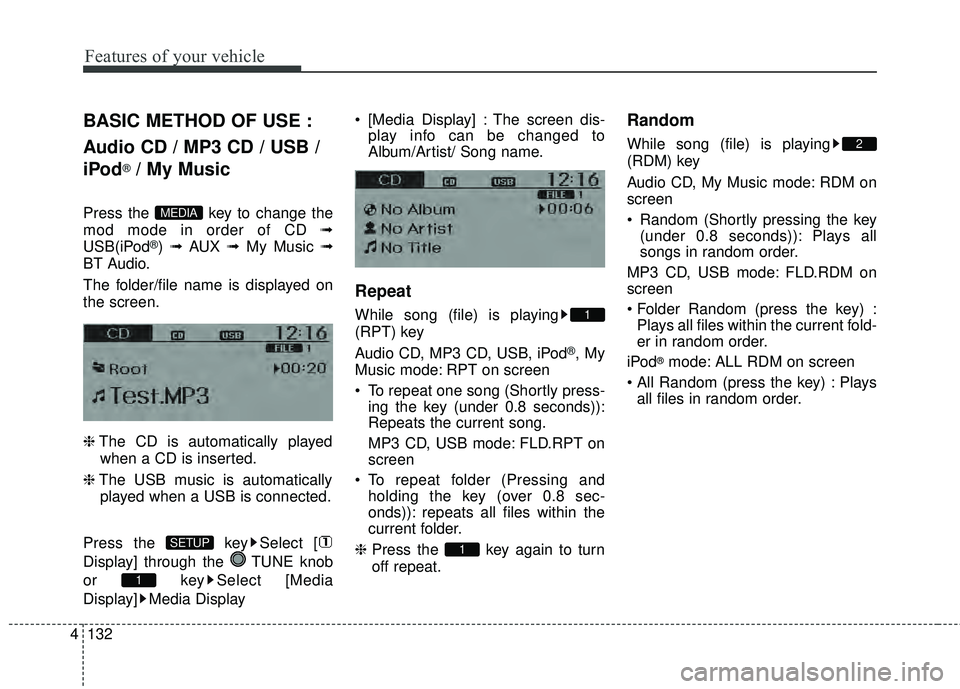
The folder/file name is displayed on
the screen.
❈ The CD is automatically played
when a CD is inserted.
❈ The USB music is automatically
played when a USB is connected.
Press the key Select [
Display] through the TUNE knob
or key Select [Media
Display] Media Display [Media Display] : The screen dis-
play info can be changed to
Album/Artist/ Song name.
Repeat
While song (file) is playing
(RPT) key
Audio CD, MP3 CD, USB, iPod
®, My
Music mode: RPT on screen
To repeat one song (Shortly press- ing the key (under 0.8 seconds)):
Repeats the current song.
MP3 CD, USB mode: FLD.RPT on
screen
To repeat folder (Pressing and holding the key (over 0.8 sec-
onds)): repeats all files within the
current folder.
❈ Press the key again to turn
off repeat.
Random
While song (file) is playing
(RDM) key
Audio CD, My Music mode: RDM on
screen
Random (Shortly pressing the key
(under 0.8 seconds)): Plays all
songs in random order.
MP3 CD, USB mode: FLD.RDM on
screen
Plays all files within the current fold-
er in random order.
iPod
®mode: ALL RDM on screen
Plays all files in random order.
2
1
1
1
SETUP
MEDIA
Page 205 of 447
![KIA RIO HATCHBACK 2015 User Guide Features of your vehicle
134
4
MENU : Audio CD
Press the CD MP3 mode key
to set the Repeat, Random,
Information features.
Repeat
Press the key Set [ RPT]
through the TUNE knob or
key to repeat the](/img/2/57978/w960_57978-204.png "KIA RIO HATCHBACK 2015 User Guide Features of your vehicle
134
4
MENU : Audio CD
Press the CD MP3 mode key
to set the Repeat, Random,
Information features.
Repeat
Press the key Set [ RPT]
through the TUNE knob or
key to repeat the")
Features of your vehicle
134
4
MENU : Audio CD
Press the CD MP3 mode key
to set the Repeat, Random,
Information features.
Repeat
Press the key Set [ RPT]
through the TUNE knob or
key to repeat the current song.
❈ Press RPT again to turn off.
Random
Press the key Set [ RDM]
through the TUNE knob or
key to randomly play songs within
the current folder.
❈Press RDM again to turn off.
Information
Press the key Set [ Info]
through the TUNE knob or
key to display information of the cur-
rent song.
❈Press the key to turn off
info display.
MENU
3
MENU
2
MENU
1
MENU
MENU
Page 207 of 447
![KIA RIO HATCHBACK 2015 User Guide Features of your vehicle
136
4
MENU : iPod®
In iPod®mode, press the key
to set the Repeat, Random,
Information and Search features.
Repeat
Press the key Set [ RPT]
through the
TUNEknob or
key to](/img/2/57978/w960_57978-206.png "KIA RIO HATCHBACK 2015 User Guide Features of your vehicle
136
4
MENU : iPod®
In iPod®mode, press the key
to set the Repeat, Random,
Information and Search features.
Repeat
Press the key Set [ RPT]
through the
TUNEknob or
key to")
Features of your vehicle
136
4
MENU : iPod®
In iPod®mode, press the key
to set the Repeat, Random,
Information and Search features.
Repeat
Press the key Set [ RPT]
through the
TUNEknob or
key to repeat the current song.
❈ Press RPT again to turn repeat
off.
Album Random
Press the key Set [ Alb.RDM]
through the TUNEknob or key.
Plays albums within the currently
playing category in random order.
❈Press Alb.RDM again to turn off.
All Random
Press the key Set [ A.RDM]
through the TUNEknob or
key.
Plays all songs within the currently
playing category in random order.
❈ Press A.RDM again to turn off.
Information
Press the key Set [ Info]
through the
TUNEknob or
key.
Displays information of the current
song.
❈ Press the key to turn off
info display.
Some iPod
®models may not sup-
port all communication protocols
which will result in some files that
not playing properly.
Supported iPod
®models:
- iPod Mini
®
- iPod 4th(Photo) ~ 6th(Classic) generation
- iPod Nano
®1st~4th generation - iPod Touch
®1st~2nd generation
The order of search or playback of songs in the iPod
®can be different
from the order searched in the
audio system.
If the iPod
®is disabled due to its
own malfunction, reset the iPod®.
(Reset: Refer to iPod®manual)
An iPod
®may not operate normal-
ly when the battery is low.
Some iPod
®devices, such as the
iPhone®, can be connected
through Bluetooth. The device
must have audio
Bluetooth®
Wireless Technologycapability
(such as for stereo headphone
Bluetooth®Wireless Technology).
The device may play, but it will not
be controlled by the audio system.
To use the iPod
®features through the
audio system, use the cable that was
provided with of the iPod
®.
Skipping or improper operation may occur depending on the characteris-
tics of your iPod
®/iPhone®device.
MENU
4
MENU
3
MENU
2
MENU
1
MENU
MENU
Page 208 of 447
4137
Features of your vehicle
If your iPhone®is connected to both
the
Bluetooth®Wireless
Technology
and USB, the sound
may not be properly played. In your
iPhone
®, select the Dock connector
or
Bluetooth®Wireless Technology
to change the sound output
(source).
When connecting iPod
®with the
iPod®Power Cable, insert the con-
nector to the multimedia socket
completely. If not inserted com-
pletely, communications between
iPod
®and audio may be interrupt-
ed.
When adjusting the sound effects of the iPod
®and the audio system,
the sound effects of both devices
will overlap and might reduce or
distort the quality of the sound.
Deactivate (turn off) the equalizer function of an iPod
®when adjust-
ing the audio system’s volume, and
turn off the equalizer of the audio
system when using the equalizer of
an iPod
®. When not using iPod
®with car
audio, detach the iPod®cable from
iPod®. Otherwise, iPod®may
remain in accessory mode, and
may not work properly.
Page 211 of 447
Features of your vehicle
140
4
Bluetooth®Wireless Technology
AUDIO
What is Bluetooth®Wireless
Technology
?
Bluetooth®Wireless Technology allows
devices to be connected in a short dis-
tance, including hands-free devices,
stereo headsets, wireless remote con-
trollers, etc. For more infor mation, visit
theBluetooth®Wireless Technologywebsite atwww.Bluetooth.com
Before using Bluetooth®Wireless
Technology audio features
Bluetooth®Wireless Technology
audio may not be supported depend-
ing on the compatibility of your
Bluetooth®Wireless Technology
mobile phone.
Bluetooth®Wireless
Technology audio, you must first
pair and connect the
Bluetooth®
Wireless Technology mobile phone.
Bluetooth®word mark and
logos are registered trademarks
owned by Bluetooth SIG, Inc. and
any use of such marks by Kia is
under license. Other trademarks
and trade names are those of their
respective owners. A Bluetooth®
enabled cell phone is required to
use
Bluetooth®Wireless Technology
Bluetooth®Wireless Technology
audio can be used only when the
[Audio Streaming] of Phone is turned .
❈ Setting Bluetooth®Wireless TechnologyAudio Streaming : Press the
key Select [Phone] Select [Audio
Streaming] through the TUNE
knob Set
/OffOn
SETUP
On
WARNING
Driving while distracted can
result in a loss of vehicle control
that may lead to an accident,
severe personal injury, and
death. The driver’s primary
responsibility is in the safe and
legal operation of a vehicle, and
use of any handheld devices,
other equipment, or vehicle sys-
tems which take the driver’s
eyes, attention and focus away
from the safe operation of a vehi-
cle or which are not permissible
by law should never be used dur-
ing operation of the vehicle.
Page 212 of 447
4141
Features of your vehicle
Starting Bluetooth®Wireless
Technology
Audio
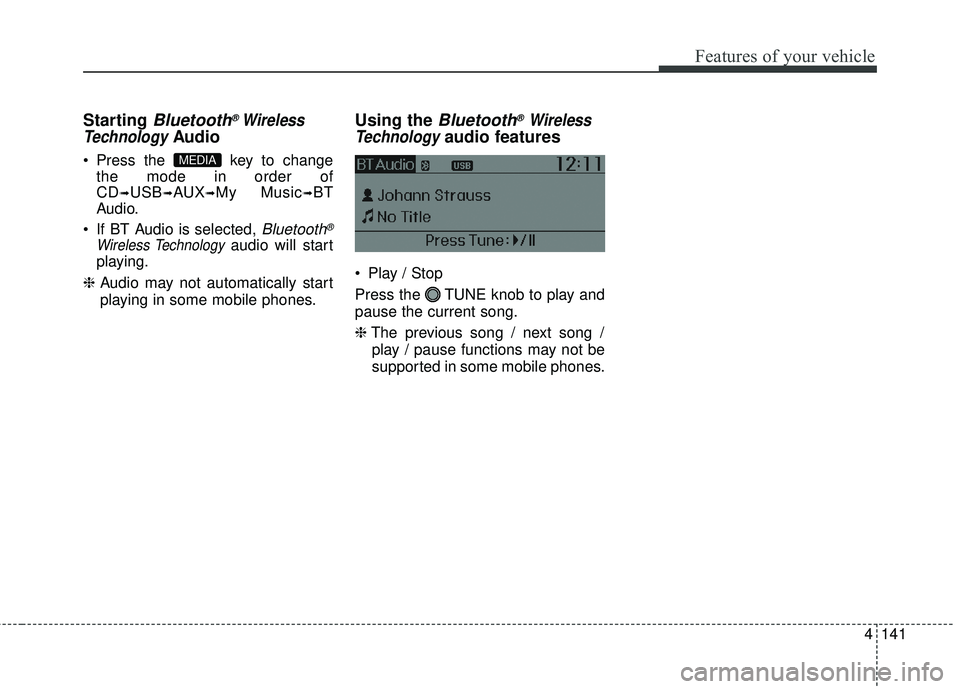
Press the key to change
the mode in order of
CD
➟USB➟AUX➟My Music➟BT
Audio.
If BT Audio is selected,
Bluetooth®
Wireless Technologyaudio will start
playing.
❈ Audio may not automatically start
playing in some mobile phones.
Using the Bluetooth®Wireless
Technology
audio features
Play / Stop
Press the TUNE knob to play and
pause the current song.
❈ The previous song / next song /
play / pause functions may not be
supported in some mobile phones.
MEDIA
Page 214 of 447
4143
Features of your vehicle
Bluetooth®Wireless Technology
The Bluetooth®word mark and logos
are registered trademarks owned by
Bluetooth SIG, lnc. and any use of
such marks by Kia is under license.
A
Bluetooth®enabled call phone is
required to use
Bluetooth®wireless
technology.
Before Using the Bluetooth®
Handsfree
What is Bluetooth®?
Bluetooth®refers to a short-dis-
tance wireless networking technol-
ogy which uses a 2.4GHz ~
2.48GHz frequency to connect var-
ious devices within a certain dis-
tance.
devices,
Bluetooth®phones, PDAs,
various electronic devices, and
automotive environments,
Bluetooth®allows data to be trans-
mitted at high speeds without hav-
ing to use a connector cable.
Bluetooth®Handsfree refers to a
device which allows the user to con-
veniently make phone calls with
Bluetooth®mobile phones through
the audio system.
Bluetooth®Handsfree may not be
supported in some mobile phones.
To learn more about mobile device
compatibility, visit www
.kia.com.
WARNING
Driving while distracted can
result in a loss of vehicle control
that may lead to an accident,
severe personal injury, and
death. The driver’s primary
responsibility is in the safe and
legal operation of a vehicle, and
use of any handheld devices,
other equipment, or vehicle sys-
tems which take the driver’s
eyes, attention and focus away
from the safe operation of a vehi-
cle or which are not permissible
by law should never be used dur-
ing operation of the vehicle.