display KIA RIO HATCHBACK 2015 Owner's Manual
[x] Cancel search | Manufacturer: KIA, Model Year: 2015, Model line: RIO HATCHBACK, Model: KIA RIO HATCHBACK 2015Pages: 447, PDF Size: 9.49 MB
Page 189 of 447
Features of your vehicle
118
4
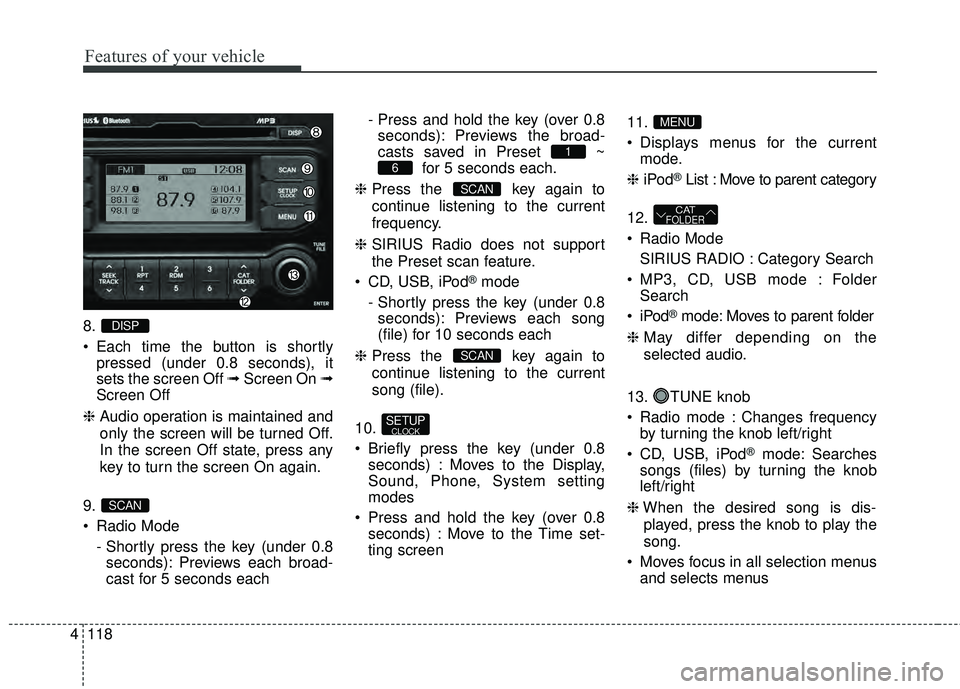
8.
Each time the button is shortly
pressed (under 0.8 seconds), it
sets the screen Off ➟ Screen On ➟
Screen Off
❈ Audio operation is maintained and
only the screen will be turned Off.
In the screen Off state, press any
key to turn the screen On again.
9.
Radio Mode - Shortly press the key (under 0.8seconds): Previews each broad-
cast for 5 seconds each - Press and hold the key (over 0.8
seconds): Previews the broad-
casts saved in Preset ~ for 5 seconds each.
❈ Press the key again to
continue listening to the current
frequency.
❈ SIRIUS Radio does not support
the Preset scan feature.
CD, USB, iPod
®mode
- Shortly press the key (under 0.8 seconds): Previews each song
(file) for 10 seconds each
❈ Press the key again to
continue listening to the current
song (file).
10.
Briefly press the key (under 0.8 seconds) : Moves to the Display,
Sound, Phone, System setting
modes
Press and hold the key (over 0.8 seconds) : Move to the Time set-
ting screen 11.
Displays menus for the current
mode.
❈ iPod
®List : Move to parent category
12.
Radio Mode SIRIUS RADIO : Category Search
MP3, CD, USB mode : Folder Search
®mode: Moves to parent folder
❈ May differ depending on the
selected audio.
13. TUNE knob
Radio mode : Changes frequency by turning the knob left/right
CD, USB, iPod
®mode: Searches
songs (files) by turning the knob
left/right
❈ When the desired song is dis-
played, press the knob to play the
song.
Moves focus in all selection menus and selects menus
CATFOLDER
MENU
SETUPCLOCK
SCAN
SCAN
6
1
SCAN
DISP
Page 191 of 447
![KIA RIO HATCHBACK 2015 Owners Manual Features of your vehicle
120
4
DISPLAY SETTINGS
Press the key Select
[Display] through TUNE knob or
key Select menu through
TUNE knob
Mode Pop up
[Mode Pop up] Changes /
selection mode
During On](/img/2/57978/w960_57978-190.png "KIA RIO HATCHBACK 2015 Owners Manual Features of your vehicle
120
4
DISPLAY SETTINGS
Press the key Select
[Display] through TUNE knob or
key Select menu through
TUNE knob
Mode Pop up
[Mode Pop up] Changes /
selection mode
During On")
Features of your vehicle
120
4
DISPLAY SETTINGS
Press the key Select
[Display] through TUNE knob or
key Select menu through
TUNE knob
Mode Pop up
[Mode Pop up] Changes /
selection mode
During On state, press the or key to display the mode
change pop up screen.
Text Scroll
[Text Scroll] Set /
: Maintains scroll
: Scrolls only one (1) time.
Media Display
When playing an MP3 file, select the
desired display info from ‘Folder/File’
or ‘Album/Artist/Song’.
Off
On
OffOn
MEDIA
RADIO
OffOn
1
SETUP
Page 194 of 447
![KIA RIO HATCHBACK 2015 Owners Manual 4123
Features of your vehicle
CLOCK SETTINGS
Press the key Select [Clock]
through TUNE knob or key
Select menu through TUNE knob
Clock Settings
This menu is used to set the time.
Select [Clock Set](/img/2/57978/w960_57978-193.png "KIA RIO HATCHBACK 2015 Owners Manual 4123
Features of your vehicle
CLOCK SETTINGS
Press the key Select [Clock]
through TUNE knob or key
Select menu through TUNE knob
Clock Settings
This menu is used to set the time.
Select [Clock Set")
4123
Features of your vehicle
CLOCK SETTINGS
Press the key Select [Clock]
through TUNE knob or key
Select menu through TUNE knob
Clock Settings
This menu is used to set the time.
Select [Clock Settings] Set throughTUNE knob Press TUNE knob
❈ Adjust the number currently in
focus to set the [hour] and press
the TUNE knob to set the [minute].
Calendar Settings
This menu is used to set the date
(MM/DD/YYYY).
Select [Calendar Settings] Set
through TUNE knob Press
TUNE knob ❈
Adjust the number currently in
focus to make the settings and
press the TUNE knob to move to
the next setting. (Set in order of
Month/Day/Year)
Clock Display when Power is
OFF
Select [Clock Disp.(Pwr Off) Set
/ through TUNE knob
: Displays time/date on screen
: Turn off.
Off
On
OffOn
3
SETUP
Page 195 of 447
![KIA RIO HATCHBACK 2015 Owners Manual Features of your vehicle
124
4
SYSTEM SETTINGS
Press the key Select
[System] Select menu through
TUNE knob
Memory Information
Displays currently used memory and
total system memory.
Select [Memory](/img/2/57978/w960_57978-194.png "KIA RIO HATCHBACK 2015 Owners Manual Features of your vehicle
124
4
SYSTEM SETTINGS
Press the key Select
[System] Select menu through
TUNE knob
Memory Information
Displays currently used memory and
total system memory.
Select [Memory")
Features of your vehicle
124
4
SYSTEM SETTINGS
Press the key Select
[System] Select menu through
TUNE knob
Memory Information
Displays currently used memory and
total system memory.
Select [Memory Information] OK
The currently used memory is dis-
played on the left side while the total
system memory is displayed on the
right side.
Prompt Feedback
This feature is used to change voice
command feedback between Normal
and Expert modes.
Select [Prompt Feedback] Set
through TUNE knob
Normal : This mode is for beginnerusers and provides detailed
instructions during voice command
operation. Expert : This mode is for expert
users and omits some information
during voice command operation.
(When using Expert mode, guid-
ance instructions can be heard
through the [Help] or [Menu] com-
mands.
Language
This menu is used to set the display
and voice recognition language.
Select [Language] Set through
TUNE knob
❈ The system will reboot after the
language is changed.
❈ Language support by region
English, French and Spanish
SETUP
Page 199 of 447
Features of your vehicle
128
4
Sirius satellite service is available
only to those at least 18 and older in
the 48 contiguous USA, D.C., and PR
(with coverage limitations). Traffic
information not available in all mar-
kets. See siriusxm.com/traffic for
details. Sirius, XM and all related
marks and logos are trademarks of
Sirius XM Radio Inc.
Kia shall not be responsible for any
such programming changes.
Service available in Canada; see
www
.siriuscanada.caKia shall not be responsible for
any such programming changes.
Satellite Radio Electronic Serial
Number (ESN) : This 12-digit
Satellite Serial Number is needed to
re-activate, modify or track your
satellite radio account. You will need
this number when communicating
with SIRIUS.
SIRIUS RADIO
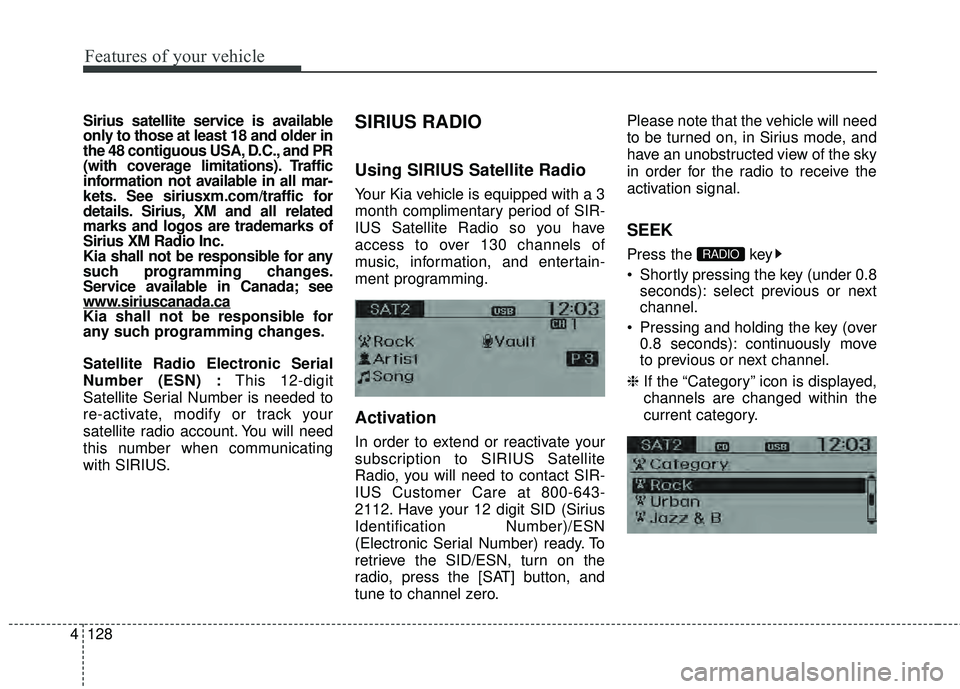
Using SIRIUS Satellite Radio
Your Kia vehicle is equipped with a 3
month complimentary period of SIR-
IUS Satellite Radio so you have
access to over 130 channels of
music, information, and entertain-
ment programming.
Activation
In order to extend or reactivate your
subscription to SIRIUS Satellite
Radio, you will need to contact SIR-
IUS Customer Care at 800-643-
2112. Have your 12 digit SID (Sirius
Identification Number)/ESN
(Electronic Serial Number) ready. To
retrieve the SID/ESN, turn on the
radio, press the [SAT] button, and
tune to channel zero. Please note that the vehicle will need
to be turned on, in Sirius mode, and
have an unobstructed view of the sky
in order for the radio to receive the
activation signal.
SEEK
Press the key
Shortly pressing the key (under 0.8
seconds): select previous or next
channel.
Pressing and holding the key (over 0.8 seconds): continuously move
to previous or next channel.
❈ If the “Category” icon is displayed,
channels are changed within the
current category.RADIO
Page 200 of 447
4129
Features of your vehicle
SCAN
Press the key
Shortly pressing the key (under 0.8seconds): Previews each broad-
cast for 5 seconds each
❈ Press the key again to
continue listening to the current
frequency
❈ If the “Category” icon is displayed,
channels are changed within the
current category.
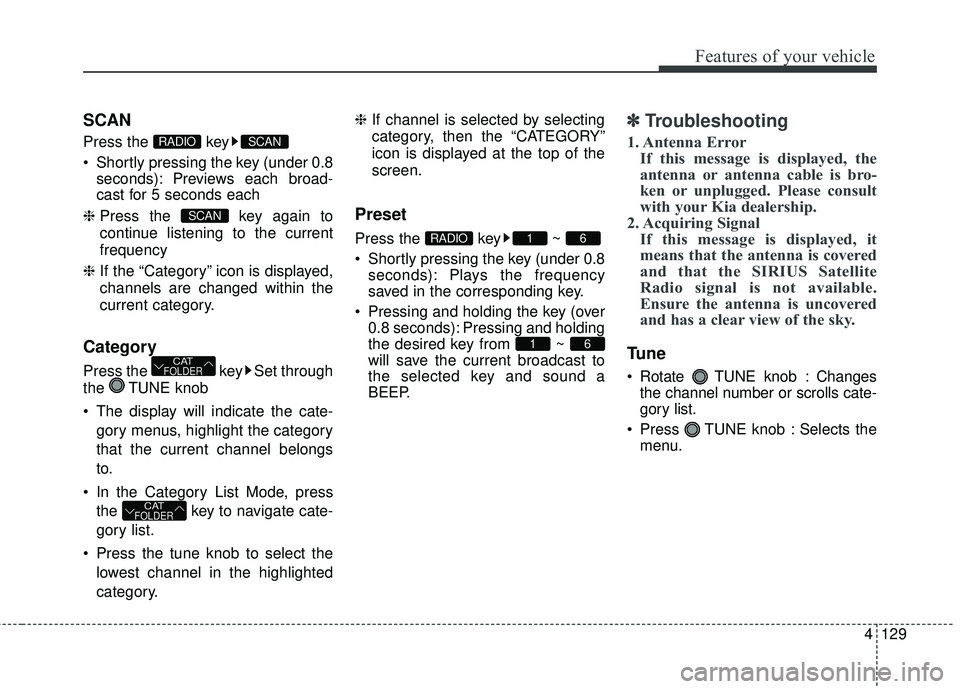
Category
Press the key Set through
the TUNE knob
The display will indicate the cate-
gory menus, highlight the category
that the current channel belongs
to.
In the Category List Mode, press the key to navigate cate-
gory list.
Press the tune knob to select the lowest channel in the highlighted
category. ❈
If channel is selected by selecting
category, then the “CATEGORY”
icon is displayed at the top of the
screen.
Preset
Press the key ~
Shortly pressing the key (under 0.8
seconds): Plays the frequency
saved in the corresponding key.
Pressing and holding the key (over 0.8 seconds): Pressing and holding
the desired key from ~
will save the current broadcast to
the selected key and sound a
BEEP.
✽ ✽ Troubleshooting
1. Antenna Error
If this message is displayed, the
antenna or antenna cable is bro-
ken or unplugged. Please consult
with your Kia dealership.
2. Acquiring Signal If this message is displayed, it
means that the antenna is covered
and that the SIRIUS Satellite
Radio signal is not available.
Ensure the antenna is uncovered
and has a clear view of the sky.
Tune
Rotate TUNE knob : Changes
the channel number or scrolls cate-
gory list.
Press TUNE knob : Selects the menu.
61
61RADIO
CATFOLDER
CATFOLDER
SCAN
SCANRADIO
Page 201 of 447
![KIA RIO HATCHBACK 2015 Owners Manual Features of your vehicle
130
4
Menu
Select category menu through the
TUNE knob Press the
key Select [ Info] through the
TUNE knob or key
Info (Information)
Displays the Artist/Song info of the
cur](/img/2/57978/w960_57978-200.png "KIA RIO HATCHBACK 2015 Owners Manual Features of your vehicle
130
4
Menu
Select category menu through the
TUNE knob Press the
key Select [ Info] through the
TUNE knob or key
Info (Information)
Displays the Artist/Song info of the
cur")
Features of your vehicle
130
4
Menu
Select category menu through the
TUNE knob Press the
key Select [ Info] through the
TUNE knob or key
Info (Information)
Displays the Artist/Song info of the
current song.
USING YOUR USB DEVICE
When using an external USB device, make sure the device is not
connected when starting up the
vehicle.
If you start the engine when the USB device is connected, it may
damage the USB device. (USB
flashdrives are very sensitive to
electric shock.) Connect the device
after starting up.
The System may not play inau- thentic MP3 or WMA files.
1) It can only play MP3 files with the compression rate between
8Kbps~320Kbps.
2) It can only play WMA music files with the compression rate
between 8Kbps~320Kbps.
Take precautions for static electric- ity when connecting or disconnect-
ing the external USB device. An encrypted MP3 PLAYER is not
recognizable.
Depending on the condition of the external USB device, the connect-
ed external USB device can be
unrecognizable.
When the formatted byte/sector setting of External USB device is
not either 512BYTE or 2048BYTE,
then the device will not be recog-
nized.
Use only a USB device formatted to FAT 12/16/32.
USB devices without USB I/F authentication may not be recog-
nizable.
If you repeatedly connect or dis- connect the USB device in a short
period of time, it may damage the
device.
You may hear a strange noise when connecting or disconnecting
a USB device.
If you disconnect the external USB device during playback in USB
mode, the external USB device
can be damaged or may malfunc-
tion.
1
MENU
Page 203 of 447
Features of your vehicle
132
4
BASIC METHOD OF USE :
Audio CD / MP3 CD / USB /
iPod
®/ My Music
Press the key to change the
mod mode in order of CD ➟
USB(iPod
®) ➟ AUX ➟ My Music ➟
BT Audio.
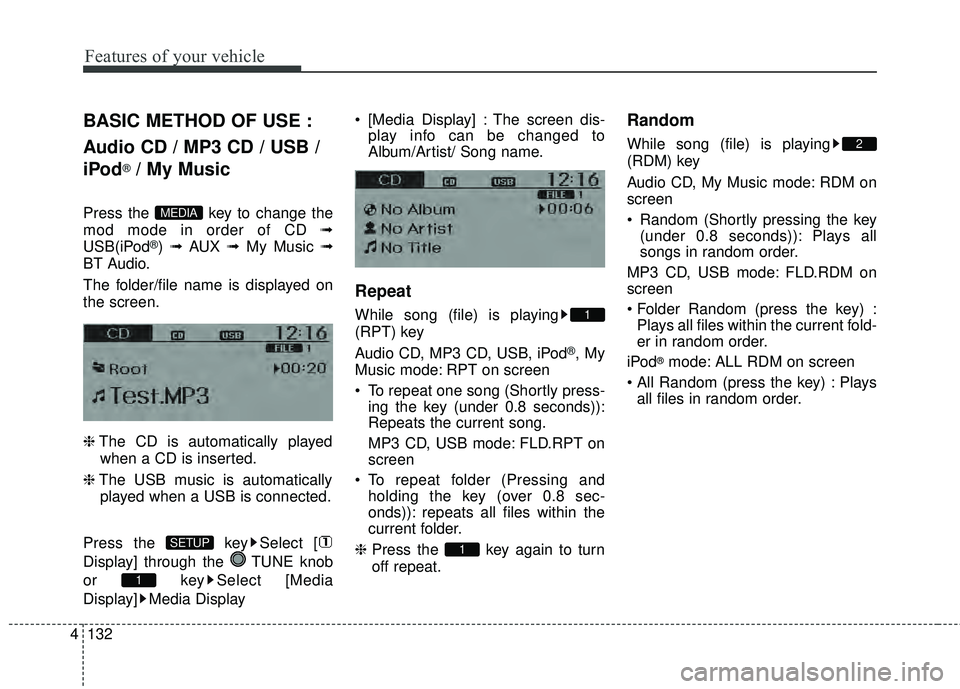
The folder/file name is displayed on
the screen.
❈ The CD is automatically played
when a CD is inserted.
❈ The USB music is automatically
played when a USB is connected.
Press the key Select [
Display] through the TUNE knob
or key Select [Media
Display] Media Display [Media Display] : The screen dis-
play info can be changed to
Album/Artist/ Song name.
Repeat
While song (file) is playing
(RPT) key
Audio CD, MP3 CD, USB, iPod
®, My
Music mode: RPT on screen
To repeat one song (Shortly press- ing the key (under 0.8 seconds)):
Repeats the current song.
MP3 CD, USB mode: FLD.RPT on
screen
To repeat folder (Pressing and holding the key (over 0.8 sec-
onds)): repeats all files within the
current folder.
❈ Press the key again to turn
off repeat.
Random
While song (file) is playing
(RDM) key
Audio CD, My Music mode: RDM on
screen
Random (Shortly pressing the key
(under 0.8 seconds)): Plays all
songs in random order.
MP3 CD, USB mode: FLD.RDM on
screen
Plays all files within the current fold-
er in random order.
iPod
®mode: ALL RDM on screen
Plays all files in random order.
2
1
1
1
SETUP
MEDIA
Page 205 of 447
![KIA RIO HATCHBACK 2015 Owners Manual Features of your vehicle
134
4
MENU : Audio CD
Press the CD MP3 mode key
to set the Repeat, Random,
Information features.
Repeat
Press the key Set [ RPT]
through the TUNE knob or
key to repeat the](/img/2/57978/w960_57978-204.png "KIA RIO HATCHBACK 2015 Owners Manual Features of your vehicle
134
4
MENU : Audio CD
Press the CD MP3 mode key
to set the Repeat, Random,
Information features.
Repeat
Press the key Set [ RPT]
through the TUNE knob or
key to repeat the")
Features of your vehicle
134
4
MENU : Audio CD
Press the CD MP3 mode key
to set the Repeat, Random,
Information features.
Repeat
Press the key Set [ RPT]
through the TUNE knob or
key to repeat the current song.
❈ Press RPT again to turn off.
Random
Press the key Set [ RDM]
through the TUNE knob or
key to randomly play songs within
the current folder.
❈Press RDM again to turn off.
Information
Press the key Set [ Info]
through the TUNE knob or
key to display information of the cur-
rent song.
❈Press the key to turn off
info display.
MENU
3
MENU
2
MENU
1
MENU
MENU
Page 206 of 447
4135
Features of your vehicle
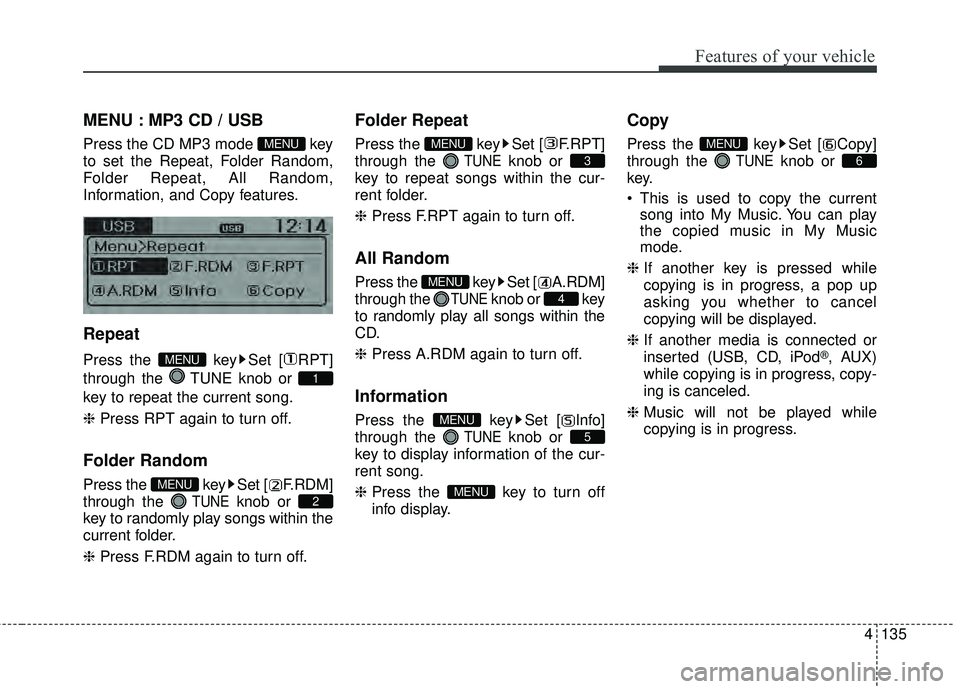
MENU : MP3 CD / USB
Press the CD MP3 mode key
to set the Repeat, Folder Random,
Folder Repeat, All Random,
Information, and Copy features.
Repeat
Press the key Set [ RPT]
through the TUNE knob or
key to repeat the current song.
❈ Press RPT again to turn off.
Folder Random
Press the key Set [ F.RDM]
through the
TUNEknob or
key to randomly play songs within the
current folder.
❈ Press F.RDM again to turn off.
Folder Repeat
Press the key Set [ F.RPT]
through the
TUNEknob or
key to repeat songs within the cur-
rent folder.
❈ Press F.RPT again to turn off.
All Random
Press the key Set [ A.RDM]
through the
TUNEknob or key
to randomly play all songs within the
CD.
❈ Press A.RDM again to turn off.
Information
Press the key Set [ Info]
through the
TUNEknob or
key to display information of the cur-
rent song.
❈ Press the key to turn off
info display.
Copy
Press the key Set [ Copy]
through the
TUNEknob or
key.
This is used to copy the current song into My Music. You can play
the copied music in My Music
mode.
❈ If another key is pressed while
copying is in progress, a pop up
asking you whether to cancel
copying will be displayed.
❈ If another media is connected or
inserted (USB, CD, iPod
®, AUX)
while copying is in progress, copy-
ing is canceled.
❈ Music will not be played while
copying is in progress.
6
MENU
MENU
5
MENU
4
MENU
3
MENU
2
MENU
1
MENU
MENU