change time KIA RIO HATCHBACK 2017 User Guide
[x] Cancel search | Manufacturer: KIA, Model Year: 2017, Model line: RIO HATCHBACK, Model: KIA RIO HATCHBACK 2017Pages: 532, PDF Size: 12.04 MB
Page 212 of 532
Features of your vehicle
142
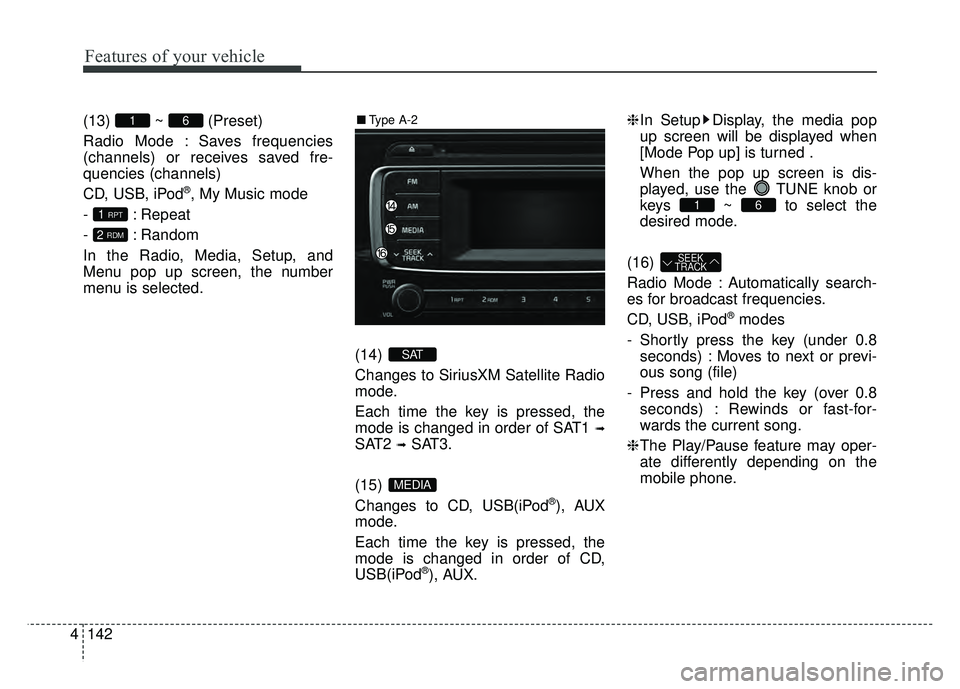
4 (13) ~ (Preset)
Radio Mode : Saves frequencies
(channels) or receives saved fre-
quencies (channels)
CD, USB, iPod
®, My Music mode
- : Repeat
- : Random
In the Radio, Media, Setup, and
Menu pop up screen, the number
menu is selected.
(14)
Changes to SiriusXM Satellite Radio
mode.
Each time the key is pressed, the
mode is changed in order of SAT1
➟
SAT2 ➟SAT3.
(15)
Changes to CD, USB(iPod
®), AUX
mode.
Each time the key is pressed, the
mode is changed in order of CD,
USB(iPod
®), AUX. ❈
In Setup Display, the media pop
up screen will be displayed when
[Mode Pop up] is turned .
When the pop up screen is dis-
played, use the TUNE knob or
keys ~ to select the
desired mode.
(16)
Radio Mode : Automatically search-
es for broadcast frequencies.
CD, USB, iPod
®modes
- Shortly press the key (under 0.8 seconds) : Moves to next or previ-
ous song (file)
- Press and hold the key (over 0.8 seconds) : Rewinds or fast-for-
wards the current song.
❈ The Play/Pause feature may oper-
ate differently depending on the
mobile phone.
SEEK
TRACK
61
MEDIA
SAT
2 RDM
1 RPT
61■ Type A-2
Page 227 of 532
Features of your vehicle
4157
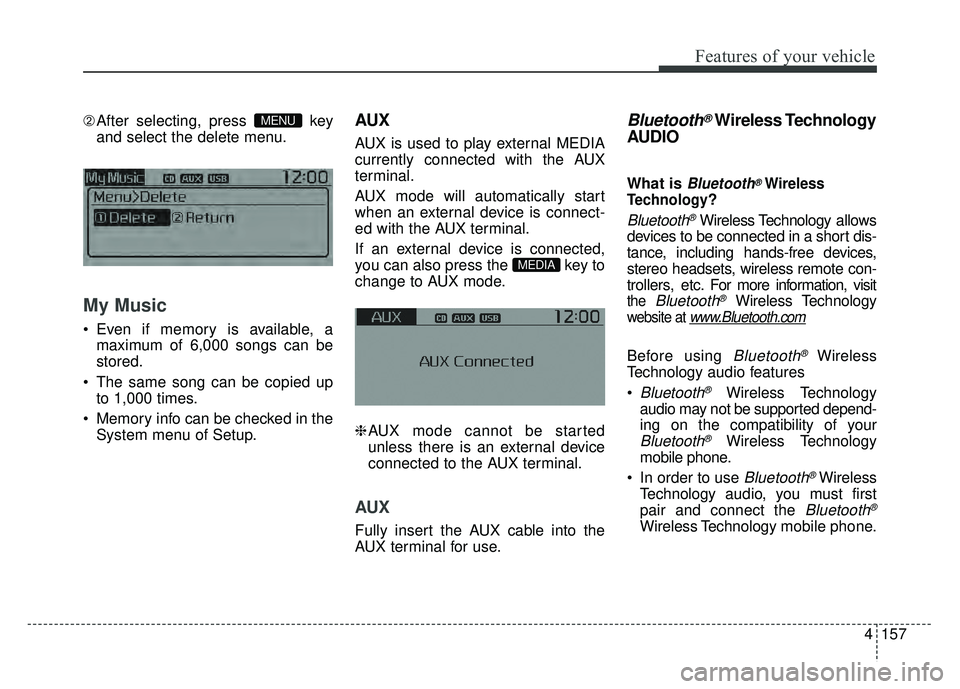
➁After selecting, press key
and select the delete menu.
My Music
Even if memory is available, a
maximum of 6,000 songs can be
stored.
The same song can be copied up to 1,000 times.
Memory info can be checked in the System menu of Setup.
AUX
AUX is used to play external MEDIA
currently connected with the AUX
terminal.
AUX mode will automatically start
when an external device is connect-
ed with the AUX terminal.
If an external device is connected,
you can also press the key to
change to AUX mode.
❈AUX mode cannot be started
unless there is an external device
connected to the AUX terminal.
AUX
Fully insert the AUX cable into the
AUX terminal for use.
Bluetooth®Wireless Technology
AUDIO
What is Bluetooth®Wireless
Technology
?
Bluetooth®Wireless Technology allows
devices to be connected in a short dis-
tance, including hands-free devices,
stereo headsets, wireless remote con-
trollers, etc. For more information, visit
the Bluetooth®Wireless Technology
website at www.Bluetooth.com
Before using Bluetooth®Wireless
Technology audio features
Bluetooth®Wireless Technology
audio may not be supported depend-
ing on the compatibility of your
Bluetooth®Wireless Technology
mobile phone.
In order to use
Bluetooth®Wireless
Technology audio, you must first
pair and connect the
Bluetooth®
Wireless Technology mobile phone.
MEDIA
MENU
Page 252 of 532
Features of your vehicle
182
4
Features of your vehicle
System Controllers and
Functions
Audio Head Unit
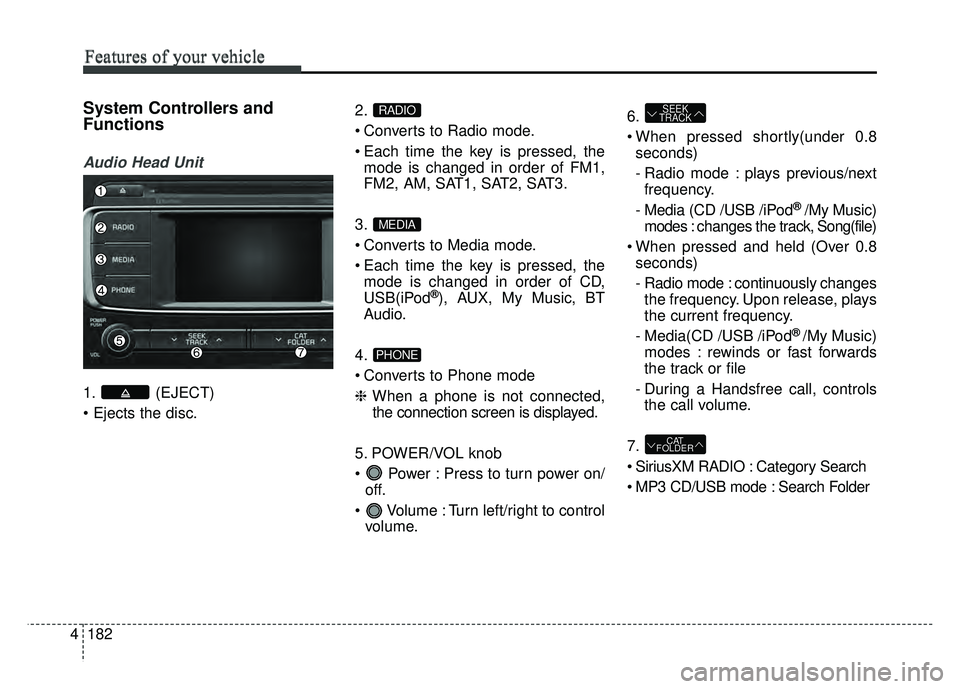
1. (EJECT)
2.
Converts to Radio mode.
Each time the key is pressed, the
mode is changed in order of FM1,
FM2, AM, SAT1, SAT2, SAT3.
3.
Converts to Media mode.
Each time the key is pressed, the mode is changed in order of CD,
USB(iPod
®), AUX, My Music, BT
Audio.
4.
Converts to Phone mode
❈ When a phone is not connected,
the connection screen is displayed.
5. POWER/VOL knob
Power : Press to turn power on/ off.
Volume : Turn left/right to control volume. 6.
When pressed shortly(under 0.8
seconds)
- Radio mode : plays previous/nextfrequency.
- Media (CD /USB /iPod
® /My Music)
modes : changes the track, Song(file)
When pressed and held (Over 0.8 seconds)
- Radio mode : continuously changesthe frequency. Upon release, plays
the current frequency.
- Media(CD /USB /iPod
® /My Music)
modes : rewinds or fast forwards
the track or file
- During a Handsfree call, controls the call volume.
7.
SiriusXM RADIO : Category Search
MP3 CD/USB mode : Search Folder
CAT
FOLDER
SEEK
TRACK
PHONE
MEDIA
RADIO
Page 253 of 532
4183
Features of your vehicle
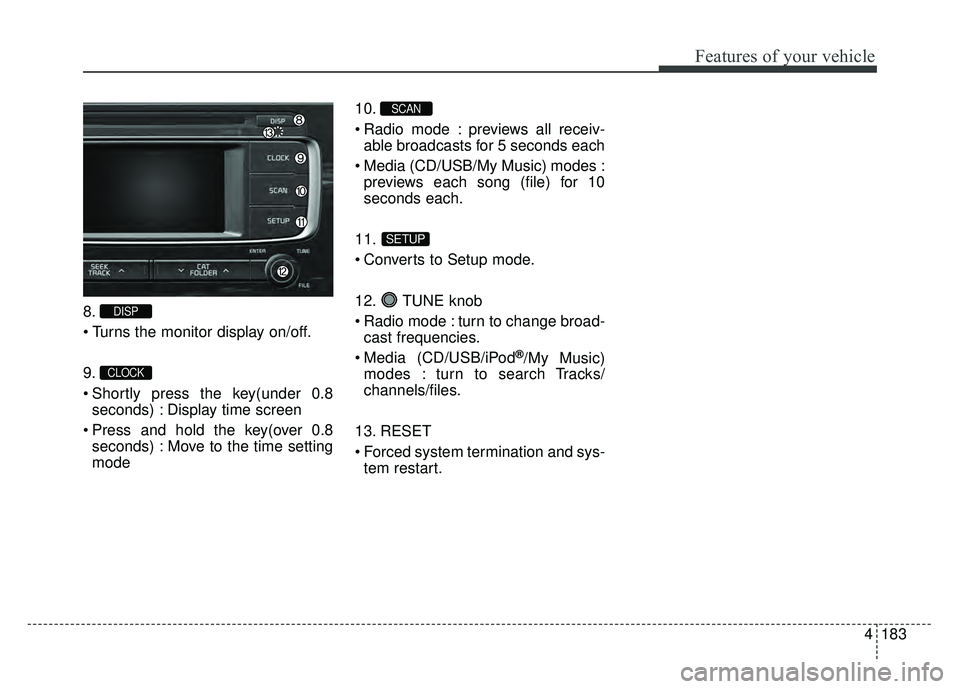
8.
9.
Shortly press the key(under 0.8seconds) : Display time screen
Press and hold the key(over 0.8 seconds) : Move to the time setting
mode 10.
Radio mode : previews all receiv-
able broadcasts for 5 seconds each
Media (CD/USB/My Music) modes : previews each song (file) for 10
seconds each.
11.
Converts to Setup mode.
12. TUNE knob
Radio mode : turn to change broad- cast frequencies.
Media (CD/USB/iPod
®/My Music)
modes : turn to search Tracks/
channels/files.
13. RESET
Forced system termination and sys- tem restart.
SETUP
SCAN
CLOCK
DISP
Page 254 of 532
Features of your vehicle
184
44
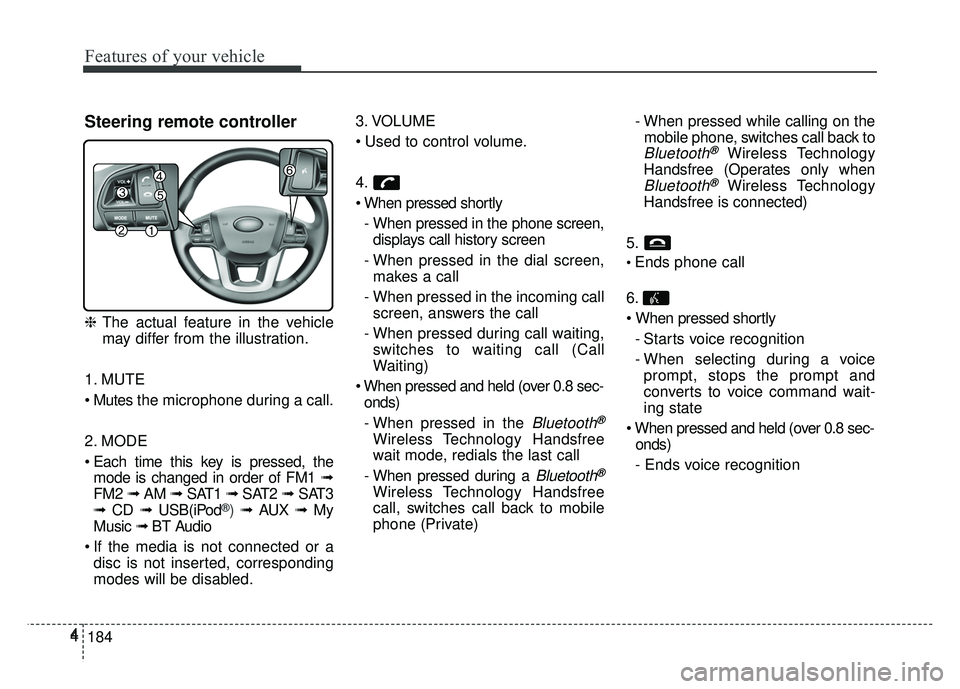
Steering remote controller
❈
The actual feature in the vehicle
may differ from the illustration.
1. MUTE
the microphone during a call.
2. MODE
Each time this key is pressed, the mode is changed in order of FM1 ➟
FM2 ➟ AM ➟ SAT1 ➟ SAT2 ➟SAT3
➟ CD ➟ USB(iPod
®) ➟ AUX ➟ My
Music ➟ BT Audio
If the media is not connected or a disc is not inserted, corresponding
modes will be disabled. 3. VOLUME
4.
- When pressed in the phone screen,displays call history screen
- When pressed in the dial screen, makes a call
- When pressed in the incoming call screen, answers the call
- When pressed during call waiting, switches to waiting call (Call
Waiting)
onds)
- When pressed in the
Bluetooth®
Wireless Technology Handsfree
wait mode, redials the last call
- When pressed during a
Bluetooth®
Wireless Technology Handsfree
call, switches call back to mobile
phone (Private) - When pressed while calling on the
mobile phone, switches call back to
Bluetooth®Wireless Technology
Handsfree (Operates only when
Bluetooth®Wireless Technology
Handsfree is connected)
5.
Ends phone call
6.
- Starts voice recognition
- When selecting during a voiceprompt, stops the prompt and
converts to voice command wait-
ing state
onds)
- Ends voice recognition
Page 262 of 532
Features of your vehicle
192
4
AUDIO CD MODE
Basic Mode Screen
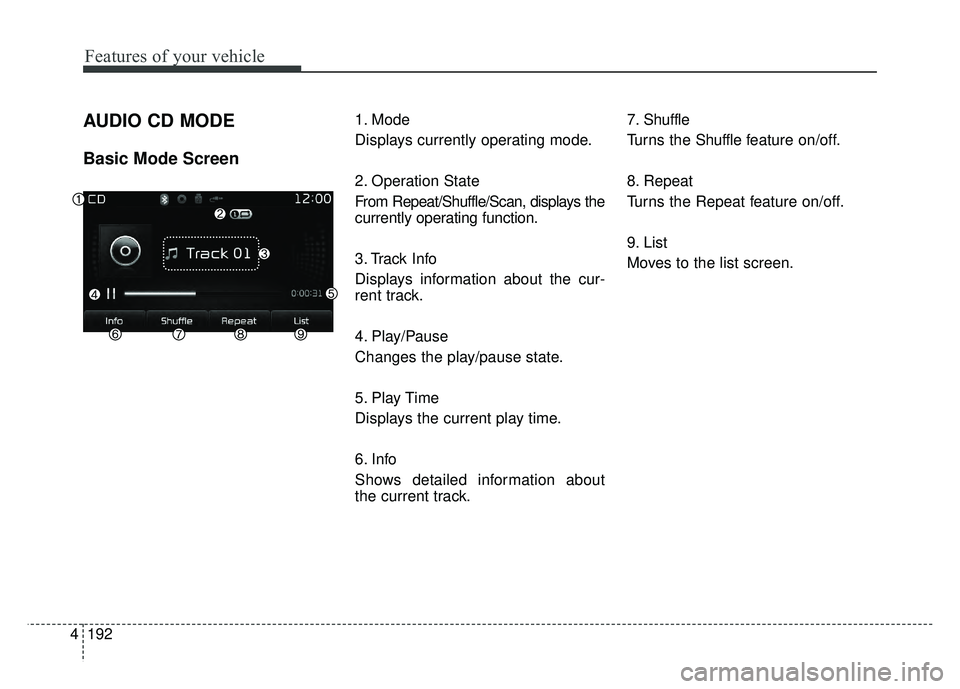
1. Mode
Displays currently operating mode.
2. Operation State
From Repeat/Shuffle/Scan, displays the
currently operating function.
3. Track Info
Displays information about the cur-
rent track.
4. Play/Pause
Changes the play/pause state.
5. Play Time
Displays the current play time.
6. Info
Shows detailed information about
the current track. 7. Shuffle
Turns the Shuffle f
eature on/off.
8. Repeat
Turns the Repeat feature on/off.
9. List
Moves to the list screen.
Page 265 of 532
4195
Features of your vehicle
MP3 CD MODE
Basic Mode Screen
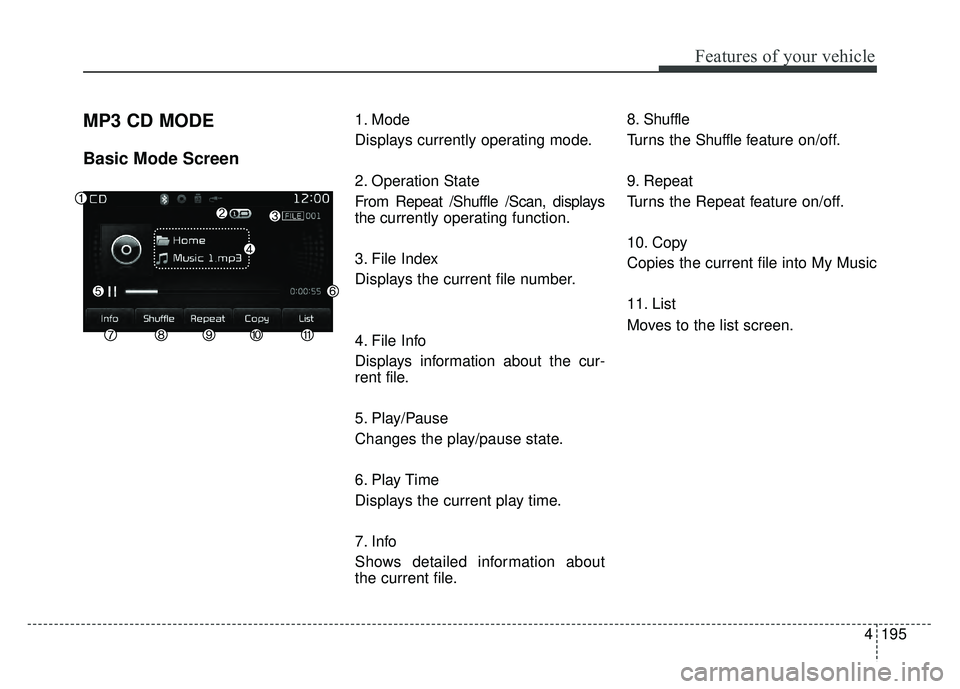
1. Mode
Displays currently operating mode.
2. Operation State
From Repeat /Shuffle /Scan, displays
the currently operating function.
3. File Index
Displays the current file number.
4. File Info
Displays information about the cur-
rent file.
5. Play/Pause
Changes the play/pause state.
6. Play Time
Displays the current play time.
7. Info
Shows detailed information about
the current file.8. Shuffle
Turns the Shuffle f
eature on/off.
9. Repeat
Turns the Repeat feature on/off.
10. Copy
Copies the current file into My Music
11. List
Moves to the list screen.
Page 267 of 532
4197
Features of your vehicle
MP3 CD Mode Menu
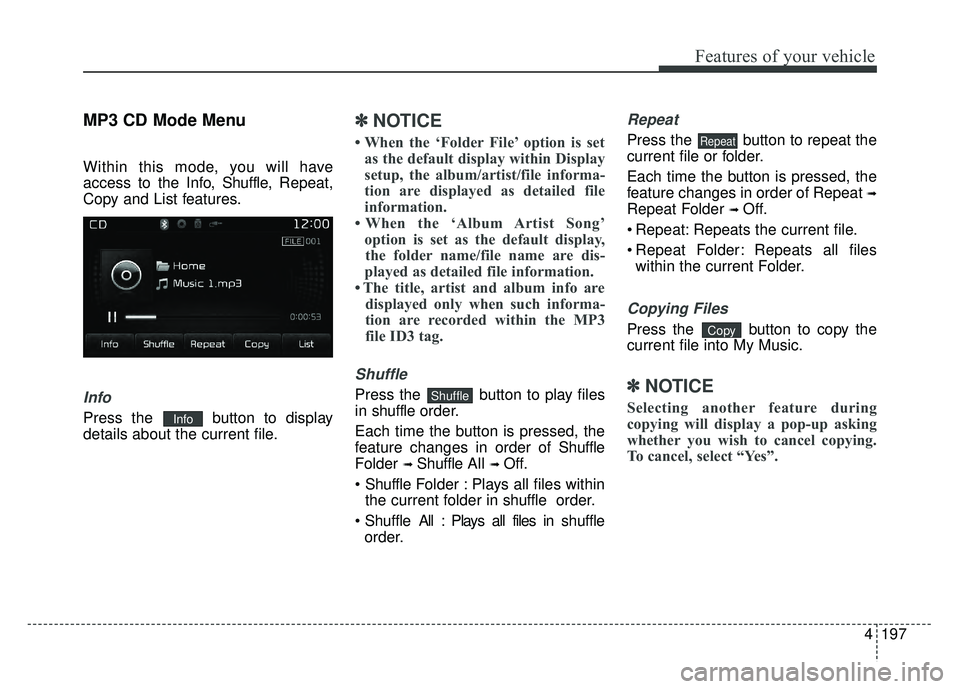
Within this mode, you will have
access to the Info, Shuffle, Repeat,
Copy and List features.
Info
Press the button to display
details about the current file.
✽ ✽ NOTICE
• When the ‘Folder File’ option is set
as the default display within Display
setup, the album/artist/file informa-
tion are displayed as detailed file
information.
• When the ‘Album Artist Song’ option is set as the default display, the folder name/file name are dis-
played as detailed file information.
• The title, artist and album info are displayed only when such informa-tion are recorded within the MP3
file ID3 tag.
Shuffle
Press the button to play files
in shuffle order.
Each time the button is pressed, the
feature changes in order of Shuffle
Folder
➟ Shuffle All ➟ Off.
F older : Plays all files within
the current folder in shuffle order.
Shuffle All : Plays all files in shuffle
order.
Repeat
Press the button to repeat the
current file or folder.
Each time the button is pressed, the
feature changes in order of Repeat
➟
Repeat Folder ➟ Off.
Repeat: Repeats the current file.
Repeat Folder: Repeats all files within the current Folder.
Copying Files
Press the button to copy the
current file into My Music.
✽ ✽ NOTICE
Selecting another feature during
copying will display a pop-up asking
whether you wish to cancel copying.
To cancel, select “Yes”.
Copy
Repeat
Shuffle
Info
Page 270 of 532
Features of your vehicle
200
4
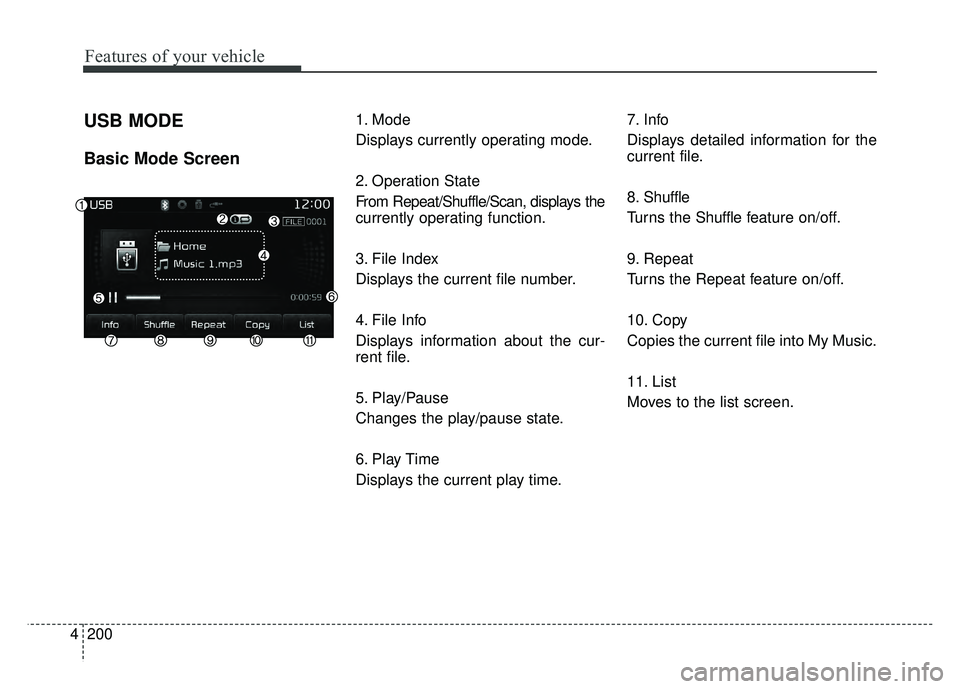
USB MODE
Basic Mode Screen
1. Mode
Displays currently operating mode.
2. Operation State
From Repeat/Shuffle/Scan, displays the
currently operating function.
3. File Index
Displays the current file number.
4. File Info
Displays information about the cur-
rent file.
5. Play/Pause
Changes the play/pause state.
6. Play Time
Displays the current play time. 7. Info
Displays detailed information for the
current file.
8. Shuffle
Turns the Shuffle f
eature on/off.
9. Repeat
Turns the Repeat feature on/off.
10. Copy
Copies the current file into My Music.
11. List
Moves to the list screen.
Page 272 of 532
Features of your vehicle
202
4
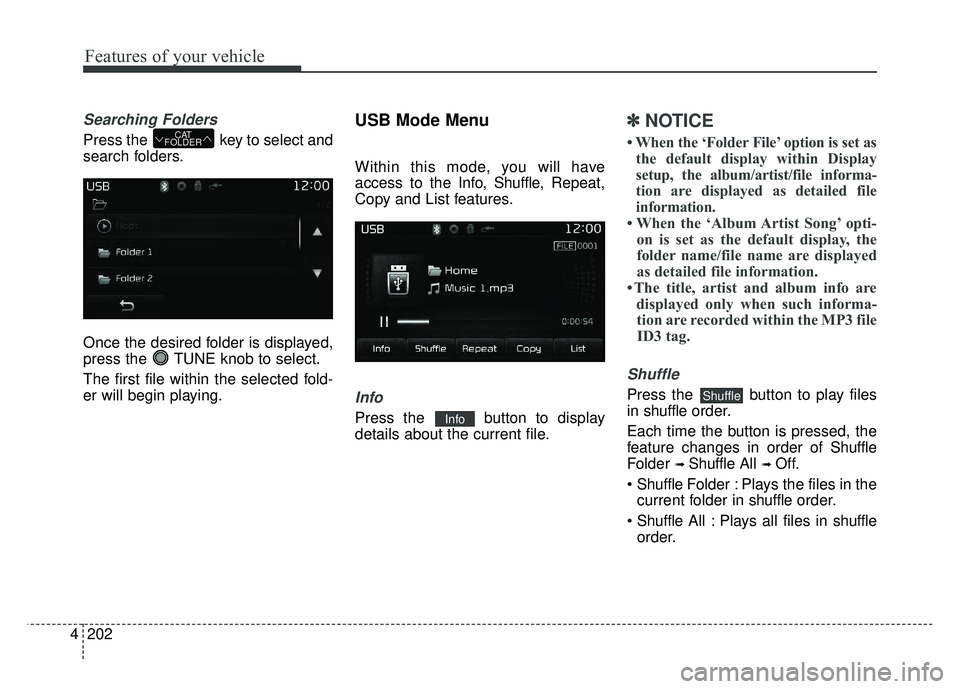
Searching Folders
Press the key to select and
search folders.
Once the desired folder is displayed,
press the TUNE knob to select.
The first file within the selected fold-
er will begin playing.
USB Mode Menu
Within this mode, you will have
access to the Info, Shuffle, Repeat,
Copy and List features.
Info
Press the button to display
details about the current file.
✽ ✽ NOTICE
• When the ‘Folder File’ option is set as
the default display within Display
setup, the album/artist/file informa-
tion are displayed as detailed file
information.
• When the ‘Album Artist Song’ opti- on is set as the default display, the
folder name/file name are displayed
as detailed file information.
• The title, artist and album info are displayed only when such informa-tion are recorded within the MP3 file ID3 tag.
Shuffle
Press the button to play files
in shuffle order.
Each time the button is pressed, the
feature changes in order of Shuffle
Folder
➟ Shuffle All ➟ Off.
F older : Plays the files in the
current folder in shuffle order.
All : Plays all files in shuffle
order.
Shuffle
Info
CAT
FOLDER