audio KIA RIO HATCHBACK 2017 Owner's Guide
[x] Cancel search | Manufacturer: KIA, Model Year: 2017, Model line: RIO HATCHBACK, Model: KIA RIO HATCHBACK 2017Pages: 532, PDF Size: 12.04 MB
Page 238 of 532
![KIA RIO HATCHBACK 2017 Owners Guide Features of your vehicle
168
4
Contacts
Press the key Select
[Contacts]
The list of saved phone book entries
is displayed.
NOTE:
Find a contact in an alphabetical
order, press the key. Up to 1,000](/img/2/57977/w960_57977-237.png "KIA RIO HATCHBACK 2017 Owners Guide Features of your vehicle
168
4
Contacts
Press the key Select
[Contacts]
The list of saved phone book entries
is displayed.
NOTE:
Find a contact in an alphabetical
order, press the key. Up to 1,000")
Features of your vehicle
168
4
Contacts
Press the key Select
[Contacts]
The list of saved phone book entries
is displayed.
NOTE:
Find a contact in an alphabetical
order, press the key. Up to 1,000 contacts saved in your
Bluetooth®Wireless Technology
phone can be downloaded into the
car contacts. Contacts that have
been downloaded to the car cannot
be edited or deleted on the phone.
Mobile phone contacts are man- aged separately for each paired
Bluetooth®Wireless Technology
device (max 5 devices x 1,000 con-
tacts each). Previously down-
loaded data is maintained even if
the Bluetooth®Wireless Technology
device has been disconnected.
(However, the contacts and call
history saved to the phone will be
deleted if a paired phone is delet-
ed.)
It is possible to download contacts during Bluetooth streaming audio.
When downloading contacts, the icon will be displayed within the
status bar. It is not possible to begin download-
ing a contact list when the contact
download feature has been turned off
within the
Bluetooth®Wireless
Technology device. In addition, some
devices may require device authori-
zation upon attempting to download
contacts. If downloading does not
normally occur, check the
Bluetooth®
Wireless Technology device settings
or the screen state.
The contacts download feature may not be supported in some mobile
phones. For more information of sup-
ported
Bluetooth®devices and func-
tion support, refer to your phone's
user's manual.
MENU
PHONE
Page 239 of 532
Features of your vehicle
4169
Bluetooth®Wireless
Technology Setting
The Bluetooth®word mark and logos
are registered trademarks owned by
Bluetooth SIG, Inc. and any use of
such marks by Kia is under license.
Other trademarks and trade names
are those of their respective owners.
A Bluetooth
®enabled cell phone is
required to use
Bluetooth®Wireless
Technology.
Pairing a New Device
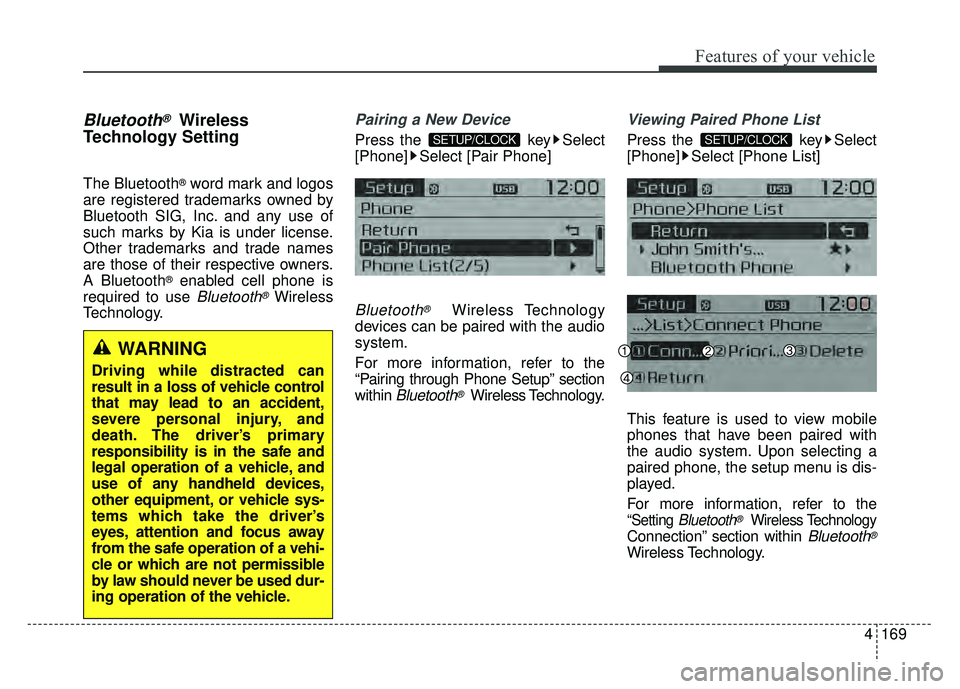
Press the key Select
[Phone] Select [Pair Phone]
Bluetooth®Wireless Technology
devices can be paired with the audio
system.
For more information, refer to the
“Pairing through Phone Setup” section
within
Bluetooth®Wireless Technology.
Viewing Paired Phone List
Press the key Select
[Phone] Select [Phone List]
This feature is used to view mobile
phones that have been paired with
the audio system. Upon selecting a
paired phone, the setup menu is dis-
played.
For more information, refer to the
“Setting Bluetooth®Wireless Technology
Connection” section within Bluetooth®
Wireless Technology.
SETUP/CLOCKSETUP/CLOCK
WARNING
Driving while distracted can
result in a loss of vehicle control
that may lead to an accident,
severe personal injury, and
death. The driver’s primary
responsibility is in the safe and
legal operation of a vehicle, and
use of any handheld devices,
other equipment, or vehicle sys-
tems which take the driver’s
eyes, attention and focus away
from the safe operation of a vehi-
cle or which are not permissible
by law should never be used dur-
ing operation of the vehicle.
Page 241 of 532
![KIA RIO HATCHBACK 2017 Owners Guide Features of your vehicle
4171
Turning Bluetooth System Off
Press the key Select
[Phone] Select [Bluetooth System
Off]
Once
Bluetooth®Wireless Technology
is turned off,
Bluetooth®Wireless
Technolog](/img/2/57977/w960_57977-240.png "KIA RIO HATCHBACK 2017 Owners Guide Features of your vehicle
4171
Turning Bluetooth System Off
Press the key Select
[Phone] Select [Bluetooth System
Off]
Once
Bluetooth®Wireless Technology
is turned off,
Bluetooth®Wireless
Technolog")
Features of your vehicle
4171
Turning Bluetooth System Off
Press the key Select
[Phone] Select [Bluetooth System
Off]
Once
Bluetooth®Wireless Technology
is turned off,
Bluetooth®Wireless
Technology related features will not be
supported within the audio system.
To turn
Bluetooth®Wireless Technology
back on, go to [Phone]
and select “Yes”.
SETUP/CLOCK
SETUP/CLOCK
Page 246 of 532
Features of your vehicle
176
4
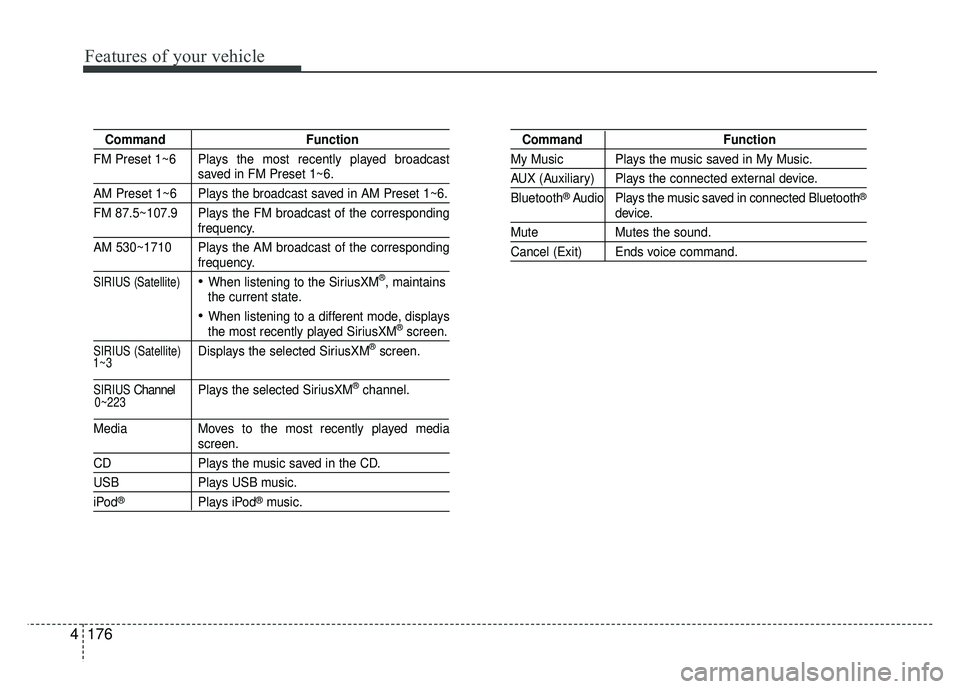
Command Function
FM Preset 1~6 Plays the most recently played broadcast
saved in FM Preset 1~6.
AM Preset 1~6 Plays the broadcast saved in AM Preset 1~6.
FM 87.5~107.9 Plays the FM broadcast of the corresponding
frequency.
AM 530~1710 Plays the AM broadcast of the corresponding
frequency.
SIRIUS (Satellite)When listening to the SiriusXM®, maintains
the current state.
When listening to a different mode, displaysthe most recently played SiriusXM®screen.
SIRIUS (Satellite)Displays the selected SiriusXM®screen.
SIRIUSChannel P l ay s the selected SiriusXM®channel.
Media Moves to the most recently played media
screen.
CD Plays the music saved in the CD.
USBPlays USB music.
iPod®Plays iPod®music.
Command Function
My Music Plays the music saved in My Music.
AUX (Auxiliary) Plays the connected external device.
Bluetooth
®Audio Plays the music saved in connected Bluetooth®
device.
Mute Mutes the sound.
Cancel (Exit) Ends voice command.
0~223
1~3
Page 248 of 532
Features of your vehicle
178
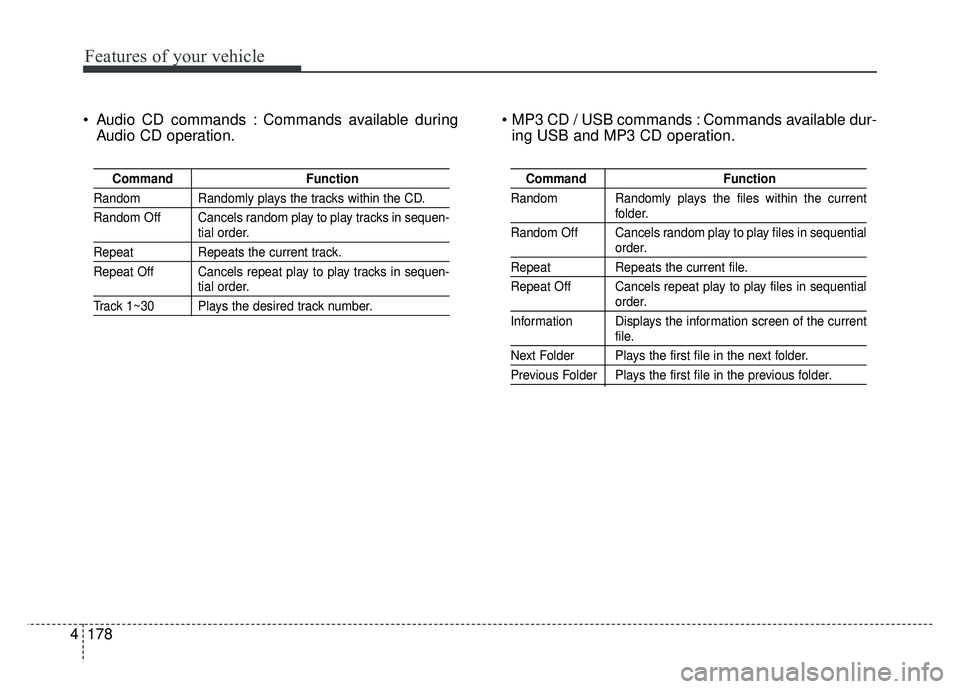
4 Audio CD commands : Commands available during
Audio CD operation. Commands available dur-
ing USB and MP3 CD operation.
Command Function
Random Randomly plays the tracks within the CD.
Random Off Cancels random play to play tracks in sequen-
tial order.
RepeatRepeats the current track.
Repeat Off Cancels repeat play to play tracks in sequen-
tial order.
Track 1~30 Plays the desired track number.
Command Function
Random Randomly plays the files within the current
folder.
Random Off Cancels random play to play files in sequential
order.
Repeat Repeats the current file.
Repeat Off Cancels repeat play to play files in sequential
order.
Information Displays the information screen of the current
file.
Next Folder Plays the first file in the next folder.
Previous Folder Plays the first file in the previous folder.
Page 250 of 532
Features of your vehicle
180
4
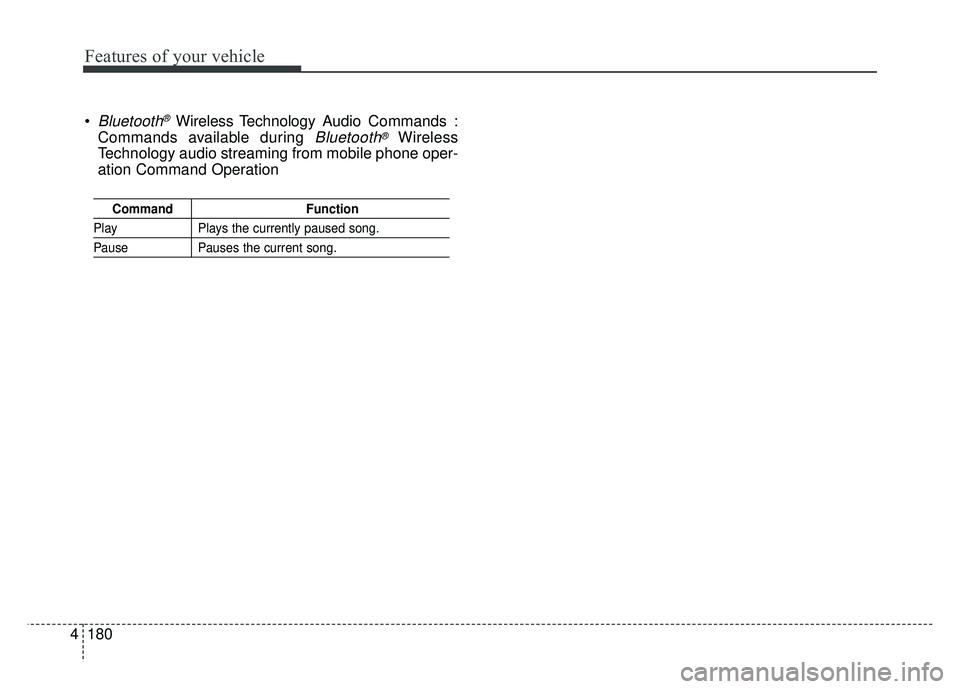
Command Function
PlayPlays the currently paused song.
PausePauses the current song.
Bluetooth®Wireless Technology A udio Commands :
Commands available during
Bluetooth®Wireless
Technology audio streaming from mobile phone oper-
ation Command Operation
Page 252 of 532
Features of your vehicle
182
4
Features of your vehicle
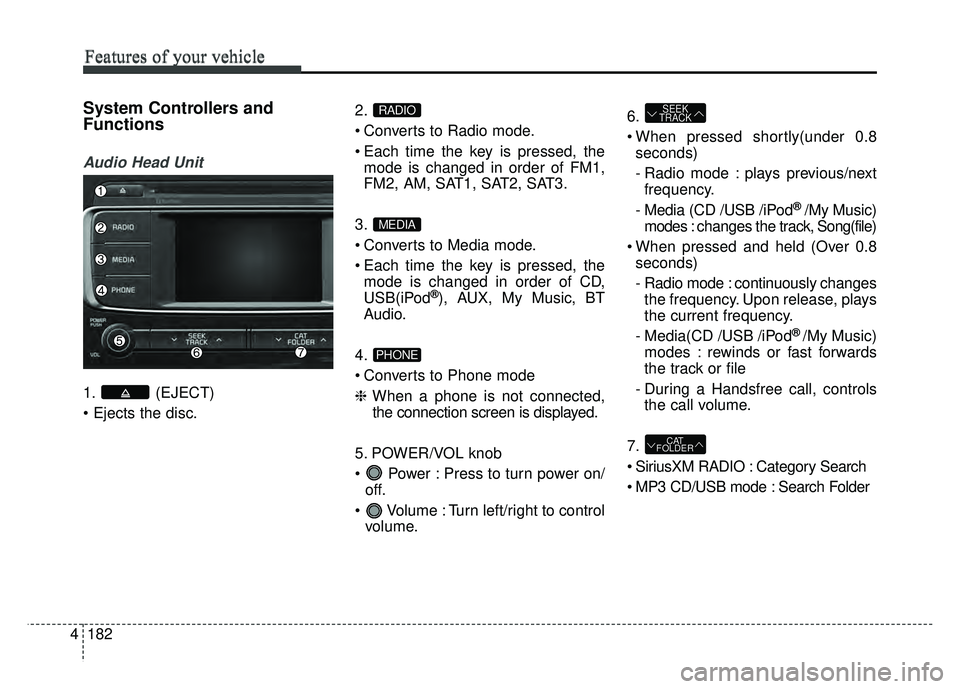
System Controllers and
Functions
Audio Head Unit
1. (EJECT)
2.
Converts to Radio mode.
Each time the key is pressed, the
mode is changed in order of FM1,
FM2, AM, SAT1, SAT2, SAT3.
3.
Converts to Media mode.
Each time the key is pressed, the mode is changed in order of CD,
USB(iPod
®), AUX, My Music, BT
Audio.
4.
Converts to Phone mode
❈ When a phone is not connected,
the connection screen is displayed.
5. POWER/VOL knob
Power : Press to turn power on/ off.
Volume : Turn left/right to control volume. 6.
When pressed shortly(under 0.8
seconds)
- Radio mode : plays previous/nextfrequency.
- Media (CD /USB /iPod
® /My Music)
modes : changes the track, Song(file)
When pressed and held (Over 0.8 seconds)
- Radio mode : continuously changesthe frequency. Upon release, plays
the current frequency.
- Media(CD /USB /iPod
® /My Music)
modes : rewinds or fast forwards
the track or file
- During a Handsfree call, controls the call volume.
7.
SiriusXM RADIO : Category Search
MP3 CD/USB mode : Search Folder
CAT
FOLDER
SEEK
TRACK
PHONE
MEDIA
RADIO
Page 254 of 532
Features of your vehicle
184
44
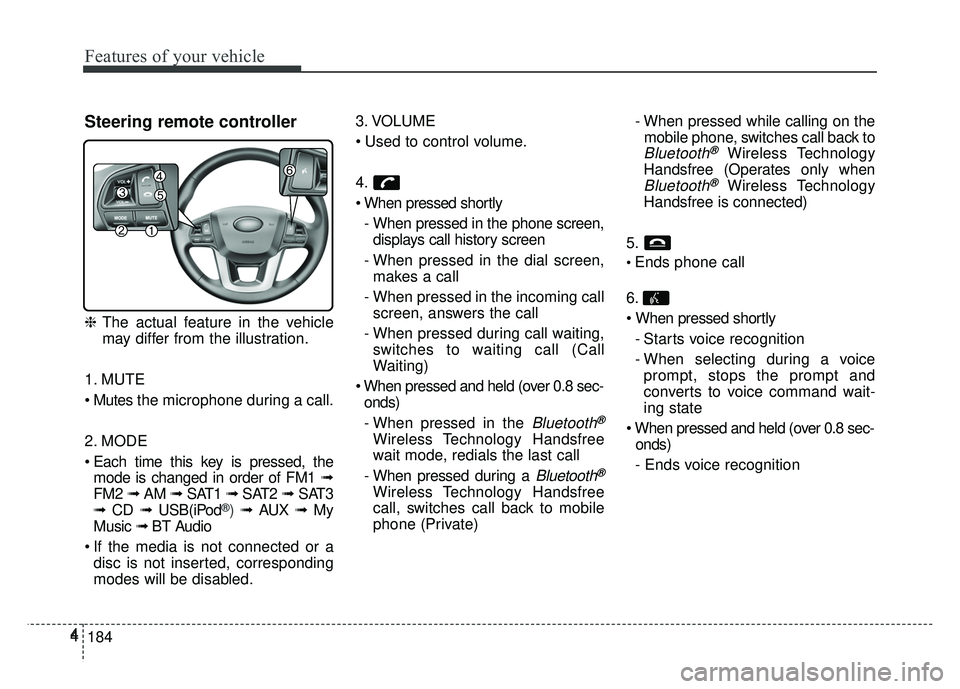
Steering remote controller
❈
The actual feature in the vehicle
may differ from the illustration.
1. MUTE
the microphone during a call.
2. MODE
Each time this key is pressed, the mode is changed in order of FM1 ➟
FM2 ➟ AM ➟ SAT1 ➟ SAT2 ➟SAT3
➟ CD ➟ USB(iPod
®) ➟ AUX ➟ My
Music ➟ BT Audio
If the media is not connected or a disc is not inserted, corresponding
modes will be disabled. 3. VOLUME
4.
- When pressed in the phone screen,displays call history screen
- When pressed in the dial screen, makes a call
- When pressed in the incoming call screen, answers the call
- When pressed during call waiting, switches to waiting call (Call
Waiting)
onds)
- When pressed in the
Bluetooth®
Wireless Technology Handsfree
wait mode, redials the last call
- When pressed during a
Bluetooth®
Wireless Technology Handsfree
call, switches call back to mobile
phone (Private) - When pressed while calling on the
mobile phone, switches call back to
Bluetooth®Wireless Technology
Handsfree (Operates only when
Bluetooth®Wireless Technology
Handsfree is connected)
5.
Ends phone call
6.
- Starts voice recognition
- When selecting during a voiceprompt, stops the prompt and
converts to voice command wait-
ing state
onds)
- Ends voice recognition
Page 261 of 532
4191
Features of your vehicle
(Continued)
• Do not use abnormally shaped discs(8cm, heart-shaped, octagon-shaped)
as such discs could lead to malfunc-
tions.
• If the disc is straddled on the disc slot without removal for 10 seconds,
the disc will automatically be re-
inserted into the disc player.
• Only genuine audio CDs are sup- ported. Other discs may result in
recognition failure. (e.g. copy CD-R,
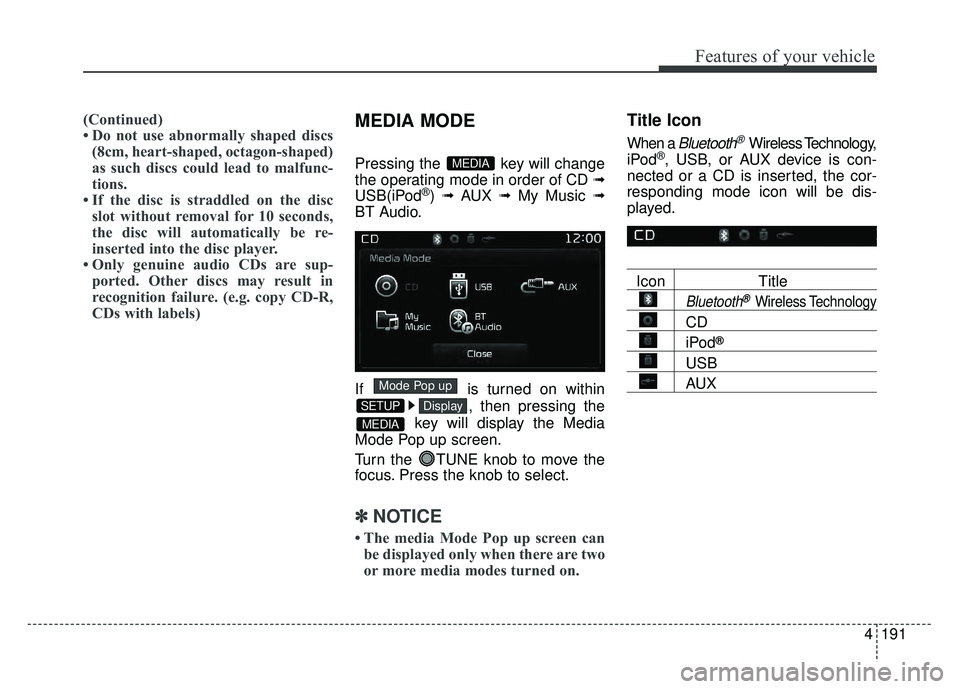
CDs with labels)MEDIA MODE
Pressing the key will change
the operating mode in order of CD
➟
USB(iPod®) ➟ AUX ➟ My Music ➟
BT Audio.
If is turned on within
, then pressing the
key will display the Media
Mode Pop up screen.
Turn the TUNE knob to move the
focus. Press the knob to select.
✽ ✽ NOTICE
• The media Mode Pop up screen can
be displayed only when there are two
or more media modes turned on.
Title Icon
When a Bluetooth®Wireless Technology,
iPod®, USB, or AUX device is con-
nected or a CD is inserted, the cor-
responding mode icon will be dis-
played.
Icon Title
Bluetooth®Wireless Technology
CD
iPod®
USB
AUX
MEDIA
DisplaySETUP
Mode Pop up
MEDIA
Page 262 of 532
Features of your vehicle
192
4
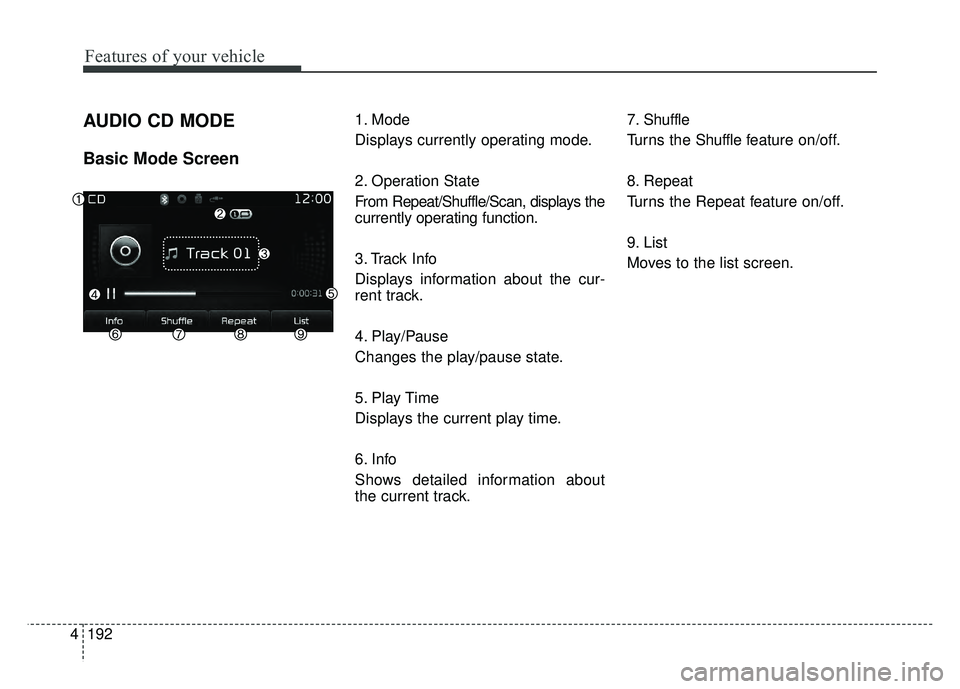
AUDIO CD MODE
Basic Mode Screen
1. Mode
Displays currently operating mode.
2. Operation State
From Repeat/Shuffle/Scan, displays the
currently operating function.
3. Track Info
Displays information about the cur-
rent track.
4. Play/Pause
Changes the play/pause state.
5. Play Time
Displays the current play time.
6. Info
Shows detailed information about
the current track. 7. Shuffle
Turns the Shuffle f
eature on/off.
8. Repeat
Turns the Repeat feature on/off.
9. List
Moves to the list screen.