reset KIA RIO HATCHBACK 2018 User Guide
[x] Cancel search | Manufacturer: KIA, Model Year: 2018, Model line: RIO HATCHBACK, Model: KIA RIO HATCHBACK 2018Pages: 492, PDF Size: 10.36 MB
Page 140 of 492
Features of your vehicle
68
4
Service interval
Service Interval
To activate or deactivate the serv-
ice interval function.
Adjust Interval
To adjust the interval by mileage
and period.
Reset To reset the service interval func-
tion. Other Features
Fuel Economy Auto Reset
- Off : The average fuel economy will
not reset automatically whenever
refueling.
- After Ignition : The average fuel economy will reset automatically
whenever it has passed 4 hours
after turning OFF the engine.
- After Refueling : The average fuel economy will reset automatically
when refueling.
Fuel Economy Unit To select the fuel economy unit.
(UK gallon ↔ US gallon)
Temperature Unit To select the temperature unit.
(°C,°F)
Tire Pressure Unit (if equipped) :
Choose the tire pressure unit. (psi,
kPa, bar) Language
Choose the language
Reset
You can reset the menus in the User
Settings Mode. All menus in the User
Settings Mode are initialized, except
language and service interval.
Page 197 of 492
4125
Features of your vehicle
Defogging Logic
To reduce the probability of fogging
up inside of the windshield, the air
intake or air conditioning are con-
trolled automatically according to
certain conditions such as or
position. Logic can be disabled and
enabled by doing following :
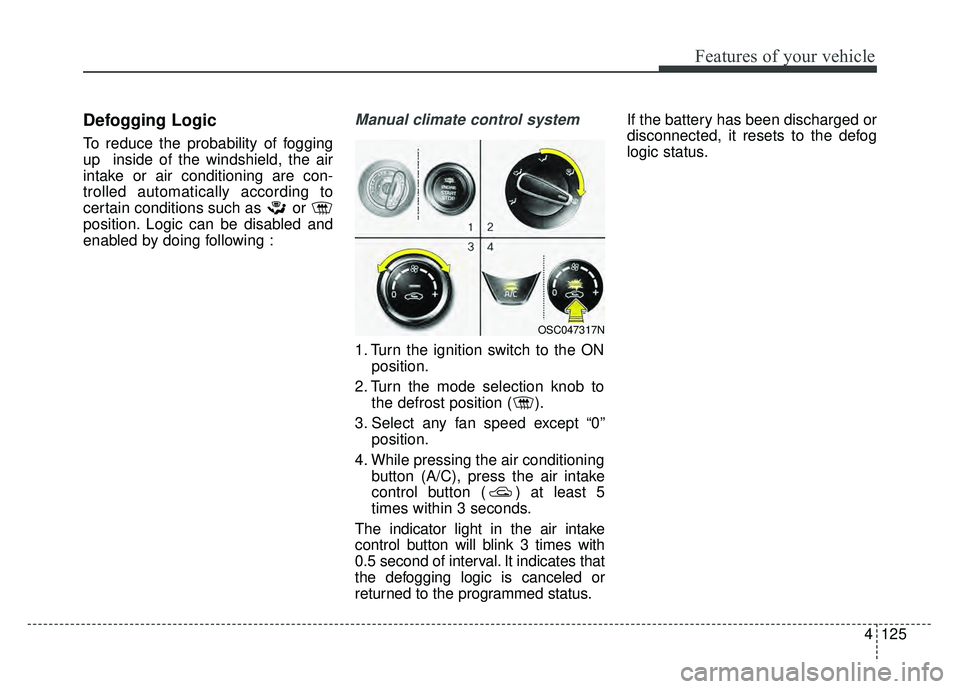
Manual climate control system
1. Turn the ignition switch to the ONposition.
2. Turn the mode selection knob to the defrost position ( ).
3. Select any fan speed except “0” position.
4. While pressing the air conditioning button (A/C), press the air intake
control button ( ) at least 5
times within 3 seconds.
The indicator light in the air intake
control button will blink 3 times with
0.5 second of interval. It indicates that
the defogging logic is canceled or
returned to the programmed status. If the battery has been discharged or
disconnected, it resets to the defog
logic status.
OSC047317N
Page 198 of 492
Features of your vehicle
126
4
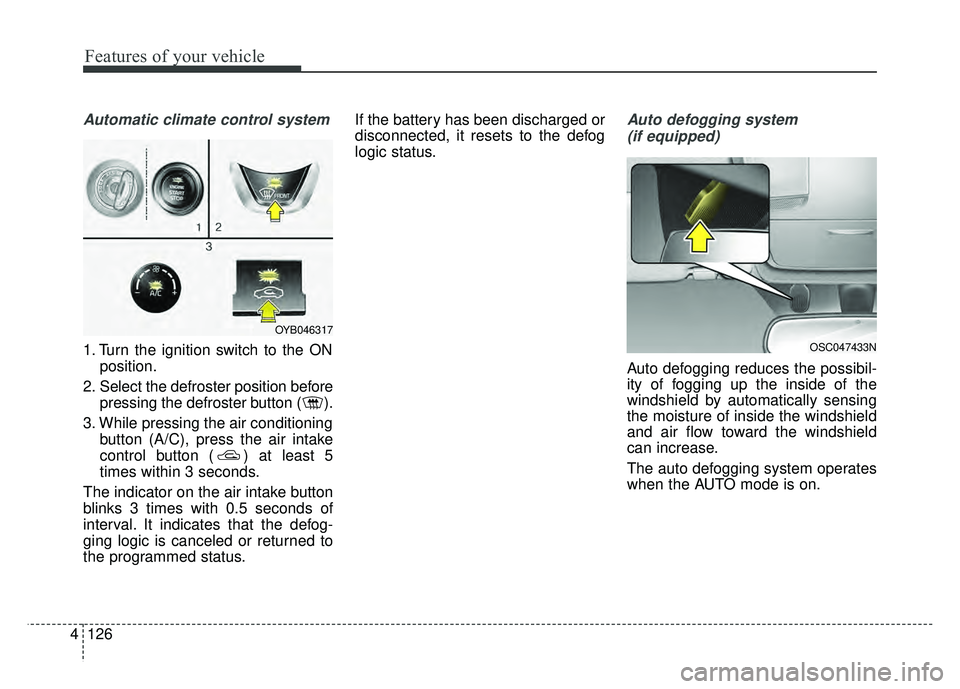
Automatic climate control system
1. Turn the ignition switch to the ON
position.
2. Select the defroster position before pressing the defroster button ( ).
3. While pressing the air conditioning button (A/C), press the air intake
control button ( ) at least 5
times within 3 seconds.
The indicator on the air intake button
blinks 3 times with 0.5 seconds of
interval. It indicates that the defog-
ging logic is canceled or returned to
the programmed status. If the battery has been discharged or
disconnected, it resets to the defog
logic status.
Auto defogging system
(if equipped)
Auto defogging reduces the possibil-
ity of fogging up the inside of the
windshield by automatically sensing
the moisture of inside the windshield
and air flow toward the windshield
can increase.
The auto defogging system operates
when the AUTO mode is on.
OSC047433N
OYB046317
Page 199 of 492
4127
Features of your vehicle
This indicator illuminates
when the auto defogging
system senses the mois-
ture of inside the wind-
shield and operates.
If more moisture is in the vehicle,
higher steps operate as follow.
Step 1 : Operating the air condition- ing
Step 2 : Outside air position
Step 3 : Blowing air flow toward the windshield
Step 4 : Increasing air flow toward the windshield
If your vehicle is equipped with the
auto defogging system, it is automat-
ically activated when the conditions
are met.
However, if you would like to deacti-
vate the auto defogging system,
keep the front defroster button
pressed longer than 3 seconds. The “ADS OFF” symbol will be
shown in the climate display to
inform you that the system is deacti-
vated.
To re-activate the auto defogging
system again, follow the procedure
mentioned above and the “ADS
OFF” symbol will disappear.
If the battery has been disconnected
or discharged, it resets to the auto
defogging status.
✽ ✽
NOTICE
• When the air conditioning is
turned on by Auto defogging sys-
tem, if you try to turn off the air
conditioning, the indicator will
blink 3 times and the air condi-
tioning will not be turned off.
• For efficiency, do not select recir- culated air position while Auto
defogging system is operating.
CAUTION
Do not remove the sensor cover
located on the upper end of thedriver side windshield glass.Damage to the system partscould occur and may not be cov-ered by your vehicle warranty.
Page 217 of 492

Audio system
58
Feature of Your Audio
Head Unit
❈The actual features in the vehicle
may differ from the illustration.
(1) LCD screen
Tap the screen to select a button.
(2) RADIO
Start FM, AM and SiriusXM.
(3) MEDIA
Select USB(iPod
®), Bluetooth®
Wireless Technology(BT) Audio* or
AUX.
Display the media menu when two or more media are connected or when
the [MEDIA] button is pressed in
media mode.
* if equipped
(4) SETUP (Type A)
Access Display, Sound, Date/Time,
System, Screen Saver and Display
Off settings. (5)
PHONE (Type B)
Start
Bluetooth®Wireless Technology
Phone mode.
(6) POWER/VOL knob
Turn to adjust the volume.
Press to turn the device on or off.
(7) RESET
Shutdown and restart the system.
(8) SEEK/TRACK
Search for frequencies in radio mode.
Change the current song in media mode.
■ Type B
■Type A
Page 219 of 492
Audio system
510
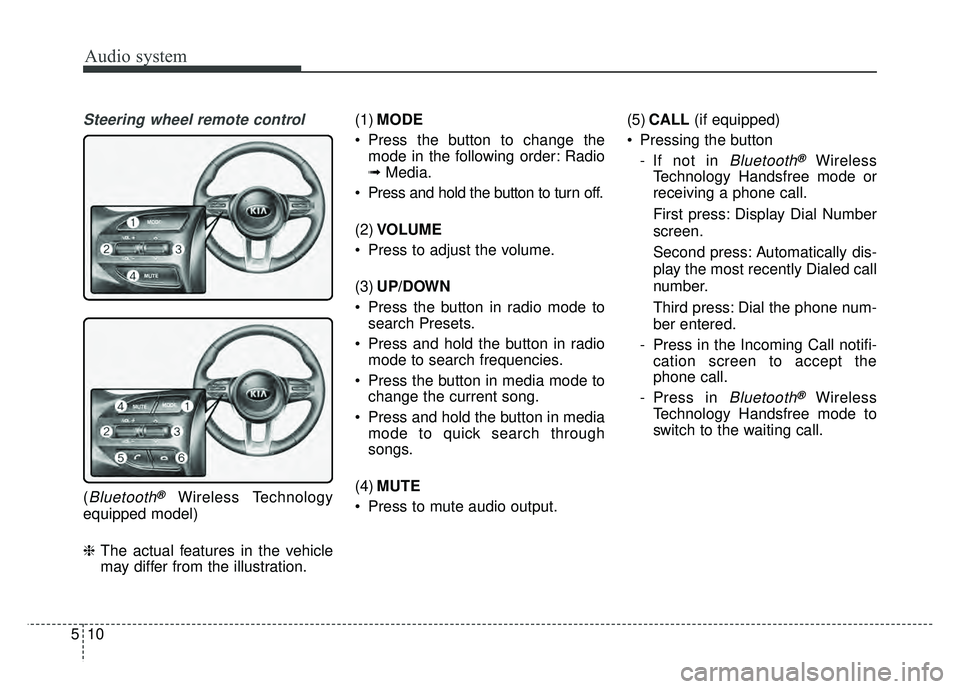
Steering wheel remote control
(Bluetooth®Wireless Technology
equipped model)
❈ The actual features in the vehicle
may differ from the illustration. (1)
MODE
Press the button to change the mode in the following order: Radio
➟ Media.
Press and hold the button to turn off.
(2) VOLUME
Press to adjust the volume.
(3) UP/DOWN
Press the button in radio mode to search Presets.
Press and hold the button in radio mode to search frequencies.
Press the button in media mode to change the current song.
Press and hold the button in media mode to quick search through
songs.
(4) MUTE
Press to mute audio output. (5)
CALL (if equipped)
Pressing the button - If not in
Bluetooth®Wireless
Technology Handsfree mode or
receiving a phone call.
First press: Display Dial Number
screen.
Second press: Automatically dis-
play the most recently Dialed call
number.
Third press: Dial the phone num-
ber entered.
- Press in the Incoming Call notifi- cation screen to accept the
phone call.
- Press in
Bluetooth®Wireless
Technology Handsfree mode to
switch to the waiting call.
Page 223 of 492
Audio system
514
Radio
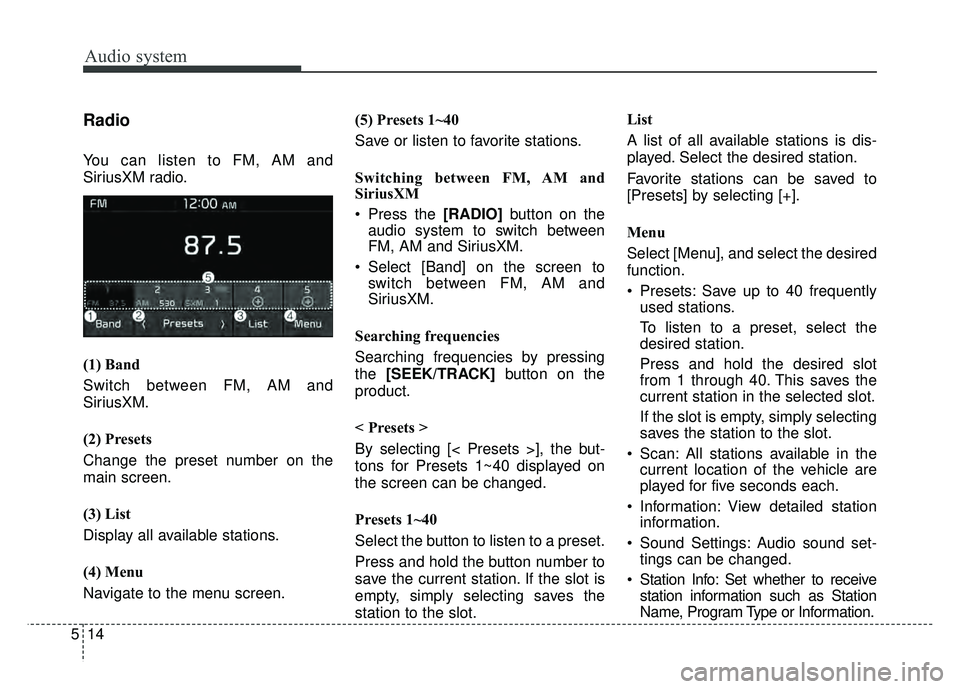
You can listen to FM, AM and
SiriusXM radio.
(1) Band
Switch between FM, AM and
SiriusXM.
(2) Presets
Change the preset number on the
main screen.
(3) List
Display all available stations.
(4) Menu
Navigate to the menu screen.(5) Presets 1~40
Save or listen to favorite stations.
Switching between FM, AM and
SiriusXM
Press the [RADIO]
button on the
audio system to switch between
FM, AM and SiriusXM.
Select [Band] on the screen to switch between FM, AM and
SiriusXM.
Searching frequencies
Searching frequencies by pressing
the [SEEK/TRACK] button on the
product.
< Presets >
By selecting [< Presets >], the but-
tons for Presets 1~40 displayed on
the screen can be changed.
Presets 1~40
Select the button to listen to a preset.
Press and hold the button number to
save the current station. If the slot is
empty, simply selecting saves the
station to the slot. List
A list of all available stations is dis-
played. Select the desired station.
Favorite stations can be saved to
[Presets] by selecting [+].
Menu
Select [Menu], and select the desired
function.
Presets: Save up to 40 frequently
used stations.
To listen to a preset, select the
desired station.
Press and hold the desired slot
from 1 through 40. This saves the
current station in the selected slot.
If the slot is empty, simply selecting
saves the station to the slot.
Scan: All stations available in the current location of the vehicle are
played for five seconds each.
Information: View detailed station information.
Sound Settings: Audio sound set- tings can be changed.
Station Info: Set whether to receive station information such as Station
Name, Program Type or Information.
Page 225 of 492
Audio system
516
SiriusXM
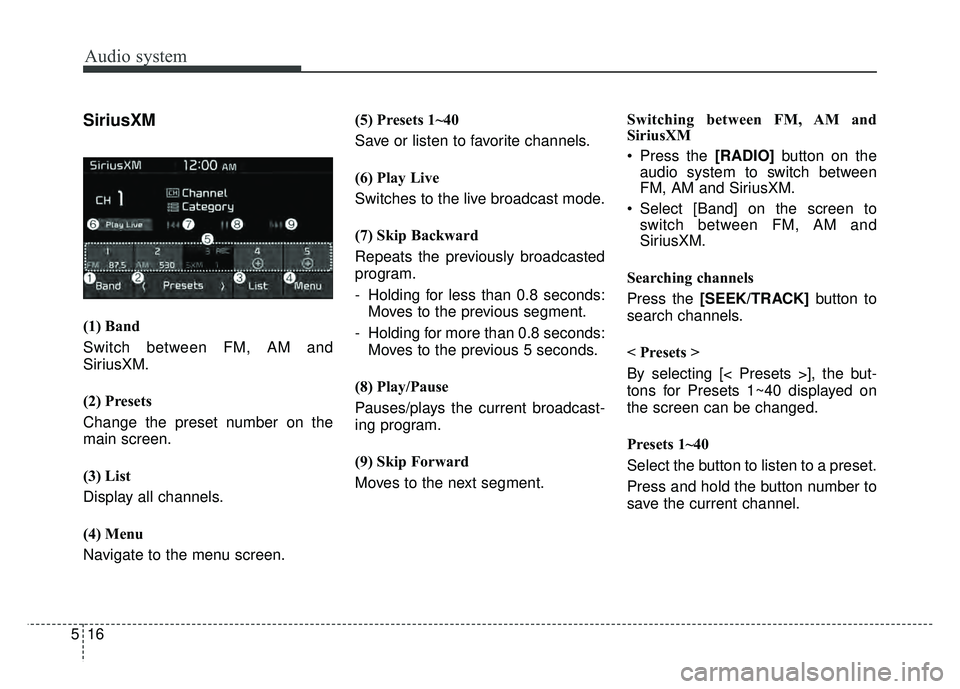
(1) Band
Switch between FM, AM and
SiriusXM.
(2) Presets
Change the preset number on the
main screen.
(3) List
Display all channels.
(4) Menu
Navigate to the menu screen.(5) Presets 1~40
Save or listen to favorite channels.
(6) Play Live
Switches to the live broadcast mode.
(7) Skip Backward
Repeats the previously broadcasted
program.
- Holding for less than 0.8 seconds:
Moves to the previous segment.
- Holding for more than 0.8 seconds: Moves to the previous 5 seconds.
(8) Play/Pause
Pauses/plays the current broadcast-
ing program.
(9) Skip Forward
Moves to the next segment. Switching between FM, AM and
SiriusXM
Press the [RADIO]
button on the
audio system to switch between
FM, AM and SiriusXM.
Select [Band] on the screen to switch between FM, AM and
SiriusXM.
Searching channels
Press the [SEEK/TRACK] button to
search channels.
< Presets >
By selecting [< Presets >], the but-
tons for Presets 1~40 displayed on
the screen can be changed.
Presets 1~40
Select the button to listen to a preset.
Press and hold the button number to
save the current channel.
Page 226 of 492
![KIA RIO HATCHBACK 2018 User Guide Audio system
17
5
List
A list of all channels is displayed.
Select the desired channel.
Favorite channels can be saved to
[Presets] by selecting [+].
Menu
Select [Menu], and select the desired
functio](/img/2/57983/w960_57983-225.png "KIA RIO HATCHBACK 2018 User Guide Audio system
17
5
List
A list of all channels is displayed.
Select the desired channel.
Favorite channels can be saved to
[Presets] by selecting [+].
Menu
Select [Menu], and select the desired
functio")
Audio system
17
5
List
A list of all channels is displayed.
Select the desired channel.
Favorite channels can be saved to
[Presets] by selecting [+].
Menu
Select [Menu], and select the desired
function.
Presets: Save up to 40 frequently
used channels.
To listen to a preset, select the
desired channel.
Press and hold the desired slot
from 1 through 40. This saves the
current channel in the selected
slot.
If the slot is empty, simply selecting
saves the channel to the slot.
Categories: Channels can be searched by category.
Direct Tune: The desired channel can be selected by entering num-
bers.
Sound Settings: Audio sound set- tings can be changed. Tag Song: Tag the current song
information.
When an Apple device (iPhone
®,
iPod®) is connected, tagged song
information is sent automatically to
the connected device.
✽ ✽ NOTICE
Up to 50 songs can be tagged.
Scan: All channels available in the
vehicle’s current location are
played for ten seconds each.
Program Schedule: View the pro- gram schedule.
Featured Favorites: The Featured Favorites feature allows SiriusXM™
to broadcast additional presets.
- Example 1: During holidays,“Holiday Music” might include all
SiriusXM™ channels that are
playing holiday music for easy
access by users.
Multiple sets of Featured Favorites
data can be broadcast by
SiriusXM™ and can change from
time to time. Information: View detailed channel
information.
Category Lock: Search or scan channels in the current category
only.
Page 232 of 492
Audio system
23
5
(Continued)
• The search and song play order in
the iPod
®device may be different
from the search order in the audio
system.
• If the iPod
®has failed due to an
internal defect, please reset the
iPod
®(consult your iPod®manual).
• Depending on the software ver- sion, the iPod
®may fail to sync
with the system. If the media is
removed or disconnected before
recognition, the previous mode
may not be restored (iPad
®cannot
be charged).
• Cables other than the 1-meter cable provided with iPod
®/iPhone®
products may not be recognized.
• When other music apps are used on your iPod
®, the system sync
function may fail due to malfunc-
tion of the iPod
®application.
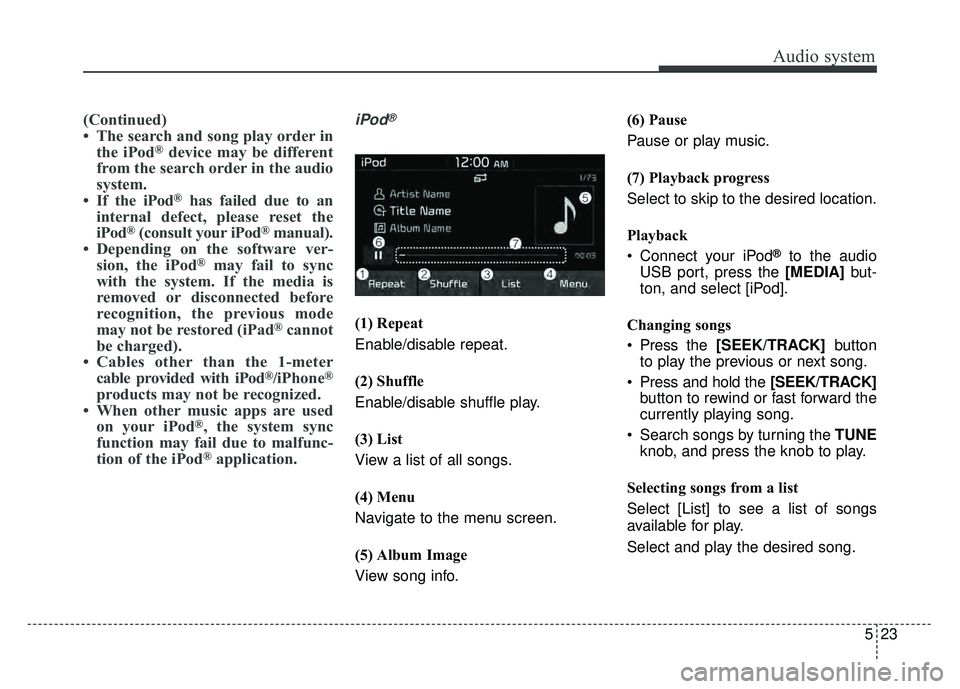
iPod®
(1) Repeat
Enable/disable repeat.
(2) Shuffle
Enable/disable shuffle play.
(3) List
View a list of all songs.
(4) Menu
Navigate to the menu screen.
(5) Album Image
View song info. (6) Pause
Pause or play music.
(7) Playback progress
Select to skip to the desired location.
Playback
Connect your iPod
®to the audio
USB port, press the [MEDIA] but-
ton, and select [iPod].
Changing songs
Press the [SEEK/TRACK] button
to play the previous or next song.
Press and hold the [SEEK/TRACK] button to rewind or fast forward the
currently playing song.
Search songs by turning the TUNE knob, and press the knob to play.
Selecting songs from a list
Select [List] to see a list of songs
available for play.
Select and play the desired song.