audio KIA Rondo 2017 3.G User Guide
[x] Cancel search | Manufacturer: KIA, Model Year: 2017, Model line: Rondo, Model: KIA Rondo 2017 3.GPages: 625, PDF Size: 19.69 MB
Page 273 of 625
Audio system
53
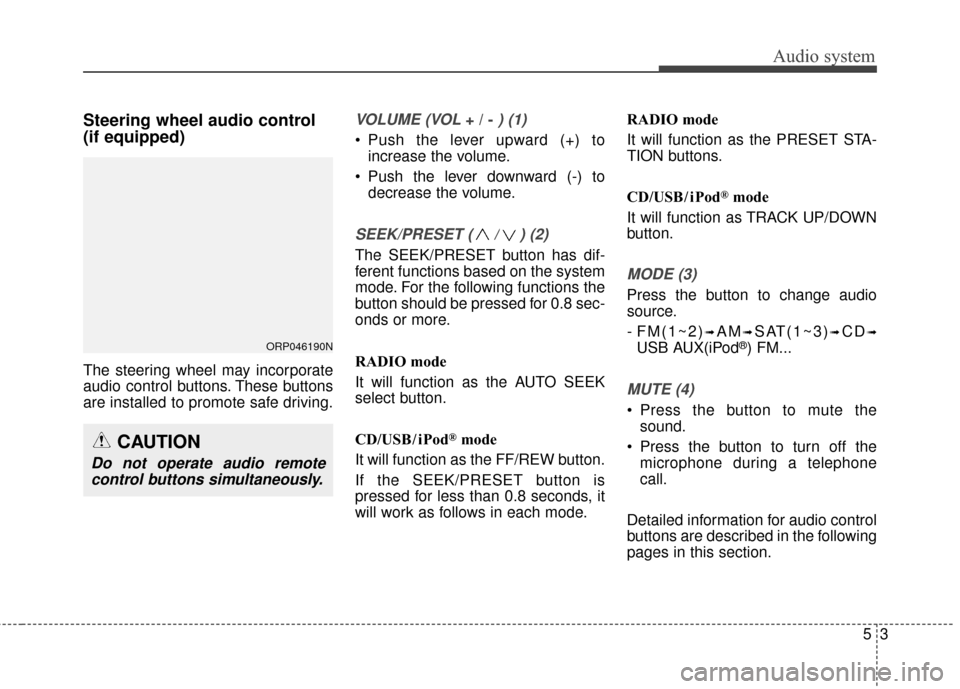
Steering wheel audio control
(if equipped)
The steering wheel may incorporate
audio control buttons. These buttons
are installed to promote safe driving.
VOLUME (VOL + / - ) (1)
• Push the lever upward (+) toincrease the volume.
Push the lever downward (-) to decrease the volume.
SEEK/PRESET ( / ) (2)
The SEEK/PRESET button has dif-
ferent functions based on the system
mode. For the following functions the
button should be pressed for 0.8 sec-
onds or more.
RADIO mode
It will function as the AUTO SEEK
select button.
CD/USB/ iPod
®mode
It will function as the FF/REW button.
If the SEEK/PRESET button is
pressed for less than 0.8 seconds, it
will work as follows in each mode. RADIO mode
It will function as the PRESET STA-
TION buttons.
CD/USB/ iPod
®mode
It will function as TRACK UP/DOWN
button.
MODE (3)
Press the button to change audio
source.
- FM(1~2)
➟AM➟SAT(1~3)➟CD➟
USB AUX(iPod®) FM...
MUTE (4)
Press the button to mute the sound.
Press the button to turn off the microphone during a telephone
call.
Detailed information for audio control
buttons are described in the following
pages in this section.
CAUTION
Do not operate audio remote control buttons simultaneously.
ORP046190N
Page 274 of 625
Audio system
45
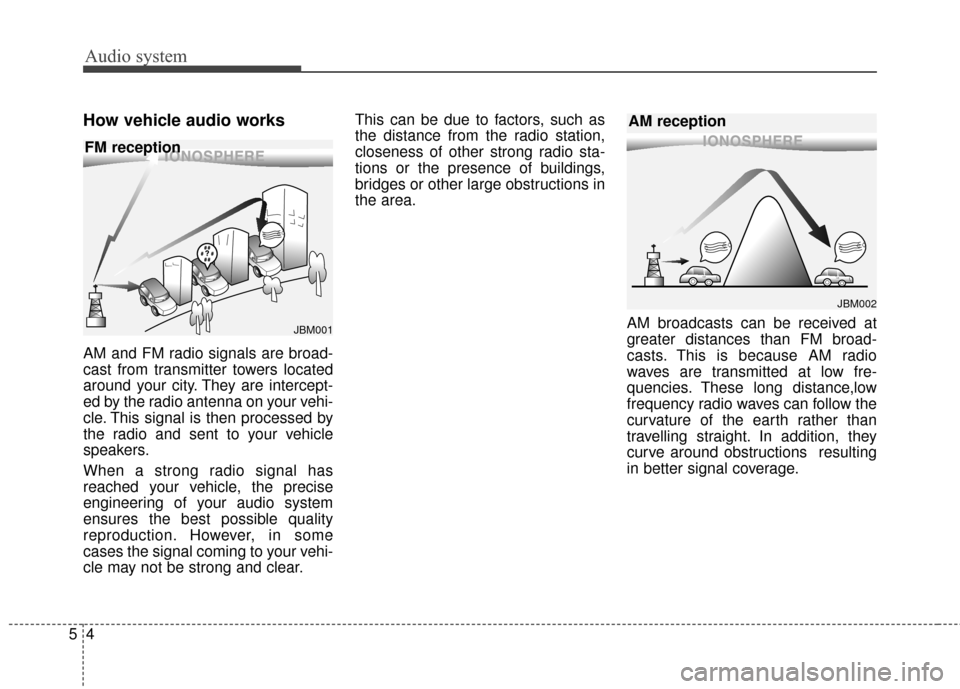
How vehicle audio works
AM and FM radio signals are broad-
cast from transmitter towers located
around your city. They are intercept-
ed by the radio antenna on your vehi-
cle. This signal is then processed by
the radio and sent to your vehicle
speakers.
When a strong radio signal has
reached your vehicle, the precise
engineering of your audio system
ensures the best possible quality
reproduction. However, in some
cases the signal coming to your vehi-
cle may not be strong and clear.This can be due to factors, such as
the distance from the radio station,
closeness of other strong radio sta-
tions or the presence of buildings,
bridges or other large obstructions in
the area.
AM broadcasts can be received at
greater distances than FM broad-
casts. This is because AM radio
waves are transmitted at low fre-
quencies. These long distance,low
frequency radio waves can follow the
curvature of the earth rather than
travelling straight. In addition, they
curve around obstructions resulting
in better signal coverage.
¢¢¢¢¢¢
JBM002
AM reception
¢¢¢
JBM001
FM reception
Page 275 of 625
Audio system
55
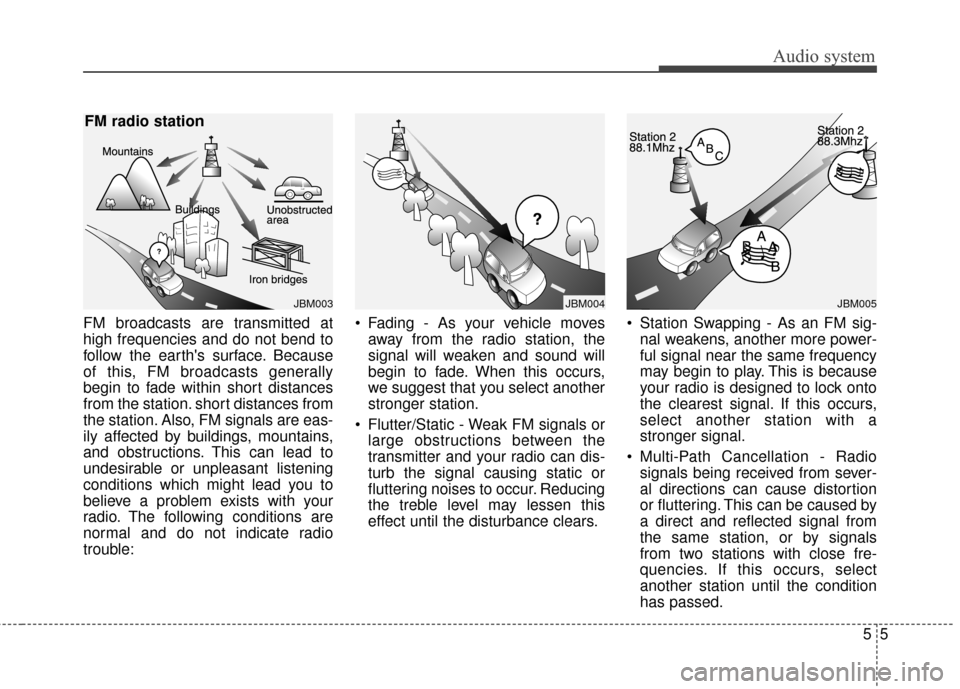
FM broadcasts are transmitted at
high frequencies and do not bend to
follow the earth's surface. Because
of this, FM broadcasts generally
begin to fade within short distances
from the station. short distances from
the station. Also, FM signals are eas-
ily affected by buildings, mountains,
and obstructions. This can lead to
undesirable or unpleasant listening
conditions which might lead you to
believe a problem exists with your
radio. The following conditions are
normal and do not indicate radio
trouble: Fading - As your vehicle moves
away from the radio station, the
signal will weaken and sound will
begin to fade. When this occurs,
we suggest that you select another
stronger station.
Flutter/Static - Weak FM signals or large obstructions between the
transmitter and your radio can dis-
turb the signal causing static or
fluttering noises to occur. Reducing
the treble level may lessen this
effect until the disturbance clears. Station Swapping - As an FM sig-
nal weakens, another more power-
ful signal near the same frequency
may begin to play. This is because
your radio is designed to lock onto
the clearest signal. If this occurs,
select another station with a
stronger signal.
Multi-Path Cancellation - Radio signals being received from sever-
al directions can cause distortion
or fluttering. This can be caused by
a direct and reflected signal from
the same station, or by signals
from two stations with close fre-
quencies. If this occurs, select
another station until the condition
has passed.
JBM003
FM radio station
JBM005
¢¢¢
JBM004
Page 276 of 625
Audio system
65
Using a cellular phone or a two-way radio
When a cellular phone is used inside
the vehicle, noise may be produced
from the audio system. This does not
mean that something is wrong with
the audio equipment. In such a case,
try to operate mobile devices as far
from the audio equipment as possible.
Caring for disc
If the temperature inside the car is too high, open the car windows to venti-
late before using the system.
It is illegal to copy and use MP3/WMA files without permission.
Use CDs that are created only by
lawful means.
Do not apply volatile agents, such as benzene and thinner, normal
cleaners and magnetic sprays
made for analogue disc onto CDs.
To prevent the disc surface from getting damaged, hold CDs by the
edges or the center hole only.
Clean the disc surface with a piece of soft cloth before playback (wipe
it from the center to the outside
edge).
Do not damage the disc surface or attach pieces of sticky tape or
paper.
Make certain only CDs are insert- ed into the CD player (Do not insert
more than one CD at a time).
Keep CDs in their cases after use to protect them from scratches or dirt. Depending on the type of CD-
R/CD-RW CDs, certain CDs may
not operate normally according to
the manufacturing companies. In
such circumstances, continued
use may cause malfunctions to
your audio system.
✽ ✽ NOTICE - Playing an
Incompatible Copy
Protected Audio CD
Some copy protected CDs, which do
not comply with international audio
CD standards (Red Book), may not
play on your car audio. Please note
that inabilities to properly play a copy
protected CD may indicate that the
CD is defective, not the CD player.
NOTE:
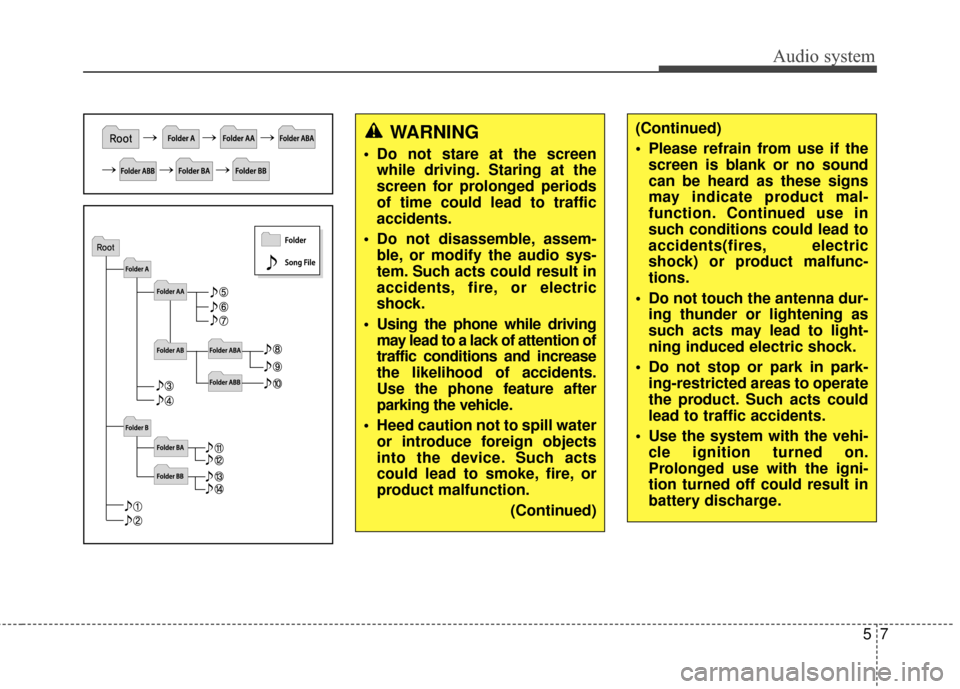
Order of playing files (folders) :
1. Song playing order : to
sequentially.
2. Folder playing order :
❋ If no song file is contained in the
folder, that folder is not displayed.
CAUTION
When using a communication
system such as a cellular phoneor a radio set inside the vehicle,a separate external antennamust be fitted. When a cellularphone or a radio set is usedwith an internal antenna alone,it may interfere with the vehi-cle's electrical system andadversely affect safe operationof the vehicle.
WARNING
Do not use a cellular phone
while driving. Stop at a safe
location to use a cellular phone.
Page 277 of 625
Audio system
57
WARNING
Do not stare at the screenwhile driving. Staring at the
screen for prolonged periods
of time could lead to traffic
accidents.
Do not disassemble, assem- ble, or modify the audio sys-
tem. Such acts could result in
accidents, fire, or electric
shock.
Using the phone while driving may lead to a lack of attention of
traffic conditions and increase
the likelihood of accidents.
Use the phone feature after
parking the vehicle.
Heed caution not to spill water or introduce foreign objects
into the device. Such acts
could lead to smoke, fire, or
product malfunction.
(Continued)
(Continued)
Please refrain from use if thescreen is blank or no sound
can be heard as these signs
may indicate product mal-
function. Continued use in
such conditions could lead to
accidents(fires, electric
shock) or product malfunc-
tions.
Do not touch the antenna dur- ing thunder or lightening as
such acts may lead to light-
ning induced electric shock.
Do not stop or park in park- ing-restricted areas to operate
the product. Such acts could
lead to traffic accidents.
Use the system with the vehi- cle ignition turned on.
Prolonged use with the igni-
tion turned off could result in
battery discharge.
Page 278 of 625
Audio system
85
(Continued) When cleaning the device, make sure to turn off thedevice and use a dry andsmooth cloth. Never usetough materials, chemicalcloths, or solvents (alcohol,benzene, thinners, etc.) assuch materials may damagethe device panel or causecolor/quality deterioration
Do not place beverages close to the audio system. Spillingbeverages may lead to systemmalfunction.
In case of product malfunction, please contact your place of pur-chase or After Service center.
Placing the audio system within an electromagneticenvironment may result innoise interference.
Prevent caustic solutions such as perfume and cosmetic oilfrom contacting the dashboardbecause they may cause dam-age or discoloration.CAUTION
Operating the device while driving could lead to acci-dents due to a lack of atten-tion to external surroundings.First park the vehicle beforeoperating the device.
Adjust the volume to levels that allow the driver to hearsounds from outside of thevehicle. Driving in a statewhere external sounds cannotbe heard may lead to acci-dents.
Pay attention to the volume setting when turning thedevice on. A sudden output ofextreme volume upon turningthe device on could lead tohearing impairment. (Adjustthe volume to a suitable levelsbefore turning off the device.)
(Continued)
(Continued) If you want to change the posi- tion of device installation,please inquire with your placeof purchase or service mainte-nance center. Technicalexpertise is required to installor disassemble the device.
Turn on the car ignition before using this device. Do not oper-ate the audio system for longperiods of time with the igni-tion turned off as such opera-tions may lead to battery dis-charge.
Do not subject the device to severe shock or impact. Directpressure onto the front side ofthe monitor may cause damageto the LCD or touch screen.
(Continued)
Page 279 of 625
Audio system
59
USING THE USB DEVICE
To use an external USB device,make sure the device is not con-
nected when starting up the vehi-
cle. Connect the device after start-
ing up.
If you start the engine when the USB device is connected, it may
damage the USB device. (USB
flashdrives are very sensitive to
electric shock.)
If the engine is started up or turned off while the external USB device is
connected, the external USB
device may not work.
The System may not play unau- thenticated MP3 or WMA files.
1) It can only play MP3 files with the compression rate between
8Kbps ~ 320Kbps.
2) It can only play WMA music files with the compression rate
between 8Kbps ~ 320Kbps.
Take precautions for static electrici- ty when connecting or disconnect-
ing the external USB device.
(Continued)(Continued)
An encrypted MP3 PLAYER is not
recognizable.
Depending on the condition of the external USB device, the connect-
ed external USB device can be
unrecognizable.
When the formatted byte/sector setting of External USB device is
not either 512BYTE or 2048BYTE,
then the device will not be recog-
nized.
Use only a USB device formatted to FAT 12/16/32.
USB devices without USB I/F authentication may not be recog-
nizable.
Make sure the USB connection ter- minal does not come in contact
with the human body or other
objects.
If you repeatedly connect or dis- connect the USB device in a short
period of time, it may break the
device.
(Continued)(Continued)
You may hear a strange noise
when connecting or disconnecting
a USB device.
If you disconnect the external USB device during playback in USB
mode, the external USB device
can be damaged or may malfunc-
tion. Therefore, disconnect the
external USB device when the
audio is turned off or in another
mode. (e.g, Radio, CD)
Depending on the type and capac- ity of the external USB device or
the type of the files stored in the
device, there is a difference in the
time taken for recognition of the
device.
Do not use the USB device for pur- poses other than playing music
files.
Playing videos through the USB is not supported.
Use of USB accessories such as rechargers or heaters using USB
I/F may lower performance or
cause trouble.
(Continued)
Page 280 of 625
Audio system
10
5 (Continued)
If you use devices such as a USB
hub purchased separately, the
vehicle’s audio system may not
recognize the USB device. In that
case, connect the USB device
directly to the multimedia terminal
of the vehicle.
If the USB device is divided by log- ical drives, only the music files on
the highest-priority drive are recog-
nized by car audio.
Devices such as MP3 Player/ Cellular phone/Digital camera can
be unrecognizable by standard
USB I/F can be unrecognizable.
Charging through the USB may not be supported in some mobile
devices.
USB HDD or USB types liable to connection failures due to vehicle
vibrations are not supported.
(i-stick type)
Some non-standard USB devices (METAL COVER TYPE USB) can
be unrecognizable.
(Continued)(Continued)
Some USB flash memory readers
(such as CF, SD, micro SD, etc.) or
external-HDD type devices can be
unrecognizable.
Music files protected by DRM (DIGITAL RIGHTS MANAGE-
MENT) are not recognizable.
The data in the USB memory may be lost while using this audio.
Always back up important data on
a personal storage device.
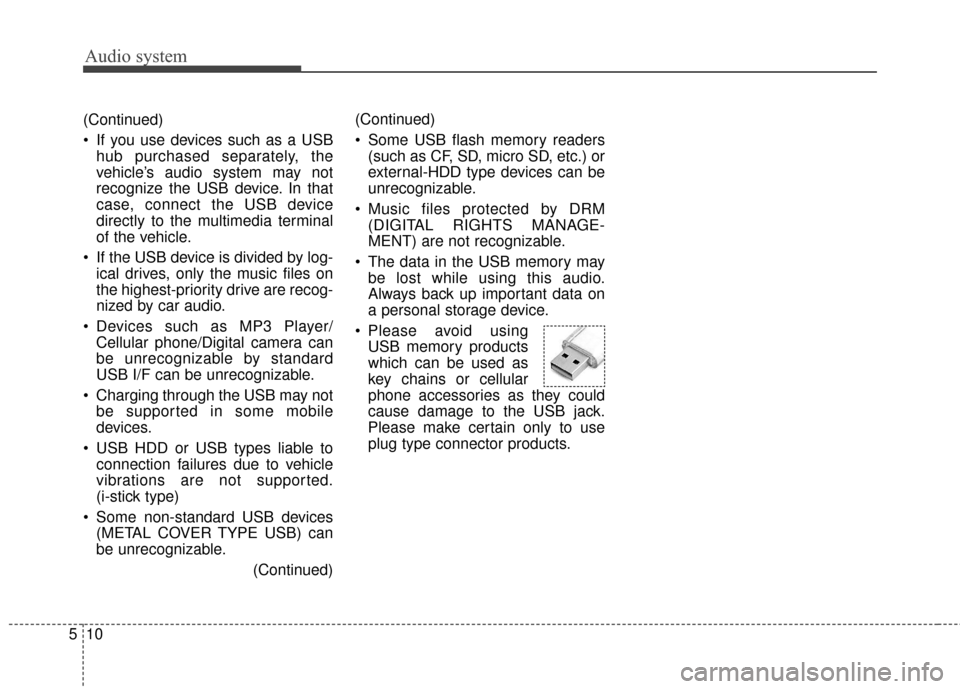
Please avoid using USB memory products
which can be used as
key chains or cellular
phone accessories as they could
cause damage to the USB jack.
Please make certain only to use
plug type connector products.
Page 281 of 625
Audio system
511
USING THE iPod®DEVICE
Some iPod®models may not sup-
port communication protocol and
files may not properly play.
Supported iPod
®models:
- iPhone
®3GS/4
- iPod
®touch 1st~4th generation
- iPod
®nano 1st~6th generation
- iPod
®classic
The order of search or playback of songs in the iPod
®can be different
from the order searched in the
audio system.
If the iPod
®is disabled due to its
own malfunction, reset the iPod®.
(Reset: Refer to iPod®manual)
An iPod
®may not operate normally
on low battery.
(Continued)(Continued)
Some iPod
®devices, such as the
iPhone®, can be connected through
the
Bluetooth®Wireless Technology
interface. The device must have
audio
Bluetooth®Wireless
Technology capability (such as for
stereo headphone
Bluetooth®
Wireless Technology). The device
can play, but it will not be controlled
by the audio system.
To use iPod
®features within the
audio, use the cable provided upon
purchasing an iPod
®device.
Skipping or improper operation may occur depending on the char-
acteristics of your iPod
®/iPhone®
device.
If your iPhone
®is connected to
both the
Bluetooth®Wireless
Technology and USB, the sound
may not be properly played. In your
iPhone
®, select the Dock connec-
tor or
Bluetooth®Wireless
Technology to change the sound
output (source).
(Continued)(Continued)
When connecting iPod
®with the
iPod®Power Cable, insert the con-
nector to the multimedia socket
completely. If not inserted com-
pletely, communications between
iPod
®and audio may be interrupt-
ed.
When adjusting the sound effects of the iPod
®and the audio system,
the sound effects of both devices
will overlap and might reduce or
distort the quality of the sound.
Deactivate (turn off) the equalizer function of an iPod
®when adjust-
ing the audio system’s volume, and
turn off the equalizer of the audio
system when using the equalizer of
an iPod
®.
When not using iPod
®with car
audio, detach the iPod®cable from
iPod®. Otherwise, iPod®may
remain in accessory mode, and
may not work properly.
Page 282 of 625
Audio system
12
5
Bluetooth®Wireless Technology
Bluetooth®Wireless Technology
The Bluetooth®word mark and logos
are registered trademarks owned by
Bluetooth SIG, lnc. and any use of
such marks by Kia is under license.
A Bluetooth
®enabled call phone is
required to use Bluetooth®wireless
technology.
Before Using the Bluetooth®
Handsfree
What is Bluetooth®?
Bluetooth®refers to a short-dis-
tance wireless networking technol-
ogy which uses a 2.4GHz ~
2.48GHz frequency to connect var-
ious devices within a certain dis-
tance.
Supported within PCs, external devices, Bluetooth
®phones, PDAs,
various electronic devices, and
automotive environments,
Bluetooth
®allows data to be trans-
mitted at high speeds without hav-
ing to use a connector cable.
Bluetooth
®Handsfree refers to a
device which allows the user to
conveniently make phone calls with
Bluetooth
®mobile phones through
the audio system.
Bluetooth
®Handsfree may not be
supported in some mobile phones.
To learn more about mobile device
compatibility.
Precautions for Safe Driving
Bluetooth®Handsfree is a feature
that enables drivers to practice
safe driving. Connecting the head
unit with a Bluetooth
®phone allows
the user to conveniently make and
receive calls and use contacts.
Before using Bluetooth
®, carefully
read the contents of this user’s
manual.
Excessive use or operations while driving may lead to negligent driv-
ing practices and result in acci-
dents. Refrain from excessive
operations while driving.
Viewing the screen for prolonged periods of time is dangerous and
may lead to accidents. When driv-
ing, view the screen only for short
periods of time.
WARNING
Driving while distracted can
result in a loss of vehicle control
that may lead to an accident,
severe personal injury, and
death. The driver’s primary
responsibility is in the safe and
legal operation of a vehicle, and
use of any handheld devices,
other equipment, or vehicle sys-
tems which take the driver’s
eyes, attention and focus away
from the safe operation of a vehi-
cle or which are not permissible
by law should never be used dur-
ing operation of the vehicle.