Buttons KIA Sedona 2012 2.G Owner's Guide
[x] Cancel search | Manufacturer: KIA, Model Year: 2012, Model line: Sedona, Model: KIA Sedona 2012 2.GPages: 370, PDF Size: 6.75 MB
Page 219 of 370
Features of your vehicle
202
3
To load more than one disc but less
than six, complete Steps 1 and 2.
When you have finished loading discs,
press LOAD button to cancel the loading
function or wait for 10 seconds. The CD
player will begin to play the last CD
loaded. As each CD starts to play, the
DISC number will appear on the display.
✽ ✽ NOTICE
The disc player takes up to six discs. Do
not try to load more than six.
5. TRACK Button
] button for less than
0.8 seconds to play from the beginning
of current song.
] button for less than 0.8 seconds and press again within 1
second to play the previous song.
] button for 0.8 sec- onds or longer to initiate reverse direc-
tion high speed sound search of cur-
rent song.
] button for less than 0.8 seconds to play the next song.
] button for 0.8 sec- onds or longer to initiate forward direc-
tion high speed sound search of cur-
rent song.
6. INFO Button
Displays the information of the current
song.
CDDA : DISC TITLE
➟ DISC ARTIST ➟TRACK TITLE ➟ TRACK ARTIST ➟TOTAL TRACK ➟ DISC TITLE...
MP3/WMA : FILE NAME
➟TITLE➟ARTIST➟ALBUM➟FOLDER➟TOTAL FILE...
(Not displayed if the information is
unavailable on the CD or file.)
7. SEARCH Knob & ENTER Button
songs after current song, or counter-
clockwise to browse songs before cur-
rent song. To play the displayed song,
press the knob.
enters to AUDIO CONTROL mode.
8. REPEAT Button
Press this button for less than 0.8 sec-
onds to activate ‘RPT’ mode and more
than 0.8 seconds to activate ‘FLD RPT’
mode.
Only a track (file) is repeatedlyplayed back.
Only files are repeatedly played back.
9. RANDOM Button
Press this button for less than 0.8 sec-
onds to activate ‘RDM’ mode and more
than 0.8 seconds to activate ‘ALL RDM’
mode.
Only files/tracks in a folder/disc are played back in a random sequence.
All files in a disc are played back in the random
sequence.
10. SCAN Button
Play each song in the CD for 10 seconds.
To cancel SCAN Play, press this button
again.
11. DISC Buttons
] Change Button Changesdisc to the previous disc.
] Change Button Changes disc to the next disc.
12. CD Button
If there is a CD in the CD DECK it switch-
es to CD mode.
If there is no CD, then the message “NO
CD” will become displayed on the LCD
for 3 seconds and returns to the previous
mode.
Page 225 of 370
Features of your vehicle
208
3
✽
✽
NOTICE FOR USING THE
iPod®DEVICE
• Some iPod models might not sup-
port the communication protocol
and the files will not be played.
Supported iPod models:
- iPod Mini
- iPod 4th(Photo) ~ 6th(Classic)
generation
- iPod Nano 1st~4th generation
- iPod Touch 1st~2nd generation
• The order of search or playback of songs in the iPod can be different
from the order searched in the
audio system.
• If the iPod disabled due to its own malfunction, reset the iPod. (Reset:
Refer to iPod manual)
• An iPod may not operate normally on low battery.
• Some iPod devices, such as the iPhone, can be connected through the
Bluetooth
®interface. The device
must have audio Bluetooth®capabili-
ty (such as for stereo headphone
Bluetooth
®). The device can play, but
it will not be controlled by the audio
system.
CAUTION IN USING THE
iPod®DEVICE
The KIA iPod Power Cable is
needed in order to operate iPodwith the audio buttons on theaudio system. The USB cable pro- vided by Apple may cause mal-function and should not be used for KIA vehicles.
❋ The KIA iPod Power Cable maybe purchased through your KIADealership.
When connecting iPod with the iPod Power Cable, insert the con-nector to the multimedia socketcompletely. If not inserted com-pletely, communications between iPod and audio may be interrupted.
When adjusting the sound effects of the iPod and the audio system, thesound effects of both devices willoverlap and might reduce or distortthe quality of the sound.
Deactivate (turn off) the equalizer function of an iPod when adjust-ing the audio system’s volume,and turn off the equalizer of theaudio system when using theequalizer of an iPod.
(Continued)
(Continued) When the iPod cable is connected, the system can be switched to AUXmode even without iPod deviceand may cause noise. Disconnect
the iPod cable when you are not using the iPod device.
When not using iPod with car audio, detach the iPod cable fromiPod. Otherwise, iPod may remainin accessory mode, and may notwork properly.
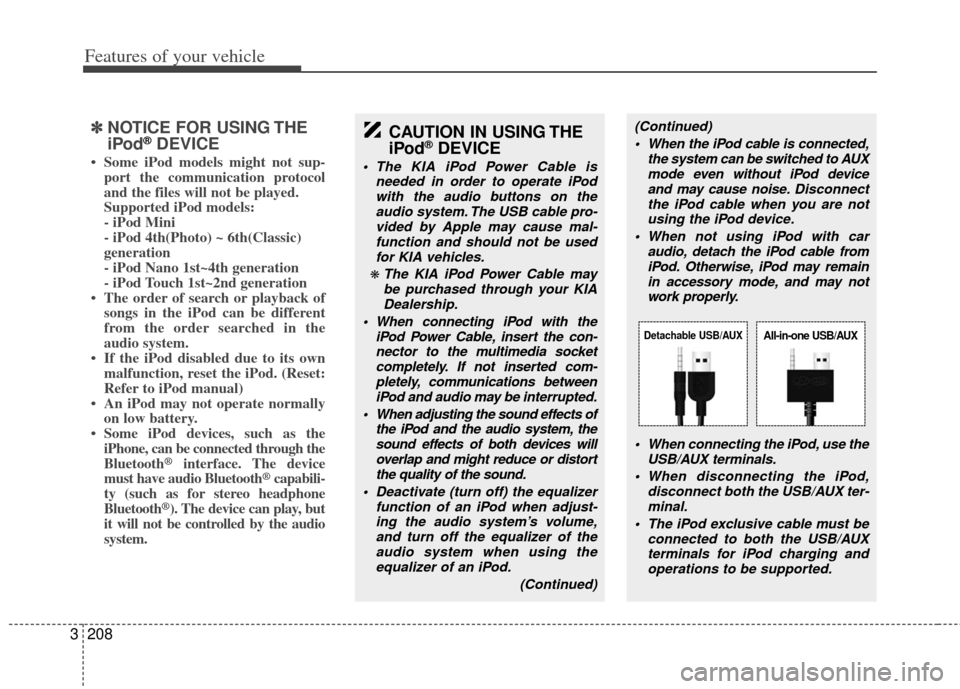
When connecting the iPod, use theUSB/AUX terminals.
When disconnecting the iPod, disconnect both the USB/AUX ter-minal.
The iPod exclusive cable must be connected to both the USB/AUXterminals for iPod charging and operations to be supported.
Detachable USB/AUXAll-in-one USB/AUX
Page 229 of 370
Features of your vehicle
212
3
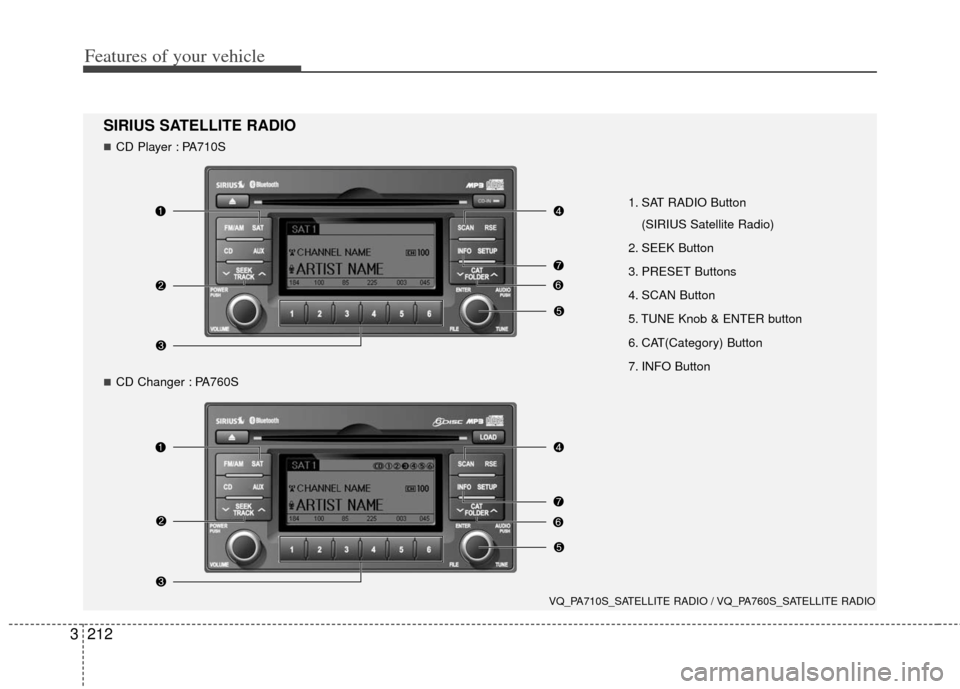
1. SAT RADIO Button
(SIRIUS Satellite Radio)
2. SEEK Button
3. PRESET Buttons
4. SCAN Button
5. TUNE Knob & ENTER button
6. CAT(Category) Button
7. INFO Button
VQ_PA710S_SATELLITE RADIO / VQ_PA760S_SATELLITE RADIO
SIRIUS SATELLITE RADIO
CD Player : PA710S
CD Changer : PA760S
Page 230 of 370
3213
Features of your vehicle
Using SIRIUS Satellite Radio
Your Kia vehicle is equipped with a 3
month complimentary period of SIRIUS
Satellite Radio so you have access to over
130 channels of music, information, and
entertainment programming.
Activation
In order to extend or reactivate your sub-
scription to SIRIUS Satellite Radio, you
will need to contact SIRIUS Customer
Care at 1-888-539-7474. Have your 12
digit SID (Sirius Identification Number)/ESN
(Electronic Serial Number) ready. To
retrieve the SID/ESN, turn on the radio,
press the [SAT] button and tune to chan-
nel zero. Please note that the vehicle will
need to be turned on, in Sirius mode, and
have an unobstructed view of the sky in
order for the radio to receive the activa-
tion signal.
1. SAT Button (SIRIUS Satellite Radio)
Press the [SAT] button to switch to SIR-
IUS Satellite Radio. It cycles through the
different bands as noted below.
SAT1
➟ SAT2 ➟ SAT3 ➟ SAT1...
2. SEEK Button
Press [ SEEK ] button for less
than 0.8 seconds to select previous or
next channel.
Press [ SEEK ] button for 0.8 seconds or longer to continuously
move to previous or next channel.
If "CATEGORY" Icon is displayed at the top of the screen, channel up/down
is done through the channels within
current category.
3. PRESET Buttons
Press [1]~[6] buttons less than 0.8 sec-onds to play the channel saved in each
button.
Press [1]~[6] buttons for 0.8 seconds or longer to save current channel to the
respective button with a beep.
4. SCAN Button
When the [SCAN] button is pressed, itautomatically scans the radio stations
upwards.
The SCAN feature steps through every channel, starting from the initial chan-
nel, for ten seconds.
Press the [SCAN] button again to stop the scan feature and to listen to the
currently selected channel.
If "CATEGORY" Icon is displayed at the top of the screen, channel chang-
ing is done through the channels with-
in current category.
5. TUNE knob & ENTER button
Rotate clockwise to increase the chan-nel number or to scroll down the cate-
gory list.
Rotate counterclockwise to decrease the channel number or to scroll up the
category list.
Press this to make selection of chan- nels or items.
Page 231 of 370
![KIA Sedona 2012 2.G Owners Guide Features of your vehicle
214
3
6. CAT(Category) Button
Press [CAT ] or [CAT ] button to
enter the Category List Mode, it dis-
plays category items and highlights the
category that currently tuned](/img/2/2937/w960_2937-230.png "KIA Sedona 2012 2.G Owners Guide Features of your vehicle
214
3
6. CAT(Category) Button
Press [CAT ] or [CAT ] button to
enter the Category List Mode, it dis-
plays category items and highlights the
category that currently tuned")
Features of your vehicle
214
3
6. CAT(Category) Button
Press [CAT ] or [CAT ] button to
enter the Category List Mode, it dis-
plays category items and highlights the
category that currently tuned channel
belongs to.
On Category List Mode, press these buttons to navigate category list.
Press [ENTER] Button to select the lowest channel in highlighted category.
If channel is selected by selecting cate- gory "CATEGORY" Icon is displayed at
the top of the screen.
7. INFO Button
Displays the information of the current
channel as below when the button is
pressed each time.
When default display isCAT(Category)/CH(Channel)
➟ Artist/Title ➟
Composer (if available) ➟ Category/Channel...
When default display is ART(Artist)/TITLE(Title)
➟ Category/Channel
➟ Composer(if available) ➟ Artist/Title...
✽ ✽ Troubleshooting
1. Antenna Error
If this message is displayed, the anten-
na or antenna cable is broken or
unplugged. Please consult with your
Kia dealership.
2. Acquiring Signal If this message is displayed, it means
that the antenna is covered and that
the SIRIUS Satellite Radio signal is
not available. Ensure the antenna is
uncovered and has a clear view of the
sky.
Page 235 of 370
Features of your vehicle
218
3
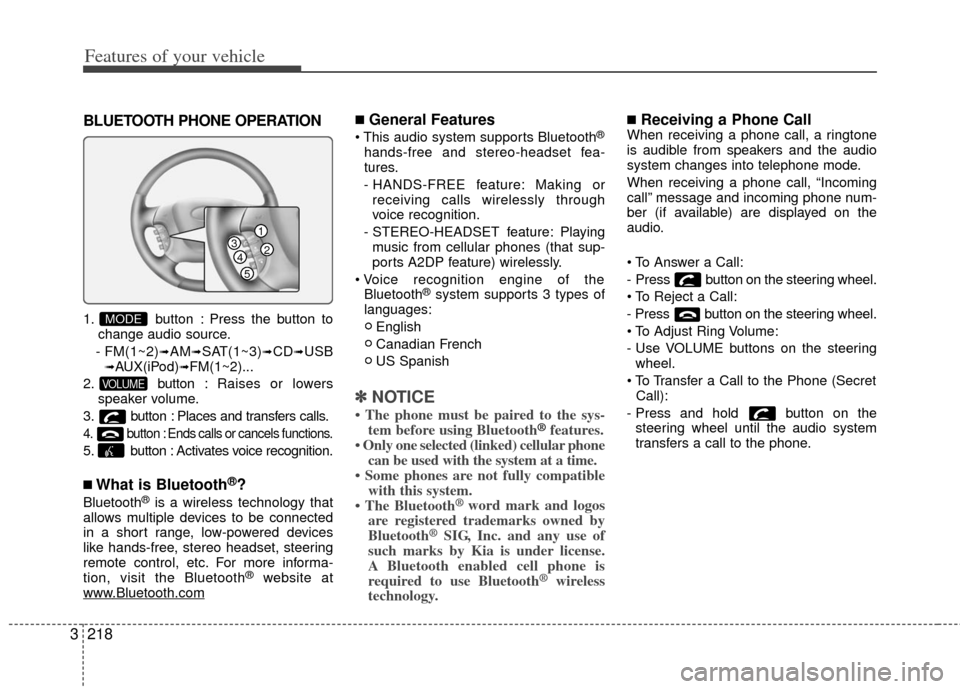
BLUETOOTH PHONE OPERATION
1. button : Press the button to
change audio source.
- FM(1~2)
➟AM➟SAT(1~3)➟CD➟USB➟AUX(iPod)➟FM(1~2)...
2. button : Raises or lowers
speaker volume.
3. button : Places and transfers calls.
4. button : Ends calls or cancels functions.
5. button : Activates voice recognition.
■What is Bluetooth®?
Bluetooth®is a wireless technology that
allows multiple devices to be connected
in a short range, low-powered devices
like hands-free, stereo headset, steering
remote control, etc. For more informa-
tion, visit the Bluetooth
®website at
www.Bluetooth.com
■General Features
®
hands-free and stereo-headset fea-
tures.
- HANDS-FREE feature: Making or receiving calls wirelessly through
voice recognition.
- STEREO-HEADSET feature: Playing music from cellular phones (that sup-
ports A2DP feature) wirelessly.
Bluetooth
®system supports 3 types of
languages:
English
Canadian French
US Spanish
✽ ✽ NOTICE
• The phone must be paired to the sys-
tem before using Bluetooth®features.
• Only one selected (linked) cellular phone can be used with the system at a time.
• Some phones are not fully compatible with this system.
• The Bluetooth
® word mark and logos
are registered trademarks owned by
Bluetooth
®SIG, Inc. and any use of
such marks by Kia is under license.
A Bluetooth enabled cell phone is
required to use Bluetooth
®wireless
technology.
■Receiving a Phone CallWhen receiving a phone call, a ringtone
is audible from speakers and the audio
system changes into telephone mode.
When receiving a phone call, “Incoming
call” message and incoming phone num-
ber (if available) are displayed on the
audio.
- Press button on the steering wheel.
- Press button on the steering wheel.
- Use VOLUME buttons on the steering
wheel.
Call):
- Press and hold button on the steering wheel until the audio system
transfers a call to the phone.
VOLUME
MODE
1
234
5
Page 247 of 370
Features of your vehicle
230
3
Connecting Other Devices to the RSE
Electronic devices such as video game
systems, VHS players, Camcorder or etc,
can be played through the RSE. These
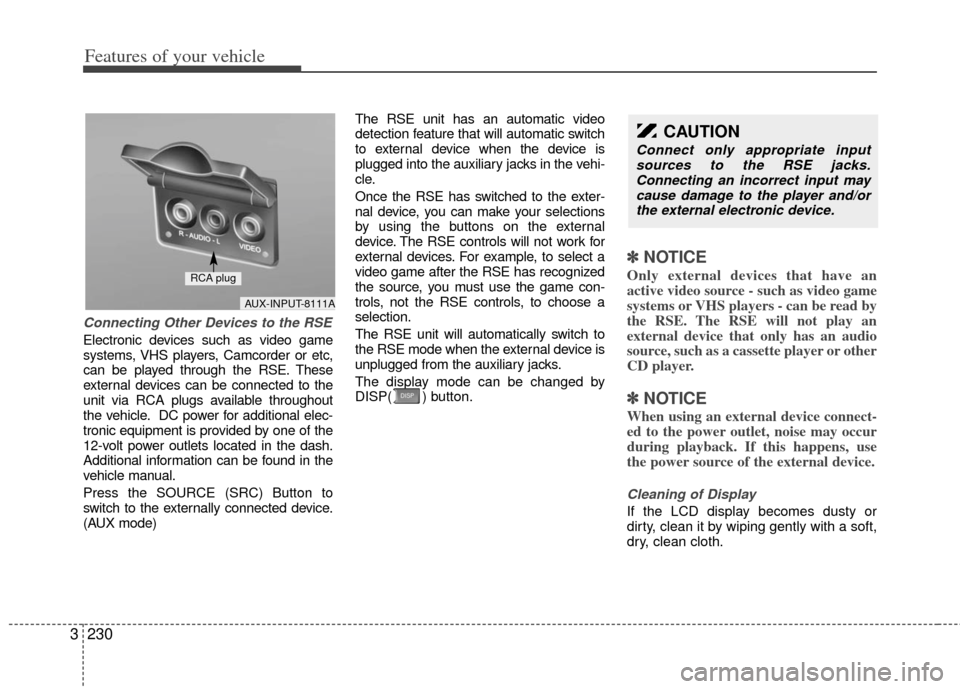
external devices can be connected to the
unit via RCA plugs available throughout
the vehicle. DC power for additional elec-
tronic equipment is provided by one of the
12-volt power outlets located in the dash.
Additional information can be found in the
vehicle manual.
Press the SOURCE (SRC) Button to
switch to the externally connected device.
(AUX mode) The RSE unit has an automatic video
detection feature that will automatic switch
to external device when the device is
plugged into the auxiliary jacks in the vehi-
cle.
Once the RSE has switched to the exter-
nal device, you can make your selections
by using the buttons on the external
device. The RSE controls will not work for
external devices. For example, to select a
video game after the RSE has recognized
the source, you must use the game con-
trols, not the RSE controls, to choose a
selection.
The RSE unit will automatically switch to
the RSE mode when the external device is
unplugged from the auxiliary jacks.
The display mode can be changed by
DISP( ) button.
✽ ✽
NOTICE
Only external devices that have an
active video source - such as video game
systems or VHS players - can be read by
the RSE. The RSE will not play an
external device that only has an audio
source, such as a cassette player or other
CD player.
✽ ✽NOTICE
When using an external device connect-
ed to the power outlet, noise may occur
during playback. If this happens, use
the power source of the external device.
Cleaning of Display
If the LCD display becomes dusty or
dirty, clean it by wiping gently with a soft,
dry, clean cloth.
CAUTION
Connect only appropriate input
sources to the RSE jacks.Connecting an incorrect input may cause damage to the player and/orthe external electronic device.
AUX-INPUT-8111A
RCA plug
Page 248 of 370
3231
Features of your vehicle
Using the DVD player
Disc compatibility
Your RSE player accepts and plays all
DVDs in 4:3 (normal) and 16:9 (wide
screen) video formats. With DVDs that
offer multiple formats, the default format
is 16:9 and will stay that way unless the
user changes the format. (See “Display”
to learn how to adjust the format.)
✽ ✽NOTICE
• The DVD player has the capability to
play DVD-Video, DVD-R, DVD-RW,
CD-DA, CD-R, CD-RW and Video-
CD.
• The DVD player has the capability to play CD-DA, DVD, VCD, PCM,
Dolby Digital and DTS formats.
• Please refer to the appendix for the error messages.
Loading a Disc
Insert the disc part way into the load slot.
The player will automatically grip the disc
and pull it in the rest of the way. The player
will display “reading” on the screen and
show the “Kia Motors” logo before begin-
ning the DVD. The player is only capable of reading the
bottom side of a disc. When inserting a
single-sided disc, the label side should be
up. When inserting a two-sided disc, the
desired play side should be down.
✽ ✽
NOTICE
• Because there is no universal standard
for DVD programming, your disc may
behave differently than below. Some
DVDs may present warning messages
about unauthorized duplication, some
will go directly to a menu and others
may start playing the movie immedi-
ately.
• When the vehicle's ignition is active, the loading of any playable disc will
cause the player to initialize and auto-
matically play the disc. If a disc was
playing prior to the ignition being
turned off, it will not automatically
replay once the ignition is turned on
again. Instead, it will go into standby
mode. Press the SRC or
PLAY/PAUSE( ) button to “wake
up” the unit and resume disc play.
Disc Protection
The player has an Auto-Reload Disc
Protection feature to protect discs from
accidental damage. If an ejected disc is
not removed within 25 seconds after being
ejected, it will be pulled back into the play-
er. The disc will not begin playing. Disc can
be played by the SRC or
PLAY/PAUSE( ) buttons.
DVD Controls
You can control your DVD by using the
buttons on the unit's control panel or by
using the remote control. Instructions for
the controls listed below are the same
whether you are using the control panel
or the remote control. However, there are
functions that are only available from the
remote control. These buttons and their
functionality are discussed in the
“REMOTE CONTROL” section begin-
ning.
Page 250 of 370
3233
Features of your vehicle
✽
✽NOTICE
The RSE will enter standby mode when
the vehicle ignition is turned off and
back on. Press the SRC or
PLAY/PAUSE( ) button to “wake
up” the unit and resume disc play.
1. Stop/Eject
While the disc is playing, press the
STOP/EJECT ( ) button to stop disc
play. When the disc has stopped, press
the button again to eject the disc.
✽ ✽NOTICE
The player has an Auto-Reload Disc
Protection feature to protect discs from
accidental damage. If an ejected disc is
not removed within 25 seconds after
being ejected, it will be pulled back into
the player. This is to protect the disc
from accidental damage.
2. Speaker Volume Control
You can adjust the volume one of two
ways. First, if you are adjusting the vol-
ume for audio through the vehicle speak-
ers, you can use the VOLUME button on
the control panel or the remote control.
This button is reserved for sending a sig-
nal to the vehicle speakers only, and will
not adjust the headphone volume. Press
“+” to increase the volume and “-” to
decrease the volume.
Second, the volume on the wireless
headphones can be adjusted by turning
the VOL knob located on the left side of
the headphones.
3. Play/Pause
You do not need to press the play button
after first loading a DVD or VCD; it will
start automatically by playing the first
track or bringing up the disc menu.
If the disc does not automatically load,
press PLAY/PAUSE( ) to play the DVD.
While playing a DVD, press PLAY
/PAUSE( ) to pause the DVD. Press
the button again to resume play.
4. Display
When the player is in DVD mode, press the
DISP button to view the DVD title, chapter
number and elapsed time and other infor-
mation about the DVD currently playing.
It will also display brightness. There are
“Day Time” brightness with brightest level
and “Night Time” brightness which has 70%
level of “Day Time” brightness. Adjust the
level of brightness by pressing the
REV(dimmer) or FWD(brighter) buttons.
The next time the player is turned on, it will
return to the brightness level it was adjusted
to when last used.
The RSE unit has two presets of display
brightness. When the headlamp is turned
on, the display brightness level will be
dimmed as the preset. However, when the
headlamp is turned off, the display bright-
ness will return to the daytime brightness.
Press DISP to adjust the image format. The
image format, also known as the aspect
ratio, is a ratio of the height to width of the
image on the screen. For example, a 4:3
ratio would mean an image that is 4 units by
3 units.
Page 252 of 370
3235
Features of your vehicle
When viewing a menu, pressing the
MENU button again will automatically
return to the movie at the point it was
being viewed. You can also select “play” or
any other option by using the NEXT,
PREV, FWD and REV buttons.
Press the NEXT button to move the cursor
up and the PREV button to move the cur-
sor down the menu.
Press the FWD button to move the cursor
to the right, and the REV button to move
the cursor to the left.
✽ ✽NOTICE
You must repeatedly push any button to
move through several items. Pressing
and holding any button will not advance
the cursor beyond the position just
moved.
Press ENTER to select the desired menu
choice.
11. Source
Press the SOURCE button to switch from
the RSE’s internal DVD player to an
external device such as a VCR or video
game. The sound and images from the
external source will be presented
through the RSE. Pressing the SRC button will switch
between the following RSE states:
Playback state - will play DVDs, VCDs, and
CDs
Auxiliary (AUX) state - will play video
games and other external devices
When an external source is selected, the
RSE’s internal DVD player turns off.
Press the SRC button to switch back
from the external source to the internal
DVD player.
If a disc is present in the DVD player, the
disc will begin to play. If another source
has been detected, such as a VCR or
video game, the RSE will enter the AUX
mode automatically and shall remain so
until a disc is inserted or until the PLAY/
SRC button is pressed on the RSE's front
panel or on the remote control. If the
vehicle ignition is on but the player isn't
being used, the display will power off.
The DVD mechanism will be in sleep
mode, but the main RSE's controller will
stay up to accept commands from the
front panel controls or the remote control.
✽ ✽
NOTICE
The external device must be correctly
connected to the RSE in order to play
properly.
Using the CD Player
The RSE will play audio CDs in both the
standard (12 cm) and mini-disc (8 cm)
format.
✽ ✽NOTICE
While the player will accept DVD
ROMs and CD ROMs discs, the RSE
cannot play discs in these formats and
will eject them.
With power applied to your unit, insert
the disc part way into the load slot. The
player will automatically grip the CD disc,
pull it the rest of the way in and begin
playing.
CD Controls
The following functions are available
when playing audio CDs.