reset KIA SEDONA 2017 Owner's Manual
[x] Cancel search | Manufacturer: KIA, Model Year: 2017, Model line: SEDONA, Model: KIA SEDONA 2017Pages: 586, PDF Size: 14.12 MB
Page 286 of 586
Features of your vehicle
184
4
This indicator illuminates
when the auto defogging
system senses the mois-
ture of inside the wind-
shield and operates.
If more moisture is in the vehicle,
higher steps operate as follow. For
example if auto defogging does not
defog inside the windshield at step 1
Outside air position, it tries to defog
again at step 2 Blowing air toward
the windshield.
Step 1 : Outside air position
Step 2 :Blowing air toward the wind-
shield
Step 3 : Increasing air flow toward the windshield
Step 4 : Operating the air conditioning
Step 5 : M aximizing the air condi-
tioning To cancel or reset the Auto Defogging
System
Press the front windshield defroster
button for 3 seconds when the igni-
tion switch is in the ON position.
When the ADS system is canceled,
[ADS OFF] symbol will blink 3 times
per 1 sec and the position [ADS
OFF] will be displayed on the climate
control information screen. (A TYPE)
When the ADS system is canceled,
Indicator on the button will blink 3
times per 0.5 sec. (B TYPE)
When the ADS system is reset, [ADS
OFF] symbol will blink 6 times per
0.5sec and the position [ADS OFF]
will be disappeared on the climate
control information screen. (A TYPE)
When the ADS system is reset,
Indicator on the button will blink 6
times per 0.25 sec. (B TYPE)
✽ ✽
NOTICE
If the A/C off or recirculated air
position is manually selected while
the auto defogging system is on, the
auto defogging indicator will blink 3
times to give notice that manual
operation is canceled.
Do not remove the sensor cover
located on the upper end of the pas-
senger side windshield glass.
Damage to the system parts could
occur and may not be covered by
your vehicle warranty.
Page 310 of 586
4 208
Features of your vehicle
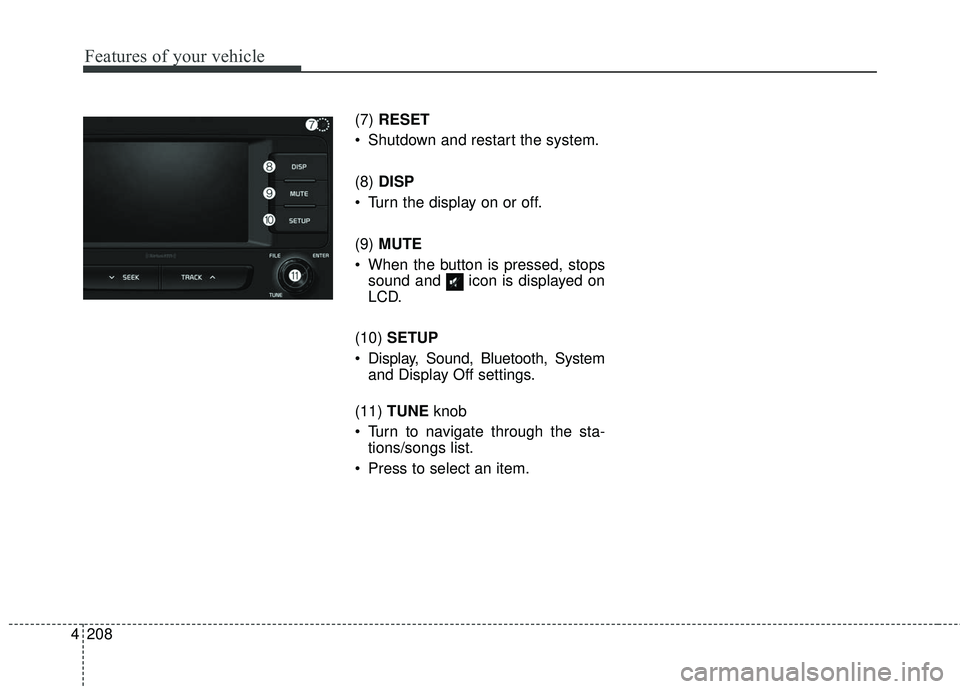
(7) RESET
Shutdown and restart the system.
(8) DISP
Turn the display on or off.
(9) MUTE
When the button is pressed, stops sound and icon is displayed on
LCD.
(10) SETUP
Display, Sound, Bluetooth, System and Display Off settings.
(11) TUNE knob
Turn to navigate through the sta- tions/songs list.
Press to select an item.
Page 311 of 586
209
4
Features of your vehicle
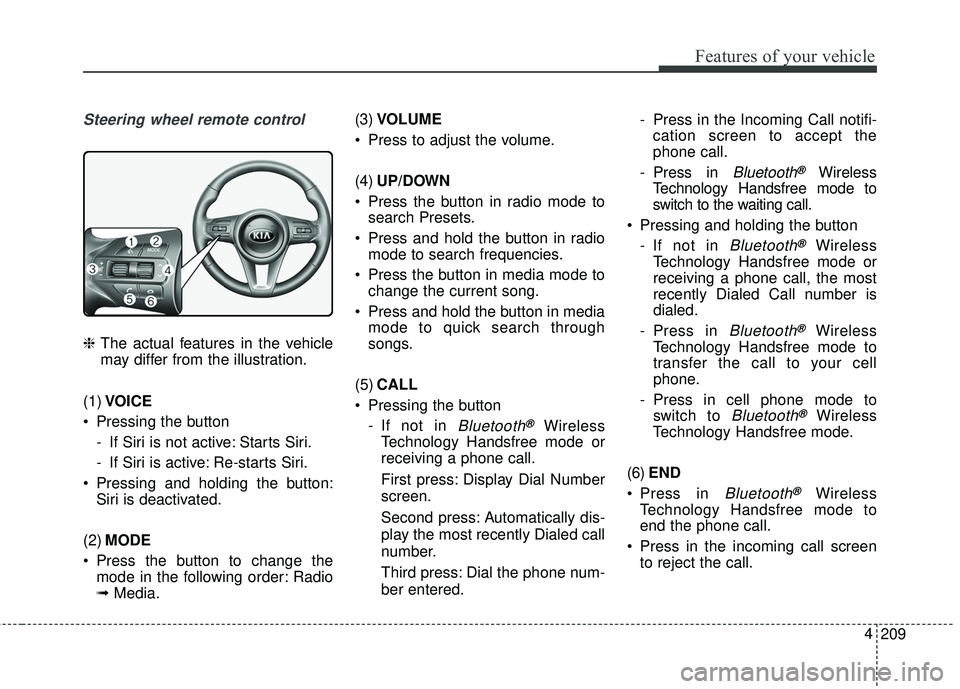
Steering wheel remote control
❈
The actual features in the vehicle
may differ from the illustration.
(1) VOICE
Pressing the button - If Siri is not active: Starts Siri.
- If Siri is active: Re-starts Siri.
Pressing and holding the button: Siri is deactivated.
(2) MODE
Press the button to change the mode in the following order: Radio
➟ Media. (3)
VOLUME
Press to adjust the volume.
(4) UP/DOWN
Press the button in radio mode to search Presets.
Press and hold the button in radio mode to search frequencies.
Press the button in media mode to change the current song.
Press and hold the button in media mode to quick search through
songs.
(5) CALL
Pressing the button - If not in
Bluetooth®Wireless
Technology Handsfree mode or
receiving a phone call.
First press: Display Dial Number
screen.
Second press: Automatically dis-
play the most recently Dialed call
number.
Third press: Dial the phone num-
ber entered. - Press in the Incoming Call notifi-
cation screen to accept the
phone call.
- Press in
Bluetooth®Wireless
Technology Handsfree mode to
switch to the waiting call.
Pressing and holding the button - If not in
Bluetooth®Wireless
Technology Handsfree mode or
receiving a phone call, the most
recently Dialed Call number is
dialed.
- Press in
Bluetooth®Wireless
Technology Handsfree mode to
transfer the call to your cell
phone.
- Press in cell phone mode to switch to
Bluetooth®Wireless
Technology Handsfree mode.
(6) END
Press in
Bluetooth®Wireless
Technology Handsfree mode to
end the phone call.
Press in the incoming call screen to reject the call.
Page 315 of 586
213
4
Features of your vehicle
Radio
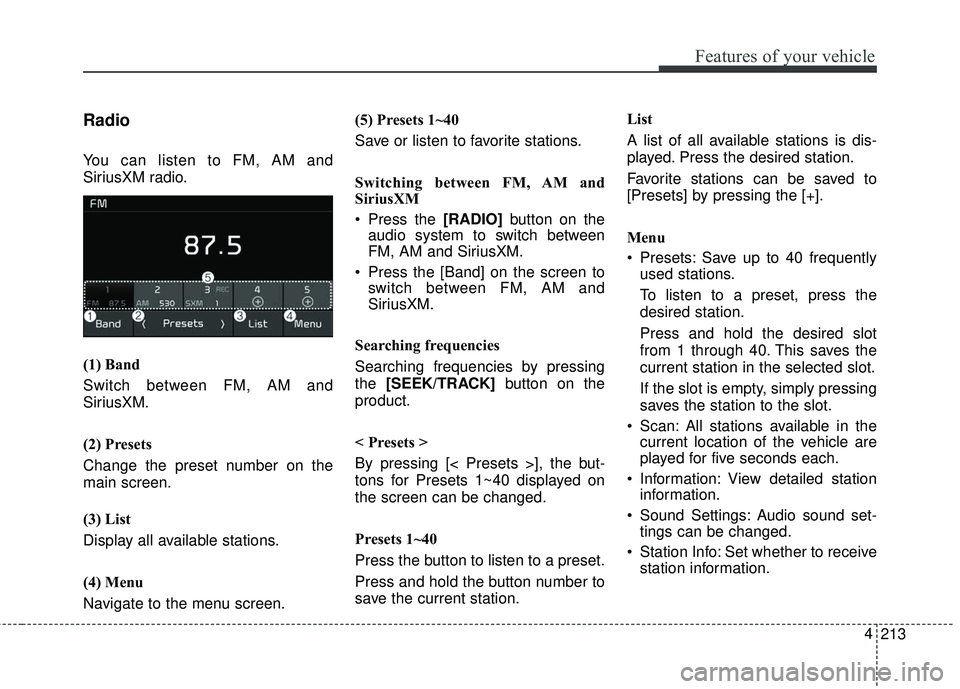
You can listen to FM, AM and
SiriusXM radio.
(1) Band
Switch between FM, AM and
SiriusXM.
(2) Presets
Change the preset number on the
main screen.
(3) List
Display all available stations.
(4) Menu
Navigate to the menu screen. (5) Presets 1~40
Save or listen to favorite stations.
Switching between FM, AM and
SiriusXM
Press the [RADIO]
button on the
audio system to switch between
FM, AM and SiriusXM.
Press the [Band] on the screen to switch between FM, AM and
SiriusXM.
Searching frequencies
Searching frequencies by pressing
the [SEEK/TRACK] button on the
product.
< Presets >
By pressing [< Presets >], the but-
tons for Presets 1~40 displayed on
the screen can be changed.
Presets 1~40
Press the button to listen to a preset.
Press and hold the button number to
save the current station. List
A list of all available stations is dis-
played. Press the desired station.
Favorite stations can be saved to
[Presets] by pressing the [+].
Menu
Presets: Save up to 40 frequently
used stations.
To listen to a preset, press the
desired station.
Press and hold the desired slot
from 1 through 40. This saves the
current station in the selected slot.
If the slot is empty, simply pressing
saves the station to the slot.
Scan: All stations available in the current location of the vehicle are
played for five seconds each.
Information: View detailed station information.
Sound Settings: Audio sound set- tings can be changed.
Station Info: Set whether to receive station information.
Page 316 of 586
4 214
Features of your vehicle
SiriusXM
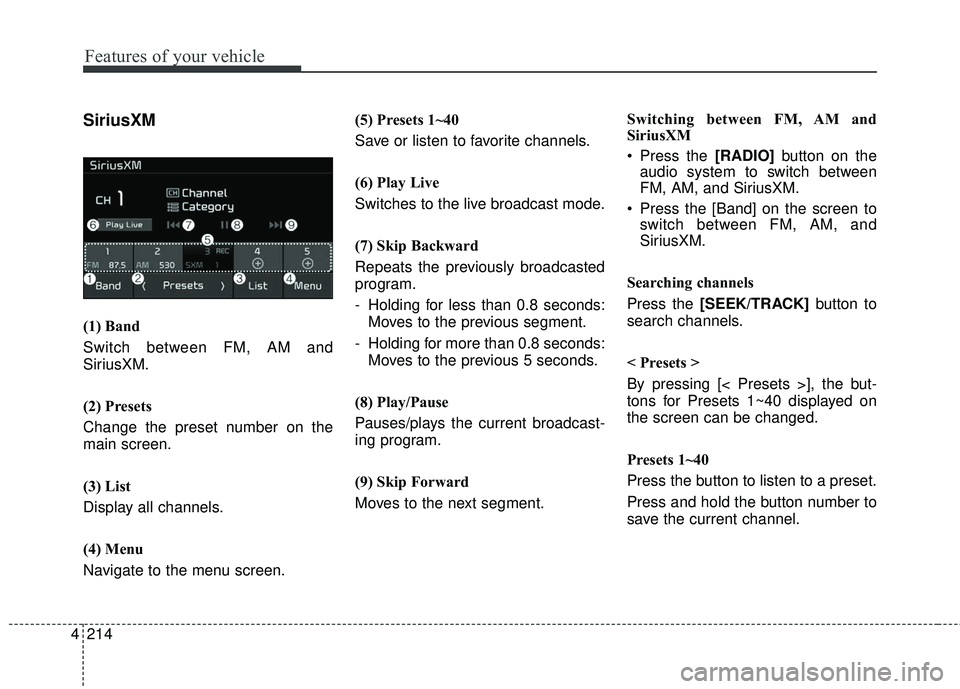
(1) Band
Switch between FM, AM and
SiriusXM.
(2) Presets
Change the preset number on the
main screen.
(3) List
Display all channels.
(4) Menu
Navigate to the menu screen.(5) Presets 1~40
Save or listen to favorite channels.
(6) Play Live
Switches to the live broadcast mode.
(7) Skip Backward
Repeats the previously broadcasted
program.
- Holding for less than 0.8 seconds:
Moves to the previous segment.
- Holding for more than 0.8 seconds: Moves to the previous 5 seconds.
(8) Play/Pause
Pauses/plays the current broadcast-
ing program.
(9) Skip Forward
Moves to the next segment. Switching between FM, AM and
SiriusXM
Press the [RADIO]
button on the
audio system to switch between
FM, AM, and SiriusXM.
Press the [Band] on the screen to switch between FM, AM, and
SiriusXM.
Searching channels
Press the [SEEK/TRACK] button to
search channels.
< Presets >
By pressing [< Presets >], the but-
tons for Presets 1~40 displayed on
the screen can be changed.
Presets 1~40
Press the button to listen to a preset.
Press and hold the button number to
save the current channel.
Page 317 of 586
![KIA SEDONA 2017 Owners Manual 215
4
Features of your vehicle
List
A list of all channels is displayed.
Press the desired channel.
Favorite channels can be saved to
[Presets] by pressing the [+].
Menu
Presets: Save up to 40 freque](/img/2/40453/w960_40453-316.png "KIA SEDONA 2017 Owners Manual 215
4
Features of your vehicle
List
A list of all channels is displayed.
Press the desired channel.
Favorite channels can be saved to
[Presets] by pressing the [+].
Menu
Presets: Save up to 40 freque")
215
4
Features of your vehicle
List
A list of all channels is displayed.
Press the desired channel.
Favorite channels can be saved to
[Presets] by pressing the [+].
Menu
Presets: Save up to 40 frequently
used channels.
To listen to a preset, press the
desired channel.
Press and hold the desired slot
from 1 through 40. This saves the
current channel in the selected
slot.
If the slot is empty, simply pressing
saves the channel to the slot.
Categories: Channels can be searched by category.
Direct Tune: The desired channel can be selected by entering num-
bers.
Sound Settings: Audio sound set- tings can be changed. Tag Song: Tag the current song
information.
When an Apple device (iPhone
®,
iPod®) is connected, tagged song
information is sent automatically to
the connected device.
✽ ✽ NOTICE
Up to 50 songs can be tagged.
Scan: All channels available in the
vehicle's current location are
played for ten seconds each.
Program Schedule: View the pro- gram schedule.
Featured Favorites: The Featured Favorites feature allows
SiriusXM™ to broadcast additional
presets.
- Example 1: During holidays,“Holiday Music” might include all
SiriusXM™ channels that are
playing holiday music for easy
access by users.
Multiple sets of Featured Favorites
data can be broadcast by
SiriusXM™ and can change from
time to time. Information: View detailed channel
information.
Category Lock: Search or scan channels in the current category
only.
Page 324 of 586
4 222
Features of your vehicle
✽ ✽NOTICE - Using the iPod®
Devices
• To use the audio system’s iPod®
control function, use the dedicated
cable provided with your iPod®.
• Connecting the iPod®to the vehi-
cle during play may result in a
loud noise that lasts about one to
two seconds. Connect the iPod
®to
the vehicle after stopping or paus-
ing play.
• Connect the iPod
®with the vehicle
in the ACC ON state to begin
charging.
• When connecting the iPod
®cable,
be sure to fully push the cable into
the port.
• When EQ effects are enabled simultaneously on external devices,
such as iPod
®s and the audio sys-
tem, the EQ effects may overlap,
causing sound quality deteriora-
tion or distortion. Deactivate the
EQ function for all external
devices, if possible.
• Noise may occur when your iPod
®
or the AUX port is connected.
Disconnect and store separately
when not in use. (Continued)(Continued)
• There may be noise if the audio
system is used with an iPod
®or
AUX external device connected to
the power jack. In these cases, dis-
connect the iPod
®or external
device from the power jack.
• Play may be interrupted, or device malfunctions may occur depend-
ing on the characteristics of your
iPod
®/iPhone®.
• Play may fail if your iPhone®is
connected through both Bluetooth®
Wireless Technologyand USB. In
this case, select Dock connector or
Bluetooth
®Wireless Technology
on your iPhone®to change the
sound output settings.
• If your software version does not support the communication proto-
col or your iPod
®is not recognized
due to device failure, anomalies or
defects, iPod
®mode cannot be
used.
• iPod
®nano (5th generation) devices
may not be recognized if the bat-
tery is low. Charge sufficiently
before use. (Continued)(Continued)
• The search and song play order in
the iPod
®device may be different
from the search order in the audio
system.
• If the iPod
®has failed due to an
internal defect, please reset the
iPod
®(consult your iPod®manual).
• Depending on the software ver- sion, the iPod
®may fail to sync
with the system. If the media is
removed or disconnected before
recognition, the previous mode
may not be restored. (iPad
®can-
not be charged)
• Cables other than the 1-meter cable provided with iPod
®/iPhone®prod-
ucts may not be recognized.
• When other music apps are used on your iPod
®, the system sync
function may fail due to malfunc-
tion of the iPod
®application.
Page 343 of 586
241
4
Features of your vehicle
✽ ✽
NOTICE
• When paired devices are deleted,
the call history and contacts of the
device saved to the audio system
are deleted.
• For Bluetooth
®Wireless Technology
connections with low connection
priority, some time may be
required for the connection to be
established.
• Contacts can be downloaded only from the currently connected
Bluetooth
®Wireless Technology
device.
If no Bluetooth
®Wireless
Technology device is connected,
the download contacts button is
disabled.
• If the language setting is Korean, Bluetooth
®Wireless Technology
voice prompts are not supported.
System
Select the [SETUP] button on the
audio system ➟ Select [System].
Memory Information: View My Music memory usage.
Language: Change the user lan- guage.
Default: Reset the audio system.
✽ ✽ NOTICE
The system resets to the default val-
ues, and all saved data and settings
are lost.
Display Off
To prevent glare, the screen can be
turned off with the audio system in
operation.
Select the [SETUP] button on the
audio system ➟ Select [Display Off].
Page 392 of 586
Driving your vehicle
48
5
To temporarily accelerate with
the cruise control on:
If you want to speed up temporarily
when the cruise control is on,
depress the accelerator pedal.
Increased speed will not interfere
with the cruise control operation or
change the set speed.
To return to the set speed, take your
foot off the accelerator.
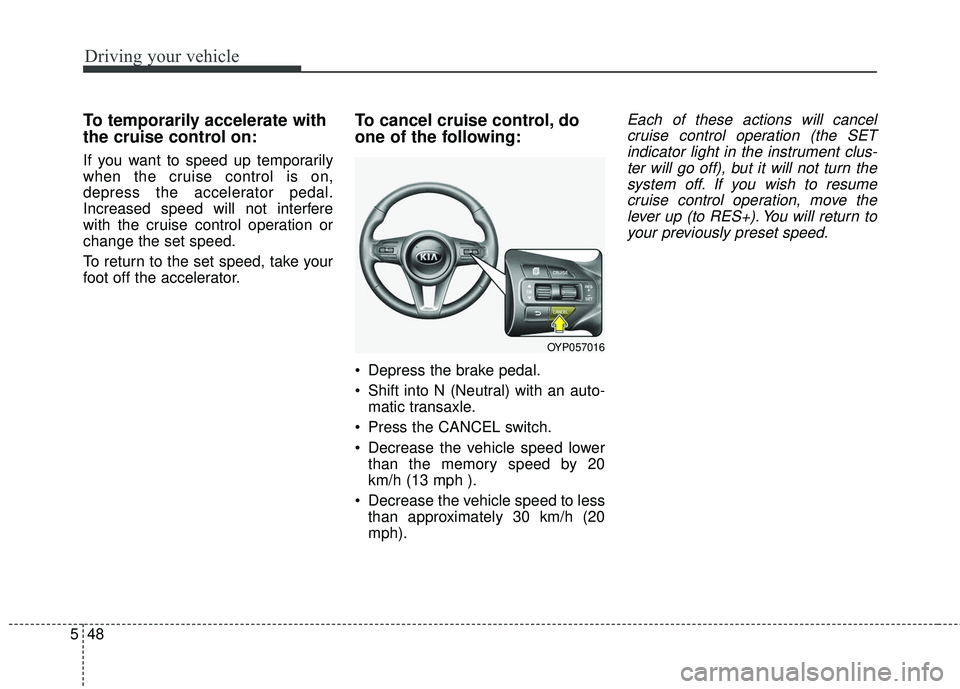
To cancel cruise control, do
one of the following:
Depress the brake pedal.
Shift into N (Neutral) with an auto-
matic transaxle.
Press the CANCEL switch.
Decrease the vehicle speed lower than the memory speed by 20
km/h (13 mph ).
Decrease the vehicle speed to less than approximately 30 km/h (20
mph).
Each of these actions will cancelcruise control operation (the SETindicator light in the instrument clus-ter will go off), but it will not turn thesystem off. If you wish to resumecruise control operation, move thelever up (to RES+). You will return toyour previously preset speed.
OYP057016
Page 452 of 586
63
What to do in an emergency
If the engine stalls at a cross-
road or crossing
If the engine stalls at a crossroad or
crossing, set the shift lever in the N
(Neutral) position and then push the
vehicle to a safe place.
If you have a flat tire while
driving
If a tire goes flat while you are driv-
ing:
1.Take your foot off the acceleratorpedal and let the vehicle slow
down while driving straight ahead.
Do not apply the brakes immedi-
ately or attempt to pull off the road
as this may cause a loss of control.
When the vehicle has slowed to
such a speed that it is safe to do
so, brake carefully and pull off the
road. Drive off the road as far as
possible and park on a firm level
ground. If you are on a divided
highway, do not park in the median
area between the two traffic lanes. 2.When the vehicle is stopped, turn
on your emergency hazard flash-
ers, set the parking brake and put
the transaxle in P (Park).
3.Have all passengers get out of the vehicle. Be sure they all get out on
the side of the vehicle that is away
from traffic.
4.When changing a flat tire, follow the instruction provided later in this
section.
If the engine stalls while driv-
ing
1.Reduce your speed gradually,keeping a straight line. Move cau-
tiously off the road to a safe place.
2.Turn on your emergency flashers.
3.Try to start the engine again. If your vehicle will not start, contact an
authorized Kia dealer or seek other
qualified assistance.
✽ ✽ NOTICE
If there was a check engine light and
loss of power or stall and if safe to do
so to wait at least 10 seconds to
restart the vehicle after it stalls. This
may reset the car so it will no longer
run at low power (limp home) condi-
tion.
IN CASE OF AN EMERGENCY WHILE DRIVING