phone KIA SEDONA 2018 User Guide
[x] Cancel search | Manufacturer: KIA, Model Year: 2018, Model line: SEDONA, Model: KIA SEDONA 2018Pages: 586, PDF Size: 14.1 MB
Page 307 of 586
205
4
Features of your vehicle
iPod®
iPod®is a registered trademark of Apple Inc.
Bluetooth®Wireless Technology
A compatible Bluetooth®Wireless Technology-enabled
cell phone is required to use
Bluetooth®Wireless
Technology.
The Bluetooth
®word mark and logos are registered
trademarks owned by Bluetooth SIG, Inc. and any use of
such marks by Kia is under license.
Other trademarks and trade names are those of their
respective owners.
A Bluetooth
®enabled cell phone is required to use
Bluetooth®Wireless Technology.
Bluetooth®Wireless Technology phone compatibility can
be checked by visiting http://www.kia.com.
Page 309 of 586
207
4
Features of your vehicle
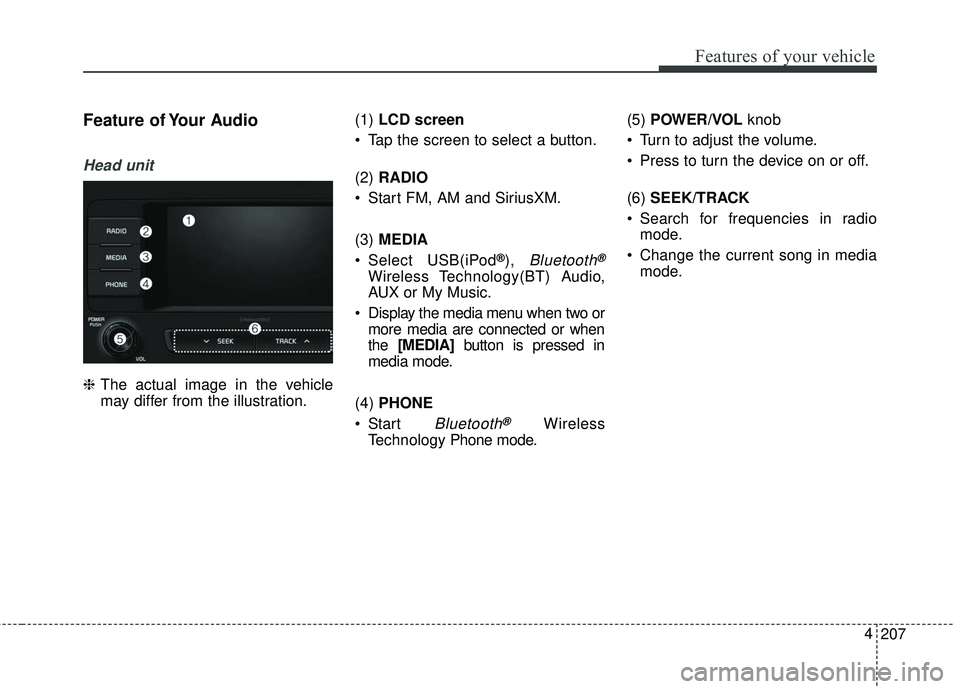
Feature of Your Audio
Head unit
❈
The actual image in the vehicle
may differ from the illustration. (1)
LCD screen
Tap the screen to select a button.
(2) RADIO
Start FM, AM and SiriusXM.
(3) MEDIA
Select USB(iPod
®), Bluetooth®
Wireless Technology(BT) Audio,
AUX or My Music.
Display the media menu when two or more media are connected or when
the [MEDIA] button is pressed in
media mode.
(4) PHONE
Start
Bluetooth®Wireless
Technology Phone mode. (5)
POWER/VOL knob
Turn to adjust the volume.
Press to turn the device on or off.
(6) SEEK/TRACK
Search for frequencies in radio mode.
Change the current song in media mode.
Page 311 of 586
209
4
Features of your vehicle
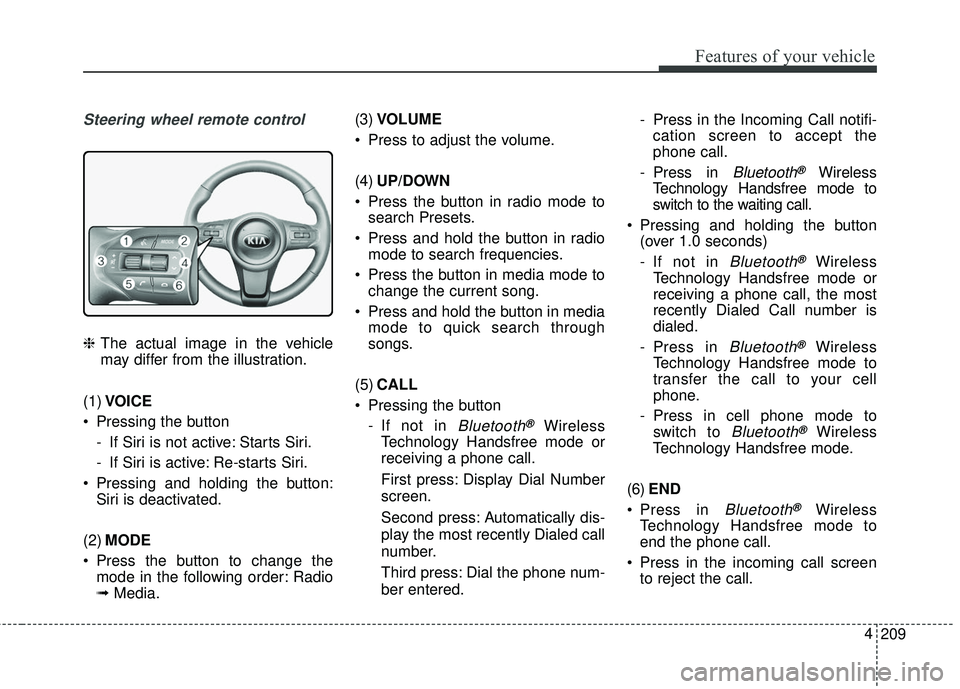
Steering wheel remote control
❈
The actual image in the vehicle
may differ from the illustration.
(1) VOICE
Pressing the button - If Siri is not active: Starts Siri.
- If Siri is active: Re-starts Siri.
Pressing and holding the button: Siri is deactivated.
(2) MODE
Press the button to change the mode in the following order: Radio
➟ Media. (3)
VOLUME
Press to adjust the volume.
(4) UP/DOWN
Press the button in radio mode to search Presets.
Press and hold the button in radio mode to search frequencies.
Press the button in media mode to change the current song.
Press and hold the button in media mode to quick search through
songs.
(5) CALL
Pressing the button - If not in
Bluetooth®Wireless
Technology Handsfree mode or
receiving a phone call.
First press: Display Dial Number
screen.
Second press: Automatically dis-
play the most recently Dialed call
number.
Third press: Dial the phone num-
ber entered. - Press in the Incoming Call notifi-
cation screen to accept the
phone call.
- Press in
Bluetooth®Wireless
Technology Handsfree mode to
switch to the waiting call.
Pressing and holding the button (over 1.0 seconds)
- If not in
Bluetooth®Wireless
Technology Handsfree mode or
receiving a phone call, the most
recently Dialed Call number is
dialed.
- Press in
Bluetooth®Wireless
Technology Handsfree mode to
transfer the call to your cell
phone.
- Press in cell phone mode to switch to
Bluetooth®Wireless
Technology Handsfree mode.
(6) END
Press in
Bluetooth®Wireless
Technology Handsfree mode to
end the phone call.
Press in the incoming call screen to reject the call.
Page 312 of 586
4 210
Features of your vehicle
WARNING
-
Audio System Safety
Warnings
Do not stare at the screen while driving. Staring at the
screen for prolonged periods
of time could lead to traffic
accidents.
Do not disassemble, assem- ble, or modify the audio sys-
tem. Such acts could result in
accidents, fire, or electric
shock.
Using the phone while driving may lead to a lack of attention
of traffic conditions and
increase the likelihood of
accidents. Use the phone fea-
ture after parking the vehicle.
Exercise caution not to spill water or introduce foreign
objects into the device. Such
acts could lead to smoke, fire,
or product malfunction.
(Continued)
(Continued)
Please refrain from use if thescreen is blank or no sound
can be heard as these signs
may indicate product mal func-
tion. Continued use in such
conditions could lead to acci-
dents (fires, electric shock) or
product malfunctions.
Do not touch the antenna dur- ing thunder or lightening as
such acts may lead to light-
ning induced electric shock.
Do not stop or park in park- ing-restricted areas to operate
the product. Such acts could
lead to traffic accidents.
Page 314 of 586
4 212
Features of your vehicle
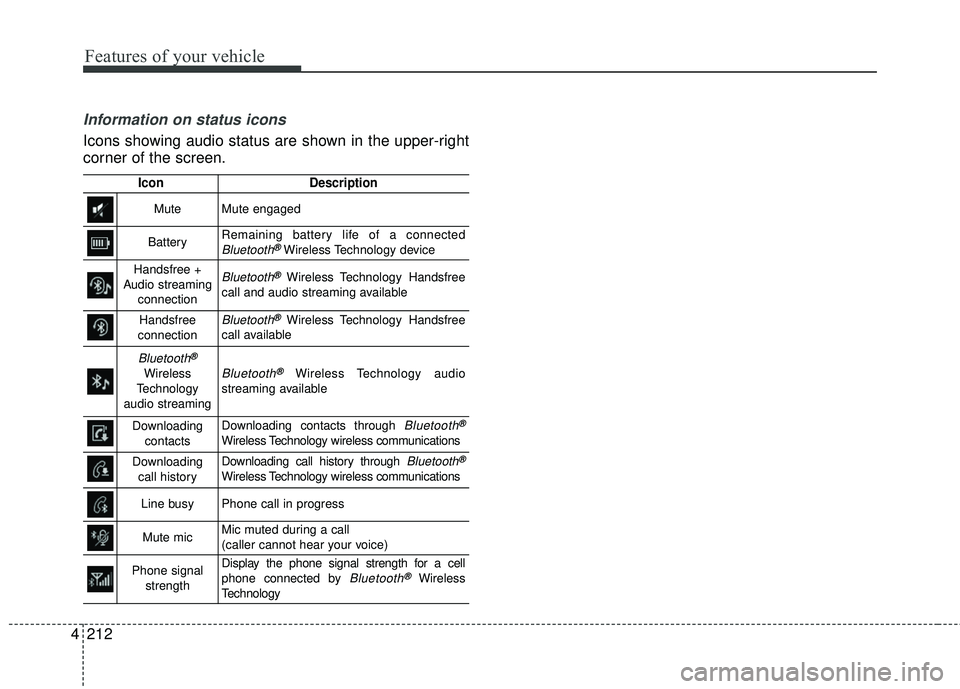
Information on status icons
Icons showing audio status are shown in the upper-right
corner of the screen.
IconDescription
MuteMute engaged
BatteryRemaining battery life of a connectedBluetooth®Wireless Technology device
Handsfree +
Audio streaming connectionBluetooth®Wireless Technology Handsfree
call and audio streaming available
Handsfree
connectionBluetooth®Wireless Technology Handsfree
call available
Bluetooth®
Wireless
Technology
audio streamingBluetooth®Wireless Technology audio
streaming available
Downloading contactsDownloading contacts through Bluetooth®
Wireless Technology wireless communications
Downloading call historyDownloading call history through Bluetooth®
Wireless Technology wireless communications
Line busyPhone call in progress
Mute micMic muted during a call
(caller cannot hear your voice)
Phone signal strengthDisplay the phone signal strength for a cell
phone connected by Bluetooth®Wireless
Technology
Page 317 of 586
![KIA SEDONA 2018 User Guide 215
4
Features of your vehicle
List
A list of all channels is displayed.
Press the desired channel.
Favorite channels can be saved to
[Presets] by pressing the [+].
Menu
Presets: Save up to 40 freque](/img/2/40452/w960_40452-316.png "KIA SEDONA 2018 User Guide 215
4
Features of your vehicle
List
A list of all channels is displayed.
Press the desired channel.
Favorite channels can be saved to
[Presets] by pressing the [+].
Menu
Presets: Save up to 40 freque")
215
4
Features of your vehicle
List
A list of all channels is displayed.
Press the desired channel.
Favorite channels can be saved to
[Presets] by pressing the [+].
Menu
Presets: Save up to 40 frequently
used channels.
To listen to a preset, press the
desired channel.
Press and hold the desired slot
from 1 through 40. This saves the
current channel in the selected
slot.
If the slot is empty, simply pressing
saves the channel to the slot.
Categories: Channels can be searched by category.
Direct Tune: The desired channel can be selected by entering num-
bers.
Sound Settings: Audio sound set- tings can be changed. Tag Song: Tag the current song
information.
When an Apple device (iPhone
®,
iPod®) is connected, tagged song
information is sent automatically to
the connected device.
✽ ✽ NOTICE
Up to 50 songs can be tagged.
Scan: All channels available in the
vehicle's current location are
played for ten seconds each.
Program Schedule: View the pro- gram schedule.
Featured Favorites: The Featured Favorites feature allows
SiriusXM™ to broadcast additional
presets.
- Example 1: During holidays,“Holiday Music” might include all
SiriusXM™ channels that are
playing holiday music for easy
access by users.
Multiple sets of Featured Favorites
data can be broadcast by
SiriusXM™ and can change from
time to time. Information: View detailed channel
information.
Category Lock: Search or scan channels in the current category
only.
Page 320 of 586
4 218
Features of your vehicle
✽ ✽NOTICE - Using the USB
Devices
• Starting the vehicle while a USB
device is connected can damage
the device. Please disconnect USB
devices before starting the vehicle.
• Starting the vehicle or stopping the engine while an external USB
device is connected can result in
failure of the external USB device
to operate.
• Be cautious of static electricity when connecting/disconnecting
external USB devices.
• An encrypted MP3 player is not recognized when connected as an
external device.
• External USB devices may not be recognized, depending on the state
of the external USB device.
• Only products with byte/sectors formatted at 4 KB or lower are
recognized.
• Only USB devices in FAT12/16/32 format are recognized; NTFS and
ExFAT file systems are not recog-
nized.
• Some USB devices are not recog- nized due to compatibility issues. (Continued)(Continued)
• Do not touch the USB connections.
• Connecting and disconnecting
USB devices rapidly over a short
period of time can cause equip-
ment failure.
• Abnormal sounds may be audible when the USB device is discon-
nected.
• Turn the audio off before connect- ing or disconnecting external USB
devices.
• Recognition may take longer depending on the type, capacity or
file format of the external USB
device. This is not a product mal-
function.
• Use of USB devices for purposes other than playing music files is
prohibited.
• Image display and video playback are not supported.
• Use of USB accessories, including charge and heat though the USB
I/F, can lead to reduced product
performance or malfunctions. Do
not use USB devices or accessories
for these purposes. (Continued)(Continued)
• Use of aftermarket USB hubs and
extension cables can result in the
vehicle’s audio system failing to
recognize your USB device.
Connect the USB device directly to
the multimedia port of your vehi-
cle.
• When using high-capacity USB devices with logical drive divi-
sions, only files saved on the high-
est level logical drive can be
played.
If applications are loaded on a
USB drive, file playback may fail.
• Some MP3 players, cell phones, digital cameras, etc. (USB devices
that are not recognized as mobile
storage) may not operate normally
when connected.
• USB charging may not be sup- ported by some mobile devices.
• Operation is guaranteed only for standard (Metal Cover Type) USB
Memory drives.
• Operation of HDD, CF, SD and memory stick devices is not guar-
anteed. (Continued)
Page 321 of 586
219
4
Features of your vehicle
(Continued)
• DRM (Digital Rights Management)
files cannot be played.
• SD-type USB memory, CF-type USB memory, and other USB
memory devices that require
adapters for connection are not
supported.
• Proper operation of USB HDDs or USB drives with connectors that
loosen due to vehicle vibrations is
not guaranteed. (iStick, etc.)
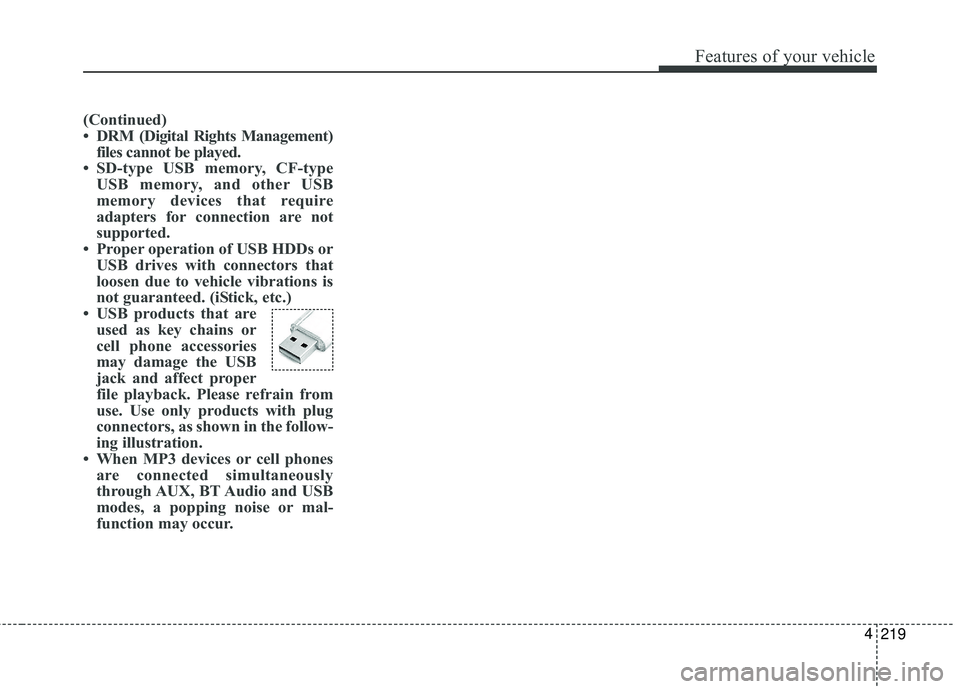
• USB products that are used as key chains or
cell phone accessories
may damage the USB
jack and affect proper
file playback. Please refrain from
use. Use only products with plug
connectors, as shown in the follow-
ing illustration.
• When MP3 devices or cell phones are connected simultaneously
through AUX, BT Audio and USB
modes, a popping noise or mal-
function may occur.
Page 323 of 586
![KIA SEDONA 2018 User Guide 221
4
Features of your vehicle
✽ ✽
NOTICE
The repeat folder function is avail-
able only when songs are playing
from the [File] category under
[List].
Shuffle play
Press the [Shuffle] to enable/di](/img/2/40452/w960_40452-322.png "KIA SEDONA 2018 User Guide 221
4
Features of your vehicle
✽ ✽
NOTICE
The repeat folder function is avail-
able only when songs are playing
from the [File] category under
[List].
Shuffle play
Press the [Shuffle] to enable/di")
221
4
Features of your vehicle
✽ ✽
NOTICE
The repeat folder function is avail-
able only when songs are playing
from the [File] category under
[List].
Shuffle play
Press the [Shuffle] to enable/disable
‘Shuffle’, ‘Shuffle folder’ or ‘Shuffle
category’ play.
Shuffle: Songs are played in
random order.
Shuffle folder: Songs within the current folder are played in ran-
dom order.
Shuffle category: Songs within the current category are played in
random order. Menu
Press the [Menu], and select the
desired function.
Save to My Music: Songs on your
USB device can be saved to My
Music.
(1) File: Select a file to save
.
(2) Mark All: Select all files.
(3) Unmark All: Deselect all files.
(4) Save: Save the selected files.
- Select the files you want to save, and press the [Save]. This saves
the selected files to My Music.
- If Siri is activated, phone calls are received or made while sav-
ing, saving will be canceled.
- Up to 6,000 files can be saved. - The currently playing file on the
USB device cannot be changed
while saving.
- My Music cannot be used while saving.
- Up to 700 MB can be saved.
Information: Detailed information on the currently playing song is dis-
played.
Scan: All songs are played for 10 seconds each.
Sound Settings: Audio sound set- tings can be changed.
Page 324 of 586
4 222
Features of your vehicle
✽ ✽NOTICE - Using the iPod®
Devices
• To use the audio system’s iPod®
control function, use the dedicated
cable provided with your iPod®.
• Connecting the iPod®to the vehi-
cle during play may result in a
loud noise that lasts about one to
two seconds. Connect the iPod
®to
the vehicle after stopping or paus-
ing play.
• Connect the iPod
®with the vehicle
in the ACC ON state to begin
charging.
• When connecting the iPod
®cable,
be sure to fully push the cable into
the port.
• When EQ effects are enabled simultaneously on external devices,
such as iPod
®s and the audio sys-
tem, the EQ effects may overlap,
causing sound quality deteriora-
tion or distortion. Deactivate the
EQ function for all external
devices, if possible.
• Noise may occur when your iPod
®
or the AUX port is connected.
Disconnect and store separately
when not in use. (Continued)(Continued)
• There may be noise if the audio
system is used with an iPod
®or
AUX external device connected to
the power jack. In these cases, dis-
connect the iPod
®or external
device from the power jack.
• Play may be interrupted, or device malfunctions may occur depend-
ing on the characteristics of your
iPod
®/iPhone®.
• Play may fail if your iPhone®is
connected through both Bluetooth®
Wireless Technologyand USB. In
this case, select Dock connector or
Bluetooth
®Wireless Technology
on your iPhone®to change the
sound output settings.
• If your software version does not support the communication proto-
col or your iPod
®is not recognized
due to device failure, anomalies or
defects, iPod
®mode cannot be
used.
• iPod
®nano (5th generation) devices
may not be recognized if the bat-
tery is low. Charge sufficiently
before use. (Continued)(Continued)
• The search and song play order in
the iPod
®device may be different
from the search order in the audio
system.
• If the iPod
®has failed due to an
internal defect, please reset the
iPod
®(consult your iPod®manual).
• Depending on the software ver- sion, the iPod
®may fail to sync
with the system. If the media is
removed or disconnected before
recognition, the previous mode
may not be restored. (iPad
®can-
not be charged)
• Cables other than the 1-meter cable provided with iPod
®/iPhone®prod-
ucts may not be recognized.
• When other music apps are used on your iPod
®, the system sync
function may fail due to malfunc-
tion of the iPod
®application.