reset KIA Sorento 2008 1.G Owner's Manual
[x] Cancel search | Manufacturer: KIA, Model Year: 2008, Model line: Sorento, Model: KIA Sorento 2008 1.GPages: 326, PDF Size: 8.63 MB
Page 83 of 326
Knowing your vehicle
74 3
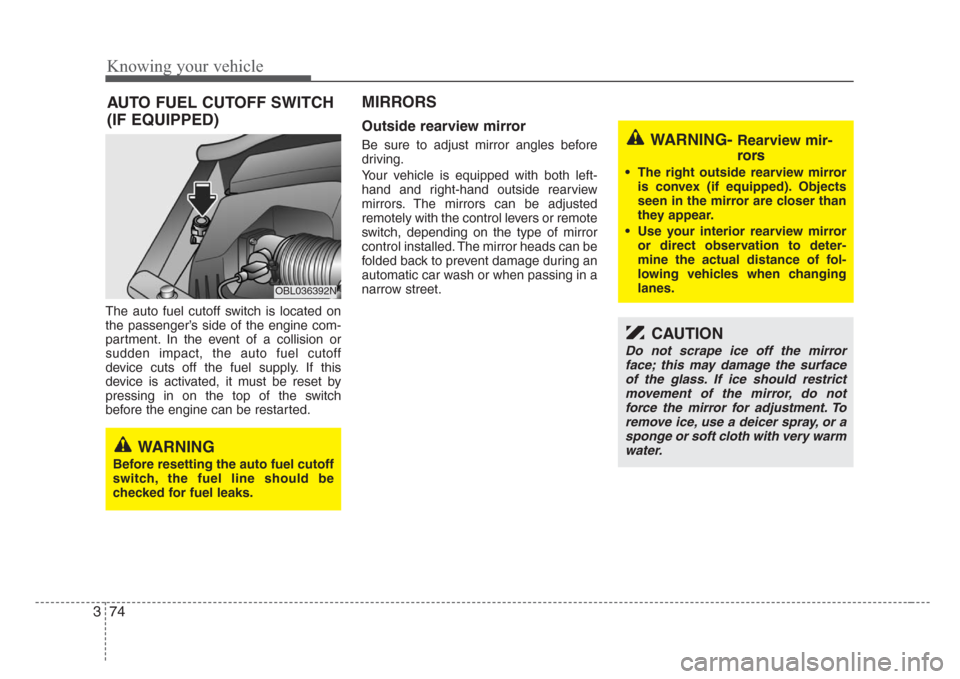
The auto fuel cutoff switch is located on
the passenger’s side of the engine com-
partment. In the event of a collision or
sudden impact, the auto fuel cutoff
device cuts off the fuel supply. If this
device is activated, it must be reset by
pressing in on the top of the switch
before the engine can be restarted.
MIRRORS
Outside rearview mirror
Be sure to adjust mirror angles before
driving.
Your vehicle is equipped with both left-
hand and right-hand outside rearview
mirrors. The mirrors can be adjusted
remotely with the control levers or remote
switch, depending on the type of mirror
control installed. The mirror heads can be
folded back to prevent damage during an
automatic car wash or when passing in a
narrow street.
OBL036392N
WARNING
Before resetting the auto fuel cutoff
switch, the fuel line should be
checked for fuel leaks.
WARNING- Rearview mir-
rors
• The right outside rearview mirror
is convex (if equipped). Objects
seen in the mirror are closer than
they appear.
•Use your interior rearview mirror
or direct observation to deter-
mine the actual distance of fol-
lowing vehicles when changing
lanes.
CAUTION
Do not scrape ice off the mirror
face; this may damage the surface
of the glass. If ice should restrict
movement of the mirror, do not
force the mirror for adjustment. To
remove ice, use a deicer spray, or a
sponge or soft cloth with very warm
water.
AUTO FUEL CUTOFF SWITCH
(IF EQUIPPED)
Page 99 of 326
Knowing your vehicle
90 3
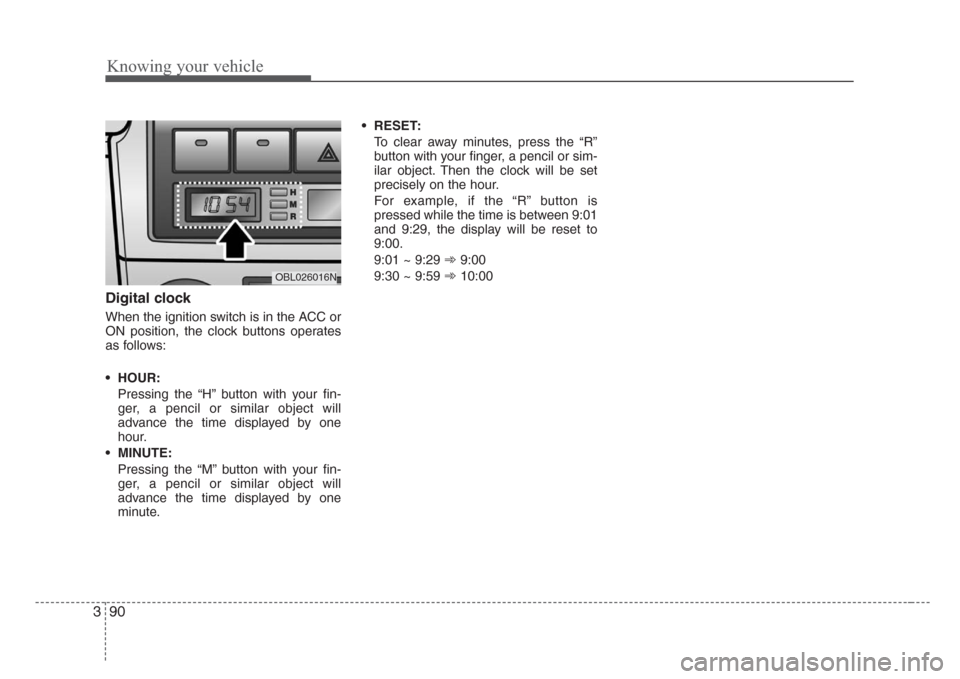
Digital clock
When the ignition switch is in the ACC or
ON position, the clock buttons operates
as follows:
• HOUR:
Pressing the “H” button with your fin-
ger, a pencil or similar object will
advance the time displayed by one
hour.
• MINUTE:
Pressing the “M” button with your fin-
ger, a pencil or similar object will
advance the time displayed by one
minute.• RESET:
To clear away minutes, press the “R”
button with your finger, a pencil or sim-
ilar object. Then the clock will be set
precisely on the hour.
For example, if the “R” button is
pressed while the time is between 9:01
and 9:29, the display will be reset to
9:00.
9:01 ~ 9:29 ➾9:00
9:30 ~ 9:59 ➾10:00
OBL026016N
Page 102 of 326
393
Knowing your vehicle
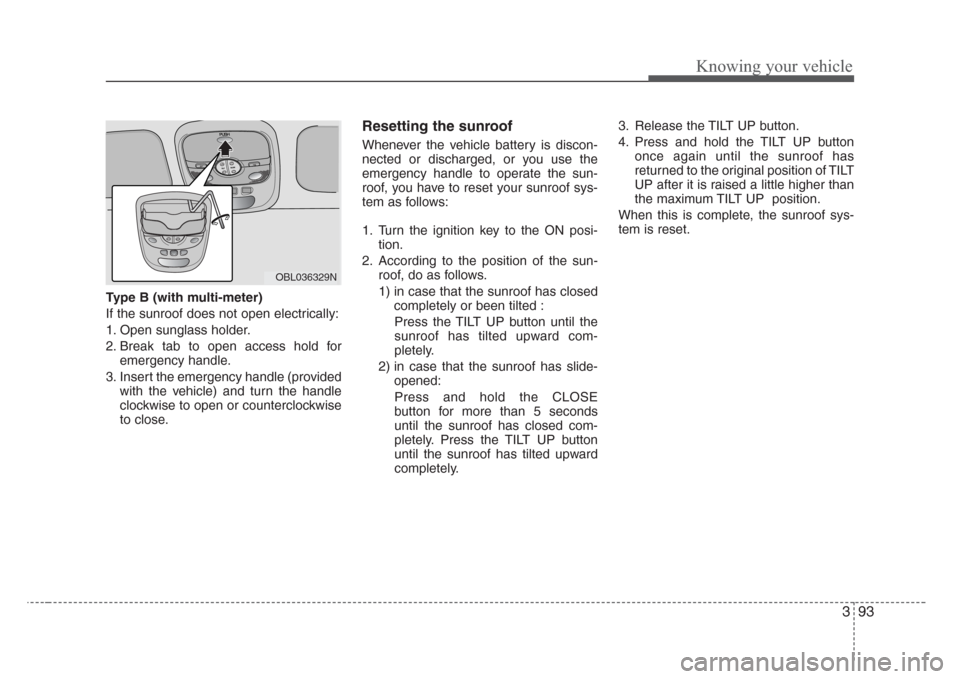
Type B (with multi-meter)
If the sunroof does not open electrically:
1. Open sunglass holder.
2. Break tab to open access hold for
emergency handle.
3. Insert the emergency handle (provided
with the vehicle) and turn the handle
clockwise to open or counterclockwise
to close.
Resetting the sunroof
Whenever the vehicle battery is discon-
nected or discharged, or you use the
emergency handle to operate the sun-
roof, you have to reset your sunroof sys-
tem as follows:
1. Turn the ignition key to the ON posi-
tion.
2. According to the position of the sun-
roof, do as follows.
1) in case that the sunroof has closed
completely or been tilted :
Press the TILT UP button until the
sunroof has tilted upward com-
pletely.
2) in case that the sunroof has slide-
opened:
Press and hold the CLOSE
button for more than 5 seconds
until the sunroof has closed com-
pletely. Press the TILT UP button
until the sunroof has tilted upward
completely.3. Release the TILT UP button.
4. Press and hold the TILT UP button
once again until the sunroof has
returned to the original position of TILT
UP after it is raised a little higher than
the maximum TILT UP position.
When this is complete, the sunroof sys-
tem is reset.
OBL036329N
Page 108 of 326
399
Knowing your vehicle
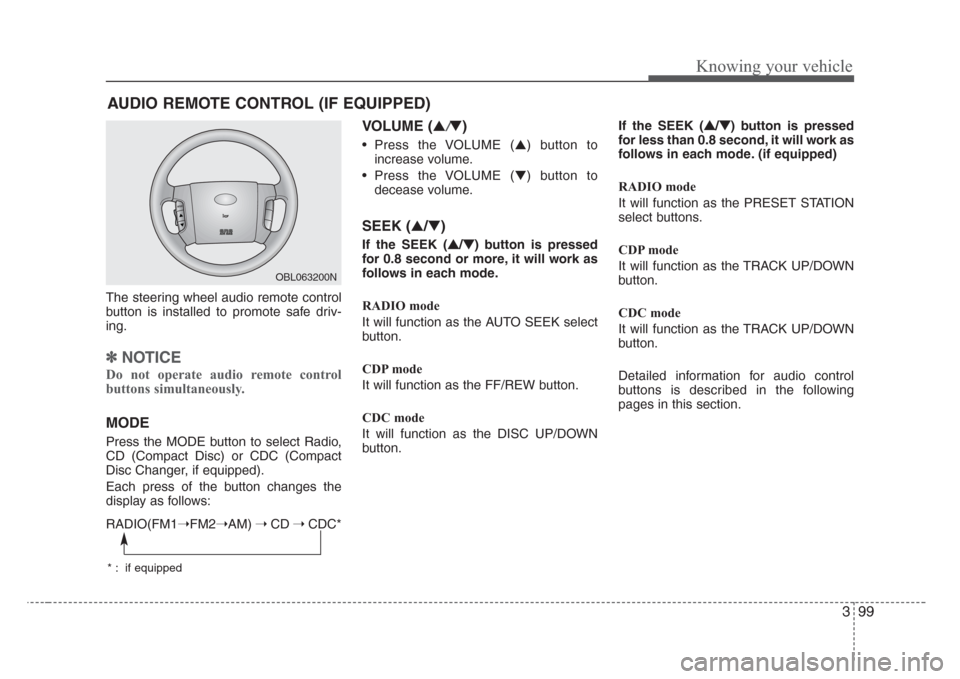
The steering wheel audio remote control
button is installed to promote safe driv-
ing.
✽
NOTICE
Do not operate audio remote control
buttons simultaneously.
MODE
Press the MODE button to select Radio,
CD (Compact Disc) or CDC (Compact
Disc Changer, if equipped).
Each press of the button changes the
display as follows:
VOLUME (▲/▼)
• Press the VOLUME (▲) button to
increase volume.
• Press the VOLUME (▼) button to
decease volume.
SEEK (▲/▼)
If the SEEK (▲
/▼
) button is pressed
for 0.8 second or more, it will work as
follows in each mode.
RADIO mode
It will function as the AUTO SEEK select
button.
CDP mode
It will function as the FF/REW button.
CDC mode
It will function as the DISC UP/DOWN
button.If the SEEK (▲
/▼
) button is pressed
for less than 0.8 second, it will work as
follows in each mode. (if equipped)
RADIO mode
It will function as the PRESET STATION
select buttons.
CDP mode
It will function as the TRACK UP/DOWN
button.
CDC mode
It will function as the TRACK UP/DOWN
button.
Detailed information for audio control
buttons is described in the following
pages in this section.
AUDIO REMOTE CONTROL (IF EQUIPPED)
M
O
D
E
OBL063200N
RADIO(FM1➝FM2➝AM)➝ CD➝ CDC*
* : if equipped
Page 116 of 326
3 107
Knowing your vehicle
5. AM, FM, FM1, FM2, CD buttons
Model D446: AM, FM1, FM2, CD
Model D465: AM, FM, CD
Use the input source selector buttons to
select/switch operation modes. Press the
AMband selector button, FM/FM1/FM2
band selector button(s) or CDor button
to resume operation in the corresponding
mode.
Pressing any of these buttons automati-
cally switches the audio system on.
The LCD screen displays either the radio
frequency you are tuned into or the track
currently played back.
✽
NOTICE
Remember that station Presets (1-6)
stored in FM1 mode can only be
accessed in FM1 mode. Similarly,
FM2 presets can only be accessed in
FM2 mode.
For Model D465:
Press the FM band selector button
repeatedly to switch between the FM1
and FM2 modes.
6. Sound equalizer and digital signal
processing
Both Model D446 and Model D465:EQ
button
EQbutton:
Press the EQbutton repeatedly to select
the sound equalizer setting you want.
The 6 settings are:ROCK, POP, JAZZ,
CLASSIC, TALKand equalizer off. If no
icon is displayed in the LCD screen, the
equalizer is switched off.
The 5 preset equalizer settings have
been optimized for the 5 common genres
of music. For example, the ROCKsetting
enhances bass reproduction with rock
music whereas the CLASSICsetting
enhances the clarity of string instruments
during audio reproduction of classical
music. You may want to experiment with
the different settings to confirm your per-
sonal preferences.
✽
NOTICE
If you store a station Preset (1~6) with a
specific equalizer setting, that setting is
automatically used across other stations
preset.
Page 117 of 326
Knowing your vehicle
108 3
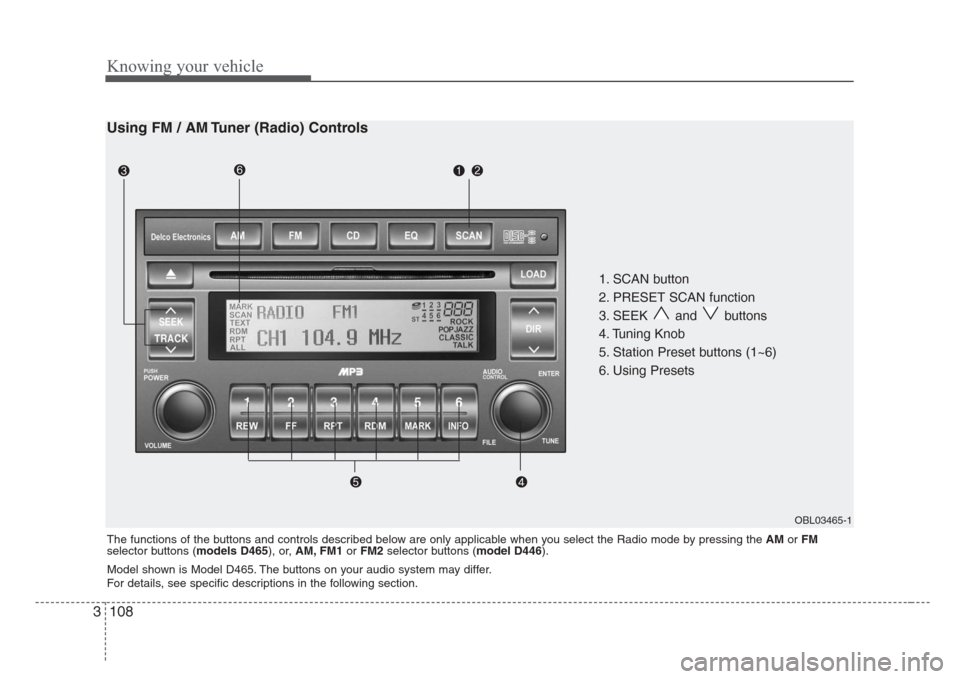
1. SCAN button
2. PRESET SCAN function
3. SEEK and buttons
4. Tuning Knob
5. Station Preset buttons (1~6)
6. Using Presets
OBL03465-1
Using FM / AM Tuner (Radio) Controls
The functions of the buttons and controls described below are only applicable when you select the Radio mode by pressing the AMorFM
selector buttons (models D465), or, AM, FM1orFM2selector buttons (model D446).
Model shown is Model D465. The buttons on your audio system may differ.
For details, see specific descriptions in the following section.
Page 118 of 326
3 109
Knowing your vehicle
1. SCAN button
Frequency band scan function
Press the SCANbutton for the tuner to
scan for radio signals in the selected fre-
quency band (AM or FM). Once the tuner
locks onto the signal of a transmitting
station, it plays that station for 5 seconds
before scanning for the next available
station in the selected frequency band.
If you want to keep listening to a particu-
lar station and want to stop the scanning,
press the SCANbutton again.
This function is useful for providing you
with a good overview of all the radio sta-
tions within range of your tuner.
2. PRESET SCAN function
Press and hold the SCANbutton for
more than 2 seconds. Each preset radio
stations will be automatically played for 5
seconds. If you want to keep listening to
a particular preset station and want to
stop the scanning, press the SCANbut-
ton again.
3. SEEK and buttons
Automatic Channel Selection function
Press the and buttons to scan up
and down the frequency range for the
next available radio station and automat-
ically lock on to that frequency.
The LCD screen displays the frequency
of the radio station transmitting a clear
and strong signal.
Use this function to search for a radio
station you want. If you like a particular
station, you can store it as one of 6
Presets using the Presetbuttons below.
✽
NOTICE
This function is not effective if you are
experiencing poor reception in your
vicinity.
4. Tuning Knob
Manual Channel Selection
Rotate the knob clockwise or counter-
clockwise to manually advance up or
down the frequency range. The tuning
knob also gives you fine-grain control
which you can use to manually fine-tune
your frequency selection. This is useful if
you are searching for a radio signal
which is not strong enough for you to use
the Automatic Channel Selection func-
tion
✽
NOTICE
The speed at which you advance up or
down the frequency range depends on
how fast you turn the knob.
Page 119 of 326
Knowing your vehicle
110 3
5. Station Preset buttons (1~6)
There are 6 Station Preset buttons which
you can use to store the frequencies of
your 6 favorite radio stations. Saving a
station as a preset gives you one-touch
access to the station you want.
Remember that the 6 presets stations
you store are for the specific radio band
mode you are in. That means that you
can store up to 6 stations in AM mode, 6
in FM1 mode, and 6 in FM2 mode. This
means that you can store up to 18 of your
favorite stations in the preset memory.
✽
NOTICE
To switch between FM1 and FM2
mode:
Use the FM1 and FM2 buttons (for
Model D446)
Press the FM button to switch
between FM1 and FM2 modes (For
Model D465)
Remember that if you store a station
as preset 1 in FM2 mode, you must
first select FM2 mode before you can
use that preset button.
This function is not effective if you are
experiencing poor reception in your
vicinity.
6. Using Presets
To save a radio station as a preset:
1. Take note of the band selection dis-
played on the LCD screen (AM, FM1 or
FM2)
2. Tune in to the radio station you want
using either the SEEK UPandDOWN
buttons or the Tuning Knob.
3. Choose the Preset button (1~6) you
want to use to store the radio station.
4. Press and hold the Preset button for
more than 2 seconds.
The system beeps to indicate that it
has saved the new station and displays
the frequency and preset number on
the LCD screen.
✽
NOTICE
Saving a new station erases the previous
setting saved in that preset.
To tune in to a preset station:
1. Select the band (AM, FM1 or FM2) you
want using the band selector buttons.
2. Press the preset button corresponding
to the radio station you want.
The system automatically jumps to the
preset station. The frequency and pre-
set number is displayed on the LCD
screen.
Buttons not in use in Radio mode:
The following buttons and functions are
not used in Radio mode.
•REWbutton
•FFbutton
•RPTbutton
•RDMbutton
•MARKbutton
•NFObutton
Page 127 of 326
Knowing your vehicle
118 3
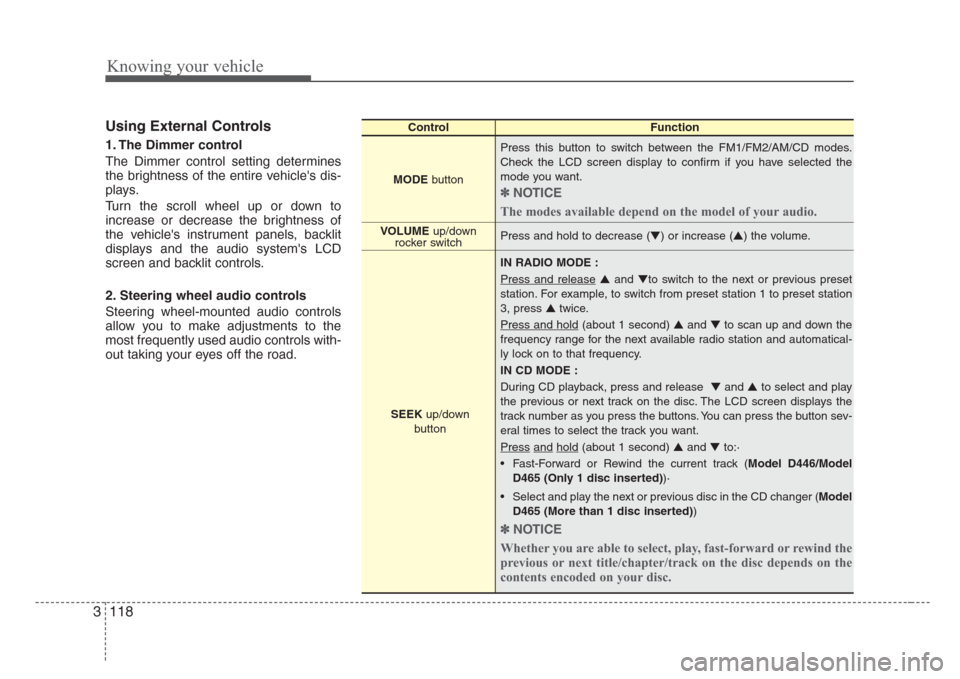
Using External Controls
1. The Dimmer control
The Dimmer control setting determines
the brightness of the entire vehicle's dis-
plays.
Turn the scroll wheel up or down to
increase or decrease the brightness of
the vehicle's instrument panels, backlit
displays and the audio system's LCD
screen and backlit controls.
2. Steering wheel audio controls
Steering wheel-mounted audio controls
allow you to make adjustments to the
most frequently used audio controls with-
out taking your eyes off the road.
ControlFunction
MODEbuttonPress this button to switch between the FM1/FM2/AM/CD modes.
Check the LCD screen display to confirm if you have selected the
mode you want.
✽
NOTICE
The modes available depend on the model of your audio.
Press and hold to decrease (▼) or increase (▲) the volume.
IN RADIO MODE :
Press and release
▲and▼to switch to the next or previous preset
station. For example, to switch from preset station 1 to preset station
3, press ▲twice.
Press and hold
(about 1 second) ▲and▼to scan up and down the
frequency range for the next available radio station and automatical-
ly lock on to that frequency.
IN CD MODE :
During CD playback, press and release ▼and▲to select and play
the previous or next track on the disc. The LCD screen displays the
track number as you press the buttons. You can press the button sev-
eral times to select the track you want.
Press
andhold(about 1 second) ▲and▼to:·
• Fast-Forward or Rewind the current track (Model D446/Model
D465 (Only 1 disc inserted))·
• Select and play the next or previous disc in the CD changer (Model
D465 (More than 1 disc inserted))
✽
NOTICE
Whether you are able to select, play, fast-forward or rewind the
previous or next title/chapter/track on the disc depends on the
contents encoded on your disc.
VOLUME up/down
rocker switch
SEEKup/down
button
Page 158 of 326
Driving your vehicle
28 4
To cancel cruise control, do one
of the following:
• Press the brake pedal.
• Press the clutch pedal with a manual
transmission or shift into N (Neutral)
with an automatic transmission.
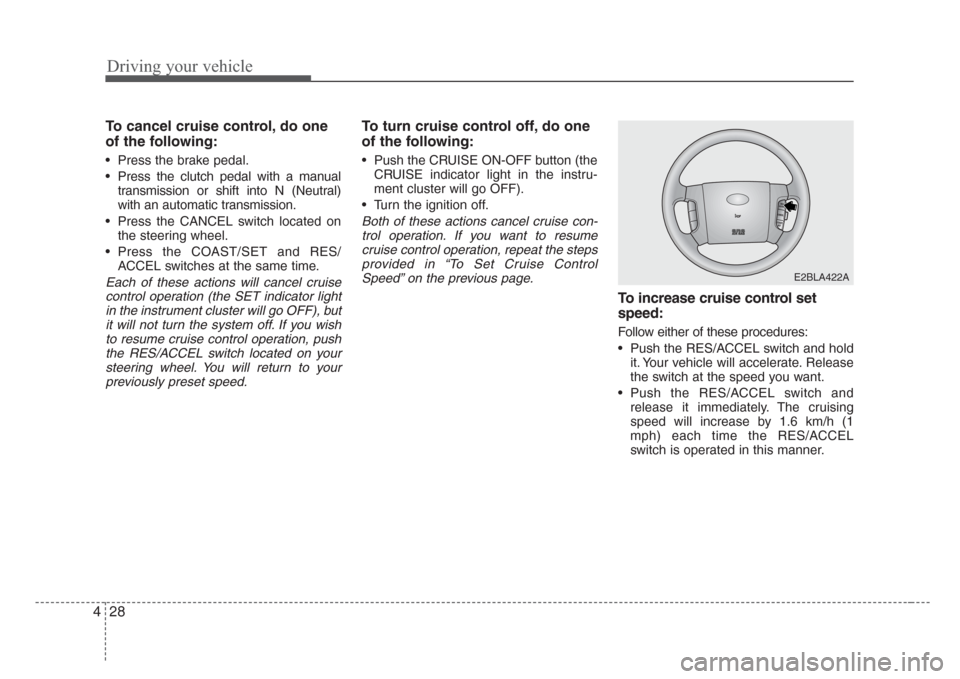
• Press the CANCEL switch located on
the steering wheel.
• Press the COAST/SET and RES/
ACCEL switches at the same time.
Each of these actions will cancel cruise
control operation (the SET indicator light
in the instrument cluster will go OFF), but
it will not turn the system off. If you wish
to resume cruise control operation, push
the RES/ACCEL switch located on your
steering wheel. You will return to your
previously preset speed.
To turn cruise control off, do one
of the following:
• Push the CRUISE ON-OFF button (the
CRUISE indicator light in the instru-
ment cluster will go OFF).
• Turn the ignition off.
Both of these actions cancel cruise con-
trol operation. If you want to resume
cruise control operation, repeat the steps
provided in “To Set Cruise Control
Speed” on the previous page.
To increase cruise control set
speed:
Follow either of these procedures:
• Push the RES/ACCEL switch and hold
it. Your vehicle will accelerate. Release
the switch at the speed you want.
• Push the RES/ACCEL switch and
release it immediately. The cruising
speed will increase by 1.6 km/h (1
mph) each time the RES/ACCEL
switch is operated in this manner.
E2BLA422A