ESP KIA Sorento 2009 2.G User Guide
[x] Cancel search | Manufacturer: KIA, Model Year: 2009, Model line: Sorento, Model: KIA Sorento 2009 2.GPages: 327, PDF Size: 5.03 MB
Page 82 of 327
373
Knowing your vehicle
✽
✽NOTICEIf the fuel filler lid will not open in cold
weather because the area around it is
frozen, push or lightly tap the lid.
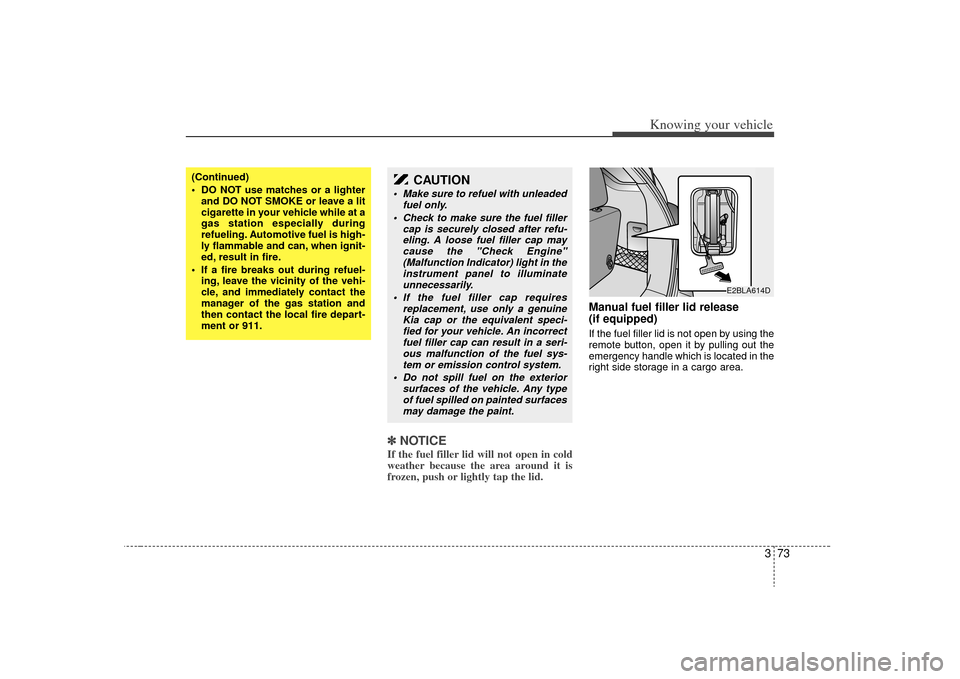
Manual fuel filler lid release
(if equipped)If the fuel filler lid is not open by using the
remote button, open it by pulling out the
emergency handle which is located in the
right side storage in a cargo area.
(Continued)
DO NOT use matches or a lighter
and DO NOT SMOKE or leave a lit
cigarette in your vehicle while at a
gas station especially during
refueling. Automotive fuel is high-
ly flammable and can, when ignit-
ed, result in fire.
If a fire breaks out during refuel- ing, leave the vicinity of the vehi-
cle, and immediately contact the
manager of the gas station and
then contact the local fire depart-
ment or 911.
CAUTION
Make sure to refuel with unleaded fuel only.
Check to make sure the fuel filler cap is securely closed after refu-eling. A loose fuel filler cap may cause the "Check Engine"(Malfunction Indicator) light in the instrument panel to illuminateunnecessarily.
If the fuel filler cap requires replacement, use only a genuineKia cap or the equivalent speci-fied for your vehicle. An incorrect fuel filler cap can result in a seri-ous malfunction of the fuel sys- tem or emission control system.
Do not spill fuel on the exterior surfaces of the vehicle. Any typeof fuel spilled on painted surfacesmay damage the paint.
E2BLA614D
Page 84 of 327
375
Knowing your vehicle
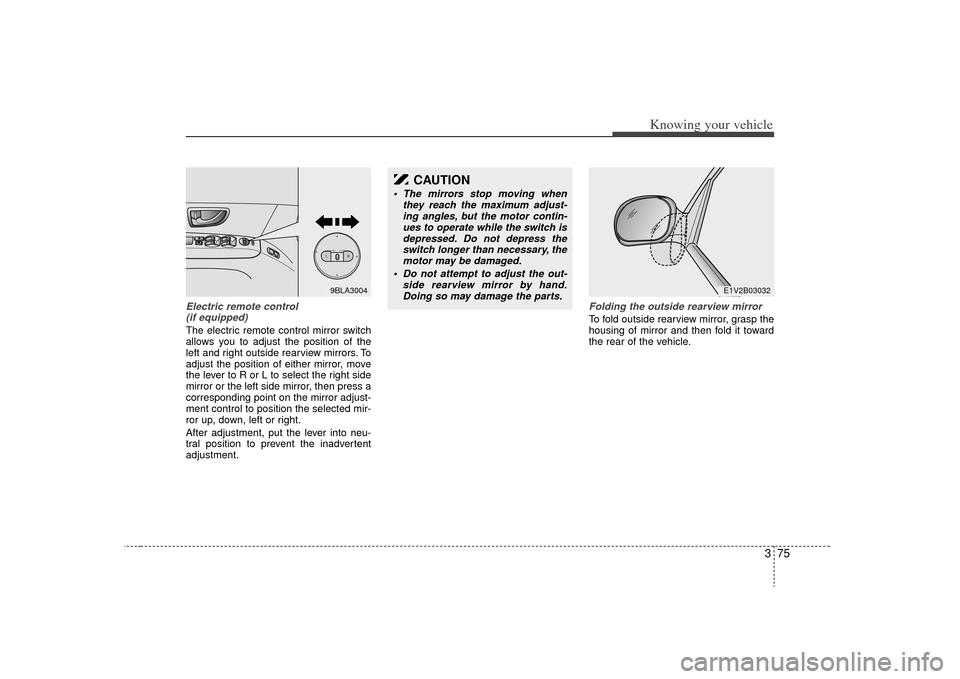
Electric remote control (if equipped)The electric remote control mirror switch
allows you to adjust the position of the
left and right outside rearview mirrors. To
adjust the position of either mirror, move
the lever to R or L to select the right side
mirror or the left side mirror, then press a
corresponding point on the mirror adjust-
ment control to position the selected mir-
ror up, down, left or right.
After adjustment, put the lever into neu-
tral position to prevent the inadvertent
adjustment.
Folding the outside rearview mirrorTo fold outside rearview mirror, grasp the
housing of mirror and then fold it toward
the rear of the vehicle.
CAUTION
The mirrors stop moving when they reach the maximum adjust-ing angles, but the motor contin-ues to operate while the switch is depressed. Do not depress theswitch longer than necessary, themotor may be damaged.
Do not attempt to adjust the out- side rearview mirror by hand.Doing so may damage the parts.
E1V2B03032
LR9BLA3004
Page 90 of 327
381
Knowing your vehicle
Reprogramming a single
HomeLink buttonTo program a device to HomeLink using
a HomeLink button previously trained,
follow these steps:
1. Press and hold the desired HomeLinkbutton. Do NOT release until step 4
has been completed.
2. When the indicator light begins to flash slowly (after 20 seconds), position the
hand-held transmitter 1 to 3 inches
away from the HomeLink surface.
3. Press and hold the hand-held trans- mitter button (or press and “cycle” - as
described in “Canadian Programming”
above).
4. The HomeLink indicator light will flash, first slowly and then rapidly. When the
indicator light begins to flash rapidly,
release both buttons.
The previous device has now been
erased and the new device can be acti-
vated by pushing the HomeLink button
that has just been programmed. This pro-
cedure will not affect any other pro-
grammed HomeLink buttons.
Gate operator programming &
canadian programmingDuring programming, your hand-held
transmitter may automatically stop trans-
mitting. Continue to press and hold the
HomeLink button (note steps 2 through 4
in the “Programming” portion of this text)
while you press and re-press (“cycle”)
your handheld transmitter every two sec-
onds until the frequency signal has been
learned. The indicator light will flash
slowly and then rapidly after several sec-
onds upon successful training.
AccessoriesIf you would like additional information on
the HomeLink Wireless Control System,
HomeLink compatible products, or to
purchase other accessories such as the
HomeLink® Lighting Package, please
contact HomeLink at 1-800-355-3515 or
on the internet at www.homelink.com.
This device complies with Industry
Canada Standard RSS-210. Operation
is subject to the following two conditions:
1. This device may not cause harmful interference, and
2. This device must accept any interfer- ence received, including interference
that may cause undesired operation.
CAUTION
If programming a garage dooropener or gate, it is advised tounplug the device during the“cycling” process to prevent possi- ble motor burn-up.
WARNING
Changes or modifications not
expressly approved by the party
responsible for compliance could
void the user’s authority to operate
the equipment.
IC: 4112104541A Gentex
MODEL/FCC ID: NZLSTDHL3
Page 91 of 327
Knowing your vehicle82
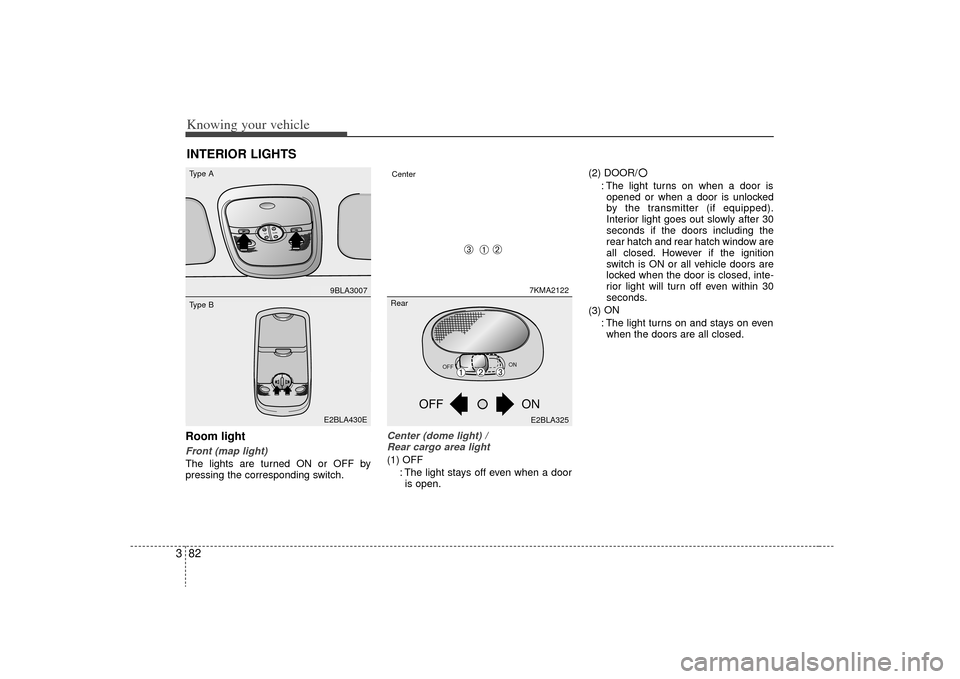
3Room lightFront (map light)The lights are turned ON or OFF by
pressing the corresponding switch.
Center (dome light) /
Rear cargo area light(1) OFF
: The light stays off even when a dooris open. (2) DOOR/
: The light turns on when a door isopened or when a door is unlocked
by the transmitter (if equipped).
Interior light goes out slowly after 30
seconds if the doors including the
rear hatch and rear hatch window are
all closed. However if the ignition
switch is ON or all vehicle doors are
locked when the door is closed, inte-
rior light will turn off even within 30
seconds.
(3) ON
: The light turns on and stays on even when the doors are all closed.
INTERIOR LIGHTS
TILTSLIDE
9BLA3007E2BLA430E
Type AType B
7KMA2122
Center
OFF
ON
ON
OFFE2BLA325
➀
➁
➂➀
➁
➂
Rear
Page 104 of 327
395
Knowing your vehicle
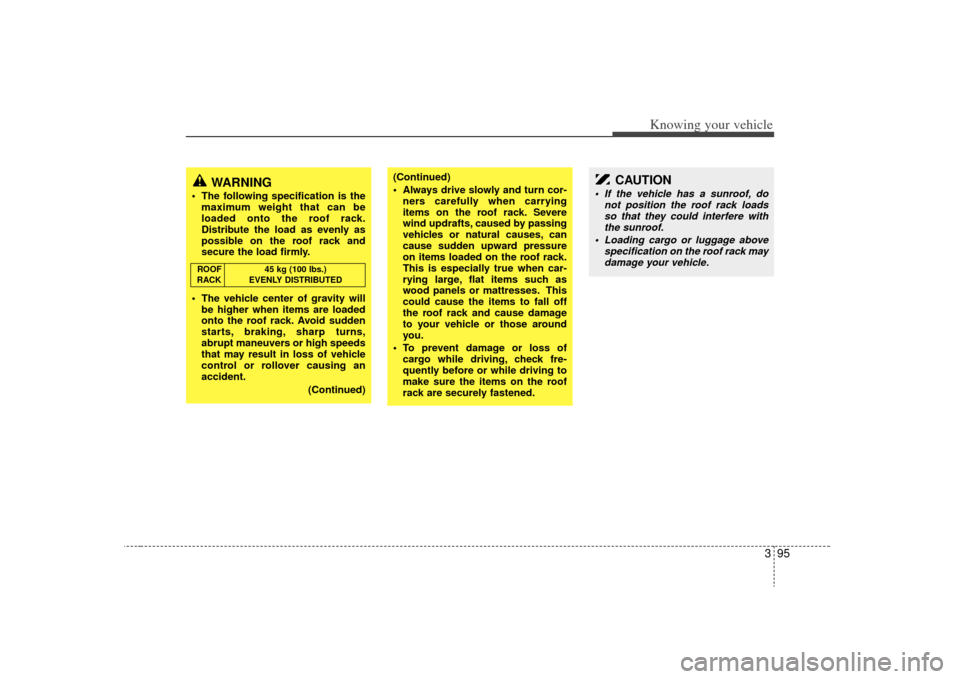
WARNING
The following specification is themaximum weight that can be
loaded onto the roof rack.
Distribute the load as evenly as
possible on the roof rack and
secure the load firmly.
The vehicle center of gravity will be higher when items are loaded
onto the roof rack. Avoid sudden
starts, braking, sharp turns,
abrupt maneuvers or high speeds
that may result in loss of vehicle
control or rollover causing an
accident.
(Continued)
(Continued)
Always drive slowly and turn cor-ners carefully when carrying
items on the roof rack. Severe
wind updrafts, caused by passing
vehicles or natural causes, can
cause sudden upward pressure
on items loaded on the roof rack.
This is especially true when car-
rying large, flat items such as
wood panels or mattresses. This
could cause the items to fall off
the roof rack and cause damage
to your vehicle or those around
you.
To prevent damage or loss of cargo while driving, check fre-
quently before or while driving to
make sure the items on the roof
rack are securely fastened.
CAUTION
If the vehicle has a sunroof, do not position the roof rack loadsso that they could interfere withthe sunroof.
Loading cargo or luggage above specification on the roof rack maydamage your vehicle.
ROOF 45 kg (100 lbs.)
RACK EVENLY DISTRIBUTED
Page 109 of 327
Knowing your vehicle100
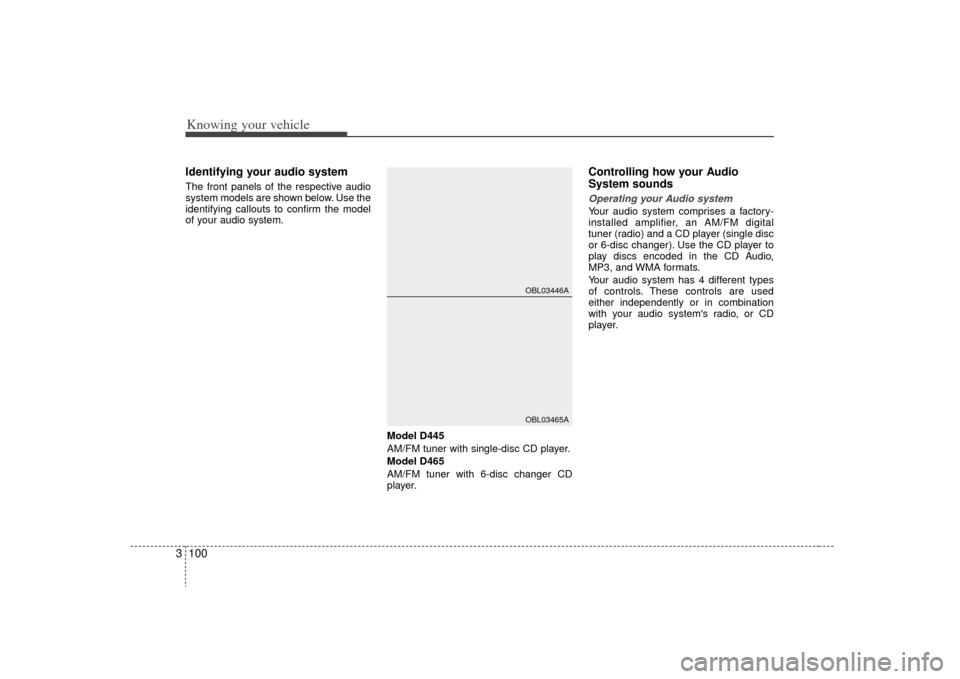
3Identifying your audio systemThe front panels of the respective audio
system models are shown below. Use the
identifying callouts to confirm the model
of your audio system.
Model D445
AM/FM tuner with single-disc CD player.
Model D465
AM/FM tuner with 6-disc changer CD
player.
Controlling how your Audio
System sounds Operating your Audio systemYour audio system comprises a factory-
installed amplifier, an AM/FM digital
tuner (radio) and a CD player (single disc
or 6-disc changer). Use the CD player to
play discs encoded in the CD Audio,
MP3, and WMA formats.
Your audio system has 4 different types
of controls. These controls are used
either independently or in combination
with your audio system's radio, or CD
player.
OBL03446AOBL03465A
Page 113 of 327
Knowing your vehicle104
33. CD EJECT ( ) ButtonModel D445:
Press the button once to eject the CD
from the CD player.
Model D465
Press the button once to eject the
last CD played.
Press and hold button for more than
2 seconds to eject all the CDs in the
changer in sequence beginning with the
last CD played.✽ ✽
NOTICEYou can eject discs even if the audio sys-
tem is switched off.4. Audio Control knobUse the audio control knob to change
how music playback sounds and also to
control how sound is distributed to the
speaker system. Sound properties
Press the knob repeatedly to display the
corresponding audio control settings
(Bass, Middle, Treble, Fader, Balance
).
The LCD screen displays the audio con-
trol settings in sequence. Once the audio
control setting you want is displayed,
rotate the knob clockwise/anti-clock-
wise to change the level of that audio
setting.
Bass
Increases/decreases Bass response of
audio reproduction
Middle
Increases/decreases Mid-range
response of audio reproduction
Treble
Increases/decreases Treble response of
audio reproduction
Fader
Sets front/rear balance level for your
speaker system
Balance
Sets left/right balance level for your
speaker system
✽ ✽ NOTICETo return all audio control settings to
the default (centered) positions, press
and hold the audio control knob for
more than 2 seconds. An audible beep
indicates that all audio controls have
been returned to the default setting.
Page 114 of 327
3 105
Knowing your vehicle
5. AM, FM, FM1, FM2, CD buttonsModel D445: AM, FM1, FM2, CD
Model D465: AM, FM, CD
Use the input source selector buttons to
select/switch operation modes. Press the
AMband selector button, FM/FM1/FM2
band selector button(s) or CD or button
to resume operation in the corresponding
mode.
Pressing any of these buttons automati-
cally switches the audio system on.
The LCD screen displays either the radio
frequency you are tuned into or the track
currently played back.✽ ✽ NOTICE• Remember that station Presets (1-6)
stored in FM1 mode can only be
accessed in FM1 mode. Similarly,
FM2 presets can only be accessed in
FM2 mode.
• For Model D465: Press the FM band selector button
repeatedly to switch between the FM1
and FM2 modes.
6. Sound equalizer and digital signal
processing Both Model D445 and Model D465: EQ
button
EQ button:
Press the EQ button repeatedly to select
the sound equalizer setting you want.
The 6 settings are: ROCK, POP, JAZZ,
CLASSIC, TALK and equalizer off. If no
icon is displayed in the LCD screen, the
equalizer is switched off.
The 5 preset equalizer settings have
been optimized for the 5 common genres
of music. For example, the ROCKsetting
enhances bass reproduction with rock
music whereas the CLASSIC setting
enhances the clarity of string instruments
during audio reproduction of classical
music. You may want to experiment with
the different settings to confirm your per-
sonal preferences.
✽ ✽ NOTICEIf you store a station Preset (1~6) with a
specific equalizer setting, that setting is
automatically used across other stations
preset.
Page 117 of 327
Knowing your vehicle108
35. Station Preset buttons (1~6) There are 6 Station Preset buttons which
you can use to store the frequencies of
your 6 favorite radio stations. Saving a
station as a preset gives you one-touch
access to the station you want.
Remember that the 6 presets stations
you store are for the specific radio band
mode you are in. That means that you
can store up to 6 stations in AM mode, 6
in FM1 mode, and 6 in FM2 mode. This
means that you can store up to 18 of your
favorite stations in the preset memory.✽ ✽
NOTICE• To switch between FM1 and FM2
mode:
Use the FM1 and FM2 buttons (for
Model D445)
Press the FM button to switch
between FM1 and FM2 modes (For
Model D465)
• Remember that if you store a station as preset 1 in FM2 mode, you must
first select FM2 mode before you can
use that preset button.
• This function is not effective if you are experiencing poor reception in your
vicinity.
6. Using PresetsTo save a radio station as a preset:
1. Take note of the band selection dis-
played on the LCD screen (AM, FM1 or
FM2)
2. Tune in to the radio station you want using either the SEEK UP and DOWN
buttons or the Tuning Knob.
3. Choose the Preset button (1~6) you want to use to store the radio station.
4. Press and hold the Preset button for more than 2 seconds.
The system beeps to indicate that it
has saved the new station and displays
the frequency and preset number on
the LCD screen.✽ ✽ NOTICESaving a new station erases the previous
setting saved in that preset.
To tune in to a preset station:
1. Select the band (AM, FM1 or FM2) you
want using the band selector buttons.
2. Press the preset button corresponding to the radio station you want.
The system automatically jumps to the
preset station. The frequency and pre-
set number is displayed on the LCD
screen.
Buttons not in use in Radio mode:
The following buttons and functions are
not used in Radio mode.
• REW button
FF button
RPT button
RDM button
MARK button
NFO button
Page 119 of 327
Knowing your vehicle110
31. SCAN buttonDisc Scan function
Model D445:
During CD playback, press the SCAN
button to play the first 10 seconds (pre-
view) of all tracks on the current CD.
Model D465:
To preview the first track of all the CDs in
the CD changer, press and hold the
SCAN button for more than 2 seconds.
Once you hear a track you want, press
the SCAN button again to resume nor-
mal playback.2. Track UP and DOWN but- tons During CD playback, press the and buttons to select and play the
next or previous track on the current disc.
The LCD screen displays the track num-
ber as you press the buttons. You can
press the button several times to select
the track you want.
3. CD selector buttons (1~6) Model D445:
The CDselector buttons are not used
with Model D445.
Model D465:
Press the CD selector button correspon-
ding to the CD you want. The CD player
automatically interrupts playback and
loads the selected CD.✽ ✽ NOTICEIf no CD is loaded in the selected posi-
tion, the LCD screen displays the No
Disc indicator.4. Rewind REW and Fast Forward FF
buttonsDuring CD playback, press and hold the
REW or FF buttons to rewind or fast-for-
ward playback of the current track. The
LCD screen displays the elapsed time of
the track you are rewinding or fast-for-
warding.
Release the REW or FF button when you
have reached the point you want.
Playback resumes automatically at the
selected point.
5. Dir and buttons (MP3 and WMA discs)During MP3/WMA CD playback, press
the DIR or buttons to switch to the
next or previous directory on the CD. The
LCD screen displays the name of the
directory you have switched to. You can
press the button several times to search
for the directory you want. The directories
are displayed in sequence (i.e. ascend-
ing or descending alphabetical order).
To access the directory displayed, press
the File Search knob to ENTER your
selection.✽ ✽ NOTICEThe Directory UP and DOWN buttons
can only be used when you are playing a
CD which has organized its tracks in the
form of directories. Normally, only MP3
or WMA CDs will contain a directory
tree which you can navigate using these
buttons.