ECO mode KIA SORENTO 2010 User Guide
[x] Cancel search | Manufacturer: KIA, Model Year: 2010, Model line: SORENTO, Model: KIA SORENTO 2010Pages: 399, PDF Size: 40.44 MB
Page 165 of 399
Features of your vehicle
90
4
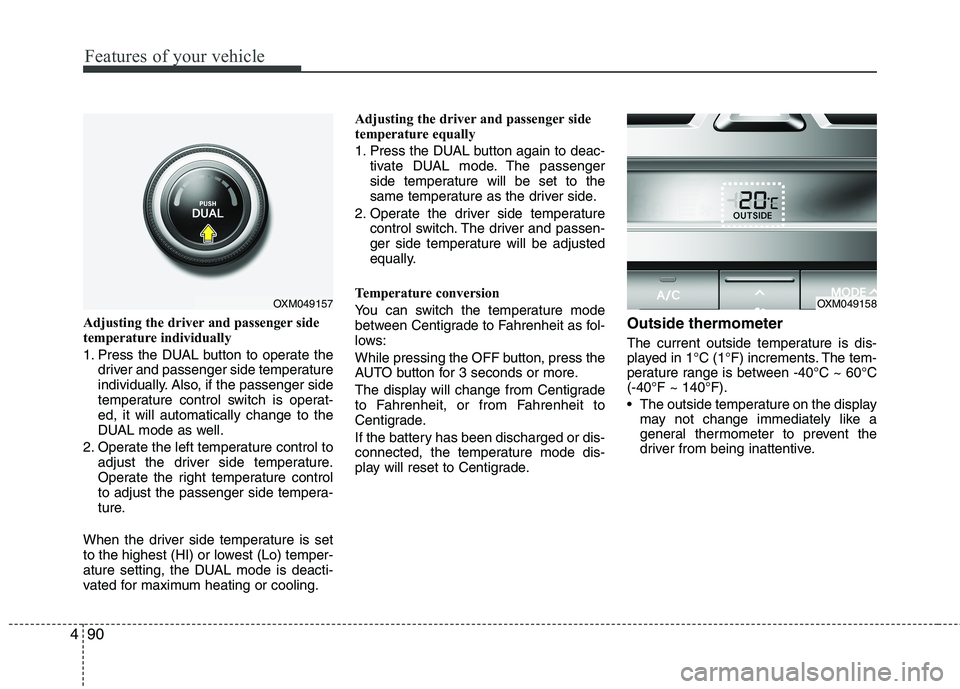
Adjusting the driver and passenger side
temperature individually
1. Press the DUAL button to operate the
driver and passenger side temperature
individually. Also, if the passenger side
temperature control switch is operat-ed, it will automatically change to the
DUAL mode as well.
2. Operate the left temperature control to adjust the driver side temperature.
Operate the right temperature control
to adjust the passenger side tempera-
ture.
When the driver side temperature is set
to the highest (HI) or lowest (Lo) temper-
ature setting, the DUAL mode is deacti-
vated for maximum heating or cooling. Adjusting the driver and passenger side
temperature equally
1. Press the DUAL button again to deac-
tivate DUAL mode. The passenger
side temperature will be set to the
same temperature as the driver side.
2. Operate the driver side temperature control switch. The driver and passen-
ger side temperature will be adjusted
equally.
Temperature conversion
You can switch the temperature mode
between Centigrade to Fahrenheit as fol-
lows:
While pressing the OFF button, press the
AUTO button for 3 seconds or more.
The display will change from Centigrade
to Fahrenheit, or from Fahrenheit to
Centigrade.
If the battery has been discharged or dis-
connected, the temperature mode dis-
play will reset to Centigrade. Outside thermometer
The current outside temperature is dis-
played in 1°C (1°F) increments. The tem-
perature range is between -40°C ~ 60°C(-40°F ~ 140°F).
The outside temperature on the display
may not change immediately like a
general thermometer to prevent the
driver from being inattentive.
OXM049157OXM049158
Page 171 of 399
Features of your vehicle
96
4
Defogging logic
To reduce the possibility of fogging up
the inside of the windshield, the air intakeor air conditioning are controlled auto-
matically according to certain conditions
such as or position. To cancel or
return to the defogging logic, do the fol-
lowing.
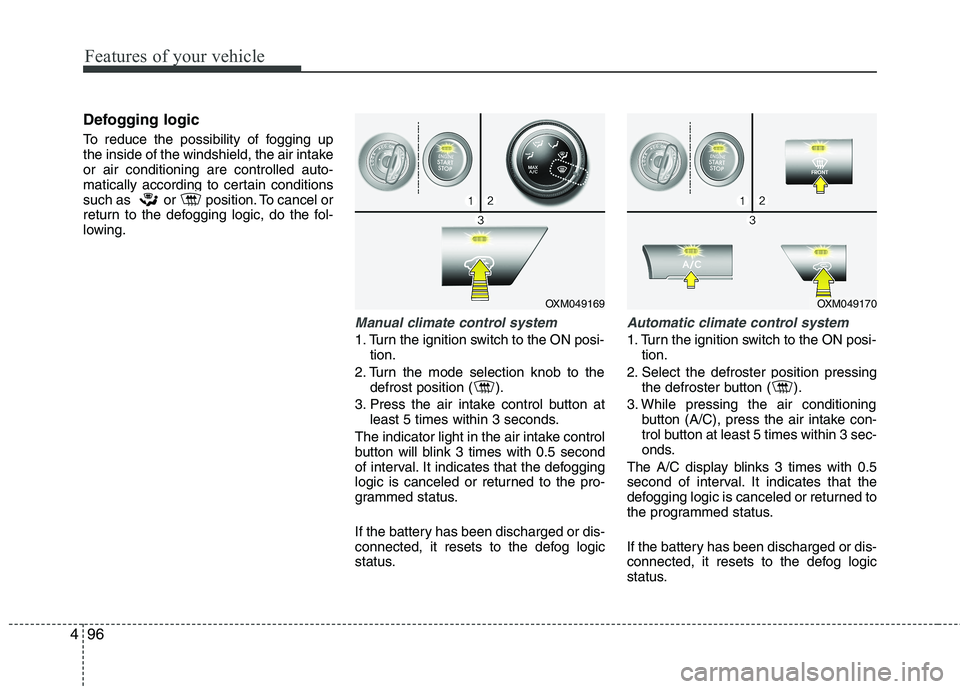
Manual climate control system
1. Turn the ignition switch to the ON posi-
tion.
2. Turn the mode selection knob to the defrost position ( ).
3. Press the air intake control button at least 5 times within 3 seconds.
The indicator light in the air intake control
button will blink 3 times with 0.5 second
of interval. It indicates that the defogging
logic is canceled or returned to the pro-
grammed status.
If the battery has been discharged or dis-
connected, it resets to the defog logic
status.
Automatic climate control system
1. Turn the ignition switch to the ON posi- tion.
2. Select the defroster position pressing the defroster button ( ).
3. While pressing the air conditioning button (A/C), press the air intake con-
trol button at least 5 times within 3 sec-
onds.
The A/C display blinks 3 times with 0.5
second of interval. It indicates that the
defogging logic is canceled or returned to
the programmed status.
If the battery has been discharged or dis-
connected, it resets to the defog logic
status.
OXM049169OXM049170
Page 183 of 399
Features of your vehicle
108
4
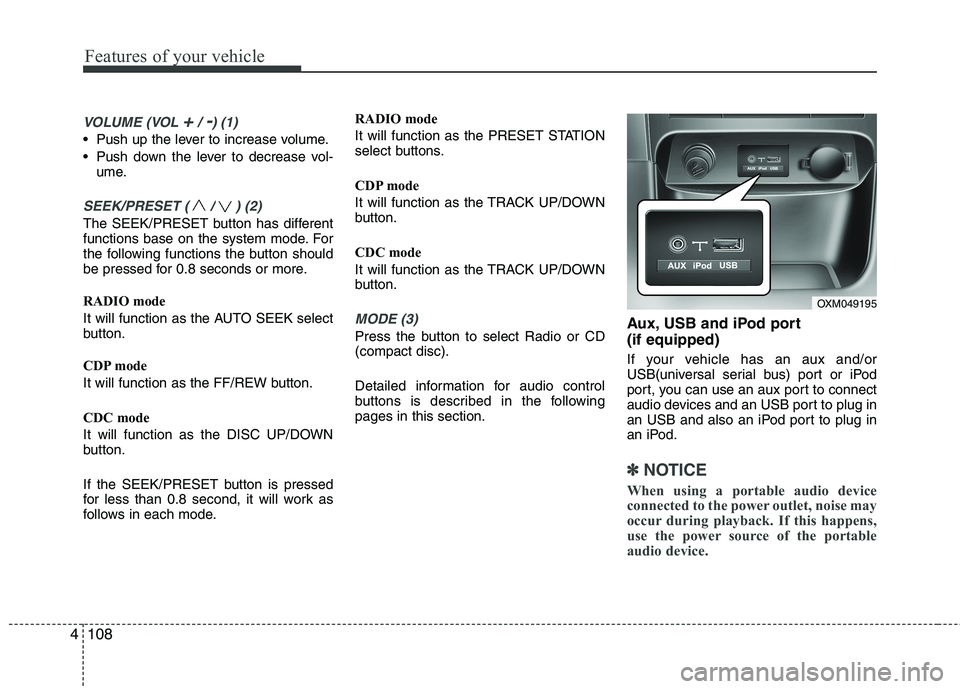
VOLUME (VOL +/ -) (1)
• Push up the lever to increase volume.
Push down the lever to decrease vol-
ume.
SEEK/PRESET ( / ) (2)
The SEEK/PRESET button has different
functions base on the system mode. For
the following functions the button should
be pressed for 0.8 seconds or more.
RADIO mode
It will function as the AUTO SEEK select
button.
CDP mode
It will function as the FF/REW button.
CDC mode
It will function as the DISC UP/DOWN
button.
If the SEEK/PRESET button is pressed
for less than 0.8 second, it will work as
follows in each mode. RADIO mode
It will function as the PRESET STATION
select buttons.
CDP mode
It will function as the TRACK UP/DOWN
button.
CDC mode
It will function as the TRACK UP/DOWN
button.
MODE (3)
Press the button to select Radio or CD (compact disc).
Detailed information for audio control
buttons is described in the followingpages in this section.
Aux, USB and iPod port (if equipped)
If your vehicle has an aux and/or
USB(universal serial bus) port or iPod
port, you can use an aux port to connect
audio devices and an USB port to plug in
an USB and also an iPod port to plug in
an iPod.
✽✽
NOTICE
When using a portable audio device
connected to the power outlet, noise may
occur during playback. If this happens,
use the power source of the portable
audio device.
OXM049195
Page 188 of 399
4113
Features of your vehicle
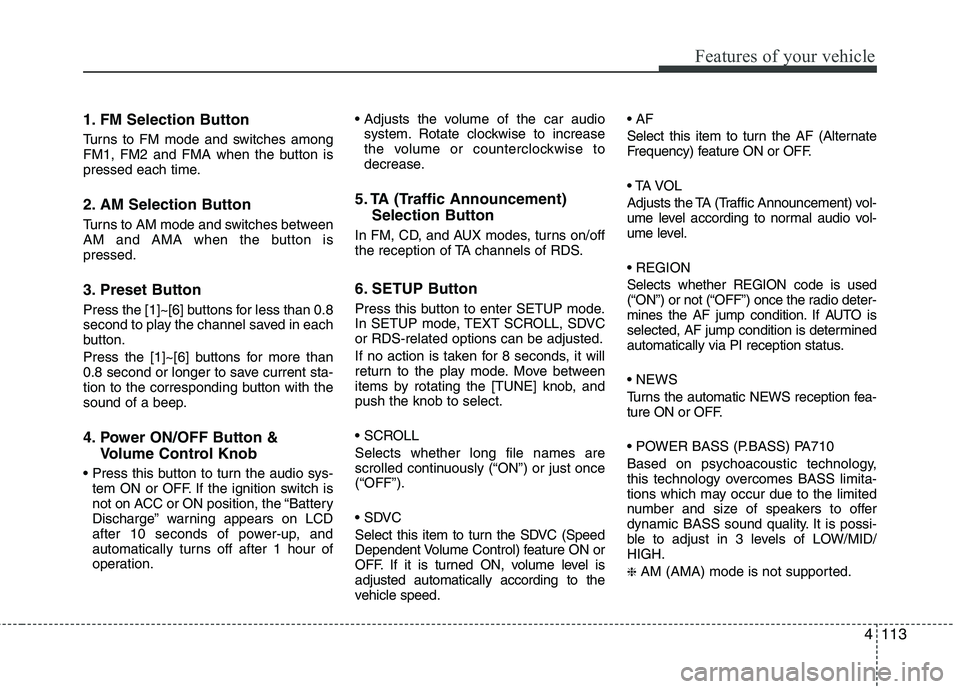
1. FM Selection Button
Turns to FM mode and switches among
FM1, FM2 and FMA when the button is
pressed each time.
2. AM Selection Button
Turns to AM mode and switches between
AM and AMA when the button ispressed.
3. Preset Button
Press the [1]~[6] buttons for less than 0.8
second to play the channel saved in each
button.
Press the [1]~[6] buttons for more than
0.8 second or longer to save current sta-
tion to the corresponding button with the
sound of a beep.
4. Power ON/OFF Button &Volume Control Knob
tem ON or OFF. If the ignition switch is
not on ACC or ON position, the “Battery
Discharge” warning appears on LCD
after 10 seconds of power-up, and
automatically turns off after 1 hour of
operation.
system. Rotate clockwise to increase
the volume or counterclockwise to
decrease.
5. TA (Traffic Announcement) Selection Button
In FM, CD, and AUX modes, turns on/off
the reception of TA channels of RDS.
6. SETUP Button
Press this button to enter SETUP mode.
In SETUP mode, TEXT SCROLL, SDVCor RDS-related options can be adjusted.
If no action is taken for 8 seconds, it will
return to the play mode. Move between
items by rotating the [TUNE] knob, andpush the knob to select.
Selects whether long file names are
scrolled continuously (“ON”) or just once(“OFF”).
Select this item to turn the SDVC (Speed
Dependent Volume Control) feature ON or
OFF. If it is turned ON, volume level isadjusted automatically according to the
vehicle speed.
Select this item to turn the AF (Alternate
Frequency) feature ON or OFF.
Adjusts the TA (Traffic Announcement) vol-
ume level according to normal audio vol-
ume level. Selects whether REGION code is used
(“ON”) or not (“OFF”) once the radio deter-
mines the AF jump condition. If AUTO is
selected, AF jump condition is determined
automatically via PI reception status.
Turns the automatic NEWS reception fea-
ture ON or OFF.
Based on psychoacoustic technology,
this technology overcomes BASS limita-
tions which may occur due to the limited
number and size of speakers to offer
dynamic BASS sound quality. It is possi-
ble to adjust in 3 levels of LOW/MID/HIGH. ❈
AM (AMA) mode is not supported.
Page 191 of 399
Features of your vehicle
116
4
1. CD Loading Slot
Please face printed side upward and gen-
tly press in. When the ignition switch is on
ACC or ON and power is off, power is
automatically turned on if the CD is
loaded. This CDP supports only 12cm CD.
If VCD or data CD are loaded, a "Reading
Error" message will be displayed and theCD will be ejected.
2. CD Eject Button
Press [ ] button to eject the CD. This
button works regardless of ignition
switch status.
All Eject (PA760 ONLY)
Press this button for 2~4 seconds to eject
all CDs inside the CD deck.
3. CD/AUX Selection Button
If CD is loaded, it switches to CD mode.
If AUX (or USB, iPod) is connected to the
multimedia socket, then it switches to CD➟ USB ➟ AUX (iPod) ➟ CD... each time
the button is pressed.
If there is no CD or auxiliary device, than
the message “No Media” will become dis-
played on the LCD for 3 seconds and
returns to the previous mode. 4. Automatic Track Selection
Button
Press [TRACK ] button for less than
0.8 second to play from the beginning of current song.
Press [TRACK ] button for less than
0.8 second and press again within 1
second to play the previous song.
Press [TRACK ] button for 0.8 sec-
ond or longer to initiate reverse direc-tion high speed sound search of cur-rent song.
Press [TRACK ] button for less than
0.8 second to play the next song.
Press [TRACK ] button for 0.8 sec-
ond or longer to initiate forward direc-tion high speed sound search of cur-rent song.
5. RANDOM Play Button
Turns on/off the randomization of the
play list of files in the currently played
DISC. To cancel the mode, press the but-ton again. 6. REPEAT Button
Repeats current song when the button is
pressed for less than 0.8 second.
Repeats the entire DISC when the button
is pressed for 0.8 second or longer.
7. CD Indicator (PA710)
When car ignition switch is ACC or ON and if the CD is loaded, this indicator is
lighted. If the CD is ejected, the light is
turned off.
8. CD LOAD Button (PA760)
Press [LO
AD] button to load CDs into
available CDC slots (from 1~6).
Press [LOAD] button for 2 seconds or
longer to load into all available decks. The
last CD will play. Idle status for 10 sec-
onds will terminate the loading process.
9. SCAN Play Button
Scans each song in the USB device for
10 seconds each. To cancel the mode,
press the button once again.
Page 194 of 399
4119
Features of your vehicle
CAUTION IN USING
USB DEVICE
To use an external USB device, make sure the device is notmounted when starting up thevehicle and mount the deviceafter starting up.
If you start the vehicle when the USB device is mounted, it maydamage the USB device. (USB isnot ESA.)
If the vehicle is started up or turned off while the external USBdevice is connected, the external USB device may not work.
It may not play inauthentic MP3 or WMA files.
1) It can only play MP3 files with the compression rate between8Kbps~320Kbps.
2) It can only play WMA music files with the compression rate
between 8Kbps~320Kbps.
Take cautions for static electricity when mounting or dismountingthe external USB device.
An encoded MP3 PLAYER is not recognizable.
(Continued)
(Continued) Depending on the condition of the external USB device, the con-nected external USB device canbe unrecognizable.
When the formatted byte/sector setting of External USB devices isnot either 512BYTE or 2048BYTE,then the device will not be recog-
nized.
Use only a USB device formatted to FAT 12/16/32.
USB devices without USB IF authentication may not be recog-nizable.
Make sure the USB connection ter- minal does not come in contactwith human bodies or externalobjects.
If you repeat mounting and dis- mounting the USB device in ashort period of time, it may break the device.
You may hear a strange noise when mounting or dismounting a
USB device.
(Continued)(Continued) If you dismount the external USB device during playback in USBmode, the external USB device canbe damaged or malfunction.
Therefore, mount the external USBdevice when the engine is turned off or in another mode.
Depending on the type and capac- ity of the external USB device orthe type of the files stored in thedevice, there is a difference in thetime taken for recognition of the
device, but this is not an indicatorof trouble and you only have to wait.
Do not use the USB device for other purposes than playing music files.
Use of USB accessories such as recharger or heater using USB I/Fmay lower performance or causetrouble.
If you use devices such as a USB hub purchased separately, thevehicle’s audio system may not recognize the USB device.Connect the USB device directly
to the multimedia terminal of the vehicle.
(Continued)
Page 196 of 399
4121
Features of your vehicle
1. AUX/USB Selection Button
If USB is connected, it switches to USB
mode. If a CD is loaded or AUX (or USB,
iPod) is connected, then it switches in theorder of CD ➟ USB ➟ AUX ➟ CD ...
each time the button is pressed.
If there is no CD and auxiliary device is
not connected, LCD displays “No Media”
for 3 seconds and returns to previous
mode.
2. TRACK Moving Button
Press the [TRACK ] button for less
than 0.8 second to play from the begin-
ning of the current track.
Press the button for less than 0.8 sec- ond and press it again within 1 second
to move to and play the previous track.
Press the button for 0.8 second or
longer to play the track in reverse
direction in fast speed.
Press the [TRACK ] button for less
than 0.8 second to move to the next
track. Press the button for 0.8 second
or longer to play the track in forward
direction in fast speed. 3. RANDOM Playback Button
Press the button for less than 0.8 second
to start or stop the random playback of
the songs in the current folder.
Press the button for more than 0.8 sec-
ond to randomly play the entire songs in
the USB device.
Press the button again to cancel the mode.
4. REPEAT Button
Press the button for less than 0.8 second to repeat the current song.
Press the button for more than 0.8 sec- ond to repeat all songs in the currently
played folder sequentially (FOLDER
REPEAT)
5. SCAN Selection Button
Scans each song in the USB device for 10 seconds each.
Press the button once again to cancel scanning.
6. INFO Button
Displays the information of the file current-
ly played in the order of FILE NAME
➟
TITLE ➟ ARTIST ➟ ALBUM ➟ FOLDER ➟
TOTAL FILE ➟NORMAL DISPLAY ➟
FILE NAME ➟… (Displays no information
if the file has no song information.) 7. SEARCH Knob & ENTER
Button
Turn this button clockwise to display thesongs ahead of the current song.
Turn the button counterclockwise to dis-
play the songs before the current song.
selected song.
MIDDLE, TREBLE, FADER and BAL-
ANCE TUNE mode. The mode selected
is shown on the display. After selecting
each mode, rotate the Audio control
knob clockwise or counterclockwise.
8. FOLDER Moving Button
Press [FOLDER ] button to move to child folder of the current folder and
display the first song in the folder.
Press TUNE/ ENTER knob to move to
the folder displayed. It will play the first
song in the folder.
Press [FOLDER ] button to move to parent folder display the first song in
the folder.
Press TUNE/ENTER knob to move to
the folder displayed.
Page 199 of 399
Features of your vehicle
124
4
1. iPod Selection Button
If iPod is connected, it switches to the
iPod mode from the previous mode to
play the song files stored in the iPod.
If there is no iPod connected, then it dis-
plays the message "No Media" for 3 sec-
onds and returns to the previous mode.
2. TRACK Moving Button
Press the [TRACK ] but ton for less
than 0.8 second to play from the begin-
ning of the song currently played.
Press the button for less than 0.8 sec- ond and press it again within 1 second
to move to and play the previous track.
Press the button for 0.8 second or
longer to play the song in reverse
direction in fast speed.
Press the [TRACK ] button for less than 0.8 second to move to the next
track.
Press the button for 0.8 second or
longer to play the song in forward direc-
tion in fast speed.
3. REPEAT Button
Repeats the song currently played. 4. RANDOM Playback Button
Press the button for less than 0.8 second
to start or stop the random playback of
the songs within the current category.
Press the button for longer than 0.8 sec-
ond to randomly play all songs in the
entire album of the iPod.
Press the button once again to cancel
the mode.
5. INFO Button
Displays the information of the file cur-
rently played in the order of TITLE
➟
ARTIST ➟ALBUM ➟NORMAL DISPLAY
➟ TITLE ➟... (Displays no information if
the file has no song information.)
6. SEARCH Knob & ENTER
Button
When you rotate the knob clockwise, it
will display the songs (category) ahead
of the song currently played (category in
the same level). Also, when you rotate
the knob counterclockwise, it will display
the songs (category) before the song
currently played (category in the same
level).
song category, press the button to skip
to and play the selected song.
MIDDLE, TREBLE, FADER and BAL-
ANCE TUNE mode. The mode selected
is shown on the display. After selecting
each mode, rotate the Audio control
knob clockwise or counterclockwise.
7. CATEGORY Selection Button
Moves to the upper category from cur-
rently played category of the iPod.
To move to (play) the category (song)
displayed, press TUNE/ENTER knob.
You will be able to search through the
lower category of the selected category.
The order of iPod’s category is SONG,
ALBUMS, ARTISTS, GENRES, and iPod.
Page 201 of 399
![KIA SORENTO 2010 User Guide Features of your vehicle
126
4
1. FM Selection Button
Turns to FM mode and toggles FM1 and
FM2 when the button is pressed each
time.
2. AM Selection Button
Pressing the [AM] button selects the A](/img/2/40478/w960_40478-200.png "KIA SORENTO 2010 User Guide Features of your vehicle
126
4
1. FM Selection Button
Turns to FM mode and toggles FM1 and
FM2 when the button is pressed each
time.
2. AM Selection Button
Pressing the [AM] button selects the A")
Features of your vehicle
126
4
1. FM Selection Button
Turns to FM mode and toggles FM1 and
FM2 when the button is pressed each
time.
2. AM Selection Button
Pressing the [AM] button selects the AM
band. AM Mode is displayed on the LCD.
3. Preset Button
Press the [1]~[6] buttons for less than 0.8
second to play the channel saved in each
button.
Press the [1]~[6] buttons for more than
0.8 second or longer to save current sta-
tion to the respective button with a beep.
4. Power ON/OFF Button &
Volume Control Knob
Press this button to turn the audio sys-
tem ON or OFF if the ignition switch is on
ACC or ON position.
Adjusts the volume of car audio. Rotate
clockwise to increase the volume, or
counterclockwise to decrease. 5. SETUP Button
Press this button to enter the TEXT
SCROLL, SDVC and P.BASS adjustment
mode. If no action is taken for 8 seconds
after pressing the button, it will return to
the play mode. (After entering SETUP
mode, move between items using the
left, right and PUSH functions of the
[TUNE] button.)
The setup items changes from TEXT
SCROLL
↔
SDVC ↔ P.BASS...
Select whether long file names are
scrolled continuously (“ON”) or just once(“OFF”).
Select this item to turn the SDVC(Speed
Dependent Volume Control) feature ON
or OFF. If it is turned ON, volume level isadjusted automatically according to the
vehicle speed.
This function creates virtual sound
effects and allows adjustments to the
BASS level. HIGH
➟
MID ➟LOW ➟OFF
Page 204 of 399
4129
Features of your vehicle
1. CD Loading Slot
Please face printed side upward and gen-
tly press in. When the ignition switch is on
ACC or ON and power is off, power is
automatically turned on if the CD is
loaded. This CDP supports only 12 cm
CD. If a VCD or data CD are loaded, a"Reading Error" message will be dis-
played and the CD will be ejected.
2. CD Eject Button
Press [ ] button to eject the CD. Thisbutton works regardless of ignition
switch status.
All Eject (PA760 ONLY)
Press this button for 2~4 seconds to eject
all CDs inside the CD deck.
3. CD Selection Button
If there is a CD in the CD DECK it switch-
es to CD mode.
If there is no CD, then the message "No
CD" will become displayed on the LCD
for 3 seconds and returns to the previous
mode. 4. Automatic Track Selection
Button
Press [TRACK ] button for less than
0.8 second to play from the beginning of current song.
Press [TRACK ] button for less than
0.8 second and press again within 1
second to play the previous song.
Press [TRACK ] button for 0.8 sec-
ond or longer to initiate reverse direc-tion high speed sound search of cur-rent song.
Press [TRACK ] button for less than
0.8 second to play the next song.
Press [TRACK ] button for 0.8 sec-
ond or longer to initiate forward direc-tion high speed sound search of cur-rent song.
5. RANDOM Play Button
Turns on/off the randomization of the
play list of files in the currently played
DISC. To cancel the mode, press the but-ton once again. 6. REPEAT Button
Repeats current song when the button is
pressed for less than 0.8 second.
Repeats the entire DISC when the button
is pressed for 0.8 second or longer.
7. CD Indicator (PA710)
When car ignition switch is ACC or ON and if the CD is loaded, this indicator is
lighted. If the CD is ejected, the light is
turned off.
8. CD LOAD Button (PA760)
Press [LO
AD] button to load CDs into
available CDC slots (from 1~6).
Press [LOAD] button for 2 seconds or
longer to load into all available decks. The
last CD will play. Idle status for 10 sec-
onds will terminate the loading process.
9. SCAN Play Button
Scans each song in the USB device for
10 seconds each. To cancel the mode,
press the button once again.