ECO mode KIA Sorento 2012 2.G Owner's Guide
[x] Cancel search | Manufacturer: KIA, Model Year: 2012, Model line: Sorento, Model: KIA Sorento 2012 2.GPages: 388, PDF Size: 7.56 MB
Page 204 of 388
Features of your vehicle114
4 FADER Control
Turn the control knob clockwise to
emphasize rear speaker sound (front
speaker sound will be attenuated). When
the control knob is turned counterclock-
wise, front speaker sound will be empha-
sized (rear speaker sound will be attenu-
ated).
BALANCE Control
Rotate the knob clockwise to emphasize
right speaker sound (left speaker sound
will be attenuated). When the control
knob is turned counter clockwise, left
speaker sound will be emphasized (right
speaker sound will be attenuated).8. SETUP ButtonPress this button to enter SETUP mode,
If no action is taken for 8 seconds, it will
return to previous mode.
In “SETUP” mode, rotate the TUNE knob
to move the cursor between items, and
push the TUNE knob to select.
SCROLL
Select whether long file names are
scrolled continuously (“ON”) or just once
(“OFF”). SDVC
Select this item to turn the SDVC(Speed
Dependent Volume Control) feature ON
or OFF. If it is turned ON, volume level is
adjusted automatically according to the
vehicle speed.
P.BASS (PowerBass)
This function creates virtual sound
effects and allows adjustments to the
BASS level.
HIGH
➟MID
➟LOW
➟OFF
➟ HIGH...
SAT (if available)
Select default display of SIRIUS mode.
“Category/Channel name” or “Artist/Song
Title” can be selected.
PHONE (if available)
Select this item to enter BLUETOOTH
®
setup mode. Refer to “BLUETOOTH
PHONE OPERATION” section for
detailed information.
XM CAN (ENG) 4(106~audio).QXP 4/19/2011 10:48 AM Page 114
Page 206 of 388
Features of your vehicle116
4Using CD Player
1. CD Loading SlotInsert a CD label side up and gently push
in while ignition switch is on ACC or ON.
The audio automatically switches to CD
mode and begins to play the CD. If the
audio was turned off, audio power will
automatically turned on as the CD is
inserted.- This audio only recognizes 12cm-size,
CD-DA (Audio CD) or ISO data-CD
(MP3 CD).- If UDF data-CD or non-CD (e.g. DVD) is inserted, "Reading Error" message will
be displayed and the disc will be eject-
ed.2. CD Eject Button Press [ ] button to eject the CD. This
button works regardless of ignition
switch status.3. CD Selection ButtonIf there is a CD in the CD DECK it switch-
es to CD mode. If there is no CD, then the message "No
Disc" will become displayed on the LCD
for 3 seconds and returns to the previous
mode.
4. Track Selection Button Press [TRACK ] button for less than
0.8 seconds to play from the beginning
of current song.
Press [TRACK ] button for less than 0.8 seconds and press again within 1
second to play the previous song.
Press [TRACK ] button for 0.8 sec- onds or longer to initiate reverse direc-
tion high speed sound search of cur-
rent song.
Press [TRACK ] button for less than 0.8 seconds to play the next song.
Press [TRACK ] button for 0.8 sec- onds or longer to initiate forward direc-
tion high speed sound search of cur-
rent song.5. RANDOM Play ButtonPress this button for less than 0.8 sec-
onds to activate 'RDM' mode and more
than 0.8 seconds to activate 'ALL RDM'
mode.
RDM : Only files/tracks in a folder/discare played back in a random
sequence. ALL RDM (MP3/WMA Only) : All files in
a disc are played back in the random
sequence.
6. REPEAT ButtonPress this button for less than 0.8 sec-
onds to activate 'RPT' mode and more
than 0.8 seconds to activate 'FLD RPT'
mode.
RPT : Only a track (file) is repeatedlyplayed back.
FLD RPT (MP3/WMA Only) : Only files are repeatedly played back.7. CD IndicatorWhen car ignition switch is ACC or ON
and if the CD is loaded, this indicator is
lit. If the CD is ejected, the light is turned
off.8. SCAN Play ButtonPlay each song in the CD for 10 seconds.
To cancel SCAN Play, press this button
again.9. INFO ButtonDisplays the information of the current
song.
- Audio CD : Disc Title/Artist, Track Title/Artist, Total Track.
CAUTION
Do not insert a CD if CD indicator islit.
XM CAN (ENG) 4(106~audio).QXP 4/19/2011 10:48 AM Page 116
Page 209 of 388
4 119
Features of your vehicle
CAUTION IN USING
USB DEVICE
To use an external USB device,
make sure the device is not con-nected when starting up the vehi-cle. Connect the device afterstarting up.
If you start the engine when the USB device is connected, it maydamage the USB device. (USB flashdrives are very sensitive toelectric shock.)
If the engine is started up or turned off while the external USBdevice is connected, the externalUSB device may not work.
It may not play inauthentic MP3 or WMA files.
1) It can only play MP3 files with the compression rate between8Kbps~320Kbps.
2) It can only play WMA music files with the compression ratebetween 8Kbps~320Kbps.
Take precautions for static electrici- ty when connecting or disconnect-ing the external USB device.
(Continued)
(Continued) An encrypted MP3 PLAYER is not recognizable.
Depending on the condition of the external USB device, the con-nected external USB device can be unrecognizable.
When the formatted byte/sector setting of External USB device isnot either 512BYTE or 2048BYTE, then the device will not be recog-nized.
Use only a USB device formatted to FAT 12/16/32.
USB devices without USB I/F authentication may not be recog-nizable.
Make sure the USB connection terminal does not come in contactwith the human body or otherobjects.
If you repeatedly connect or dis- connect the USB device in a shortperiod of time, it may break the device.
You may hear a strange noise when connecting or disconnect-ing a USB device.
(Continued)
(Continued) If you disconnect the external USB device during playback in USBmode, the external USB device canbe damaged or may malfunction. Therefore, disconnect the externalUSB device when the audio isturned off or in another mode. (e.g, Radio, SIRIUS or CD)
Depending on the type and capac- ity of the external USB device orthe type of the files stored in the device, there is a difference in thetime taken for recognition of the device.
Do not use the USB device for pur- poses other than playing musicfiles.
Use of USB accessories such as rechargers or heaters using USBI/F may lower performance or cause trouble.
If you use devices such as a USB hub purchased separately, thevehicle’s audio system may notrecognize the USB device. In thatcase, connect the USB device directly to the multimedia termi-nal of the vehicle.
(Continued)
XM CAN (ENG) 4(106~audio).QXP 4/19/2011 10:48 AM Page 119
Page 211 of 388
4 121
Features of your vehicle
Using USB device1. AUX/USB Selection ButtonIf the auxiliary device is connected, it
switches to AUX or USB mode to play the
sound from the auxiliary player.
If there is no auxiliary device, then the
message "No Media" will become dis-
played on the LCD for 3 seconds and
returns to previous mode.2. TRACK Selection Button Press the [TRACK ] button for lessthan 0.8 seconds to play from the
beginning of the current song.
Press the button for less than 0.8 sec-
onds and press it again within 1 sec-
ond to move to and play the previous
song.
Press the button for 0.8 seconds or
longer to play the song in reverse
direction in fast speed.
Press the [TRACK ] button for less
than 0.8 seconds to move to the next
song. Press the button for 0.8 seconds
or longer to play the song in forward
direction in fast speed.
3. RANDOM Playback Button Press this button for less than 0.8 sec- onds to play songs randomly in current
folder.
Press this button for 0.8 seconds or longer to play songs randomly in entire
USB device.
To cancel RANDOM play, press this button again.4. REPEAT Button Press this button for less than 0.8 sec-onds to repeat current song.
Press this button for 0.8 seconds or longer to repeat all songs in current
folder.
To cancel REPEAT, press this button again.5. SCAN Selection ButtonPlays each song in the USB device for 10
seconds.
To cancel SCAN Play, press this button
again.
6. INFO ButtonDisplays the information of the file cur-
rently played in the order of FILE NAME➟ TITLE
➟ ARTIST
➟ ALBUM
➟ FOLDER
➟ TOTAL FILE
➟
NORMAL DISPLAY
➟
FILE NAME
➟… (Displays no informa-
tion if the file has no song information.)
7. SEARCH Knob & ENTER Button Turn this knob clockwise to browse
songs after current song, or counter
clockwise to browse songs before cur-
rent song. To play the displayed song,
press the knob.
Pressing this knob without turning enters to AUDIO CONTROL mode.8. FOLDER Moving Button Press [FOLDER ] button to move to
child folder of the current folder and
display the first song in the folder.
Press TUNE/ ENTER knob to move to
the folder displayed. It will play the first
song in the folder.
Press [FOLDER ] button to move to parent folder display the first song in
the folder.
Press TUNE/ENTER knob to move to
the folder displayed.
XM CAN (ENG) 4(106~audio).QXP 4/19/2011 10:48 AM Page 121
Page 214 of 388
Features of your vehicle124
4Using iPod
®
1. iPod Selection ButtonIf iPod is connected, it switches to the
iPod mode from the previous mode to
play the song files stored in the iPod.
If there is no iPod connected, then it dis-
plays the message "No Media" for 3 sec-
onds and returns to the previous mode.2. TRACK Selection Button Press the [TRACK ] b utton for less
than 0.8 seconds to play from the
beginning of the song currently played.
Press the button for less than 0.8 sec-
onds and press it again within 1 sec-
ond to move to and play the previous
track.
Press the button for 0.8 seconds or
longer to play the song in reverse
direction in fast speed.
Press the [TRACK ] button for less than 0.8 seconds to move to the next
track.
Press the button for 0.8 seconds or
longer to play the song in forward direc-
tion in fast speed.
3. REPEAT ButtonRepeats the song currently played.4. RANDOM Playback Button Press this button for less than 0.8 sec-onds to shuffle order of all songs in
current category. (Song Random)
Press this button for 0.8 seconds or longer to shuffle order of albums in cur-
rent category. (Album Random)
To cancel RANDOM Play, press this button again.5. INFO ButtonDisplays the information of the file cur-
rently played in the order of TITLE
➟
ARTIST
➟ALBUM
➟NORMAL DISPLAY
➟TITLE... (Displays no information if the
file has no song information.)6. SEARCH Knob & ENTER ButtonWhen you rotate the knob clockwise, it
will display the songs (category) ahead
of the song currently played (category in
the same level). Also, when you rotate the knob counter-
clockwise, it will display the songs (cate-
gory) before the song currently played
(category in the same level).
To listen to the song displayed in the
song category, press the button to skip to
and play the selected song.
Pressing the button changes the BASS,
MIDDLE, TREBLE, FADER and BAL-
ANCE TUNE mode. The mode selected
is shown on the display. After selecting
each mode, rotate the Audio control knob
clockwise or counterclockwise.
7. CATEGORY Selection ButtonMoves to the upper category from cur-
rently played category of the iPod.
To move to (play) the category (song)
displayed, press TUNE/ENTER knob.
You will be able to search through the
lower category of the selected category.
The order of iPod’s category is SONG,
ALBUMS, ARTISTS, GENRES, and iPod.
XM CAN (ENG) 4(106~audio).QXP 4/19/2011 10:48 AM Page 124
Page 217 of 388
4 127
Features of your vehicle
Using SIRIUS Satellite RadioYour Kia vehicle is equipped with a 3
month complimentary period of SIRIUS
Satellite Radio so you have access to
over 130 channels of music, information,
and entertainment programming.ActivationIn order to extend or reactivate your sub-
scription to SIRIUS Satellite Radio, you
will need to contact SIRIUS Customer
Care at 888-539-7474. Have your 12 digit
SID (Sirius Identification Number)/ESN
(Electronic Serial Number) ready. To
retrieve the SID/ESN, turn on the radio,
press the [SAT] button, and tune to chan-
nel zero. Please note that the vehicle will
need to be turned on, in Sirius mode, and
have an unobstructed view of the sky in
order for the radio to receive the activa-
tion signal.
1. SATELLITE RADIO SelectionButton (SIRIUS Satellite Radio)Press the [SAT] button to switch to SIR-
IUS Satellite Radio. It cycles through the
different bands as noted below.
SAT1
➟SAT2
➟SAT3
➟SAT1
➟...
2. Channel Selection Button Press [ SEEK ] button for less
than 0.8 seconds to select previous or
next channel.
Press [ SEEK ] button for 0.8 seconds or longer to continuously
move to previous or next channel.
If "CATEGORY" Icon is displayed at the top of the screen, channel up/down
is done through the channels within
current category.3. Preset Selection Button Press [1]~[6] buttons less than 0.8 sec-onds to play the channel saved in each
button.
Press [1]~[6] button for 0.8 seconds or longer to save current channel to the
respective button with a beep.
4. SCAN Selection Button When the [SCAN] button is pressed, itautomatically scans the radio stations
upwards.
The SCAN feature steps through every channel, starting from the initial chan-
nel, for ten seconds.
Press the [SCAN] button again to stop the scan feature and to listen to the
currently selected channel.
If "CATEGORY" Icon is displayed at the top of the screen, channel chang-
ing is done through the channels with-
in current category.5. Tune Knob and Enter Button Rotate clockwise to increase the chan-nel number or to scroll down the cate-
gory list.
Rotate counterclockwise to decrease the channel number or to scroll up the
category list.
Press this to make selection of chan- nels or items.
XM CAN (ENG) 4(106~audio).QXP 4/19/2011 10:48 AM Page 127
Page 224 of 388
Features of your vehicle134
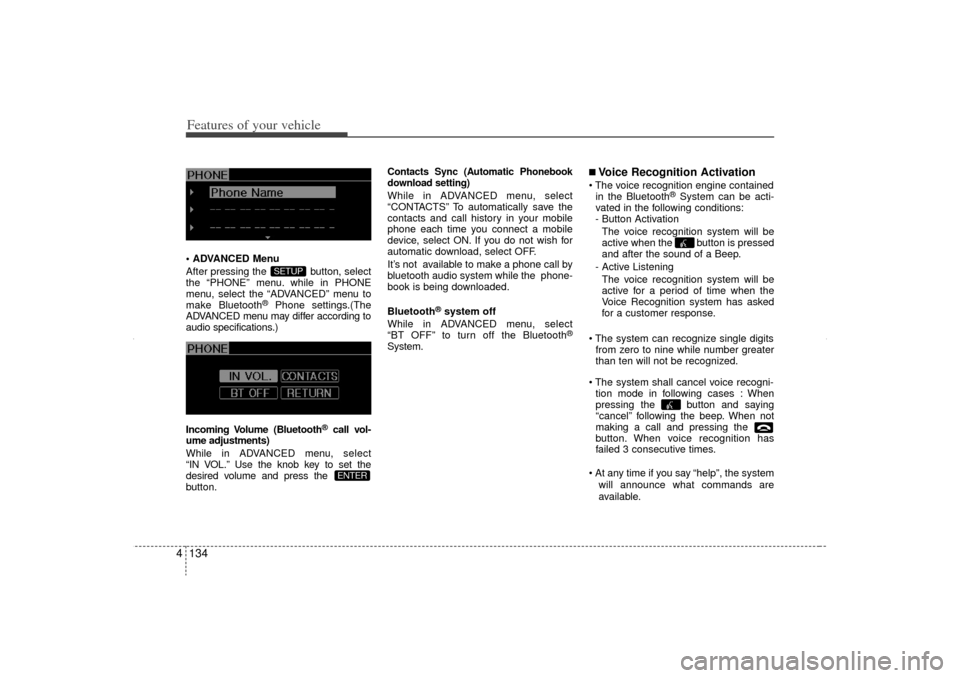
4 ADVANCED Menu
After pressing the button, select
the “PHONE” menu. while in PHONE
menu, select the “ADVANCED” menu to
make Bluetooth
®
Phone settings.(The
ADVANCED menu may differ according to
audio specifications.)
Incoming Volume (Bluetooth
®call vol-
ume adjustments)
While in ADVANCED menu, select
“IN VOL.” Use the knob key to set the
desired volume and press the
button.
Contacts Sync (Automatic Phonebook
download setting)While in ADVANCED menu, select
“CONTACTS” To automatically save the
contacts and call history in your mobile
phone each time you connect a mobile
device, select ON. If you do not wish for
automatic download, select OFF.
It’s not available to make a phone call by
bluetooth audio system while the phone-
book is being downloaded.
Bluetooth
®system off
While in ADVANCED menu, select
“BT OFF” to turn off the Bluetooth
®
System.
■Voice Recognition Activation The voice recognition engine contained in the Bluetooth
®System can be acti-
vated in the following conditions:
- Button Activation
The voice recognition system will be
active when the button is pressed
and after the sound of a Beep.
- Active Listening The voice recognition system will be
active for a period of time when the
Voice Recognition system has asked
for a customer response.
The system can recognize single digits from zero to nine while number greater
than ten will not be recognized.
The system shall cancel voice recogni- tion mode in following cases : When
pressing the button and saying
“cancel” following the beep. When not
making a call and pressing the
button. When voice recognition has
failed 3 consecutive times.
At any time if you say “help”, the system will announce what commands are
available.
ENTER
SETUP
XM CAN (ENG) 4(106~audio).QXP 4/19/2011 10:49 AM Page 134
Page 225 of 388
4 135
Features of your vehicle
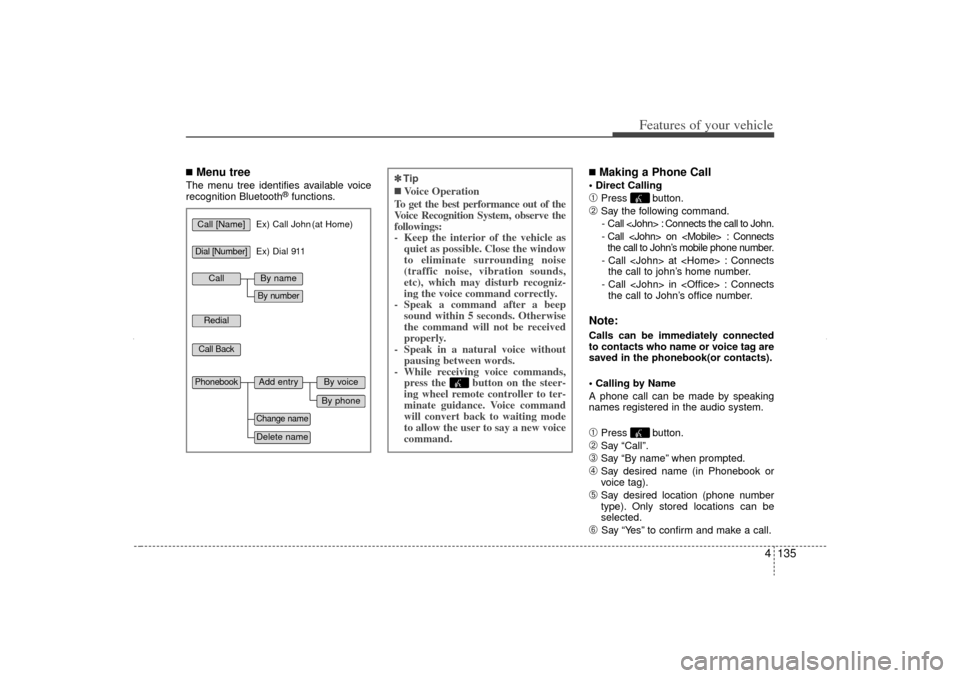
■Menu treeThe menu tree identifies available voice
recognition Bluetooth
®functions.
■Making a Phone Call Direct Calling ➀
Press button.
➁
Say the following command.- Call
- Call
- Call
- Call
Note:Calls can be immediately connected
to contacts who name or voice tag are
saved in the phonebook(or contacts).
Calling by Name
A phone call can be made by speaking
names registered in the audio system.➀
Press button.
➁
Say “Call”.
➂
Say “By name” when prompted.
\b
Say desired name (in Phonebook or
voice tag).
➄
Say desired location (phone number
type). Only stored locations can be
selected.
➅
Say “Yes” to confirm and make a call.
Call [Name]
Ex) Call John (at Home)
Ex) Dial 911
Dial [Number]RedialCall Back
Add entry
Phonebook
Change nameDelete name
By phoneBy voice
Call
By nameBy number
✽
✽ Tip■Voice Operation
To get the best performance out of the
Voice Recognition System, observe the
followings:
- Keep the interior of the vehicle as quiet as possible. Close the window
to eliminate surrounding noise
(traffic noise, vibration sounds,
etc), which may disturb recogniz-
ing the voice command correctly.
- Speak a command after a beep sound within 5 seconds. Otherwise
the command will not be received
properly.
- Speak in a natural voice without pausing between words.
- While receiving voice commands, press the button on the steer-
ing wheel remote controller to ter-
minate guidance. Voice command
will convert back to waiting mode
to allow the user to say a new voice
command.
XM CAN (ENG) 4(106~audio).QXP 4/19/2011 10:49 AM Page 135
Page 227 of 388
4 137
Features of your vehicle
Adding Entry by Phone➀
Press button.
➁
Say "Phonebook".
➂
Say "Add Entry" after prompt.
\b
Say "By Phone" to proceed.
➄
Say “Yes” to confirm.
➅
Your phone will start to transfer
phone/contact list to the audio system.
This process may take over 10 min- utes depending on the phone model
and number of entries
➆
Wait till the audio displays “Transfer
Complete” message.
Changing Name
The registered names can be modified.
➀
Press button.
➁
Say “Phonebook”.
➂
Say “Change Name” after prompt.
\b
Say the name of the entry (voice tag).
➄
Say “Yes” to confirm.
➅
Say new desired name.
Deleting Name
The registered names can be deleted.
➀
Press button.
➁
Say “Phonebook”.
➂
Say “Delete Name” after prompt.
\b
Say the name of the entry (voice tag).
➄
Say “Yes” to confirm.
■Bluetooth
®Audio Speaker Adaptation
Speaker adaptation will improve perform-
ance of voice recognition system to a
particular user voice.
This will degrade the performance for
other users.
Record➀
Press button for 10sec.
➁
Say “Record profile”.
➂
Say “Yes”.
\b
Say the word displayed on Radio.
Delete
➀
Press button for 10sec.
➁
Say “Delete profile”.
➂
Say “Yes”.
XM CAN (ENG) 4(106~audio).QXP 4/19/2011 10:49 AM Page 137
Page 245 of 388
517
Driving your vehicle
R (Reverse)
Use this position to drive the vehicle
backward.N (Neutral)
The wheels and transaxle are not
engaged. The vehicle will roll freely even
on the slightest incline unless the parking
brake or service brakes are applied.
D (Drive)
This is the normal forward driving posi-
tion. The transaxle will automatically shift
through a 6-gear sequence, providing the
best fuel economy and power.
For extra power when passing another
vehicle or climbing grades, depress the
accelerator fully, at which time the
transaxle will automatically downshift to
the next lower gear.
✽ ✽
NOTICEAlways come to a complete stop before
shifting into D (Drive).
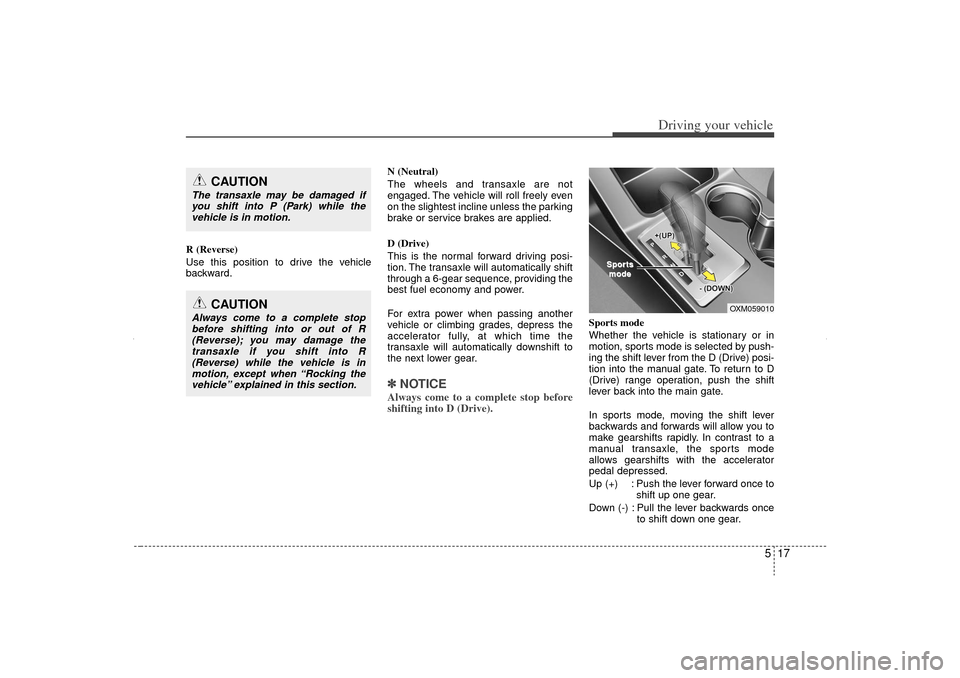
Sports mode
Whether the vehicle is stationary or in
motion, sports mode is selected by push-
ing the shift lever from the D (Drive) posi-
tion into the manual gate. To return to D
(Drive) range operation, push the shift
lever back into the main gate.
In sports mode, moving the shift lever
backwards and forwards will allow you to
make gearshifts rapidly. In contrast to a
manual transaxle, the sports mode
allows gearshifts with the accelerator
pedal depressed.
Up (+) : Push the lever forward once to
shift up one gear.
Down (-) : Pull the lever backwards once to shift down one gear.
CAUTION
The transaxle may be damaged ifyou shift into P (Park) while the vehicle is in motion.
CAUTION
Always come to a complete stopbefore shifting into or out of R(Reverse); you may damage thetransaxle if you shift into R (Reverse) while the vehicle is inmotion, except when “Rocking thevehicle” explained in this section.
OXM059010
Spor
Spor
ts
ts
mode
mode
XM CAN (ENG) 5.QXP 11/5/2010 11:38 AM Page 17