lock KIA Soul 2011 1.G Workshop Manual
[x] Cancel search | Manufacturer: KIA, Model Year: 2011, Model line: Soul, Model: KIA Soul 2011 1.GPages: 356, PDF Size: 7.48 MB
Page 171 of 356
499
Features of your vehicle
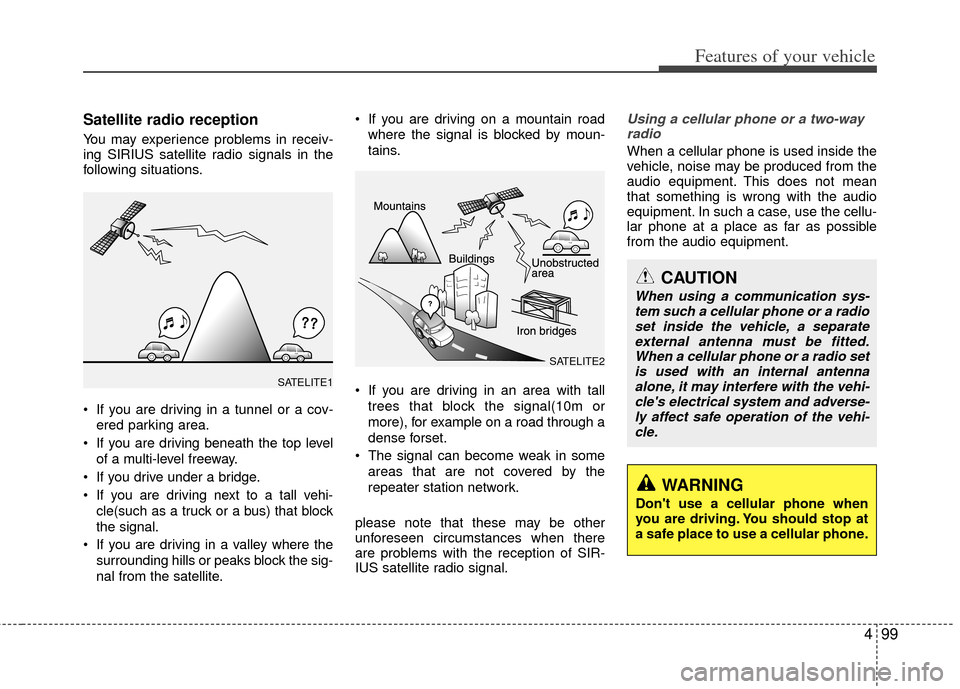
Satellite radio reception
You may experience problems in receiv-
ing SIRIUS satellite radio signals in the
following situations.
If you are driving in a tunnel or a cov-ered parking area.
If you are driving beneath the top level of a multi-level freeway.
If you drive under a bridge.
If you are driving next to a tall vehi- cle(such as a truck or a bus) that block
the signal.
If you are driving in a valley where the surrounding hills or peaks block the sig-
nal from the satellite. If you are driving on a mountain road
where the signal is blocked by moun-
tains.
If you are driving in an area with tall trees that block the signal(10m or
more), for example on a road through a
dense forset.
The signal can become weak in some areas that are not covered by the
repeater station network.
please note that these may be other
unforeseen circumstances when there
are problems with the reception of SIR-
IUS satellite radio signal.
Using a cellular phone or a two-way radio
When a cellular phone is used inside the
vehicle, noise may be produced from the
audio equipment. This does not mean
that something is wrong with the audio
equipment. In such a case, use the cellu-
lar phone at a place as far as possible
from the audio equipment.
CAUTION
When using a communication sys-tem such a cellular phone or a radio set inside the vehicle, a separateexternal antenna must be fitted. When a cellular phone or a radio setis used with an internal antenna alone, it may interfere with the vehi-cle's electrical system and adverse-ly affect safe operation of the vehi- cle.
WARNING
Don't use a cellular phone when
you are driving. You should stop at
a safe place to use a cellular phone.
SATELITE2
SATELITE1
Page 173 of 356
4101
Features of your vehicle
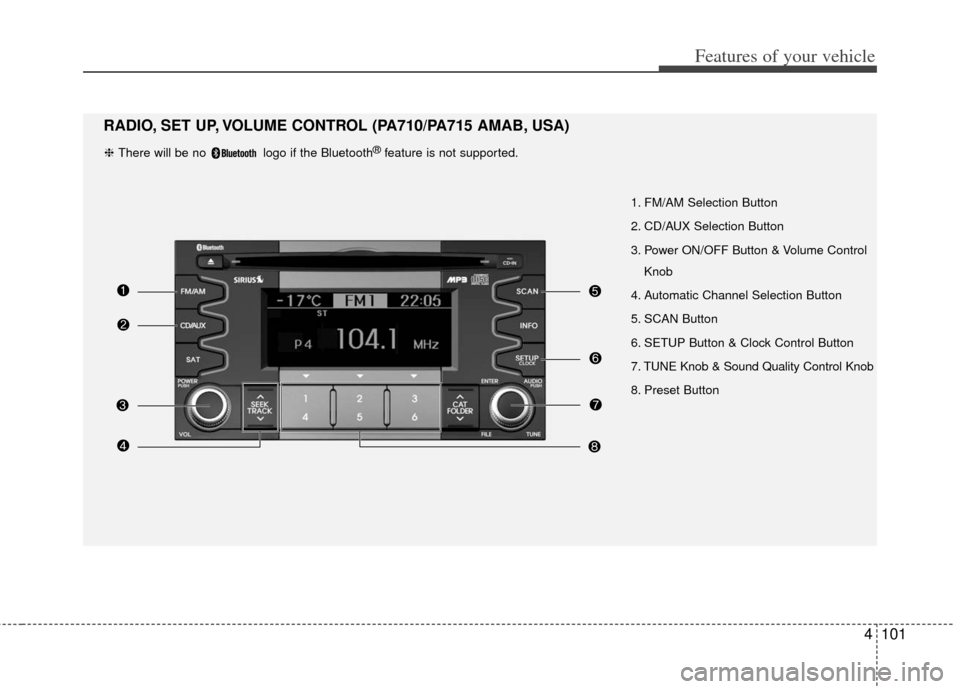
1. FM/AM Selection Button
2. CD/AUX Selection Button
3. Power ON/OFF Button & Volume ControlKnob
4. Automatic Channel Selection Button
5. SCAN Button
6. SETUP Button & Clock Control Button
7. TUNE Knob & Sound Quality Control Knob
8. Preset Button
RADIO, SET UP, VOLUME CONTROL (PA710/PA715 AMAB, USA)
❈ There will be no logo if the Bluetooth®feature is not supported.
Page 174 of 356
Features of your vehicle
102
4
1. FM/AM Selection ButtonTurns to FM or AM mode, and toggles in
the order of FM1
➟ FM2 ➟ AM ➟ FM1...
when the button is pressed each time.
2. CD/AUX Selection Button
If there is a CD in the CDP DECK it turns
to CD mode. If a device is connected to
AUX, then it toggles in the order of CD
➟AUX ➟CD... when the button is pressed
each time. (It will not turn to AUX if there
is no auxiliary device connected.)
3. Power ON/OFF Button & Volume Control Knob
Turns on/off the set when the IGNITION
SWITCH is on ACC or ON. If the button
is turned to the right, it increases the vol-
ume and left, decreases the volume.
4. Automatic Channel SelectionButton
] button is pressed,
it reduces the band frequency by
200kHz to automatically select a chan-
nel. Stops at the previous frequency if
no channel is found. ] button is pressed,
it increases the band frequency by
200kHz to automatically select a chan-
nel. Stops at the previous frequency if no
channel is found.
5. SCAN Button
If this button is pressed, the frequencies
will become increased and receive the
corresponding broadcasts. This function
will play the frequencies for 5 seconds
(SIRIUS MODE:10 seconds) each and
find other broadcasts as the frequency
increases. Press the button again when
desiring to continue listening to the cur-
rently playing broadcast.
6. SETUP Button & Clock Control Button
Press this button to turn to the SIRIUS
option and the other adjustment mode.
If no action is taken for 5 seconds after
pressing the button, it will return to the
play mode. (After entering SETUP mode,
move between items using the left, right
and PUSH functions of the [TUNE]
knob.)
■ PA710 AMAB is an internal AMP
MODEL with Bluetooth®feature.
The setup changes in the order of
CLOCK
↔ SAT ↔ SCROLL ↔ P.BASS↔ RETURN ↔ TEMP ↔PHONE ↔SDVC ↔ CLOCK...
■ PA710 AMA is an internal AMP MODEL
without Bluetooth®feature.
The setup changes in the order of
CLOCK
↔ SAT ↔ SCROLL ↔ P.BASS↔ TEMP ↔ SDVC ↔ CLOCK...
■ PA715 AMAB is an external AMP
MODEL with Bluetooth®feature.
The setup changes in the order of
CLOCK
↔ SAT ↔ SCROLL ↔ TEMP ↔PHONE ↔ SDVC ↔ CLOCK...
■ PA715 AMA is an external AMP MODEL
without Bluetooth®feature.
The setup changes in the order of
CLOCK
↔ SAT ↔ SCROLL ↔ RETURN↔ TEMP ↔ SDVC ↔ CLOCK...
Page 175 of 356
![KIA Soul 2011 1.G Workshop Manual 4103
Features of your vehicle
Press the [SETUP] button. Use the vol-
ume controller to adjust the clock in the
following order: CLOCK
➟ENTER ➟hour or minute.
Adjust the hour and press the [ENTER](/img/2/2930/w960_2930-174.png "KIA Soul 2011 1.G Workshop Manual 4103
Features of your vehicle
Press the [SETUP] button. Use the vol-
ume controller to adjust the clock in the
following order: CLOCK
➟ENTER ➟hour or minute.
Adjust the hour and press the [ENTER")
4103
Features of your vehicle
Press the [SETUP] button. Use the vol-
ume controller to adjust the clock in the
following order: CLOCK
➟ENTER ➟hour or minute.
Adjust the hour and press the [ENTER]
button to set. Use the same method to
adjust the minute and press the [ENTER]
button to complete and exit from clock
adjustment mode.
Pressing the [SETUP] button while in
POWER OFF screen will allow the user
to make immediately adjustments to the
clock.
This function is used to display charac-
ters longer than the LCD text display and
can be turned ON/OFF through the vol-
ume controller.
This function displays the previous
MODE screen.
This function is used to change the tem-
perature display setting.
This function automatically adjusts the
volume level according to the speed of
the vehicle and can be turned ON/OFF
through the volume controller.
Based on psychoacoustic technology, this
technology overcomes BASS limitations
which may occur due to the limited num-
ber and size of speakers to offer dynamic
BASS sound quality. It is possible to adjust
in 3 levels of LOW/MID/HIGH.
OFF
➟LOW ➟MID ➟HIGH
Modes: CD/FM/AUX/IPOD/USB (exclud-
ing AM Mode)
7. TUNE Knob & Sound Quality Control Knob
Rotate the knob clockwise by one notch
to increase frequency by 200kHz from
current frequency.
Rotate the knob counterclockwise by one
notch to decrease frequency by 200kHz
from current frequency.
MIDDLE, TREBLE, FADER and BAL-
ANCE TUNE mode. The mode selected
is shown on the display. After selecting
each mode, rotate the Audio control
knob clockwise or counterclockwise.
(Sound Quality Control will operate in FM,
AM, CD, AUX, USB, iPod and SAT
modes.)
To increase the BASS, rotate the knob
clockwise, while to decrease the BASS,
rotate the knob counterclockwise.
To increase the MIDDLE, rotate the knob
clockwise, while to decrease the MID-
DLE, rotate the knob counterclockwise.
Control
To increase the TREBLE, rotate the knob
clockwise, while to decrease the TRE-
BLE, rotate the knob counterclockwise.
Page 176 of 356
Features of your vehicle
104
4
Turn the control knob clockwise to
emphasize rear speaker sound(front
speaker sound will be attenuated). When
the control knob is turned counterclock-
wise, front speaker sound will be empha-
sized(rear speaker sound will be attenu-
ated).
Rotate the knob clockwise to emphasize
right speaker sound(left speaker sound
will be attenuated). When the control
knob is turned counter clockwise, left
speaker sound will be emphasized(right
speaker sound will be attenuated).
8. Preset Button
Push [1]~[6] buttons less than 0.8 second
to play the channel saved in each button.
Push Preset button for 0.8 second or
longer to save current channel to the
respective button with a beep.
Page 179 of 356
4107
Features of your vehicle
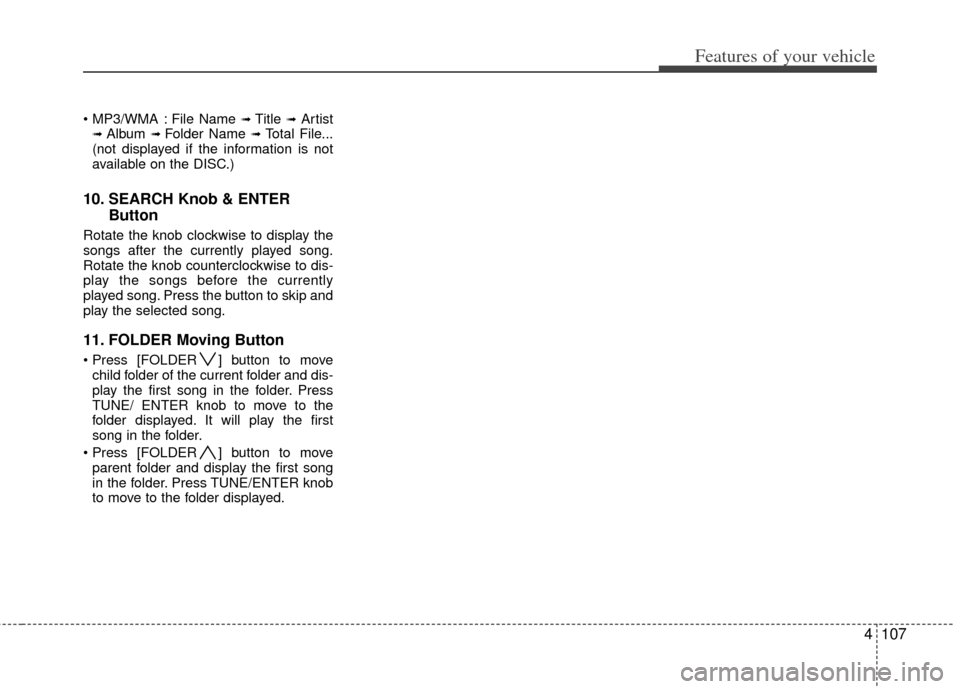
File Name ➟ Title ➟Artist➟ Album ➟ Folder Name ➟Total File...
(not displayed if the information is not
available on the DISC.)
10. SEARCH Knob & ENTER Button
Rotate the knob clockwise to display the
songs after the currently played song.
Rotate the knob counterclockwise to dis-
play the songs before the currently
played song. Press the button to skip and
play the selected song.
11. FOLDER Moving Button
] button to move
child folder of the current folder and dis-
play the first song in the folder. Press
TUNE/ ENTER knob to move to the
folder displayed. It will play the first
song in the folder.
] button to move parent folder and display the first song
in the folder. Press TUNE/ENTER knob
to move to the folder displayed.
Page 181 of 356
4109
Features of your vehicle
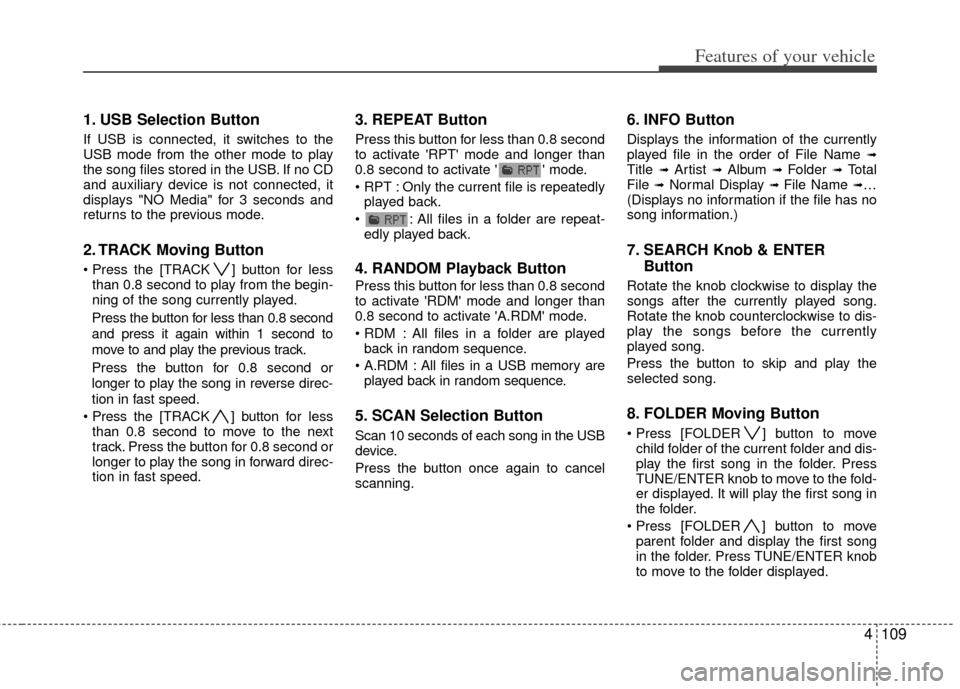
1. USB Selection Button
If USB is connected, it switches to the
USB mode from the other mode to play
the song files stored in the USB. If no CD
and auxiliary device is not connected, it
displays "NO Media" for 3 seconds and
returns to the previous mode.
2. TRACK Moving Button
] button for lessthan 0.8 second to play from the begin-
ning of the song currently played.
Press the button for less than 0.8 second
and press it again within 1 second to
move to and play the previous track.
Press the button for 0.8 second or
longer to play the song in reverse direc-
tion in fast speed.
] button for less
than 0.8 second to move to the next
track. Press the button for 0.8 second or
longer to play the song in forward direc-
tion in fast speed.
3. REPEAT Button
Press this button for less than 0.8 second
to activate 'RPT' mode and longer than
0.8 second to activate ' ' mode.
Only the current file is repeatedly played back.
: All files in a folder are repeat- edly played back.
4. RANDOM Playback Button
Press this button for less than 0.8 second
to activate 'RDM' mode and longer than
0.8 second to activate 'A.RDM' mode.
All files in a folder are playedback in random sequence.
All files in a USB memory are played back in random sequence.
5. SCAN Selection Button
Scan 10 seconds of each song in the USB
device.
Press the button once again to cancel
scanning.
6. INFO Button
Displays the information of the currently
played file in the order of File Name ➟Title ➟ Artist ➟ Album ➟ Folder ➟ Total
File ➟Normal Display ➟ File Name ➟…
(Displays no information if the file has no
song information.)
7. SEARCH Knob & ENTER Button
Rotate the knob clockwise to display the
songs after the currently played song.
Rotate the knob counterclockwise to dis-
play the songs before the currently
played song.
Press the button to skip and play the
selected song.
8. FOLDER Moving Button
] button to move
child folder of the current folder and dis-
play the first song in the folder. Press
TUNE/ENTER knob to move to the fold-
er displayed. It will play the first song in
the folder.
] button to move parent folder and display the first song
in the folder. Press TUNE/ENTER knob
to move to the folder displayed.
Page 185 of 356
4113
Features of your vehicle
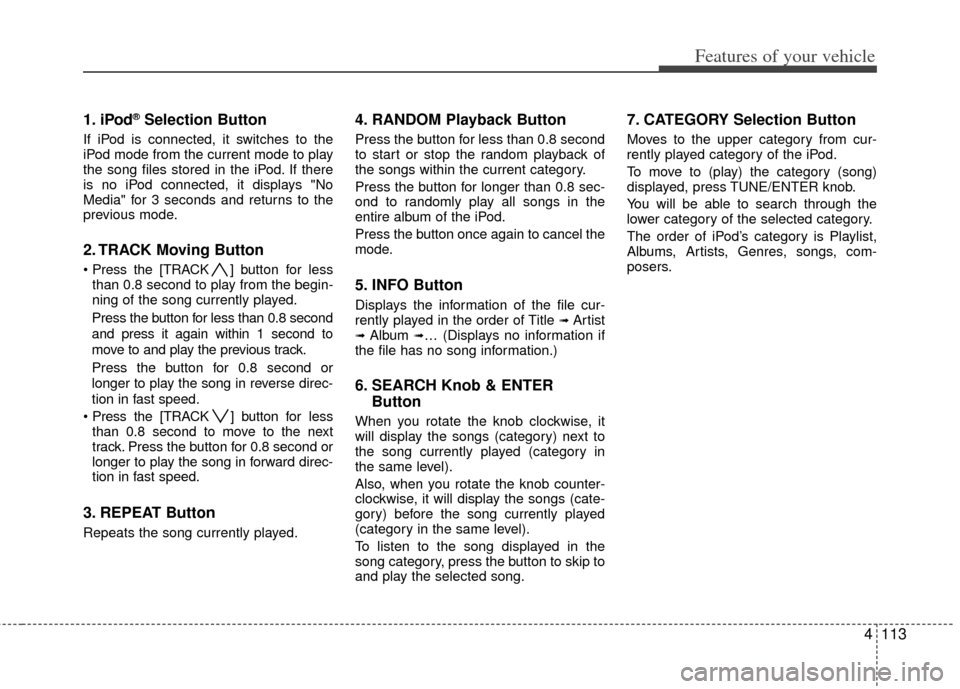
1. iPod®Selection Button
If iPod is connected, it switches to the
iPod mode from the current mode to play
the song files stored in the iPod. If there
is no iPod connected, it displays "No
Media" for 3 seconds and returns to the
previous mode.
2. TRACK Moving Button
] button for less
than 0.8 second to play from the begin-
ning of the song currently played.
Press the button for less than 0.8 second
and press it again within 1 second to
move to and play the previous track.
Press the button for 0.8 second or
longer to play the song in reverse direc-
tion in fast speed.
] button for less
than 0.8 second to move to the next
track. Press the button for 0.8 second or
longer to play the song in forward direc-
tion in fast speed.
3. REPEAT Button
Repeats the song currently played.
4. RANDOM Playback Button
Press the button for less than 0.8 second
to start or stop the random playback of
the songs within the current category.
Press the button for longer than 0.8 sec-
ond to randomly play all songs in the
entire album of the iPod.
Press the button once again to cancel the
mode.
5. INFO Button
Displays the information of the file cur-
rently played in the order of Title ➟ Artist➟ Album ➟… (Displays no information if
the file has no song information.)
6. SEARCH Knob & ENTER Button
When you rotate the knob clockwise, it
will display the songs (category) next to
the song currently played (category in
the same level).
Also, when you rotate the knob counter-
clockwise, it will display the songs (cate-
gory) before the song currently played
(category in the same level).
To listen to the song displayed in the
song category, press the button to skip to
and play the selected song.
7. CATEGORY Selection Button
Moves to the upper category from cur-
rently played category of the iPod.
To move to (play) the category (song)
displayed, press TUNE/ENTER knob.
You will be able to search through the
lower category of the selected category.
The order of iPod’s category is Playlist,
Albums, Artists, Genres, songs, com-
posers.
Page 204 of 356
53
Driving your vehicle
E020100AUN
Before entering vehicle
• Be sure that all windows, outside mir-ror(s), and outside lights are clean.
Check the condition of the tires.
Check under the vehicle for any sign of leaks.
Be sure there are no obstacles behind you if you intend to back up.
E020200AUN
Necessary inspections
Fluid levels, such as engine oil, engine
coolant, brake fluid, and washer fluid
should be checked on a regular basis,
with the exact interval depending on the
fluid. Further details are provided in sec-
tion 7, “Maintenance”.E020300AHM
Before starting
Close and lock all doors.
Position the seat so that all controls areeasily reached.
Adjust the inside and outside rearview mirrors.
Be sure that all lights work.
Check all gauges.
Check the operation of warning lights when the ignition switch is turned to
the ON position.
Release the parking brake and make sure the brake warning light goes out.
For safe operation, be sure you are famil-
iar with your vehicle and its equipment.
BEFORE DRIVING
WARNING
All passengers must be properly
belted whenever the vehicle is mov-
ing. Refer to “Seat belts” in section
3 for more information on their
proper use.
WARNING
Always check the surrounding
areas near your vehicle for people,
especially children, before putting a
car into D (Drive) or R (Reverse).
WARNING
Driving while distracted can result
in a loss of vehicle control, that
may lead to an accident, severe
personal injury, and death. (Continued)
(Continued)
The driver's primary responsibility
is in the safe and legal operation of
a vehicle, and use of any handheld
devices, other equipment, or vehi-
cle systems which take the driver's
eyes, attention and focus away
from the safe operation of a vehicle
or which are not permissible by law
should never be used during oper-
ation of the vehicle.
Page 205 of 356
Driving your vehicle
45
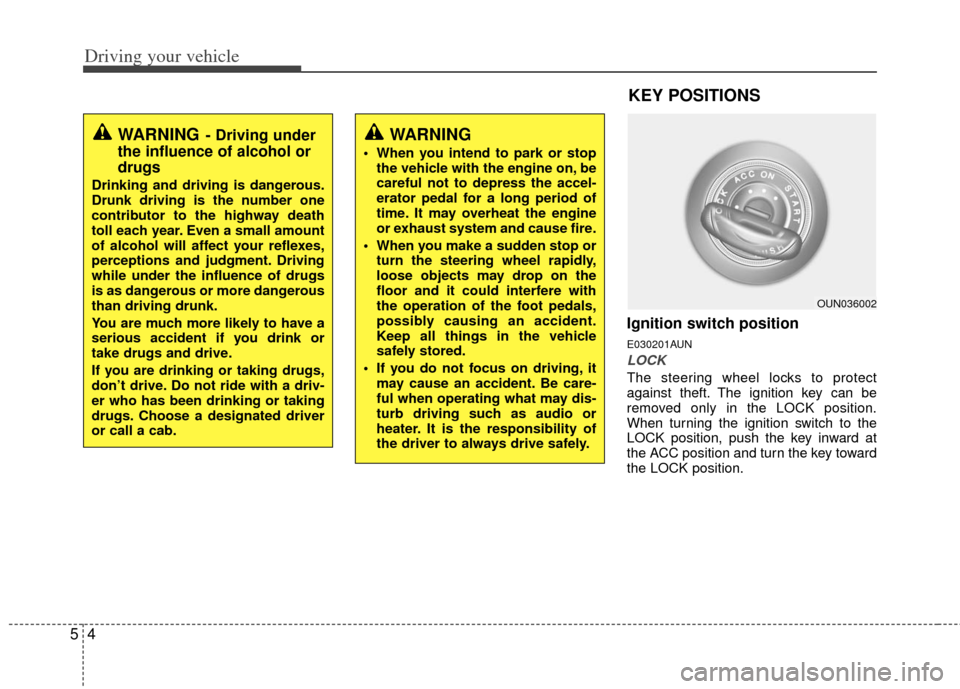
Ignition switch position
E030201AUN
LOCK
The steering wheel locks to protect
against theft. The ignition key can be
removed only in the LOCK position.
When turning the ignition switch to the
LOCK position, push the key inward at
the ACC position and turn the key toward
the LOCK position.
OUN036002
KEY POSITIONS
WARNING- Driving under
the influence of alcohol or
drugs
Drinking and driving is dangerous.
Drunk driving is the number one
contributor to the highway death
toll each year. Even a small amount
of alcohol will affect your reflexes,
perceptions and judgment. Driving
while under the influence of drugs
is as dangerous or more dangerous
than driving drunk.
You are much more likely to have a
serious accident if you drink or
take drugs and drive.
If you are drinking or taking drugs,
don’t drive. Do not ride with a driv-
er who has been drinking or taking
drugs. Choose a designated driver
or call a cab.
WARNING
When you intend to park or stop
the vehicle with the engine on, be
careful not to depress the accel-
erator pedal for a long period of
time. It may overheat the engine
or exhaust system and cause fire.
When you make a sudden stop or turn the steering wheel rapidly,
loose objects may drop on the
floor and it could interfere with
the operation of the foot pedals,
possibly causing an accident.
Keep all things in the vehicle
safely stored.
If you do not focus on driving, it may cause an accident. Be care-
ful when operating what may dis-
turb driving such as audio or
heater. It is the responsibility of
the driver to always drive safely.