ESP KIA Soul 2013 1.G User Guide
[x] Cancel search | Manufacturer: KIA, Model Year: 2013, Model line: Soul, Model: KIA Soul 2013 1.GPages: 393, PDF Size: 8.76 MB
Page 173 of 393
Features of your vehicle
94
4
For maximum defrosting, set the
temperature control to the extreme
right/hot position and the fan speed
control to the highest speed.
If warm air to the floor is desired while defrosting or defogging, set
the mode to the floor-defrost posi-
tion.
Before driving, clear all snow and ice from the windshield, rear win-
dow, outside rear view mirrors, and
all side windows.
Clear all snow and ice from the hood and air inlet in the cowl grille
to improve heater and defroster
efficiency and to reduce the proba-
bility of fogging up inside of the
windshield.
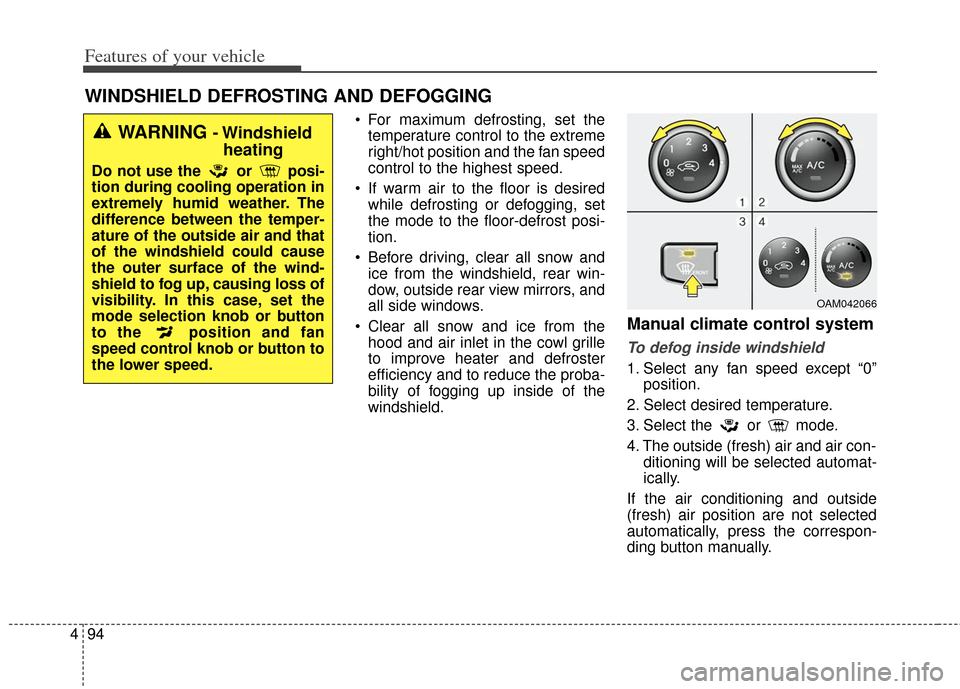
Manual climate control system
To defog inside windshield
1. Select any fan speed except “0” position.
2. Select desired temperature.
3. Select the or mode.
4. The outside (fresh) air and air con- ditioning will be selected automat-
ically.
If the air conditioning and outside
(fresh) air position are not selected
automatically, press the correspon-
ding button manually.
WINDSHIELD DEFROSTING AND DEFOGGING
OAM042066
WARNING - Windshield heating
Do not use the or posi-
tion during cooling operation in
extremely humid weather. The
difference between the temper-
ature of the outside air and that
of the windshield could cause
the outer surface of the wind-
shield to fog up, causing loss of
visibility. In this case, set the
mode selection knob or button
to the position and fan
speed control knob or button to
the lower speed.
Page 174 of 393
495
Features of your vehicle
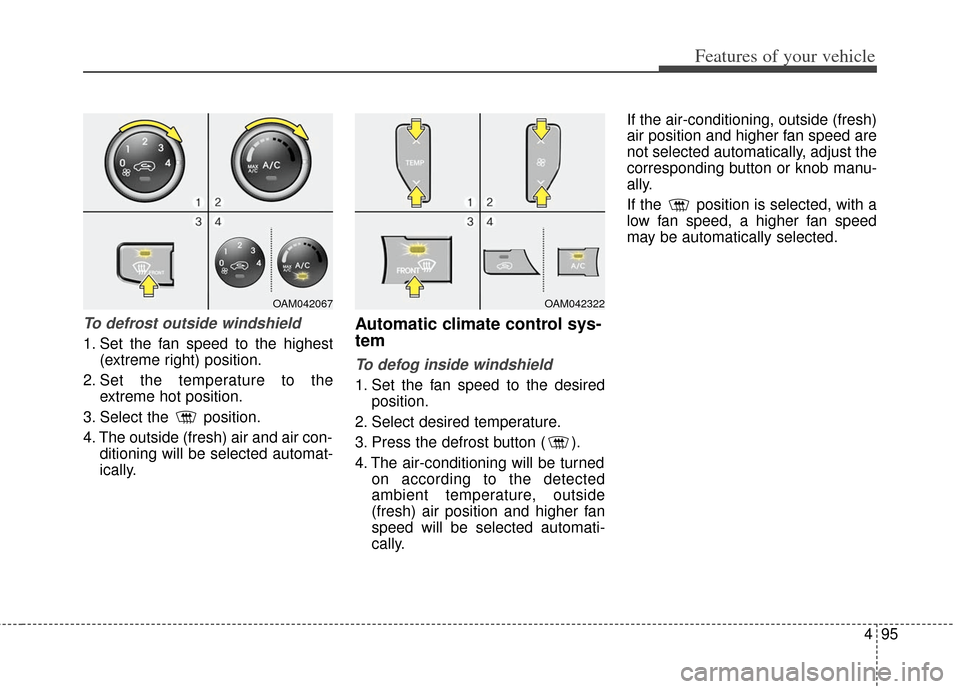
To defrost outside windshield
1. Set the fan speed to the highest(extreme right) position.
2. Set the temperature to the extreme hot position.
3. Select the position.
4. The outside (fresh) air and air con- ditioning will be selected automat-
ically.
Automatic climate control sys-
tem
To defog inside windshield
1. Set the fan speed to the desiredposition.
2. Select desired temperature.
3. Press the defrost button ( ).
4. The air-conditioning will be turned on according to the detected
ambient temperature, outside
(fresh) air position and higher fan
speed will be selected automati-
cally. If the air-conditioning, outside (fresh)
air position and higher fan speed are
not selected automatically, adjust the
corresponding button or knob manu-
ally.
If the position is selected, with a
low fan speed, a higher fan speed
may be automatically selected.
OAM042067OAM042322
Page 187 of 393
Features of your vehicle
108
4
Always drive slowly and turn cor-
ners carefully when carrying items
on the roof rack. Severe wind
updrafts, caused by passing vehi-
cles or natural causes, can cause
sudden upward pressure on items
loaded on the roof rack. This is
especially true when carrying
large, flat items such as wood pan-
els or mattresses. This could cause
the items to fall off the roof rack
and cause damage to your vehicle
or others around you. To prevent damage or loss of cargo
while driving, check frequently
before or while driving to make
sure the items on the roof rack are
securely fastened.
WARNING - Center ofgravity
Always drive slowly and turn
corners carefully when carrying
items on the roof rack. The vehi-
cle center of gravity will be
higher when items are loaded
onto the roof rack.
Page 197 of 393
Features of your vehicle
118
4
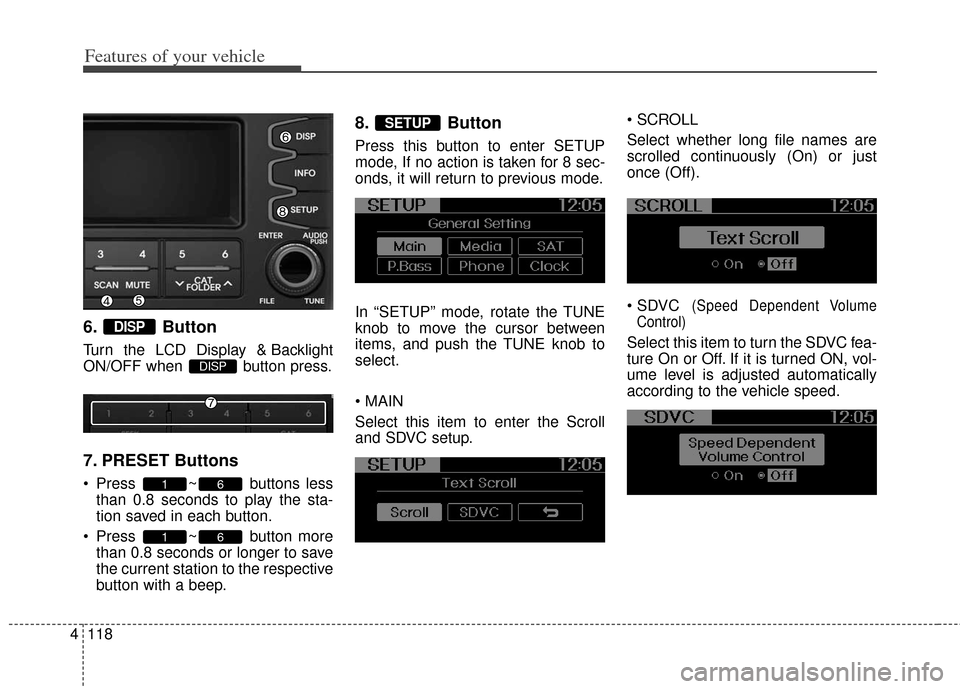
6. Button
Turn the LCD Display & Backlight
ON/OFF when button press.
7. PRESET Buttons
Press ~ buttons less
than 0.8 seconds to play the sta-
tion saved in each button.
Press ~ button more than 0.8 seconds or longer to save
the current station to the respective
button with a beep.
8. Button
Press this button to enter SETUP
mode, If no action is taken for 8 sec-
onds, it will return to previous mode.
In “SETUP” mode, rotate the TUNE
knob to move the cursor between
items, and push the TUNE knob to
select.
Select this item to enter the Scroll
and SDVC setup.
Select whether long file names are
scrolled continuously (On) or just
once (Off).
(Speed Dependent Volume
Control)
Select this item to turn the SDVC fea-
ture On or Off. If it is turned ON, vol-
ume level is adjusted automatically
according to the vehicle speed.
SETUP
61
61
DISP
DISP
Page 210 of 393
4131
Features of your vehicle
Satellite Radio channels:SIRIUS Satellite Radio has over 130 chan-
nels, including 69 channels of 100% com-
mercial-free music, plus sports, news, talk
and entertainment available nationwide in
your vehicle. For more information and a
complete list of SIRIUS Satellite Radio
channels, visit sirius.com in the United
States, sirius-canada.ca in Canada, or call
SIRIUS at 1-888-539-7474.
Satellite Radio reception factors:
To receive the satellite signal, your
vehicle has been equipped with a
satellite radio antenna located on the
roof of your vehicle. The vehicle roof
provides the best location for an
unobstructed, open view of the sky, a
requirement of a satellite radio sys-
tem. Like AM/FM, there are several
factors that can affect satellite radio
reception performance:
Antenna obstructions: For optimalreception performance, keep the
antenna clear of snow and ice
build-up and keep luggage and
other material as far away from the
antenna as possible. Terrain: Hills, mountains, tall build-
ings, bridges, tunnels, freeway
overpasses, parking garages,
dense tree foliage and thunder-
storms can interfere with your
reception.
SIRIUS Satellite Radio service:
SIRIUS Satellite Radio is a subscrip-
tion-
based satellite radio service that
broadcasts music, sports, news and
entertainment programming to radio
receivers, which are available for
installation in motor vehicles or facto-
ry installed, as well as for the home,
portable and wireless devices, and
through an Internet connection on
personal computer.
Vehicles that are equipped with a
factory installed SIRIUS Satellite
Radio system include:
Hardware and an introductory trial subscription term, which begins on
the date of sale or lease of the
vehicle.
For a small upgrade fee, access to SIRIUS music channels, and other
select channels over the Internet
using any computer connected to
the Internet (U.S. customers only). For information on extended sub-
scription terms, contact SIRIUS at
1-888-539-7474.
NOTE:
Satellite Radio requires SIRIUS®com-
patible receiver and a subscription serv-
ice fee after trial period.
Vehicles without a factory-installed
radio receiver require hardware pur-
chase and installation. Please see your
dealer for further details. All fees and
programming subject to change.
Subscriptions governed by the SIRIUS
Terms & Conditions available at
www
.sirius.com / service terms.
Available only in the 48 contiguous
United States and the District of
Columbia. Service available in Canada;
see www
.siriuscanada.caKia shall not be responsible for any
such programming changes.
Satellite Radio Electronic Serial
Number (ESN):This 12-digit Satellite
Serial Number is needed to re-activate,
modify or track your satellite radio
account. You will need this number when
communicating with SIRIUS.
SIRIUS Satellite Radio information (if equipped)
Page 212 of 393
4133
Features of your vehicle
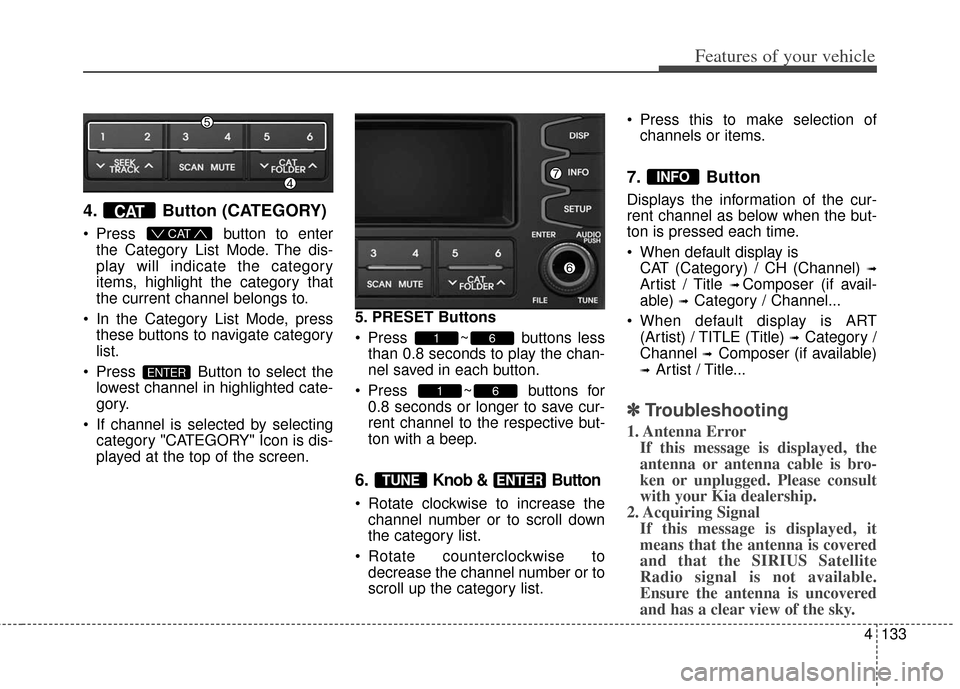
4. Button (CATEGORY)
Press button to enter
the Category List Mode. The dis-
play will indicate the category
items, highlight the category that
the current channel belongs to.
In the Category List Mode, press these buttons to navigate category
list.
Press Button to select the lowest channel in highlighted cate-
gory.
If channel is selected by selecting category "CATEGORY" Icon is dis-
played at the top of the screen. 5. PRESET Buttons
Press ~ buttons less
than 0.8 seconds to play the chan-
nel saved in each button.
Press ~ buttons for 0.8 seconds or longer to save cur-
rent channel to the respective but-
ton with a beep.
6. Knob & Button
Rotate clockwise to increase thechannel number or to scroll down
the category list.
Rotate counterclockwise to decrease the channel number or to
scroll up the category list. Press this to make selection of
channels or items.
7. Button
Displays the information of the cur-
rent channel as below when the but-
ton is pressed each time.
When default display isCAT (Category) / CH (Channel)
➟
Artist / Title ➟ Composer (if avail-
able)
➟ Category / Channel...
When default display is ART (Artist) / TITLE (Title)
➟ Category /
Channel
➟ Composer (if available)
➟ Artist / Title...
✽ ✽ Troubleshooting
1. Antenna Error
If this message is displayed, the
antenna or antenna cable is bro-
ken or unplugged. Please consult
with your Kia dealership.
2. Acquiring Signal If this message is displayed, it
means that the antenna is covered
and that the SIRIUS Satellite
Radio signal is not available.
Ensure the antenna is uncovered
and has a clear view of the sky.
INFO
ENTERTUNE
61
61
ENTER
CAT
CAT
Page 219 of 393
Features of your vehicle
140
4
Contacts Sync (Automatic
Phonebook download setting)
While in Advanced menu, select
“Contacts” To automatically save the
contacts and call history in your
mobile phone each time you connect
a mobile device, select ON. If you do
not wish for automatic download,
select OFF.
It’s not available to make a phone
call by
Bluetooth®wireless technolo-
gy enabled audio system while the
phonebook is being downloaded.
Language of Bluetooth®wireless
technology
voice recognition
While in ADVANCED menu, select
“Language”. To change the lan-
guage, select the desired language
and press the button.
Bluetooth®wireless technology
system off
While in ADVANCED menu, select
“BT Off ” to turn off the
Bluetooth®
wireless technology System.
■Voice Recognition Activation
The voice recognition engine con- tained in the
Bluetooth®wireless
technology System can be activat-
ed in the following conditions:
- Button Activation The voice recognition system will
be active when the button is
pressed and after the sound of a
Beep.
- Active Listening The voice recognition system will
be active for a period of time when
the Voice Recognition system has
asked for a customer response.
The system can recognize single digits from zero to nine while num-
ber greater than ten will not be rec-
ognized.
The system shall cancel voice recognition mode in following
cases : When pressing the but-
ton and saying “cancel” following
the beep. When not making a call
and pressing the button.
When voice recognition has failed
3 consecutive times. At any time if you say “help”, the
system will announce what com-
mands are available.
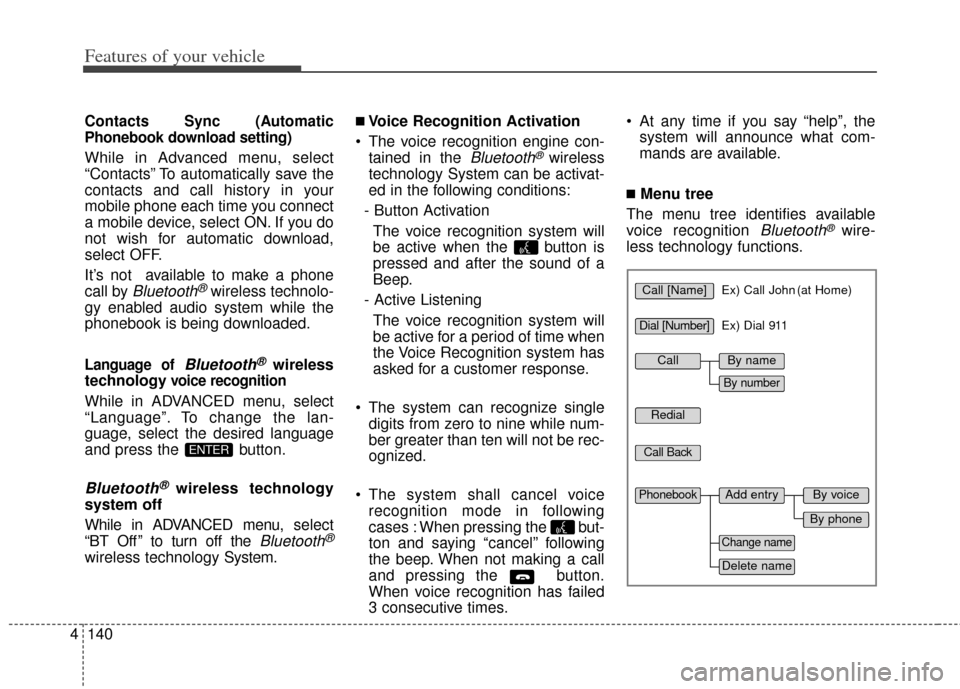
■Menu tree
The menu tree identifies available
voice recognition
Bluetooth®wire-
less technology functions.
ENTER
Call [Name]Ex) Call John (at Home)
Ex) Dial 911
Dial [Number]
Redial
Call Back
Add entryPhonebook
Change name
Delete name
By phone
By voice
CallBy name
By number
Page 225 of 393
53
Driving your vehicle
Before entering vehicle
• Be sure that all windows, outsidemirror(s), and outside lights are
clean.
Check the condition of the tires.
Check under the vehicle for any sign of leaks.
Be sure there are no obstacles behind you if you intend to back up.
Necessary inspections
Fluid levels, such as engine oil,
engine coolant, brake fluid, and
washer fluid should be checked on a
regular basis, with the exact interval
depending on the fluid. Further
details are provided in section 7,
“Maintenance”.
Before starting
Close and lock all doors.
Position the seat so that all con-trols are easily reached.
Buckle your seat belt.
Adjust the inside and outside rearview mirrors.
Be sure that all lights work.
Check all gauges.
Check the operation of warning lights when the ignition switch is
turned to the ON position.
Release the parking brake and make sure the brake warning light
goes out.
For safe operation, be sure you are
familiar with your vehicle and its
equipment.
BEFORE DRIVING
WARNING - Distracted driving
Focus on the road while driving.
The driver's primary responsi-
bility is in the safe and legal
operation of the vehicle. Use of
any handled devices, other
equipment or vehicle systems
that distract the drive should
not be used during vehicle
operation.
WARNING - Check sur-rounding
Always check the surrounding
areas near your vehicle for peo-
ple, especially children, before
putting a car into D (Drive) or R
(Reverse).
Page 241 of 393
519
Driving your vehicle
Exercise extreme caution whendriving on a slippery surface. Be
especially careful when braking,
accelerating or shifting gears. On a
slippery surface, an abrupt change
in vehicle speed can cause the
drive wheels to lose traction and
the vehicle to go out of control.
Always buckle-up! In a collision, an unbelted occupant is significantly
more likely to be seriously injured
or killed than a properly belted
occupant.
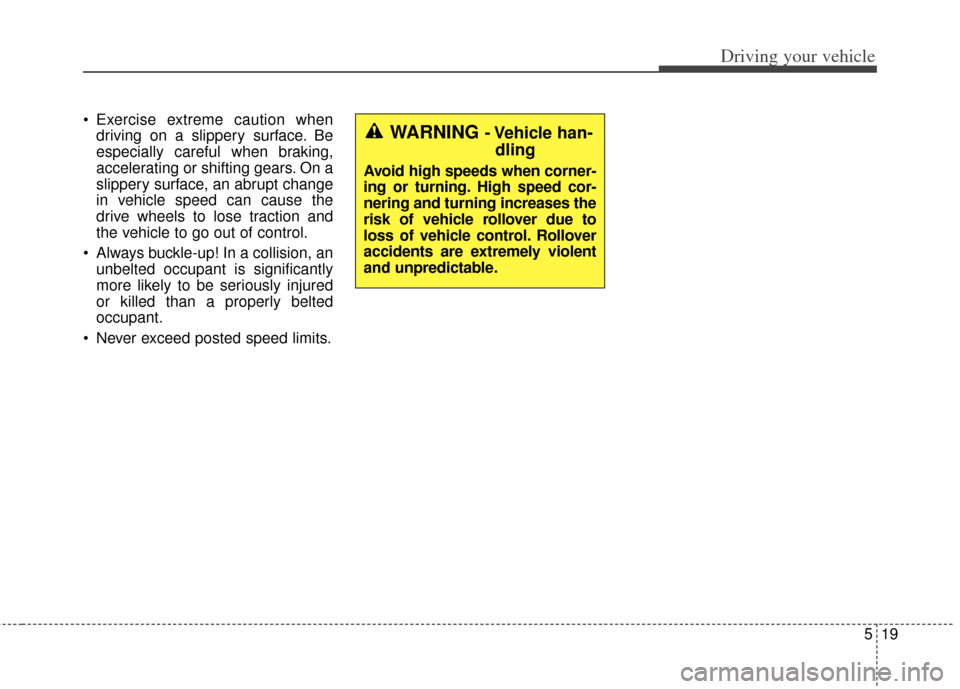
Never exceed posted speed limits.WARNING - Vehicle han- dling
Avoid high speeds when corner-
ing or turning. High speed cor-
nering and turning increases the
risk of vehicle rollover due to
loss of vehicle control. Rollover
accidents are extremely violent
and unpredictable.
Page 251 of 393
529
Driving your vehicle
The ABS continuously senses the
speed of the wheels. If the wheels
are going to lock, the ABS system
repeatedly modulates the hydraulic
brake pressure to the wheels.
When you apply your brakes under
conditions which may lock the
wheels, you may hear a “tik-tik’’
sound from the brakes, or feel a cor-
responding sensation in the brake
pedal. This is normal and it means
your ABS is active.
In order to obtain the maximum ben-
efit from your ABS in an emergency
situation, do not attempt to modulate
your brake pressure and do not try to
pump your brakes. Press your brake
pedal as hard as possible or as hard
as the situation allows the ABS to
control the force being delivered to
the brakes.✽ ✽NOTICE
A click sound may be heard in the
engine compartment when the vehi-
cle begins to move after the engine is
started. These conditions are normal
and indicate that the anti-lock brake
system is functioning properly.
Even with the anti-lock brake sys-
tem, your vehicle still requires suf-
ficient stopping distance. Always
maintain a safe distance from the
vehicle in front of you.
Always slow down when cornering. The anti-lock brake system cannot
prevent accidents resulting from
excessive speeds.
On loose or uneven road surfaces, operation of the anti-lock brake
system may result in a longer stop-
ping distance than for vehicles
equipped with a conventional
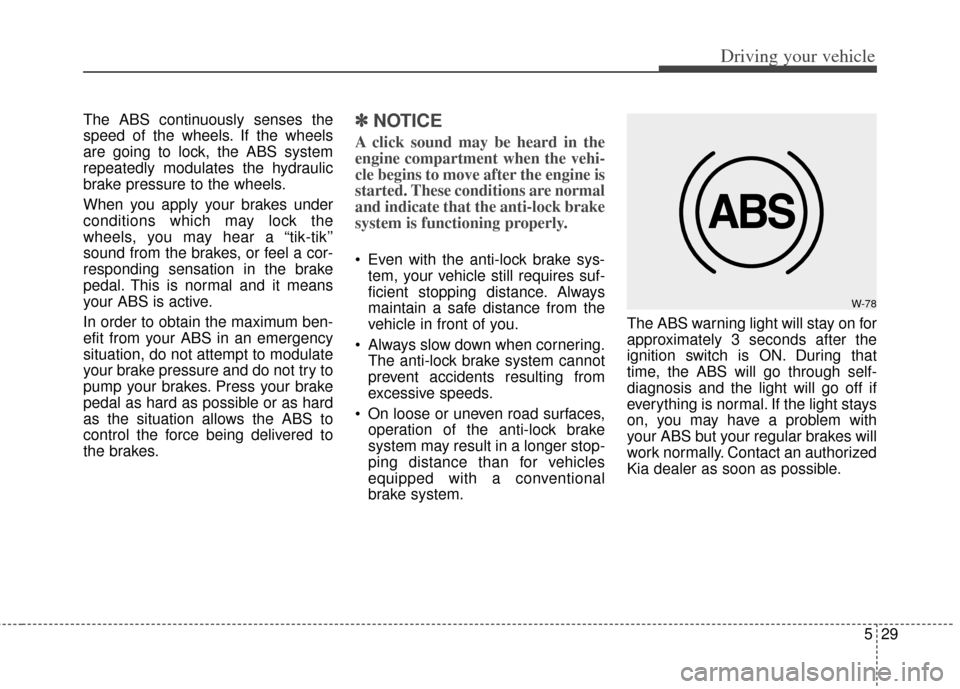
brake system. The ABS warning light will stay on for
approximately 3 seconds after the
ignition switch is ON. During that
time, the ABS will go through self-
diagnosis and the light will go off if
everything is normal. If the light stays
on, you may have a problem with
your ABS but your regular brakes will
work normally. Contact an authorized
Kia dealer as soon as possible.
W-78