wheel KIA SOUL 2015 Owner's Guide
[x] Cancel search | Manufacturer: KIA, Model Year: 2015, Model line: SOUL, Model: KIA SOUL 2015Pages: 544, PDF Size: 19.81 MB
Page 269 of 544
![KIA SOUL 2015 Owners Guide Features of your vehicle
192
4
VOICE RECOGNITION
Using Voice Recognition
Starting Voice Recognition
Shortly press the key on the
steering wheel. Say a command If prompt feedback is in [ON], then
th](/img/2/54647/w960_54647-268.png "KIA SOUL 2015 Owners Guide Features of your vehicle
192
4
VOICE RECOGNITION
Using Voice Recognition
Starting Voice Recognition
Shortly press the key on the
steering wheel. Say a command If prompt feedback is in [ON], then
th")
Features of your vehicle
192
4
VOICE RECOGNITION
Using Voice Recognition
Starting Voice Recognition
Shortly press the key on the
steering wheel. Say a command If prompt feedback is in [ON], then
the system will say “Please say a
command after the beep (BEEP)”
If prompt feedback is in [OFF]
mode, then the system will only
say “(BEEP)”
To change Prompt Feedback [On]/[Off], go to [System][Prompt Feedback]
For proper recognition, say the command after the voice instruc-
tion and beep tone.
Skipping Prompt Messages
While prompt message is being stat-
ed Shortly press the key on the
steering remote controller
The prompt message is immediately
ended and the beep tone will sound.
After the “beep”, say the voice com-
mand.
Re-starting Voice Recognition
While system waits for a command
Shortly press the key on the
steering remote controller
The command wait state is immedi-
ately ended and the beep ton will
sound. After the “beep”, say the voice
command.
SETUP
Page 270 of 544
4193
Features of your vehicle
ENDING VOICE
RECOGNITION
While Voice Recognition is operatingPress and hold the key on the
steering remote controller
While using voice command, pressing any steering wheel con-
trol or a different key will end voice
command.
When the system is waiting for a voice command, say “cancel” or
“end” to end voice command.
When the system is waiting for a voice command, press and hold
the key on the steering wheel
to end voice command.
Voice Recognition and Phone
Contact Tips:
The Kia Voice Recognition System
may have difficulty understanding
some accents or uncommon
names. When using Voice
Recognition to place a call, speak in
a moderate tone, with clear pronun-
ciation
To maximize the use of Voice
Recognition, consider these guide-
lines when storing contacts:
Do not store single-name entries(e.g., “Bob”, “Mom”, etc.). Instead,
always use full names (including
first and last names) for these con-
tacts
Do not use special characters (e.g., '@', '-', '*', '&', etc.)
Do not use abbreviations (i.e., use "Lieutenant" instead of "Lt.") or
acronyms (i.e., use "County
Finance Department" instead of
"C. F. D."; Be sure to say the name
exactly as it is entered in the con-
tacts list Do not use acronyms (i.e., use
“County Finance Department”
instead of “CFD”).
If a name is not recognized from the contact list, change it to a more
descriptive name (e.g., use
“Grandpa Joseph” instead of “Pa
Joe”).
Page 299 of 544
Features of your vehicle
222
4
PHONE(IF EQUIPPED)
Before using the Bluetooth®Wireless
Technology phone features
Bluetooth®Wireless
Technology phone, you must first
pair and connect the
Bluetooth®
Wireless Technology mobile phone.
connected, it is not possible to
enter Phone mode. Once a phone
is paired or connected, the guid-
ance screen will be displayed.
tion (IGN/ACC ON), the
Bluetooth®
Wireless Technology phone will be
automatically connected. Even if
you are outside, the
Bluetooth®
Wireless Technology phone will be
automatically connected once you
are in the vicinity of the vehicle. If
you do not want automatic
Bluetooth®Wireless Technology
phone connection, set the
Bluetooth®Wireless Technology
power to OFF
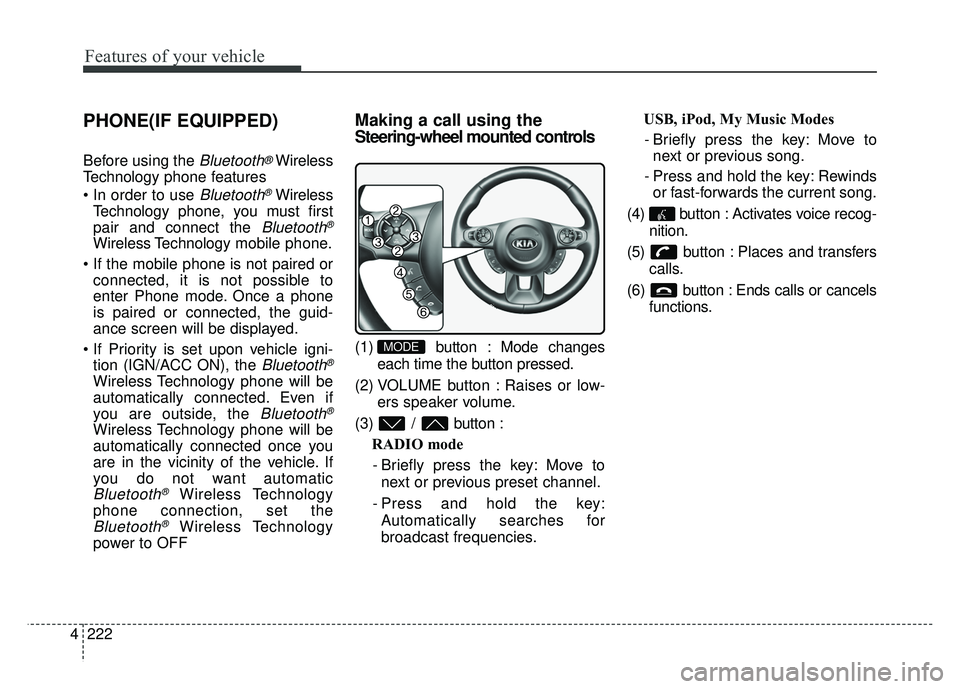
Making a call using the
Steering-wheel mounted controls
(1) button : Mode changes
each time the button pressed.
(2) VOLUME button : Raises or low- ers speaker volume.
(3) / button : RADIO mode
- Briefly press the key: Move to next or previous preset channel.
- Press and hold the key: Automatically searches for
broadcast frequencies. USB, iPod, My Music Modes
- Briefly press the key: Move to next or previous song.
- Press and hold the key: Rewinds or fast-forwards the current song.
(4) button : Activates voice recog- nition.
(5) button : Places and transfers calls.
(6) button : Ends calls or cancels functions.MODE
Page 302 of 544
4225
Features of your vehicle
During the pairing process, make
sure that all connection requests on
the phone are accepted for phone-
book download and to allow accept-
ance of all future connection
requests. " and "Visit
http://www
.kia.com/us/#/bluetoothfor
additional information on pairing your
Bluetooth-enabled mobile phone,
and to view a phone compatibility list.
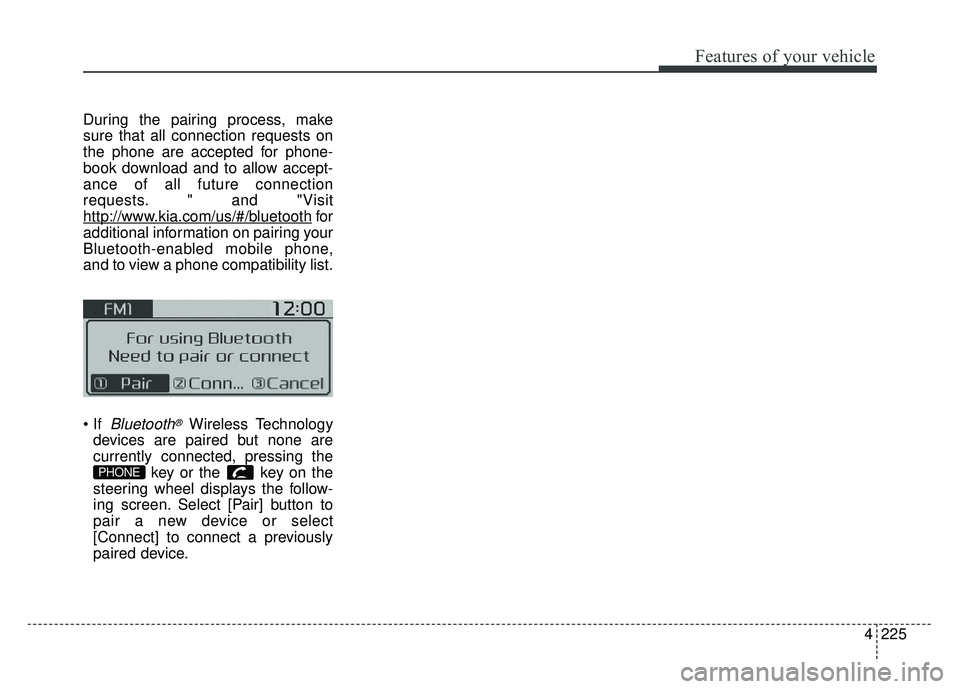
Bluetooth®Wireless Technology
devices are paired but none are
currently connected, pressing the key or the key on the
steering wheel displays the follow-
ing screen. Select [Pair] button to
pair a new device or select
[Connect] to connect a previously
paired device.
PHONE
Page 307 of 544
Features of your vehicle
230
4
USING Bluetooth®Wireless
Technology(if equipped)
Phone Menu Screen
Phone Menus
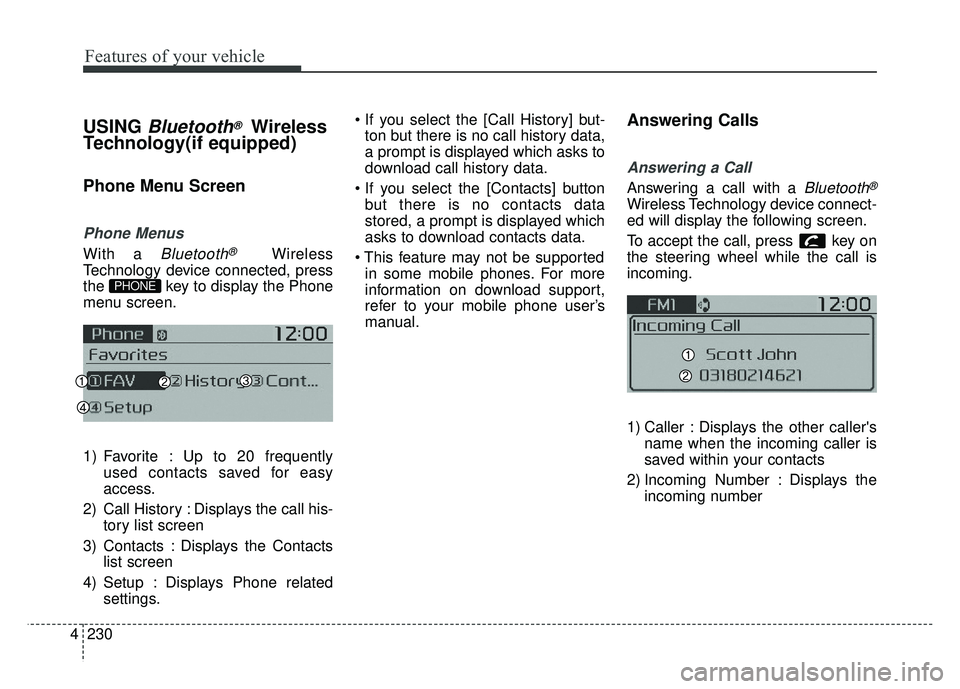
With a Bluetooth®Wireless
Technology device connected, press
the key to display the Phone
menu screen.
1) Favorite : Up to 20 frequently used contacts saved for easy
access.
2) Call History : Displays the call his- tory list screen
3) Contacts : Displays the Contacts list screen
4) Setup : Displays Phone related settings.
ton but there is no call history data,
a prompt is displayed which asks to
download call history data.
but there is no contacts data
stored, a prompt is displayed which
asks to download contacts data.
in some mobile phones. For more
information on download support,
refer to your mobile phone user’s
manual.
Answering Calls
Answering a Call
Answering a call with a Bluetooth®
Wireless Technology device connect-
ed will display the following screen.
To accept the call, press key on
the steering wheel while the call is
incoming.
1) Caller : Displays the other caller's name when the incoming caller is
saved within your contacts
2) Incoming Number : Displays the incoming number
PHONE
Page 313 of 544
![KIA SOUL 2015 Owners Guide Features of your vehicle
236
4
VOICE RECOGNITION
Using Voice Recognition
Starting Voice Recognition
Shortly press the key on the
steering wheel. Say a command If prompt feedback is in [ON], then
th](/img/2/54647/w960_54647-312.png "KIA SOUL 2015 Owners Guide Features of your vehicle
236
4
VOICE RECOGNITION
Using Voice Recognition
Starting Voice Recognition
Shortly press the key on the
steering wheel. Say a command If prompt feedback is in [ON], then
th")
Features of your vehicle
236
4
VOICE RECOGNITION
Using Voice Recognition
Starting Voice Recognition
Shortly press the key on the
steering wheel. Say a command If prompt feedback is in [ON], then
the system will say “Please say a
command after the beep (BEEP)”
If prompt feedback is in [OFF]
mode, then the system will only
say “(BEEP)”
To change Prompt Feedback [On]/[Off], go to [System][Prompt Feedback]
For proper recognition, say the command after the voice instruc-
tion and beep tone.
Skipping Prompt Messages
While prompt message is being stat-
ed Shortly press the key on the
steering remote controller
The prompt message is immediately
ended and the beep tone will sound.
After the “beep”, say the voice com-
mand.
Re-starting Voice Recognition
While system waits for a command
Shortly press the key on the
steering remote controller
The command wait state is immedi-
ately ended and the beep ton will
sound. After the “beep”, say the voice
command.
SETUP
Page 314 of 544
4237
Features of your vehicle
ENDING VOICE
RECOGNITION
While Voice Recognition is operatingPress and hold the key on the
steering remote controller
While using voice command, pressing any steering wheel con-
trol or a different key will end voice
command.
When the system is waiting for a voice command, say “cancel” or
“end” to end voice command.
When the system is waiting for a voice command, press and hold
the key on the steering wheel
to end voice command.
Voice Recognition and Phone
Contact Tips:
The Kia Voice Recognition System
may have difficulty understanding
some accents or uncommon
names. When using Voice
Recognition to place a call, speak in
a moderate tone, with clear pronun-
ciation
To maximize the use of Voice
Recognition, consider these guide-
lines when storing contacts:
Do not store single-name entries(e.g., “Bob”, “Mom”, etc.). Instead,
always use full names (including
first and last names) for these con-
tacts
Do not use special characters (e.g., '@', '-', '*', '&', etc.)
Do not use abbreviations (i.e., use "Lieutenant" instead of "Lt.") or
acronyms (i.e., use "County
Finance Department" instead of
"C. F. D."; Be sure to say the name
exactly as it is entered in the con-
tacts list Do not use acronyms (i.e., use
“County Finance Department”
instead of “CFD”).
If a name is not recognized from the contact list, change it to a more
descriptive name (e.g., use
“Grandpa Joseph” instead of “Pa
Joe”).
Page 326 of 544
55
Driving your vehicle
WARNING- Check sur-roundings
Always check the surrounding
areas near your vehicle for peo-
ple, especially children, before
putting a vehicle into D (Drive)
or R (Reverse).
WARNING- Fire risk
When you intend to park or stop
the vehicle with the engine on,
be careful not to depress the
accelerator pedal for a long
period of time. It may overheat
the engine or exhaust system
and cause fire.WARNING- Loose objects
Securely store items in your
vehicle. When you make a sud-
den stop or turn the steering
wheel rapidly, loose objects
may drop on the floor and it
could interfere with the opera-
tion of the foot pedals, possibly
causing an accident.WARNING- Driving while intoxicated
Do not drive while intoxicated.
Drinking and driving is danger-
ous. Even a small amount of
alcohol will affect your reflexes,
perceptions and judgment.
Driving while under the influ-
ence of drugs is as dangerous
as or more dangerous than driv-
ing drunk.
Page 327 of 544
Driving your vehicle
65
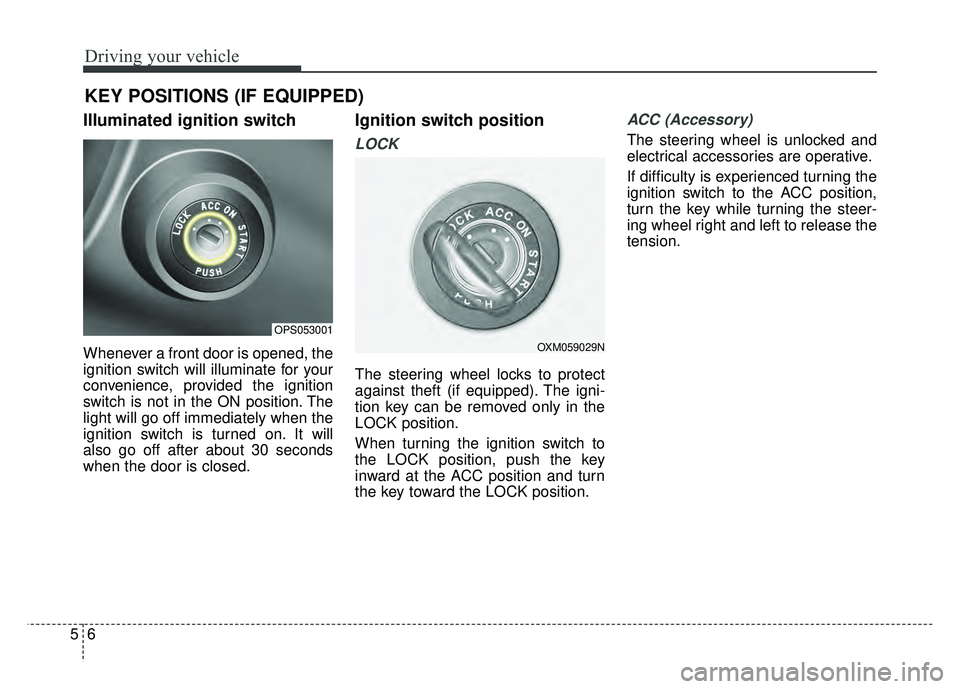
Illuminated ignition switch
Whenever a front door is opened, the
ignition switch will illuminate for your
convenience, provided the ignition
switch is not in the ON position. The
light will go off immediately when the
ignition switch is turned on. It will
also go off after about 30 seconds
when the door is closed.
Ignition switch position
LOCK
The steering wheel locks to protect
against theft (if equipped). The igni-
tion key can be removed only in the
LOCK position.
When turning the ignition switch to
the LOCK position, push the key
inward at the ACC position and turn
the key toward the LOCK position.
ACC (Accessory)
The steering wheel is unlocked and
electrical accessories are operative.
If difficulty is experienced turning the
ignition switch to the ACC position,
turn the key while turning the steer-
ing wheel right and left to release the
tension.
KEY POSITIONS (IF EQUIPPED)
OPS053001
OXM059029N
Page 329 of 544
Driving your vehicle
85
3.Turn the ignition switch to STARTand hold it there until the engine
starts (a maximum of 10 seconds),
then release the key.
It should be started withoutdepressing the accelerator.
4.Do not wait for the engine to warm up while the vehicle remains sta-
tionary.
Start driving at moderate engine
speeds. (Steep accelerating and
decelerating should be avoided.)
Do not engage the starter for more
than 10 seconds. If the engine stalls
or fails to start, wait 5 to 10 seconds
before re-engaging the starter.
Improper use of the starter may
damage it.
CAUTION- Starter
If the engine stalls while you arein motion, do not attempt tomove the shift lever to the P(Park) position. If traffic androad conditions permit, you mayput the shift lever in the N(Neutral) position while thevehicle is still moving and turnthe ignition switch to the STARTposition in an attempt to restartthe engine.
WARNING- Steering
wheel
Never reach for any controls
through the steering wheel
while the vehicle is in motion.
The presence of your hand or
arm in this area could cause a
loss of vehicle control.