phone KIA SOUL 2015 Owners Manual
[x] Cancel search | Manufacturer: KIA, Model Year: 2015, Model line: SOUL, Model: KIA SOUL 2015Pages: 544, PDF Size: 19.81 MB
Page 83 of 544
Features of your vehicle
64
Tailgate unlock (3)
The tailgate is unlocked if the button
is pressed for more than 1 second.
Also, once the tailgate is opened and
then closed, the tailgate will be
locked automatically.
Panic (4)
The horn sounds and hazard warn-
ing lights flash for about 30 seconds
if this button is pressed for more than
1 second. To stop the horn and lights,
press any button except the trunk
button on the transmitter.
Transmitter precautions
The transmitter will not work if anyof following occur:
- The ignition key is in the ignitionswitch.
- You exceed the operating dis- tance limit (about 30 feet [10 m]).
- The battery in the transmitter is weak.
- Other vehicles or objects may be blocking the signal.
- The weather is extremely cold.
- The transmitter is close to a radio transmitter such as a radio sub-
station or an airport which can
interfere with normal operation of
the transmitter. When the transmitter does not
work correctly, open and close the
door with the ignition key. If you
have a problem with the transmit-
ter, contact an authorized Kia deal-
er.
If the transmitter is in close proxim- ity to your mobile phone, the signal
could be blocked by your mobile
phones normal operational signals.
This is especially important when
the phone is active such as making
and receiving calls, text messag-
ing, and/or sending/receiving
emails. Avoid placing the transmit-
ter and your mobile phone in the
same pants or jacket pocket and
always try to maintain an adequate
distance between the two devices.
Page 90 of 544
413
Features of your vehicle
Using the button on the smart key
1. Press the tailgate unlock button(3)for more than 1 second.
2. When all doors are locked, the hazard warning lights will blink two
times.
Panic
1. Press the panic button(4) for morethan 1 second.
2. The horn sounds and hazard warning light flash for about 30
seconds.
Start-up
You can start the engine without
inserting the key. For detailed infor-
mation refer to the “Engine start/stop
button” in chapter 5.
Loss of the smart key
A maximum of 2 smart keys can be
registered to a single vehicle.
If you happen to lose your smart key,
you will not be able to start the
engine. You should immediately take
the vehicle and remaining key to your
authorized Kia dealer(tow the vehi-
cle, if necessary) to protect it from
potential theft.
Smart key precautions
The smart key will not work if anyof the following occur:
- The smart key is close to a radio transmitter such as a radio sta-
tion or an airport which can inter-
fere with normal operation of the
smart key.
- The smart key is near a mobile two way radio system or a cellu-
lar phone.
- Another vehicle’s smart key is being operated close to your
vehicle.
When the smart key does not work correctly, open and close the door
with the mechanical key and contact
an authorized Kia dealer.
Page 91 of 544
Features of your vehicle
14
4
If the smart key is in close proximi-
ty to your cell phone or smart
phone, the signal from the smart
key could be blocked by normal
operation of your cell phone or
smart phone. This is especially
important when the phone is active
such as making a call, receiving
calls, text messaging, and/or send-
ing/receiving emails. Avoid placing
the smart key and your cell phone
or smart phone in the same pants
or jacket pocket and maintain ade-
quate distance between the two
devices.
✽ ✽ NOTICE
If the keyless entry system is inoper-
ative due to exposure to water or liq-
uids, it will not be covered by your
manufacturer’s vehicle warranty.
Smart key immobilizer system
Your vehicle is equipped with an
electronic engine immobilizer system
to reduce the risk of unauthorized
vehicle use.
Your immobilizer system is com-
prised of a small transponder in the
smart key and electronic devices
inside the vehicle.
With the immobilizer system, when-
ever you turn the engine start/stop
button to the ON position by pressing
the button while carrying the smart
key, it checks and determines and
verifies if the smart key is valid or not.
If the key is determined to be valid,
the engine will start.
If the key is determined to be invalid,
the engine will not start.
To deactivate the immobilizer
system:
Turn the engine start/stop button to
the ON position by pressing the but-
ton while carrying the smart key.
To activate the immobilizer system:
Turn the engine start/stop button to
the OFF position. The immobilizer
system activates automatically.
Without a valid smart key for your
vehicle, the engine will not start.
In order to prevent theft of your vehi-
cle, do not leave spare keys any-
where in your vehicle. Your
Immobilizer password is a customer
unique password and should be kept
confidential. Do not leave this num-
ber anywhere in your vehicle.
CAUTION
Keep the smart key away fromwater or any liquid as it canbecome damaged and not func-tion properly.
Page 110 of 544
433
Features of your vehicle
Make sure to refuel your vehicle
according to the “Fuel requirements”
suggested in chapter 1.
If the fuel filler cap requires replace-
ment, use only a genuine Kia cap or
the equivalent specified for your vehi-
cle. An incorrect fuel filler cap can
result in a serious malfunction of the
fuel system or emission control sys-
tem.
WARNING- Cell phonefires
Do not use cellular phones
while refueling. Electric current
and/or electronic interference
from cellular phones can poten-
tially ignite fuel vapors causing
a fire.
WARNING- Smoking
DO NOT use matches or a lighter
and DO NOT SMOKE or leave a lit
cigarette in your vehicle while at
a gas station especially during
refueling. Automotive fuel is
highly flammable and can, when
ignited, result in fire.
WARNING- Refueling & Vehicle fires
When refueling, always shut the
engine off. Sparks produced by
electrical components related
to the engine can ignite fuel
vapors causing a fire. Once
refueling is complete, check to
make sure the filler cap and
filler door are securely closed,
before starting the engine.CAUTION- Exterior paint
Do not spill fuel on the exterior surfaces of the vehicle. Anytype of fuel spilled on paintedsurfaces may damage the paint.
WARNING- Portable fuel
container
When using an approved portable
fuel container, be sure to place
the container on the ground prior
to refueling. Static electricity dis-
charge from the container can
ignite fuel vapors causing a fire.
Once refueling has begun, con-
tact with the vehicle should be
maintained until the filling is com-
plete. Use only approved portable
plastic fuel containers designed
to carry and store gasoline.
Page 213 of 544
Features of your vehicle
136
4
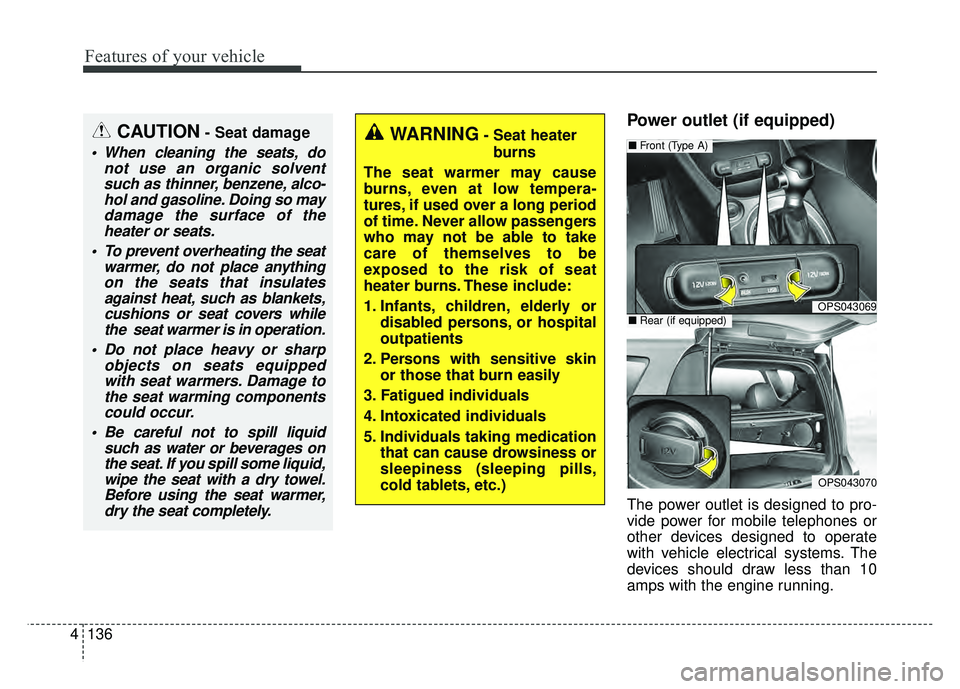
Power outlet (if equipped)
The power outlet is designed to pro-
vide power for mobile telephones or
other devices designed to operate
with vehicle electrical systems. The
devices should draw less than 10
amps with the engine running.
OPS043069
■ Front (Type A)
OPS043070
■Rear (if equipped)
CAUTION- Seat damage
When cleaning the seats, do
not use an organic solventsuch as thinner, benzene, alco-hol and gasoline. Doing so maydamage the surface of theheater or seats.
To prevent overheating the seat warmer, do not place anythingon the seats that insulatesagainst heat, such as blankets,cushions or seat covers whilethe seat warmer is in operation.
Do not place heavy or sharp objects on seats equippedwith seat warmers. Damage tothe seat warming componentscould occur.
Be careful not to spill liquid such as water or beverages onthe seat. If you spill some liquid,wipe the seat with a dry towel.Before using the seat warmer,dry the seat completely.
WARNING- Seat heater
burns
The seat warmer may cause
burns, even at low tempera-
tures, if used over a long period
of time. Never allow passengers
who may not be able to take
care of themselves to be
exposed to the risk of seat
heater burns. These include:
1. Infants, children, elderly or disabled persons, or hospital
outpatients
2. Persons with sensitive skin or those that burn easily
3. Fatigued individuals
4. Intoxicated individuals
5. Individuals taking medication that can cause drowsiness or
sleepiness (sleeping pills,
cold tablets, etc.)
Page 226 of 544
4149
Features of your vehicle
Using a cellular phone or a two-way radio
When a cellular phone is used inside
the vehicle, noise may be produced
from the audio system. This does not
mean that something is wrong with
the audio equipment. In such a case,
try to operate mobile devices as far
from the audio equipment as possi-
ble.
When using a communication sys-
tem such as a cellular phone or a
radio set inside the vehicle, a sepa-
rate external antenna must be fitted.
When a cellular phone or a radio set
is used with an internal antenna
alone, it may interfere with the vehi-
cle's electrical system and adversely
affect safe operation of the vehicle.
WARNING- Cell phone use
Do not use a cellular phone
while driving. Stop at a safe
location to use a cellular phone.
WARNING- Driver Distraction
Do not stare at the screen while driving. Staring at the
screen for prolonged periods
of time could lead to traffic
accidents.
Using the phone while driving may lead to a lack of attention
of traffic conditions and
increase the likelihood of
accidents. Use the phone fea-
ture after parking the vehicle.
WARNING- Audio System
Do not disassemble, assemble,
or modify the audio system.
Such acts could result in fire or
electric shock.
WARNING- Antenna
Do not touch the antenna dur-
ing thunder or lightening as
such acts may lead to lightning
induced electric shock.
CAUTION
Refrain from use if the screen is blank or no sound can be hearas these signs may indicateproduct malfunction.
Page 229 of 544
Features of your vehicle
152
4
USING iPod®DEVICE
iPhone®is a registered grademark of
Apple inc.
Some iPod
®models may not sup-
port communication protocol and
files may not properly play.
Supported iPod
®models:
- iPhone
®3GS/4
- iPod
®touch 1st~4th generation
- iPod
®nano 1st~6th generation
- iPod
®classic
The order of search or playback of songs in the iPod
®can be different
from the order searched in the
audio system.
If the iPod
®is disabled due to its
own malfunction, reset the iPod®.
(Reset: Refer to iPod®manual)
An iPod
®may not operate normally
on low battery.
(Continued)
(Continued)
Some USB flash memory read-
ers (such as CF, SD, micro SD,
etc.) or external-HDD type
devices can be unrecognizable.
Music files protected by DRM (DIGITAL RIGHTS MANAGE-
MENT) are not recognizable.
The data in the USB memory may be lost while using this
audio. Always back up important
data on a personal storage
device.
Please avoid using USB memory prod-
ucts which can be
used as key chains or
cellular phone acces-
sories as they could cause dam-
age to the USB jack. Please
make certain only to use plug
type connector products.
(Continued)
If you use devices such as aUSB hub purchased separately,
the vehicle’s audio system may
not recognize the USB device. In
that case, connect the USB
device directly to the multimedia
terminal of the vehicle.
If the USB device is divided by logical drives, only the music
files on the highest-priority drive
are recognized by car audio.
Devices such as MP3 Player/ Cellular phone/Digital camera
can be unrecognizable by stan-
dard USB I/F can be unrecogniz-
able.
Charging through the USB may not be supported in some mobile
devices.
USB HDD or USB types liable to connection failures due to vehi-
cle vibrations are not supported.
(i-stick type)
Some non-standard USB devices (METAL COVER TYPE
USB) can be unrecognizable.
(Continued)
Page 230 of 544
4153
Features of your vehicle
Bluetooth®Wireless
Technology(if equipped)
Bluetooth®Wireless Technology
The Bluetooth®word mark and logos
are registered trademarks owned by
Bluetooth SIG, lnc. and any use of
such marks by Kia is under license.
A
Bluetooth®enabled call phone is
required to use
Bluetooth®wireless
technology.
(Continued)
Some iPod
®devices, such as the
iPhone®, can be connected
through the
Bluetooth®Wireless
Technology interface. The device
must have audio
Bluetooth®
Wireless Technology capability
(such as for stereo headphone
Bluetooth®Wireless Technology ).
The device can play, but it will not
be controlled by the audio system.
To use iPod
®features within the
audio, use the cable provided upon
purchasing an iPod
®device.
Skipping or improper operation may occur depending on the char-
acteristics of your iPod
®/iPhone®
device.
If your iPhone
®is connected to
both the
Bluetooth®Wireless
Technology and USB, only support
iPod
®mode because the sound
may not be properly played in
Bluetooth®Audio Streaming. To
use
Bluetooth®Audio Streaming,
disconnect iPod®cable with
iPhone®.
(Continued) (Continued)
When connecting iPod
®with the
iPod®Power Cable, insert the con-
nector to the multimedia socket
completely. If not inserted com-
pletely, communications between
iPod
®and audio may be interrupt-
ed.
When adjusting the sound effects of the iPod
®and the audio system,
the sound effects of both devices
will overlap and might reduce or
distort the quality of the sound.
Deactivate (turn off) the equalizer function of an iPod
®when adjust-
ing the audio system’s volume, and
turn off the equalizer of the audio
system when using the equalizer of
an iPod
®.
When not using iPod
®with car
audio, detach the iPod®cable from
iPod®. Otherwise, iPod®may
remain in accessory mode, and
may not work properly.
WARNING
Driving while distracted can
result in a loss of vehicle control
that may lead to an accident,
severe personal injury, and
death. The driver’s primary
responsibility is in the safe and
legal operation of a vehicle, and
use of any handheld devices,
other equipment, or vehicle sys-
tems which take the driver’s
eyes, attention and focus away
from the safe operation of a vehi-
cle or which are not permissible
by law should never be used dur-
ing operation of the vehicle.
Page 231 of 544
Features of your vehicle
154
4
Before Using the Bluetooth®
Wireless Technology
Handsfree
What is Bluetooth®?
Bluetooth®refers to a short-distance
wireless networking technology
which uses a 2.4GHz ~ 2.48GHz
frequency to connect various
devices within a certain distance.
Supported within PCs, external devices,
Bluetooth®phones, PDAs,
various electronic devices, and
automotive environments,
Bluetooth®allows data to be trans-
mitted at high speeds without hav-
ing to use a connector cable.
Bluetooth®Handsfree refers to a
device which allows the user to
conveniently make phone calls with
Bluetooth®mobile phones through
the audio system.
Bluetooth®Handsfree may not be
supported in some mobile phones.
To learn more about mobile device
compatibility, visit www
.kia.com.
Precautions for Safe Driving
Bluetooth®Handsfree is a feature
that enables drivers to practice
safe driving. Connecting the head
unit with a
Bluetooth®phone allows
the user to conveniently make and
receive calls and use contacts.
Before using
Bluetooth®, carefully
read the contents of this user’s
manual.
Excessive use or operations while driving may lead to negligent driv-
ing practices and result in acci-
dents. Refrain from excessive
operations while driving.
Viewing the screen for prolonged periods of time is dangerous and
may lead to accidents. When driv-
ing, view the screen only for short
periods of time.
When connecting aBluetooth®
Phone
Before connecting the head unitwith the mobile phone, check to
see that the mobile phone sup-
ports
Bluetooth®features.
Even if the phone supports
Bluetooth®, the phone will not be
found during device searches if the
phone has been set to hidden state
or the
Bluetooth®power is turned
off. Disable the hidden state or turn
on the
Bluetooth®power prior to
searching/connecting with the
Head unit.
If you do not want automatic con- nection with your
Bluetooth®
device, turn off the Bluetooth®fea-
ture within your mobile phone.
The Handsfree call volume and quality may differ depending on the
mobile phone.
Page 232 of 544
4155
Features of your vehicle
Park the vehicle when connectingthe head unit with the mobile
phone.
Bluetooth®connection may
become intermittently disconnect-
ed in some mobile phones. Follow
these steps to try again.
1. Within the mobile phone, turn the
Bluetooth®function off/on
and try again.
2. Turn the mobile phone power Off/On and try again.
3. Reboot the audio system and try again.
4. Delete all paired devices, pair and try again.
Handsfree call quality and volume may differ depending on the model
of your mobile phone.
Voice Recognition
When using the voice recognitionfeature, only commands listed
within the user's manual are sup-
ported.
Be aware that during the operation of the voice recognition system,
pressing any key other than the key terminate voice recogni-
tion mode.
For superior voice recognition per- formance, position the microphone
used for voice recognition above
the head of the driver’s seat and
maintain a proper position when
saying commands.
Within the following situations, voice recognition may not function
properly due to external sound.
- When the windows and sunroof are open
- When the blower AC/heater is set to high
- When entering and passing through tunnels
(Continued)(Continued)
- When driving on rugged and uneven roads
- During severe rain (heavy rains, windstorms)
Phone related voice commands can be used only when a
Bluetooth®Wireless Technology
device is connected.
When making calls by stating a name, the corresponding contact
must be downloaded and stored
within the audio system.
After downloading the
Bluetooth®
Wireless Technology phone book,
it takes some times to convert the
phone book data into voice infor-
mation. During this time, voice
recognition may not properly oper-
ate.
Pronounce the voice commands naturally and clearly as if in a nor-
mal conversation.