buttons KIA SOUL 2017 Features and Functions Guide
[x] Cancel search | Manufacturer: KIA, Model Year: 2017, Model line: SOUL, Model: KIA SOUL 2017Pages: 50, PDF Size: 4.9 MB
Page 22 of 50
SOUL FEATURES & FUNCTIONS GUIDE20*IF EQUIPPED
AUDIO SYSTEMS
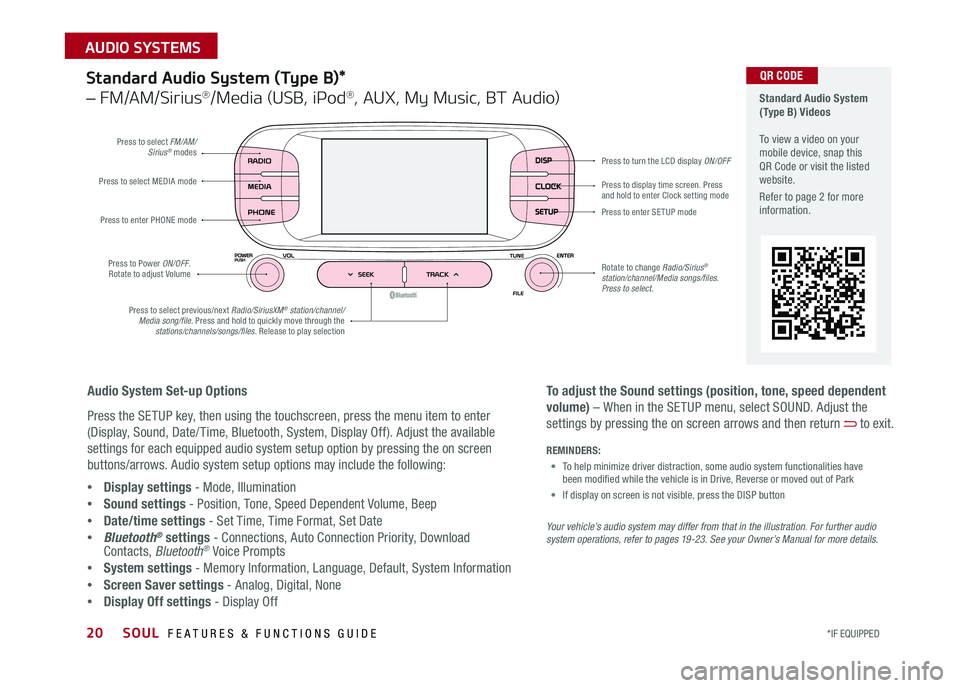
Standard Audio System (Type B)*
– FM/AM/Sirius®/Media (USB, iPod®, AUX, My Music, BT Audio)
DISP
CLOCK
SETUP
Press to select FM/AM/Sirius® modes
Press to Power ON/OFF Rotate to adjust Volume
Press to display time screen Press and hold to enter Clock setting modePress to select MEDIA mode
Press to enter PHONE mode
Press to select previous/next Radio/SiriusXM® station/channel/Media song/file. Press and hold to quickly move through the stations/channels/songs/files. Release to play selection
Press to enter SE TUP mode
Rotate to change Radio/Sirius® station/channel/Media songs/files.Press to select.
Press to turn the LCD display ON/OFF
Standard Audio System (Type B) Videos To view a video on your mobile device, snap this QR Code or visit the listed website
Refer to page 2 for more information
Audio System Set-up Options
Press the SETUP key, then using the touchscreen, press the menu item to enter
(Display, Sound, Date/ Time, Bluetooth, System, Display Off) Adjust the available
settings for each equipped audio system setup option by pressing the on screen
buttons/arrows Audio system setup options may include the following:
•Display settings - Mode, Illumination
•Sound settings - Position, Tone, Speed Dependent Volume, Beep
•Date/time settings - Set Time, Time Format, Set Date
•Bluetooth® settings - Connections, Auto Connection Priority, Download Contacts, Bluetooth® Voice Prompts
•System settings - Memory Information, Language, Default, System Information
•Screen Saver settings - Analog, Digital, None
•Display Off settings - Display Off
QR CODE
To adjust the Sound settings (position, tone, speed dependent
volume) – When in the SETUP menu, select SOUND Adjust the
settings by pressing the on screen arrows and then return to exit
Your vehicle’s audio system may differ from that in the illustration. For further audio system operations, refer to pages 19 -23. See your Owner’s Manual for more details.
REMINDERS:
• To help minimize driver distraction, some audio system functionalities have been modified while the vehicle is in Drive, Reverse or moved out of Park
• If display on screen is not visible, press the DISP button
Page 24 of 50
22
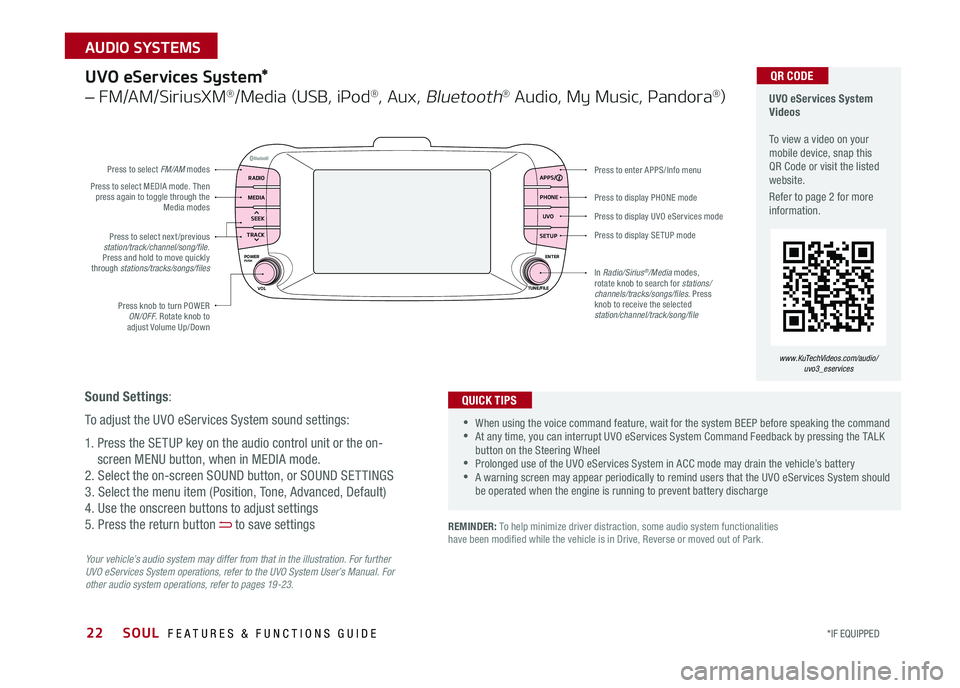
Press to display PHONE mode
Press to enter APPS/Info menu
Press to display SE TUP mode
Press to display UVO eServices mode
Press to select next /previous station/track/channel/song/file Press and hold to move quickly through stations/tracks/songs/files
Press knob to turn POWER ON/OFF Rotate knob to adjust Volume Up/Down
Press to select MEDIA mode Then press again to toggle through the Media modes
Press to select FM/AM modes
In Radio/Sirius®/Media modes, rotate knob to search for stations/ channels/tracks/songs/files. Press knob to receive the selected station/channel/track/song/file
UVO eServices System*
– FM/AM/SiriusXM®/Media (USB, iPod®, Aux, Bluetooth® Audio, My Music, Pandora®)
Your vehicle’s audio system may differ from that in the illustration. For further UVO eServices System operations, refer to the UVO System User’s Manual. For other audio system operations, refer to pages 19-23.
UVO eServices System Videos To view a video on your mobile device, snap this QR Code or visit the listed website
Refer to page 2 for more information
•When using the voice command feature, wait for the system BEEP before speaking the command •At any time, you can interrupt UVO eServices System Command Feedback by pressing the TALK button on the Steering Wheel •Prolonged use of the UVO eServices System in ACC mode may drain the vehicle’s battery •A warning screen may appear periodically to remind users that the UVO eServices System should be operated when the engine is running to prevent battery discharge
QUICK TIPS
QR CODE
Sound Settings:
To adjust the UVO eServices System sound settings:
1 Press the SETUP key on the audio control unit or the on-
screen MENU button, when in MEDIA mode
2 Select the on-screen SOUND button, or SOUND SET TINGS
3 Select the menu item (Position, Tone, Advanced, Default)
4 Use the onscreen buttons to adjust settings
5 Press the return button to save settings
www.KuTechVideos.com/audio/uvo3_eservices
REMINDER: To help minimize driver distraction, some audio system functionalities have been modified while the vehicle is in Drive, Reverse or moved out of Park
RADIO APPS/
PHONE
UVO
SETUP
MEDIA
SEEK
TRACK
POWER ENTER
TUNE/FILE
VOLPUSH
SOUL FEATURES & FUNCTIONS GUIDE
*IF EQUIPPED
AUDIO SYSTEMS
Page 25 of 50
23
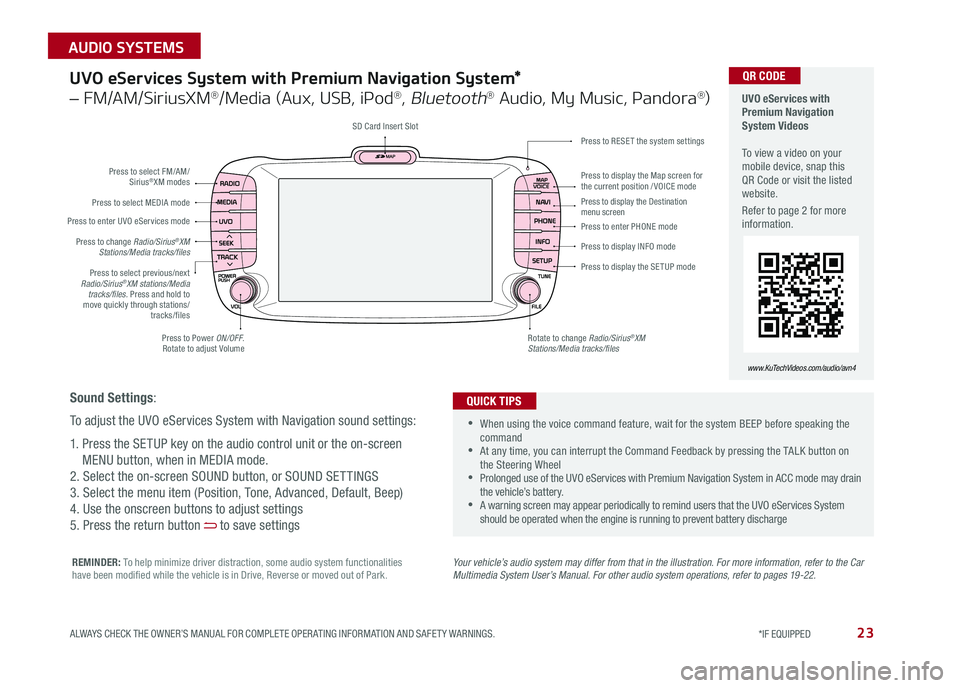
UVO eServices System with Premium Navigation System*
– FM/AM/SiriusXM®/Media (Aux, USB, iPod®, Bluetooth® Audio, My Music, Pandora®)
Press to Power ON/OFF Rotate to adjust Volume
Press to enter UVO eServices mode
Press to select FM/AM/ Sirius®XM modes
Press to select MEDIA mode
Rotate to change Radio/Sirius®XM Stations/Media tracks/files
Press to display the Map screen for the current position / VOICE mode
Press to RESE T the system settingsSD Card Insert Slot
Press to display the Destination menu screenPress to enter PHONE mode
Press to display the SE TUP mode
Press to display INFO mode Press to change Radio/Sirius®XM Stations/Media tracks/files
Press to select previous/next Radio/Sirius®XM stations/Media tracks/files. Press and hold to move quickly through stations/tracks/files
Your vehicle’s audio system may differ from that in the illustration. For more information, refer to the Car Multimedia System User’s Manual. For other audio system operations, refer to pages 19-22.
UVO eServices with Premium Navigation System Videos To view a video on your mobile device, snap this QR Code or visit the listed website
Refer to page 2 for more information
•
•When using the voice command feature, wait for the system BEEP before speaking the command •At any time, you can interrupt the Command Feedback by pressing the TALK button on the Steering Wheel •Prolonged use of the UVO eServices with Premium Navigation System in ACC mode may drain the vehicle’s battery •A warning screen may appear periodically to remind users that the UVO eServices System should be operated when the engine is running to prevent battery discharge
QUICK TIPS
QR CODE
www.KuTechVideos.com/audio/avn4
Sound Settings:
To adjust the UVO eServices System with Navigation sound settings:
1 Press the SETUP key on the audio control unit or the on-screen
MENU button, when in MEDIA mode
2 Select the on-screen SOUND button, or SOUND SET TINGS
3 Select the menu item (Position, Tone, Advanced, Default, Beep)
4 Use the onscreen buttons to adjust settings
5 Press the return button to save settings
REMINDER: To help minimize driver distraction, some audio system functionalities have been modified while the vehicle is in Drive, Reverse or moved out of Park
ALWAYS CHECK THE OWNER’S MANUAL FOR COMPLETE OPER ATING INFORMATION AND SAFET Y WARNINGS. *IF EQUIPPED
AUDIO SYSTEMS
Page 26 of 50
SOUL FEATURES & FUNCTIONS GUIDE24*IF EQUIPPED
AUDIO SYSTEMS
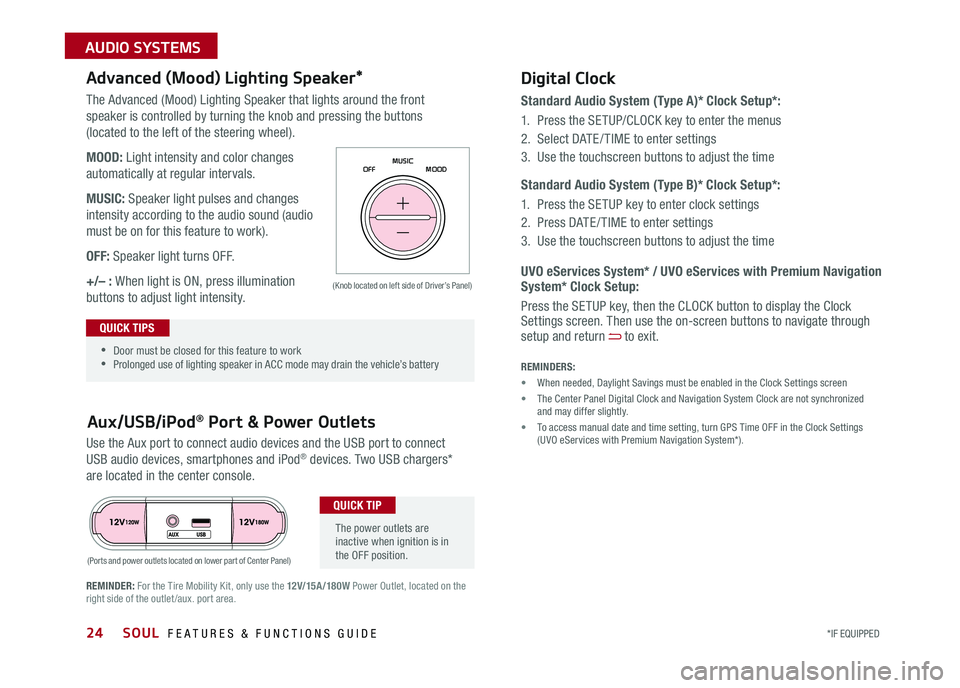
The Advanced (Mood) Lighting Speaker that lights around the front
speaker is controlled by turning the knob and pressing the buttons
(located to the left of the steering wheel)
MOOD: Light intensity and color changes
automatically at regular intervals
MUSIC: Speaker light pulses and changes
intensity according to the audio sound (audio
must be on for this feature to work)
OFF: Speaker light turns OFF
+/– : When light is ON, press illumination
buttons to adjust light intensity
Use the Aux port to connect audio devices and the USB port to connect
USB audio devices, smartphones and iPod® devices Two USB chargers*
are located in the center console
Aux/USB/iPod® Port & Power Outlets
Digital Clock
Standard Audio System (Type A)* Clock Setup*:
1
Press the SETUP/CLOCK key to enter the menus
2 Select DATE / TIME to enter settings
3 Use the touchscreen buttons to adjust the time
Standard Audio System (Type B)* Clock Setup*:
1 Press the SETUP key to enter clock settings
2 Press DATE / TIME to enter settings
3 Use the touchscreen buttons to adjust the time
Advanced (Mood) Lighting Speaker*
OFF MOOD
MUSIC
REMINDER: For the Tire Mobility Kit, only use the 12V/15A/180W Power Outlet, located on the right side of the outlet /aux
port area
REMINDERS:
• When needed, Daylight Savings must be enabled in the Clock Settings screen
• The Center Panel Digital Clock and Navigation System Clock are not synchronized and may differ slightly
• To access manual date and time setting, turn GPS Time OFF in the Clock Settings (UVO eServices with Premium Navigation System*)
(Ports and power outlets located on lower part of Center Panel)
(Knob located on left side of Driver’s Panel) UVO eServices System* / UVO eServices with Premium Navigation System* Clock Setup:
Press the SETUP key, then the CLOCK button to display the Clock Settings screen Then use the on-screen buttons to navigate through setup and return to exit •
•Door must be closed for this feature to work •Prolonged use of lighting speaker in ACC mode may drain the vehicle’s battery
The power outlets are inactive when ignition is in the OFF position
QUICK TIP
QUICK TIPS
Page 27 of 50
25ALWAYS CHECK THE OWNER’S MANUAL FOR COMPLETE OPER ATING INFORMATION AND SAFET Y WARNINGS *IF EQUIPPED
CENTER PANEL
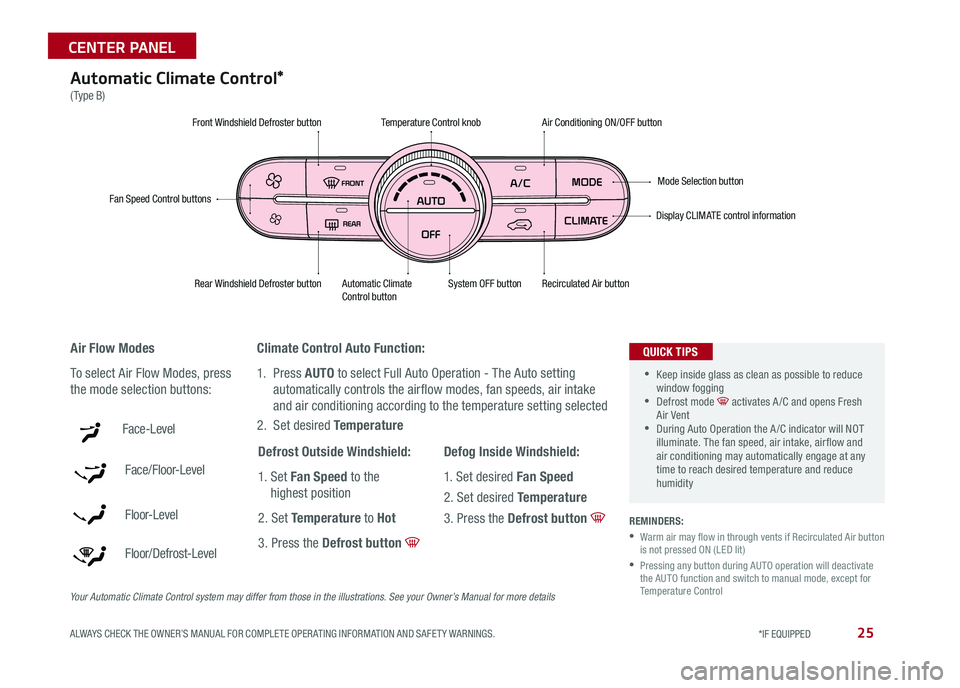
Digital ClockAutomatic Climate Control*
(Type B)
Climate Control Auto Function:
1 Press AUTO to select Full Auto Operation - The Auto setting
automatically controls the airflow modes, fan speeds, air intake
and air conditioning according to the temperature setting selected
2 Set desired Temperature
REMINDERS:
•
Warm air may flow in through vents if Recirculated Air button is not pressed ON (LED lit)
•
Pressing any button during AUTO operation will deactivate the AUTO function and switch to manual mode, except for Temperature Control
Air Flow Modes
To select Air Flow Modes, press
the mode selection buttons:
Face-Level
Face/Floor-Level
F lo o r- L evel
Floor/Defrost-Level
Fan Speed Control buttons
Mode Selection button
Display CLIMATE control information
Rear Windshield Defroster buttonAutomatic Climate Control button Recirculated Air button
Front Windshield Defroster buttonAir Conditioning ON/OFF button
Temperature Control knob
System OFF button
•
•Keep inside glass as clean as possible to reduce window fogging •Defrost mode activates A /C and opens Fresh Air Vent •During Auto Operation the A /C indicator will NOT illuminate The fan speed, air intake, air flow and air conditioning may automatically engage at any time to reach desired temperature and reduce humidity
QUICK TIPS
Defrost Outside Windshield:
1 Set Fan Speed to the
highest position
2 Set Temperature to Hot
3 Press the Defrost button
Defog Inside Windshield:
1 Set desired Fan Speed
2 Set desired Temperature
3 Press the Defrost button
Your Automatic Climate Control system may differ from those in the illustrations. See your Owner’s Manual for more details
Page 28 of 50
SOUL FEATURES & FUNCTIONS GUIDE26*IF EQUIPPED
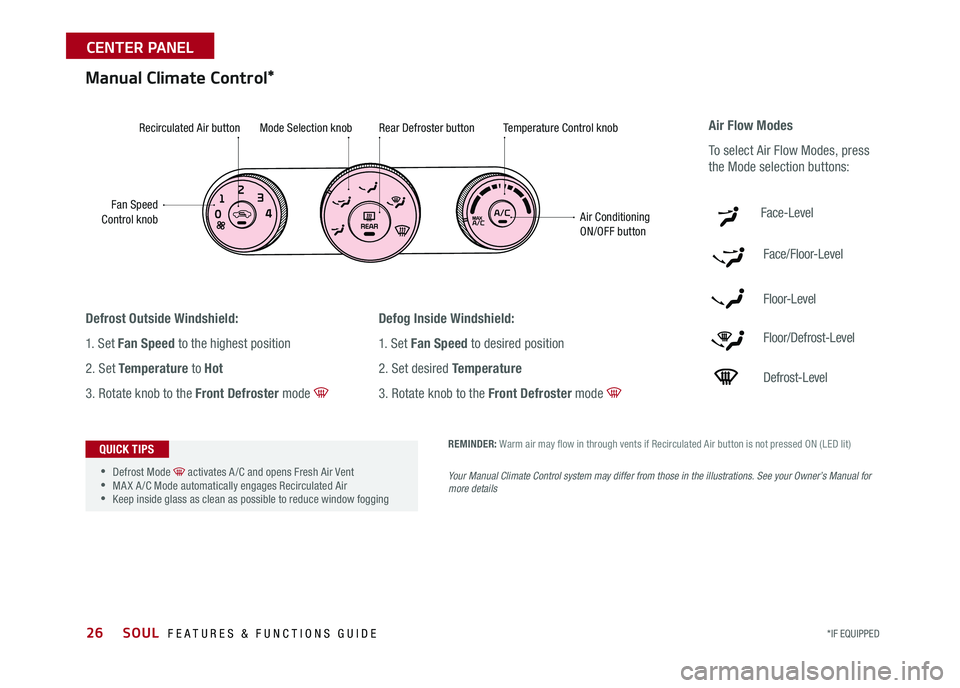
Manual Climate Control*
Defrost Outside Windshield:
1 Set Fan Speed to the highest position
2 Set Temperature to Hot
3 Rotate knob to the Front Defroster mode
Defog Inside Windshield:
1 Set Fan Speed to desired position
2 Set desired Temperature
3 Rotate knob to the Front Defroster mode
Fan Speed Control knob
Recirculated Air buttonMode Selection knobRear Defroster buttonTemperature Control knob
Air Conditioning ON/OFF button
REMINDER: Warm air may flow in through vents if Recirculated Air button is not pressed ON (LED lit)
Your Manual Climate Control system may differ from those in the illustrations. See your Owner’s Manual for more details
Air Flow Modes
To select Air Flow Modes, press
the Mode selection buttons:
Face-Level
Face/Floor-Level
F lo o r- L evel
Floor/Defrost-Level
Defrost-Level
•
•Defrost Mode activates A /C and opens Fresh Air Vent •MA X A /C Mode automatically engages Recirculated Air •Keep inside glass as clean as possible to reduce window fogging
QUICK TIPS
CENTER PANEL