lock KIA SOUL 2017 Repair Manual
[x] Cancel search | Manufacturer: KIA, Model Year: 2017, Model line: SOUL, Model: KIA SOUL 2017Pages: 589, PDF Size: 13.3 MB
Page 273 of 589
Audio system
38
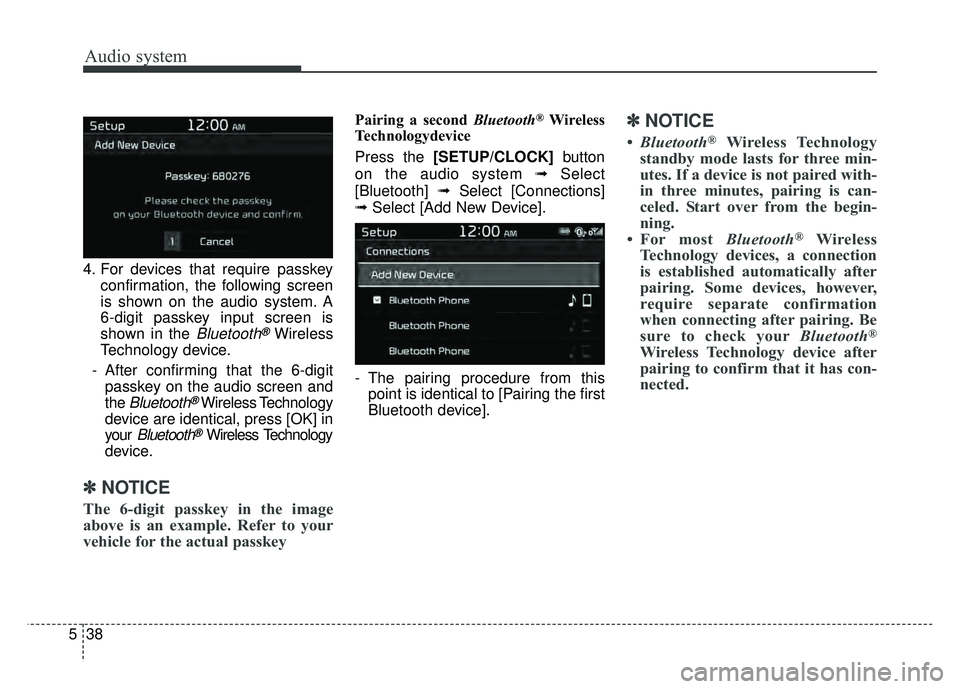
5 4. For devices that require passkey
confirmation, the following screen
is shown on the audio system. A
6-digit passkey input screen is
shown in the
Bluetooth®Wireless
Technology device.
- After confirming that the 6-digit passkey on the audio screen and
the
Bluetooth®Wireless Technology
device are identical, press [OK] in
your
Bluetooth®Wireless Technology
device.
✽ ✽ NOTICE
The 6-digit passkey in the image
above is an example. Refer to your
vehicle for the actual passkey
Pairing a second Bluetooth®Wireless
Technologydevice
Press the [SETUP/CLOCK] button
on the audio system ➟Select
[Bluetooth] ➟Select [Connections]
➟ Select [Add New Device].
- The pairing procedure from this point is identical to [Pairing the first
Bluetooth device].✽ ✽ NOTICE
•Bluetooth®Wireless Technology
standby mode lasts for three min-
utes. If a device is not paired with-
in three minutes, pairing is can-
celed. Start over from the begin-
ning.
• For most Bluetooth
®Wireless
Technology devices, a connection
is established automatically after
pairing. Some devices, however,
require separate confirmation
when connecting after pairing. Be
sure to check your Bluetooth
®
Wireless Technology device after
pairing to confirm that it has con-
nected.
Page 275 of 589
Audio system
40
5
✽
✽
NOTICE
• When the incoming call screen is
displayed, audio mode and the set-
tings screen cannot be shown.
Only call volume control is sup-
ported.
• Some Bluetooth
®Wireless Technology
devices may not support the call
reject function.
• Some Bluetooth
®Wireless Technology
devices may not support the phone
number display function.
Operation during calls
Incoming call with Bluetooth®
Wireless Technology connected ➟
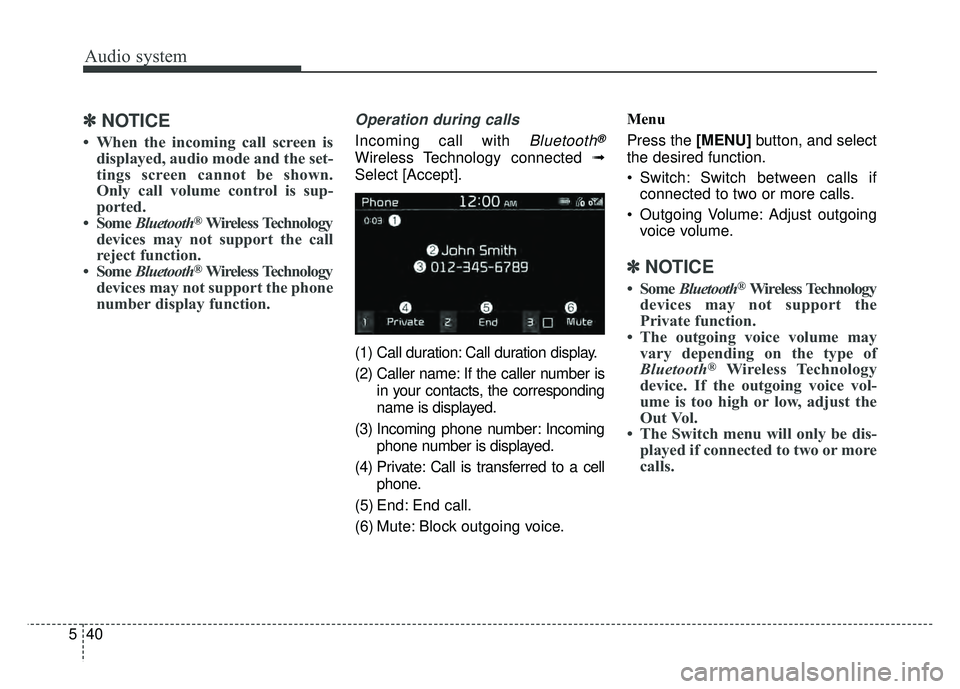
Select [Accept].
(1) Call duration: Call duration display.
(2) Caller name: If the caller number is in your contacts, the corresponding
name is displayed.
(3) Incoming phone number: Incoming phone number is displayed.
(4) Private: Call is transferred to a cell phone.
(5) End: End call.
(6) Mute: Block outgoing voice. Menu
Press the [MENU]
button, and select
the desired function.
Switch: Switch between calls if connected to two or more calls.
Outgoing Volume: Adjust outgoing voice volume.
✽ ✽ NOTICE
• Some Bluetooth®Wireless Technology
devices may not support the
Private function.
• The outgoing voice volume may vary depending on the type of
Bluetooth
®Wireless Technology
device. If the outgoing voice vol-
ume is too high or low, adjust the
Out Vol.
• The Switch menu will only be dis- played if connected to two or more
calls.
Page 279 of 589
![KIA SOUL 2017 Repair Manual Audio system
44
5
Setup
Access Display, Sound, Date/Time,
Bluetooth, System and Display Off
settings.
Select the [SETUP/CLOCK] button
on the audio system.
Display
Select the [SETUP/CLOCK] button on
t](/img/2/54636/w960_54636-278.png "KIA SOUL 2017 Repair Manual Audio system
44
5
Setup
Access Display, Sound, Date/Time,
Bluetooth, System and Display Off
settings.
Select the [SETUP/CLOCK] button
on the audio system.
Display
Select the [SETUP/CLOCK] button on
t")
Audio system
44
5
Setup
Access Display, Sound, Date/Time,
Bluetooth, System and Display Off
settings.
Select the [SETUP/CLOCK] button
on the audio system.
Display
Select the [SETUP/CLOCK] button on
the audio system ➟ Select [Display].
Mode: Audio screen brightness can be adjusted to the time of day.
Illumination: The brightness of the audio screen can be changed.
Screen Saver: Set the information displayed when the audio system
is switched off or the screen is
turned off.
Sound
Select the [SETUP/CLOCK] button
on the audio system ➟Select
[Sound].
Position: Sound balance and pan- ning can be adjusted.
Tone: Sound tone color can be adjusted.
Speed Dependent Volume: Automatically adjust volume based
on vehicle speed.
Date/Time
Select the [SETUP/CLOCK] button
on the audio system ➟Select
[Date/Time].
Set Time: Set the time displayed on the audio screen.
Time Format: Choose between 12- hour and 24-hour time formats.
Set Date: Set the date displayed on the audio screen.
Bluetooth
Select the [SETUP/CLOCK] button
➟ Select [Bluetooth].
Connections: Control pairing, dele- tion, connection and disconnection
of
Bluetooth®Wireless Technology
devices.
Auto Connection Priority: Set the connection priority of
Bluetooth®
Wireless Technology devices when
the vehicle is started.
Download Contacts: Contacts can be downloaded from connected
Bluetooth®Wireless Technology
devices.
Bluetooth Voice Prompts: Play or mute voice prompts for
Bluetooth®
Wireless Technology device pair-
ing, connection and errors.
Page 280 of 589
Audio system
545
✽
✽NOTICE
• When paired devices are deleted,
the call history and contacts of the
device saved to the audio system
are deleted.
• For Bluetooth
®Wireless Technology
connections with low connection
priority, some time may be
required for the connection to be
established.
• Contacts can be downloaded only from the currently connected
Bluetooth
®Wireless Technology
device.
• If no Bluetooth
®Wireless Technology
device is connected, the download
contacts button is disabled.
• If the language setting is Korean, Bluetooth
®Wireless Technology
voice prompts are not supported.
System
Select the [SETUP/CLOCK] button
on the audio system ➟Select
[System].
Memory Information: View My Music memory usage.
Language: Change the user lan- guage.
Default: Reset the audio system.
System Information: At the System Information screen, Software ver-
sion information, updates are avail-
able.
- System Update: At the SystemInformation screen, insert the
USB memory with the latest file
downloaded, and then select the
[Update] to begin updating. The
system with then reboot auto-
matically.
✽ ✽ NOTICE
• The system resets to the default
values, and all saved data and set-
tings are lost.
• This product needs supplemented software updates and additional
functions, which collectively may
take some time to complete,
depending on the amount of data.
• If the Power is disconnected or the USB is removed during an update,
the data might be damaged. Please
wait until the update is complete
while engine is on.
Display Off
To prevent glare, the screen can be
turned off with the audio system in
operation.
Select the [SETUP/CLOCK] button
on the audio system ➟Select
[Display Off].
✽ ✽ NOTICE
Use ‘Screen Saver’ to set the infor-
mation to be displayed when the
screen is turned off.
Page 283 of 589
Audio system
48
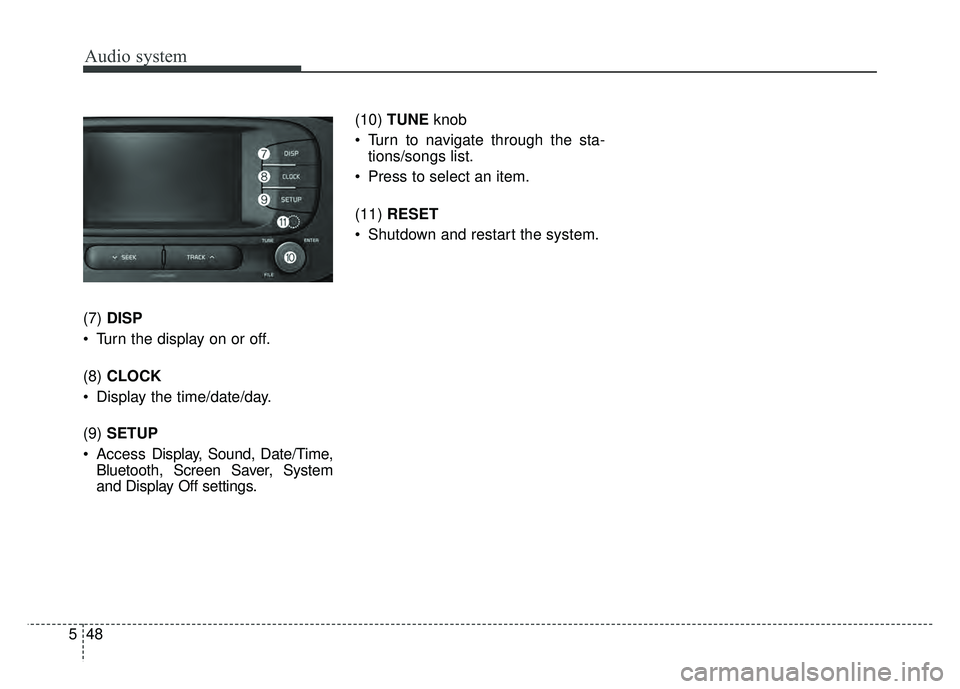
5 (7)
DISP
Turn the display on or off.
(8) CLOCK
Display the time/date/day.
(9) SETUP
Access Display, Sound, Date/Time,
Bluetooth, Screen Saver, System
and Display Off settings. (10)
TUNE knob
Turn to navigate through the sta- tions/songs list.
Press to select an item.
(11) RESET
Shutdown and restart the system.
Page 291 of 589
![KIA SOUL 2017 Repair Manual Audio system
56
5 List
A list of all channels is displayed.
Press the desired channel.
Favorite channels can be saved to
[Presets] by pressing the [+].
Menu
Press the [Menu], and select the
desired fu](/img/2/54636/w960_54636-290.png "KIA SOUL 2017 Repair Manual Audio system
56
5 List
A list of all channels is displayed.
Press the desired channel.
Favorite channels can be saved to
[Presets] by pressing the [+].
Menu
Press the [Menu], and select the
desired fu")
Audio system
56
5 List
A list of all channels is displayed.
Press the desired channel.
Favorite channels can be saved to
[Presets] by pressing the [+].
Menu
Press the [Menu], and select the
desired function.
Presets: Save up to 40 frequently
used channels.
To listen to a preset, press the
desired channel.
Press and hold the desired slot
from 1 through 40. This saves the
current channel in the selected
slot.
If the slot is empty, simply pressing
saves the channel to the slot.
Categories: Channels can be searched by category.
Direct Tune: The desired channel can be selected by entering num-
bers.
Sound Settings: Audio sound set- tings can be changed. Tag Song: Tag the current song
information.
When an Apple device (iPhone
®,
iPod®) is connected, tagged song
information is sent automatically to
the connected device.
✽ ✽ NOTICE
Up to 50 songs can be tagged.
Scan: All channels available in the
vehicle's current location are
played for ten seconds each.
Program Schedule: View the pro- gram schedule.
Featured Favorites: The Featured Favorites feature allows SiriusXM™
to broadcast additional presets.
- Example 1: During holidays,“Holiday Music” might include all
SiriusXM™ channels that are
playing holiday music for easy
access by users.
Multiple sets of Featured Favorites
data can be broadcast by
SiriusXM™ and can change from
time to time.
Information: View detailed channel information. Category Lock: Search or scan
channels in the current category
only.
Page 318 of 589
Audio system
583
(Continued)
• Contacts can be downloaded onlyfrom the currently connected
Bluetooth
®Wireless Technology
device.
If no Bluetooth
®Wireless Technology
device is connected, the download
contacts button is disabled.
• If the language setting is Korean, Bluetooth
®Wireless Technology
voice prompts are not supported.
System
Select the [SETUP] button on the
audio system ➟ Select [System].
Memory Information: View My Music memory usage.
Language: Change the user lan- guage.
Default: Reset the audio system.
System Information: At the System Information screen, Software version
information, updates are available.
- System Update: At the SystemInformation screen, insert the
USB memory with the latest file
downloaded, and then select the
[Update] to begin updating. The
system with then reboot auto-
matically.
✽ ✽ NOTICE
• The system resets to the default
values, and all saved data and set-
tings are lost.
• This product needs supplemented software updates and additional
functions, which collectively may
take some time to complete,
depending on the amount of data.
• If the Power is disconnected or the USB is removed during an update,
the data might be damaged. Please
wait until the update is complete
while engine is on.
Screen Saver
Set the information displayed when
the audio system is switched off or
the screen is turned off.
Select the [SETUP] button on the
audio system ➟ Select [Screen
Saver].
Analog: An analog clock is dis- played.
Digital: A digital clock is displayed.
None: No information is displayed.
Display Off
To prevent glare, the screen can be
turned off with the audio system in
operation.
Select the [SETUP] button on the
audio system ➟ Select [Display Off].
Page 323 of 589
Driving your vehicle
46
Before entering vehicle
• Be sure that all windows, outsidemirror(s), and outside lights are
clean.
Check the condition of the tires.
Check under the vehicle for any sign of leaks.
Be sure there are no obstacles behind you if you intend to back up.
Necessary inspections
Fluid levels, such as engine oil,
engine coolant, brake fluid, and
washer fluid should be checked on a
regular basis, at the exact interval
depending on the fluid. Further
details are provided in chapter 8,
“Maintenance”.
Before starting
Close and lock all doors.
Position the seat so that all con-trols are easily reached.
Buckle your seat belt.
Adjust the inside and outside rearview mirrors.
Be sure that all lights work.
Check all gauges.
Check the operation of warning lights when the ignition switch is
turned to the ON position.
Release the parking brake and make sure the brake warning light
goes out.
For safe operation, be sure you are
familiar with your vehicle and its
equipment.
BEFORE DRIVING
WARNING
Driving while distracted can
result in a loss of vehicle con-
trol, that may lead to an acci-
dent, severe personal injury,
and death. The driver’s primary
responsibility is in the safe and
legal operation of a vehicle, and
use of any handheld devices,
other equipment, or vehicle sys-
tems which take the driver’s
eyes, attention and focus away
from the safe operation of a
vehicle or which are not permis-
sible by law should never be
used during operation of the
vehicle.
Page 325 of 589
Driving your vehicle
66
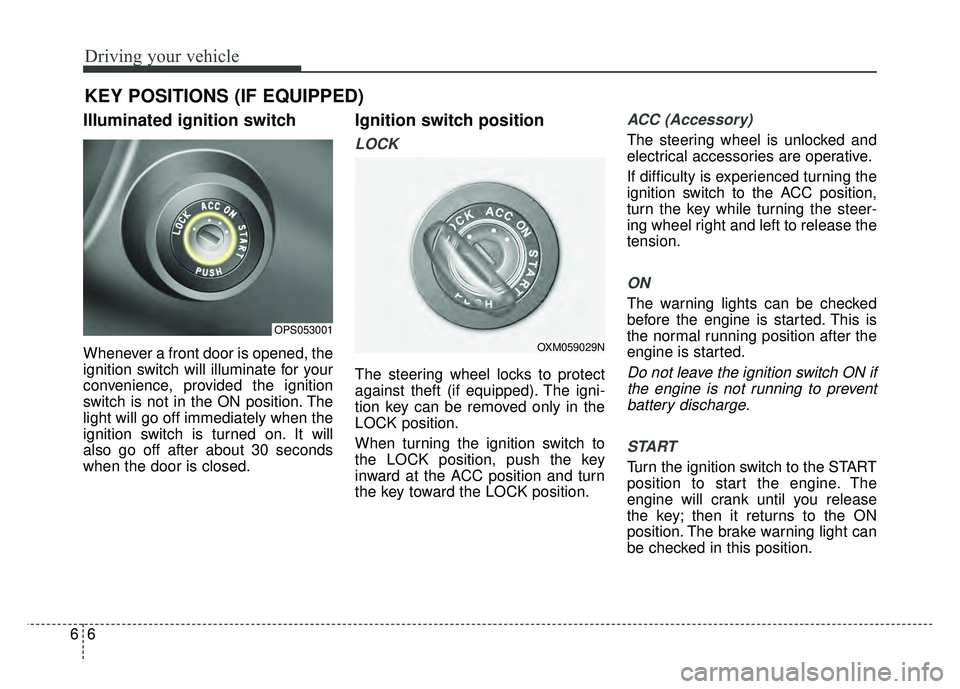
Illuminated ignition switch
Whenever a front door is opened, the
ignition switch will illuminate for your
convenience, provided the ignition
switch is not in the ON position. The
light will go off immediately when the
ignition switch is turned on. It will
also go off after about 30 seconds
when the door is closed.
Ignition switch position
LOCK
The steering wheel locks to protect
against theft (if equipped). The igni-
tion key can be removed only in the
LOCK position.
When turning the ignition switch to
the LOCK position, push the key
inward at the ACC position and turn
the key toward the LOCK position.
ACC (Accessory)
The steering wheel is unlocked and
electrical accessories are operative.
If difficulty is experienced turning the
ignition switch to the ACC position,
turn the key while turning the steer-
ing wheel right and left to release the
tension.
ON
The warning lights can be checked
before the engine is started. This is
the normal running position after the
engine is started.
Do not leave the ignition switch ON ifthe engine is not running to preventbattery discharge.
START
Turn the ignition switch to the START
position to start the engine. The
engine will crank until you release
the key; then it returns to the ON
position. The brake warning light can
be checked in this position.
KEY POSITIONS (IF EQUIPPED)
OPS053001
OXM059029N
Page 326 of 589
67
Driving your vehicle
The anti-theft steering column lock (if
equipped) is not a substitute for the
parking brake. Before leaving the dri-
ver’s seat, always make sure the shift
lever is engaged in 1st gear for the
manual transaxle or P (Park) for
automatic transaxle, set the parking
brake fully and shut the engine off.
Unexpected and sudden vehicle
movement may occur if these pre-
cautions are not taken.Starting the engine1.Make sure the parking brake isapplied.
2. Manual Transaxle - Depress the
clutch pedal fully and shift the
transaxle into Neutral. Keep the
clutch pedal and brake pedal
depressed while turning the igni-
tion switch to the start position.
Automatic Transaxle / Dual clutch
transmission - Place the transaxle
shift lever in P (Park). Depress the
brake pedal fully.
You can also start the engine when
the shift lever is in the N (Neutral)
position.
3.Turn the ignition switch to START and hold it there until the engine
starts (a maximum of 10 seconds),
then release the key.
It should be started withoutdepressing the accelerator.
WARNING- Ignition
switch
Never turn the ignition switch to
LOCK or ACC while the vehicle
is moving. This would result in
loss of directional control and
braking function, which could
cause an accident.
WARNING- Proper footwear
Always wear appropriate shoes
when operating your vehicle.
Unsuitable shoes (high heels, ski
boots, sandals, etc.) may inter-
fere with your ability to use the
brake and accelerator pedals.