phone KIA SOUL 2018 Owner's Manual
[x] Cancel search | Manufacturer: KIA, Model Year: 2018, Model line: SOUL, Model: KIA SOUL 2018Pages: 620, PDF Size: 13.29 MB
Page 265 of 620
![KIA SOUL 2018 Owners Manual Audio system
30
5
Bluetooth®Wireless Technology
(BT) Audio
(1) Repeat
Enable/disable repeat by pressing
button [1].
(2) Shuffle
Enable/disable shuffle play by press-
ing button [2].
(3) Play/Pause](/img/2/54631/w960_54631-264.png "KIA SOUL 2018 Owners Manual Audio system
30
5
Bluetooth®Wireless Technology
(BT) Audio
(1) Repeat
Enable/disable repeat by pressing
button [1].
(2) Shuffle
Enable/disable shuffle play by press-
ing button [2].
(3) Play/Pause")
Audio system
30
5
Bluetooth®Wireless Technology
(BT) Audio
(1) Repeat
Enable/disable repeat by pressing
button [1].
(2) Shuffle
Enable/disable shuffle play by press-
ing button [2].
(3) Play/Pause
Pause or play music by pressing but-
ton [3].
✽ ✽
NOTICE
Some cell phones may not support
this function.
Playback
Press the [MEDIA] button, and
select [BT Audio].
Changing songs
Press the [SEEK/TRACK] button
to play the previous or next song.
✽ ✽ NOTICE
Some cell phones may not support
this function.
Repeat play
Press the [Repeat] to enable or dis-
able ‘Repeat all’, ‘Repeat current
song’ or ‘Repeat category’.
Repeat all: All songs in the
playlist are repeated.
Repeat current song: The song that is currently playing is
repeated.
Repeat category: Repeat all songs in the current category.
✽ ✽ NOTICE
The repeat play function is engaged,
depending on the operation of the
connected Bluetooth
®Wireless
Technology device.
Shuffle play
Press the [Shuffle] to enable/disable
‘Shuffle’, ‘Shuffle category’ play.
Shuffle: Songs are played in
random order.
Shuffle category: Songs within the current category are played in
random order.
✽ ✽ NOTICE
The shuffle function is engaged,
depending on the operation of the
connected Bluetooth
®Wireless
Technology device.
Menu
Press the [MENU] button, and select
the desired function.
Connections: The currently connect- ed
Bluetooth®Wireless Technology
device can be changed.
Sound Settings: Audio sound set- tings can be changed.
Page 267 of 620
![KIA SOUL 2018 Owners Manual Audio system
32
5 Repeat play
Press the [Repeat] to enable or dis-
able ‘Repeat all’, ‘Repeat current
song’ or ‘Repeat category’.
Repeat all: All songs in the
playlist are repeated.
R](/img/2/54631/w960_54631-266.png "KIA SOUL 2018 Owners Manual Audio system
32
5 Repeat play
Press the [Repeat] to enable or dis-
able ‘Repeat all’, ‘Repeat current
song’ or ‘Repeat category’.
Repeat all: All songs in the
playlist are repeated.
R")
Audio system
32
5 Repeat play
Press the [Repeat] to enable or dis-
able ‘Repeat all’, ‘Repeat current
song’ or ‘Repeat category’.
Repeat all: All songs in the
playlist are repeated.
Repeat current song: The cur- rently playing song is repeated.
Repeat category: Repeat all songs in the current category.
Shuffle play
Press the [Shuffle] to enable/disable
‘Shuffle’, ‘Shuffle category’ play.
Shuffle: Songs are played in random order.
Shuffle category: Songs within the current category are played in
random order. Menu
Press the [MENU]
button, and select
the desired function.
Delete Files: You can delete files from My Music.
(1) File: Select saved file by using TUNE knob
.
(2) Mark All: Select all files by press-
ing button [1]
.
(3) Unmark All: Deselect all files by
pressing button [2]
.
(4) Delete: Delete the selected file(s)by pressing button [3]
.
- Select the file to delete, thenpress the [Delete] to delete it.
- If Siri is activated, phone calls are received or made during
delete, delete will be canceled. Add to Playlist: Frequently played
songs can be paired in a [Playlist].
- Songs can be played from the[Playlist].
Information: Detailed info on the currently playing song is displayed.
Sound Settings: Audio sound set- tings can be changed.
Delete from Playlist
When a song in the playlist is play-
ing, press the [MENU] button and
select [Delete from Playlist].
Select the song to delete, then press
[Delete].
Page 269 of 620
![KIA SOUL 2018 Owners Manual Audio system
34
5 Playback
Press the [MEDIA]
button, and
select [Pandora].
✽ ✽ NOTICE
• Pandora®: Connect a smartphone
to listen to Pandora®Radio.
• Apple devices must be connected via USB c](/img/2/54631/w960_54631-268.png "KIA SOUL 2018 Owners Manual Audio system
34
5 Playback
Press the [MEDIA]
button, and
select [Pandora].
✽ ✽ NOTICE
• Pandora®: Connect a smartphone
to listen to Pandora®Radio.
• Apple devices must be connected via USB c")
Audio system
34
5 Playback
Press the [MEDIA]
button, and
select [Pandora].
✽ ✽ NOTICE
• Pandora®: Connect a smartphone
to listen to Pandora®Radio.
• Apple devices must be connected via USB cable and Android
devices must be connected via
Bluetooth
®Wireless Technology in
order to run Pandora®.
Menu
Press the [MENU] button, and select
the desired function.
Quit: Exit Pandora
®mode and
return to previous audio mode.
Sound Settings: Audio sound set- tings can be changed.
Page 270 of 620
Audio system
535
Phone
✽
✽NOTICE - Using
Bluetooth®Wireless Technology
Phone
• Bluetooth®Wireless Technology is
a near-field wireless networking
technology that uses the 2.4 GHz
frequency to connect various
devices within a certain distance
wirelessly.
• The technology is used in PCs, peripherals, Bluetooth
®Wireless
Technology phones, tablet PCs,
household appliances and automo-
biles. Devices supporting Bluetooth
®
Wireless Technology can exchange
data at high speeds without physi-
cal cable connections.
• Bluetooth
®Wireless Technology
Handsfree devices enable conven-
ient access to phone functions
through cell phones equipped with
Bluetooth
®Wireless Technology.
• Some Bluetooth®Wireless Technology
devices may not be supported by
the Bluetooth
®Wireless Technology
Handsfree function. (Continued)(Continued)
• When
Bluetooth
®Wireless
Technology is connected and calls
are attempted through a connect-
ed cell phone from outside the
vehicle, the call is connected
through the Bluetooth
®Wireless
Technology Handsfree function of
the vehicle.
• Please be sure to disconnect the Bluetooth
®Wireless Technology
Handsfree function through your
Bluetooth
®Wireless Technology
device or the audio screen.
• The Bluetooth
®Wireless Technology
Handsfree function helps drivers
to drive safely. By connecting a
Bluetooth
®Wireless Technology-
enabled phone to the vehicle’s
audio system, phone calls can be
made and received through the
audio system and contacts can be
managed. Consult the user manu-
al before use.
• Excessive manipulation of con- trols while driving, making it diffi-
cult to pay attention to the road
ahead, can lead to accidents. Do
not operate the device excessively
while driving. (Continued)(Continued)
• Looking at the screen for a pro-
longed time increases the risk of
accidents. Keep time spent looking
at the screen to a minimum.
Page 271 of 620
Audio system
36
5 Precautions when connecting Bluetooth
®
Wireless Technology devices
The vehicle supports the following
Bluetooth®Wireless Technology
functions. Some
Bluetooth®Wireless
Technology de vices may not sup-
port some functions.
1)
Bluetooth®Wireless Technology
Handsfree phone calls
2) Operations during a call (Private, Switch, Out Vol. controls)
3) Download call history saved to the
Bluetooth®Wireless Technology
device
4) Download contacts saved to the
Bluetooth®Wireless Technology
device
5) Automatic contacts/call history download when
Bluetooth®Wireless
Technology is connected
6) Automatic
Bluetooth®Wireless
Technology device connection
when the vehicle is started
7)
Bluetooth®Wireless Technology
audio streaming playback
Before connecting the audio sys- tem to your device, make sure your
device supports
Bluetooth®Wireless
Technology. Even if your device supports
Bluetooth®Wireless Technology, a
Bluetooth®Wireless Technology
connection cannot be established
if the device’s
Bluetooth®Wireless
Technology function is switched
off. Search and connect with the
Bluetooth®Wireless Technology
function enabled.
Pair or connect
Bluetooth®Wireless
Technology devices to the audio
system with the vehicle at a standstill.
If a
Bluetooth®Wireless Technology
connection is lost due to abnormal
conditions while a
Bluetooth®
Wireless Technology device is con-
nected (communication range
exceeded, device power OFF,
communication errors, etc.), the
disconnected
Bluetooth®Wireless
Technology device is searched for
and automatically reconnected.
If you want to disable the
Bluetooth®Wireless Technology
device auto-connect function, turn
the
Bluetooth®Wireless Technology
function OFF on your device. Consult
the user manuals for individual
devices to see whether
Bluetooth®
Wireless Technology is supported. Handsfree call quality and volume
may vary depending on the type of
Bluetooth®Wireless Technology
device.
Some
Bluetooth®Wireless Technology
devices are subject to intermittent
Bluetooth®Wireless Technology
connection failures. In this case,
use the following method.
1) Turn the
Bluetooth®Wireless
Technology function off on your
Bluetooth®Wireless Technology
device ➟Turn it on and try
again.
2) Delete the paired device from both the audio system and
Bluetooth®Wireless Technology
device, then pair again.
3) Power down your
Bluetooth®
Wireless Technology device ➟
Turn it on and try again.
4) Completely remove the battery from your
Bluetooth®Wireless
Technology device; reinsert it,
reboot, and attempt connection.
5) Restart the vehicle and reat- tempt connection.
Page 272 of 620
Audio system
537
Pairing a Bluetooth®Wireless
Technology device
Information on pairing Bluetooth®
Wireless Technology devices
Pairing refers to the process of
pairing
Bluetooth®Wireless
Technology cell phones or devices
with the system prior to connec-
tion. This is a necessary procedure
for
Bluetooth®Wireless Technology
connection and usage.
Up to five devices can be paired.
Pairing
Bluetooth®Wireless
Technology device is not allowed
while vehicle is moving. Pairing the first
Bluetooth
®Wireless
Technology device
Select the [PHONE] button on the
audio system or the [CALL] button
on the steering wheel remote control
➟ Search for the vehicle from the
Bluetooth®Wireless Technology
device, and pair ➟ Enter the passkey
on the
Bluetooth®Wireless Technology
device or approve passkey ➟
Bluetooth®Wireless Technology pair-
ing completed.
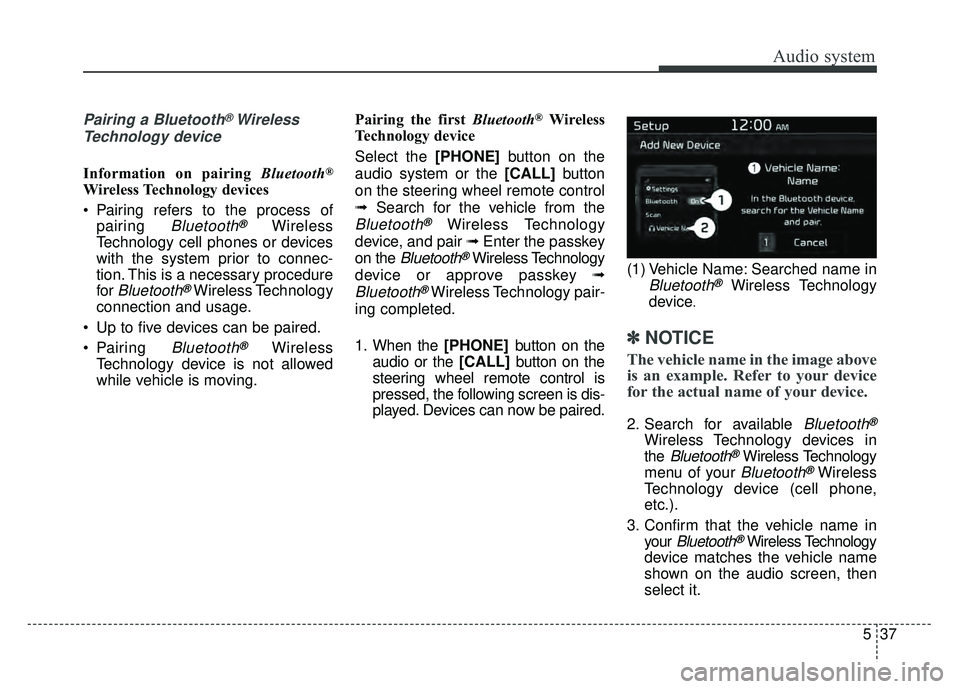
1. When the [PHONE] button on the
audio or the [CALL] button on the
steering wheel remote control is
pressed, the following screen is dis-
played. Devices can now be paired. (1) Vehicle Name: Searched name inBluetooth®Wireless Technology
device
.
✽ ✽ NOTICE
The vehicle name in the image above
is an example. Refer to your device
for the actual name of your device.
2. Search for available Bluetooth®
Wireless Technology devices in
the
Bluetooth®Wireless Technology
menu of your
Bluetooth®Wireless
Technology device (cell phone,
etc.).
3. Confirm that the vehicle name in your
Bluetooth®Wireless Technology
device matches the vehicle name
shown on the audio screen, then
select it.
Page 274 of 620
![KIA SOUL 2018 Owners Manual Audio system
539
Connecting Bluetooth®Wireless
Technology devices
If there are no connected devices
Select the [PHONE] button on the
audio system or the [CALL] button in
the steering wheel remote con](/img/2/54631/w960_54631-273.png "KIA SOUL 2018 Owners Manual Audio system
539
Connecting Bluetooth®Wireless
Technology devices
If there are no connected devices
Select the [PHONE] button on the
audio system or the [CALL] button in
the steering wheel remote con")
Audio system
539
Connecting Bluetooth®Wireless
Technology devices
If there are no connected devices
Select the [PHONE] button on the
audio system or the [CALL] button in
the steering wheel remote control ➟
List of paired
Bluetooth®Wireless
Technology devices ➟ Select the
desired
Bluetooth®Wireless Technology
device from the list ➟ Connect
Bluetooth®Wireless Technology. If there are connected devices
Select the [PHONE]
button on the
audio system ➟ Select [Settings] ➟
Select [Connections] ➟Select
Bluetooth®Wireless Technology device
to connect ➟ Select [Connect] ➟
Connect
Bluetooth®Wireless Technology.
✽ ✽ NOTICE
• Only one Bluetooth®Wireless
Technology device can be connect-
ed at a time.
• When a Bluetooth
®Wireless
Technology device is connected,
other devices cannot be paired.
Accepting/rejecting phone calls
Receiving phone calls with Bluetooth®
Wireless Technology connected.
(1) Caller name: If the caller number is in your contacts, the correspon-
ding name is displayed.
(2) Incoming phone number: Incoming phone number is displayed.
(3) Accept: Accept call.
(4) Reject: Reject call.
Page 275 of 620
Audio system
40
5
✽
✽
NOTICE
• When the incoming call screen is
displayed, audio mode and the set-
tings screen cannot be shown.
Only call volume control is sup-
ported.
• Some Bluetooth
®Wireless Technology
devices may not support the call
reject function.
• Some Bluetooth
®Wireless Technology
devices may not support the phone
number display function.
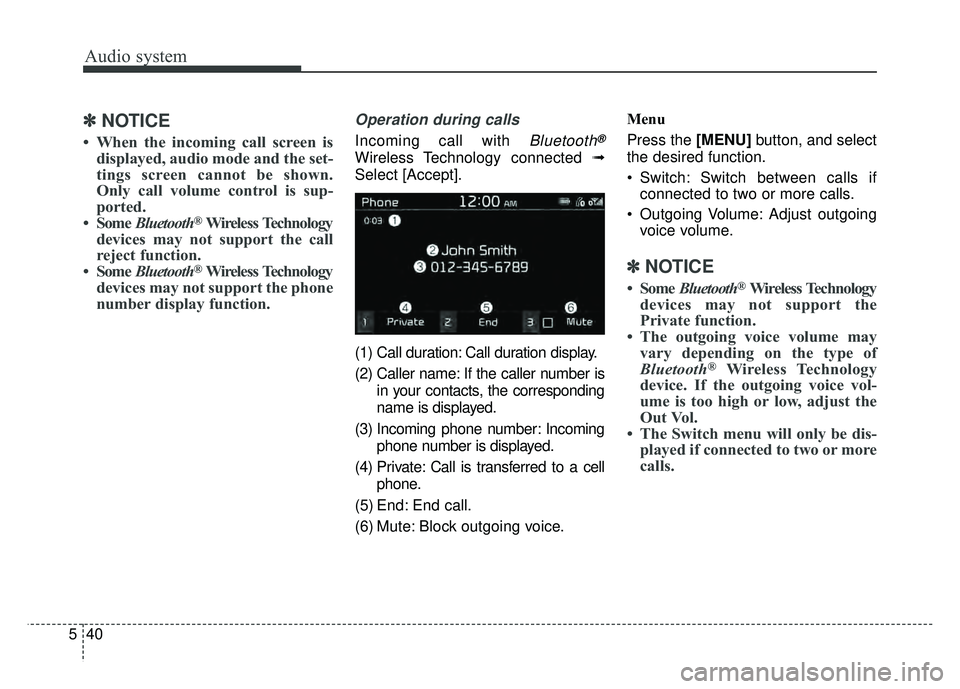
Operation during calls
Incoming call with Bluetooth®
Wireless Technology connected ➟
Select [Accept].
(1) Call duration: Call duration display.
(2) Caller name: If the caller number is in your contacts, the corresponding
name is displayed.
(3) Incoming phone number: Incoming phone number is displayed.
(4) Private: Call is transferred to a cell phone.
(5) End: End call.
(6) Mute: Block outgoing voice. Menu
Press the [MENU]
button, and select
the desired function.
Switch: Switch between calls if connected to two or more calls.
Outgoing Volume: Adjust outgoing voice volume.
✽ ✽ NOTICE
• Some Bluetooth®Wireless Technology
devices may not support the
Private function.
• The outgoing voice volume may vary depending on the type of
Bluetooth
®Wireless Technology
device. If the outgoing voice vol-
ume is too high or low, adjust the
Out Vol.
• The Switch menu will only be dis- played if connected to two or more
calls.
Page 276 of 620
![KIA SOUL 2018 Owners Manual Audio system
541
Favorites
Select the [PHONE]button on the
audio system ➟ Select [Favorites] ➟
Favorites list displayed.
(1) Add to Favorites: Add a down- loaded phone number to
favorites.
(2) Fav](/img/2/54631/w960_54631-275.png "KIA SOUL 2018 Owners Manual Audio system
541
Favorites
Select the [PHONE]button on the
audio system ➟ Select [Favorites] ➟
Favorites list displayed.
(1) Add to Favorites: Add a down- loaded phone number to
favorites.
(2) Fav")
Audio system
541
Favorites
Select the [PHONE]button on the
audio system ➟ Select [Favorites] ➟
Favorites list displayed.
(1) Add to Favorites: Add a down- loaded phone number to
favorites.
(2) Favorites list: A list of paired favorites is displayed
Connect a call when selected.
Menu
Press the [MENU] button, and select
the desired function.
Delete: Delete a saved favorite.
✽ ✽ NOTICE
• Up to 20 favorites can be paired
for each paired Bluetooth®
Wireless Technology device.
• Favorites can be accessed when the Bluetooth
®Wireless Technology
device they were paired from is
connected.
• The audio system does not down- load favorites from Bluetooth
®
Wireless Technology devices.
Favorites must be newly saved
before use.
• To add to favorites, contacts must be downloaded first.
• Saved favorites are not updated even if the contacts of the connected
Bluetooth
®Wireless Technology
device are changed. In this case,
favorites need to be deleted and
added again.
Call history
Select the [PHONE] button on the
audio system ➟ Select [Call history]
➟ Call history is displayed.
(1) Call history: Display the down- loaded call history list.
Connect a call when selected.
(2) Call duration: Display the time the call was connected.
Page 277 of 620
![KIA SOUL 2018 Owners Manual Audio system
42
5 Menu
Press the [MENU]
button, and select
the desired function.
All Calls: Display all call history.
Missed Calls: Display missed calls.
Dialed Calls: Display dialed calls.
Receiv](/img/2/54631/w960_54631-276.png "KIA SOUL 2018 Owners Manual Audio system
42
5 Menu
Press the [MENU]
button, and select
the desired function.
All Calls: Display all call history.
Missed Calls: Display missed calls.
Dialed Calls: Display dialed calls.
Receiv")
Audio system
42
5 Menu
Press the [MENU]
button, and select
the desired function.
All Calls: Display all call history.
Missed Calls: Display missed calls.
Dialed Calls: Display dialed calls.
Received Calls: Display received calls.
Download: Download call history from connected
Bluetooth®Wireless
Technology devices.
✽ ✽ NOTICE
• Up to 50 dialed, received and
missed calls are saved.
• When the latest call history is received, the existing call history is
deleted.
Contacts
Select the [PHONE] button on the
audio system ➟ Select [Contacts] ➟
Select letter (ABC) ➟ Contacts dis-
played.
(1) Contacts: Display downloaded contacts.
If one phone number is saved, the
number will be dialed when
selected.
If two or more phone numbers are
saved, a list of saved numbers will
be displayed when selected. Menu
Press the [MENU]
button, and select
the desired function.
Download: Download contacts from connected
Bluetooth®Wireless
Technology devices.
✽ ✽ NOTICE
• Up to 2,000 contacts can be saved.
• In some cases, additional confir-
mation from your Bluetooth
®
Wireless Technology device is nec-
essary when downloading con-
tacts. If downloading of contacts
unsuccessful, consult your
Bluetooth
®Wireless Technology
device’s settings or the audio
screen to approve the download.
• Contacts without phone numbers are not displayed.
Settings
Select the [PHONE] button on the
audio ➟Select [Settings]
- For phone setup, refer to Setup page .