stop KIA SOUL 2022 Navigation System Quick Reference Guide
[x] Cancel search | Manufacturer: KIA, Model Year: 2022, Model line: SOUL, Model: KIA SOUL 2022Pages: 316, PDF Size: 10.48 MB
Page 168 of 316
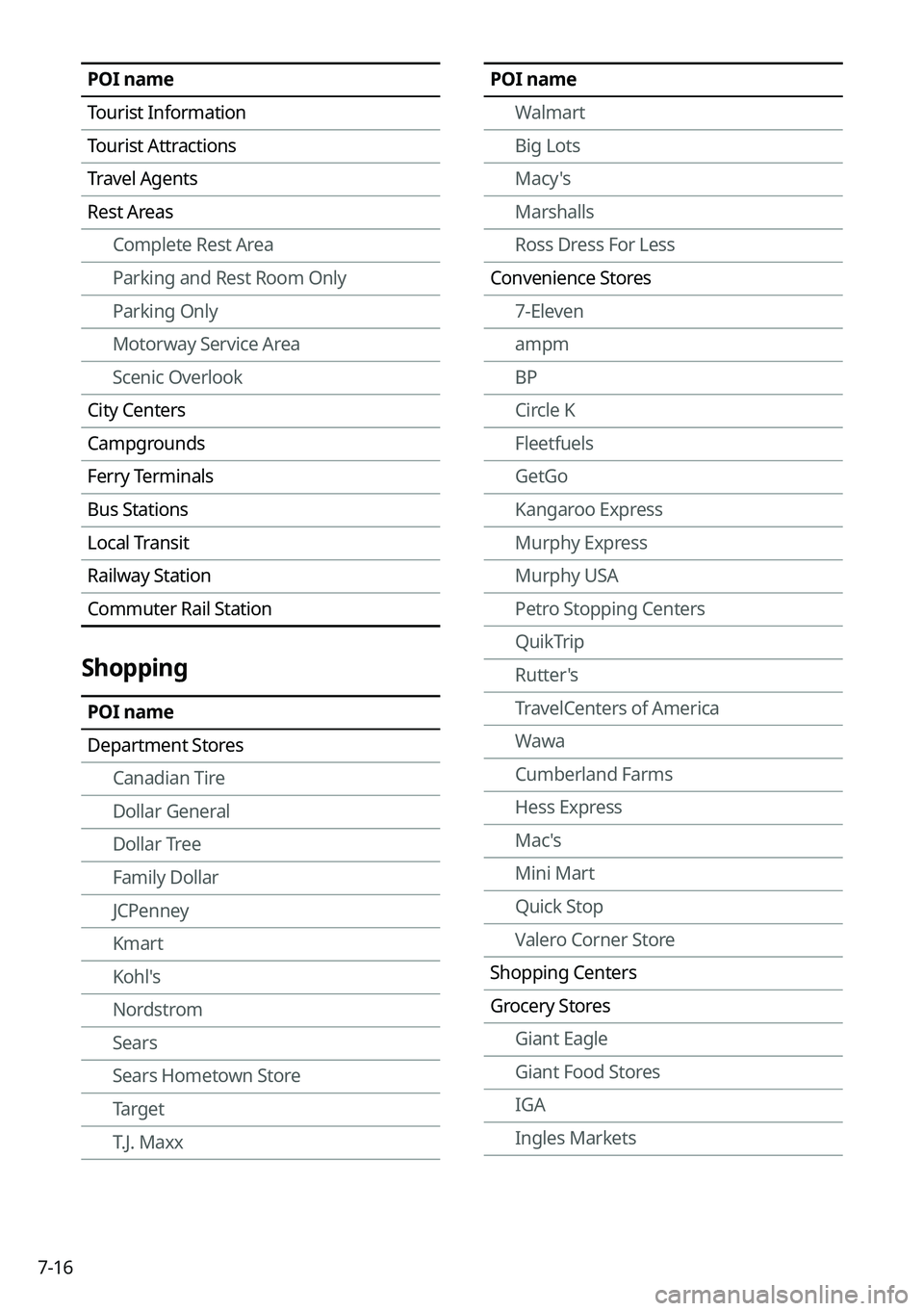
7-16
POI nameWalmart
Big Lots
Macy's
Marshalls
Ross Dress For Less
Convenience Stores 7-Eleven
ampm
BP
Circle K
Fleetfuels
GetGo
Kangaroo Express
Murphy Express
Murphy USA
Petro Stopping Centers
QuikTrip
Rutter's
TravelCenters of America
Wawa
Cumberland Farms
Hess Express
Mac's
Mini Mart
Quick Stop
Valero Corner Store
Shopping Centers
Grocery Stores Giant Eagle
Giant Food Stores
IGA
Ingles MarketsPOI name
Tourist Information
Tourist Attractions
Travel Agents
Rest AreasComplete Rest Area
Parking and Rest Room Only
Parking Only
Motorway Service Area
Scenic Overlook
City Centers
Campgrounds
Ferry Terminals
Bus Stations
Local Transit
Railway Station
Commuter Rail Station
Shopping
POI name
Department Stores Canadian Tire
Dollar General
Dollar Tree
Family Dollar
JCPenney
Kmart
Kohl's
Nordstrom
Sears
Sears Hometown Store
Target
T.J. Maxx
Page 169 of 316
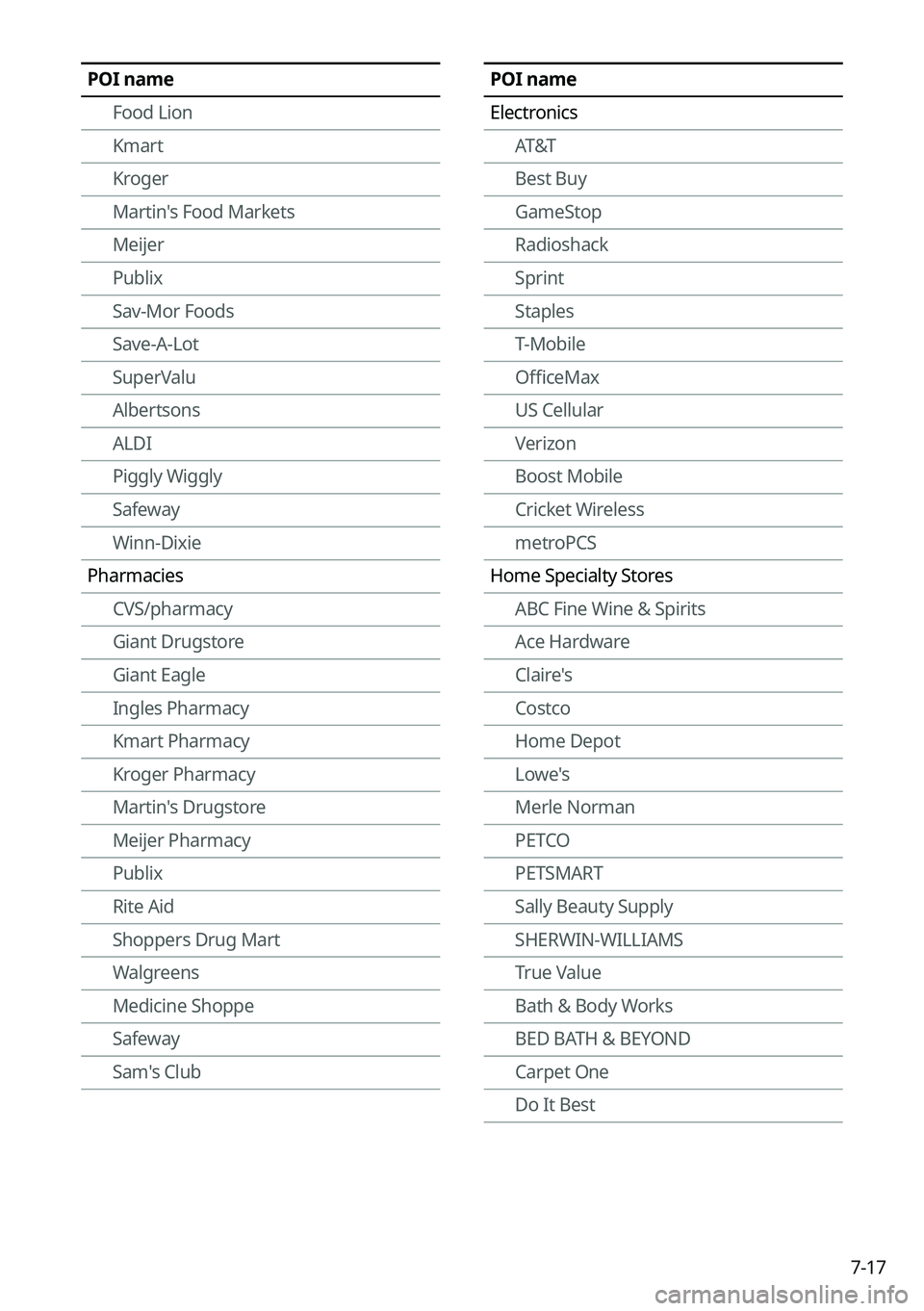
7-17
POI name
ElectronicsAT&T
Best Buy
GameStop
Radioshack
Sprint
Staples
T-Mobile
OfficeMax
US Cellular
Verizon
Boost Mobile
Cricket Wireless
metroPCS
Home Specialty Stores ABC Fine Wine & Spirits
Ace Hardware
Claire's
Costco
Home Depot
Lowe's
Merle Norman
PETCO
PETSMART
Sally Beauty Supply
SHERWIN-WILLIAMS
True Value
Bath & Body Works
BED BATH & BEYOND
Carpet One
Do It BestPOI name
Food Lion
Kmart
Kroger
Martin's Food Markets
Meijer
Publix
Sav-Mor Foods
Save-A-Lot
SuperValu
Albertsons
ALDI
Piggly Wiggly
Safeway
Winn-Dixie
Pharmacies CVS/pharmacy
Giant Drugstore
Giant Eagle
Ingles Pharmacy
Kmart Pharmacy
Kroger Pharmacy
Martin's Drugstore
Meijer Pharmacy
Publix
Rite Aid
Shoppers Drug Mart
Walgreens
Medicine Shoppe
Safeway
Sam's Club
Page 174 of 316
7-22
Voice Memo
You can use the microphone on the vehicle to record and play voice memos.
Using the voice memos
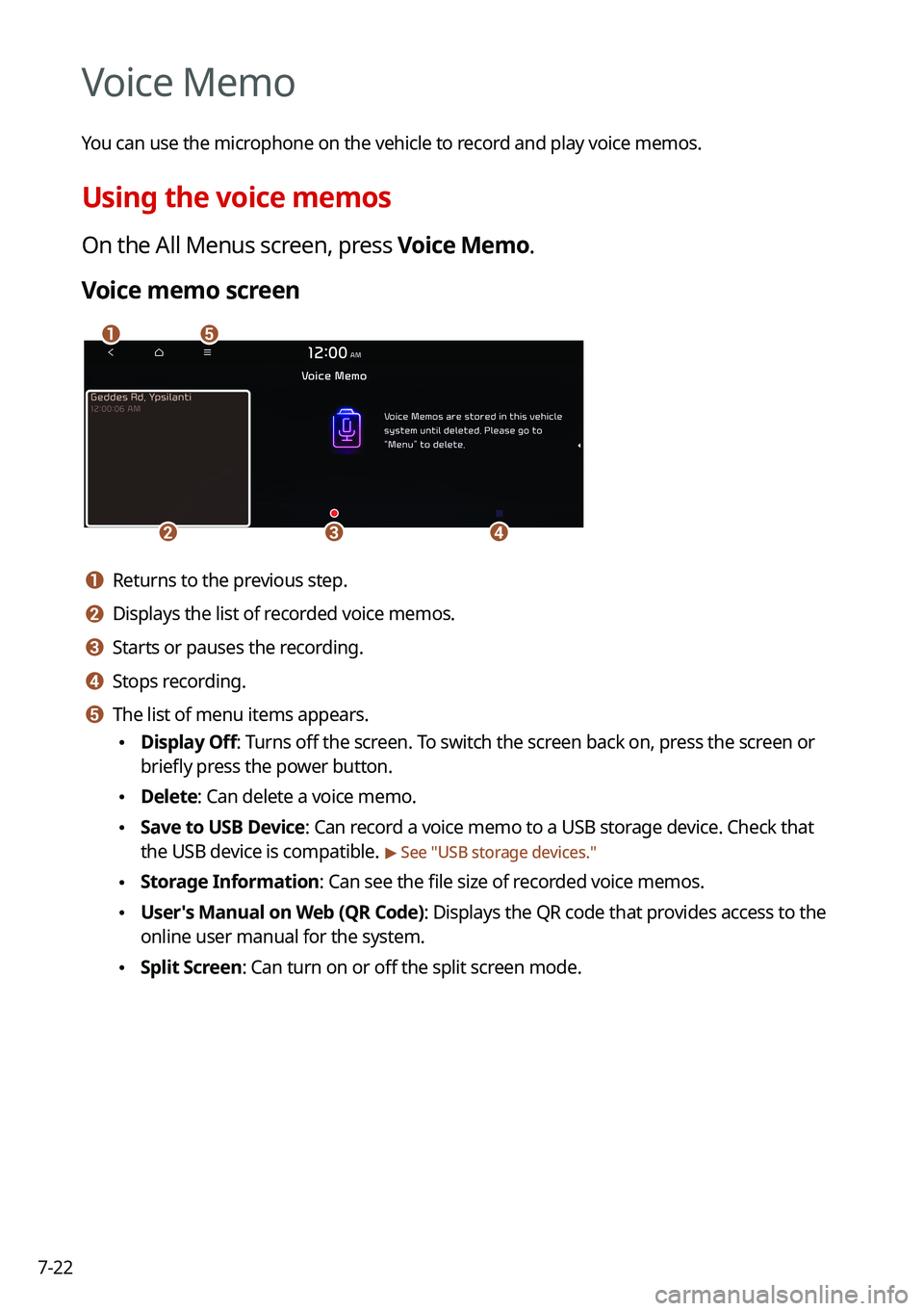
On the All Menus screen, press Voice Memo.
Voice memo screen
\037\036
\035\034\033
a a Returns to the previous step.
b b Displays the list of recorded voice memos.
c c Starts or pauses the recording.
d d Stops recording.
e e The list of menu items appears.
\225Display Off: Turns off the screen. To switch the screen back on, press the screen or
briefly press the power button.
\225Delete: Can delete a voice memo.
\225Save to USB Device: Can record a voice memo to a USB storage device. Check that
the USB device is compatible.
> See "USB storage devices."
\225Storage Information: Can see the file size of recorded voice memos.
\225User's Manual on Web (QR Code): Displays the QR code that provides access to the
online user manual for the system.
\225Split Screen: Can turn on or off the split screen mode.
Page 175 of 316
7-23
Recording a voice memo
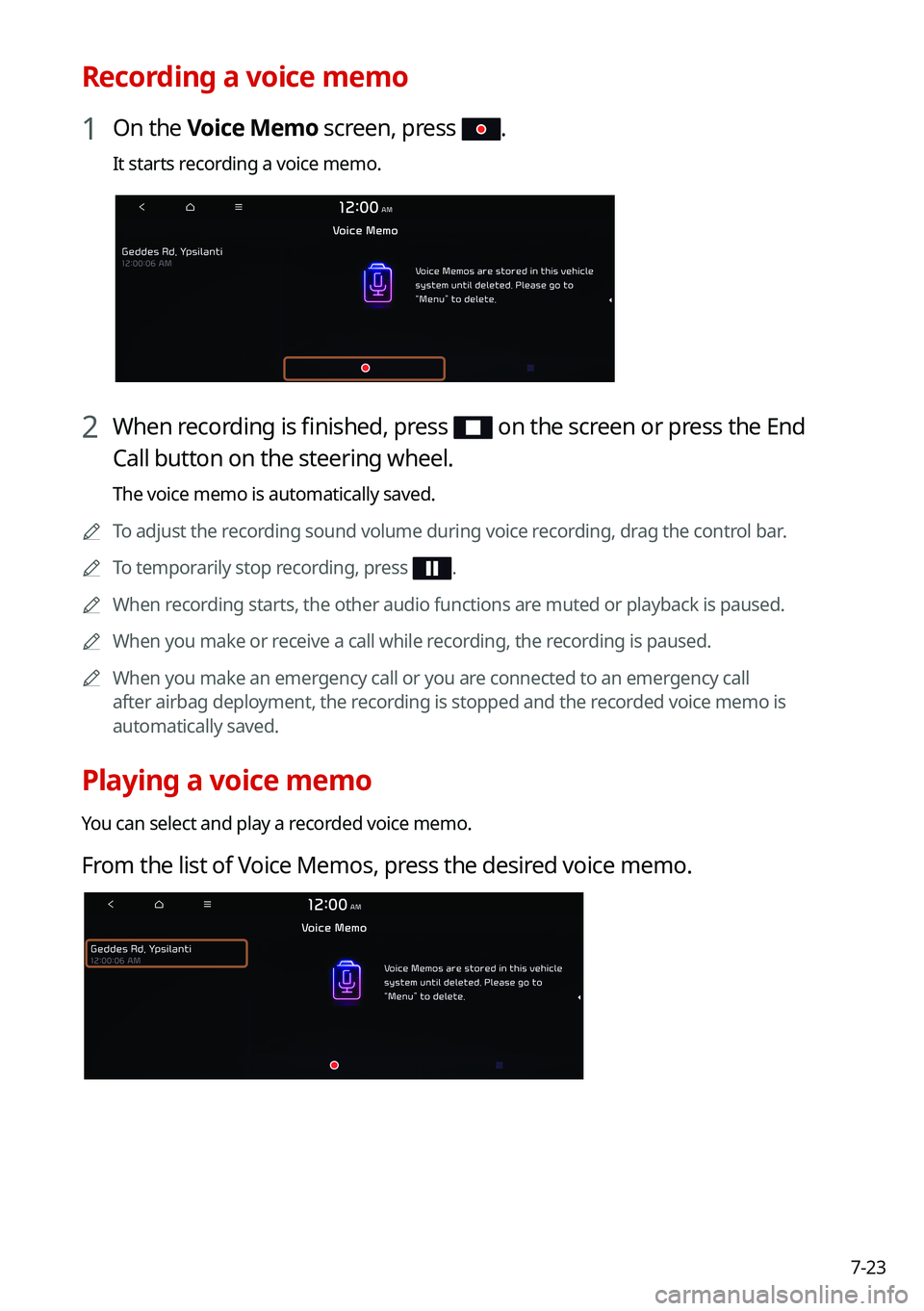
1 On the Voice Memo screen, press .
It starts recording a voice memo.
2 When recording is finished, press on the screen or press the End
Call button on the steering wheel.
The voice memo is automatically saved.
0000
A
To adjust the recording sound volume during voice recording, drag the control bar.
0000
A
To temporarily stop recording, press
.
0000
A
When recording starts, the other audio functions are muted or playback is paused.
0000
A
When you make or receive a call while recording, the recording is paused.
0000
A
When you make an emergency call or you are connected to an emergency call
after airbag deployment, the recording is stopped and the recorded voice memo is
automatically saved.
Playing a voice memo
You can select and play a recorded voice memo.
From the list of Voice Memos, press the desired voice memo.
Page 191 of 316
9-3
Configuring the vehicle settings (Type1)
(if equipped)
You can configure the functions for driving and related environments.
\335Warning
Make sure you stop the vehicle before changing settings to ensure safety.0000
A
Vehicle settings can be changed only when the vehicle is on.
0000
A
Available settings may differ depending on the vehicle model and specifications.
0000
A
Depending on the climate control system, some functions may not be supported.
1 On the All Menus screen, press Setup >
Vehicle.
The vehicle settings screen appears.
2 Configure the settings required:
0000
A
Press Menu >
Search for Settings or press and enter a keyword to search for a
setting item. You can also search for a setting item by voice.
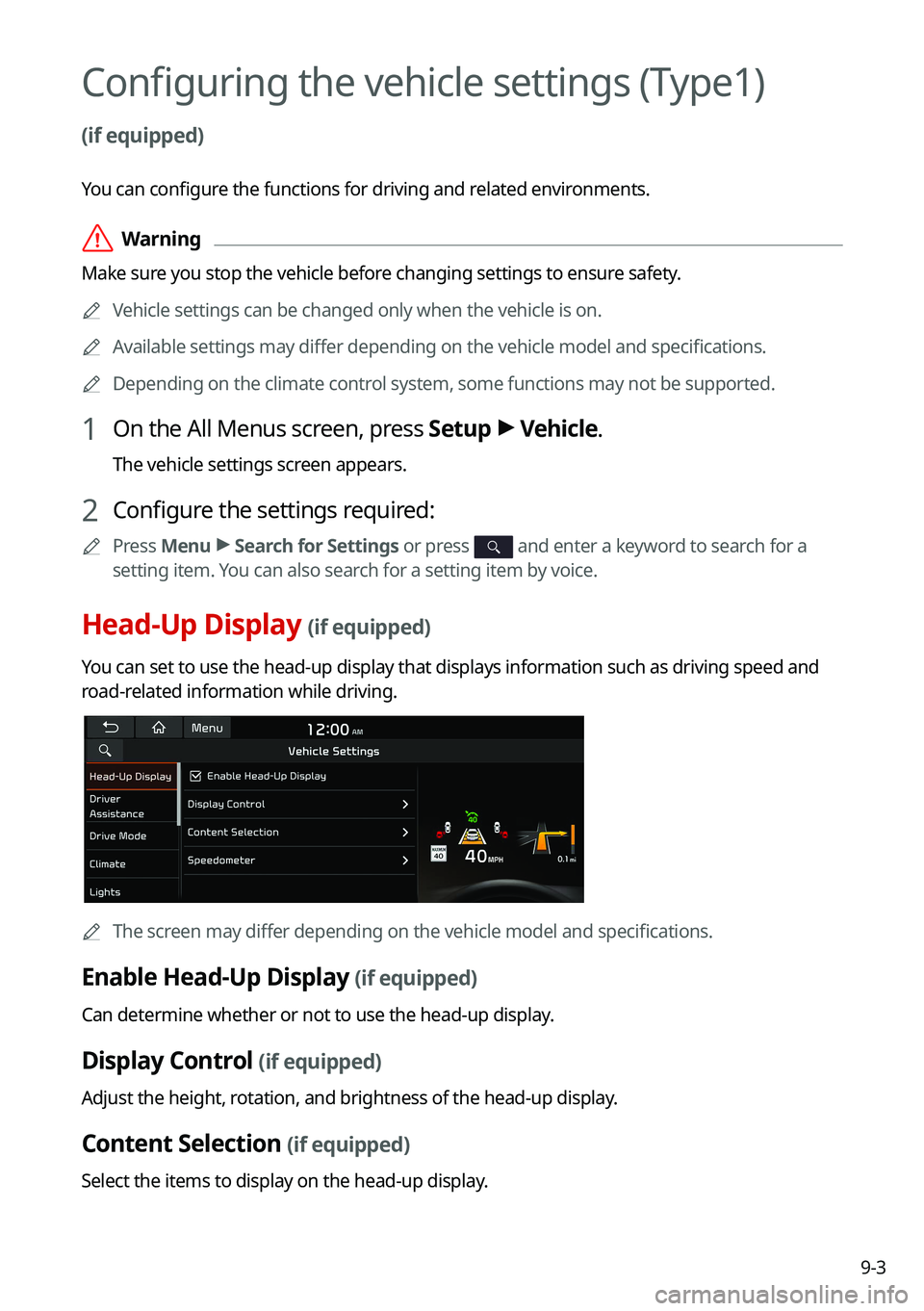
Head-Up Display (if equipped)
You can set to use the head-up display that displays information such as driving speed and
road-related information while driving.
0000
A
The screen may differ depending on the vehicle model and specifications.
Enable Head-Up Display (if equipped)
Can determine whether or not to use the head-up display.
Display Control (if equipped)
Adjust the height, rotation, and brightness of the head-up display.
Content Selection (if equipped)
Select the items to display on the head-up display.
Page 193 of 316
9-5
Driving Convenience (if equipped)
Sets the properties of Driving Convenience system.0000
A
The Driving Convenience system operates based on the information from the navigation
system so you must use the system only when the navigation system operates properly.
\225Highway Driving Assist: Assists driving in a highway according to the set speed and
distance to the leading vehicle while keeping the vehicle centered in the lane.
0000
A
The highway driving assist system operates only on a highway. When the vehicle exits
from the highway, the system is turned off automatically.
\225Highway Auto Speed Zone Slowdown: Automatically decelerates in a highway speed
enforcement zone.
0000
A
The highway auto speed zone slowdown system operates only on a highway. When
the vehicle exits from the highway, the system is turned off automatically.
0000
A
It operates considering the speed cameras located on the selected route.
\225Highway Auto Curve Slowdown: Automatically decelerates in a highway curve zone.
0000
A
It operates based on the curve zones on the route. When the destination is not set, it
operates based on the curve zones on the expected path.
Warning Timing (if equipped)
Sets the timing of the warning.
Warning Volume (if equipped)
Sets the volume of the warning sound.
Driver Attention Warning (if equipped)
Sets the properties of the Driver Attention Warning system.
\225Leading Vehicle Departure Alert: Alerts the driver during a stop, when the leading
vehicle departs.
\335Warning
Be sure to always check the road conditions ahead or surroundings before departure. An
accident caused by distracted driving can be prevented.
\225Safety Notice Call: When abnormal driving is detected, a Connected Services Center
representative will call to check on your safety.
\225Inattentive Driving Warning: Provides a warning when signs of driver inattentiveness
are detected, and recommends a rest if needed.
Page 203 of 316
9-15
Configuring the vehicle settings (Type2)
(if equipped)
You can configure the functions for driving and related environments.
\335Warning
Make sure you stop the vehicle before changing settings to ensure safety.0000
A
Vehicle settings can be changed only when the vehicle is on.
0000
A
Available settings may differ depending on the vehicle model and specifications.
0000
A
Depending on the climate control system, some functions may not be supported.
1 On the All Menus screen, press Setup >
Vehicle.
The vehicle settings screen appears.
2 Configure the settings required:
0000
A
Press >
Search for Settings or press and enter a keyword to search for a
setting item. You can also search for a setting item by voice.
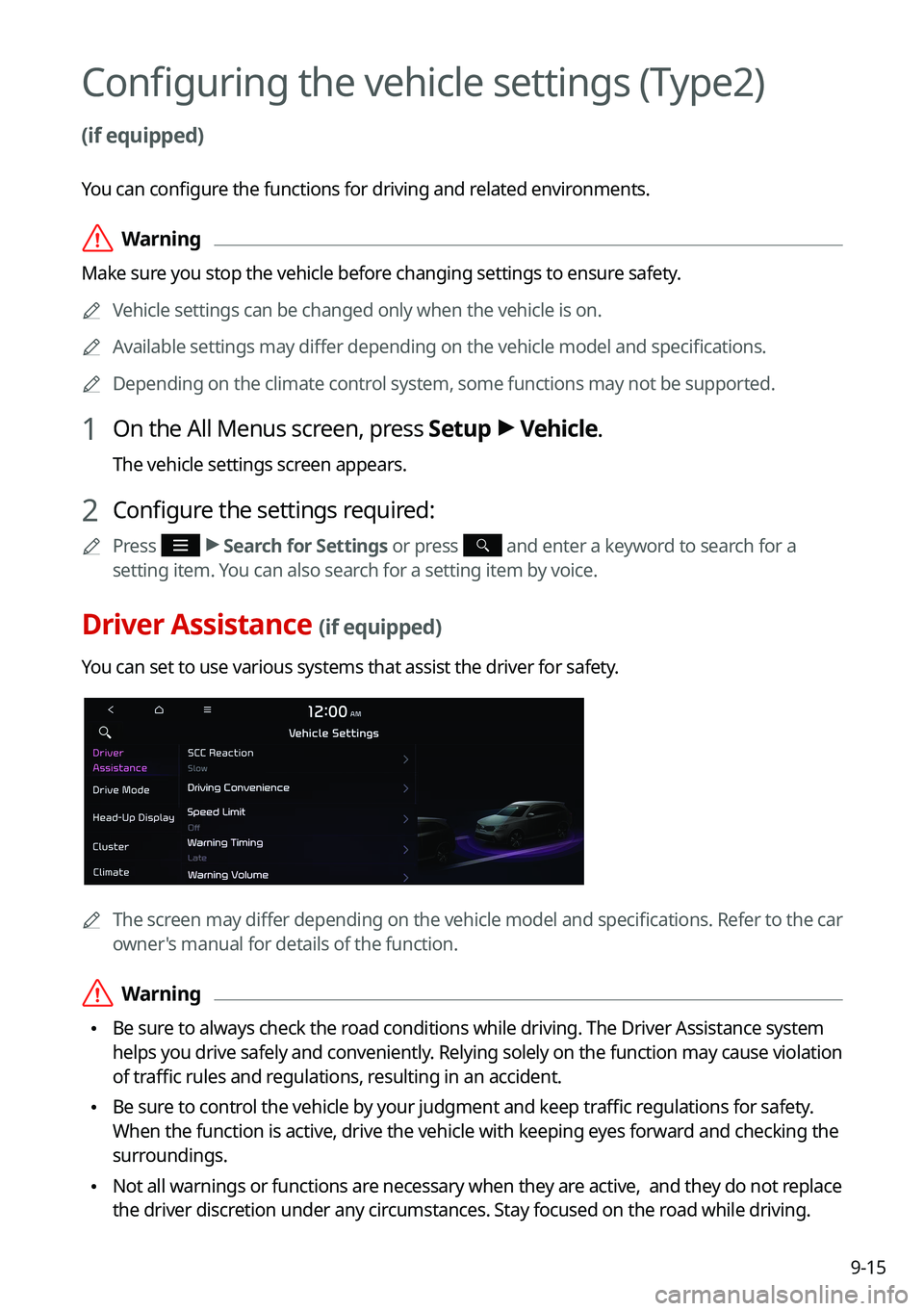
Driver Assistance (if equipped)
You can set to use various systems that assist the driver for safety.
0000
A
The screen may differ depending on the vehicle model and specifications. Refer to the car
owner's manual for details of the function.
\335Warning
\225Be sure to always check the road conditions while driving. The Driver Assistance system
helps you drive safely and conveniently. Relying solely on the function may cause violation
of traffic rules and regulations, resulting in an accident.
\225Be sure to control the vehicle by your judgment and keep traffic regulations for safety.
When the function is active, drive the vehicle with keeping eyes forward and checking the
surroundings.
\225Not all warnings or functions are necessary when they are active, and they do not replace
the driver discretion under any circumstances. Stay focused on the road while driving.
Page 205 of 316
9-17
Speed Limit (if equipped)
Sets the properties of the Speed Limit system.
\225Speed Limit Offset: Adjusts the offset amount of the speed limit.
\225Speed Limit Assist: Adjusts the vehicle set speed based on the current speed limit of the
road.
\225Speed Limit Warning: Provides a warning when the speed limit is exceeded.
\225Off: Disables the Speed Limit functions.
Warning Timing (if equipped)
Sets the timing of the warning.
Warning Volume (if equipped)
Sets the volume of the warning sound.
Haptic Warning (if equipped)
Sets the intensity of the steering wheel vibration warning.
Driver Attention Warning (if equipped)
Sets the properties of the Driver Attention Warning system.
\225Leading Vehicle Departure Alert: Alerts the driver during a stop, when the leading
vehicle departs.
\335Warning
Be sure to always check the road conditions ahead or surroundings before departure. An
accident caused by distracted driving can be prevented.
\225Inattentive Driving Warning: Provides a warning when signs of driver inattentiveness
are detected, and recommends a rest if needed.
\225Safety Notice Call: When abnormal driving is detected, a Connected Services Center
representative will call to check on your safety.
Page 246 of 316
9-58
Auto Re-center Map
You can set the system to automatically display the current position when the specified
period of time elapses after changing to another position on the map.
Guidance
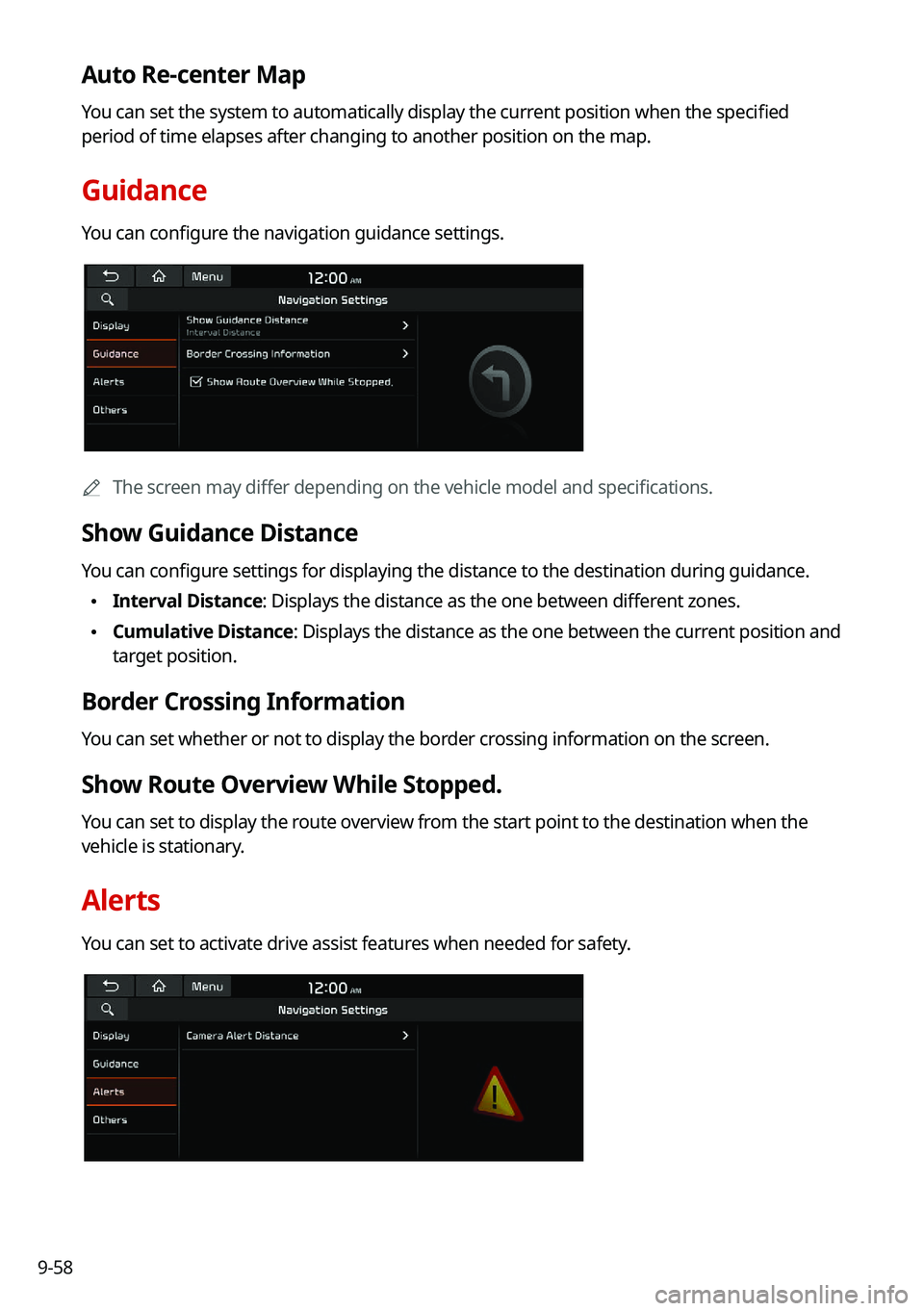
You can configure the navigation guidance settings.
0000AThe screen may differ depending on the vehicle model and specifications.
Show Guidance Distance
You can configure settings for displaying the distance to the destination during guidance.
\225Interval Distance: Displays the distance as the one between different zones.
\225Cumulative Distance: Displays the distance as the one between the current position and
target position.
Border Crossing Information
You can set whether or not to display the border crossing information on the screen.
Show Route Overview While Stopped.
You can set to display the route overview from the start point to the destination when the
vehicle is stationary.
Alerts
You can set to activate drive assist features when needed for safety.
Page 252 of 316
9-64
Guidance
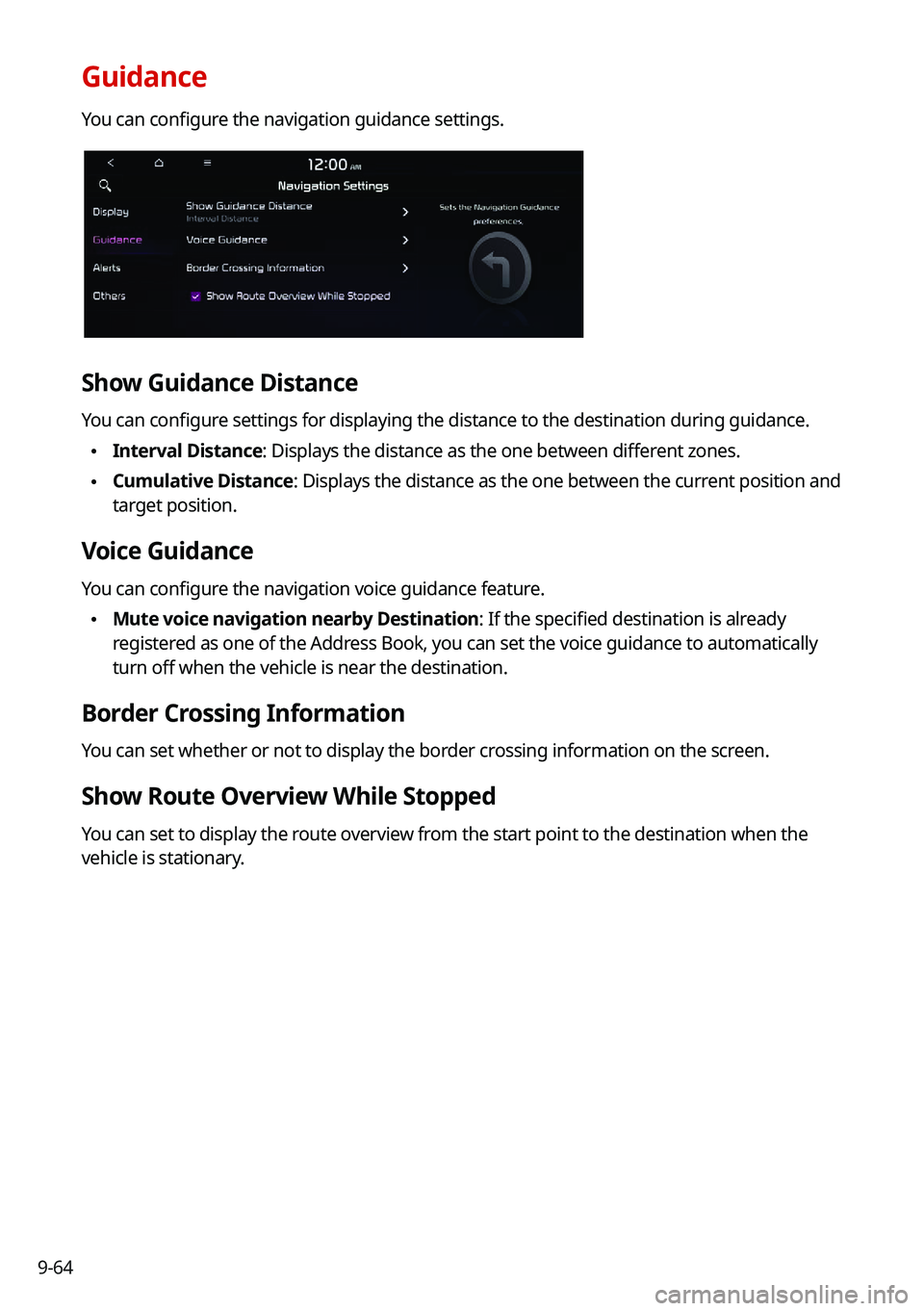
You can configure the navigation guidance settings.
Show Guidance Distance
You can configure settings for displaying the distance to the destination during guidance.
\225Interval Distance: Displays the distance as the one between different zones.
\225Cumulative Distance: Displays the distance as the one between the current position and
target position.
Voice Guidance
You can configure the navigation voice guidance feature.
\225Mute voice navigation nearby Destination: If the specified destination is already
registered as one of the Address Book, you can set the voice guidance to automatically
turn off when the vehicle is near the destination.
Border Crossing Information
You can set whether or not to display the border crossing information on the screen.
Show Route Overview While Stopped
You can set to display the route overview from the start point to the destination when the
vehicle is stationary.