display KIA Soul EV 2017 2.G Owner's Guide
[x] Cancel search | Manufacturer: KIA, Model Year: 2017, Model line: Soul EV, Model: KIA Soul EV 2017 2.GPages: 470, PDF Size: 16.76 MB
Page 134 of 470
Features of your vehicle
64
4
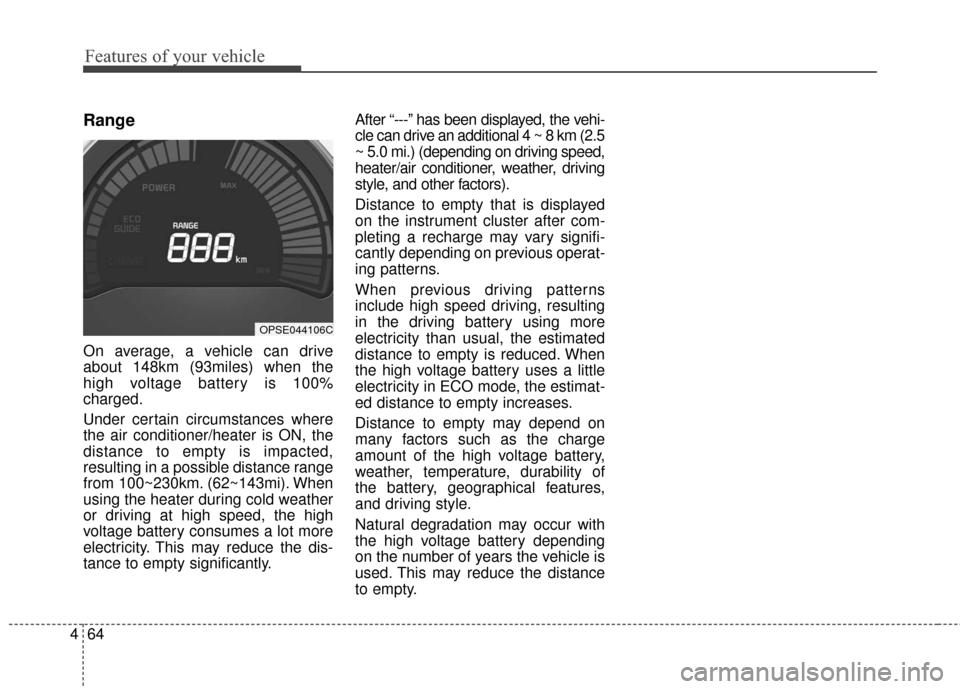
Range
On average, a vehicle can drive
about 148km (93miles) when the
high voltage battery is 100%
charged.
Under certain circumstances where
the air conditioner/heater is ON, the
distance to empty is impacted,
resulting in a possible distance range
from 100~230km. (62~143mi). When
using the heater during cold weather
or driving at high speed, the high
voltage battery consumes a lot more
electricity. This may reduce the dis-
tance to empty significantly. After “---” has been displayed, the vehi-
cle can drive an additional 4 ~ 8 km (2.5
~ 5.0 mi.) (depending on driving speed,
heater/air conditioner, weather, driving
style, and other factors).
Distance to empty that is displayed
on the instrument cluster after com-
pleting a recharge may vary signifi-
cantly depending on previous operat-
ing patterns.
When previous driving patterns
include high speed driving, resulting
in the driving battery using more
electricity than usual, the estimated
distance to empty is reduced. When
the high voltage battery uses a little
electricity in ECO mode, the estimat-
ed distance to empty increases.
Distance to empty may depend on
many factors such as the charge
amount of the high voltage battery,
weather, temperature, durability of
the battery, geographical features,
and driving style.
Natural degradation may occur with
the high voltage battery depending
on the number of years the vehicle is
used. This may reduce the distance
to empty.
OPSE044106C
Page 150 of 470
Features of your vehicle
80
4
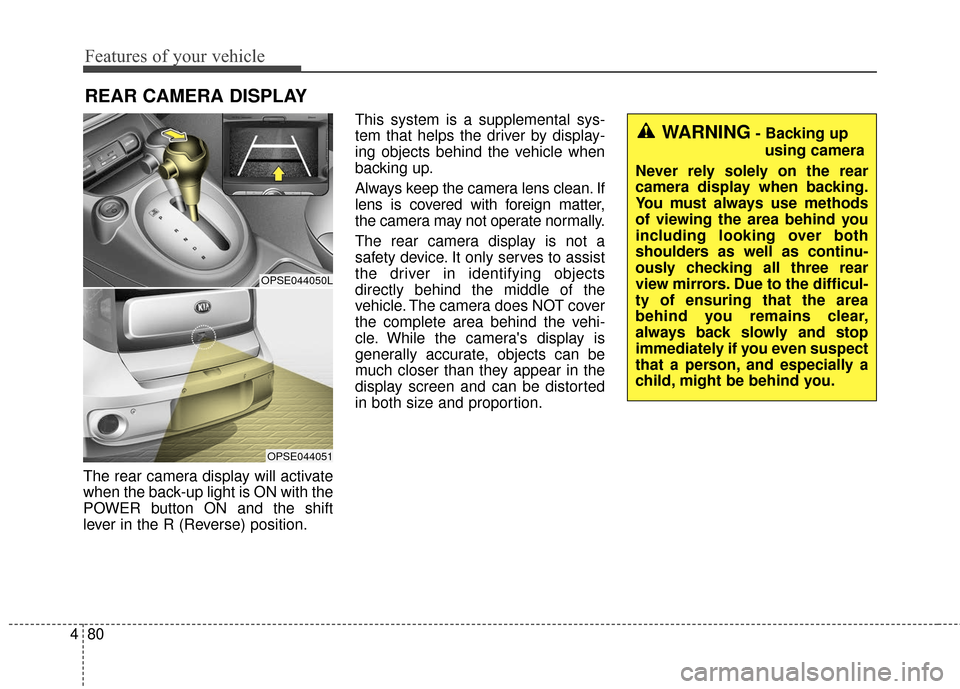
The rear camera display will activate
when the back-up light is ON with the
POWER button ON and the shift
lever in the R (Reverse) position. This system is a supplemental sys-
tem that helps the driver by display-
ing objects behind the vehicle when
backing up.
Always keep the camera lens clean. If
lens is covered with foreign matter,
the camera may not operate normally.
The rear camera display is not a
safety device. It only serves to assist
the driver in identifying objects
directly behind the middle of the
vehicle. The camera does NOT cover
the complete area behind the vehi-
cle. While the camera's display is
generally accurate, objects can be
much closer than they appear in the
display screen and can be distorted
in both size and proportion.
REAR CAMERA DISPLAY
OPSE044050L
OPSE044051
WARNING- Backing up
using camera
Never rely solely on the rear
camera display when backing.
You must always use methods
of viewing the area behind you
including looking over both
shoulders as well as continu-
ously checking all three rear
view mirrors. Due to the difficul-
ty of ensuring that the area
behind you remains clear,
always back slowly and stop
immediately if you even suspect
that a person, and especially a
child, might be behind you.
Page 164 of 470
Features of your vehicle
94
4
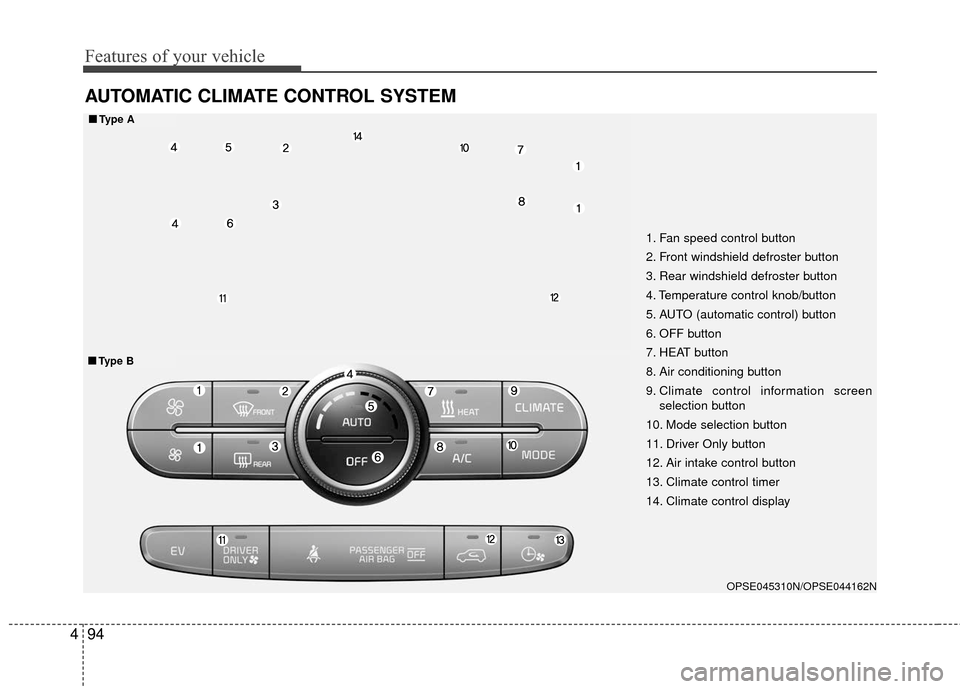
AUTOMATIC CLIMATE CONTROL SYSTEM
OPSE045310N/OPSE044162N
1. Fan speed control button
2. Front windshield defroster button
3. Rear windshield defroster button
4. Temperature control knob/button
5. AUTO (automatic control) button
6. OFF button
7. HEAT button
8. Air conditioning button
9. Climate control information screen
selection button
10. Mode selection button
11. Driver Only button
12. Air intake control button
13. Climate control timer
14. Climate control display
■ ■ Type A
■ ■Type B
Page 165 of 470
495
Features of your vehicle
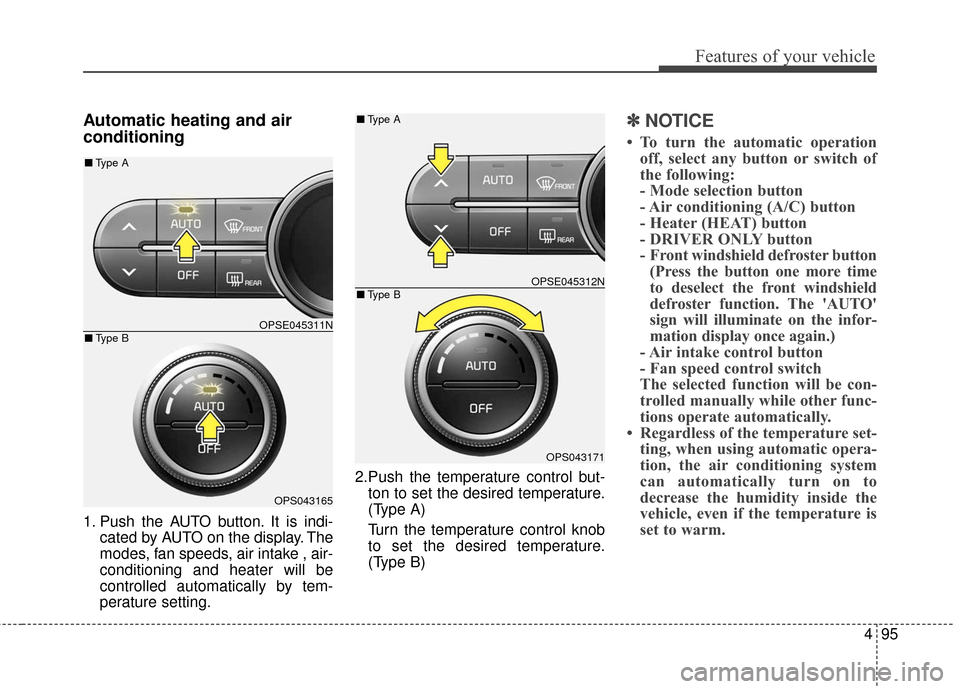
Automatic heating and air
conditioning
1. Push the AUTO button. It is indi-cated by AUTO on the display. The
modes, fan speeds, air intake , air-
conditioning and heater will be
controlled automatically by tem-
perature setting. 2.Push the temperature control but-
ton to set the desired temperature.
(Type A)
Turn the temperature control knob
to set the desired temperature.
(Type B)
✽ ✽ NOTICE
• To turn the automatic operation
off, select any button or switch of
the following:
- Mode selection button
- Air conditioning (A/C) button
- Heater (HEAT) button
- DRIVER ONLY button
- Front windshield defroster button(Press the button one more time
to deselect the front windshield
defroster function. The 'AUTO'
sign will illuminate on the infor-
mation display once again.)
- Air intake control button
- Fan speed control switch
The selected function will be con-
trolled manually while other func-
tions operate automatically.
• Regardless of the temperature set- ting, when using automatic opera-
tion, the air conditioning system
can automatically turn on to
decrease the humidity inside the
vehicle, even if the temperature is
set to warm.
OPSE045311N
OPS043165
■ Type B
■Type A
OPSE045312N
OPS043171
■Type B
■Type A
Page 170 of 470
Features of your vehicle
100
4
The temperature will decrease to the
minimum (17°C (62°F)) by pushing
the button ( ).
When pushing the button, the tem-
perature will increase or decrease by
0.5°C/1°F. When set to the lowest
temperature setting, the air condi-
tioning will operate continuously.
B
The temperature will increase to the
maximum (32°C (90°F)) by turning
the knob to the right extremely.
The temperature will decrease to the
minimum (17°C (62°F)) by turning
the knob to the left extremely.
When turning the knob, the tempera-
ture will increase or decrease by
0.5°C/1°F. When set to the lowest
temperature setting, the air condi-
tioning will operate continuously. Temperature scale conversion
If the battery has been discharged or
disconnected, the temperature mode
display will reset to Centigrade.
This is normal condition. You can
switch the temperature scale as fol-
lows;
While pressing the AUTO button,
press the OFF button for 3 seconds
or more. The temperature scale will
change from Centigrade to
Fahrenheit, or from Fahrenheit to
Centigrade.
The temperature unit (from °C to °F
or from °F to °C) can be changed by
using the “User Settings” mode of the
LCD display.
❈
You change the temperature unit,
the temperature unit on the instru-
ment cluster is changed as well.Air intake control
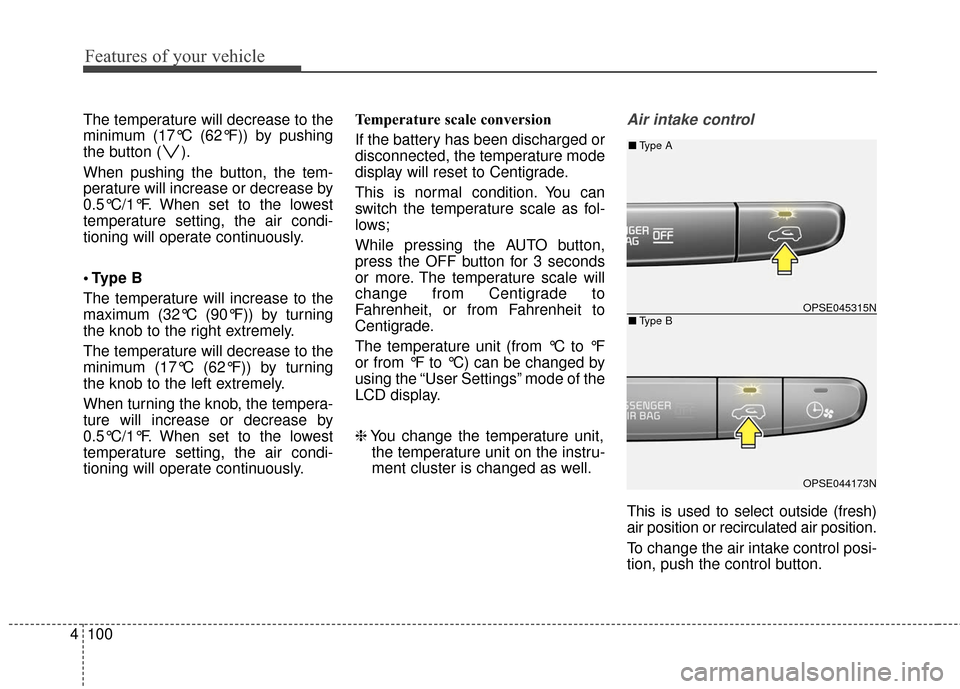
This is used to select outside (fresh)
air position or recirculated air position.
To change the air intake control posi-
tion, push the control button.
OPSE045315N
OPSE044173N
■ Type B
■Type A
Page 175 of 470
4105
Features of your vehicle
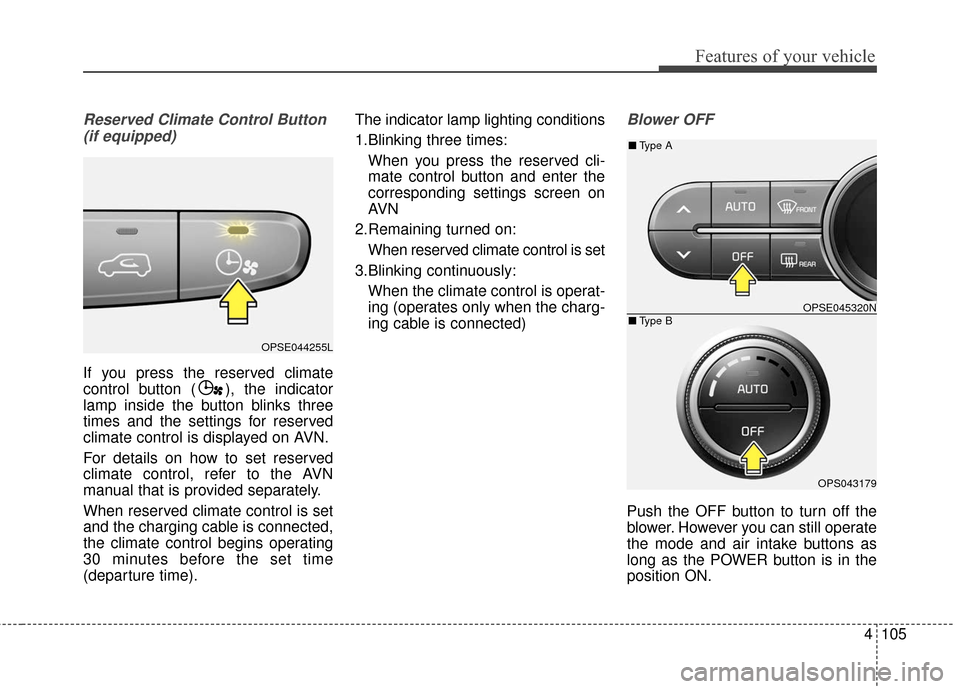
Reserved Climate Control Button(if equipped)
If you press the reserved climate
control button ( ), the indicator
lamp inside the button blinks three
times and the settings for reserved
climate control is displayed on AVN.
For details on how to set reserved
climate control, refer to the AVN
manual that is provided separately.
When reserved climate control is set
and the charging cable is connected,
the climate control begins operating
30 minutes before the set time
(departure time). The indicator lamp lighting conditions
1.Blinking three times:
When you press the reserved cli-
mate control button and enter the
corresponding settings screen on
AVN
2.Remaining turned on: When reserved climate control is set
3.Blinking continuously: When the climate control is operat-
ing (operates only when the charg-
ing cable is connected)
Blower OFF
Push the OFF button to turn off the
blower. However you can still operate
the mode and air intake buttons as
long as the POWER button is in the
position ON.
OPSE044255L
OPSE045320N
OPS043179
■ Type B
■Type A
Page 210 of 470
Features of your vehicle
140
4
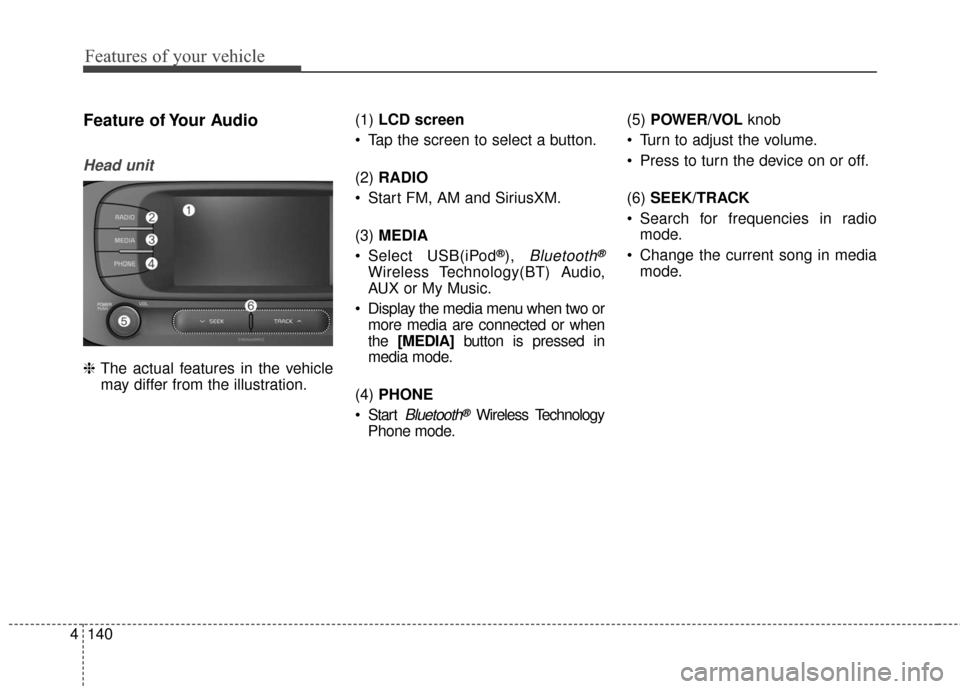
Feature of Your Audio
Head unit
❈ The actual features in the vehicle
may differ from the illustration. (1)
LCD screen
Tap the screen to select a button.
(2) RADIO
Start FM, AM and SiriusXM.
(3) MEDIA
Select USB(iPod
®), Bluetooth®
Wireless Technology(BT) Audio,
AUX or My Music.
Display the media menu when two or more media are connected or when
the [MEDIA] button is pressed in
media mode.
(4) PHONE
Start
Bluetooth®Wireless Technology
Phone mode. (5)
POWER/VOL knob
Turn to adjust the volume.
Press to turn the device on or off.
(6) SEEK/TRACK
Search for frequencies in radio mode.
Change the current song in media mode.
Page 211 of 470
Features of your vehicle
4141
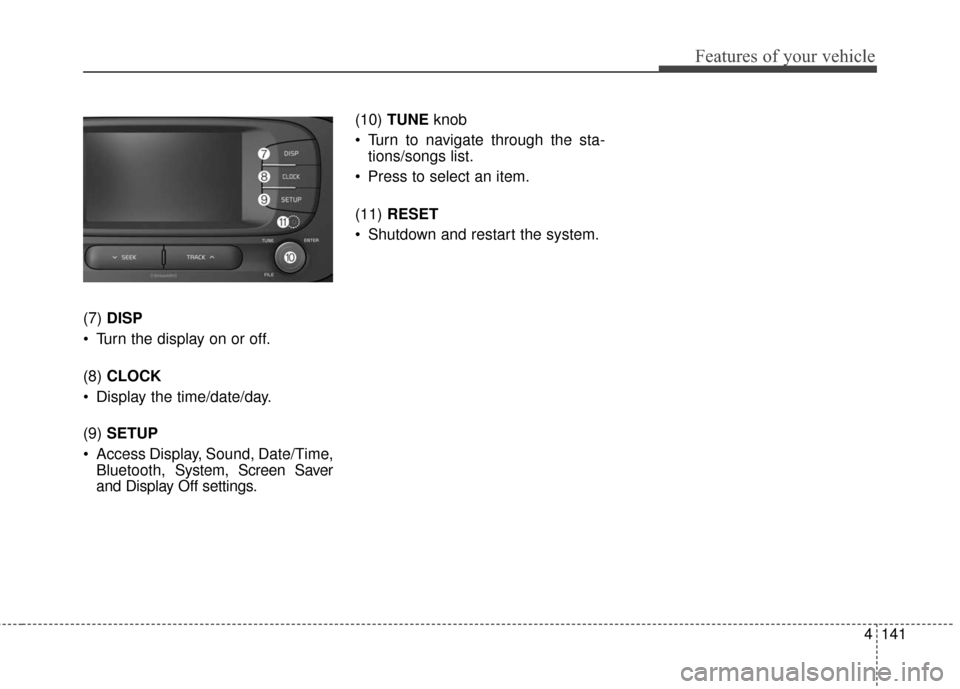
(7)DISP
Turn the display on or off.
(8) CLOCK
Display the time/date/day.
(9) SETUP
Access Display, Sound, Date/Time, Bluetooth, System, Screen Saver
and Display Off settings. (10)
TUNE knob
Turn to navigate through the sta- tions/songs list.
Press to select an item.
(11) RESET
Shutdown and restart the system.
Page 212 of 470
Features of your vehicle
142
4
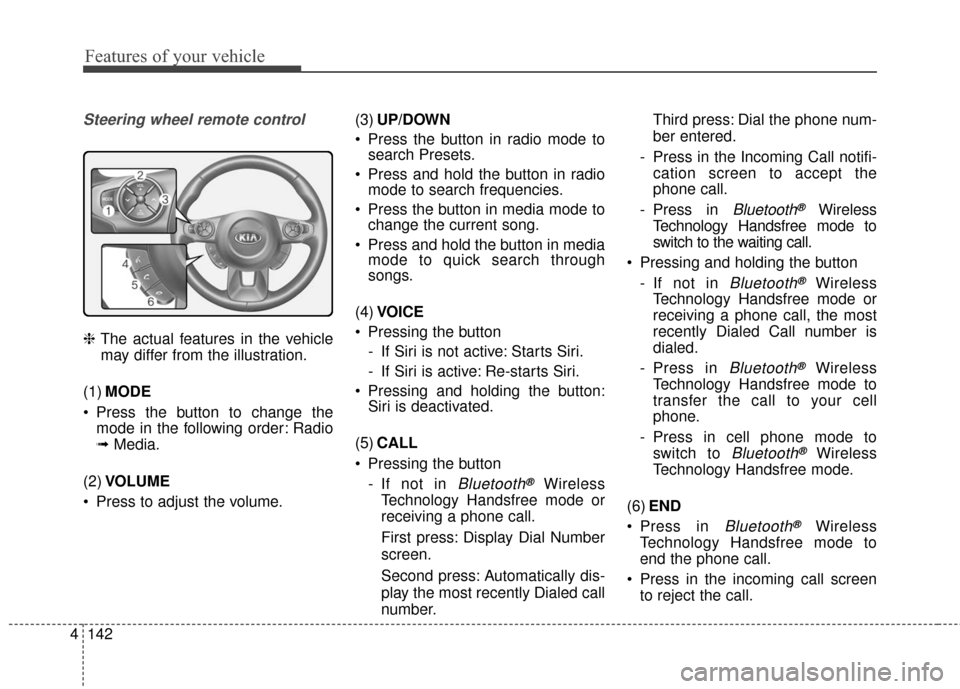
Steering wheel remote control
❈ The actual features in the vehicle
may differ from the illustration.
(1) MODE
Press the button to change the mode in the following order: Radio
➟ Media.
(2) VOLUME
Press to adjust the volume. (3)
UP/DOWN
Press the button in radio mode to search Presets.
Press and hold the button in radio mode to search frequencies.
Press the button in media mode to change the current song.
Press and hold the button in media mode to quick search through
songs.
(4) VOICE
Pressing the button - If Siri is not active: Starts Siri.
- If Siri is active: Re-starts Siri.
Pressing and holding the button: Siri is deactivated.
(5) CALL
Pressing the button - If not in
Bluetooth®Wireless
Technology Handsfree mode or
receiving a phone call.
First press: Display Dial Number
screen.
Second press: Automatically dis-
play the most recently Dialed call
number. Third press: Dial the phone num-
ber entered.
- Press in the Incoming Call notifi- cation screen to accept the
phone call.
- Press in
Bluetooth®Wireless
Technology Handsfree mode to
switch to the waiting call.
Pressing and holding the button - If not in
Bluetooth®Wireless
Technology Handsfree mode or
receiving a phone call, the most
recently Dialed Call number is
dialed.
- Press in
Bluetooth®Wireless
Technology Handsfree mode to
transfer the call to your cell
phone.
- Press in cell phone mode to switch to
Bluetooth®Wireless
Technology Handsfree mode.
(6) END
Press in
Bluetooth®Wireless
Technology Handsfree mode to
end the phone call.
Press in the incoming call screen to reject the call.
Page 215 of 470
Features of your vehicle
4145
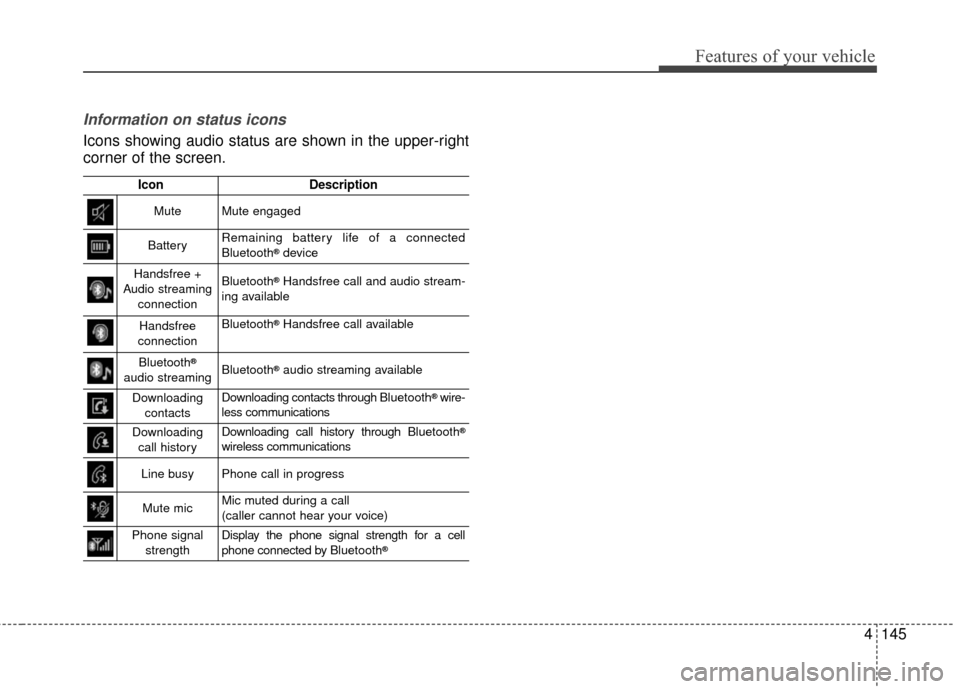
Information on status icons
Icons showing audio status are shown in the upper-right
corner of the screen.
IconDescription
MuteMute engaged
BatteryRemaining battery life of a connected
Bluetooth®device
Handsfree +
Audio streaming connectionBluetooth®Handsfree call and audio stream-
ing available
Handsfree
connectionBluetooth®Handsfree call available
Bluetooth®
audio streamingBluetooth®audio streaming available
Downloading contactsDownloading contacts through Bluetooth®wire-
less communications
Downloading call historyDownloading call history through Bluetooth®
wireless communications
Line busyPhone call in progress
Mute micMic muted during a call
(caller cannot hear your voice)
Phone signal strengthDisplay the phone signal strength for a cell
phone connected by Bluetooth®