display KIA SPORTAGE 2022 Workshop Manual
[x] Cancel search | Manufacturer: KIA, Model Year: 2022, Model line: SPORTAGE, Model: KIA SPORTAGE 2022Pages: 630, PDF Size: 9.69 MB
Page 367 of 630
Driving your vehicle
82
5
(Continued)
If the vehicle in front stops
suddenly, you may have less
control of the brake system.
Therefore, always keep safe
distance between your vehicle
and the vehicle in front of you.
FCA may activate during brak- ing and the vehicle may stop
suddenly. And the load in the
vehicle may endanger passen-
gers. Therefore, always be
mindful of the load volume in
the vehicle.
FCA may not activate if the driver applies the brake pedal
to avoid risk of collision.
FCA does not operate when the vehicle is in reverse. In
these circumstances, you
must maintain a safe braking
distance, and if necessary,
depress the brake pedal to
reduce the driving speed in
order to maintain a safe dis
tance.
(Continued)WARNING
FCA is only a supplementalsystem for the driver’s con-
venience. The driver has the
ultimate responsibility to con-
trol and operate the vehicle
safely. Do not solely depend
on FCA. Rather, maintain a
safe braking distance, and, if
necessary, depress the brake
pedal to lower the driving
speed.
In certain instances and under certain driving condi-
tions, FCA may activate unin-
tentionally. This initial warning
message appears on the LCD
display with a warning chime.
Also, in certain instances the
front radar sensor or camera
recognition system may not
detect the vehicle or pedestri-
an ahead. FCA may not acti-
vate and the warning mes-
sage will not be displayed.
(Continued)
(Continued)
FCA may unnecessarily pro-duce the warning message
and the warning alarms. Also,
due to the sensing limitation,
FCA may not produce the
warning message and the
warning alarm at all.
When there is a malfunction with FCA, the braking control
does not operate upon detect-
ing a collision risk even with
other braking systems nor-
mally operating.
FCA operates only for the vehicle/pedestrian in front,
while driving forward. It does
not operate for any animals or
vehicles in the opposite direc-
tion.
FCA does not recognize the vehicle, which transversally
drives across the crossroad,
or the vehicle, which is parked
in the transversal direction.
(Continued)
Page 377 of 630
Driving your vehicle
92
5
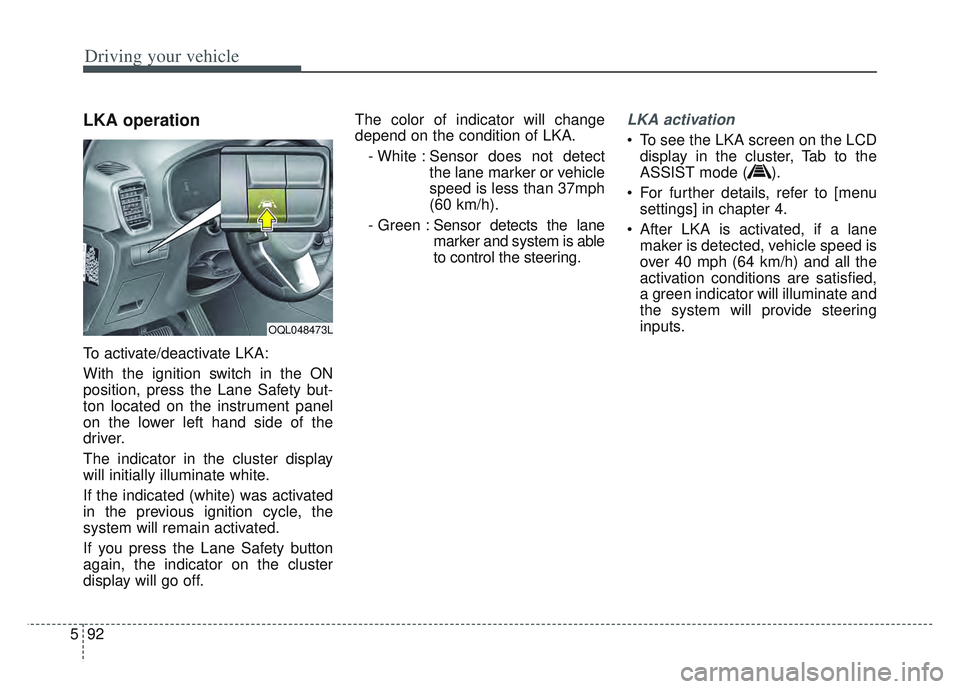
LKA operation
To activate/deactivate LKA:
With the ignition switch in the ON
position, press the Lane Safety but-
ton located on the instrument panel
on the lower left hand side of the
driver.
The indicator in the cluster display
will initially illuminate white.
If the indicated (white) was activated
in the previous ignition cycle, the
system will remain activated.
If you press the Lane Safety button
again, the indicator on the cluster
display will go off. The color of indicator will change
depend on the condition of LKA.
- White : Sensor does not detect the lane marker or vehicle
speed is less than 37mph
(60 km/h).
- Green : Sensor detects the lane
marker and system is able
to control the steering.
LKA activation
To see the LKA screen on the LCD
display in the cluster, Tab to the
ASSIST mode ( ).
For further details, refer to [menu settings] in chapter 4.
After LKA is activated, if a lane maker is detected, vehicle speed is
over 40 mph (64 km/h) and all the
activation conditions are satisfied,
a green indicator will illuminate and
the system will provide steering
inputs.
OQL048473L
Page 378 of 630
593
Driving your vehicle
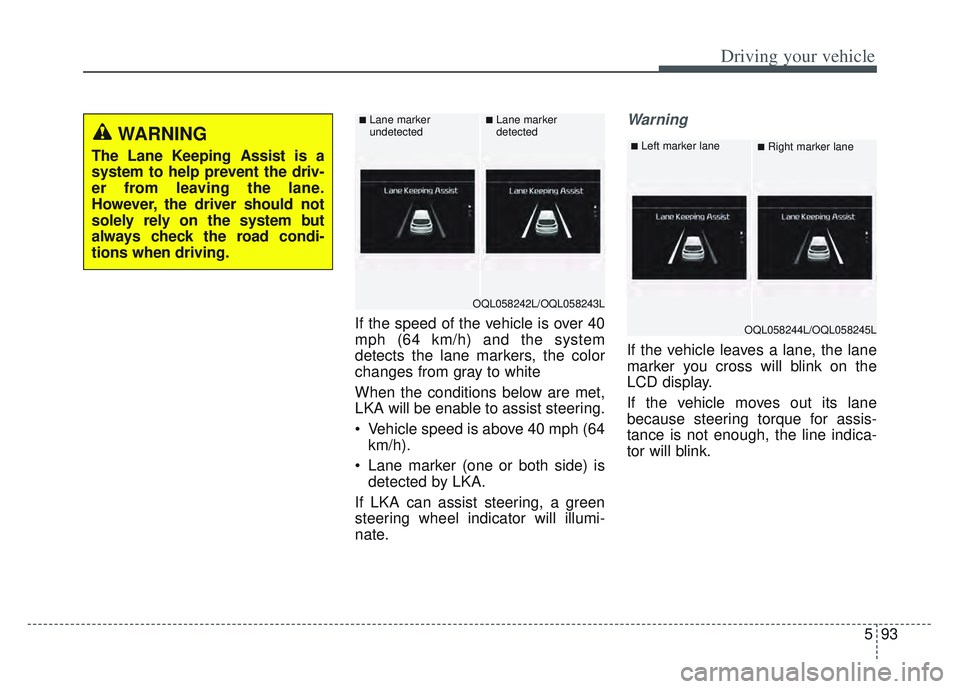
If the speed of the vehicle is over 40
mph (64 km/h) and the system
detects the lane markers, the color
changes from gray to white
When the conditions below are met,
LKA will be enable to assist steering.
Vehicle speed is above 40 mph (64km/h).
Lane marker (one or both side) is detected by LKA.
If LKA can assist steering, a green
steering wheel indicator will illumi-
nate.
Warning
If the vehicle leaves a lane, the lane
marker you cross will blink on the
LCD display.
If the vehicle moves out its lane
because steering torque for assis-
tance is not enough, the line indica-
tor will blink.
WARNING
The Lane Keeping Assist is a
system to help prevent the driv-
er from leaving the lane.
However, the driver should not
solely rely on the system but
always check the road condi-
tions when driving.
OQL058242L/OQL058243L
■Lane marker
undetected■Lane marker
detected
OQL058244L/OQL058245L
■Left marker lane■Right marker lane
Page 381 of 630

Driving your vehicle
96
5
When there is a problem with the sys-
tem do one of the following:
Turn the system on after turning
the engine off and on again.
Check if the ignition switch is in the ON position.
Check if the system is affected by the weather. (ex: fog, heavy rain,
etc.)
Check if there is foreign matter covering the camera lens
If the problem is not solved, take your
vehicle to an authorized Kia dealer
and have the system checked.LKA system Function Change
The driver can change LKA to Lane
Departure Warning System (LDW
system) or change LKA mode
between Standard LKA and Active
LKA from the User Settings Mode on
the LCD display.
The driver can choose them by plac-
ing the ignition switch to the ON posi-
tion and by selecting ‘User Settings’,
‘Driver Assistance’, and ‘Lane
Keeping Assist’.
The system is automatically set to
Standard LKA.
Lane Departure
LDW alerts the driver with a visual
and acoustic warning when the sys-
tem detects the vehicle leaving the
lane. In this mode, the system will not
provide steering inputs. When the
vehicle’s front wheel contacts the
inside edge of lane line, LKA issues
the lane departure warning.
Standard LKA
The Standard LKA mode guides the
driver to keep the vehicle within the
lanes. It provides steering inputs
when the vehicle is about to deviate
from the lanes.
Active LKA
The active LKA mode provides more
frequent steering inputs in compari-
son with the Standard LKA mode.
Page 388 of 630

5103
Driving your vehicle
(Continued)Have the vehicle inspected by an
authorized Kia dealer.
• Do not apply foreign objects such as a bumper sticker or a bumper
guard near the radar sensor or
apply paint to the sensor area.
Doing so may adversely affect the
performance of the sensor.Warning message
Blind-Spot Collision Warning dis-
abled. Radar blocked
This warning message may appear
when :
- One or both of the sensors on the
rear bumper is blocked by dirt or
snow or a foreign object.
- Driving in rural areas where the
sensor does not detect another
vehicle for an extended period of
time.
- When there is inclement weather
such as heavy snow or rain.
- When a trailer or carrier is installed. If any of these conditions occur, the
light on the Blind-Spot Safety button
and the system will turn off automat-
ically.
Turn off BCW (if equipped) when a
trailer or carrier is installed.
- Press the Blind-Spot Safety button
(the indicator on the button extin-
guish) or “User Settings Driver
Assistance Blind-Spot Safety
Off ”.
- Deactivate RCCW system by des- electing
“User Settings Driver
Assistance Blind-Spot Safety
Rear Cross-Traffic Safety”.
If you use BCW, remove a trailer or
carrier.
When BCW canceled warning mes-
sage is displayed in the cluster,
check to make sure that the rear
bumper is free from any dirt or snow
in the areas where the sensor is
located. Remove any dirt, snow, or
foreign material that could interfere
with the radar sensors.
OJF058433L
Page 394 of 630

5109
Driving your vehicle
Driver Attention Warning (DAW) dis-
plays the level of the driver’s fatigue
and inattention, considering the driv-
ing pattern, etc.System setting and activation
System setting
To turn ON the Driver AttentionWarning system, turn on the
engine, and then select 'User
Settings Driver Assistance
Driver Attention Warning High
sensitivity/Normal sensitivity/Off'
on the LCD display.
The driver can select the Driver Attention Warning system mode.
- Off : Driver Attention Warning isdeactivated.
- Normal sensitivity : Driver Attention Warning alerts the driv-
er of his/her or inattentive driving
practices.
- High sensitivity : Driver Attention Warning alerts the driver of
his/her or inattentive driving prac-
tices faster than Normal mode.
The set-up of Driver Attention Warning will be maintained, when
the engine is re-started.
Display of the driver's attention
level
DRIVER ATTENTION WARNING (DAW)
OJF058423L
■Type A
■Type B
OJF058424L
Page 395 of 630

Driving your vehicle
110
5
The driver can monitor their driving
conditions on the LCD display.
- Select 'User Settings Mode' andthen 'Driver Assistance' on the
LCD display. (For more informa-
tion, refer to “LCD Display” in
chapter 4.)
The driver's attention level is dis- played on the scale of 1 to 5. The
lower the number is, the more inat-
tentive the driver is.
The number decreases when the driver does not take a break for a
certain period of time.
The number increases when the driver attentively drives for a cer-
tain period of time.
When the driver turns on the sys- tem while driving, it displays ‘Last
Break time’.Take a break
The “Consider taking a break”message appears on the LCD dis-
play and a warning sounds to sug-
gest that the driver take a break,
when the driver's attention level is
below 1. Driver Attention Warning will not
suggest a break when the total
driving time is shorter than 10 min-
utes.
OJF058425L
■Type A
■Type B
OJF058426L
CAUTION
While other warning systemssuch as the seat belt warningsound are in operation andoverride the DAW alarming sys-tem, DAW sounds may notoccur.
Page 396 of 630

5111
Driving your vehicle
Resetting the system
The last break time is set to 00:00and the driver's attention level is
set to 5 (very attentive) when the
driver resets Driver Attention
Warning.
Driver Attention Warning resets in the following situations.
- The engine is turned OFF.
- The driver unfastens the seat beltand then opens the driver’s door
in stop.
- The driver takes a break from driving that lasts more than 10
minutes.
Driver Attention Warning operates again, when the driver restarts
driving.
System standby
Driver Attention Warning enters the
ready status and displays the
'Standby' screen in the following situ-
ations.
- The camera sensor is unable todetect the lanes.
- Driving speed remains under 40 mph (64 km/h) or over 110 mph
(177 km/h).
System malfunction
When the "Check Driver Attention
Warning (DAW) system” warning mes-
sage appears, the system is not work-
ing properly. In this case, have the
vehicle inspected by an authorized Kia
dealer.
OJF058427LOJF058429L
Page 403 of 630
Driving your vehicle
118
5
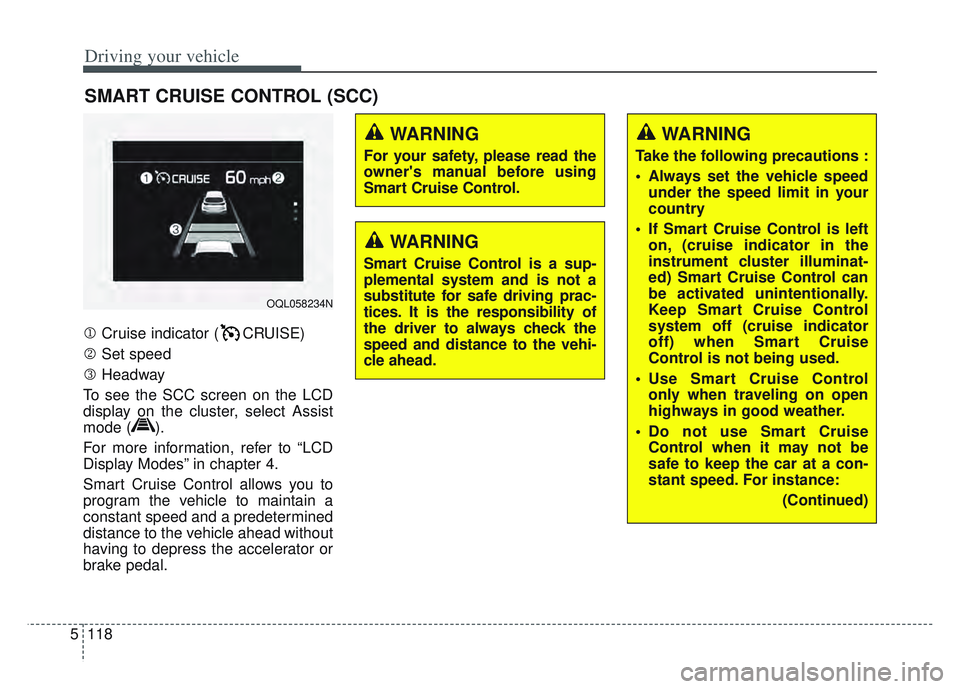
Cruise indicator ( CRUISE)
Set speed
Headway
To see the SCC screen on the LCD
display on the cluster, select Assist
mode ( ).
For more information, refer to “LCD
Display Modes” in chapter 4.
Smart Cruise Control allows you to
program the vehicle to maintain a
constant speed and a predetermined
distance to the vehicle ahead without
having to depress the accelerator or
brake pedal.
SMART CRUISE CONTROL (SCC)
WARNING
For your safety, please read the
owner's manual before using
Smart Cruise Control.
WARNING
Smart Cruise Control is a sup-
plemental system and is not a
substitute for safe driving prac-
tices. It is the responsibility of
the driver to always check the
speed and distance to the vehi-
cle ahead.
OQL058234N
WARNING
Take the following precautions :
Always set the vehicle speed under the speed limit in your
country
If Smart Cruise Control is left on, (cruise indicator in the
instrument cluster illuminat-
ed) Smart Cruise Control can
be activated unintentionally.
Keep Smart Cruise Control
system off (cruise indicator
off) when Smart Cruise
Control is not being used.
Use Smart Cruise Control only when traveling on open
highways in good weather.
Do not use Smart Cruise Control when it may not be
safe to keep the car at a con-
stant speed. For instance:
(Continued)
Page 407 of 630
Driving your vehicle
122
5
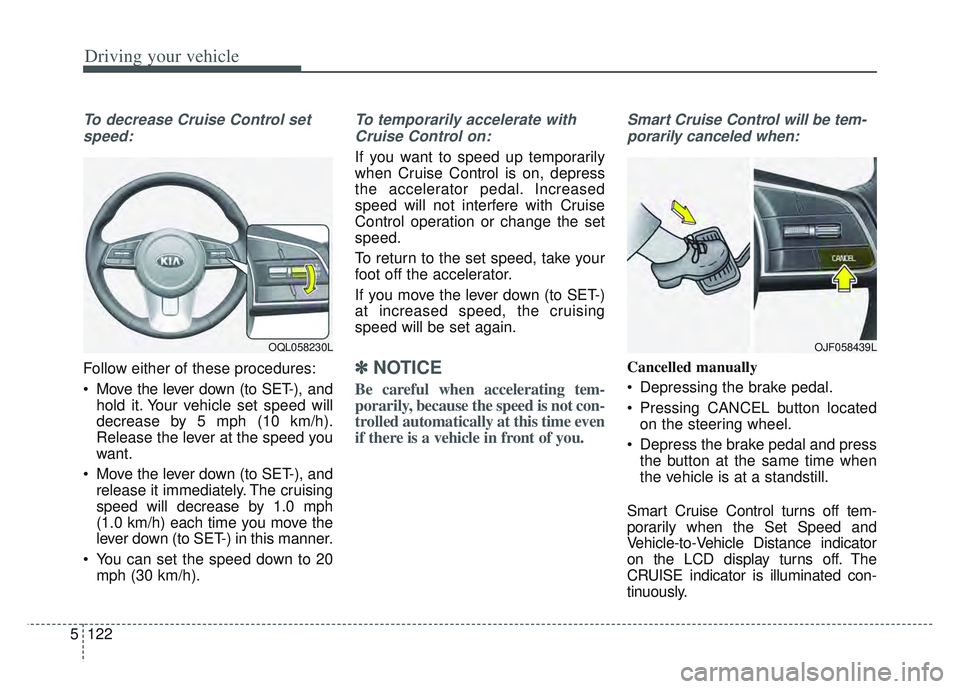
To decrease Cruise Control set
speed:
Follow either of these procedures:
Move the lever down (to SET-), and hold it. Your vehicle set speed will
decrease by 5 mph (10 km/h).
Release the lever at the speed you
want.
Move the lever down (to SET-), and release it immediately. The cruising
speed will decrease by 1.0 mph
(1.0 km/h) each time you move the
lever down (to SET-) in this manner.
You can set the speed down to 20 mph (30 km/h).
To temporarily accelerate with
Cruise Control on:
If you want to speed up temporarily
when Cruise Control is on, depress
the accelerator pedal. Increased
speed will not interfere with Cruise
Control operation or change the set
speed.
To return to the set speed, take your
foot off the accelerator.
If you move the lever down (to SET-)
at increased speed, the cruising
speed will be set again.
✽ ✽ NOTICE
Be careful when accelerating tem-
porarily, because the speed is not con-
trolled automatically at this time even
if there is a vehicle in front of you.
Smart Cruise Control will be tem-
porarily canceled when:
Cancelled manually
Depressing the brake pedal.
Pressing CANCEL button located on the steering wheel.
Depress the brake pedal and press the button at the same time when
the vehicle is at a standstill.
Smart Cruise Control turns off tem-
porarily when the Set Speed and
Vehicle-to-Vehicle Distance indicator
on the LCD display turns off. The
CRUISE indicator is illuminated con-
tinuously.
OJF058439LOQL058230L