park assist KIA SPORTAGE 2023 Features and Functions Guide
[x] Cancel search | Manufacturer: KIA, Model Year: 2023, Model line: SPORTAGE, Model: KIA SPORTAGE 2023Pages: 66, PDF Size: 5.66 MB
Page 4 of 66
2 *IF EQUIPPEDSPORTAGE FEATURES & FUNCTIONS GUIDE
TABLE OF CONTENTS
VIDEOS & QR CODES Inside Front Cover
INSTRUMENT CLUSTERInstrument Cluster Overview 03Indicators & Warning Lights 04Tire Pressure Monitoring System (TPMS) 05Fuel Economy 05Drive Mode Integrated Control System 06
VEHICLE SETTINGSLCD Instrument Cluster Modes 07Trip Modes / Trip Computer 07Average/Instant Fuel Economy 07User Set tings Mode* 08Service Interval Mode 08Vehicle Set tings* - Infotainment System 09
ADVANCED DRIVER ASSISTANCE SYSTEMS (ADAS)Blind-Spot Collision-Avoidance Assist (BCA)* 10Rear Cross-Traffic Collision-Avoidance Assist (RCCA) 11Lane Keeping Assist (LK A) 12Blind-Spot View Monitor (BVM)* 13Safe Exit Warning (SEW)* 13Lane Following Assist (LFA) 14Forward Collision-Avoidance Assist (FCA) 15Highway Driving Assist (HDA)* 16Forward/Reverse Parking Distance Warning (PDW)* 17Smar t Cruise Control (SCC)* 18Cruise Control (CC) 19 Navigation-based Smar t Cruise Control - (NSCC)* 19Driver At tention Warning (DAW) 20Leading Vehicle Depar ture Aler t (LVDA) 21Rear View Monitor (RVM) 22Surround View Monitor (SVM)* 23Reverse Parking Collision-Avoidance Assist (PCA)* 24
DRIVER’S PANELInstrument Cluster Illumination Control 25Electronic Stability Control (ESC) 25Hill-Star t Assist Control (HAC) 25Power Liftgate Open/Close But ton* 25Power Windows, Window Lock & Central Door Lock 26Manual Folding Mirrors* 26Automatic Door Lock/Unlock 26Power Outside Mirrors* 26Heated Outside Mirrors* 26Engine Star t/Stop But ton* 27
STEERING WHEEL CONTROLSHeadlights & High Beams 28High Beam Assist (HBA) 28Turn Signals & Fog Lights* 29Windshield Wipers & Washers 29Rear Wiper & Washer 29Tilt/Telescoping Steering Wheel 30Heated Steering Wheel* 30
INFOTAINMENT SYSTEMSAudio Controls 31Bluetooth® Wireless Technology 32Android Auto™ / Apple CarPlay® Setup 34Standard Audio System* 35Kia Connect Activation* / Kia Connect Assistance* 36Kia Access App Download 37Kia Access App Features Guide 37Kia Connect with Smar t Navigation* 38
CENTER PANELMultimedia USB Por t, Power Outlets & USB Charger Por t 39 Digital Clock 39Wireless Smar tphone Charging System* 40Automatic Gear Shift with Spor tmatic® Shifting 41
CENTER PANEL (CONTINUED)Automatic Climate Control* 42Manual Climate Control* 43Electronic Parking Brake (EPB)* / Auto Hold* 44Downhill Brake Control 45AWD (All-Wheel Drive) Lock* 45Seat Warmers* / Ventilated Seats* 46
SEATINGRear Occupant Aler t (ROA) with Door Monitoring
46Power Adjustable Driver ’s Seat* 476-Way Manual Adjustable Driver ’s Seat* 47Reclining/Folding Rear Seats 48Unfastening Center Seat Belt 48Front Seat Headrest Adjustment 48
OTHER KEY FEATURESSmar t Key with Remote Star t 49Remote Keyless Entry (Folding Key)* 50Double-Turn Lock/Unlock All 50Fuel Cap / Malfunction Indicator 51Fuel Filler Lid Release 51HomeLink® with Auto-Dimming Rearview Mirror* 52Power Liftgate* 54Smart Power Liftgate* 55Manual Liftgate / Liftgate Release But ton 55Map/Room Lamps 56Panoramic Sunroof with Power Sunshade* 56Sunvisor / Hood Release Lever and Latch 57Tire Mobility Kit 58
SAFETY FEATURESSeat Belts 59Child-Protector Rear Door Lock 59Occupant Detection System (ODS) / Passenger Airbag Off Indicator 59
MAINTENANCE SCHEDULE Back Cover
LEGAL DISCLAIMERS Inside Back Cover
Page 10 of 66
8 *IF EQUIPPEDSPORTAGE FEATURES & FUNCTIONS GUIDE
VEHICLE SETTINGS
VEHICLESETTINGS
Service Interval Mode
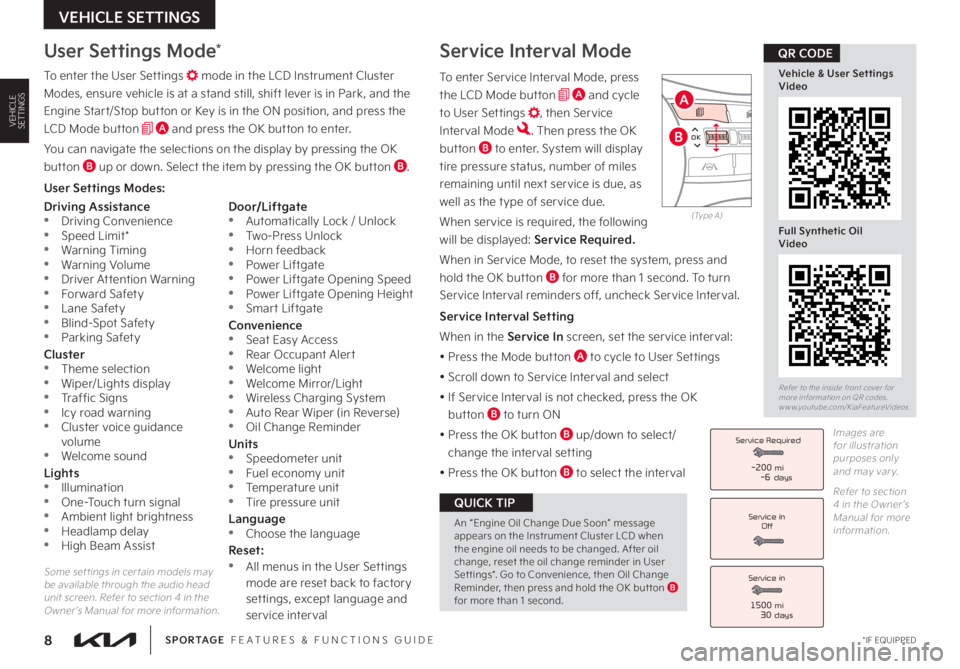
To enter Service Interval Mode, press
the LCD Mode button A and cycle
to User Settings , then Service
Interval Mode Then press the OK
button B to enter System will display
tire pressure status, number of miles
remaining until next service is due, as
well as the type of service due
When service is required, the following
will be displayed: Service Required.
When in Service Mode, to reset the system, press and
hold the OK button B for more than 1 second To turn
Service Interval reminders off, uncheck Service Interval
Service Interval Setting
When in the Service In screen, set the service interval:
• Press the Mode button A to cycle to User Settings
• Scroll down to Service Interval and select
• If Service Interval is not checked, press the OK
button B to turn ON
• Press the OK button B up/down to select/
change the interval setting
• Press the OK button B to select the interval
Driving Assistance •Driving Convenience •Speed Limit* •Warning Timing •Warning Volume •Driver Attention Warning •Forward Safety •Lane Safety •Blind-Spot Safety •Parking Safety
Cluster •Theme selection •Wiper/Lights display •Traffic Signs •Icy road warning •Cluster voice guidance volume •Welcome sound
Lights •Illumination •One-Touch turn signal •Ambient light brightness •Headlamp delay •High Beam Assist
Door/Liftgate •Automatically Lock / Unlock •Two-Press Unlock •Horn feedback •Power Liftgate •Power Liftgate Opening Speed •Power Liftgate Opening Height •Smart Liftgate
Convenience •Seat Easy Access •Rear Occupant Alert •Welcome light •Welcome Mirror/Light •Wireless Charging System •Auto Rear Wiper (in Reverse) •Oil Change Reminder
Units •Speedometer unit •Fuel economy unit •Temperature unit •Tire pressure unit
Language •
Choose the language
Reset: •All menus in the User Settings mode are reset back to factory settings, except language and service interval
Service in
Off
Service Required
Service in
1500 mi30 days
-200 mi-6 days
User Settings Mode*
To enter the User Settings mode in the LCD Instrument Cluster
Modes, ensure vehicle is at a stand still, shift lever is in Park, and the
Engine Start/Stop button or Key is in the ON position, and press the
LCD Mode button A and press the OK button to enter
You can navigate the selections on the display by pressing the OK
button B up or down Select the item by pressing the OK button B
User Settings Modes:
Images are for illustration purposes only and may var y
Refer to section 4 in the Owner ’s Manual for more information
Some set tings in cer tain models may be available through the audio head unit screen Refer to section 4 in the Owner ’s Manual for more information
OK
MODE
MODE
OKOK
OK
OK
OK
OK OK
OK
OK OK
OK
(Type A)
Refer to the inside front cover for more information on QR codes www youtube com/KiaFeatureVideos
Vehicle & User Settings Video
Full Synthetic Oil Video
QR CODE
A
B
An “Engine Oil Change Due Soon” message appears on the Instrument Cluster LCD when the engine oil needs to be changed After oil change, reset the oil change reminder in User Set tings* Go to Convenience, then Oil Change Reminder, then press and hold the OK but ton B for more than 1 second
QUICK TIP
Page 13 of 66
11†LEGAL DISCL AIMERS ON BACK INSIDE COVER | *IF EQUIPPEDALWAYS CHECK THE OWNER ’S MANUAL FOR COMPLETE OPER ATING INFORMATION AND SAFET Y WARNINGS
ADVANCED DRIVER ASSISTANCE SYSTEMS (ADAS)
ADAS
Refer to the inside front cover for more information on QR codes www youtube com/KiaFeatureVideos
Rear Cross-Traffic Collision-Avoidance Assist (RCCA) Video
QR CODERear Cross-Traffic Collision-Avoidance Assist (RCCA)*†4
When engaged, RCCA is a supplemental system Do not solely rely on this system and always pay at tention to the road and its conditions
Refer to section 5 in the Owner ’s Manual for more information
REMINDERS:
•
When vehicle power is cycled, RCCA will remain in the previous state
•
When a vehicle is approaching within the sensing range, and traveling faster than 3 mph, RCCA will show a warning
(But tons located on right side of steering wheel)
The driver assist systems Warning Volume can be adjusted in User Set tings* in the Instrument Cluster or Vehicle Set tings* in the Infotainment System
QUICK TIP
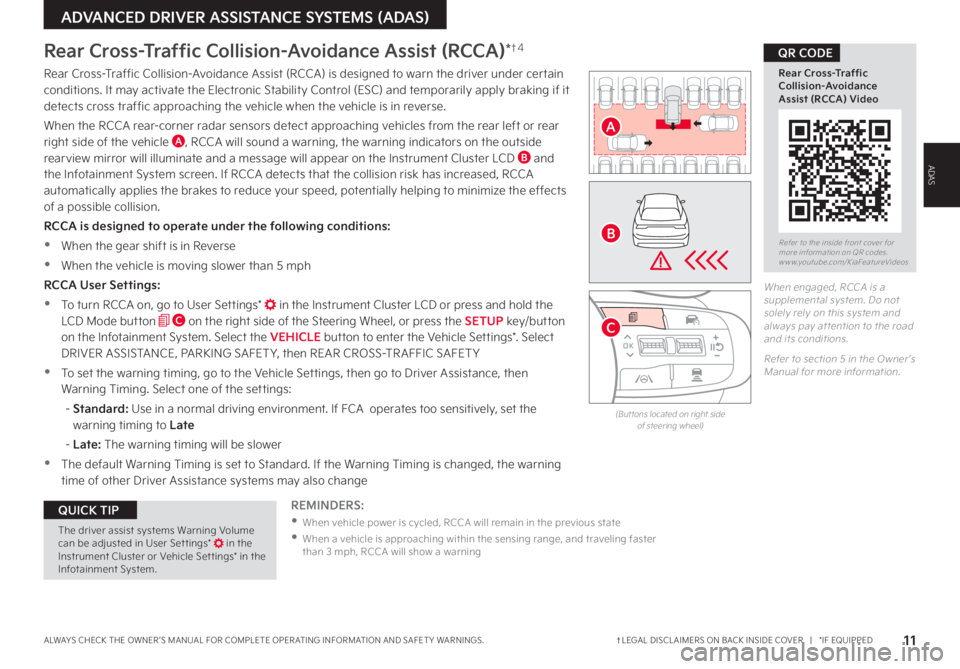
Rear Cross-Traffic Collision-Avoidance Assist (RCCA) is designed to warn the driver under certain conditions It may activate the Electronic Stability Control (ESC) and temporarily apply braking if it detects cross traffic approaching the vehicle when the vehicle is in reverse
When the RCCA rear-corner radar sensors detect approaching vehicles from the rear left or rear right side of the vehicle A, RCCA will sound a warning, the warning indicators on the outside rearview mirror will illuminate and a message will appear on the Instrument Cluster LCD B and the Infotainment System screen If RCCA detects that the collision risk has increased, RCCA automatically applies the brakes to reduce your speed, potentially helping to minimize the effects of a possible collision
RCCA is designed to operate under the following conditions:
•When the gear shift is in Reverse
•When the vehicle is moving slower than 5 mph
RCCA User Settings:
•To turn RCCA on, go to User Settings* in the Instrument Cluster LCD or press and hold the LCD Mode button C on the right side of the Steering Wheel, or press the SETUP key/button on the Infotainment System Select the VEHICLE button to enter the Vehicle Settings* Select DRIVER ASSISTANCE, PARKING SAFET Y, then REAR CROSS-TR AFFIC SAFET Y
•To set the warning timing, go to the Vehicle Settings, then go to Driver Assistance, then Warning Timing Select one of the settings:
- Standard: Use in a normal driving environment If FCA operates too sensitively, set the warning timing to Late
- Late: The warning timing will be slower
•The default Warning Timing is set to Standard If the Warning Timing is changed, the warning time of other Driver Assistance systems may also change
OK
MODE
MODE
OK OK
OK
OK
OK
OK OK
OK
OK OK
OK
A
B
C
Page 19 of 66
17†LEGAL DISCL AIMERS ON BACK INSIDE COVER | *IF EQUIPPEDALWAYS CHECK THE OWNER ’S MANUAL FOR COMPLETE OPER ATING INFORMATION AND SAFET Y WARNINGS
ADVANCED DRIVER ASSISTANCE SYSTEMS (ADAS)
ADAS
Forward/Reverse Parking Distance Warning (PDW)*†4
REMINDERS:
•
If the vehicle is moving at speeds over 3 mph, the system may not activate correctly
•
When more than t wo objects are sensed at the same time, the closest one will be recognized first
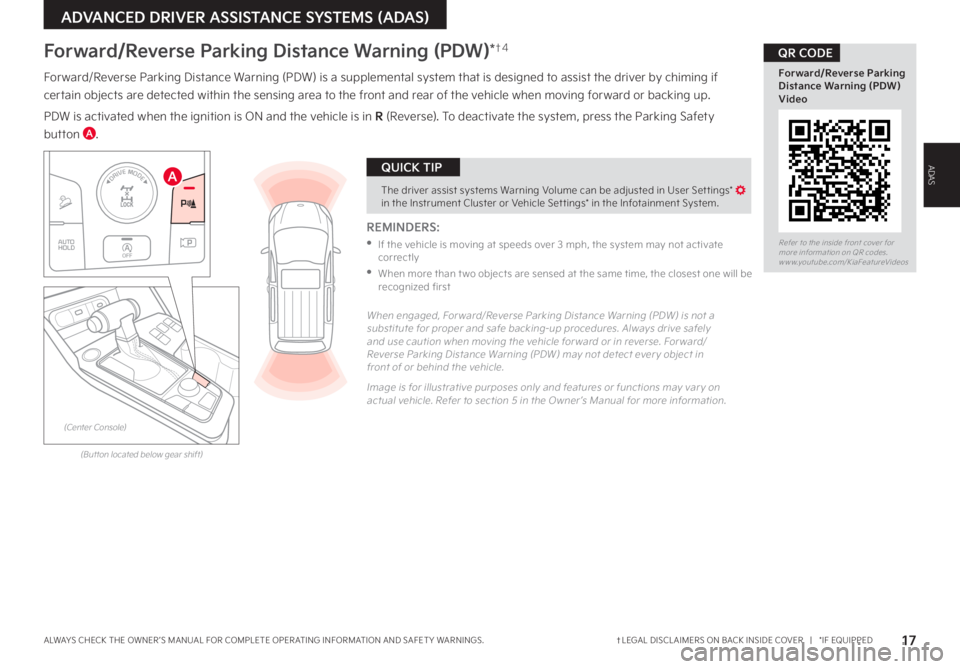
Forward/Reverse Parking Distance Warning (PDW) is a supplemental system that is designed to assist the driver by chiming if
certain objects are detected within the sensing area to the front and rear of the vehicle when moving forward or backing up
PDW is activated when the ignition is ON and the vehicle is in R (Reverse) To deactivate the system, press the Parking Safety
button A
Refer to the inside front cover for more information on QR codes www youtube com/KiaFeatureVideos
Forward/Reverse Parking Distance Warning (PDW) Video
QR CODE
AThe driver assist systems Warning Volume can be adjusted in User Set tings* in the Instrument Cluster or Vehicle Set tings* in the Infotainment System
QUICK TIP
When engaged, For ward/Reverse Parking Distance Warning (PDW) is not a substitute for proper and safe backing-up procedures Always drive safely and use caution when moving the vehicle for ward or in reverse For ward/Reverse Parking Distance Warning (PDW) may not detect ever y object in front of or behind the vehicle
Image is for illustrative purposes only and features or functions may var y on actual vehicle Refer to section 5 in the Owner ’s Manual for more information
(But ton located below gear shift)
(Center Console)
AUTO
HOLDOFF
DRIVE MODEA
Page 24 of 66
22†LEGAL DISCL AIMERS ON BACK INSIDE COVER | *IF EQUIPPEDSPORTAGE FEATURES & FUNCTIONS GUIDE
ADVANCED DRIVER ASSISTANCE SYSTEMS (ADAS)
ADAS
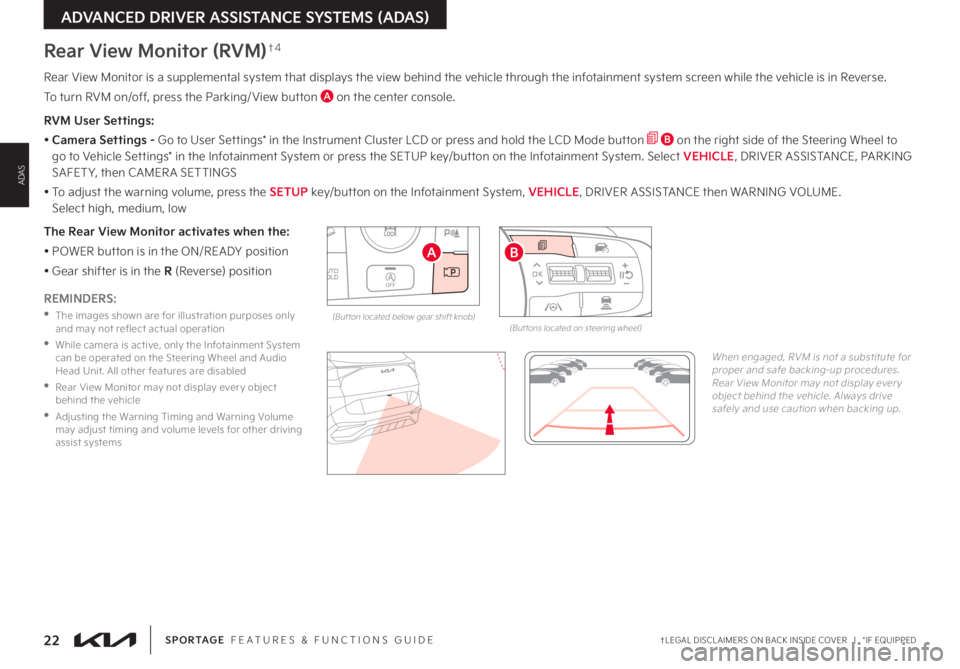
Rear View Monitor is a supplemental system that displays the view behind the vehicle through the infotainment system screen while the vehicle is in Reverse
To turn RVM on/off, press the Parking/ View button A on the center console
RVM User Settings:
• Camera Settings - Go to User Settings* in the Instrument Cluster LCD or press and hold the LCD Mode button B on the right side of the Steering Wheel to go to Vehicle Settings* in the Infotainment System or press the SETUP key/button on the Infotainment System Select VEHICLE, DRIVER ASSISTANCE, PARKING SAFET Y, then CAMER A SETTINGS
• To adjust the warning volume, press the SETUP key/button on the Infotainment System, VEHICLE, DRIVER ASSISTANCE then WARNING VOLUME Select high, medium, low
The Rear View Monitor activates when the:
• POWER button is in the ON/READY position
• Gear shifter is in the R (Reverse) position
Rear View Monitor (RVM)†4
REMINDERS:
•
The images shown are for illustration purposes only and may not reflect actual operation
•
While camera is active, only the Infotainment System can be operated on the Steering Wheel and Audio Head Unit All other features are disabled
•
Rear View Monitor may not display ever y object behind the vehicle
•
Adjusting the Warning Timing and Warning Volume may adjust timing and volume levels for other driving assist systems
When engaged, RVM is not a substitute for proper and safe backing-up procedures Rear View Monitor may not display ever y object behind the vehicle Always drive safely and use caution when backing up
AUTO
HOLDOFF
DRIVE MODE
(But ton located below gear shift knob)
A
OK
MODE
MODE
OK OK
OK
OK
OK
OK OK
OK
OK OK
OK
(But tons located on steering wheel)
B
Page 25 of 66
23†LEGAL DISCL AIMERS ON BACK INSIDE COVER | *IF EQUIPPEDALWAYS CHECK THE OWNER ’S MANUAL FOR COMPLETE OPER ATING INFORMATION AND SAFET Y WARNINGS
ADVANCED DRIVER ASSISTANCE SYSTEMS (ADAS)
ADAS
Refer to the inside front cover for more information on QR codes www youtube com/KiaFeatureVideos
3D Surround View Monitor (SVM) Video
QR CODE
REMINDERS:
•
The SVM camera is equipped with an optical lens to provide a wider range of vision and may appear different from the actual distance
•
While the SVM is active, and Parking Safet y Priorit y is selected in the User Set tings* / Vehicle Set tings*, the volume will be lowered on all audio modes
Surround View Monitor (SVM)*†4
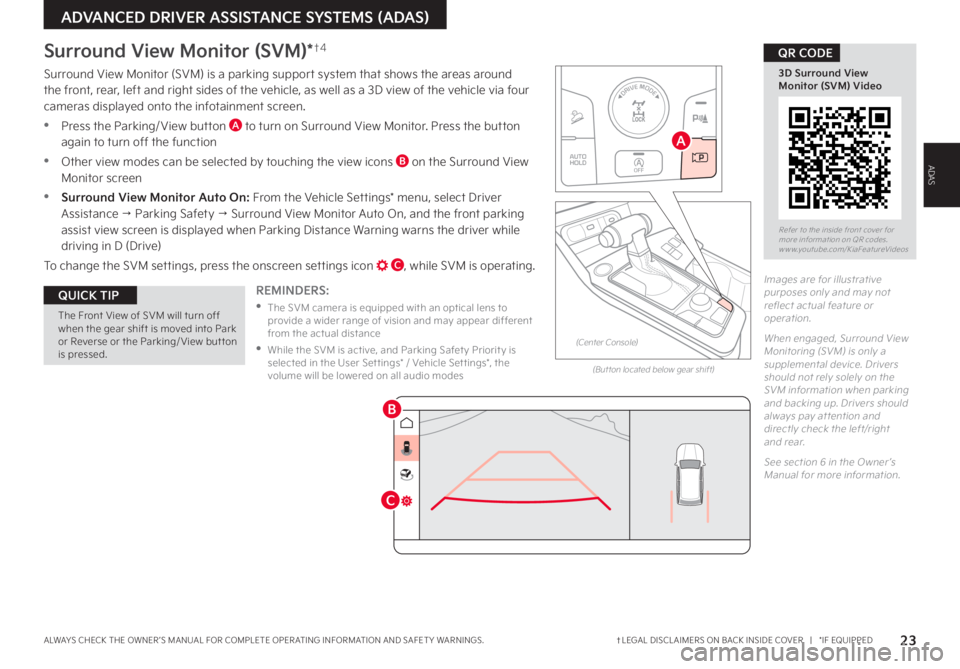
Surround View Monitor (SVM) is a parking support system that shows the areas around the front, rear, left and right sides of the vehicle, as well as a 3D view of the vehicle via four cameras displayed onto the infotainment screen
•Press the Parking/ View button A to turn on Surround View Monitor Press the button again to turn off the function
•Other view modes can be selected by touching the view icons B on the Surround View Monitor screen
•Surround View Monitor Auto On: From the Vehicle Settings* menu, select Driver Assistance → Parking Safety → Surround View Monitor Auto On, and the front parking assist view screen is displayed when Parking Distance Warning warns the driver while driving in D (Drive)
To change the SVM settings, press the onscreen settings icon C, while SVM is operating
(But ton located below gear shift)
The Front View of SVM will turn off when the gear shift is moved into Park or Reverse or the Parking/ View but ton is pressed
QUICK TIP
Images are for illustrative purposes only and may not reflect actual feature or operation
When engaged, Surround View Monitoring (SVM) is only a supplemental device Drivers should not rely solely on the SVM information when parking and backing up Drivers should always pay at tention and directly check the left/right and rear
See section 6 in the Owner ’s Manual for more information
B
C
(Center Console)
AUTO
HOLDOFF
DRIVE MODE
A
Page 26 of 66
24†LEGAL DISCL AIMERS ON BACK INSIDE COVER | *IF EQUIPPEDSPORTAGE FEATURES & FUNCTIONS GUIDE
ADVANCED DRIVER ASSISTANCE SYSTEMS (ADAS)
ADAS
OK
MODE
MODE
OKOK
OK
OK
OK
OK OK
OK
OK OK
OK
B
Reverse Parking Collision-Avoidance Assist (PCA)*†4
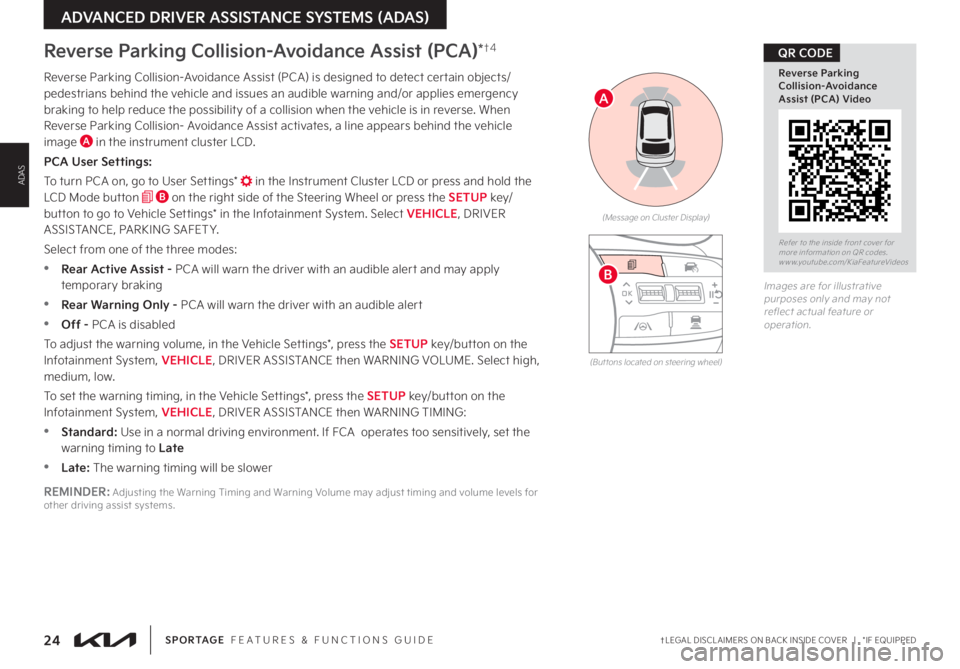
Reverse Parking Collision-Avoidance Assist (PCA) is designed to detect certain objects/pedestrians behind the vehicle and issues an audible warning and/or applies emergency braking to help reduce the possibility of a collision when the vehicle is in reverse When Reverse Parking Collision- Avoidance Assist activates, a line appears behind the vehicle image A in the instrument cluster LCD
PCA User Settings:
To turn PCA on, go to User Settings* in the Instrument Cluster LCD or press and hold the LCD Mode button B on the right side of the Steering Wheel or press the SETUP key/button to go to Vehicle Settings* in the Infotainment System Select VEHICLE, DRIVER ASSISTANCE, PARKING SAFET Y
Select from one of the three modes:
•Rear Active Assist - PCA will warn the driver with an audible alert and may apply temporary braking
•Rear Warning Only - PCA will warn the driver with an audible alert
•Off - PCA is disabled
To adjust the warning volume, in the Vehicle Settings*, press the SETUP key/button on the Infotainment System, VEHICLE, DRIVER ASSISTANCE then WARNING VOLUME Select high, medium, low
To set the warning timing, in the Vehicle Settings*, press the SETUP key/button on the Infotainment System, VEHICLE, DRIVER ASSISTANCE then WARNING TIMING:
•Standard: Use in a normal driving environment If FCA operates too sensitively, set the warning timing to Late
•Late: The warning timing will be slower
(Message on Cluster Display)
Images are for illustrative purposes only and may not reflect actual feature or operation
(But tons located on steering wheel)
REMINDER: Adjusting the Warning Timing and Warning Volume may adjust timing and volume levels for other driving assist systems
A
Refer to the inside front cover for more information on QR codes www youtube com/KiaFeatureVideos
Reverse Parking Collision-Avoidance Assist (PCA) Video
QR CODE
Page 27 of 66
25†LEGAL DISCL AIMERS ON BACK INSIDE COVER | *IF EQUIPPEDALWAYS CHECK THE OWNER ’S MANUAL FOR COMPLETE OPER ATING INFORMATION AND SAFET Y WARNINGS
DRIVER'S PANEL
DRIVER’S PANEL
Power Liftgate Open/Close Button*
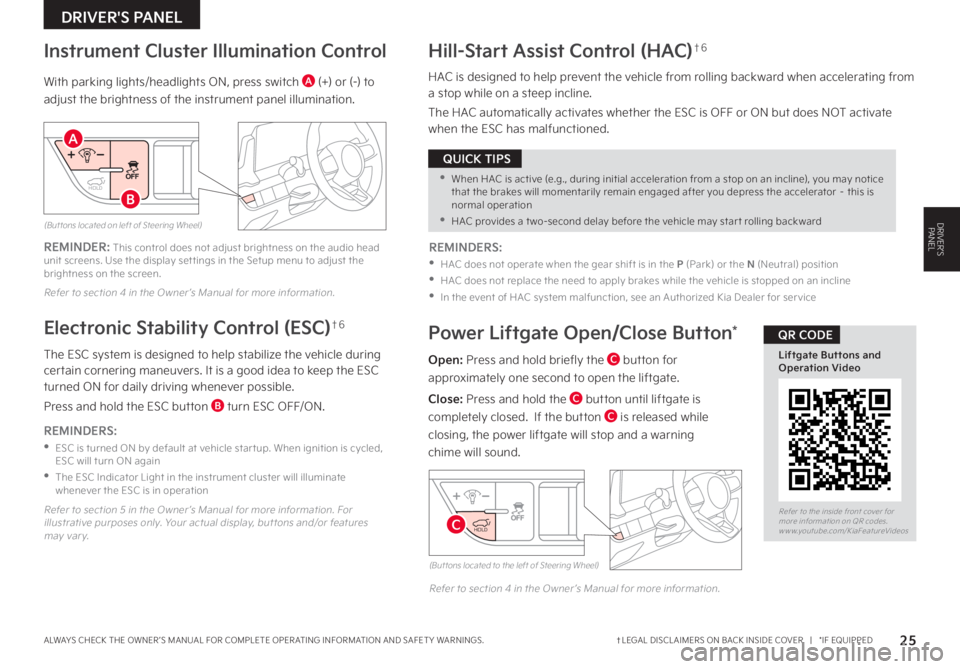
Open: Press and hold briefly the C button for
approximately one second to open the liftgate
Close: Press and hold the C button until liftgate is
completely closed If the button C is released while
closing, the power liftgate will stop and a warning
chime will sound
(But tons located to the left of Steering Wheel)
REMINDER: This control does not adjust brightness on the audio head unit screens Use the display set tings in the Setup menu to adjust the brightness on the screen
Refer to section 4 in the Owner ’s Manual for more information
(But tons located on left of Steering Wheel)
Refer to section 5 in the Owner ’s Manual for more information For illustrative purposes only Your actual display, but tons and/or features may var y
Refer to section 4 in the Owner ’s Manual for more information
REMINDERS:
•
ESC is turned ON by default at vehicle star tup When ignition is cycled, ESC will turn ON again
•
The ESC Indicator Light in the instrument cluster will illuminate whenever the ESC is in operation
The ESC system is designed to help stabilize the vehicle during certain cornering maneuvers It is a good idea to keep the ESC turned ON for daily driving whenever possible
Press and hold the ESC button B turn ESC OFF/ON
Electronic Stability Control (ESC)†6
With parking lights/headlights ON, press switch A (+) or (-) to
adjust the brightness of the instrument panel illumination
Instrument Cluster Illumination ControlHill-Start Assist Control (HAC)†6
HAC is designed to help prevent the vehicle from rolling backward when accelerating from a stop while on a steep incline
The HAC automatically activates whether the ESC is OFF or ON but does NOT activate when the ESC has malfunctioned
REMINDERS:
•
HAC does not operate when the gear shift is in the P (Park) or the N (Neutral) position
•
HAC does not replace the need to apply brakes while the vehicle is stopped on an incline
•
In the event of HAC system malfunction, see an Authorized Kia Dealer for ser vice
•When HAC is active (e g , during initial acceleration from a stop on an incline), you may notice that the brakes will momentarily remain engaged after you depress the accelerator – this is normal operation
•HAC provides a t wo-second delay before the vehicle may star t rolling backward
QUICK TIPS
HOLD
HOLD
HOLD
HOLD
"
#
$Refer to the inside front cover for more information on QR codes www youtube com/KiaFeatureVideos
Liftgate Buttons and Operation Video
QR CODE
Page 29 of 66
27†LEGAL DISCL AIMERS ON BACK INSIDE COVER | *IF EQUIPPEDALWAYS CHECK THE OWNER ’S MANUAL FOR COMPLETE OPER ATING INFORMATION AND SAFET Y WARNINGS
DRIVER'S PANEL
DRIVER’S PANEL
For illustrative purposes only Your actual display, but tons and/or features may var y
Refer to section 5 in the Owner ’s Manual for more information
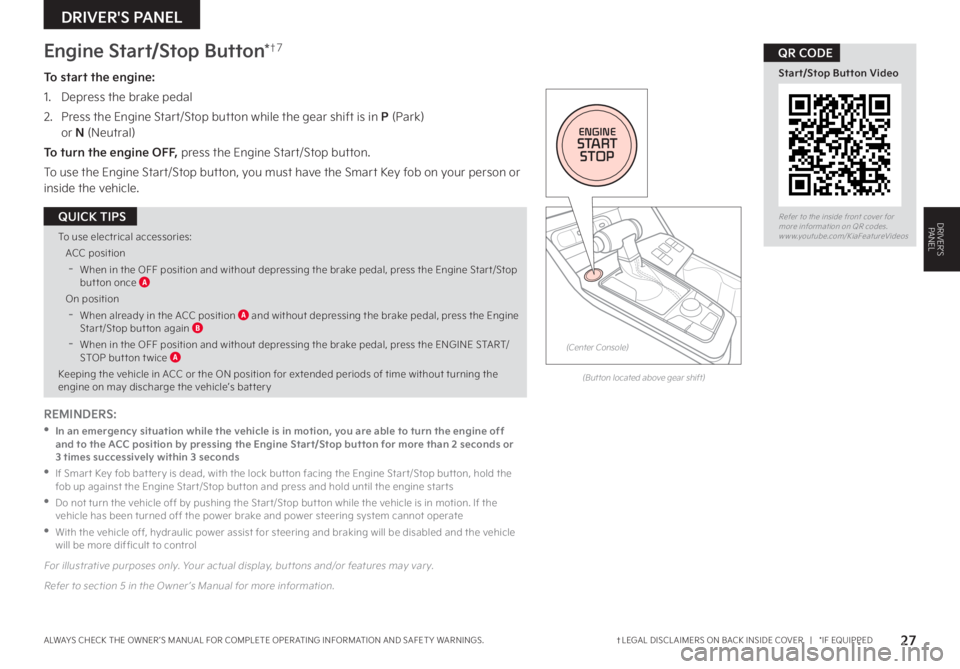
Engine Start/Stop Button*†7
To start the engine:
1 Depress the brake pedal
2
Press the Engine Start/Stop button while the gear shift is in P (Park) or N (Neutral)
To turn the engine OFF, press the Engine Start/Stop button
To use the Engine Start/Stop button, you must have the Smart Key fob on your person or inside the vehicle
Refer to the inside front cover for more information on QR codes www youtube com/KiaFeatureVideos
Start/Stop Button Video
QR CODE
REMINDERS:
•
In an emergency situation while the vehicle is in motion, you are able to turn the engine off and to the ACC position by pressing the Engine Start/Stop button for more than 2 seconds or 3 times successively within 3 seconds
•
If Smar t Key fob bat ter y is dead, with the lock but ton facing the Engine Star t/Stop but ton, hold the fob up against the Engine Star t/Stop but ton and press and hold until the engine star ts
•
Do not turn the vehicle off by pushing the Star t/Stop but ton while the vehicle is in motion If the vehicle has been turned off the power brake and power steering system cannot operate
•
With the vehicle off, hydraulic power assist for steering and braking will be disabled and the vehicle will be more dif ficult to control
To use electrical accessories:
ACC position
-When in the OFF position and without depressing the brake pedal, press the Engine Star t/Stop but ton once A
On position
-When already in the ACC position A and without depressing the brake pedal, press the Engine Star t/Stop but ton again B
-When in the OFF position and without depressing the brake pedal, press the ENGINE START/STOP but ton t wice A
Keeping the vehicle in ACC or the ON position for extended periods of time without turning the engine on may discharge the vehicle’s bat ter y
QUICK TIPS
(But ton located above gear shift)
(Center Console)
ENGINESTART
STOP
Page 30 of 66
28 *IF EQUIPPEDSPORTAGE FEATURES & FUNCTIONS GUIDE
STEERING WHEEL CONTROLS
STEERING WHEEL CONTROLS
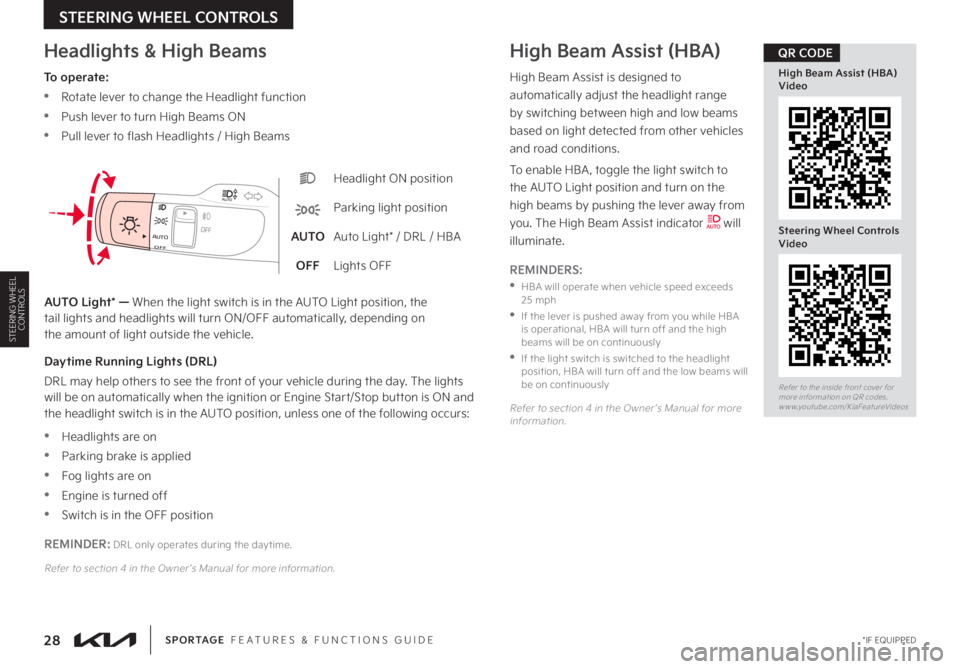
Headlight ON position
Parking light position
AUTOAuto Light* / DRL / HBA
OFFLights OFF
OFFOFFAUTO
AUTO
OFFOFFAUTO
AUTO
Headlights & High BeamsHigh Beam Assist (HBA)
To operate:
•Rotate lever to change the Headlight function
•Push lever to turn High Beams ON
•Pull lever to flash Headlights / High Beams
AUTO Light* — When the light switch is in the AUTO Light position, the tail lights and headlights will turn ON/OFF automatically, depending on the amount of light outside the vehicle
High Beam Assist is designed to
automatically adjust the headlight range
by switching between high and low beams
based on light detected from other vehicles
and road conditions
To enable HBA , toggle the light switch to
the AUTO Light position and turn on the
high beams by pushing the lever away from
you The High Beam Assist indicator will
illuminate
REMINDERS:
•
HBA will operate when vehicle speed exceeds 25 mph
•
If the lever is pushed away from you while HBA is operational, HBA will turn off and the high beams will be on continuously
•
If the light switch is switched to the headlight position, HBA will turn off and the low beams will be on continuously
Refer to section 4 in the Owner ’s Manual for more information
Daytime Running Lights (DRL)
DRL may help others to see the front of your vehicle during the day The lights will be on automatically when the ignition or Engine Start/Stop button is ON and the headlight switch is in the AUTO position, unless one of the following occurs:
•Headlights are on
•Parking brake is applied
•Fog lights are on
•Engine is turned off
•Switch is in the OFF position
REMINDER: DRL only operates during the day time
Refer to section 4 in the Owner ’s Manual for more information
Refer to the inside front cover for more information on QR codes www youtube com/KiaFeatureVideos
High Beam Assist (HBA) Video
Steering Wheel Controls Video
QR CODE