air KIA TELLURIDE 2022 Navigation System Quick Reference Guide
[x] Cancel search | Manufacturer: KIA, Model Year: 2022, Model line: TELLURIDE, Model: KIA TELLURIDE 2022Pages: 316, PDF Size: 10.53 MB
Page 5 of 316
3
Safety Precautions
Be sure to keep the following instructions. Otherwise, it may cause minor injury or system
damage.
\334\334Operation
Use the system with the vehicle started.
\225
When you use the system for a long time with the vehicle stopped, it may\
cause battery discharge.
Do NOT arbitrarily install an unauthorised aftermarket product in your vehicle.
\225Using unapproved products may cause an error while using the system.
\225System errors caused by installing unapproved products are not covered under the warranty.
\334\334System handling
Do NOT apply excessive force to the system.
\225When you apply excessive pressure to the screen, the LCD panel or touch panel may get damaged.
To clean the screen or button panel, first turn off the vehicle and then use a dry, soft
cloth to wipe it.
\225Do not wipe using a rough or hard cloth, chemical fibre, organic solvent (e.g. alcohol, benzene, thinner), or air
freshener. The panel surface may become scratched or damaged due to a chemical reaction.
When you install an air freshener on the air conditioner vent, the surface may be
deformed due to leakage.
0000
A
If you experience any problems with the system, contact your place of purchase or dealer.
Page 18 of 316
6
Safety Precautions
Be sure to keep the following instructions. Otherwise, it may cause minor injury or system
damage.
\334\334Operation
Use the system with the vehicle started.
\225 When you use the system for a long time with the vehicle stopped, it may\
cause battery discharge.
Do NOT arbitrarily install an unauthorized aftermarket product in your vehicle.
\225Using unapproved products may cause an error while using the system.
\225System errors caused by installing unapproved products are not covered under the warranty.
\334\334System handling
Do NOT apply excessive force to the system.
\225 When you apply excessive pressure to the screen, the LCD panel or touch panel may get damaged.
To clean the screen or button panel, first turn off the vehicle and then use a dry, soft
cloth to wipe it.
\225Do not wipe using a rough or hard cloth, chemical fiber, organic solvent (e.g. alcohol, benzene, thinner), or air
freshener. The panel surface may become scratched or damaged due to a chemical reaction.
When you install an air freshener on the air conditioner vent, the surface may be
deformed due to leakage.
0000
A
If you experience any problems with the system, contact your place of purchase or dealer.
Page 43 of 316
2-5
Pairing to an Android smartphone via Android Auto
When you connect an Android smartphone to the vehicle with Android Auto, you can run and
control Apps on the phone through the widescreen using its user-friendly interface.
1 To use Android Auto, first check the following.
\225Visit the Android Auto website at https://www.android.com/auto to check the list of
countries, device types, and models that support Android Auto.
\225Download and install the Android Auto App from Google Play Store. It is not possible
to install Android Auto in countries that do not support the feature.
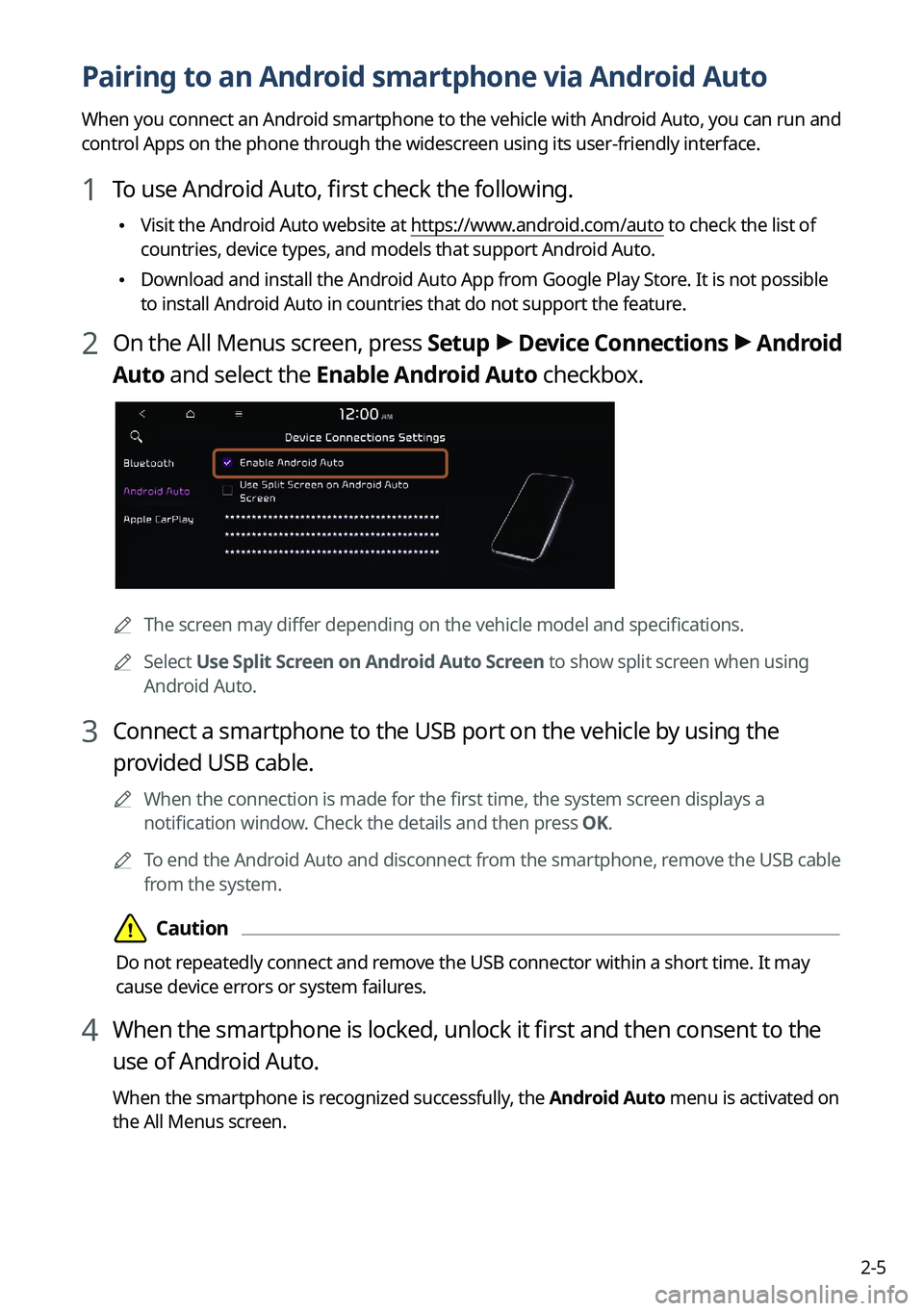
2 On the All Menus screen, press
Setup >
Device Connections >
Android
Auto and select the Enable Android Auto checkbox.
0000A The screen may differ depending on the vehicle model and specifications.
0000
A
Select Use Split Screen on Android Auto Screen to show split screen when using
Android Auto.
3 Connect a smartphone to the USB port on the vehicle by using the
provided USB cable.
0000
A
When the connection is made for the first time, the system screen displays a
notification window. Check the details and then press OK.
0000
A
To end the Android Auto and disconnect from the smartphone, remove the USB cable
from the system.
\334\334Caution
Do not repeatedly connect and remove the USB connector within a short time. It may
cause device errors or system failures.
4 When the smartphone is locked, unlock it first and then consent to the
use of Android Auto.
When the smartphone is recognized successfully, the Android Auto menu is activated on
the All Menus screen.
Page 45 of 316

2-7
Pairing to an iPhone via Apple CarPlay
After you connect an iPhone to the vehicle with Apple CarPlay, you can run and control Apps
on the phone through the system screen.
1 To use Apple CarPlay, first check the following:
\225For iPhone models that support Apple CarPlay, visit the Apple website at
https://www.
apple.com/ios/carplay .
\225Make sure Apple CarPlay and Siri are enabled in your iPhone settings. If you do not
see options for Apple CarPlay or Siri, update to the latest iOS version.\
2 On the All Menus screen, press Setup >
Device Connections >
Apple
CarPlay and then check Enable Apple CarPlay.
0000A The screen may differ depending on the vehicle model and specifications.
0000
A
Select Use Split Screen on Apple CarPlay Screen to show split screen when using
Apple CarPlay.
3 Connect an iPhone to the USB port on the vehicle by using the provided
USB cable.
0000
A
When the connection is made for the first time, the system screen displays a
notification window. Check the details and then press OK.
0000
A
To end the Apple CarPlay and disconnect from the iPhone, remove the USB cable
from the system.
\334\334Caution
Do not repeatedly connect and remove the USB connector within a short time. It may
cause device errors or system failures.
4 When the iPhone is locked, unlock it first and then consent to the use of
Apple CarPlay.
When the iPhone is recognized successfully, the Apple CarPlay menu is activated on the
All Menus screen.
Page 52 of 316
2-14
Using the climate control system (if equipped)
You can check and adjust the climate system settings on the screen.0000
A
For more information about how to use the heater and air conditioner, refer to Owner's
Manual of the vehicle.
1 Perform any of the following methods:
\225Press the [
CLIMATE] button on the climate control system.
\225On the All Menus screen, press Climate.
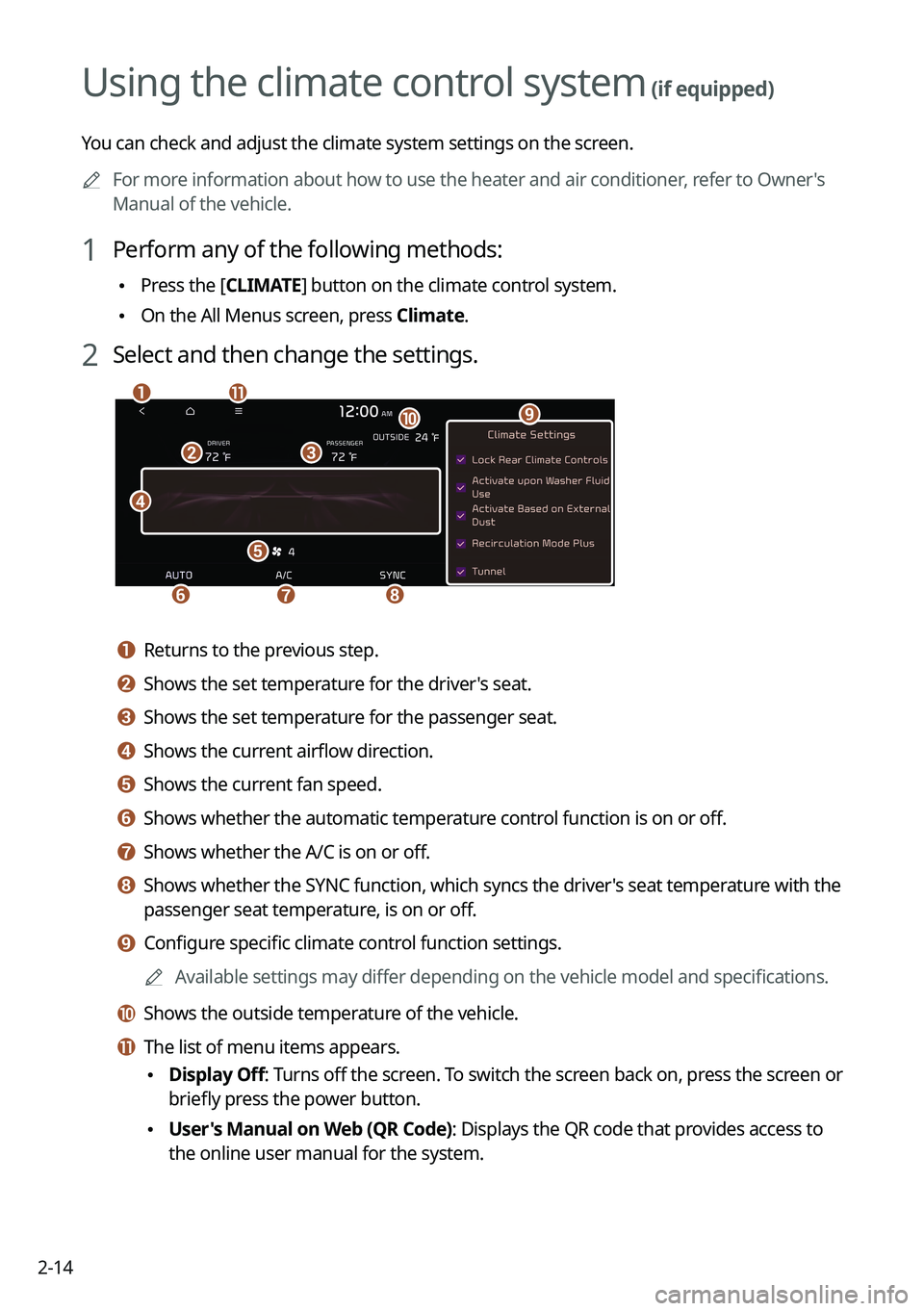
2 Select and then change the settings.
\037
\036
\035
\034
\033
\032\031
\030
\027
\026\025
a a Returns to the previous step.
b b Shows the set temperature for the driver's seat.
c c Shows the set temperature for the passenger seat.
d d Shows the current airflow direction.
e e Shows the current fan speed.
f f Shows whether the automatic temperature control function is on or off.
g g Shows whether the A/C is on or off.
h h Shows whether the SYNC function, which syncs the driver's seat temperature with the
passenger seat temperature, is on or off.
i i Configure specific climate control function settings.
0000
A
Available settings may differ depending on the vehicle model and specifications.
j j Shows the outside temperature of the vehicle.
k k The list of menu items appears.
\225Display Off
: Turns off the screen. To switch the screen back on, press the screen or
briefly press the power button.
\225 User's Manual on Web (QR Code): Displays the QR code that provides access to
the online user manual for the system.
Page 53 of 316
2-15
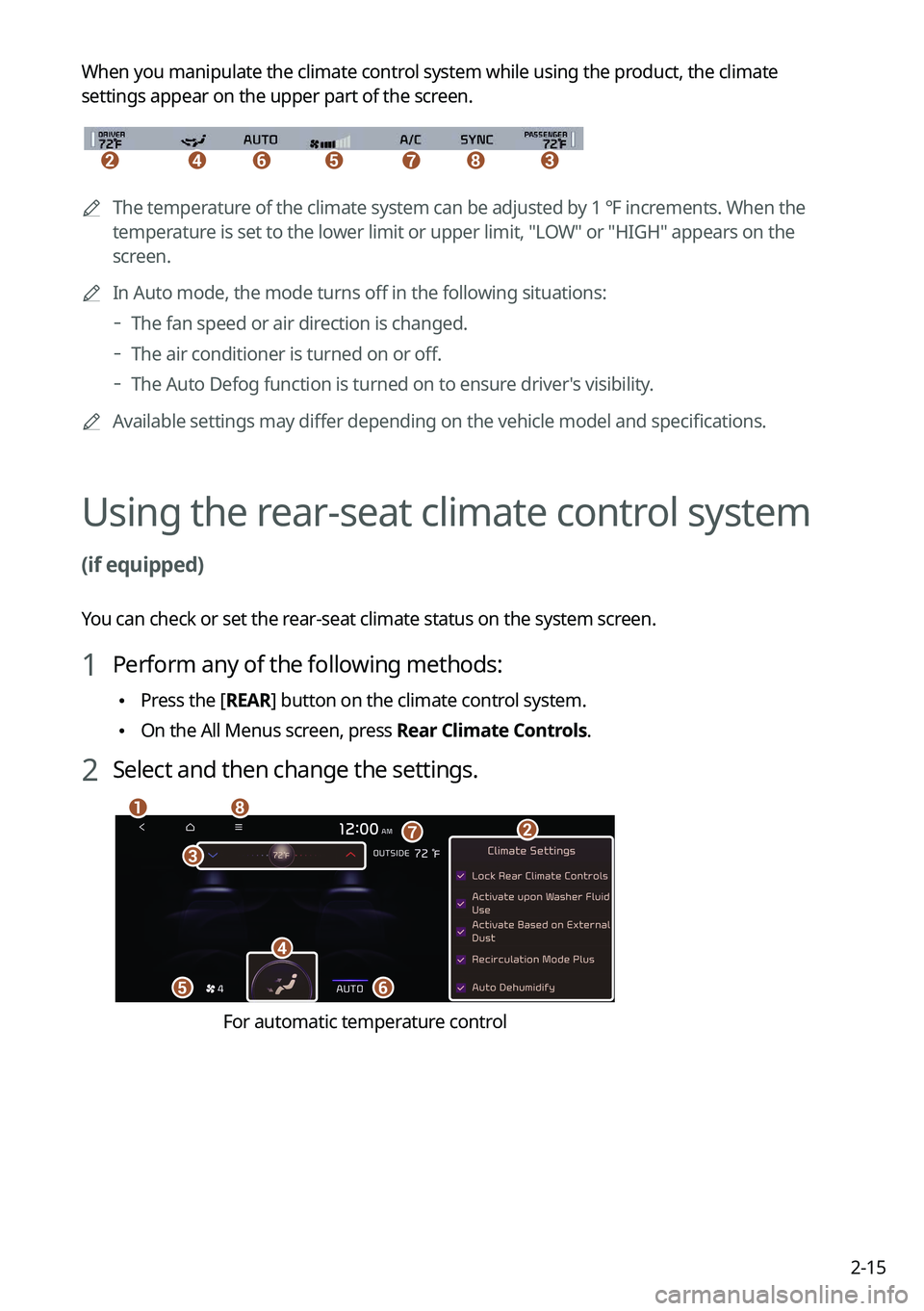
When you manipulate the climate control system while using the product, the climate
settings appear on the upper part of the screen.
\037\036\035\034\033\032\031
0000A
The temperature of the climate system can be adjusted by 1 ℉ increments. When the
temperature is set to the lower limit or upper limit, "LOW" or "HIGH" appears on the
screen.
0000
A
In Auto mode, the mode turns off in the following situations:
000DThe fan speed or air direction is changed.
000DThe air conditioner is turned on or off.
000DThe Auto Defog function is turned on to ensure driver's visibility.
0000
A
Available settings may differ depending on the vehicle model and specifications.
Using the rear-seat climate control system
(if equipped)
You can check or set the rear-seat climate status on the system screen.
1 Perform any of the following methods:
\225Press the [
REAR] button on the climate control system.
\225On the All Menus screen, press Rear Climate Controls.
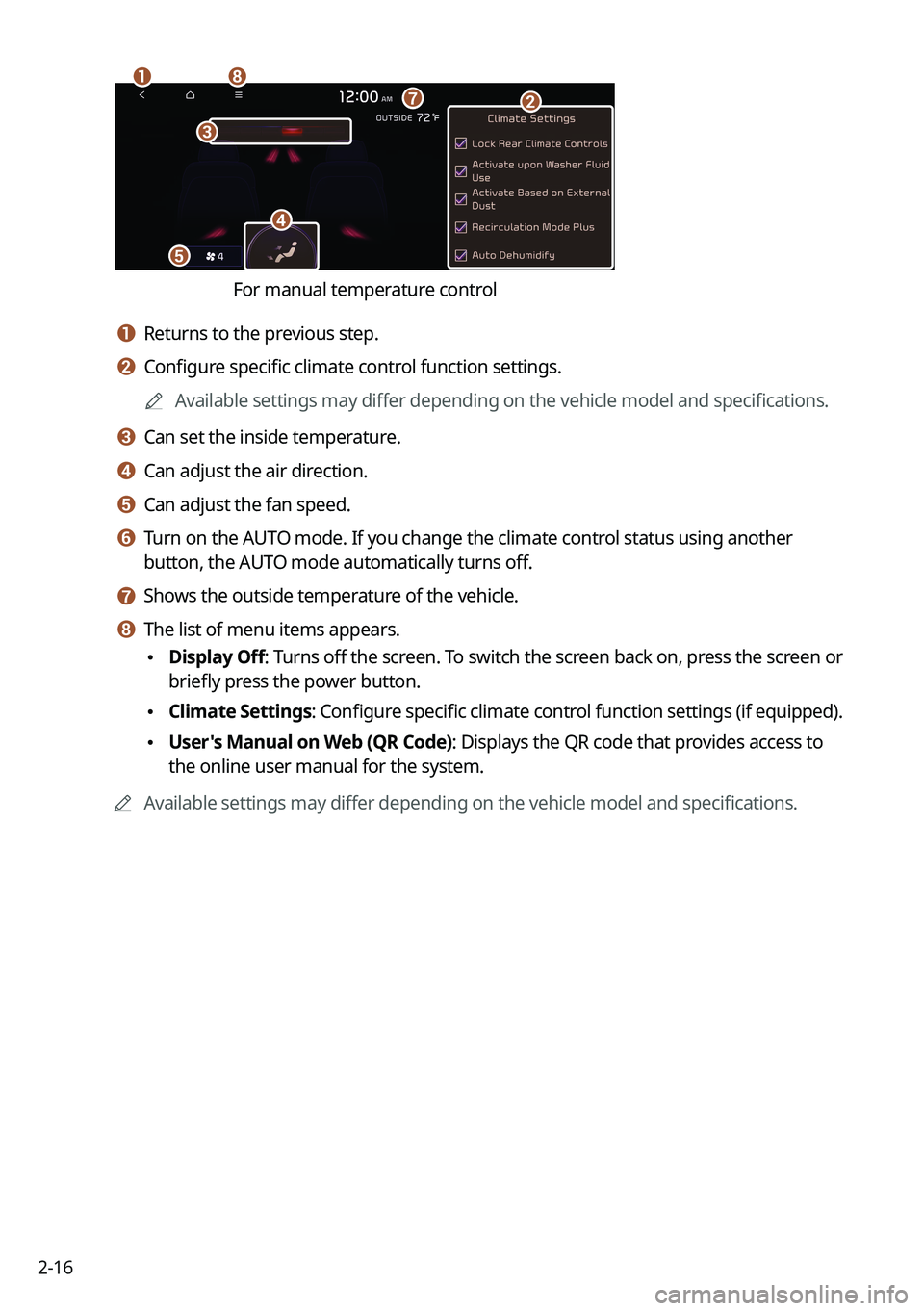
2 Select and then change the settings.
\037
\036
\035
\034
\033
\032\031
\030
For automatic temperature control
Page 54 of 316
2-16
\037
\036\035\034
\033
\032
\031
For manual temperature control
a a Returns to the previous step.
b b Configure specific climate control function settings.0000
A
Available settings may differ depending on the vehicle model and specifications.
c c Can set the inside temperature.
d d Can adjust the air direction.
e e Can adjust the fan speed.
f f Turn on the AUTO mode. If you change the climate control status using another
button, the AUTO mode automatically turns off.
g g Shows the outside temperature of the vehicle.
h h The list of menu items appears.
\225Display Off
: Turns off the screen. To switch the screen back on, press the screen or
briefly press the power button.
\225 Climate Settings
: Configure specific climate control function settings (if equipped).
\225User's Manual on Web (QR Code): Displays the QR code that provides access to
the online user manual for the system.
0000
A
Available settings may differ depending on the vehicle model and specifications.
Page 154 of 316

7-2
Voice recognition
With the voice recognition function, you can access various functions of the infotainmen\
t
system without manipulating the screen or buttons. This function prevents driver distraction
and dangerous situations.
Use voice commands to access various functions easily.0000
A
The system can recognize the specified voice commands.
> See "Available voice commands"
or "Seeing the voice recognition help."
0000
A
Note the following for accurate delivery of command when saying it.
000DPronounce a command accurately and naturally like a conversation.
000DKeep the correct posture and say commands toward the direction of the microphone.
0000
A
Voice recognition is automatically ended when:
000DYou make or receive a call.
000DThe front or rear cameras operate (if equipped).
000DThe
[RADIO] or [MEDIA] button is pressed to perform another function.
000DRerouting or other unexpected action is made due to deviation from the route during
guidance.
0000
A
Voice recognition may not work properly when:
000DThe sunroof or windows are open so the wind is strong.
000DThe fan speed of the air conditioner or heater is high (level 3 or below is
recommended).
000DThe vehicle is passing through a tunnel.
000DThe vehicle is driving on an unpaved road and its noise and vibration are loud.
000DNoise is loud due to a heavy rain or storm.
Using the voice recognition
1 On the steering wheel, press the Voice Recognition button.
Voice recognition starts along with voice guidance.
0000
A
To skip the voice guidance, press the Voice Recognition button on the steering wheel.
Page 160 of 316
7-80000
A
When you use a command starting with "Find," the system searches for locations within
the state or province where your vehicle is currently located. To search for locations in
another state or province, say the state or province name first and then say the location
you want.
0000
A
Some commands, such as "Cancel Route " or "Show Route," are available only when a
destination is set.
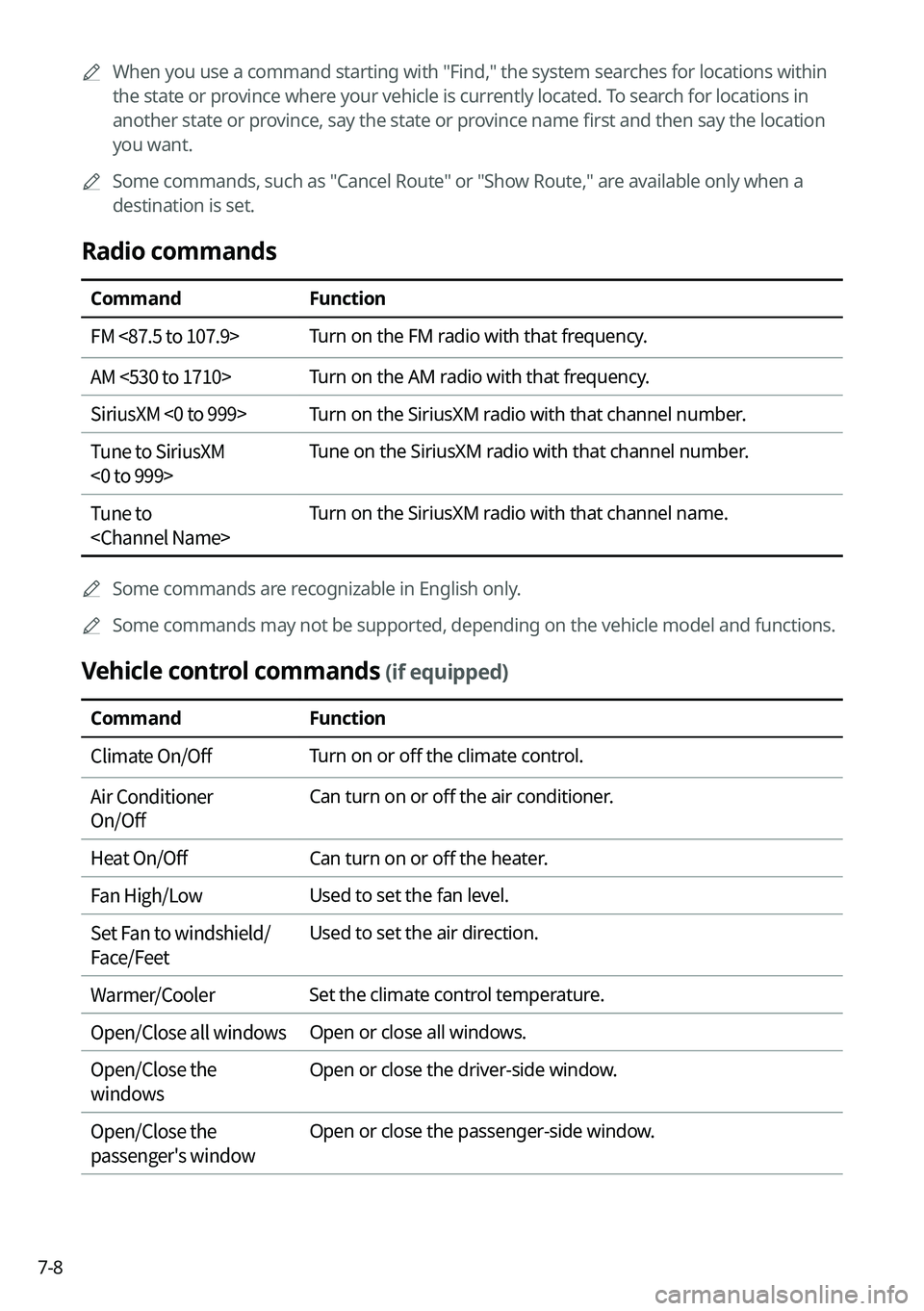
Radio commands
Command Function
FM <87.5 to 107.9> Turn on the FM radio with that frequency.
AM <530 to 1710> Turn on the AM radio with that frequency.
SiriusXM <0 to 999> Turn on the SiriusXM radio with that channel number.
Tune to SiriusXM
<0 to 999> Tune on the SiriusXM radio with that channel number.
Tune to
0000
A
Some commands are recognizable in English only.
0000
A
Some commands may not be supported, depending on the vehicle model and f\
unctions.
Vehicle control commands (if equipped)
Command Function
Climate On/Off Turn on or off the climate control.
Air Conditioner
On/Off Can turn on or off the air conditioner.
Heat On/Off Can turn on or off the heater.
Fan High/Low Used to set the fan level.
Set Fan to windshield/
Face/Feet Used to set the air direction.
Warmer/Cooler Set the climate control temperature.
Open/Close all windows Open or close all windows.
Open/Close the
windows Open or close the driver-side window.
Open/Close the
passenger's window Open or close the passenger-side window.
Page 161 of 316
7-9
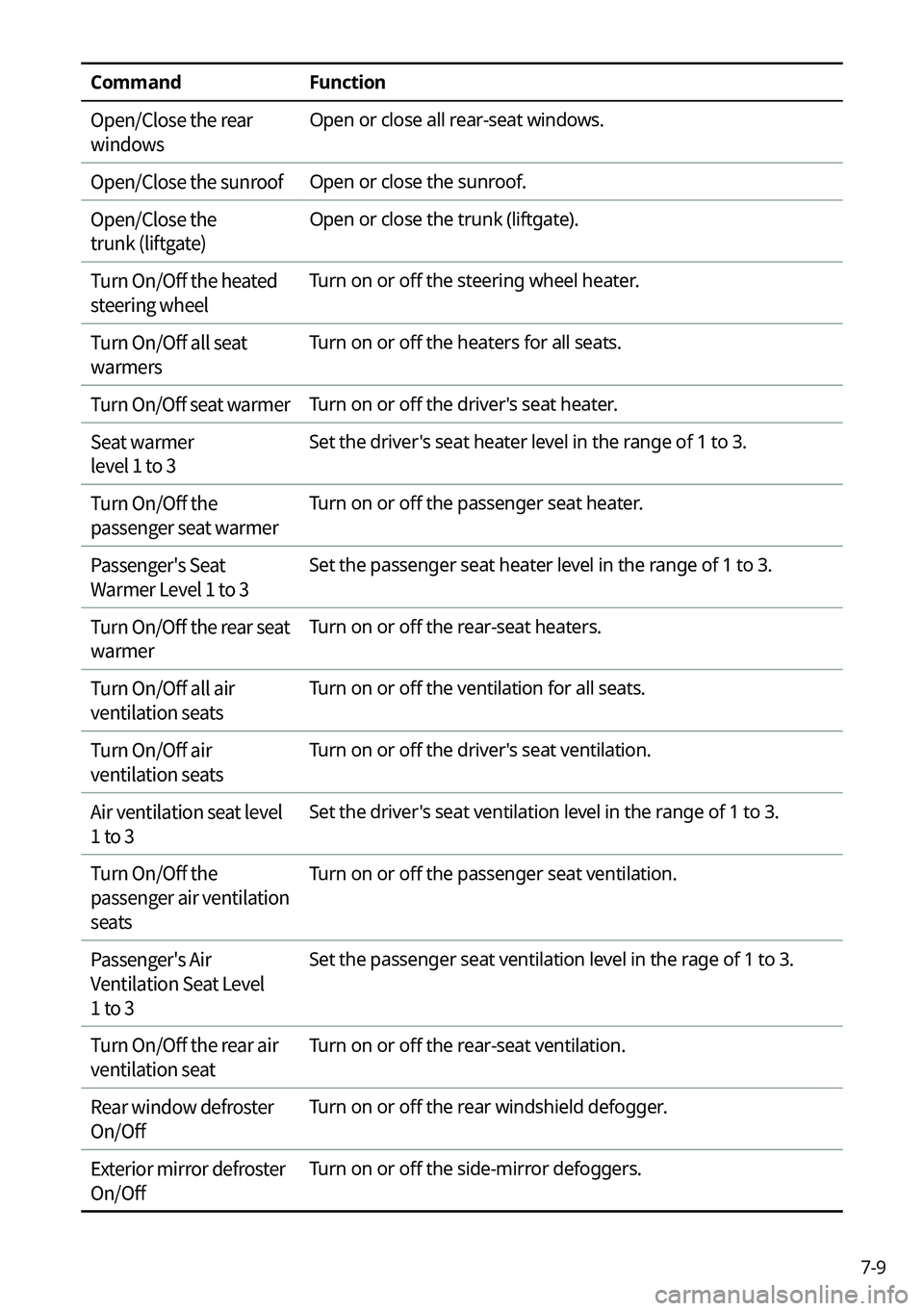
CommandFunction
Open/Close the rear
windows Open or close all rear-seat windows.
Open/Close the sunroof Open or close the sunroof.
Open/Close the
trunk (liftgate) Open or close the trunk (liftgate).
Turn On/Off the heated
steering wheel Turn on or off the steering wheel heater.
Turn On/Off all seat
warmers Turn on or off the heaters for all seats.
Turn On/Off seat warmer Turn on or off the driver's seat heater.
Seat warmer
level 1 to 3 Set the driver's seat heater level in the range of 1 to 3.
Turn On/Off the
passenger seat warmer Turn on or off the passenger seat heater.
Passenger's Seat
Warmer Level 1 to 3 Set the passenger seat heater level in the range of 1 to 3.
Turn On/Off the rear seat
warmer Turn on or off the rear-seat heaters.
Turn On/Off all air
ventilation seats Turn on or off the ventilation for all seats.
Turn On/Off air
ventilation seats Turn on or off the driver's seat ventilation.
Air ventilation seat level
1 to 3 Set the driver's seat ventilation level in the range of 1 to 3.
Turn On/Off the
passenger air ventilation
seats Turn on or off the passenger seat ventilation.
Passenger's Air
Ventilation Seat Level
1 to 3 Set the passenger seat ventilation level in the rage of 1 to 3.
Turn On/Off the rear air
ventilation seat Turn on or off the rear-seat ventilation.
Rear window defroster
On/Off Turn on or off the rear windshield defogger.
Exterior mirror defroster
On/Off Turn on or off the side-mirror defoggers.