ECU LAND ROVER DISCOVERY 1999 Workshop Manual
[x] Cancel search | Manufacturer: LAND ROVER, Model Year: 1999, Model line: DISCOVERY, Model: LAND ROVER DISCOVERY 1999Pages: 1529, PDF Size: 34.8 MB
Page 1451 of 1529

DRIVING AIDS
86-8-14 REPAIRS
Sounder - parking aid rear
$% 86.54.19
Remove
1.Remove loadspace LH side trim casing access
panel.
2.Remove 2 bolts securing parking aid ECU
mounting bracket to body and manoeuvre ECU
and bracket assembly from behind trim casing.3.Disconnect multiplugs from parking aid ECU
and parking aid sounder.
4.Remove 2 nuts and bolts securing parking aid
ECU to bracket and remove the ECU.
5.Remove 2 screws securing parking aid sounder
to bracket and remove the sounder.
Refit
1.Fit parking aid sounder to the bracket and
secure with screws.
2.Fit parking aid ECU to the bracket and secure
with nuts and bolts.
3.Connect multiplugs to parking aid ECU and
parking aid sounder.
4.Manoeuvre ECU and mounting bracket
assembly behind trim casing, align, fit bolts and
tighten to 25 Nm (18 lbf.ft).
5.Fit and secure loadspace access panel.
Page 1452 of 1529

DRIVING AIDS
REPAIRS 86-8-15
Sensor - parking aid - rear - inner
$% 86.54.23
Remove
1.Remove rear bumper assembly.
+ EXTERIOR FITTINGS, REPAIRS,
Bumper assembly - rear - from 03MY.
2.Remove 7 bolts and 5 screws securing closing
panel and remove panel.
3.Disconnect multiplug from sensor.
4.Release and remove sensor and sensor
housing.Refit
1.Clean sensor location on bumper.
2.Fit sensor housing to bumper, ensuring lug on
housing is aligned with cut-out in bumper.
3.Fit and secure sensor to housing.
4.Connect multiplug.
5.Fit closing panel and secure with bolts and
screws.
6.Fit bumper assembly.
+ EXTERIOR FITTINGS, REPAIRS,
Bumper assembly - rear - from 03MY.
Page 1453 of 1529

DRIVING AIDS
86-8-16 REPAIRS
Sensor - parking aid - rear - outer
$% 86.54.24
Remove
1.Remove tail lamp from bumper.
+ LIGHTING, REPAIRS, Lamp - tail/
flasher - bumper.
2.Disconnect multiplug from sensor.
3.Release and remove sensor and sensor
housing.
Refit
1.Clean sensor location on bumper.
2.Fit sensor housing to bumper, ensuring lug on
housing is aligned with cut-out in bumper.
3.Fit and secure sensor to housing.
4.Connect multiplug.
5.Fit tail lamp.
+ LIGHTING, REPAIRS, Lamp - tail/
flasher - bumper.
Page 1455 of 1529

NAVIGATION SYSTEM
87-2 DESCRIPTION AND OPERATION
Description
General
The navigation system provides audio and visual route guidance to help the driver reach a selected destination. The
system is an optional fit consisting of a Traffic Pro navigation computer and antenna, manufactured by Harman/
Becker Automotive Systems, which are fitted in place of the In Car Entertainment (ICE) head unit and antenna.
Compact Disc (CD) and radio functions are incorporated into the navigation computer.
The navigation system allows the driver to choose between the shortest and fastest routes between the vehicle's
current position and a selected destination, and to select a stopover point in the journey and a route that avoids
motorways, ferries and toll roads. Directions to Points Of Interest (POI) e.g. airports, hospitals, petrol stations etc,
either local, national or in another country, can also be selected. A traffic jam function enables the driver to request
diversion instructions, around an obstructed part of the selected route, during the journey. A Traffic Management
Control (TMC) function, currently only available in some European countries, monitors traffic broadcasts and
automatically selects an alternative route during the journey if the original route is effected by a traffic jam, accident
or road works etc.
The position of the vehicle is determined by the navigation computer using a combination of vehicle sensor inputs and
radio signals from the 24 Global Positioning System (GPS) satellites orbiting the earth. The position of the vehicle is
then plotted on a digitised map, loaded into the navigation computer from a CD-ROM, to determine the journey route
and provide the route guidance.
The GPS satellite signals are used for initial determination of the vehicle's position and periodic position updates. The
vehicle sensor inputs are used to monitor the vehicle's direction of travel and distance travelled between position
updates from the GPS satellite signals. The vehicle sensor inputs consist of:
lA vehicle speed signal from the ABS ECU, to monitor the distance travelled and for automatic volume control.
lA reverse gear signal from the selector and inhibitor switch of the automatic gearbox, or reverse gear switch of
the manual gearbox, to enable the navigation computer to differentiate between forward and rearward movement
of the vehicle.
lA gyro in the navigation computer, to monitor changes of direction, i.e. steering inputs.
The signal from each GPS satellite contains information about satellite position, almanac data and time (almanac data
is the current status of the satellite). Signals from between five and 11 of the GPS satellites can be received at a given
point on the earth's surface at any one time. The number and quality of separate GPS satellite signals received also
varies with vehicle location. In hilly or tree lined areas, built up areas with tall buildings, multi-storey car parks,
garages, tunnels, bridges and during heavy rain/thunderstorms, signal reception of some or all of the GPS satellites
will be poor or non existent.
A minimum of three separate GPS satellite signals are required for the navigation computer to calculate a three
dimensional (3D) positional fix. When only two signals are being received, the navigation computer will calculate a
less accurate two dimensional (2D) positional fix. The more widely dispersed that the GPS satellites are, the more
accurate the positional fix. The navigation computer can store information from a maximum of 12 GPS satellites at
any one time. When more than three signals are stored, the navigation computer selects the three most widely
dispersed signals for the position calculation.
GPS Antenna and diplexer unit
The GPS antenna is installed at the rear of the roof on the centreline. A diplexer unit on the underside of the GPS
antenna amplifies the radio signals received from the GPS satellites and transmits them through separate dedicated
co-axial cable to the navigation computer for processing.
Page 1456 of 1529

NAVIGATION SYSTEM
DESCRIPTION AND OPERATION 87-3
Navigation Computer
The navigation computer is installed in the DIN radio slot in the fascia. A spring loaded catch on each side of the
navigation computer secures it in position. Slide tools, installed in slots at the bottom front corners of the navigation
computer, are required to unlock the catches during removal.
The navigation computer contains all the hardware and software required for control of the navigation, radio and CD
systems, including the GPS receiver and a solid state piezo gyro for the navigation system. The piezo gyro measures
the motion of the vehicle around its vertical axis.
The controls for the navigation computer are all located on the front panel of the unit. The centre section of the front
panel hinges to allow access to the CD player and, for security purposes, can be removed from the unit. The controls
perform the following functions:
lOn/Off (ON) button, for switching the unit on and off.
lTone button, for activating the tone menu to adjust bass, treble, balance, fade and loudness functions.
lTraffic Programme (TP) button, for activating the traffic information programme menu (Europe only).
lCompact Disc (CD) mode button, for selecting CD operation.
lRadio (Rad) mode button, for selecting radio operation and tuning menus.
lNavigation (Nav) mode button, for entry and exit of the navigation menu and service mode.
lCD eject button, opens the removable panel and ejects the CD.
lRH rotary control, scrolls through menus when turned and enters a selection when pressed. Also mutes audio
navigation instructions when pressed in navigation mode.
lMultifunction buttons, for entering the security code and menu selections.
lLiquid Crystal Display (LCD), green screen that displays navigation, radio and CD information.
lLH rotary control, adjusts volume when turned. When pressed, restores, repeats or interrupts audio navigation
instructions or provides destination details.
1On/Off button
2Tone button
3Traffic programme button (Europe only)
4CD mode button
5Radio mode button
6Navigation mode button7CD eject button
8RH rotary control
9Release tool slot
10Multifunction buttons
11LCD
12LH rotary control
Page 1457 of 1529

NAVIGATION SYSTEM
87-4 DESCRIPTION AND OPERATION
Inputs and Outputs
In addition to the vehicle sensor and the antenna inputs, the navigation computer also receives the following:
lA permanent battery feed from the passenger compartment fusebox, to power the navigation function.
lAn ignition switched battery feed from the passenger compartment fusebox, to power the navigation, radio and
CD functions when the ignition switch is in positions I and II.
lAn illumination power feed for switch illumination and LCD backlighting when the exterior lights are on.
Navigation computer outputs consist of those for the ICE system speakers and to the auxiliary CD autochanger, where
fitted.
Security Code
The navigation computer is programmed with a five digit security code selected from numbers 1 to 7. If the battery or
the navigation computer are disconnected, the code is requested on the LCD the first time the navigation computer
is switched on after reconnection; this also occurs if a different removable panel is fitted.
The code is entered using the appropriate multifunction buttons. The navigation computer automatically starts to
operate when the fifth digit of the correct code is entered. If an incorrect code is entered, CODE is displayed on the
LCD to prompt another entry attempt. If an incorrect code is entered three times in succession, WAIT is displayed on
the LCD and the unit is disabled for approximately 60 minutes. If the navigation computer is switched off, the
remaining disabled time will resume when the power is restored.
Automatic Volume Control (AVC)
The AVC feature automatically increases and decreases the audio volume with increases and decreases of vehicle
road speed. The AVC feature, also known as the GAL setting, uses the vehicle speed signal from the ABS ECU and
can be turned off or adjusted to start at a different vehicle speed. The GAL setting is accessed through the User Menu
and can be set to between 0 and +15, where 0 is off and +1 to +15 progressively increase the vehicle speed at which
AVC starts to operate.
Page 1461 of 1529
NAVIGATION SYSTEM
87-8 DESCRIPTION AND OPERATION
Calibration Routine
1Park the vehicle outside in an area clear of high buildings, trees etc.
NOTE: The more open the surrounding area is, the faster the system will acquire sufficient GPS satellite signals to
begin calibration. To minimise the calibration time, the vehicle should not be moved again until the calibration
ride.
2Turn the ignition switch to position II. If the navigation computer does not come on, press the navigation
computer ON button.
3If necessary, use the navigation computer multifunction buttons to enter the security code.
4Turn the ignition switch to position 0 and remove the ignition key.
5Press the navigation computer ON button.
6Call up the SENSORS screen on the LCD:
lIf the navigation CD-ROM has not been installed before, press and hold multifunction button 1 then press
multifunction button 10.
lIf the navigation CD-ROM has been installed before, use the garage menu as detailed above.
7Turn the LH rotary control to minimum volume.
8Wait for 30 minutes. If necessary, the vehicle can be left unattended and locked.
NOTE: Land Rover recommend a minimum of 30 minutes be allowed to elapse in order to ensure that only a short
distance need be driven to achieve calibration.
9After the 30 minutes have elapsed, ensure the navigation computer LCD shows a GPS almanac figure of 27 or
higher.
10Start the vehicle engine and allow to idle.
11Install the navigation CD-ROM.
12Wait until the navigation computer LCD prompts for a language to be selected. Turn the RH rotary control to
scroll through the options, highlight the required language and press the RH rotary control to select.
13The navigation computer LCD will prompt for a voice to be selected. Turn the RH rotary control to scroll through
the options, highlight the required voice and press the RH rotary control to select.
14Wait until the navigation computer LCD advises "language has been loaded OK". Press the RH rotary control to
confirm the language and voice selections.
15The navigation computer LCD will default to the CALIBRATION RIDE screen and should show the
CALIBRATION RIDE CAN START message. The GPS data and the road speed counter will also be shown.
16Drive the vehicle over a road route approximating that shown below (it is not necessary to copy the route
exactly). Calibration is complete when the navigation computer LCD switches to show DESTINATION & POI
and the satellite graphic. If all the pre calibration ride conditions were complied with, calibration is typically
achieved within 3 miles (5 km) and usually occurs when the vehicle returns to the start point. However,
calibration may be achieved earlier in the journey and, if it is, there is no need to complete the remainder of the
calibration route.
17After calibration is achieved, return to the dealership, park the vehicle and stop the engine.
18Turn the ignition switch to position I.
19Use the system settings menu to set the navigation computer to local time and the required units of measure:
aPress the Nav button.
bTurn the RH rotary control to scroll through the displayed menu, highlight TIME and press the RH rotary
control to select. Press the + or – multifunction button to adjust the time in 30 minute steps. Select the 24
hour clock and confirm by pressing the OK multifunction button.
cIf metric units of measure are required, go to step e) (the navigation computer defaults to metric units of
measure).
dIf Imperial units of measure are required, turn the RH rotary control to scroll through the displayed menu,
highlight MEASURING UNIT and press the RH rotary control to select. Turn the RH rotary control to
highlight IMPERIAL and press the RH rotary control to select.
ePress the Nav button to return to the destination menu.
20Calibration is complete. The navigation system is ready for use.
NOTE: The accuracy of the system will automatically be fine tuned when a further journey is made, but this is not
required as part of the calibration procedure.
NOTE: In European countries, the territory will have to be set the first time the navigation system is used, and the
first time a destination in another country is selected. The first time the navigation system is used or a destination
in another country is selected, a map is displayed with the default/current territory highlighted. To change the
territory: Press the RH rotary control to display the territory list; turn the RH rotary control to scroll through the
list and highlight the required territory; press the RH rotary control to confirm the selection.
Page 1467 of 1529

NAVIGATION SYSTEM
87-14 DESCRIPTION AND OPERATION
Description
General
Where fitted, the CARiN III and Trafficmaster system combines a satellite navigation system (CARiN III) with a real-
time traffic information system (Trafficmaster).
The satellite navigation system provides computer generated audible and visual route guidance information to enable
the driver to reach a desired destination. The system allows the driver to choose between road navigation and off-
road navigation, and to incorporate waypoints. Road navigation also allows the driver to choose between using minor
or major roads and the quickest or shortest route. Directions to hospitals, museums, monuments, hotels etc. are also
available. The computer uses map information stored on a CD-ROM to determine the best route for the journey and
provide the driver with details of directions and approaching junctions. The current position of the vehicle is
determined using a combination of vehicle sensor inputs and the Global Positioning System (GPS).
The Trafficmaster system displays live traffic flow information on the road navigation map screens. Traffic speed is
indicated on the maps by colour coded roads and arrows. The traffic flow information is relayed from a network of
sensors covering motorways and trunk roads. Data from the sensors is updated on a three minute cycle, 24 hours a
day, 365 days a year.
The navigation system consists of the following components:
lNavigation computer
lGPS antenna
lDisplay unit
lSwitch pack
lNavigation speaker
lTrafficmaster monitor ECU
lTrafficmaster antenna
Navigation Computer
The navigation computer is located in a bracket under the RH front seat, immediately behind the CD autochanger.
The navigation computer contains all the hardware and software required for control of the navigation system,
including the GPS receiver and a solid state piezo gyro. Using the gyro, and inputs from the GPS antenna and the
vehicle K bus, the navigation computer determines the vehicle’s current position, direction and speed.
The navigation computer also houses a CD-ROM drive. The drive is used to read map data from country specific CD’s
and also to load software into the computer. A button, adjacent to the CD slot, is provided to eject the CD from the
unit. If the ignition is on, one press of the button will eject the CD. If the ignition is off, two presses are required, one
to wake up the system and the second to eject the CD. Access to the CD-ROM drive is from the rear of the RH front
seat.
Page 1471 of 1529
NAVIGATION SYSTEM
87-18 DESCRIPTION AND OPERATION
Switch Pack
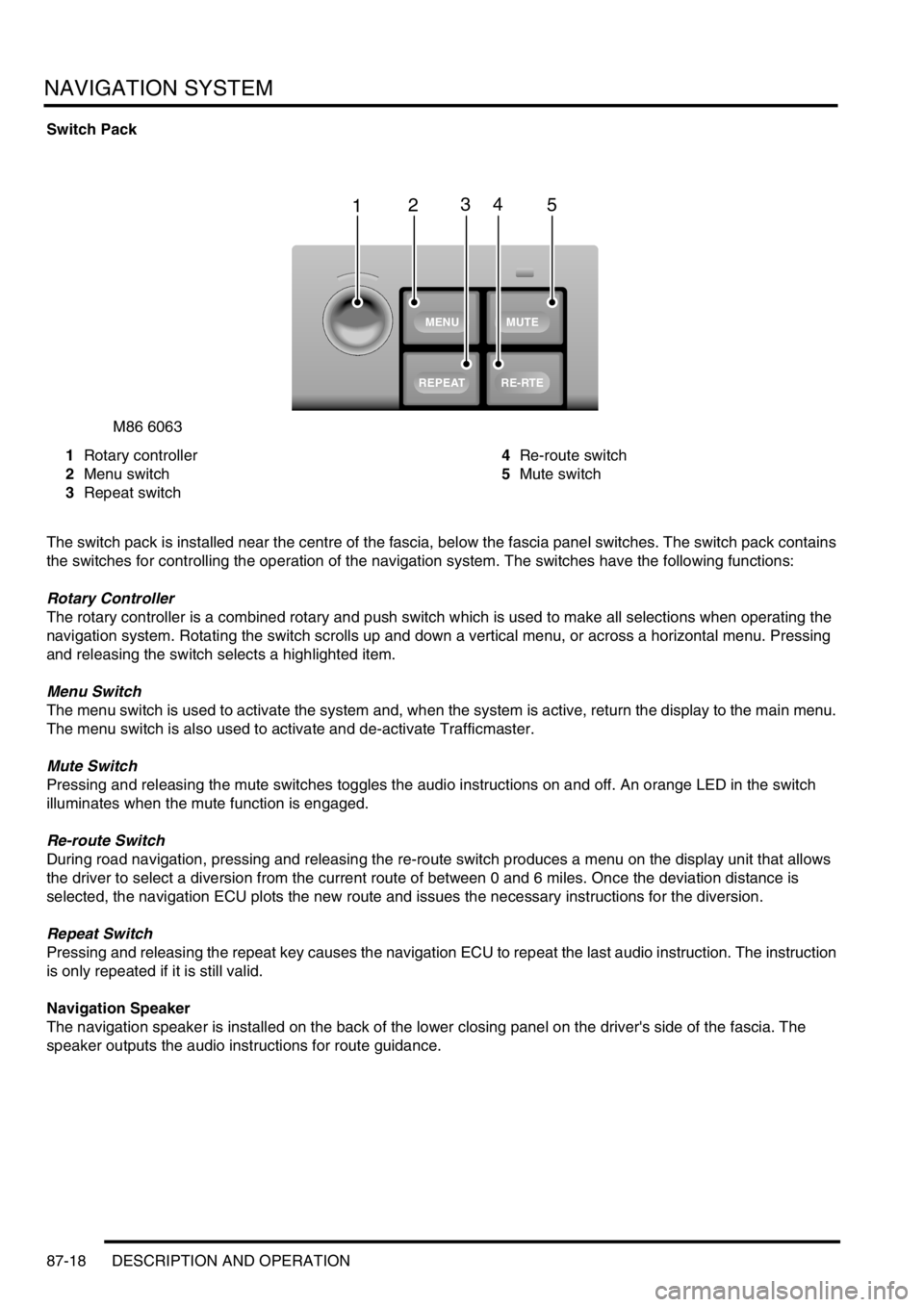
1Rotary controller
2Menu switch
3Repeat switch4Re-route switch
5Mute switch
The switch pack is installed near the centre of the fascia, below the fascia panel switches. The switch pack contains
the switches for controlling the operation of the navigation system. The switches have the following functions:
Rotary Controller
The rotary controller is a combined rotary and push switch which is used to make all selections when operating the
navigation system. Rotating the switch scrolls up and down a vertical menu, or across a horizontal menu. Pressing
and releasing the switch selects a highlighted item.
Menu Switch
The menu switch is used to activate the system and, when the system is active, return the display to the main menu.
The menu switch is also used to activate and de-activate Trafficmaster.
Mute Switch
Pressing and releasing the mute switches toggles the audio instructions on and off. An orange LED in the switch
illuminates when the mute function is engaged.
Re-route Switch
During road navigation, pressing and releasing the re-route switch produces a menu on the display unit that allows
the driver to select a diversion from the current route of between 0 and 6 miles. Once the deviation distance is
selected, the navigation ECU plots the new route and issues the necessary instructions for the diversion.
Repeat Switch
Pressing and releasing the repeat key causes the navigation ECU to repeat the last audio instruction. The instruction
is only repeated if it is still valid.
Navigation Speaker
The navigation speaker is installed on the back of the lower closing panel on the driver's side of the fascia. The
speaker outputs the audio instructions for route guidance.
M86 6063
1
MUTE
RE-RTE
REPEAT
MENU
2345
Page 1472 of 1529

NAVIGATION SYSTEM
DESCRIPTION AND OPERATION 87-19
Trafficmaster Monitor ECU
The Trafficmaster monitor ECU is installed underneath the CD autochanger, below the RH front seat. The
Trafficmaster monitor ECU processes the traffic flow data from the Trafficmaster antenna and combines it with data
from the navigation computer to display on the display unit.
Trafficmaster Antenna
The Trafficmaster antenna is installed in the fascia, on the rear of the instrument pack. The antenna receives radio
signals containing the data relayed from the traffic flow sensors, and transmits the information on a hardwired
connection to the Trafficmaster monitor ECU.