service Lexus ES300h 2015 User Guide
[x] Cancel search | Manufacturer: LEXUS, Model Year: 2015, Model line: ES300h, Model: Lexus ES300h 2015Pages: 786, PDF Size: 23.74 MB
Page 383 of 786
3825-4. Using the radio
ES350_300h_OM_OM33B36U_(U)
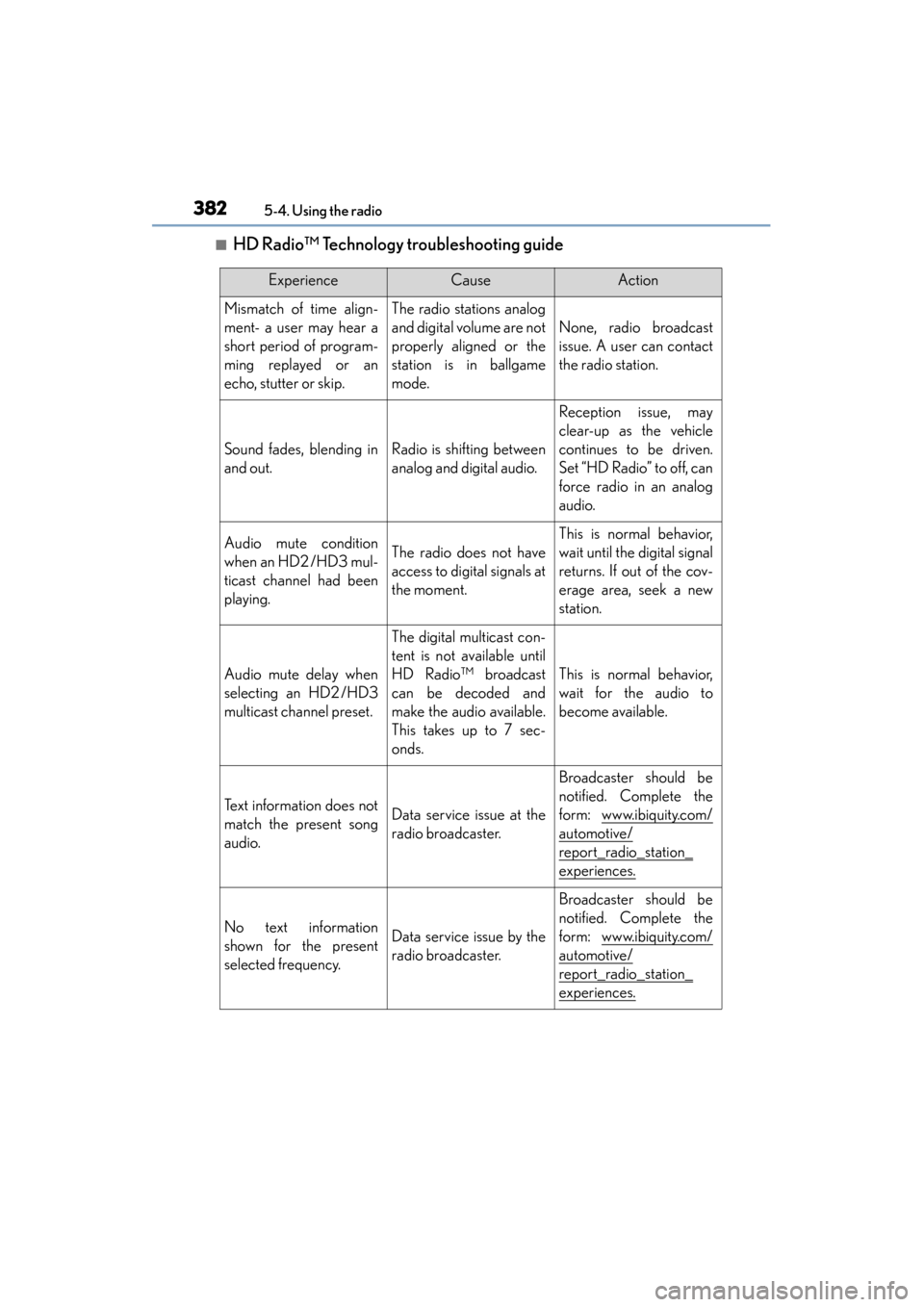
■HD Radio™ Technology troubleshooting guide
ExperienceCauseAction
Mismatch of time align-
ment- a user may hear a
short period of program-
ming replayed or an
echo, stutter or skip.The radio stations analog
and digital volume are not
properly aligned or the
station is in ballgame
mode.
None, radio broadcast
issue. A user can contact
the radio station.
Sound fades, blending in
and out.Radio is shifting between
analog and digital audio.
Reception issue, may
clear-up as the vehicle
continues to be driven.
Set “HD Radio” to off, can
force radio in an analog
audio.
Audio mute condition
when an HD2 /HD3 mul-
ticast channel had been
playing.The radio does not have
access to digital signals at
the moment.
This is normal behavior,
wait until the digital signal
returns. If out of the cov-
erage area, seek a new
station.
Audio mute delay when
selecting an HD2 /HD3
multicast channel preset.
The digital multicast con-
tent is not available until
HD Radio™ broadcast
can be decoded and
make the audio available.
This takes up to 7 sec-
onds.
This is normal behavior,
wait for the audio to
become available.
Text information does not
match the present song
audio.Data service issue at the
radio broadcaster.
Broadcaster should be
notified. Complete the
form: www.ibiquity.com/
automotive/
report_radio_station_
experiences.
No text information
shown for the present
selected frequency.Data service issue by the
radio broadcaster.
Broadcaster should be
notified. Complete the
form: www.ibiquity.com/
automotive/
report_radio_station_
experiences.
Page 384 of 786
ES350_300h_OM_OM33B36U_(U)
3835-4. Using the radio
5
Lexus Display Audio system
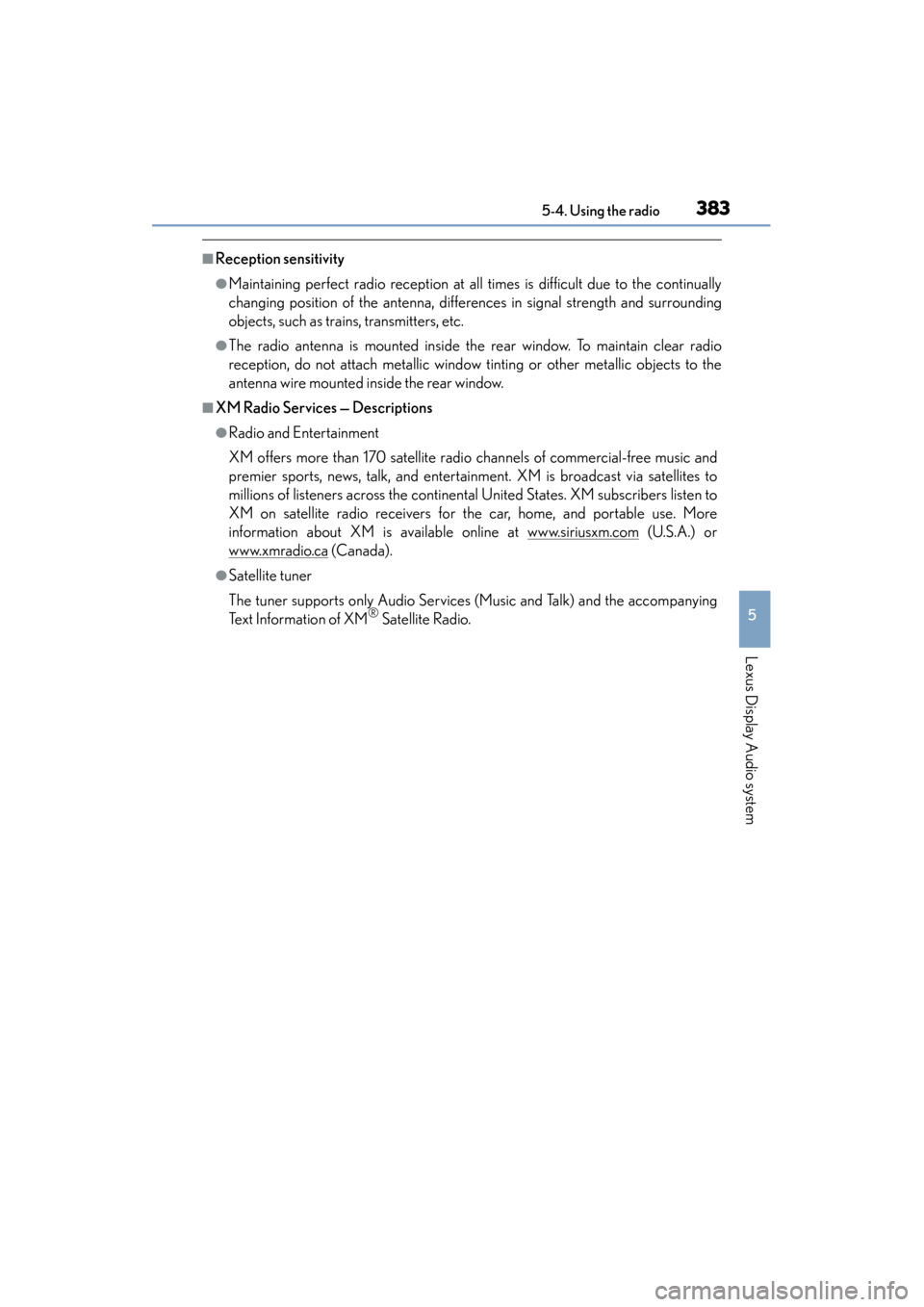
■Reception sensitivity
●Maintaining perfect radio reception at all times is difficult due to the continually
changing position of the antenna, differences in signal strength and surrounding
objects, such as trains, transmitters, etc.
●The radio antenna is mounted inside the rear window. To maintain clear radio
reception, do not attach metallic window tinting or other metallic objects to the
antenna wire mounted inside the rear window.
■XM Radio Services — Descriptions
●Radio and Entertainment
XM offers more than 170 satellite radio channels of commercial-free music and
premier sports, news, talk, and entertainment. XM is broadcast via satellites to
millions of listeners across the continental United States. XM subscribers listen to
XM on satellite radio receivers for the car, home, and portable use. More
information about XM is available online at www.siriusxm.com
(U.S.A.) or
www.xmradio.ca
(Canada).
●Satellite tuner
The tuner supports only Audio Services (Music and Talk) and the accompanying
Te x t I n f o r m a t i o n o f X M
® Satellite Radio.
Page 385 of 786
3845-4. Using the radio
ES350_300h_OM_OM33B36U_(U)
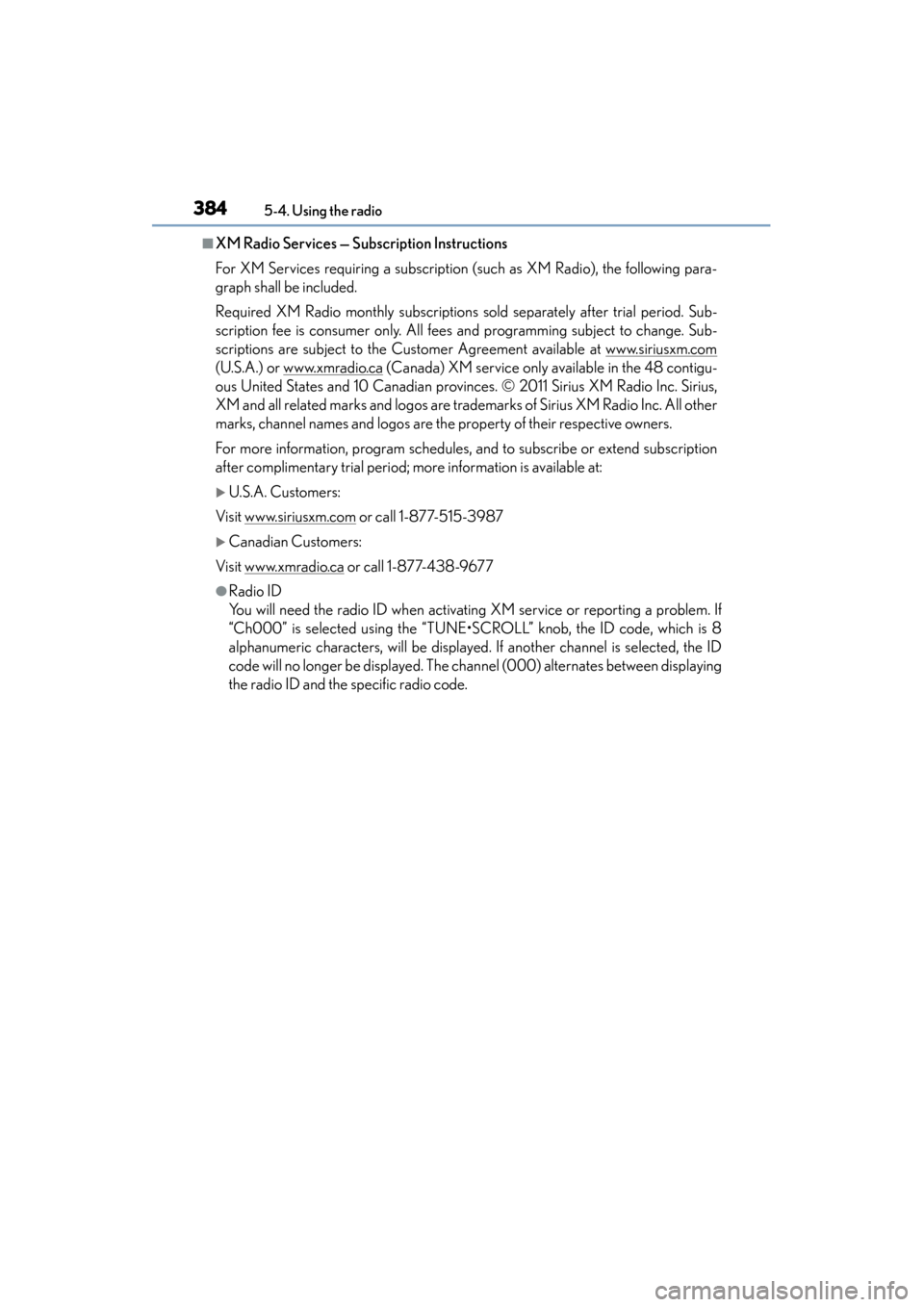
■XM Radio Services — Subscription Instructions
For XM Services requiring a subscription (such as XM Radio), the following para-
graph shall be included.
Required XM Radio monthly subscriptions sold separately after trial period. Sub-
scription fee is consumer only. All fees and programming subject to change. Sub-
scriptions are subject to the Customer Agreement available at www.siriusxm.com
(U.S.A.) or www.xmradio.ca (Canada) XM service only available in the 48 contigu-
ous United States and 10 Canadian provinces. © 2011 Sirius XM Radio Inc. Sirius,
XM and all related marks and logos are trademarks of Sirius XM Radio Inc. All other
marks, channel names and logos are the property of their respective owners.
For more information, program schedules, and to subscribe or extend subscription
after complimentary trial period; more information is available at:
XU.S.A. Customers:
Visit w ww.siriusxm.com
or call 1-877-515-3987
XCanadian Customers:
Visit w ww.xmradio.ca
or call 1-877-438-9677
●Radio ID
You will need the radio ID when activating XM service or reporting a problem. If
“Ch000” is selected using the “TUNE•SCROLL” knob, the ID code, which is 8
alphanumeric characters, will be displayed. If another channel is selected, the ID
code will no longer be displayed. The channel (000) alternates between displaying
the radio ID and the specific radio code.
Page 386 of 786
ES350_300h_OM_OM33B36U_(U)
3855-4. Using the radio
5
Lexus Display Audio system
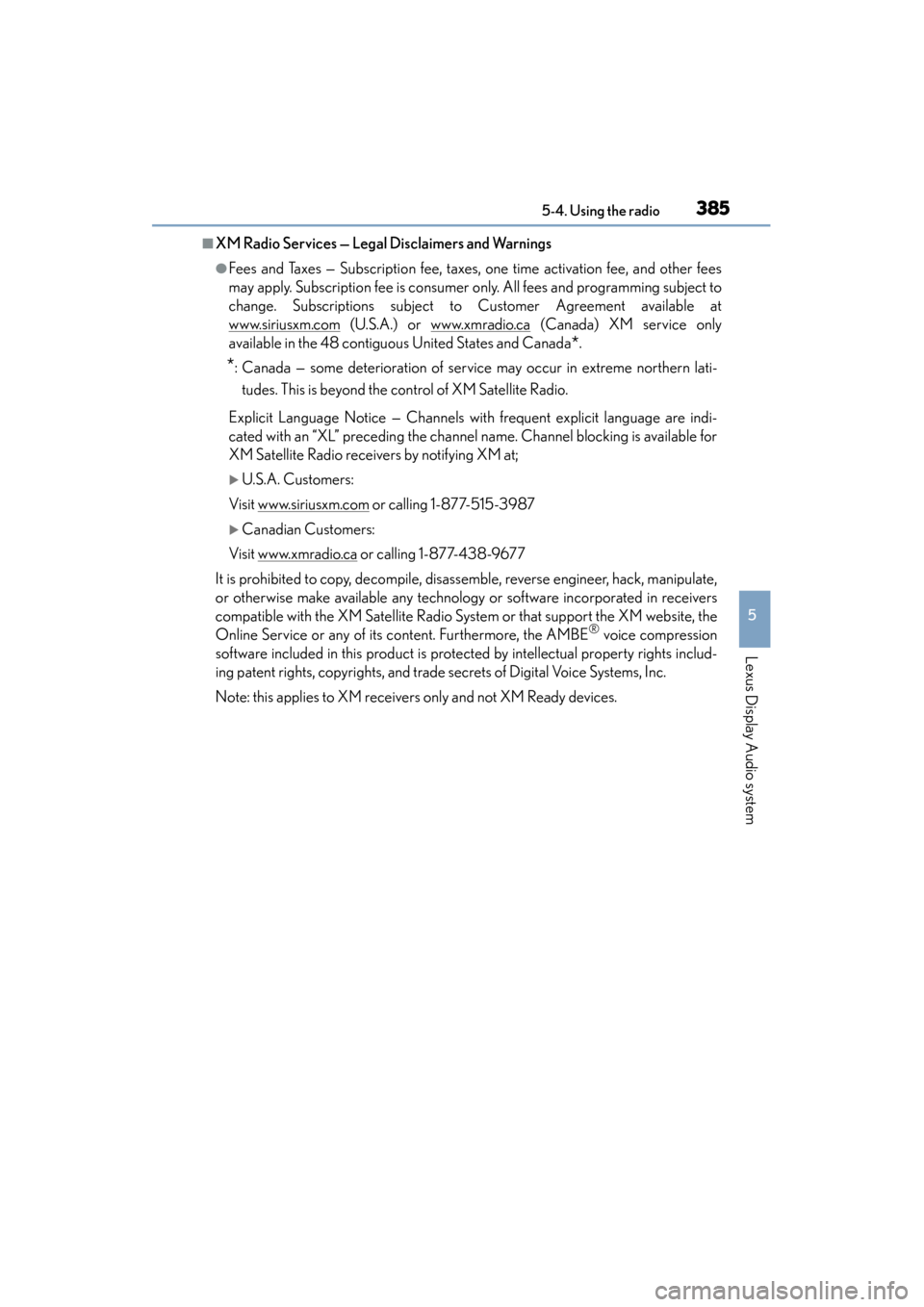
■XM Radio Services — Legal Disclaimers and Warnings
●Fees and Taxes — Subscription fee, taxes, one time activation fee, and other fees
may apply. Subscription fee is consumer only. All fees and programming subject to
change. Subscriptions subject to Customer Agreement available at
www.siriusxm.com
(U.S.A.) or www.xmradio.ca (Canada) XM service only
available in the 48 contiguous United States and Canada
*.
*: Canada — some deterioration of service may occur in extreme northern lati-
tudes. This is beyond the control of XM Satellite Radio.
Explicit Language Notice — Channels with frequent explicit language are indi-
cated with an “XL” preceding the channel name. Channel blocking is available for
XM Satellite Radio receivers by notifying XM at;
XU.S.A. Customers:
Visit www.siriusxm.com
or calling 1-877-515-3987
XCanadian Customers:
Visit w ww.xmradio.ca
or calling 1-877-438-9677
It is prohibited to copy, decompile, disassemble, reverse engineer, hack, manipulate,
or otherwise make available any technology or software incorporated in receivers
compatible with the XM Satellite Radio System or that support the XM website, the
Online Service or any of its content. Furthermore, the AMBE
® voice compression
software included in this product is protected by intellectual property rights includ-
ing patent rights, copyrights, and trade secrets of Digital Voice Systems, Inc.
Note: this applies to XM receivers only and not XM Ready devices.
Page 393 of 786
3925-5. Playing an audio CD and MP3/WMA/AAC discs
ES350_300h_OM_OM33B36U_(U)
■The Gracenote® media database
●Music recognition technology and related data are provided by Gracenote®.
Gracenote is the industry standard in music recognition technology and related
content delivery. For more information visit www.gracenote.com
.
●CD and music-related data from Gracenote, Inc., copyright © 2000 to present
Gracenote. Gracenote Software, copyright © 2000 to present Gracenote. One
or more patents owned by Gracenote apply to this product and service. See the
Gracenote website for a non-exhaustive list of applicable Gracenote patents.
Gracenote, CDDB, MusicID, MediaVOCS, the Gracenote logo and logotype,
and the “Powered by Gracenote” logo are either registered trademarks or trade-
marks of Gracenote in the United States and/or other countries.
Page 427 of 786
4265-9. Bluetooth® Phone
ES350_300h_OM_OM33B36U_(U)
When using phone services such as an answering service or a bank, you
can store phone numbers and code numbers in the contacts using “p” or
“w” symbols (eg. 056133 w 0123p#1).
XContact including a phone number only
Move the controller to the left and then select “0-9”.
Input the number.
XPhone number containing a “p” symbol
When the “p” symbol is dialed in an ou tgoing call, there will be a pause for
2 seconds before the following digits are dialed automatically.
XPhone number containing a “w” symbol
When the “w” symbol is dialed in an outgoing call, you need to go to the
“Release Tones” screen to dial the following digits. Move the controller to
the left and then select “Release Tones”.
Select “Handset Mode” to change from a hands-free call to a cellular
phone call or vice versa.
Press the on-hook switch on the steering wheel or select .
Inputting tones
To transfer a call
To h a n g u p
1
2
Page 437 of 786
4365-10. Phonebook
ES350_300h_OM_OM33B36U_(U)
You can transfer the phone numbers in your Bluetooth® phone to the sys-
tem. Operation methods differ be tween PBAP compatible and PBAP
incompatible Bluetooth
® phones. If your cellular phone does not support
either PBAP or OPP services, you cannot transfer contacts.
Go to “Transfer Contacts”: “MENU” button → “Setup” → “Phone” →
“Contact/Call History Settings” → “Update Contacts from Phone”
XFor PBAP compatible Bluetooth® phones when “Automatic Transfer” is
set to on
Start the update automatically.
XFor PBAP compatible Bluetooth® phones when “Automatic Transfer” is
set to off and PBAP incompatible Bluetooth
® phones
Select to transfer the contact
from the connected cellular
phone and replace the current
one.
Select to transfer the desired
contact data from the connected
cellular phone to add to the cur-
rent one.
You can register the desired contact from the phonebook. Up to 15 con-
tacts per phone can be registered. Go to “Add Favorite”: “MENU” button → “Setup” → “Phone” → “Con-
tact/Call History Settings” → “Add Favorite”
Choose the contact to register.
Transferring a phone number
1
2
Registering favorites
1
2
Page 438 of 786
ES350_300h_OM_OM33B36U_(U)
4375-10. Phonebook
5
Lexus Display Audio system
Go to “Remove Favorite”: “MENU” button → “Setup” → “Phone” →
“Contact/Call History Settings” → “Remove Favorite”
Select the desired contacts.
You can select all contacts by selecting “Select All”.
Move the controller to the left and select “Remove”.
Go to “Delete Contacts”: “MENU” button → “Setup” → “Phone” →
“Contact/Call History Settings” → “Delete Contacts”
Select the desired contacts.
You can select all contacts by selecting “Select All”.
Move the controller to the left and select “Delete”.
■Phonebook data
Phonebook data is managed separately for every registered phone. When another
phone is connected, you cannot read the registered data.
■When transferring contacts
Transfer contacts while the hybrid system is operating.
If the cellular phone is OPP or PBAP compatible, you may need to input “1234” on
the cellular phone for OBEX certification.
■When you have selected “Replace contacts” or “Add contact” to transfer contacts
If the cellular phone does not support OPP service, you cannot use these functions.
You can transfer the phonebook data only by operating your phone.
■Transferring contacts while Bluetooth® audio is playing
Bluetooth
® audio will disconnect. It will reconnect automatically when data transfer
finishes. It may not reconnect depending on the phone which is connected.
Removing favorites
Deleting the contacts data
1
2
3
1
2
3
Page 439 of 786
438
ES350_300h_OM_OM33B36U_(U)
5-10. Phonebook
Messaging setting
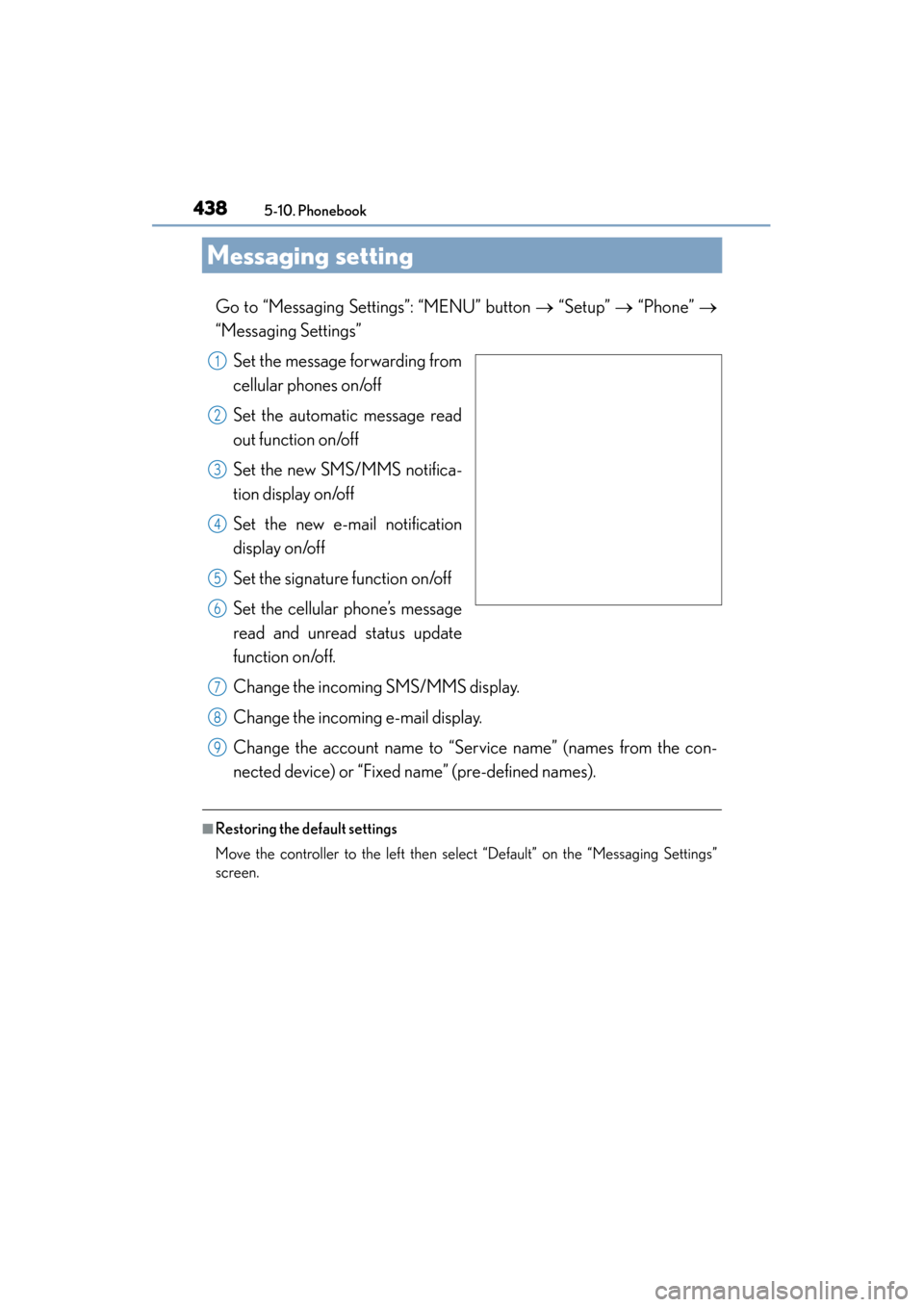
Go to “Messaging Settings”: “MENU” button → “Setup” → “Phone” →
“Messaging Settings”
Set the message forwarding from
cellular phones on/off
Set the automatic message read
out function on/off
Set the new SMS/MMS notifica-
tion display on/off
Set the new e-mail notification
display on/off
Set the signature function on/off
Set the cellular phone’s message
read and unread status update
function on/off.
Change the incoming SMS/MMS display.
Change the incoming e-mail display.
Change the account name to “Service name” (names from the con-
nected device) or “Fixed name” (pre-defined names).
■Restoring the default settings
Move the controller to the left then select “Default” on the “Messaging Settings”
screen.
1
2
3
4
5
6
7
8
9
Page 441 of 786
4405-11. Bluetooth®
ES350_300h_OM_OM33B36U_(U)
XWhen registering/connecting a cellular phone
XWhen making/receiving a call
A cellular phone cannot be registered.
An incorrect passcode was entered on the cellular phone.
→Enter the correct passcode on the cellular phone.
The registration operation has not been completed on the cellular phone side.
→Complete the registration operation on the cellular phone (approve registration
on the phone).
Old registration information remains on either this system or the cellular phone.
→Delete the existing registration informat ion from both this system and the cellu-
lar phone, then register the cellular phon e you wish to connect to this system.
( → P. 409)
A Bluetooth® connection cannot be made.
Another Bluetooth® device is already connected.
→ Manually connect the cellular phone you wish to use to this system. ( →P. 4 1 2 )
Bluetooth® function is not enabled on the cellular phone.
→ Enable the Bluetooth® function on the cellular phone.
A call cannot be made/received.
Your vehicle is in a “No Service” area.
→Move to where “No Service” no longer appears on the display.