audio Lexus ES300h 2017 Owner's Guide
[x] Cancel search | Manufacturer: LEXUS, Model Year: 2017, Model line: ES300h, Model: Lexus ES300h 2017Pages: 612, PDF Size: 14.05 MB
Page 245 of 612
ES300h_OM_OM33C75U_(U)
2434-5. Using the driving support systems
4
Driving
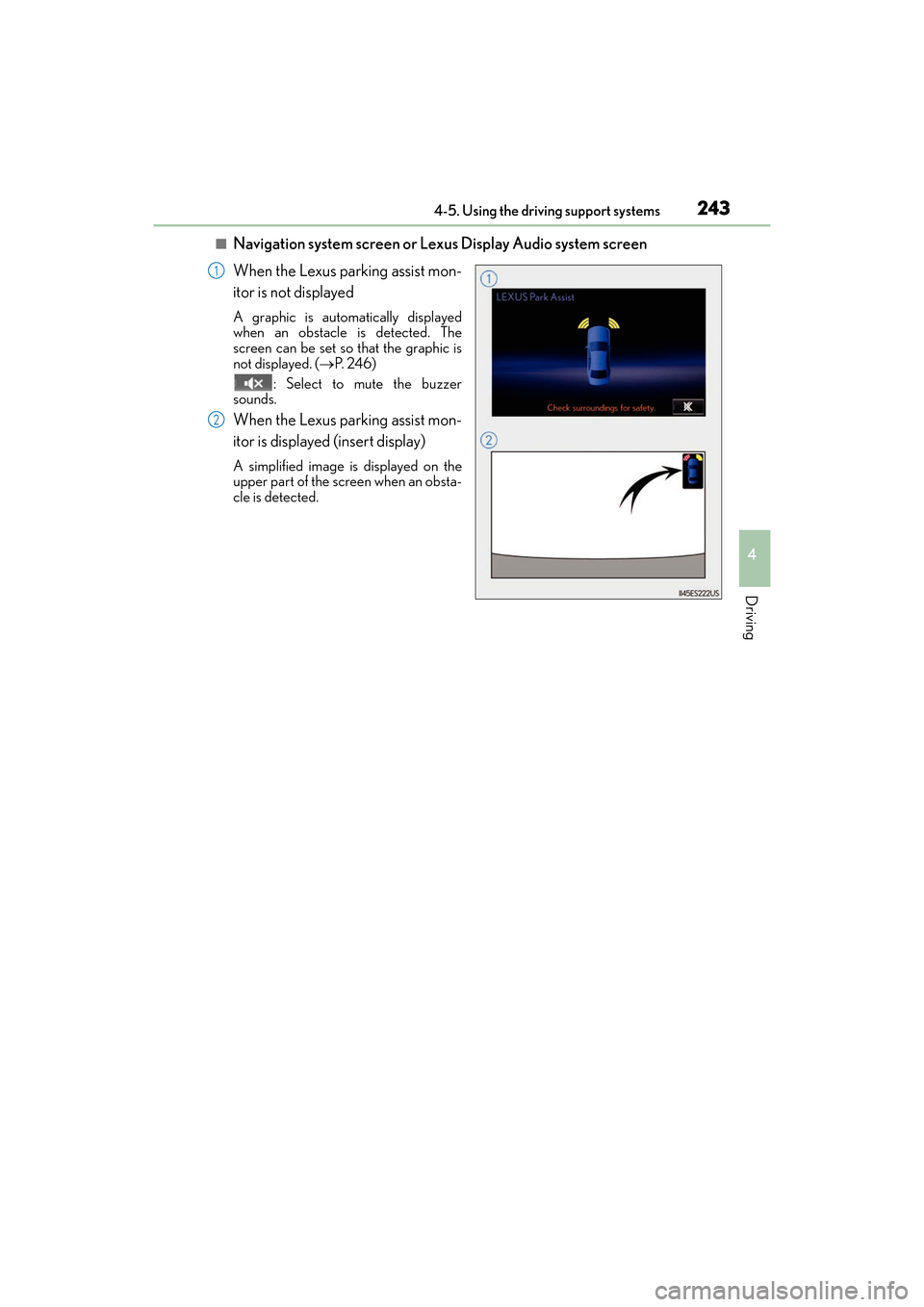
■Navigation system screen or Lexus Display Audio system screen
When the Lexus parking assist mon-
itor is not displayed
A graphic is automatically displayed
when an obstacle is detected. The
screen can be set so that the graphic is
not displayed. (→P. 2 4 6 )
: Select to mute the buzzer
sounds.
When the Lexus parking assist mon-
itor is displayed (insert display)
A simplified image is displayed on the
upper part of the screen when an obsta-
cle is detected.
1
2
Page 246 of 612
244
ES300h_OM_OM33C75U_(U)4-5. Using the driving support systems
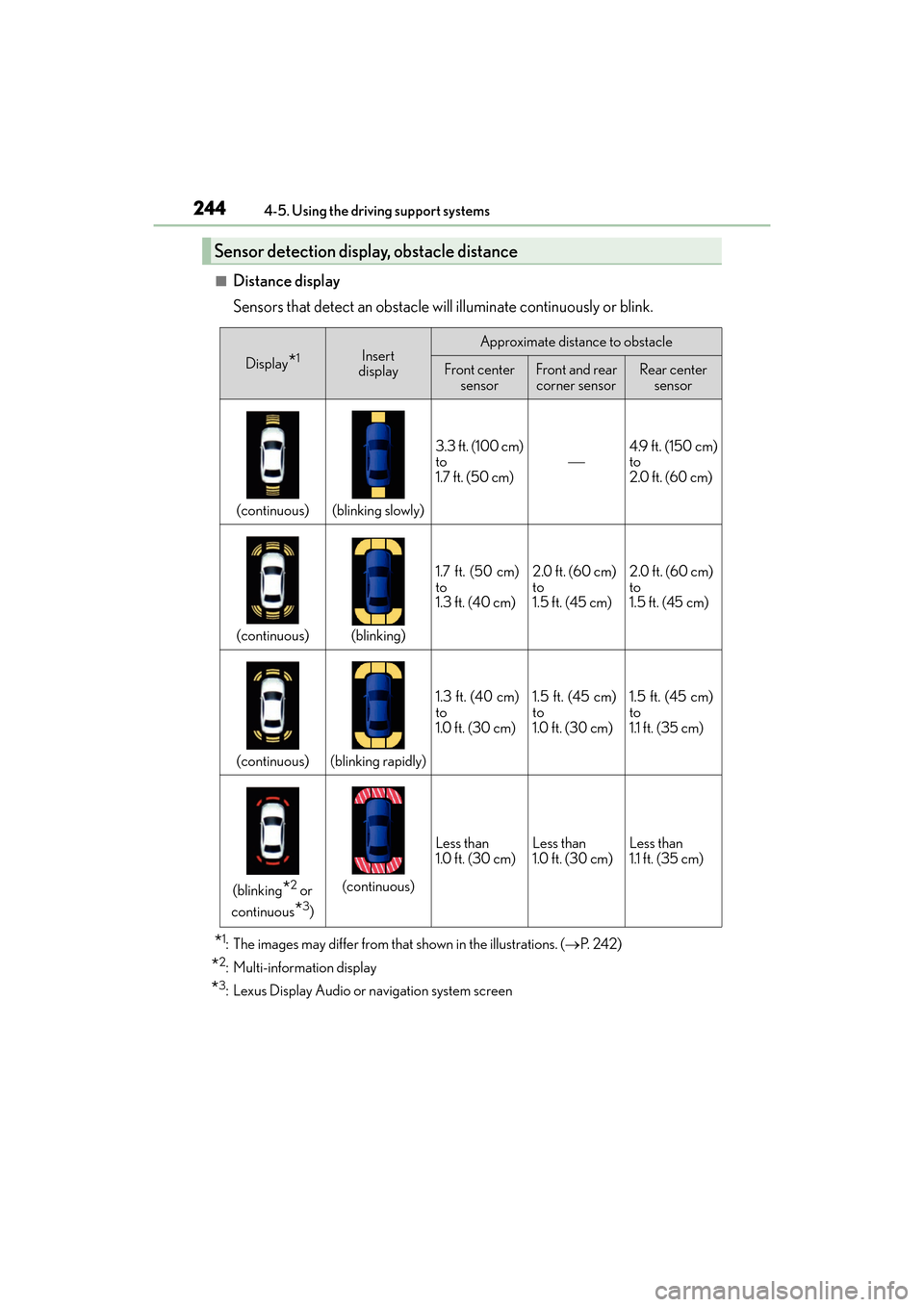
■Distance display
Sensors that detect an obstacle will illuminate continuously or blink.
*1: The images may differ from that shown in the illustrations. (→
P. 2 4 2 )
*2: Multi-information display
*3: Lexus Display Audio or navigation system screen
Sensor detection display, obstacle distance
Display*1Insert
displayApproximate distance to obstacle
Front center sensorFront and rear corner sensorRear center sensor
(continuous)(blinking slowly)
3.3 ft. (100 cm)
to
1.7 ft. (50 cm)4.9 ft. (150 cm)
to
2.0 ft. (60 cm)
(continuous)(blinking)
1.7 ft. (50 cm)
to
1.3 ft. (40 cm)2.0 ft. (60 cm)
to
1.5 ft. (45 cm)2.0 ft. (60 cm)
to
1.5 ft. (45 cm)
(continuous)(blinking rapidly)
1.3 ft. (40 cm)
to
1.0 ft. (30 cm)1.5 ft. (45 cm)
to
1.0 ft. (30 cm)1.5 ft. (45 cm)
to
1.1 ft. (35 cm)
(blinking*2 or
continuous
*3)
(continuous)
Less than
1.0 ft. (30 cm)Less than
1.0 ft. (30 cm)Less than
1.1 ft. (35 cm)
Page 248 of 612
246
ES300h_OM_OM33C75U_(U)4-5. Using the driving support systems
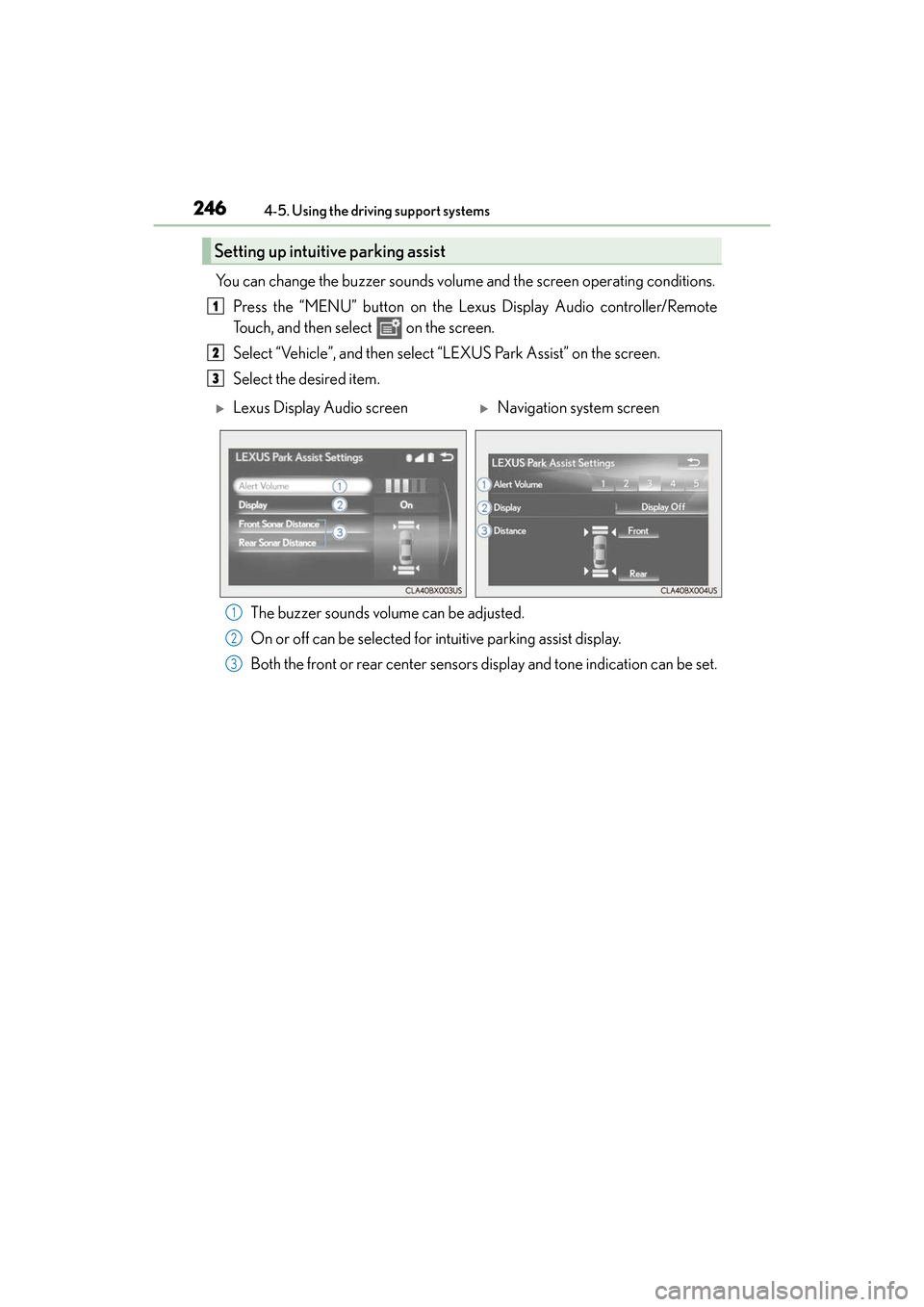
You can change the buzzer sounds volume
and the screen operating conditions.
Press the “MENU” button on the Lexus Display Audio controller/Remote
Touch, and then select on the screen.
Select “Vehicle”, and then select “LEXUS Park Assist” on the screen.
Select the desired item.
The buzzer sounds volume can be adjusted.
On or off can be selected for intuitive parking assist display.
Both the front or rear center sensors display and tone indication can be set.
Setting up intuitive parking assist
1
2
3
XLexus Display Audio screenXNavigation system screen
1
2
3
Page 250 of 612
248
ES300h_OM_OM33C75U_(U)4-5. Using the driving support systems
●The shape of the obstacle may prevent the sensor from detecting it. Pay particular
attention to the following obstacles:
• Wires, fences, ropes, etc.
• Cotton, snow and other materials that absorb sound waves
• Sharply-angled objects
• Low obstacles
• Tall obstacles with upper sections projecting
outwards in the direction of your vehi-
cle
●The following situations may occur during use.
• Depending on the shape of the obstacle and other factors, the detection distance may shorten, or detect ion may be impossible.
• Obstacles may not be detected if they are too close to the sensor.
• There will be a short delay between obst acle detection and display. Even at slow
speeds, there is a possibility that the obstacl e will come within the sensor’s detection
areas before the display is shown and the warning beep sounds.
• Thin posts or objects lower than the sens or may not be detected for collision when
approached, even if they have been detected once.
• It might be difficult to hear beeps due to the volume of audio system or air flow noise of air conditioning system.
■If “Clean Parking Assist Sensor” is di splayed on the multi-information display
A sensor may be dirty or covered with snow or ice. In such cases, if it is removed from the
sensor, the system should return to normal. Also, due to the sensor being frozen at low
temperatures, a malfunction display may appear or an obstacle may not be detected. If
the sensor thaws out, the system should return to normal.
■If “Parking Assist Malfunction” is displayed on the multi-information display
Depending on the malfunction of the sensor, the device may not be working normally.
Have the vehicle inspected by your Lexus dealer.
■Certification
XFor vehicles sold in the U.S.A.
This device complies with Part 15 of the FCC Rules. Operation is subject to the following
two conditions; (1) This device may not cause harmful interference, and (2) this device
must accept any interference received, including interference that may cause undesired
operation.
XFor vehicles sold in Canada
This ISM device complies with Canadian ICES-001.
Cet appareil ISM est conforme à la norme NMB-001 du Canada.
WA R N I N G
■When using the intuitive parking assist
Observe the following precautions.
Failing to do so may result in the vehicle being unable to be driv en safely and possibly
cause an accident, resulting in death or serious injury.
●Do not use the sensor at speeds in excess of 6 mph (10 km/h).
●The sensors’ detection areas and reaction times are limited. When moving forward or
reversing, check the areas surrounding the vehicle (especially the sides of the vehi-
cle) for safety, and drive slowly, using the brake to control the vehicle’s speed.
●Do not install accessories within the sensors’ detection areas.
Page 254 of 612
252
ES300h_OM_OM33C75U_(U)4-5. Using the driving support systems
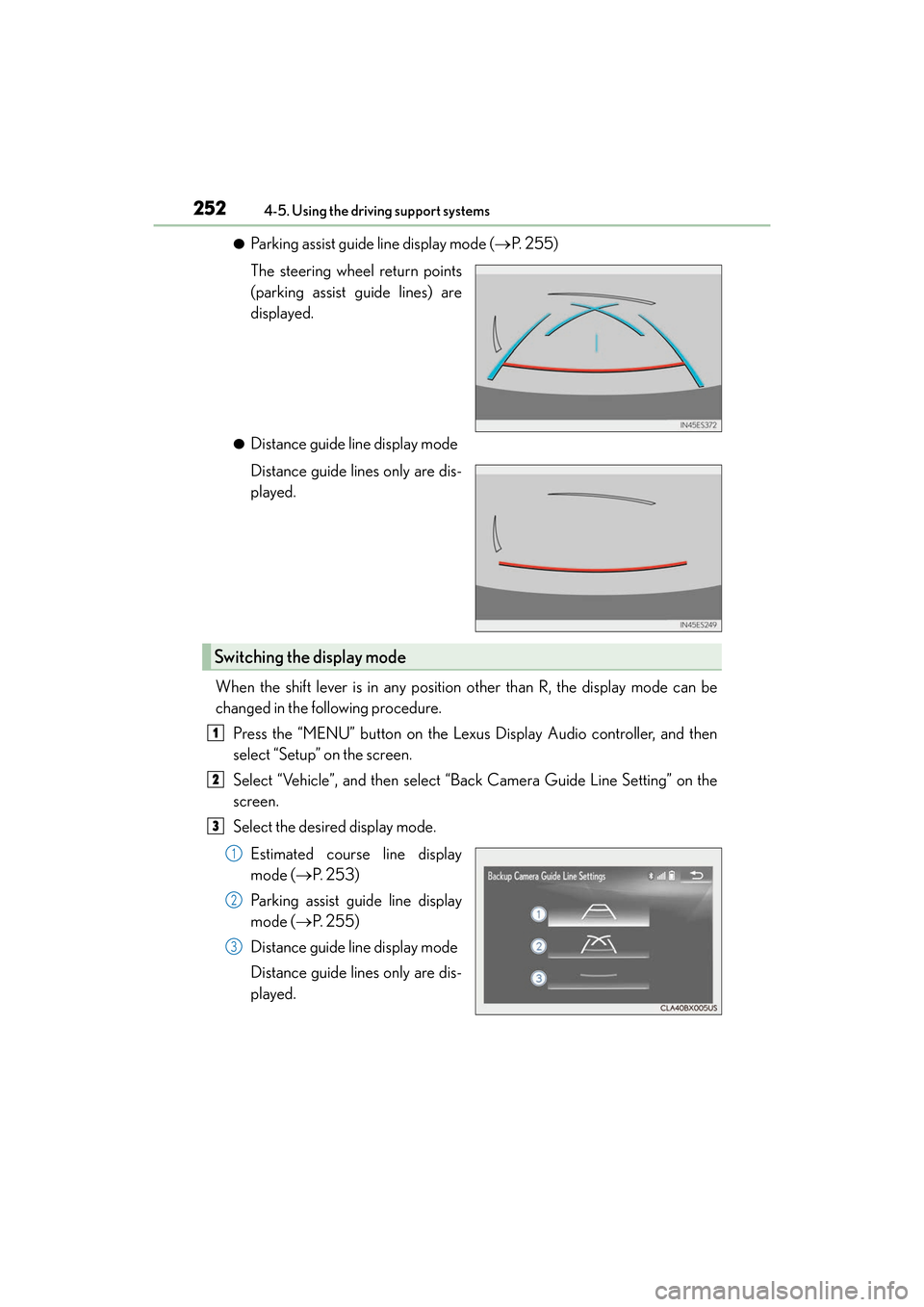
●Parking assist guide line display mode (
→P. 2 5 5 )
The steering wheel return points
(parking assist guide lines) are
displayed.
●Distance guide line display mode
Distance guide lines only are dis-
played.
When the shift lever is in any position other than R, the display mode can be
changed in the following procedure. Press the “MENU” button on the Lexus Display Audio controller, and then
select “Setup” on the screen.
Select “Vehicle”, and then select “Back Camera Guide Line Setting” on the
screen.
Select the desired display mode.
Estimated course line display
mode ( →P. 2 5 3 )
Parking assist guide line display
mode ( →P. 2 5 5 )
Distance guide line display mode
Distance guide lines only are dis-
played.
Switching the display mode
1
2
3
1
2
3
Page 271 of 612
ES300h_OM_OM33C75U_(U)
2694-5. Using the driving support systems
4
Driving
■The outside rear view mirror indicators visibility
When under strong sunlight, the outside rear view mirror indicator may be difficult to
see.
■Rear Cross Traffic Alert buzzer hearing
Rear Cross Traffic Alert function may be difficult to hear over loud noises such as high
audio volume.
■When “Blind Spot Monitor Unavailable” is shown on the multi-information display
Water, snow mud, etc., may be built up in the vicinity of the sensor area of bumper.
( → P. 270) Removing the water, snow, mud, etc., from the vicinity of the sensor area
bumper should return it to normal. Also, the sensor may not function normally when
used in extremely hot or cold weather.
■When “Blind Spot Monitor System Malfunction Visit Your Dealer” is shown on the
multi-information display
There may be a sensor malfunction or voltage abnormality. Have the vehicle inspected at
a Lexus dealer.
■Certification for the Blind Spot Monitor system
XFor vehicles sold in the U.S.A.
FCC ID: OAYSRR2A
This device complies with part 15 of the FCC Rules. Operation is subject to the following
two conditions:
(1) This device may not cause harmful interference, and
(2) this device must accept any interference received, including interference that may cause undesired operation.
FCC Warning
Changes or modifications not expressly approved by the party responsible for compli-
ance could void the user’s authority to operate the equipment.
XFor vehicles sold in Canada
Applicable law: Canada 310
This device complies with Industry Canada licence-exempt RSS standard(s). Operation
is subject to the following two conditions: (1) this device may not cause interference, and
(2) this device must accept any interference, including interference that may cause
undesired operation of the device.
Frequency bands : 24 .05-24.25 GHz
Output power: less than 20 milliwatts
Page 290 of 612
288
ES300h_OM_OM33C75U_(U)
5-1. Basic OperationsLexus Display Audio system ..........................................290
Steering wheel audio switches....................................... 296
Mobile Assistant..........................297
USB/AUX ports ......................... 299
5-2. Setup Setup menu ..................................302
General settings.........................303
Voice settings ..............................306
Display settings ........................... 307
5-3. Using the audio system Selecting the audio source ......................................... 308
Optimal use of the audio system ..........................................309
Audio settings............................... 310
Audio menu screen operation ..................................... 313
5-4. Using the radio Radio operation ........................... 316
5-5. Playing an audio CD and MP3/WMA/AAC discs
CD player operation ................ 322
5-6. Using an external device Listening to an iPod ................... 329
Using USB memory device........................................... 333
Using the AUX port ................. 337
Page 291 of 612
289
ES300h_OM_OM33C75U_(U)
Lexus Display Audiosystem
5
5-7. Connecting Bluetooth®
Steps for using Bluetooth®
devices ........................................ 338
Registering a Bluetooth
®
device .......................................... 340
Selecting a Bluetooth
®
device ............................................ 341
Connecting a Bluetooth
®
audio player ...............................342
Connecting a Bluetooth
®
phone .......................................... 343
Displaying a Bluetooth
®
device details ............................344
Detailed Bluetooth
®
settings.........................................345
5-8. Bluetooth
® Audio
Listening to Bluetooth
®
Audio ........................................... 348
5-9. Bluetooth
® Phone
Using a Bluetooth
®
Phone ...........................................349
Making a call ................................. 351
Receiving a call ...........................354
Speaking on the phone ............355
Using a Bluetooth
®
phone message ........................ 357
Using the steering wheel switches .......................................359
Bluetooth
® phone
settings........................................ 360 5-10. Phonebook
Contact settings ......................... 362
Messaging setting...................... 365
5-11. Bluetooth
®
What to do if... (Troubleshooting).................... 366
Bluetooth
®................................... 370
5-12. Other function “Information” screen .................. 376
USB photo .................................... 378
Weather information ............... 380
Voice command system ........... 381
Page 292 of 612
290
ES300h_OM_OM33C75U_(U)5-1. Basic Operations
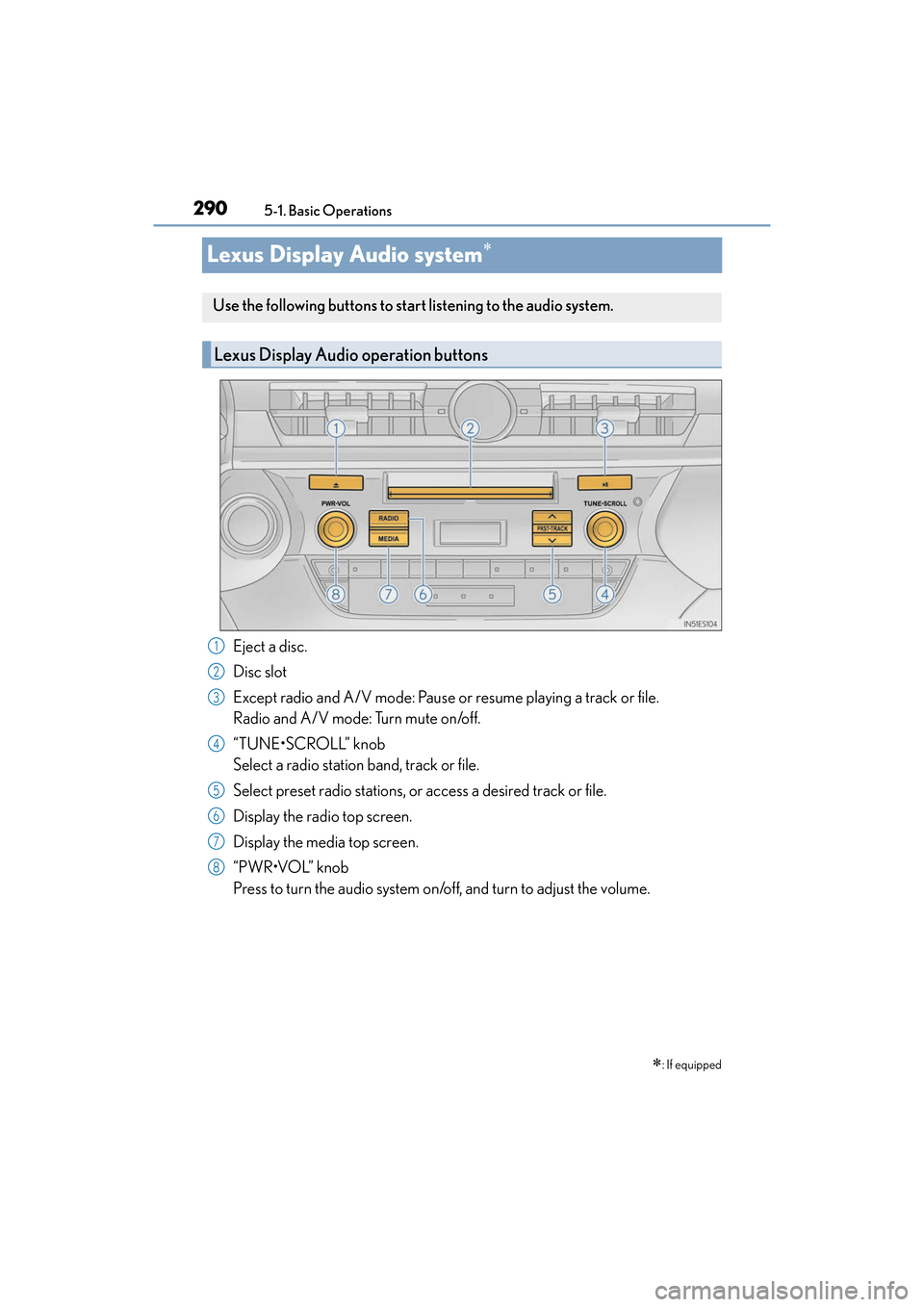
Lexus Display Audio system∗
Eject a disc.
Disc slot
Except radio and A/V mode: Pause or resume playing a track or file.
Radio and A/V mode: Turn mute on/off.
“TUNE•SCROLL” knob
Select a radio station band, track or file.
Select preset radio stations, or access a desired track or file.
Display the radio top screen.
Display the media top screen.
“PWR•VOL” knob
Press to turn the audio system on/off, and turn to adjust the volume.
∗: If equipped
Use the following buttons to start listening to the audio system.
Lexus Display Audio operation buttons
1
2
3
4
5
6
7
8
Page 293 of 612
ES300h_OM_OM33C75U_(U)
2915-1. Basic Operations
5
Lexus Display Audio system
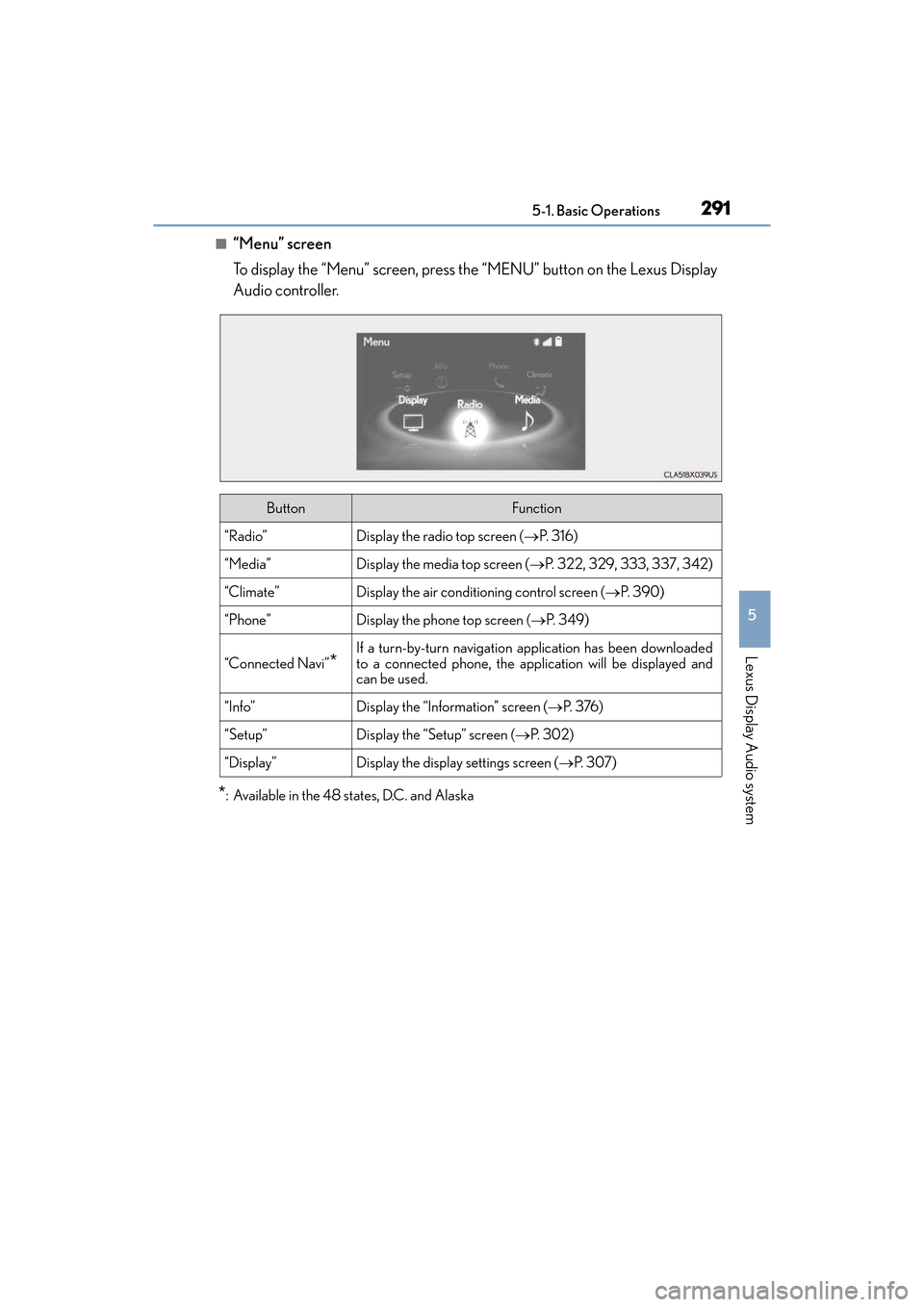
■“Menu” screen
To display the “Menu” screen, press the “MENU” button on the Lexus Display
Audio controller.
*: Available in the 48 states, D.C. and Alaska
ButtonFunction
“Radio”Display the radio top screen (→P. 3 1 6 )
“Media”Display the media top screen (→P. 322, 329, 333, 337, 342)
“Climate”Display the air conditioning control screen ( →P. 3 9 0 )
“Phone”Display the phone top screen ( →P. 3 4 9 )
“Connected Navi”*
If a turn-by-turn navigation application has been downloaded
to a connected phone, the application will be displayed and
can be used.
“Info”Display the “Information” screen ( →P. 3 76 )
“Setup”Display the “Setup” screen ( →P. 3 0 2 )
“Display”Display the display settings screen ( →P. 3 0 7 )