ECO mode Lexus ES300h 2017 Owner's Guide
[x] Cancel search | Manufacturer: LEXUS, Model Year: 2017, Model line: ES300h, Model: Lexus ES300h 2017Pages: 612, PDF Size: 14.05 MB
Page 300 of 612
2985-1. Basic Operations
ES300h_OM_OM33C75U_(U)
■Adjusting the volume
The volume of the Mobile Assistant can be adjusted using the
“PWR·VOL” knob or
steering wheel volume switches. The Mobile Assistant and phone call volumes are syn-
chronized.
■Microphone
It is not necessary to speak directly into the microphone when using the Mobile Assis-
tant.
●Wait for the listening beeps before using the Mobile Assistant.
●The Mobile Assistant may not recognize commands in the following situations:
• When spoken too quickly.
• When spoken at a low or high volume.
• When the roof or windows are open.
• When passengers are talking while th e Mobile Assistant is being used.
• When the air conditioning system’s fan speed is set high.
• When the air conditioning vents are turned toward the microphone.
■Mobile Assistant precautions
●The available features and functions may vary based on the iOS version installed on the
connected device.
●Some Siri features are limited in Eyes Free mode. If you attempt to use an unavailable
function, Siri will inform you that the function is not available.
●If Siri is not enabled on the ce llular phone connected via Bluetooth, an error message
will be displayed on the screen.
●While a phone call is active, the Mobile Assistant cannot be used.
●If using the navigation feature of the cellular phone, ensure the active audio source is
Bluetooth audio or iPod in order to hear turn by turn direction prompts.
Page 321 of 612
ES300h_OM_OM33C75U_(U)
3195-4. Using the radio
5
Lexus Display Audio system
■HD Radio™ Technology troubleshooting guide
■Reception sensitivity
●Maintaining perfect radio reception at all times is difficult due to the continually chang-
ing position of the antenna, differences in signal strength and surrounding objects, such
as trains, transmitters, etc.
●The radio antenna is mounted inside the rear window. To maintain clear radio reception,
do not attach metallic window tinting or other metallic objects to the antenna wire
mounted inside the rear window.
ExperienceCauseAction
Mismatch of time align-
ment- a user may hear a
short period of program-
ming replayed or an echo,
stutter or skip.The radio stations analog
and digital volume are not
properly aligned or the sta-
tion is in ballgame mode.None, radio broadcast
issue. A user can contact
the radio station.
Sound fades, blending in
and out.Radio is shifting between
analog and digital audio.
Reception issue, may
clear-up as the vehicle
continues to be driven. Set
“HD Radio” to off, can
force radio in an analog
audio.
Audio mute condition
when an HD2 /HD3 multi-
cast channel had been
playing.The radio does not have
access to digital signals at
the moment.
This is normal behavior,
wait until the digital signal
returns. If out of the cover-
age area, seek a new sta-
tion.
Audio mute delay when
selecting an HD2 /HD3
multicast channel preset.
The digital multicast con-
tent is not available until
HD Radio™ broadcast can
be decoded and make the
audio available. This takes
up to 7 seconds.
This is normal behavior,
wait for the audio to
become available.
Text information does not
match the present song
audio.Data service issue at the
radio broadcaster.
Broadcaster should be
notified. Complete the
form: www.ibiquity.com/
automotive/
report_radio_station_experiences.
No text information shown
for the present selected
frequency.Data service issue by the
radio broadcaster.
Broadcaster should be
notified. Complete the
form: www.ibiquity.com/
automotive/report_radio_station_
experiences.
Page 332 of 612
3305-6. Using an external device
ES300h_OM_OM33C75U_(U)
●“Made for iPod” and “Made for iPhone” mean that an electronic accessory has been
designed to connect specifically to an iPod , or iPhone, respectively, and has been certi-
fied by the developer to meet Apple performance standards.
●Apple is not responsible for the operation of this device or its compliance with safety
and regulatory standards. Please note that the use of this accessory with iPod or iPhone
may affect wireless performance.
●iPhone, iPod, iPod classic, iPod nano and iPod touch are trademarks of Apple Inc., reg-
istered in the U.S. and other countries.
■iPod cover art
●Depending on the iPod and songs in the iPod, iPod cover art may be displayed.
●This function can be changed to on/off. ( →P. 3 1 2 )
●It may take time to display iPod cover art, and the iPod may not be operated while the
cover art display is in process.
■iPod functions
●When an iPod is connected and the audio source is changed to iPod mode, the iPod will
resume play from the same point in which it was last used.
●Depending on the iPod that is connected to the system, certain functions may not be
available. If a function is unavailable due to a malfunction (as opposed to a system spec-
ification), disconnecting the device and reconnecting it may resolve the problem.
●Depending on the iPod, while connected to the system, the iPod cannot be operated
with its own controls. It is necessary to us e the controls of the vehicle’s audio system
instead.
●When the battery level of an iPod is very low, the iPod may not operate. If so, charge the
iPod before use.
●Compatible models ( →P. 3 3 2 )
■iPod problems
To resolve most problems encountered when using your iPod, disconnect your iPod from
the vehicle iPod connection and reset it. For in structions on how to reset your iPod, refer
to your iPod Owner’s Manual.
Page 334 of 612
3325-6. Using an external device
ES300h_OM_OM33C75U_(U)
■Compatible models
The following iPod®, iPod nano®, iPod classic®, iPod touch® and iPhone® devices can
be used with this system.
●Made for
• iPod touch (5th generation)
*
• iPod touch (4th generation)
• iPod touch (3rd generation)
•iPod touch (2nd generation)
• iPod touch (1st generation)
• iPod classic
• iPod with video
• iPod nano (7th generation)
*
• iPod nano (6th generation)
• iPod nano (5th generation)
• iPod nano (4th generation)
• iPod nano (3rd generation)
• iPod nano (1st generation)
•iPhone 5s
*
•iPhone 5c*
•iPhone 5*
•iPhone 4S
•iPhone 4
•iPhone 3GS
•iPhone 3G
•iPhone
*: iPod video not supported
Depending on differences between models or software versions, etc., some models
might be incompatible with this system.
NOTICE
■To prevent damage to the iPod or its terminals
●Depending on the size and shape of the iPod that is connected to the system, the con-
sole box may not close fully. In this case, do not forcibly close the console box as this
may damage the iPod or the terminal, etc.
●Do not leave the iPod in the vehicle. The temperature inside the vehicle may become
high.
●Do not push down on or apply unnecessary pressure to the iPod while it is connected.
●Do not insert foreign objects into the port.
Page 337 of 612
ES300h_OM_OM33C75U_(U)
3355-6. Using an external device
5
Lexus Display Audio system
●MP3, WMA and AAC files
MP3 (MPEG Audio LAYER 3) is a standard audio compression format.
Files can be compressed to approximately 1 /10 of their original size using MP3 com-
pression.
WMA (Windows Media Audio) is a Microsoft audio compression format. This format
compresses audio data to a size smaller than that of the MP3 format.
AAC is short for Advanced Audio Coding and refers to an audio compression technol-
ogy standard used with MPEG2 and MPEG4.
MP3, WMA and AAC file and media/ formats compatibility are limited.
●MP3 file compatibility
• Compatible standards
MP3 (MPEG1 AUDIO LAYERIII, MPEG2 AUDIO LAYERIII)
• Compatible sampling frequencies MPEG1 AUDIO LAYERIII: 32, 44.1, 48 (kHz)
MPEG2 AUDIO LAYERIII: 16, 22.05, 24 (kHz)
• Compatible bit rates (compatible with VBR) MPEG1 AUDIO LAYERIII: 32-320 (kbps)
MPEG2 AUDIO LAYERIII: 8-160 (kbps)
• Compatible channel modes: stereo, joint stereo, dual channel and monaural
●WMA file compatibility
• Compatible standards WMA Ver. 7, 8, 9 (only compatible with Window Media Audio Standard)
• Compatible sampling frequencies
32, 44.1, 48 (kHz)
• Compatible bit rates (only compatible with 2-channel playback) Ver. 7, 8: CBR 48-192 (kbps)
Ver. 9: CBR 48-320 (kbps)
●AAC file compatibility
• Compatible standards MPEG4/AAC-LC
• Compatible sampling frequencies
11.025/12 /16 /22.05/24/32 /44.1 /48 (kHz)
• Compatible bit rates 16-320 (kbps)
• Compatible channel modes: 1 ch and 2 ch
●File names
The only files that can be recognized as MP3/WMA/AAC and played are those with
the extension .mp3, .wma or .m4a.
●ID3, WMA and AAC tags
ID3 tags can be added to MP3 files, making it possible to record the track title, artist
name, etc.
The system is compatible with ID3 Ver. 1.0, 1.1, and Ver. 2.2, 2.3 ID3 tags. (The number
of characters is based on ID3 Ver. 1.0 and 1.1.)
WMA tags can be added to WMA files, making it possible to record the track title and
artist name in the same way as with ID3 tags.
AAC tags can be added to AAC files, making it possible to record the track title and
artist name in the same way as with ID3 tags.
Page 338 of 612
3365-6. Using an external device
ES300h_OM_OM33C75U_(U)
●MP3, WMA and AAC playback
• When a device containing MP3, WMA or AAC files is connected, all files in the USB memory device are checked. Once the file check is finished, the first MP3,
WMA or AAC file is played. To make the file check finish more quickly, we recom-
mend that you do not include any files ot her than MP3, WMA or AAC files or cre-
ate any unnecessary folders.
• When a USB memory device is connected and the audio source is changed to USB memory mode, the USB memory device will start playing the first file in the first
folder. If the same device is removed and reconnected (and the contents have not
been changed), the USB memory device w ill resume play from the same point in
which it was last used.
●Extensions
If the file extensions .mp3, .wma and .m4a are used for files other than MP3, WMA
and AAC files, they will be skipped (not played).
●Playback
• To play MP3 files with steady sound quality, we recommend a fixed bit rate of at least 128 kbps and a sampling frequency of 44.1 kHz.
• There is a wide variety of freeware and other encoding software for MP3, WMA and AAC files on the market, and depending on the status of the encoding and the
file format, poor sound quality or noise at the start of playback may result. In some
cases, playback may not be possible at all.
• Microsoft, Windows, and Windows Media are the registered trademarks of Microsoft Corporation in the U.S.A. and other countries.
NOTICE
■To prevent damage to the USB memory device or its terminals
●Depending on the size and shape of the USB memory that is connected to the sys-
tem, the console box may not close fully. In this case, do not forcibly close the console
box as this may damage the USB memory or the terminal, etc.
●Do not leave the USB memory device in the vehicle. The temperature inside the vehi-
cle may become high.
●Do not push down on or apply unnecessary pressure to the USB memory device
while it is connected.
●Do not insert foreign objects into the port.
Page 345 of 612
343
ES300h_OM_OM33C75U_(U)5-7. Connecting Bluetooth
®
5
Lexus Display Audio system
Connecting a Bluetooth® phone
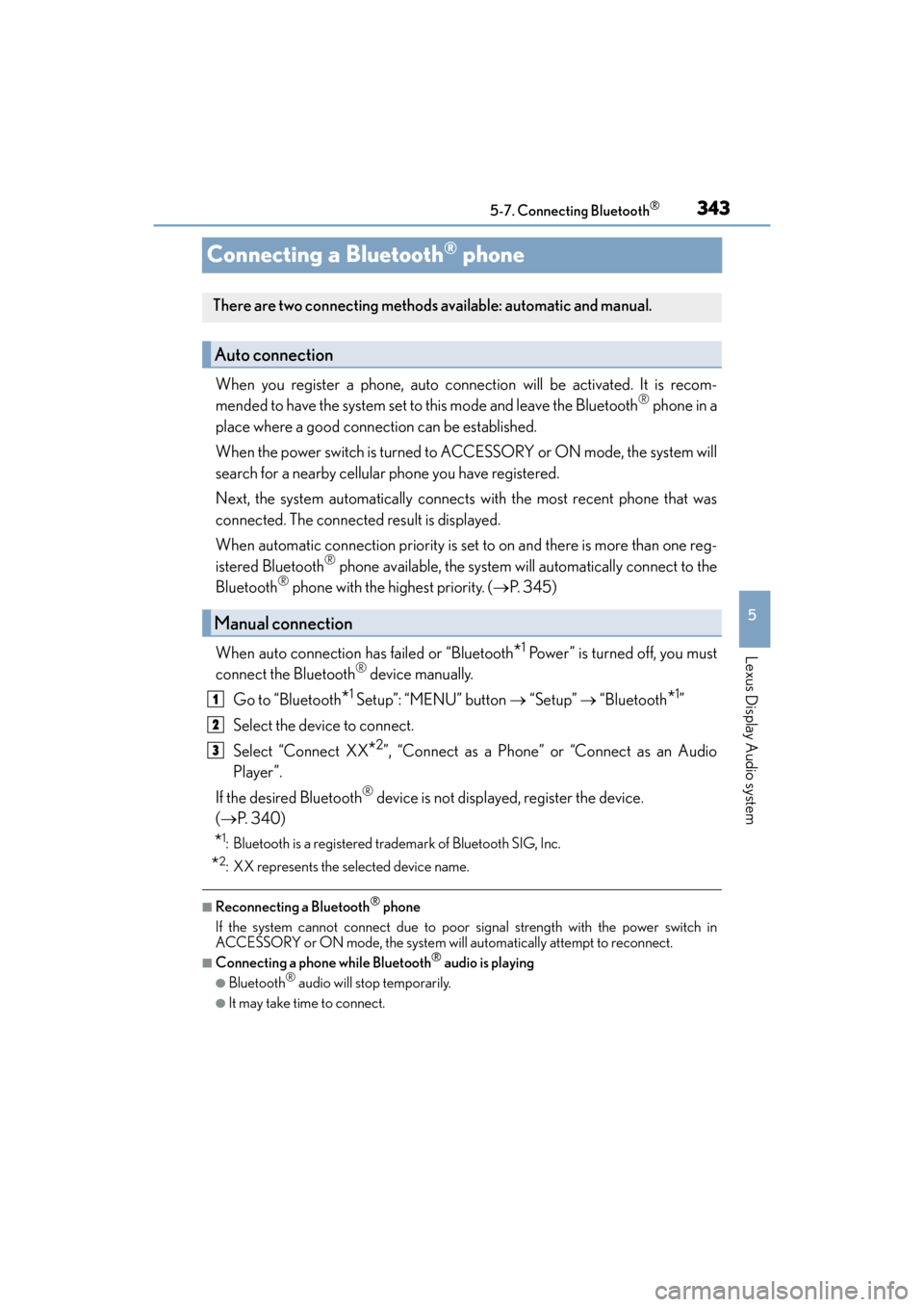
When you register a phone, auto connection will be activated. It is recom-
mended to have the system set to this mode and leave the Bluetooth® phone in a
place where a good connection can be established.
When the power switch is turned to ACCESSORY or ON mode, the system will
search for a nearby cellular phone you have registered.
Next, the system automatically connects with the most recent phone that was
connected. The connected result is displayed.
When automatic connection priority is set to on and there is more than one reg-
istered Bluetooth
® phone available, the system will automatically connect to the
Bluetooth® phone with the highest priority. ( →P. 3 4 5 )
When auto connection has failed or “Bluetooth
*1 Power” is turned off, you must
connect the Bluetooth® device manually.
Go to “Bluetooth
*1 Setup”: “MENU” button → “Setup” → “Bluetooth*1”
Select the device to connect.
Select “Connect XX
*2”, “Connect as a Phone” or “Connect as an Audio
Player”.
If the desired Bluetooth
® device is not displayed, register the device.
( → P. 3 4 0 )
*1: Bluetooth is a registered trad emark of Bluetooth SIG, Inc.
*2: XX represents the selected device name.
■Reconnecting a Bluetooth® phone
If the system cannot connect due to poor signal strength with the power switch in
ACCESSORY or ON mode, the system will automatically attempt to reconnect.
■Connecting a phone while Bluetooth® audio is playing
●Bluetooth® audio will stop temporarily.
●It may take time to connect.
There are two connecting methods available: automatic and manual.
Auto connection
Manual connection
1
2
3
Page 350 of 612
348
ES300h_OM_OM33C75U_(U)5-8. Bluetooth
® Audio
Listening to Bluetooth® Audio
When a Bluetooth® device cannot be connected, check the connection status
on the “Bluetooth
* Audio” screen. If the device is not connected, either register
or reconnect the device. ( →P. 340, 342)
*: Bluetooth is a registered trad emark of Bluetooth SIG, Inc.
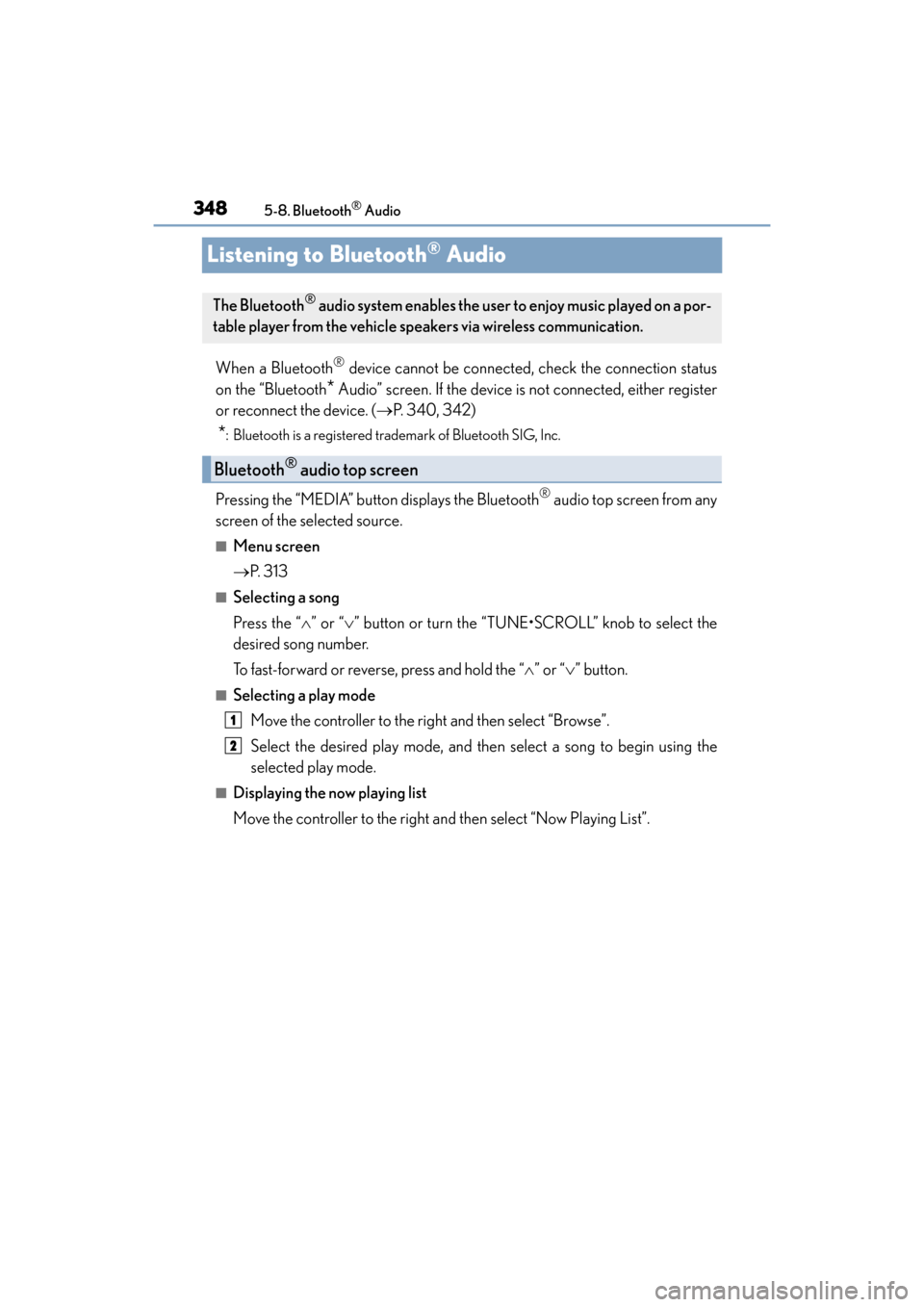
Pressing the “MEDIA” button displays the Bluetooth® audio top screen from any
screen of the selected source.
■Menu screen
→ P. 3 1 3
■Selecting a song
Press the “ ∧” or “ ∨” button or turn the “TUNE•SCROLL” knob to select the
desired song number.
To fast-forward or reverse, press and hold the “ ∧” or “ ∨” button.
■Selecting a play mode
Move the controller to the right and then select “Browse”.
Select the desired play mode, and then select a song to begin using the
selected play mode.
■Displaying the now playing list
Move the controller to the right and then select “Now Playing List”.
The Bluetooth® audio system enables the user to enjoy music played on a por-
table player from the vehicle speakers via wireless communication.
Bluetooth® audio top screen
1
2
Page 374 of 612
3725-11. Bluetooth®
ES300h_OM_OM33C75U_(U)
■Compatible models
The Bluetooth® audio system supports portable audio players with the following specifi-
cations
●Bluetooth® specifications:
Ver. 2.0 or higher (Recommended: Ver. 3.0 +EDR or higher)
●Profiles:
• A2DP (Advanced Audio Distribution Profile) Ver. 1.0, or higher (Recommended: Ver. 1.3 or higher)
This is a profile to transmit stereo audio or high quality sound to the audio system.
• AVRCP (Audio/Video Remote Control Profile) Ver. 1.0 or higher (Recommended: Ver. 1.5 or higher)
This is a profile to allow re mote control the A/V equipment.
However, please note that some functions may be limited depending on the type of por-
table audio player connected.
The hands-free system supports cellular ph ones with the following specifications.
●Bluetooth® specification:
Ver. 2.0 or higher (Recommended: Ver. 3.0 +EDR or higher)
●Profiles:
• HFP (Hands Free Profile) Ver. 1.0 or higher (Recommended: Ver. 1.6 or higher) This is a profile to allow hands-free phone calls using a cellular phone or head set. It
has outgoing and incoming call functions.
• OPP (Object Push Profile) Ver. 1.1 or higher (Recommended: Ver. 1.2) This is a profile to transfer phonebook data. When a Bluetooth
® compatible cellular
phone has both PBAP and OPP, OPP cannot be used.
• PBAP (Phone Book Access Profile) Ver. 1.0 or higher (Recommended: Ver. 1.1) This is a profile to transfer phonebook data.
• MAP (Message Access Profile) Ver.1.0 or higher
This is a profile to using phone message.
If the cellular phone does not support HFP, you cannot register it with the hands-free sys-
tem. OPP, PBAP or MAP services must be selected individually.
■Reconnecting the portable audio player
If the portable audio player is disconnected due to poor reception when the power
switch is in ACCESSORY or ON mode, the system automatically reconnects the porta-
ble audio player.
If you have switched off the portable audio player yourself, follow the instructions below
to reconnect:
●Select the portable audio player again
●Enter the portable audio player
■When you sell your car
Be sure to delete your personal data. ( →P. 3 0 5 )
Page 397 of 612
ES300h_OM_OM33C75U_(U)
3956-1. Using the air conditioning system and defogger
6
Interior features
■Fogging up of the windows
●The windows will easily fog up when the humidity in the vehicle is high. Selecting “A/C”
on the option control screen will dehumidi fy the air from the outlets and defog the
windshield effectively.
●If you turn “A/C” off, the windows may fog up more easily.
●The windows may fog up if the recirculated air mode is used.
■Windshield fog detection function
When automatic mode is set, the humidity sensor ( →P. 397) detects fog on the wind-
shield and controls the air cond itioning system to prevent fog.
■Outside/recirculated air mode
●When driving on dusty roads, in tunnel s, or in heavy traffic, set to the
recirculated air mode. This is effective in preventing outside air from entering the vehi-
cle interior. During cooling operation, setting the recirculated air mode will also cool
the vehicle interior effectively.
●Outside/recirculated air mode may automatically switch depending on the tempera-
ture setting or the inside temperature.
■When the outside temperature is low
The dehumidification function may not operat e even when “A/C” on the option control
screen is selected.
■Automatic mode for air intake control
In automatic mode, the system detects exhaust gas and other pollutants and automati-
cally switches between outside air and recirculated air modes.
When the dehumidification function is off, and the fan is operating, turning automatic
mode on will activate the dehumidification function.
■Micro dust and pollen filter
●In order to prevent the windshield from fogging up when the outside air is cold, the fol-
lowing may occur:
• Outside air mode does not switch to (recirculated air) mode.
• The dehumidification function operates.
• The operation cancels after approximately 1 minute.
●In rainy weather, the windows may fog up. Press .
●In extremely humid weather, the windows may fog up.
●The pollen is filtered out even if the micro dust and pollen filter is turned off.
■Operation of the air conditioning system in Eco drive mode
●In the Eco drive mode, the air conditioning sy stem is controlled as follows to prioritize
fuel efficiency
• Engine speed and compressor operation controlled to restrict heating/cooling capacity
• Fan speed restricted when automatic mode is selected
●To improve air conditioning performance, perform the following operations
• Adjust the fan speed
• Turn off Eco drive mode