ECU Lexus ES300h 2017 Workshop Manual
[x] Cancel search | Manufacturer: LEXUS, Model Year: 2017, Model line: ES300h, Model: Lexus ES300h 2017Pages: 612, PDF Size: 14.05 MB
Page 274 of 612
272
ES300h_OM_OM33C75U_(U)4-5. Using the driving support systems
■The Blind Spot Monitor func
tion is operational when
●The BSM main switch is set to on
●Vehicle speed is greater than approximately 10 mph (16 km/h).
■The Blind Spot Monitor function will detect a vehicle when
●A vehicle in an adjacent lane overtakes your vehicle.
●Another vehicle enters the detection area when it changes lanes.
■Conditions under which the Blind Spot Mo nitor function will not detect a vehicle
The Blind Spot Monitor function is not designed to detect the following types of vehicles
and/or objects:
●Small motorcycles, bicycles, pedestrians etc.*
●Vehicles traveling in the opposite direction
●Guardrails, walls, signs, parked vehicles and similar stationary objects*
●Following vehicles that are in the same lane*
●Vehicles driving 2 lanes across from your vehicle*
*
: Depending on conditions, detection of a vehicle and/or object may occur.
■Conditions under which the Blind Spot Monitor function may not function correctly
●The Blind Spot Monitor function may not detect vehicles correctly in the following con-
ditions:
• During bad weather such as heavy rain, fog, snow etc.
• When ice or mud etc. is attached to the rear bumper
• When driving on a road surface that is wet due to rain, standing water etc.
• When there is a significant difference in speed between your vehicle and the vehicle
that enters the detection area
• When a vehicle is in the detection area from a stop and remains in the detection area as your vehicle accelerates
• When driving up or down consecutive steep inclines, such as hills, a dip in the road
etc.
• When multiple vehicles approach with only a small gap between each vehicle
• When vehicle lanes are wide, and the vehicle in the next lane is too far away from
your vehicle
• When the vehicle that enters the detection area is traveling at about the same speed as your vehicle
• When there is a significant difference in height between your vehicle and the vehicle
that enters the detection area
• Directly after the BSM main switch is set to on
• When items such as a bicycle carrier are installed on the rear of the vehicle
●Instances of the Blind Spot Monitor function unnecessarily detecting a vehicle and/or
object may increase under the following conditions:
• When there is only a short distance between your vehicle and a guardrail, wall etc.
• When there is only a short distance between your vehicle and a following vehicle
• When vehicle lanes are narrow and a vehicle driving 2 lanes across from your vehi- cle enters the detection area
• When items such as a bicycle carrier are installed on the rear of the vehicle
Page 323 of 612
ES300h_OM_OM33C75U_(U)
3215-4. Using the radio
5
Lexus Display Audio system
It is prohibited to copy, decompile, disassemble, reverse engineer, hack, manipulate, or
otherwise make available any technology or software incorporated in receivers compat-
ible with the XM Satellite Radio System or that support the XM website, the Online Ser-
vice or any of its content. Furthermore, the AMBE
® voice compression software
included in this product is protected by intellectual property rights including patent
rights, copyrights, and trade secrets of Digital Voice Systems, Inc.
Note: this applies to XM receivers only and not XM Ready devices.
■If the satellite radio does not operate normally
If a problem occurs with the XM tuner, a message will appear on the screen. Refer to the
table below to identify the problem, and take the suggested corrective action.
Contact the XM Listener Care Center at 1-877-447-0011 (U.S.A.) or 1-877-438-9677
(Canada).
SAT Check Antenna
The XM antenna is not connected. Check whether the XM
antenna cable is attached securely.
There is a short-circuit in the antenna or the surrounding
antenna cable. See a Lexus certified dealer.
SAT Ch Unauthorized
You have not subscribed to XM Satellite Radio. The radio is
being updated with the latest encryption code. Contact XM
Satellite Radio for subscription information. When a con-
tract is canceled, you can choose “Ch000” and all free-to-
air channels.
The premium channel you selected is not authorized. Wait
for about 2 seconds until the radio returns to the previous
channel or “Ch001”. If it does not change automatically,
select another channel. To listen to the premium channel,
contact XM Satellite Radio.
SAT No SignalThe XM signal is too weak at the current location. Wait until
your vehicle reaches a location with a stronger signal.
SAT LoadingThe unit is acquiring audio or program information. Wait
until the unit has received the information.
SAT Channel Off AirThe channel you selected is not broadcasting any program-
ming. Select another channel.
-----There is no song/program title or artist name/feature asso-
ciated with the channel at that time. No action is required.
SAT Chan Unavailable
The channel you selected is no longer available. Wait for
about 2 seconds until the radio returns to the previous
channel or “Ch001”. If it does not change automatically,
select another channel.
Page 342 of 612
340
ES300h_OM_OM33C75U_(U)5-7. Connecting Bluetooth
®
Registering a Bluetooth® device
Turn the Bluetooth® connection setting of your device set to on.
Go to “Bluetooth
* Setup”: “MENU” button → “Setup” → “Bluetooth*”
Move the controller to the left and then select “Add Device”.
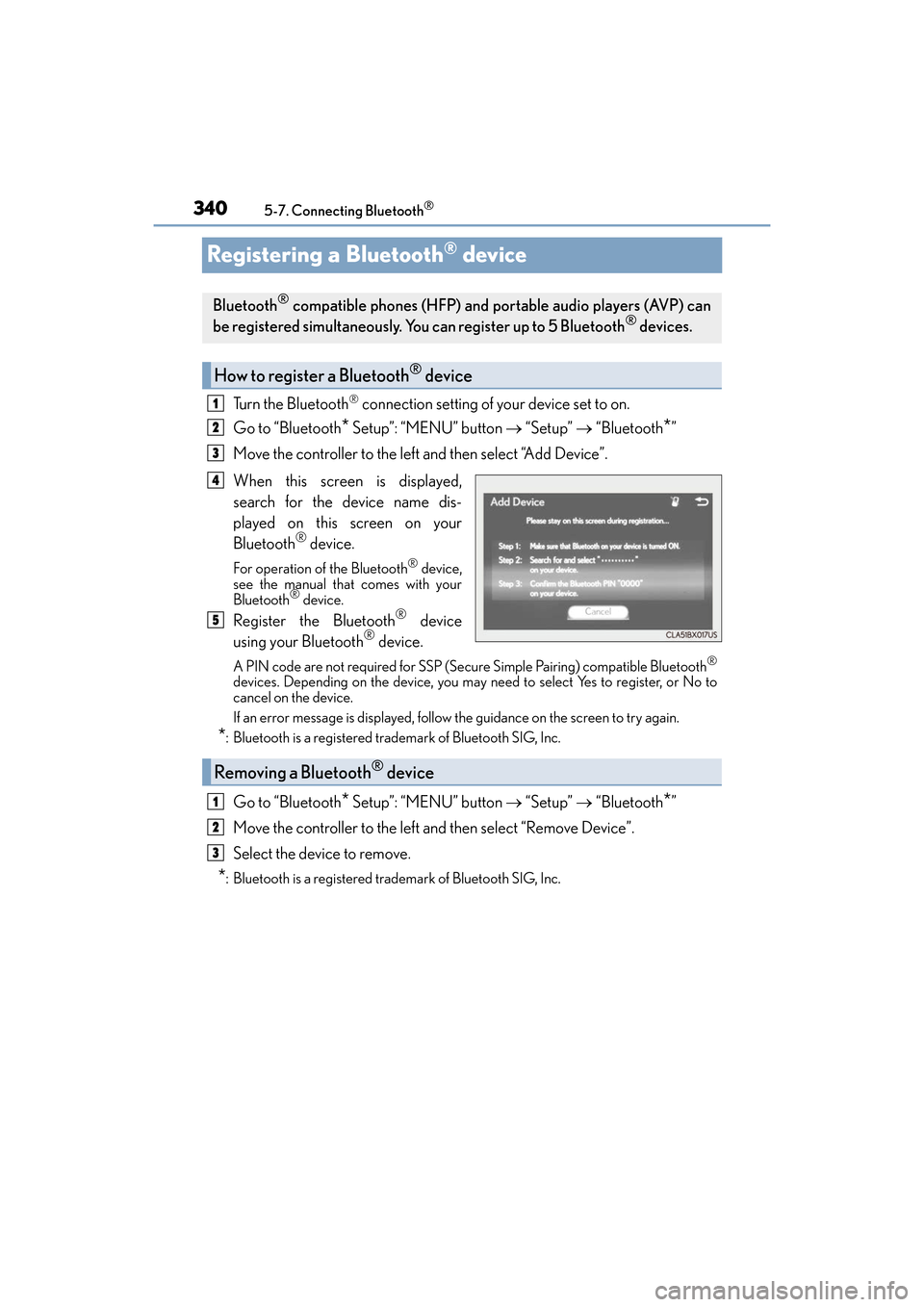
When this screen is displayed,
search for the device name dis-
played on this screen on your
Bluetooth
® device.
For operation of the Bluetooth® device,
see the manual that comes with your
Bluetooth
® device.
Register the Bluetooth® device
using your Bluetooth® device.
A PIN code are not required for SSP (Secure Simple Pairing) compatible Bluetooth®
devices. Depending on the device, you may need to select Yes to register, or No to
cancel on the device.
If an error message is displayed, follow the guidance on the screen to try again.
*: Bluetooth is a registered trad emark of Bluetooth SIG, Inc.
Go to “Bluetooth* Setup”: “MENU” button → “Setup” → “Bluetooth*”
Move the controller to the left and then select “Remove Device”.
Select the device to remove.
*: Bluetooth is a registered trad emark of Bluetooth SIG, Inc.
Bluetooth® compatible phones (HFP) and po rtable audio players (AVP) can
be registered simultaneously. You can register up to 5 Bluetooth® devices.
How to register a Bluetooth® device
1
2
3
4
5
Removing a Bluetooth® device
1
2
3
Page 371 of 612
ES300h_OM_OM33C75U_(U)
3695-11. Bluetooth®
5
Lexus Display Audio system
XIn other situations
Even though all conceivable measures have been taken, the symptom status does not
change.
The cellular phone is not close enough to this system.
→Bring the cellular phone closer to this system.
The cellular phone is the most likely cause of the symptom.
→Turn the cellular phone off, remove and reinstall the battery pack, and then
restart the cellular phone.
→ Enable the cellular phone’s Bluetooth
® connection.
→ Stop the cellular phone’s security so ftware and close all applications.
→ Before using an application installed on the cellular phone, carefully check its
source and how its operation might affect this system.
Page 409 of 612
407
ES300h_OM_OM33C75U_(U)6-3. Using the storage features
6
Interior features
Trunk features
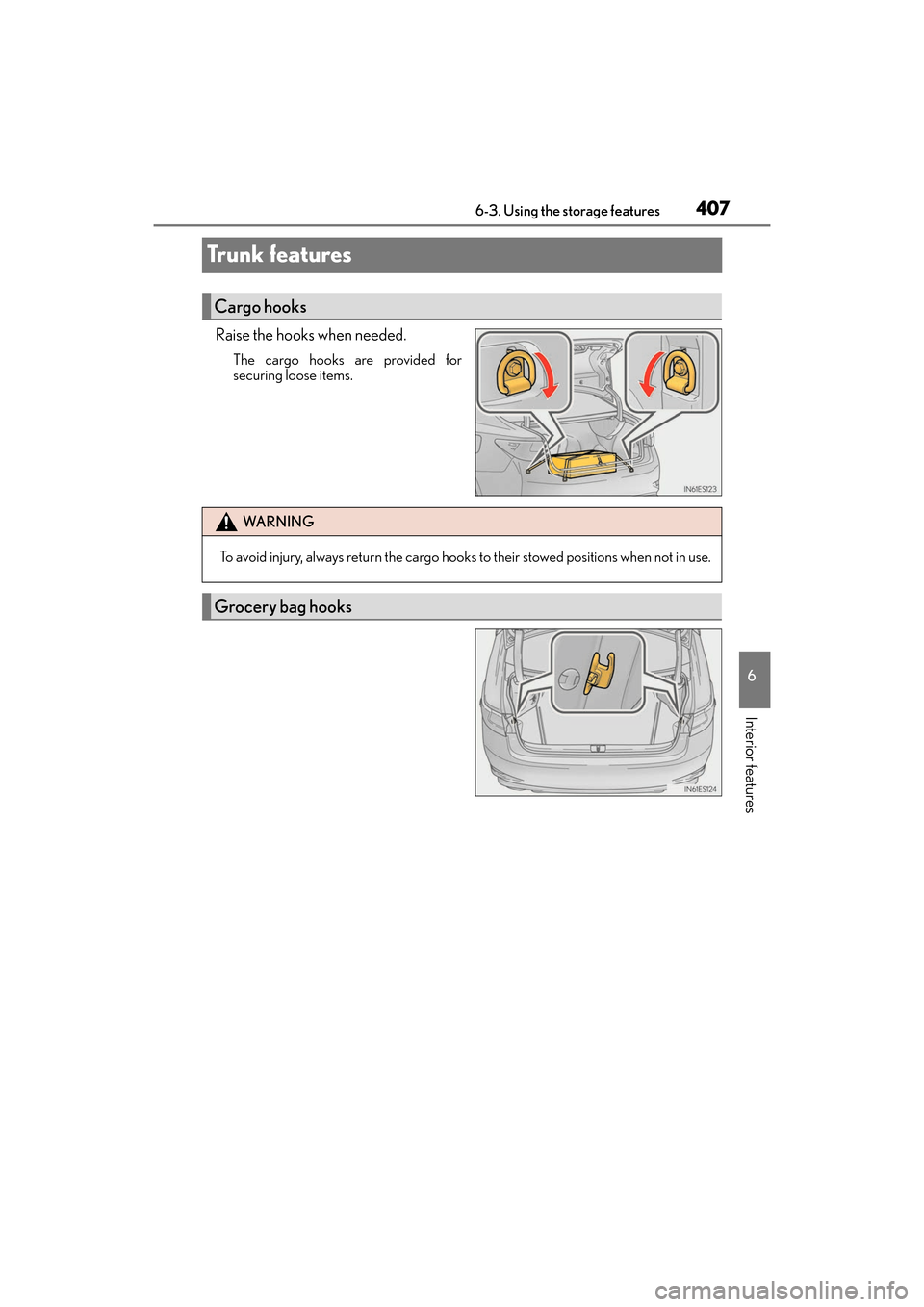
Raise the hooks when needed.
The cargo hooks are provided for
securing loose items.
Cargo hooks
WA R N I N G
To avoid injury, always return the cargo hooks to their stowed positions when not in use.
Grocery bag hooks
Page 417 of 612
415
ES300h_OM_OM33C75U_(U)6-4. Using the other interior features
6
Interior features
Garage door opener
The HomeLink® wireless control system in your vehicle has 3 buttons which can
be programmed to operate 3 different devices. Refer to the programming meth-
ods on the following pages to determine the method which is appropriate for the
device.
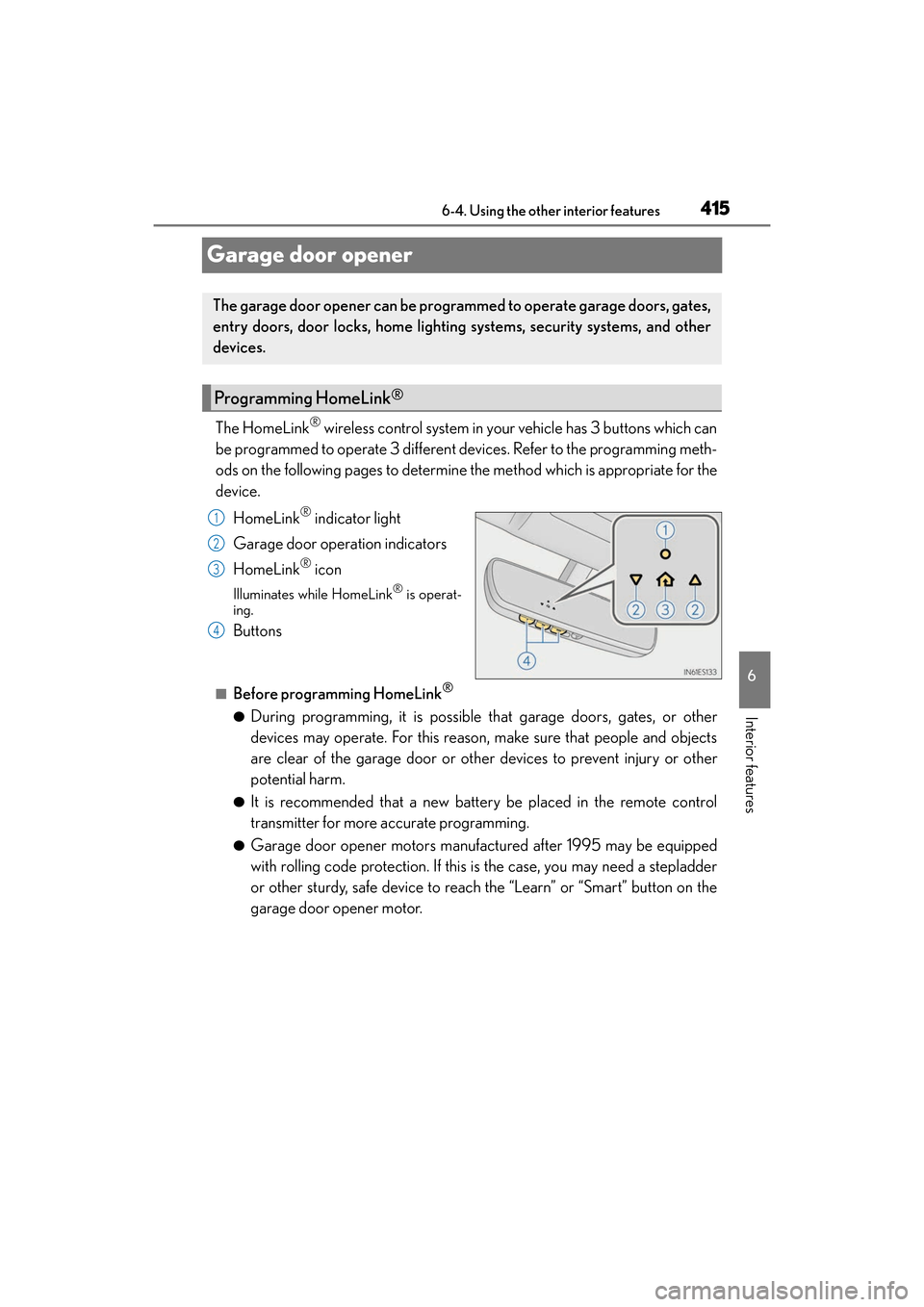
HomeLink
® indicator light
Garage door operation indicators
HomeLink
® icon
Illuminates while HomeLink® is operat-
ing.
Buttons
■Before programming HomeLink®
●During programming, it is possible that garage doors, gates, or other
devices may operate. For this reason, make sure that people and objects
are clear of the garage door or other devices to prevent injury or other
potential harm.
●It is recommended that a new battery be placed in the remote control
transmitter for more accurate programming.
●Garage door opener motors manufactured after 1995 may be equipped
with rolling code protection. If this is the case, you may need a stepladder
or other sturdy, safe device to reach the “Learn” or “Smart” button on the
garage door opener motor.
The garage door opener can be progra mmed to operate garage doors, gates,
entry doors, door locks, home lighting systems, security systems, and other
devices.
Programming HomeLink®
1
2
3
4
Page 426 of 612
424
ES300h_OM_OM33C75U_(U)6-4. Using the other interior features
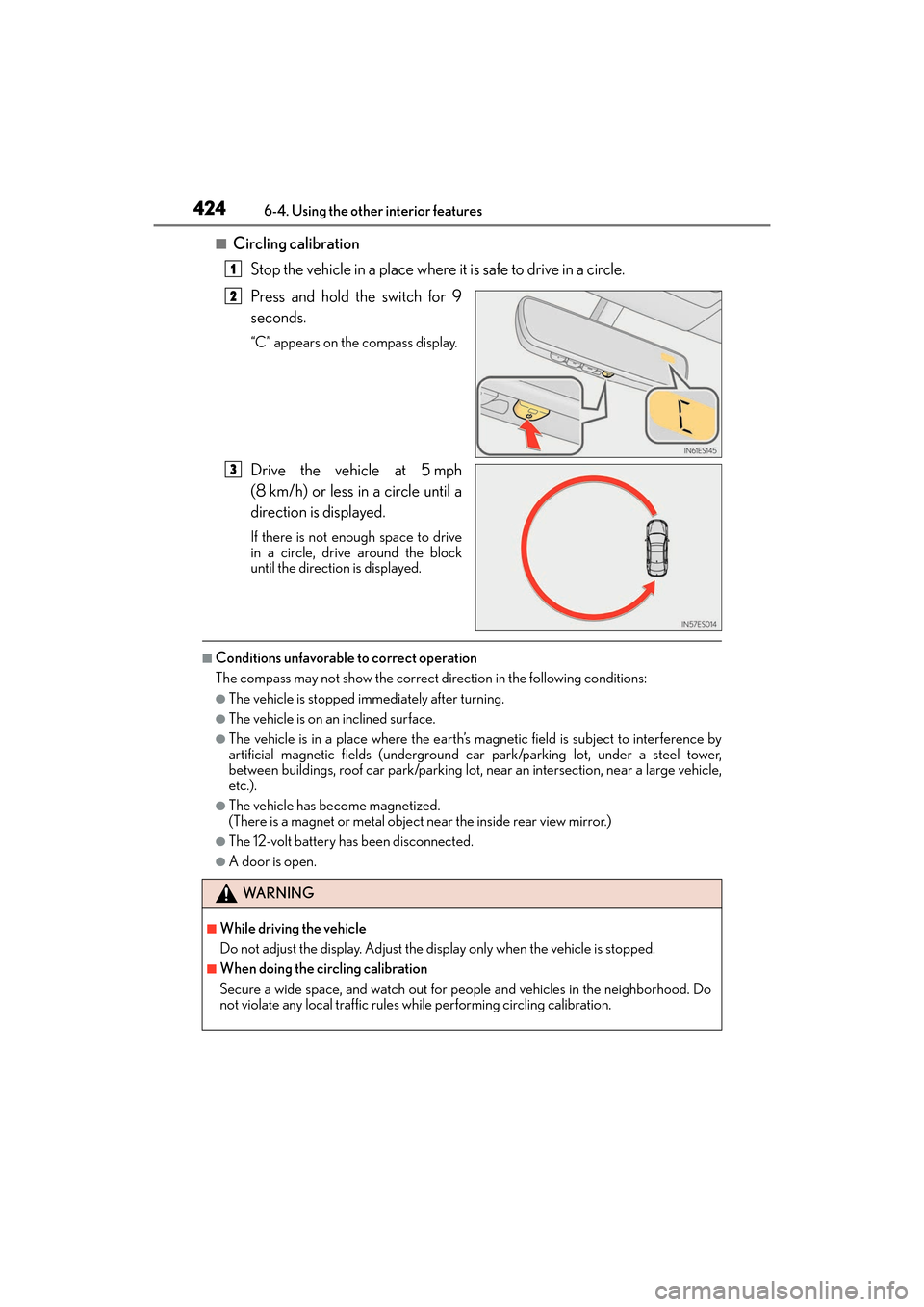
■Circling calibration
Stop the vehicle in a place where it is safe to drive in a circle.
Press and hold the switch for 9
seconds.
“C” appears on the compass display.
Drive the vehicle at 5 mph
(8 km/h) or less in a circle until a
direction is displayed.
If there is not enough space to drive
in a circle, drive around the block
until the direction is displayed.
■Conditions unfavorable to correct operation
The compass may not show the correct direction in the following conditions:
●The vehicle is stopped immediately after turning.
●The vehicle is on an inclined surface.
●The vehicle is in a place where the earth’s magnetic field is subject to interference by
artificial magnetic fields (underground car park/parking lot, under a steel tower,
between buildings, roof car park/parking lot, near an intersection, near a large vehicle,
etc.).
●The vehicle has become magnetized.
(There is a magnet or metal object near the inside rear view mirror.)
●The 12-volt battery has been disconnected.
●A door is open.
1
2
3
WA R N I N G
■While driving the vehicle
Do not adjust the display. Adjust the di splay only when the vehicle is stopped.
■When doing the circling calibration
Secure a wide space, and watch out for people and vehicles in the neighborhood. Do
not violate any local traffic rules while performing circling calibration.
Page 428 of 612
426
ES300h_OM_OM33C75U_(U)6-4. Using the other interior features
LEXUS Enform Safety Connect∗
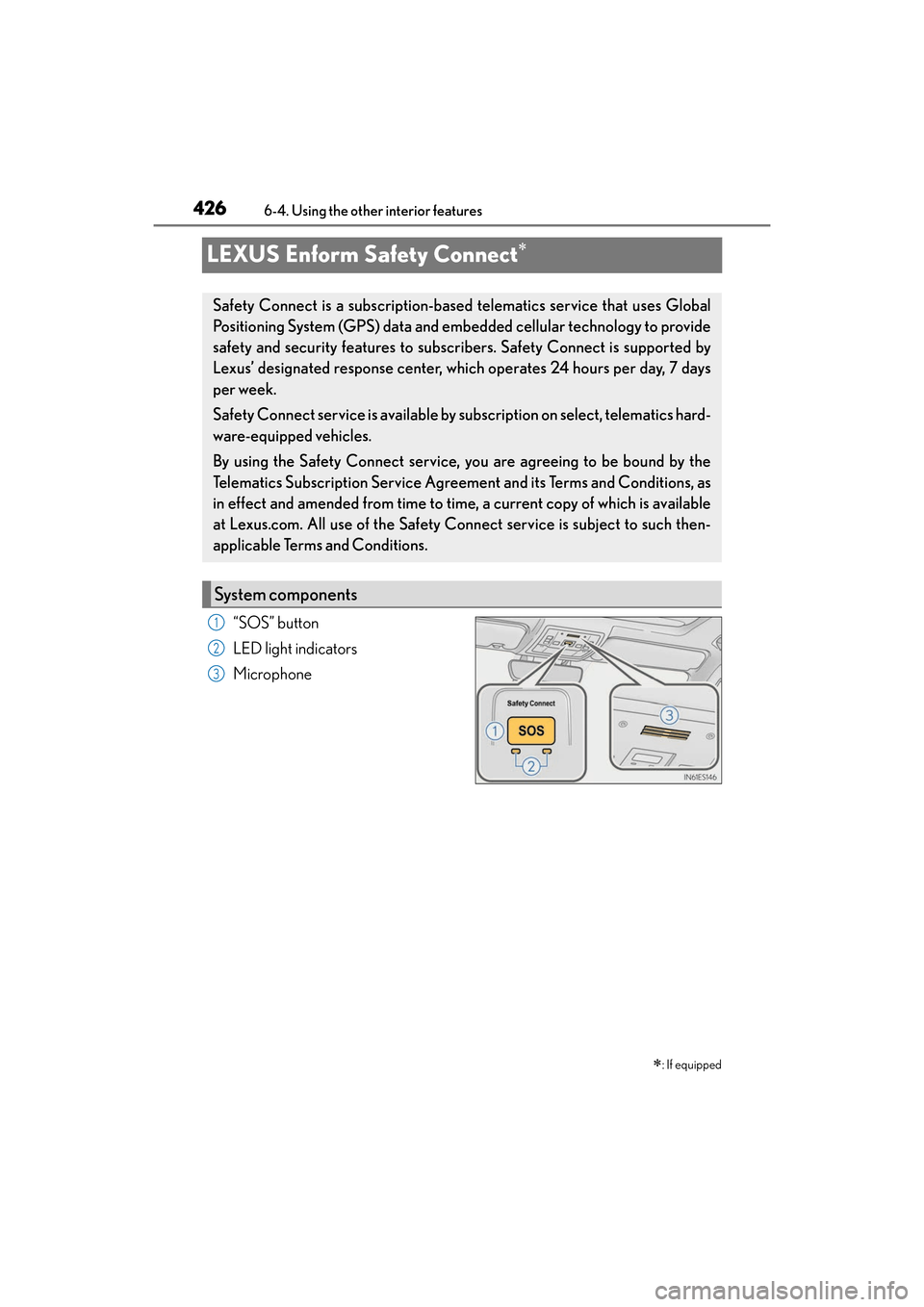
“SOS” button
LED light indicators
Microphone
∗: If equipped
Safety Connect is a subscription-based telematics service that uses Global
Positioning System (GPS) data and embedded cellular technology to provide
safety and security features to subscr
ibers. Safety Connect is supported by
Lexus’ designated response center, which operates 24 hours per day, 7 days
per week.
Safety Connect service is available by subscription on select, telematics hard-
ware-equipped vehicles.
By using the Safety Connect service, you are agreeing to be bound by the
Telematics Subscription Service Agreement and its Terms and Conditions, as
in effect and amended from time to time , a current copy of which is available
at Lexus.com. All use of the Safety Connect service is subject to such then-
applicable Terms and Conditions.
System components
1
2
3
Page 446 of 612
444
ES300h_OM_OM33C75U_(U)7-2. Maintenance
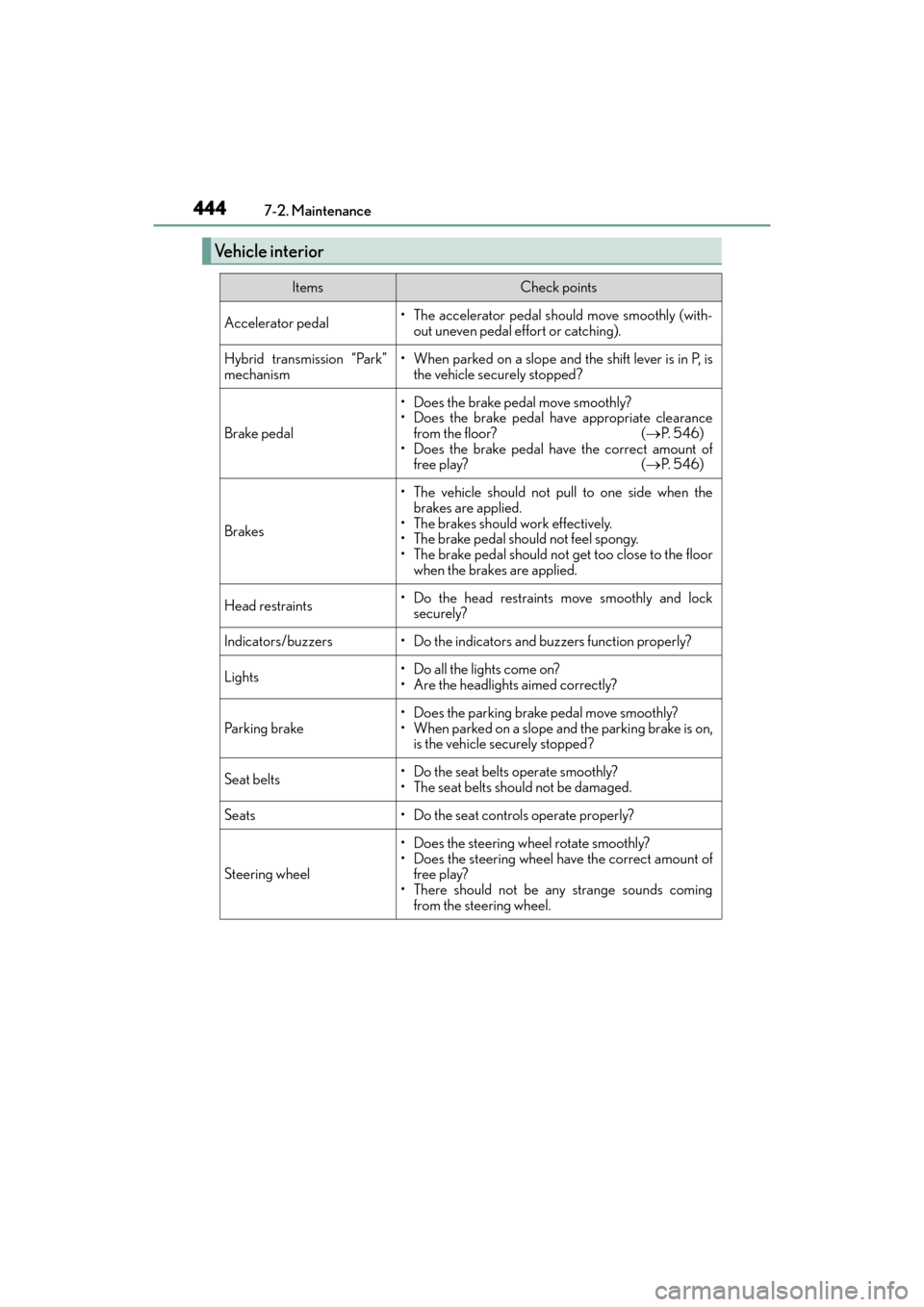
Vehicle interior
ItemsCheck points
Accelerator pedal• The accelerator pedal should move smoothly (with-
out uneven pedal effort or catching).
Hybrid transmission “Park”
mechanism• When parked on a slope and the shift lever is in P, is
the vehicle securely stopped?
Brake pedal
• Does the brake pedal move smoothly?
• Does the brake pedal have appropriate clearance
from the floor? ( →P. 5 4 6 )
• Does the brake pedal have the correct amount of free play? (→ P. 5 4 6 )
Brakes
• The vehicle should not pull to one side when the
brakes are applied.
• The brakes should work effectively.
• The brake pedal should not feel spongy.
• The brake pedal should not get too close to the floor when the brakes are applied.
Head restraints• Do the head restraints move smoothly and locksecurely?
Indicators/buzzers• Do the indicators and buzzers function properly?
Lights• Do all the lights come on?
• Are the headlights aimed correctly?
Parking brake• Does the parking brake pedal move smoothly?
• When parked on a slope and the parking brake is on,is the vehicle securely stopped?
Seat belts• Do the seat belts operate smoothly?
• The seat belts should not be damaged.
Seats• Do the seat controls operate properly?
Steering wheel
• Does the steering wheel rotate smoothly?
• Does the steering wheel have the correct amount offree play?
• There should not be any strange sounds coming from the steering wheel.
Page 454 of 612
452
ES300h_OM_OM33C75U_(U)7-3. Do-it-yourself maintenance
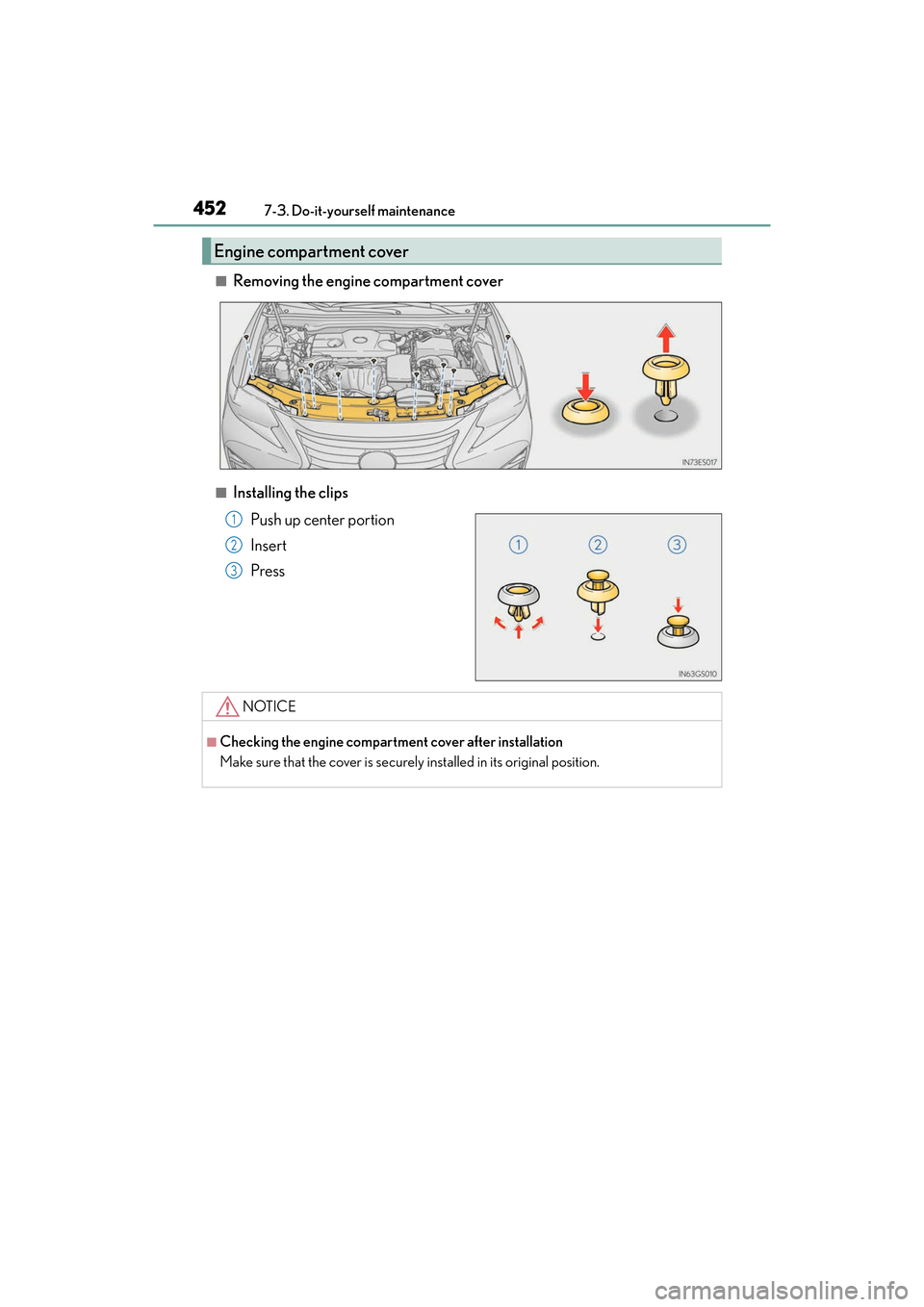
■Removing the engine compartment cover
■Installing the clips
Push up center portion
Insert
Press
Engine compartment cover
1
2
3
NOTICE
■Checking the engine compartment cover after installation
Make sure that the cover is securely installed in its original position.