phone Lexus ES350 2012 Navigation Manual
[x] Cancel search | Manufacturer: LEXUS, Model Year: 2012, Model line: ES350, Model: Lexus ES350 2012Pages: 391, PDF Size: 38.15 MB
Page 166 of 391
LEXUS ENFORM WITH SAFETY CONNECT
165
D
XM Stocks settings — Add or delete
stocks
To input your personalized XM Stocks set-
tings.
1. Push the “INFO/PHONE” button.
2. Touch “XM Stocks” on the “Informa-
tion” screen.
U12033LS
3. Touch “Options”.
U12034LS
Please refer to the following pages for
each setting.
You can also input your personalized XM
Stocks settings from the “Setup” screen.
(See “Other settings” on page 366.) ADD STOCK
U12034LS
1. Touch “Add Stock”.
U12035LS
2. Input the stock symbol you would
like to add.
3. When finished, touch “OK” to enter.
You can enter and save up to 10 individual
stock symbols for which you would like to
receive data. Stocks must be input one at
a time. You must know the symbol of the
stock you wish to enter.
ES350 NAVI (U)
Finish
6
Page 168 of 391
LEXUS ENFORM WITH SAFETY CONNECT
167
D
Show XM NavWeather
tinforma-
tion
1. Push the “INFO/PHONE” button.
2. Touch “XM NavWeather”.
“XM NavWeather” screen is displayed on
the screen. XM NavWeather
tSCREEN
1“Info.” button
When the city icon button is selected, the
“Info.” button will be displayed on the
screen. Touching this button displays the
“Forecast” screen. (See page 169.)
2City icon
When this button is touched, city names
and the “Info.”button will be displayed on
the upper part of the screen.
3“Forecast” button
When this button is touched, the city selec-
tion screen will be displayed.
Touch a city to display weather informa-
tion. Weather information of the selected
city will be displayed. (See page 169.)
4“Current Location” button
When the “Current Location” button is
touched, a map of the vehicle’s current
location will be displayed.
ES350 NAVI (U)
Finish
6
Page 174 of 391
LEXUS ENFORM WITH SAFETY CONNECT
173
Lexus Insider is an optional service that
can send audio messages, or articles, to
participating owners’ vehicles via the navi-
gation system. Potential Lexus Insider
subjects might include, for example, Lexus
vehicle technology tips, updates on re-
gional Lexus events, or audio excerpts
from Lexus Magazine articles. Up to 20 ar-
ticles can be stored at a time.
You may opt out of receiving Lexus Insider
messages at any time. (see page 176)DView and play received Lexus Insid-
er messages
1. Push the “INFO/PHONE” button.
2. Touch “LEXUS Insider”.
“LEXUS Insider” screen is displayed on
the screen.
ES350 NAVI (U)
Finish
Lexus Insider
6
Page 244 of 391

AUDIO/VIDEO SYSTEM
243
The Bluetoothraudio system enables
users to enjoy music played on a porta-
ble player from the vehicle speaker via
wireless communication.
This audio system supports
Bluetooth r, a wireless data system
capable of playing portable audio
music without cables. If your portable
player does not support Bluetooth r,
the Bluetooth raudio system will not
function.
INFORMATION
Portable players must correspond to
the following specifications in order
to be connected to the Bluetooth rau-
dio system. However, please note
that some functions may be limited
depending on the type of portable
player.
D Bluetooth rSpecification
Ver.1.1 or higher
(Recommended: Ver.2.0 + EDR or
higher)
D Profile
G A2DP (Advanced Audio Dis-
tribution Profile) Ver.1.0 or higher
G AVRCP (Audio/Video Remote
Control Profile) Ver.1.0 or higher
(Recommended: Ver.1.3 or higher)
Please go to “http://www.lexus.com/”
to find approved Bluetooth rphones
for this system.
ES350 NAVI (U)
Finish
— Bluetooth raudio
operation
7
Page 245 of 391
AUDIO/VIDEO SYSTEM
244
Bluetooth is a trademark owned by
Bluetooth SIG. Inc.
CAUTION
Do not operate the player ’s controls
or connect to the Bluetoothraudio
system while driving.
NOTICE
Do not leave your portable player in
the car. In particular, high tempera-
tures inside the vehicle may damage
the portable player.
INFORMATION
DIn the following conditions, the
system may not function.
D The portable player is turned off.
D The portable player is not con-
nected.
D The portable player has a low bat-
tery.
DIt may take time, the phone connec-
tion is carried out during
Bluetooth raudio play.
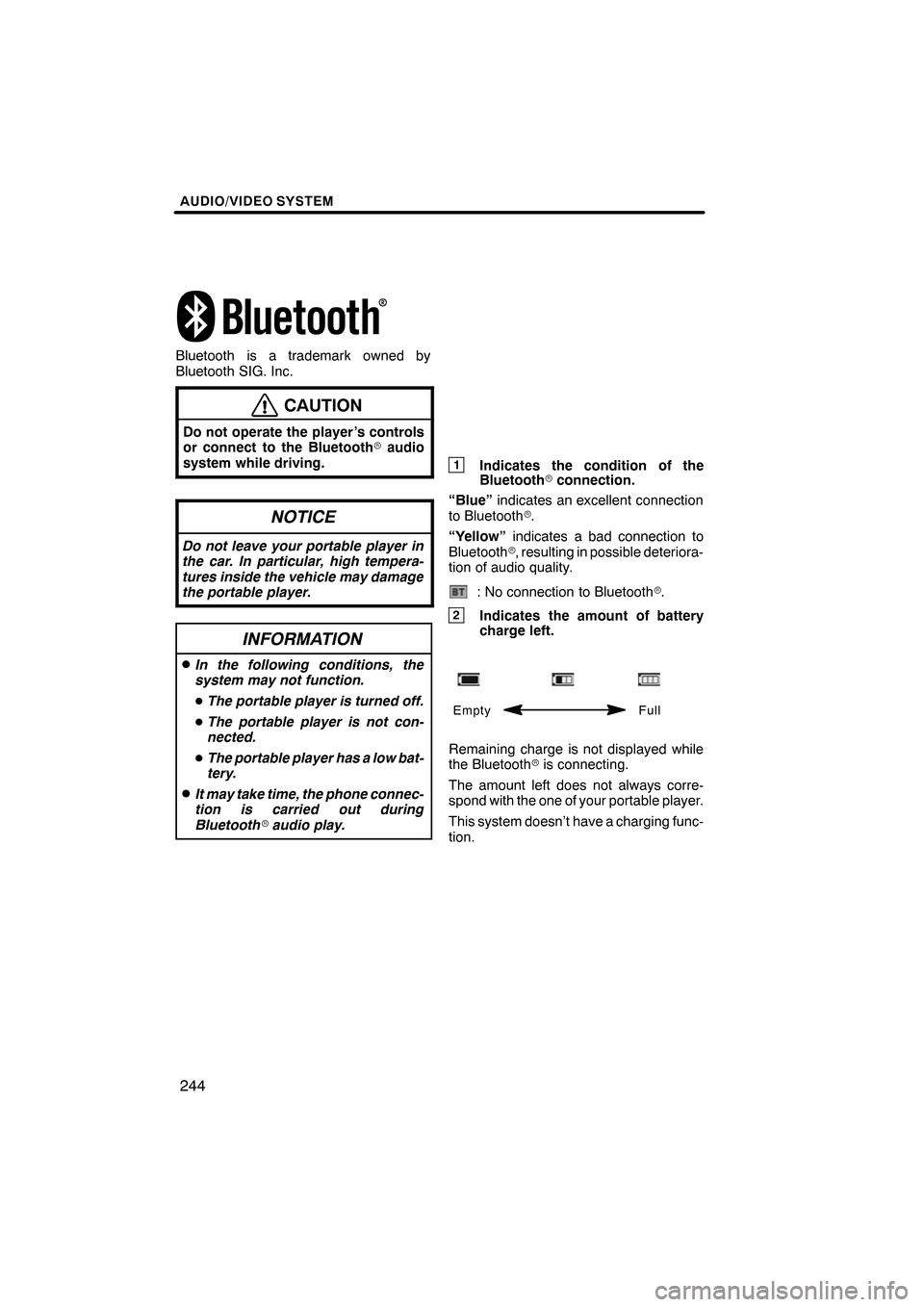
1Indicates the condition of the
Bluetooth rconnection.
“Blue” indicates an excellent connection
to Bluetooth r.
“Yellow” indicates a bad connection to
Bluetooth r, resulting in possible deteriora-
tion of audio quality.
: No connection to Bluetooth r.
2Indicates the amount of battery
charge left.
Empty Full
Remaining charge is not displayed while
the Bluetoothris connecting.
The amount left does not always corre-
spond with the one of your portable player.
This system doesn’t have a charging func-
tion.
ES350 NAVI (U)
Finish
Page 261 of 391
AUDIO/VIDEO SYSTEM
260
NOTICE
To ensure correct audio/video sys-
tem operations:
DBe careful not to spill beverages
over the audio/video system.
DDo not put anything other than an
appropriate discs into the CD
changer or DVD changer.
DThe use of a cellular phone inside
or near the vehicle may cause a
noise from the speakers of the au-
dio/video system which you are lis-
tening to. However, this does not
indicate a malfunction.
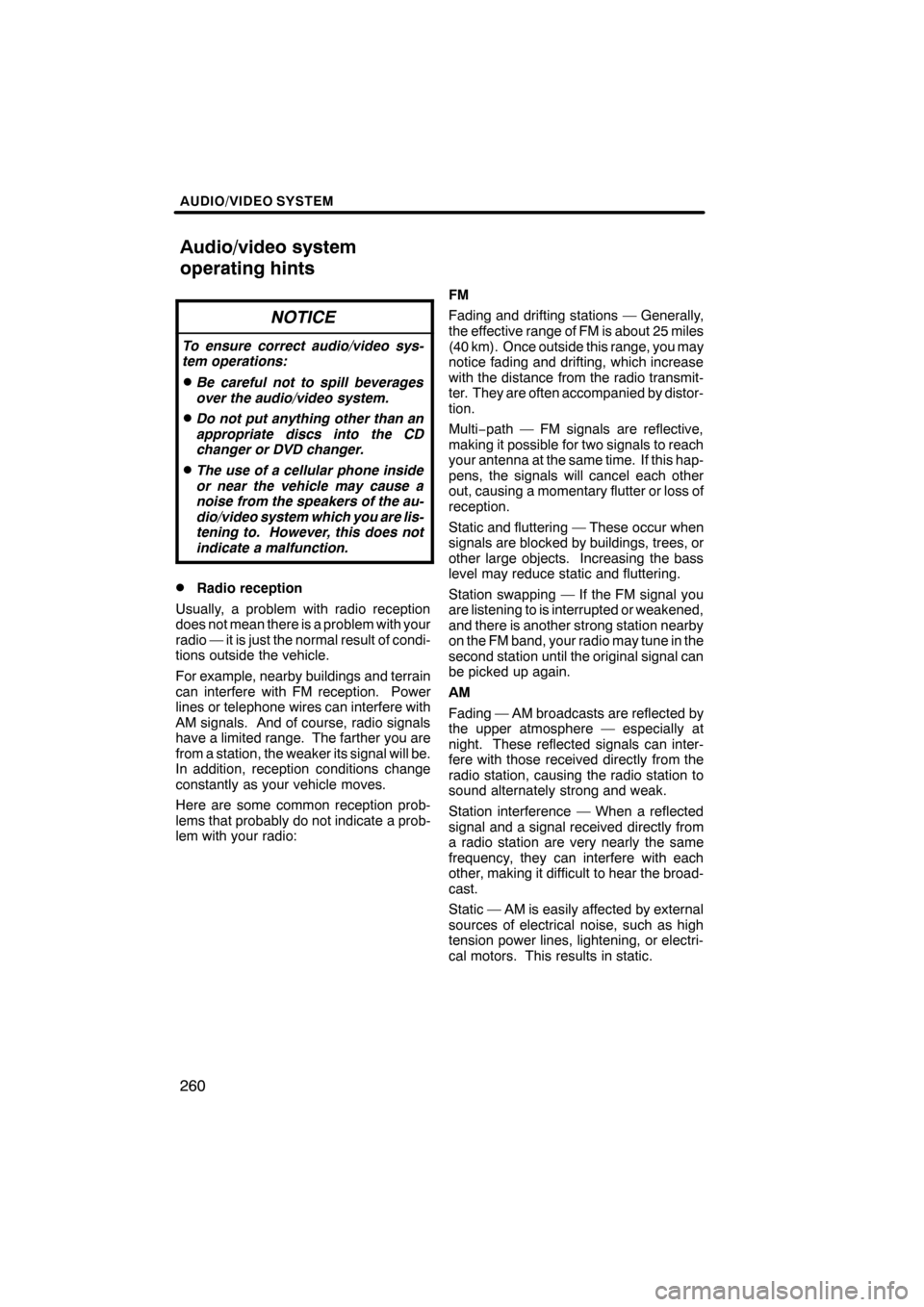
DRadio reception
Usually, a problem with radio reception
does not mean there is a problem with your
radio — it is just the normal result of condi-
tions outside the vehicle.
For example, nearby buildings and terrain
can interfere with FM reception. Power
lines or telephone wires can interfere with
AM signals. And of course, radio signals
have a limited range. The farther you are
from a station, the weaker its signal will be.
In addition, reception conditions change
constantly as your vehicle moves.
Here are some common reception prob-
lems that probably do not indicate a prob-
lem with your radio: FM
Fading and drifting stations — Generally,
the effective range of FM is about 25 miles
(40 km). Once outside this range, you may
notice fading and drifting, which increase
with the distance from the radio transmit-
ter. They are often accompanied by distor-
tion.
Multi−
path — FM signals are reflective,
making it possible for two signals to reach
your antenna at the same time. If this hap-
pens, the signals will cancel each other
out, causing a momentary flutter or loss of
reception.
Static and fluttering — These occur when
signals are blocked by buildings, trees, or
other large objects. Increasing the bass
level may reduce static and fluttering.
Station swapping — If the FM signal you
are listening to is interrupted or weakened,
and there is another strong station nearby
on the FM band, your radio may tune in the
second station until the original signal can
be picked up again.
AM
Fading — AM broadcasts are reflected by
the upper atmosphere — especially at
night. These reflected signals can inter-
fere with those received directly from the
radio station, causing the radio station to
sound alternately strong and weak.
Station interference — When a reflected
signal and a signal received directly from
a radio station are very nearly the same
frequency, they can interfere with each
other, making it difficult to hear the broad-
cast.
Static — AM is easily affected by external
sources of electrical noise, such as high
tension power lines, lightening, or electri-
cal motors. This results in static.
ES350 NAVI (U)
Finish
Audio/video system
operating hints
Page 262 of 391

AUDIO/VIDEO SYSTEM
261
XMr
Cargo loaded on the roof luggage carrier,
especially metal objects, may adversely
affect the reception of XM rSatellite Radio.
Alternation or modifications carried out
without appropriate authorization may in-
validate the user ’s right to operate the
equipment.
iPod
About iPod —
DApple is not responsible for the opera- tion of this device or its compliance
with safety and regulatory standards.
DiPod is a trademark of Apple Inc., regis-
tered in the U.S. and other countries.
Compatible models —
Model
GenerationSoftware version
iPod5th
generationVer. 1.2.0 or
higher
iPod
nano1st
generationVer. 1.3.0 or
higher
2nd
generationVer. 1.1.2 or
higher
3rd
generationVer. 1.0.0 or
higher
iPod
touch1st
generationVer. 1.1.0 or
higher
iPod
classic1st
generationVer. 1.0.0 or
higher
Depending on differences between mod-
els or software versions etc., some models
listed above might be incompatible with
this system.
iPod 4th generation and earlier models are
not compatible with this system.
iPhone, iPod mini, iPod shuffle and iPod
photo are not compatible with this system. USB memory
USB memory that can be used for MP3
and WMA playback.
DUSB communication formats: USB 2.0
FS (12 MBPS)
DFile formats: FAT 16/32 (Windows
r)
DCorrespondence class: Mass storage
class
ES350 NAVI (U)
Finish
7
Page 294 of 391
SECTION11
SETUP
293
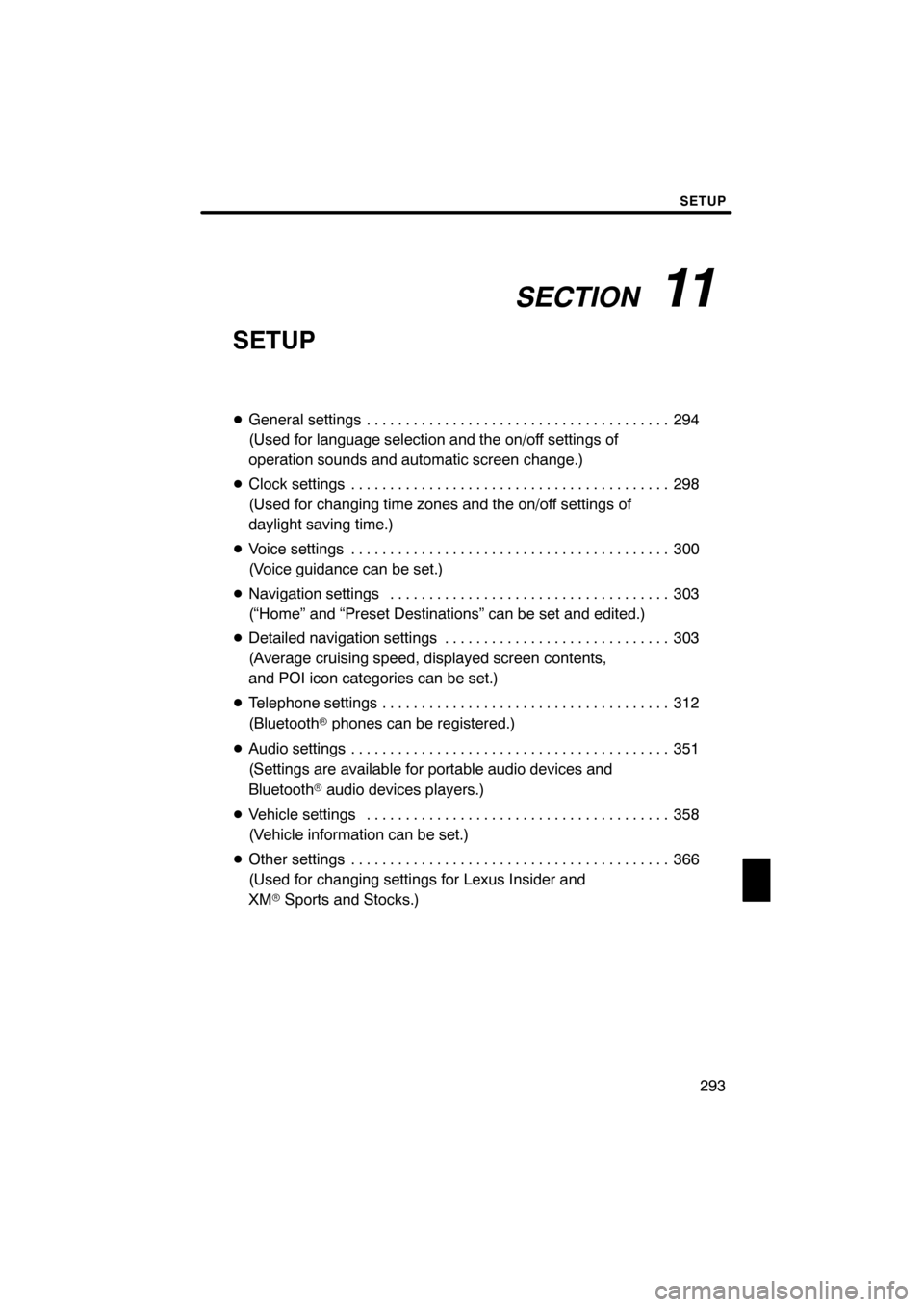
SETUP
DGeneral settings 294 .......................................
(Used for language selection and the on/off settings of
operation sounds and automatic screen change.)
D Clock settings 298
.........................................
(Used for changing time zones and the on/off settings of
daylight saving time.)
D Voice settings 300
.........................................
(Voice guidance can be set.)
D Navigation settings 303
....................................
(“Home” and “Preset Destinations” can be set and edited.)
D Detailed navigation settings 303
.............................
(Average cruising speed, displayed screen contents,
and POI icon categories can be set.)
D Telephone settings 312
.....................................
(Bluetooth rphones can be registered.)
D Audio settings 351
.........................................
(Settings are available for portable audio devices and
Bluetooth raudio devices players.)
D Vehicle settings 358
.......................................
(Vehicle information can be set.)
D Other settings 366
.........................................
(Used for changing settings for Lexus Insider and
XM rSports and Stocks.)
ES350 NAVI (U)
Finish
11
Page 298 of 391

SETUP
297
D
Unit of measurement
Distance unit can be changed.
1. Push the “SETUP” button.
2. Touch “General” on the “Setup”
screen.
3. Touch “Unit of Measurement”.
4. Touch “Kilometer” or “Mile”.
5. Touch “Save”.
INFORMATION
This function is available only in En-
glish or Spanish. To switch lan-
guage, see “ DSelecting a language”
on page 295.
DDelete personal data
The following personal data can be de-
leted or returned to their default settings:
S Maintenance conditions
S Maintenance information “off” setting
S Address book
S Areas to avoid
S Previous points
S Route guidance
S Route trace
S Phonebook data
S Call history data
S Speed dial data
S Voice tag data
S Bluetooth rphone data
S Volume setting
S Details setting
This function is available only when the ve-
hicle is not moving.
ES350 NAVI (U)
Finish
11
Page 313 of 391
SETUP
312
When the “Pop−up Information” is turned
off, the following messages will not be dis-
played.
This message appears when the system is
in the POI mode and the map scale is over
0.5 miles (1 km).
The message appears when the map is
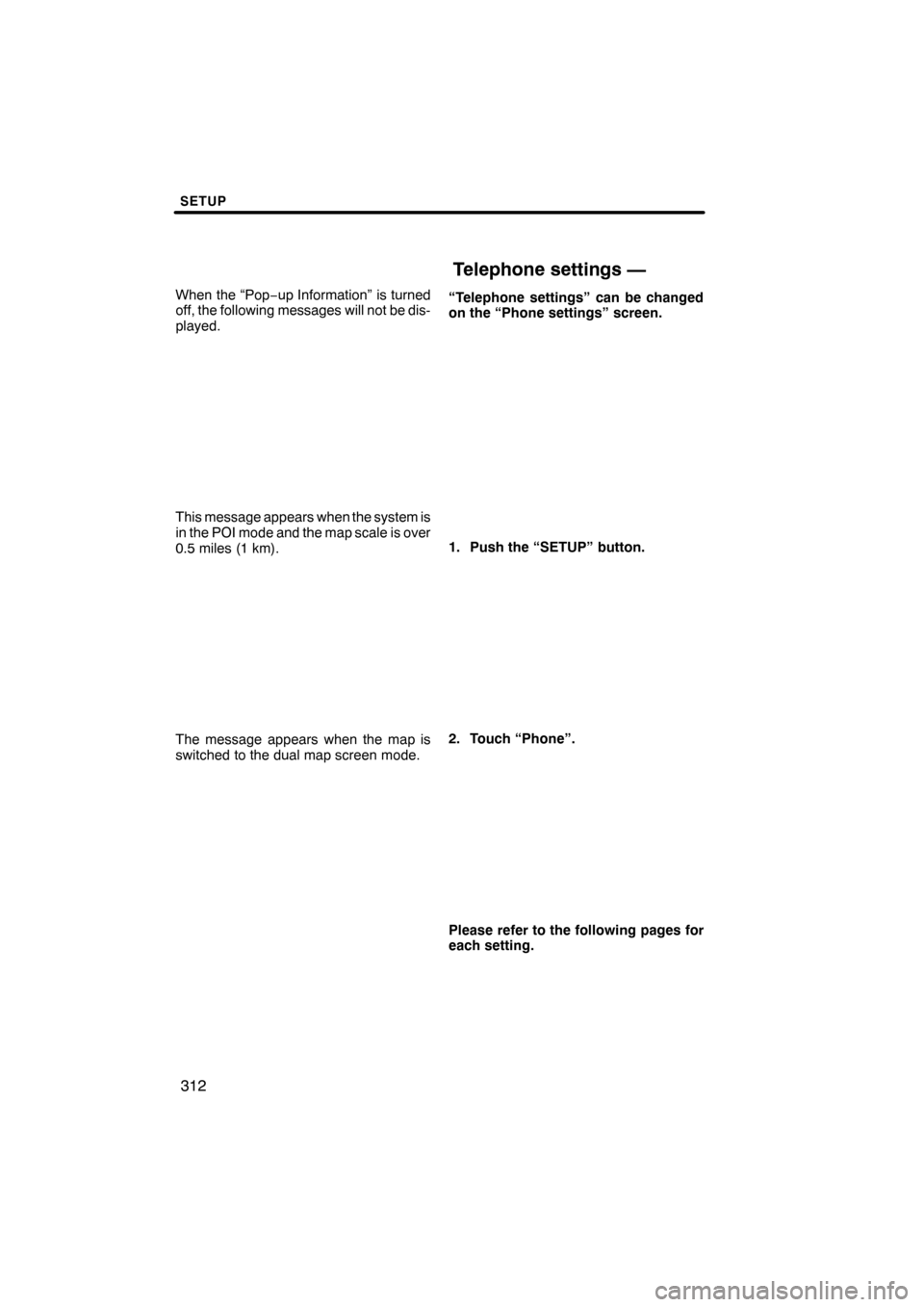
switched to the dual map screen mode. “Telephone settings” can be changed
on the “Phone settings” screen.
1. Push the “SETUP” button.
2. Touch “Phone”.
Please refer to the following pages for
each setting.
ES350 NAVI (U)
Finish
Telephone settings —