ECT Lexus ES350 2012 Owner's Manual
[x] Cancel search | Manufacturer: LEXUS, Model Year: 2012, Model line: ES350, Model: Lexus ES350 2012Pages: 554, PDF Size: 6.43 MB
Page 244 of 554
243
3-2. Using the audio system
3
Interior features
ES350_U
■Error messages
“ERROR”: This indicates a problem in the iPod or its connection.
“NO MUSIC”: This indicates that there is no music data in the iPod.
“EMPTY”: This indicates that some available songs are not found in a selected play-list.
“UPDATE”: This indicates that the version of the iPod is not compatible. Upgrade your iPod software to the latest version.
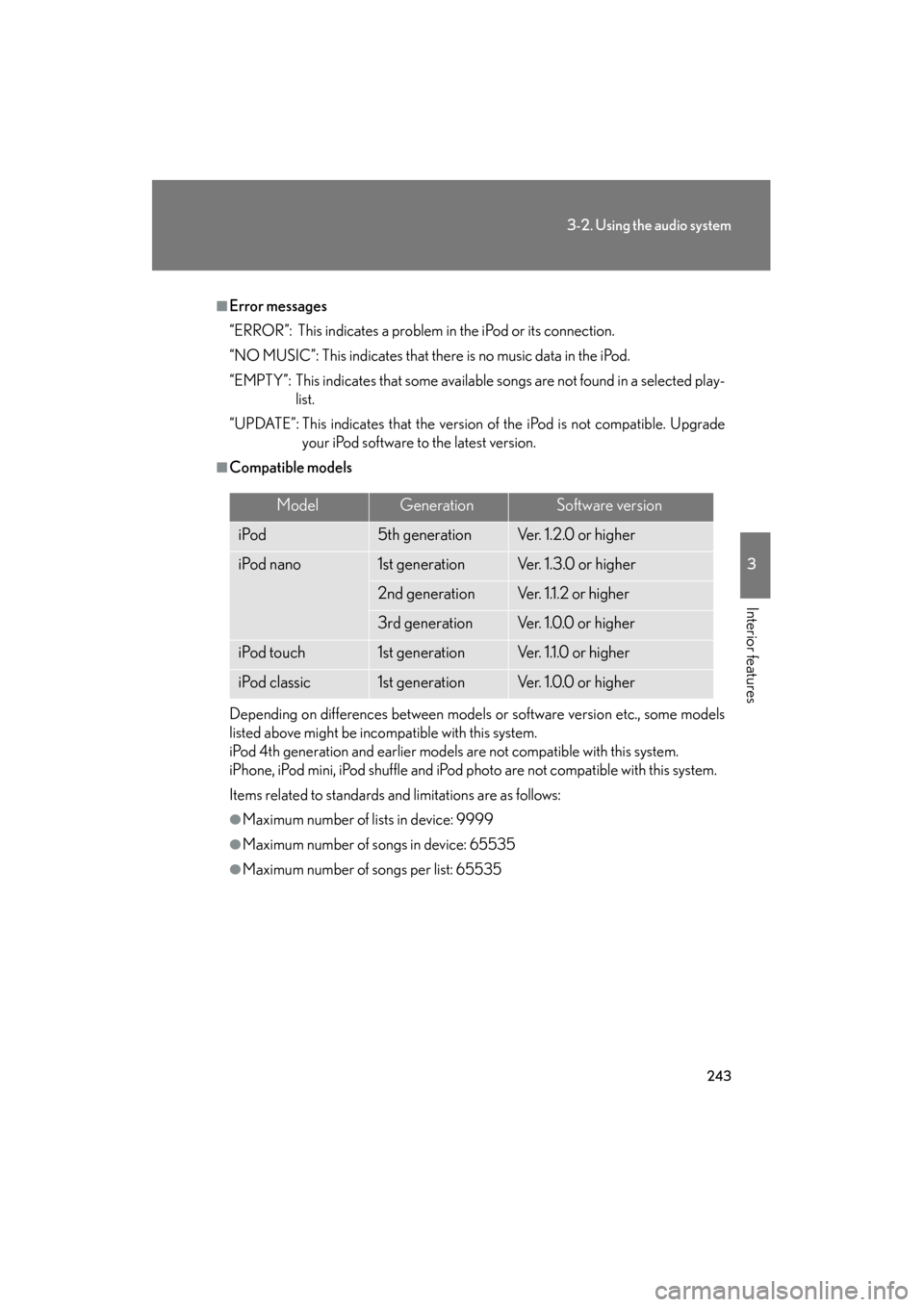
■Compatible models
Depending on differences between models or software version etc., some models
listed above might be incompatible with this system.
iPod 4th generation and earlier models are not compatible with this system.
iPhone, iPod mini, iPod shuffle and iPod ph oto are not compatible with this system.
Items related to standards and limitations are as follows:
●Maximum number of lists in device: 9999
●Maximum number of songs in device: 65535
●Maximum number of songs per list: 65535
ModelGenerationSoftware version
iPod5th generationVe r. 1 . 2 . 0 o r h i g h e r
iPod nano1st generationVe r. 1 . 3 . 0 o r h i g h e r
2nd generationVer. 1.1.2 or higher
3rd generationVe r. 1 . 0 . 0 o r h i g h e r
iPod touch1st generationVer. 1.1.0 or higher
iPod classic1st generationVe r. 1 . 0 . 0 o r h i g h e r
Page 245 of 554
244
3-2. Using the audio system
ES350_U
CAUTION
■Caution while driving
Do not connect iPod or operate the controls.
NOTICE
■To prevent damage to iPod
●Do not leave iPod in the vehicle. The temperature inside the vehicle may become
high, resulting in damage to the player.
●Do not push down on or apply unnecessary pressure to the iPod while it is con-
nected as this may damage the iPod or its terminal.
●Do not insert foreign objects into the port as this may damage the iPod or its ter-
minal.
Page 246 of 554
245
3-2. Using the audio system
3
Interior features
ES350_U
Operating a USB memory∗
Connecting a USB memory enables you to enjoy music from the vehicle
speakers.
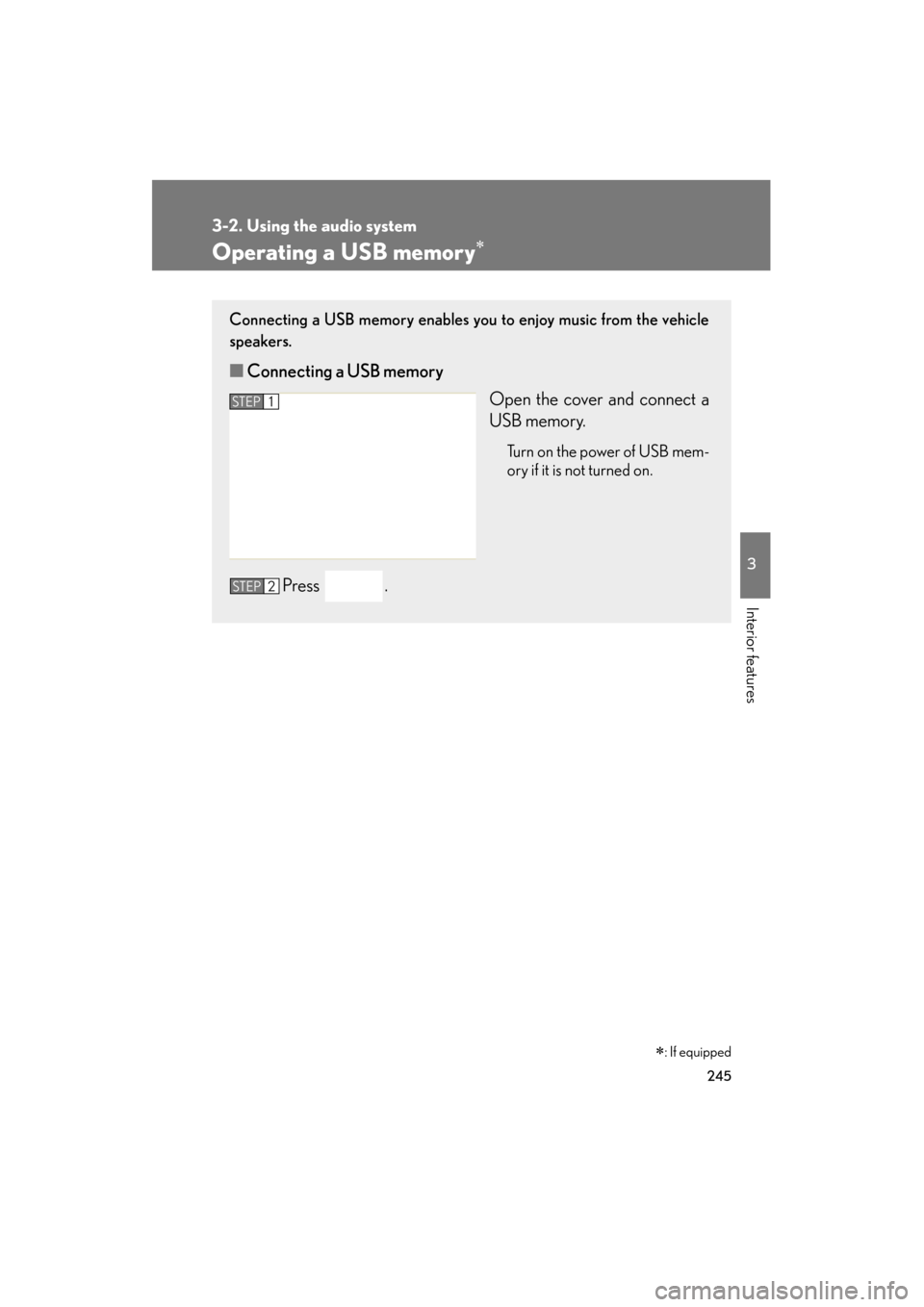
■Connecting a USB memory
Open the cover and connect a
USB memory.
Turn on the power of USB mem-
ory if it is not turned on.
Press .
STEP1
STEP2
∗: If equipped
Page 247 of 554
246
3-2. Using the audio system
ES350_U
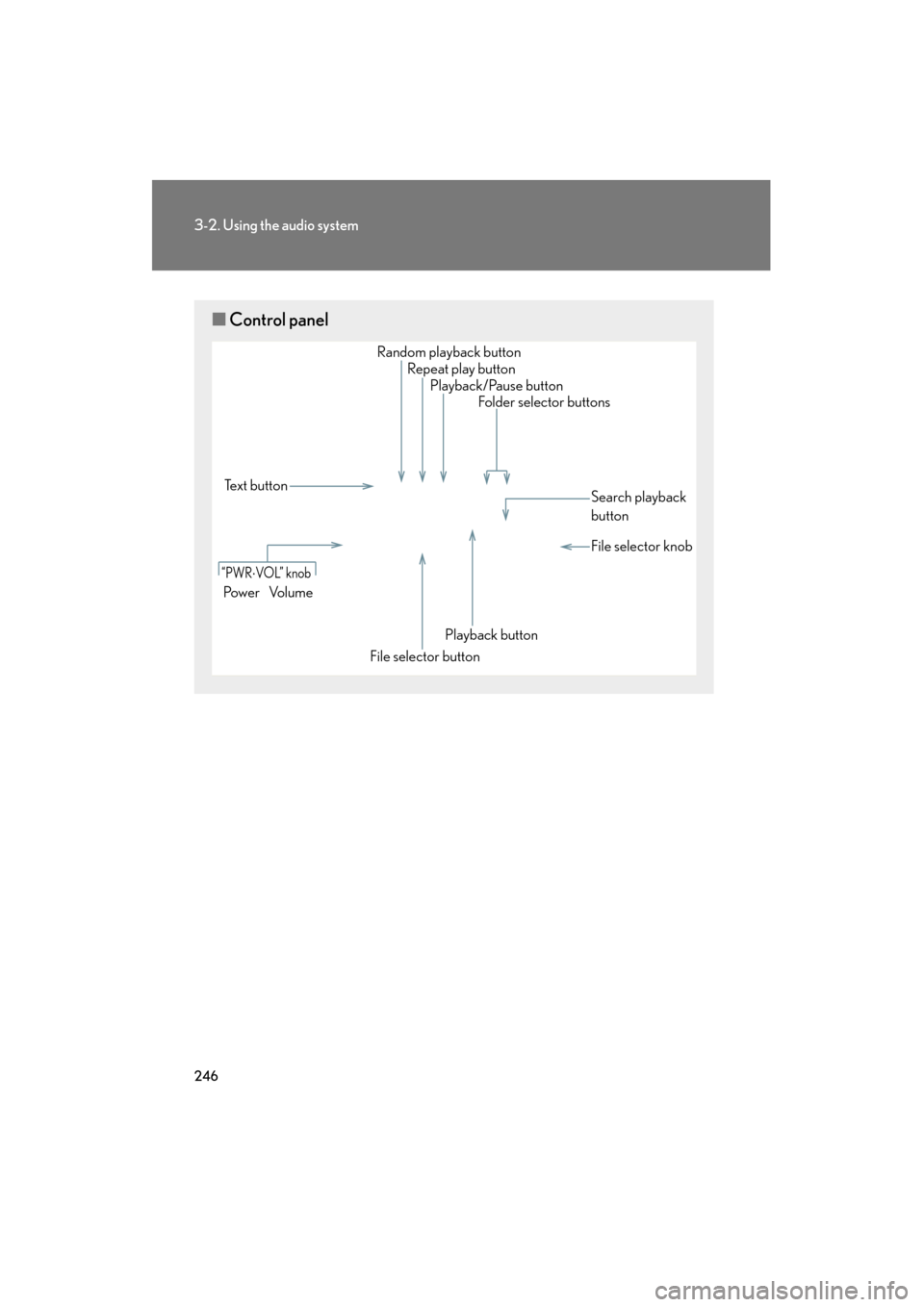
■Control panel
Repeat play button
Folder selector buttons
Random playback button
File selector button Search playback
button
File selector knob
Playback/Pause button
Te x t b u t t o n
“PWR⋅VOL” knob
Pow e r Vo l u m e
Playback button
Page 248 of 554
247
3-2. Using the audio system
3
Interior features
ES350_U
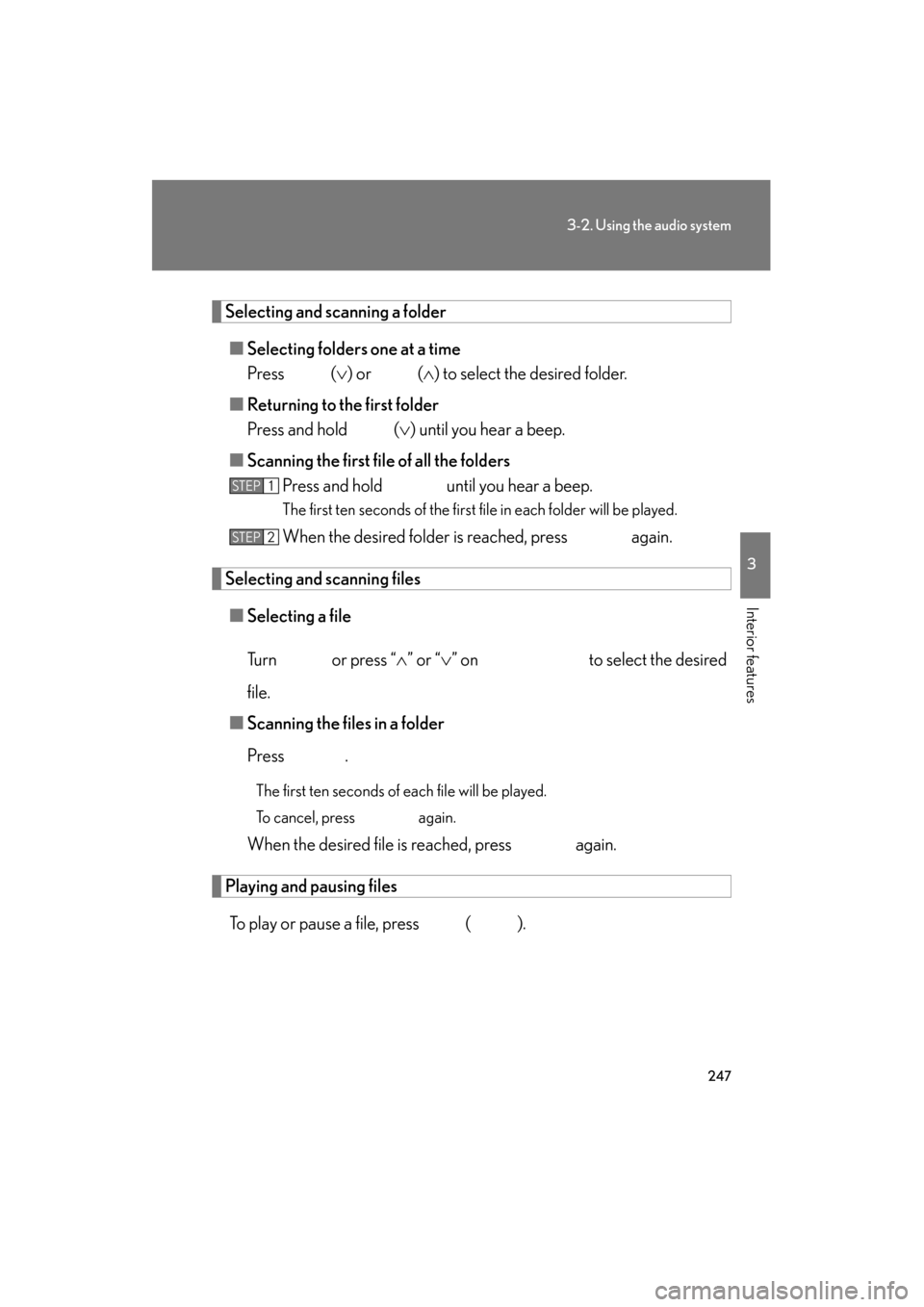
Selecting and scanning a folder■ Selecting folders one at a time
Press ( ∨) or (∧ ) to select the desired folder.
■ Returning to the first folder
Press and hold ( ∨) until you hear a beep.
■ Scanning the first file of all the folders
Press and hold until you hear a beep.
The first ten seconds of the first file in each folder will be played.
When the desired folder is reached, press again.
Selecting and scanning files
■ Selecting a file
Tu r n o r p r e s s “ ∧” or “ ∨” on to select the desired
file.
■ Scanning the files in a folder
Press .
The first ten seconds of each file will be played.
To cancel, press again.
When the desired file is reached, press again.
Playing and pausing files
To play or pause a file, press ( ).
STEP1
STEP2
Page 250 of 554

249
3-2. Using the audio system
3
Interior features
ES350_U
■USB memory functions
●Depending on the USB memory that is connected to the system, the device
itself may not be operable and certain functions may not be available. If the
device is inoperable or a function is unavailable due to a malfunction (as
opposed to a system specification), disconnecting the device and reconnecting
it once again may resolve the problem.
●If the USB memory still does not begin operation after being disconnected and
reconnected, format the memory.
■Display
→P. 2 2 8
■Error messages
“ERROR”: This indicates a problem in the USB memory or its connection.
“NO MUSIC”: This indicates that no MP3 /WMA files are included in the USB
memory.
Page 251 of 554

250
3-2. Using the audio system
ES350_U
■USB memory
●Compatible devices
USB memory that can be used for MP3 and WMA playback
●Compatible device formats
The following device formats can be used:
• USB communication formats: USB2.0 FS (12mbps)
• File formats: FAT16 /32 (Windows)
• Correspondence class: Mass storage class
MP3 and WMA files written in any format other than those listed above may not
play correctly, and their file names and folder names may not be displayed cor-
rectly.
Items related to standards and limitations are as follows:
• Maximum directory hierarchy: 8 levels
• Maximum number of folders in a device: 999 (including the root)
• Maximum number of files in a device: 65025
• Maximum number of files per folder: 255
●MP3 and WMA files
MP3 (MPEG Audio LAYER 3) is a standard audio compression format.
Files can be compressed to approximately 1 /10 of their original size using MP3
compression.
WMA (Windows Media Audio) is a Microsoft audio compression format.
This format compresses audio data to a size smaller than that of the MP3 format.
There is a limit to the MP3 and WMA file standards that can be used and to the
media/formats on which the files are recorded.
Page 253 of 554
252
3-2. Using the audio system
ES350_U
●MP3 and WMA playback
• When a USB memory containing MP3 or WMA files is connected, all files in the USB memory are checked. Once the file check is finished, the first
MP3 or WMA file is played. To make the file check finish more quickly, we
recommend that you do not include any files other than MP3 or WMA files
or create any unnecessary folders.
• When the USB memory is connected and the audio source is changed to USB memory mode, the USB memory will start playing the first file in the
first folder. If the same USB memory is removed and reinserted (and the
contents have not been changed), the USB memory will resume play from
the same point in which it was last used.
●Extensions
If the file extensions .mp3 and .wma are used for files other than MP3 and WMA
files, they will be skipped (not played).
●Playback
• To play MP3 files with steady sound quality, we recommend a fixed bit rate of at least 128 kbps and a sampling frequency of 44.1 kHz.
• There is a wide variety of freeware and other encoding software for MP3 and WMA files on the market, and depending on the status of the encoding
and the file format, poor sound quality or noise at the start of playback may
result. In some cases, playback may not be possible at all.
• Microsoft, Windows, and Windows Media are registered trademarks of Microsoft Corporation in the U.S.A. and other countries.
CAUTION
■Caution while driving
Do not connect
USB memory or operate the controls.
Page 254 of 554
253
3-2. Using the audio system
3
Interior features
ES350_U
NOTICE
■To prevent damage to USB memory
●Do not leave USB memory in the vehicle. The temperature inside the vehicle may
become high, resulting in damage to the player.
●Do not push down on or apply unnecessary pressure to the USB memory while it
is connected as this may damage the USB memory or its terminal.
●Do not insert foreign objects into the port as this may damage the USB memory
or its terminal.
Page 257 of 554
256
3-2. Using the audio system
ES350_U
Using the AUX port
■Operating portable audio devices connected to the audio system
The volume can be adjusted using the vehicle's audio controls. All other adjust-
ments must be made on the portable audio device itself.
■When using a portable audio device connected to the power outlet
Noise may occur during playback. Use the power source of the portable audio
device.
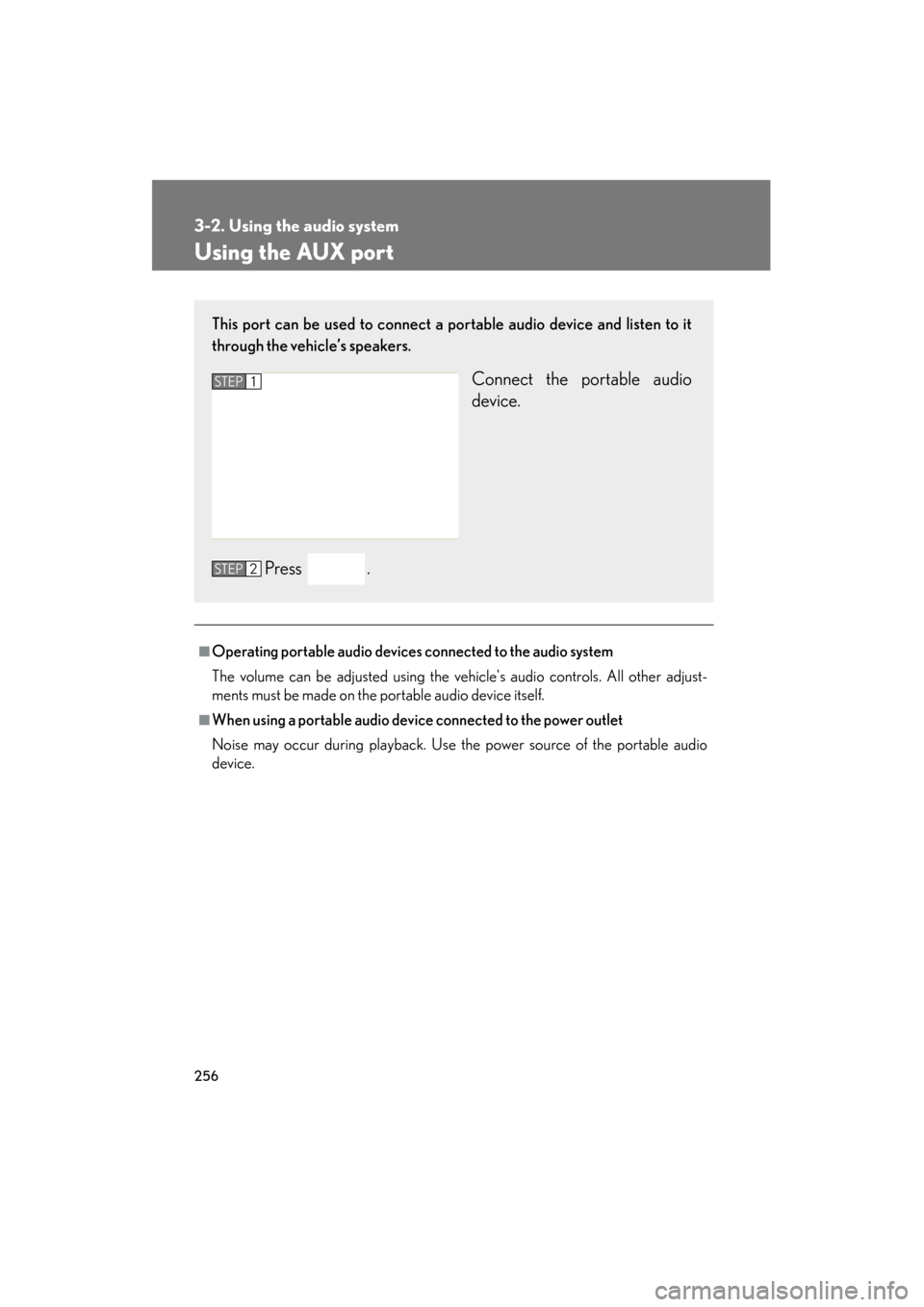
This port can be used to connect a portable audio device and listen to it
through the vehicle’s speakers.
Connect the portable audio
device.
Press .STEP1
STEP2