audio Lexus ES350 2015 Quick Guide
[x] Cancel search | Manufacturer: LEXUS, Model Year: 2015, Model line: ES350, Model: Lexus ES350 2015Pages: 112, PDF Size: 2.33 MB
Page 47 of 112
46
ES350_QG_OM33B49U_(U)
Intuitive Parking Assist (if equipped)
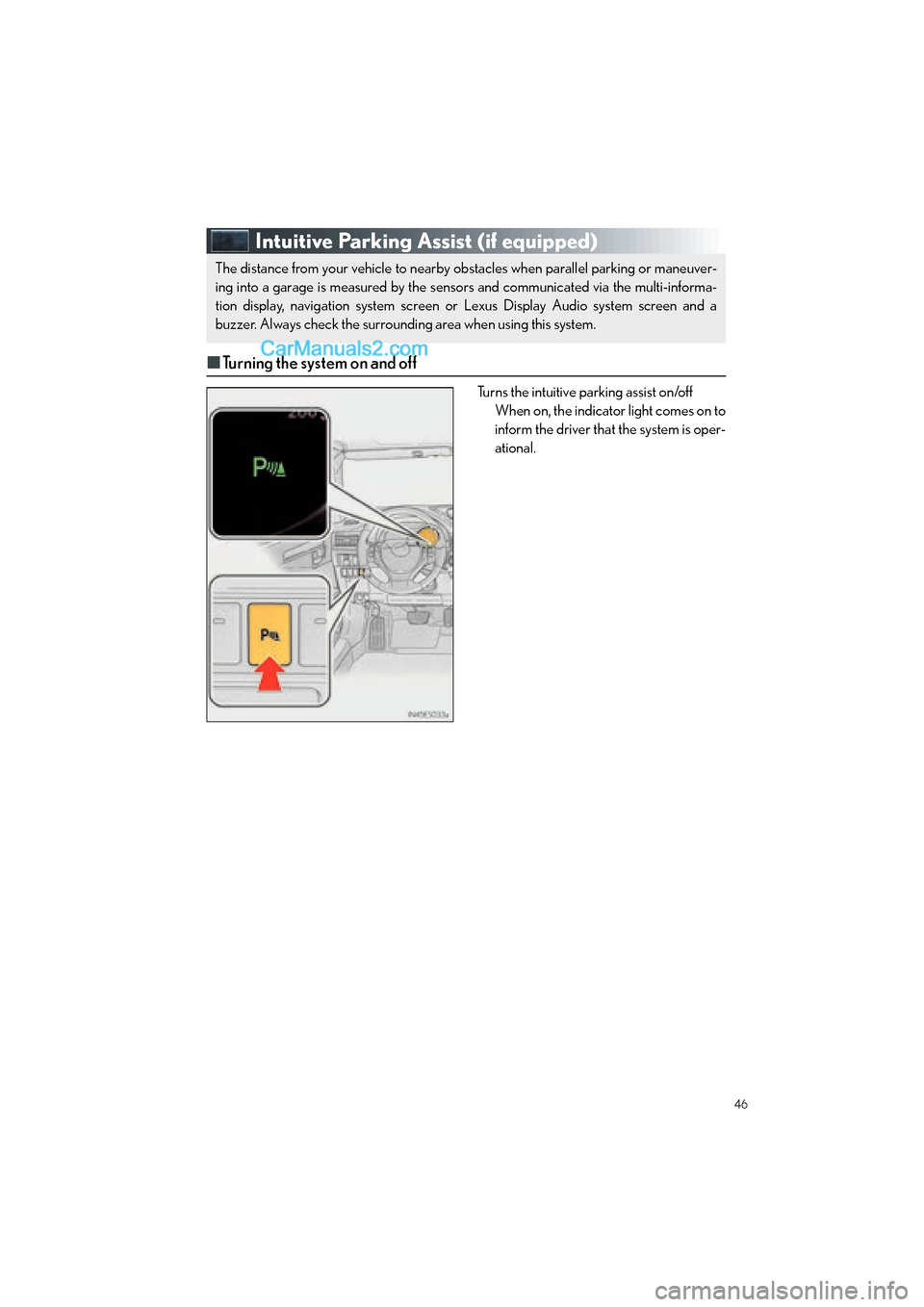
■Turning the system on and off
Turns the intuitive parking assist on/off
When on, the indicator light comes on to
inform the driver that the system is oper-
ational.
The distance from your vehicle to nearby obstacles when parallel parking or maneuver-
ing into a garage is measured by the sensors and communicated via the multi-informa-
tion display, navigation system screen or Lexus Display Audio system screen and a
buzzer. Always check the surrounding area when using this system.
Page 52 of 112

51
ES350_QG_OM33B49U_(U)
■Home
Three-way split screen
Press the “HOME” button on the
Remote Touch to display the home screen.
The home screen can display multiple infor-
mation screens, such as the navigation sys-
tem screen, audio system screen and fuel
consumption screen, simultaneously. When
a screen is selected, the selected screen is
switched to a full-screen display.
Displays the condition of the
Bluetooth
® connection
Select to change the display items/area
and the home screen layout.
Two-way split screen
■
Screen scroll operation
To scroll over the map screen, place the
cursor mark in the desired position and then
press and hold the Remote Touch knob.
Cursor mark
Distance from the current position to
the cursor mark.
Zooms in on the map
Zooms out on the map
Select to return to the current position.
Select to register as a memory point.
Select to set as a destination.
1
2
1
2
3
4
5
6
7
Page 65 of 112
64
ES350_QG_OM33B49U_(U)
Audio System (with navigation system)
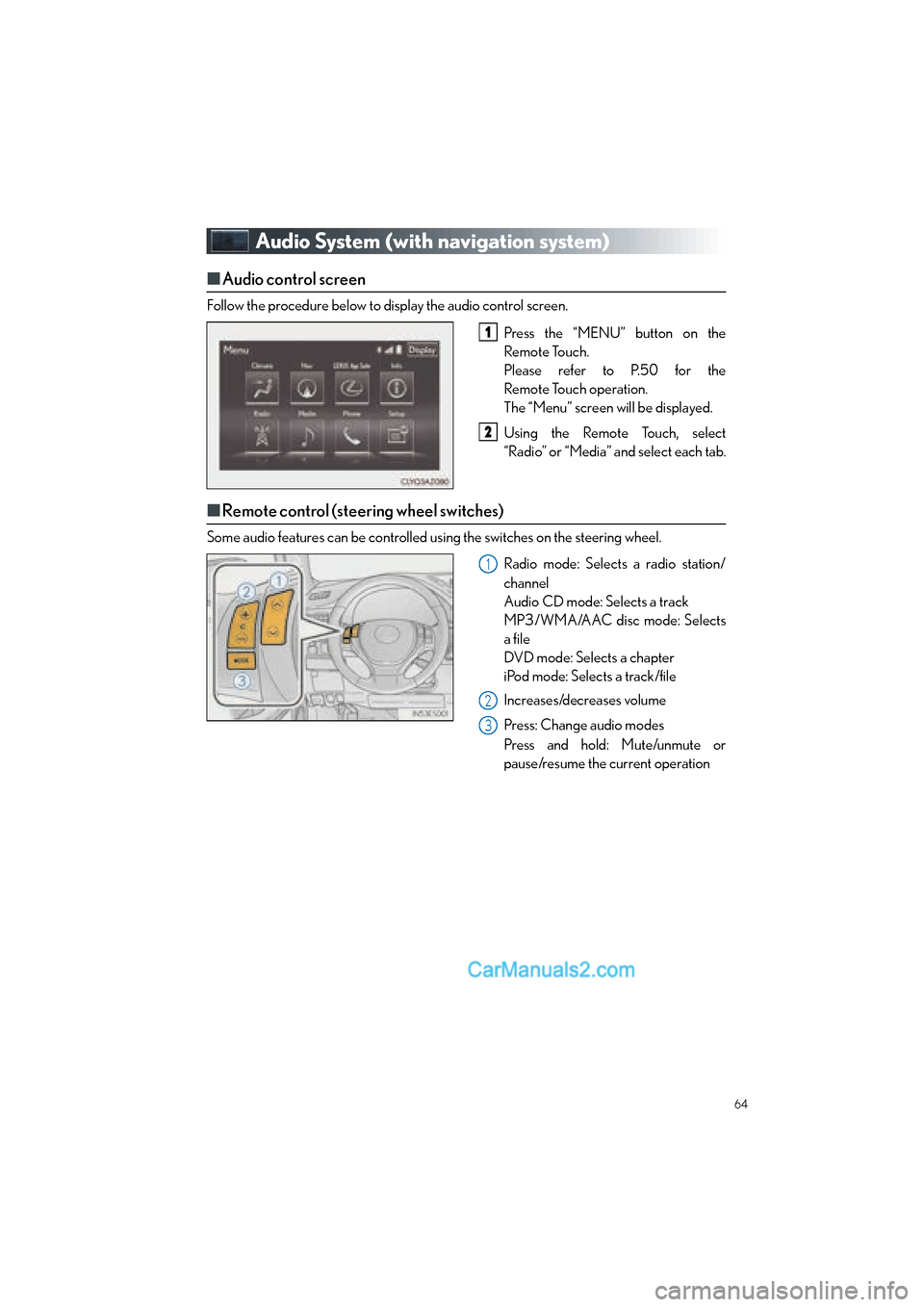
■Audio control screen
Follow the procedure below to display the audio control screen.
Press the “MENU” button on the
Remote Touch.
Please refer to P.50 for the
Remote Touch operation.
The “Menu” screen will be displayed.
Using the Remote Touch, select
“Radio” or “Media” and select each tab.
■Remote control (steering wheel switches)
Some audio features can be controlled using the switches on the steering wheel.
Radio mode: Selects a radio station/
channel
Audio CD mode: Selects a track
MP3/WMA/AAC disc mode: Selects
a file
DVD mode: Selects a chapter
iPod mode: Selects a track/file
Increases/decreases volume
Press: Change audio modes
Press and hold: Mute/unmute or
pause/resume the current operation
1
2
1
2
3
Page 66 of 112

65
ES350_QG_OM33B49U_(U)
■Basic operation
Sound settings
Audio sources
“RADIO” button:
AM: AM radio
FM: FM radio
SAT: Satellite radio
*1
APPS (if equipped):
Internet radio broadcast
“MEDIA” button: DISC: DVD player/CD player
iPod: iPod
USB: USB memory
Bluetooth
*2: Bluetooth® audio
AUX: Auxiliary audio device
Pow e r/ Vo l u m e
*1: To listen to a satellite radio broadcast in the vehicle, a subscription to the XM Satellite Radio service is necessary. ( →P.9 7 )
*2: Bluetooth is a registered trad emark of Bluetooth SIG, Inc.
1
2
3
Page 68 of 112

67
ES350_QG_OM33B49U_(U)
■DVD player/CD player
■
Playing an audio CD
Playback/pause
Repeat playback
Random playback
Selecting a track
Disc slot
CD eject
■Playing a CD with MP3/WMA/AAC files
Playback/pause
Repeat playback
Random playback
Selecting a file
Selecting a folder
Selecting a file/fast forward/rewind
CD eject
Disc slot
1
2
3
4
5
6
1
2
3
4
5
6
7
8
Page 70 of 112

69
ES350_QG_OM33B49U_(U)
■Operating an iPod
■
Playing an iPod audio
Playback/pause
Repeat playback
Selecting a play mode
Random playback
Selecting a track/fast forward/rewind
■Playing an iPod video
Image display (full screen)
Rewind
Playback/pause
Fa s t f o r wa rd
Selecting a file
1
2
3
4
5
1
2
3
4
5
Page 71 of 112

70
ES350_QG_OM33B49U_(U)
Lexus Display Audio Controller
(with Lexus Display Audio System)
■Basic operation
Display the “Source” screen or audio top screen
Display the “Menu” screen
Back button
Display the previous screen
Turn or move the controller to select a function and number.
Move the controller to display the left or right side of the screen.
Push the controller to enter the selected function and number.
By using the Lexus Display Audio controller, you can control the audio system, hands-
free system, etc.
1
2
3
4
Page 73 of 112
72
ES350_QG_OM33B49U_(U)
Hands-free System For Cellular Phone
(with Lexus Display Audio System)
■How to register a Bluetooth® phone
Compatible Bluetooth®-equipped phones can be connected to the vehicle, enabling
hands-free operation. Please refer to the cellular phone manufacture’s user guide for pairing
procedures, or go to “www.lexus.com/MobileLink
” (for U.S.A) for phone information.
Turn the Bluetooth® connection setting of your device set to on.
Go to “Bluetooth* Setup”: “MENU” button → “Setup” → “Bluetooth*”
Move the controller to the left and then select “Add Device”
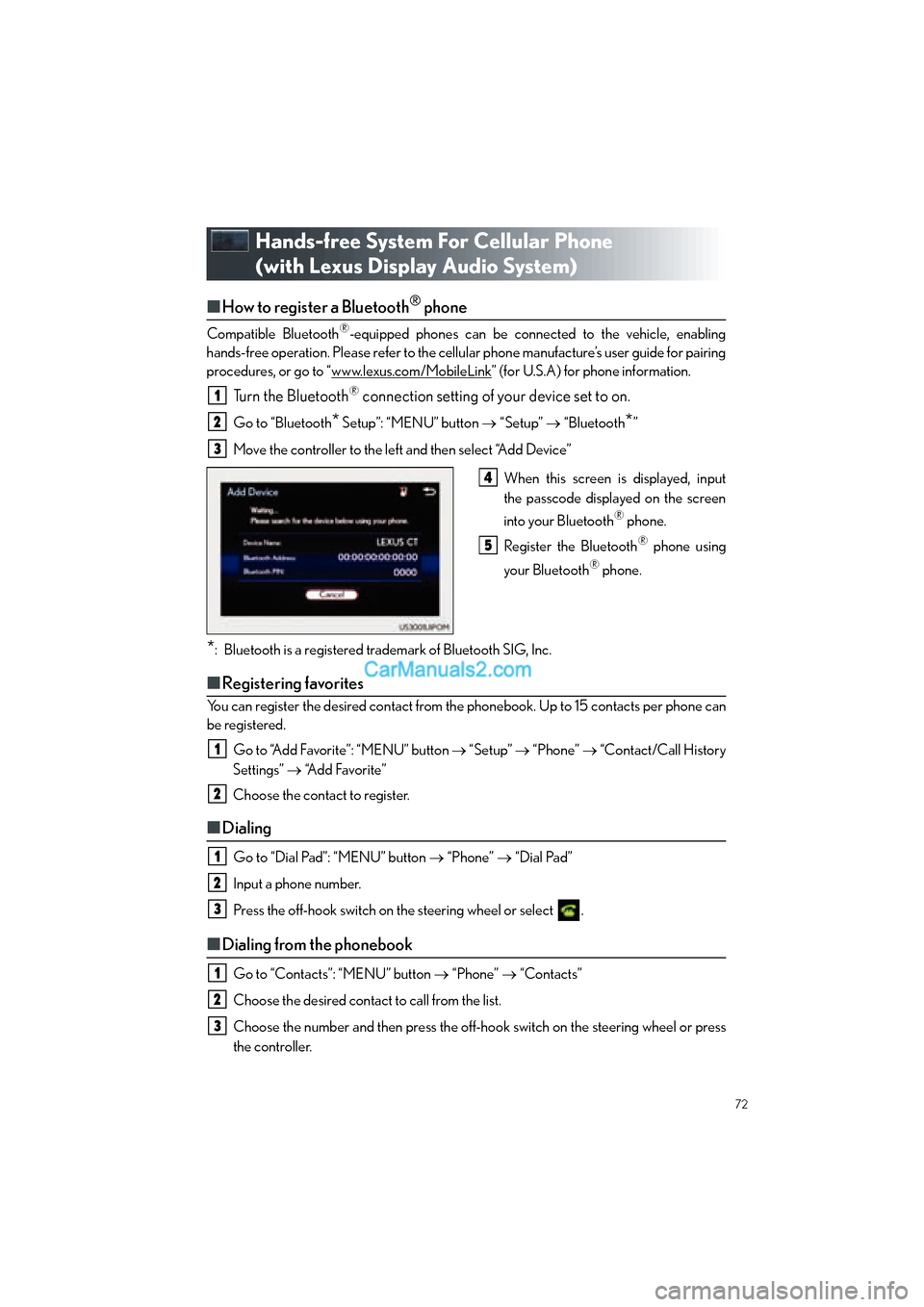
When this screen is displayed, input
the passcode displayed on the screen
into your Bluetooth
® phone.
Register the Bluetooth
® phone using
your Bluetooth
® phone.
*: Bluetooth is a registered trademark of Bluetooth SIG, Inc.
■ Registering favorites
You can register the desired contact from the phonebook. Up to 15 contacts per phone can
be registered.
Go to “Add Favorite”: “MENU” button → “Setup” → “Phone” → “Contact/Call History
Settings” → “Add Favorite”
Choose the contact to register.
■ Dialing
Go to “Dial Pad”: “MENU” button → “Phone” → “Dial Pad”
Input a phone number.
Press the off-hook switch on the steering wheel or select .
■ Dialing from the phonebook
Go to “Contacts”: “MENU” button → “Phone” → “Contacts”
Choose the desired contact to call from the list.
Choose the number and then press the off-hook switch on the steering wheel or press
the controller.
1
2
3
4
5
1
2
1
2
3
1
2
3
Page 76 of 112

75
ES350_QG_OM33B49U_(U)
Audio System (with Lexus Display Audio
Syst em)
■Lexus Display Audio operation buttons
Eject a disc.
Disc slot
Except radio and A/V mode: Pause or resume playing a track.
Radio and A/V mode: Turn mute on/off
“TUNE•SCROLL” knob
Select a radio station band, track or file.
Selects a preset radio station, or to access a desired track or file.
Display the radio top screen.
Display the media top screen.
“PWR•VOL” knob
Press to turn the audio system on/o ff, and turn to adjust the volume.
■Using the steering switches to change audio sources
Press the “MODE” switch when the audio system is turned on. The audio source changes
each time the “MODE” switch is pressed.
1
2
3
4
5
6
7
8
Page 77 of 112

76
ES350_QG_OM33B49U_(U)
■Audio menu screen
To display the audio menu screen, move the controller to the left while on an audio top
screen.
AM, FM radio or XM Satellite Radio
*
Scan for receivable stations (AM, FM
radio)
Seek a station of the nearest frequency
(stops when a station is found) (AM,
FM radio)
Captures the song title and artist name
information for potential purchase
(when the “HD)” indicator on the
selected station is appears) (FM radio)
Changes the channel of HD Radio
(HD2, HD3, HD4 where applicable)
(FM radio)
Seek a station of the traffic announce-
ment (FM radio)
Select to set the station list shows of
HD radio on/off (AM, FM radio)
Change radio settings
Change sound settings
*: To listen to a satellite radio broadcast in the vehicle, a subscription to the XM SatelliteRadio service is necessary. ( →P.9 7 )
1
2
3
4
5
6
7
8