service Lexus ES350 2017 s User Guide
[x] Cancel search | Manufacturer: LEXUS, Model Year: 2017, Model line: ES350, Model: Lexus ES350 2017Pages: 584, PDF Size: 13.96 MB
Page 334 of 584
3325-9. Bluetooth® Phone
ES350_OM_OM33C68U_(U)
You can transfer the phone numbers in a Bluetooth® phone to the system.
Operation methods differ between PBAP (Phone Book Access Profile) compat-
ible and PBAP incompatible Bluetooth
® phones. If the cellular phone does not
support either PBAP or OPP (Object Push Profile) service, you cannot transfer
contacts.
Press the off-hook switch on the steering wheel.
If the phonebook is empty, a message will be displayed.
XFor a PBAP compatible Bluetooth® phone and “Automatic Transfer” is off
To enable automatic transfer of new contacts from a cellular phone every time
it is connected, select “Always”. ( →P. 3 4 2 )
Select “Once” if you want to transfer new contacts from a cellular phone.
XFor a PBAP incompatible and OPP compatible Bluetooth® phone
Select “Transfer” and operate your cellular phone to transfer new contacts
from a cellular phone.
Select “Add” if you want to add a new contact manually.
When the phonebook is empty
1
2
2
Page 337 of 584
335
ES350_OM_OM33C68U_(U)5-9. Bluetooth
® Phone
5
Lexus Display Audio system
Speaking on the phone
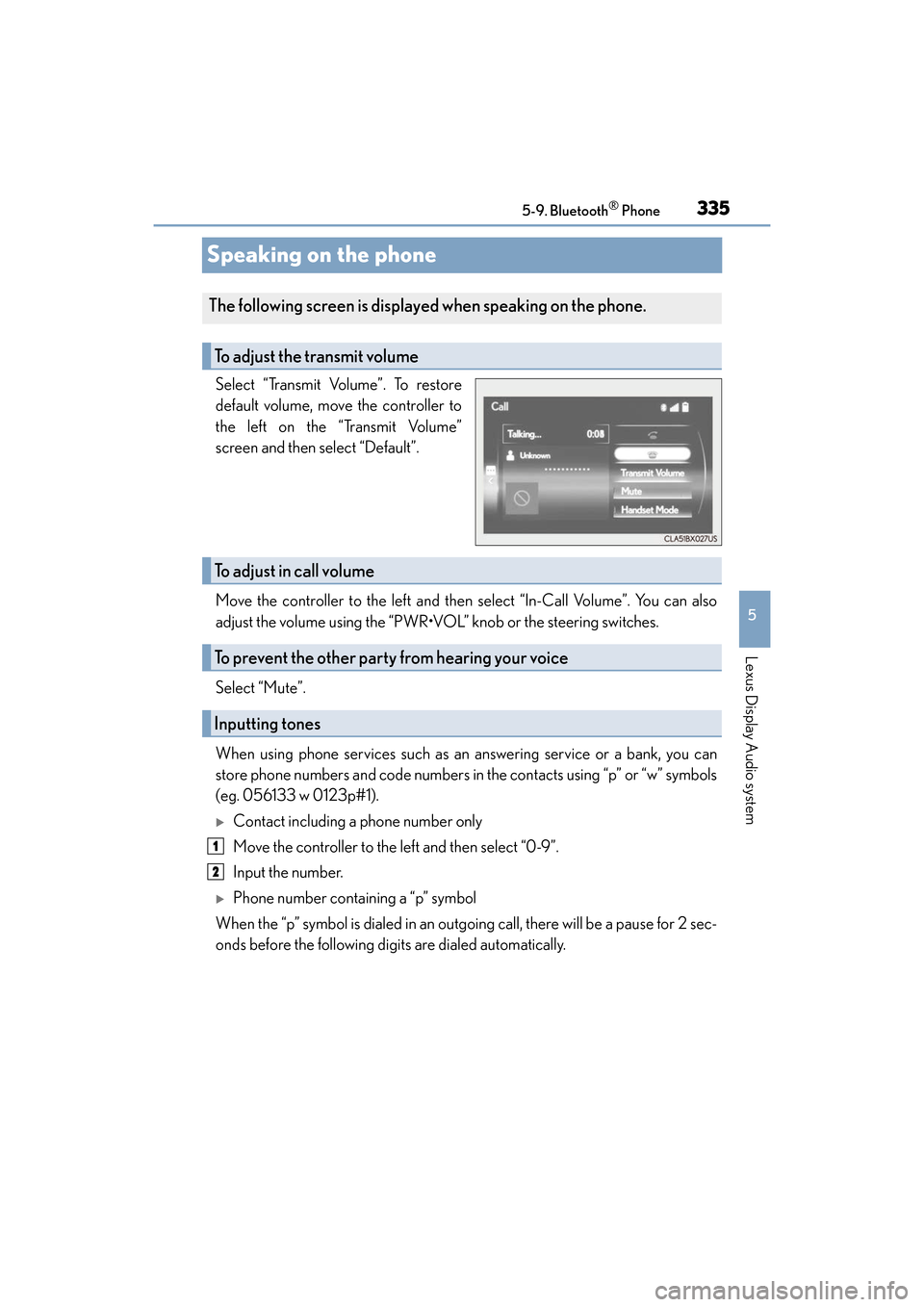
Select “Transmit Volume”. To restore
default volume, move the controller to
the left on the “Transmit Volume”
screen and then select “Default”.
Move the controller to the left and then select “In-Call Volume”. You can also
adjust the volume using the “PWR•VOL” knob or the steering switches.
Select “Mute”.
When using phone services such as an answering service or a bank, you can
store phone numbers and code numbers in the contacts using “p” or “w” symbols
(eg. 056133 w 0123p#1).
XContact including a phone number only
Move the controller to the left and then select “0-9”.
Input the number.
XPhone number containing a “p” symbol
When the “p” symbol is dialed in an outgoing call, there will be a pause for 2 sec-
onds before the following digits are dialed automatically.
The following screen is displayed when speaking on the phone.
To adjust the transmit volume
To adjust in call volume
To prevent the other party from hearing your voice
Inputting tones
1
2
Page 345 of 584
ES350_OM_OM33C68U_(U)
3435-10. Phonebook
5
Lexus Display Audio system
■Return to the default settings
Move the controller to the left and select “Default”.
You can transfer the phone numbers in your Bluetooth® phone to the system.
Operation methods differ between PBAP compatible and PBAP incompatible
Bluetooth
® phones. If your cellular phone does not support either PBAP or
OPP services, you cannot transfer contacts.
XFor PBAP compatible Bluetooth® phones
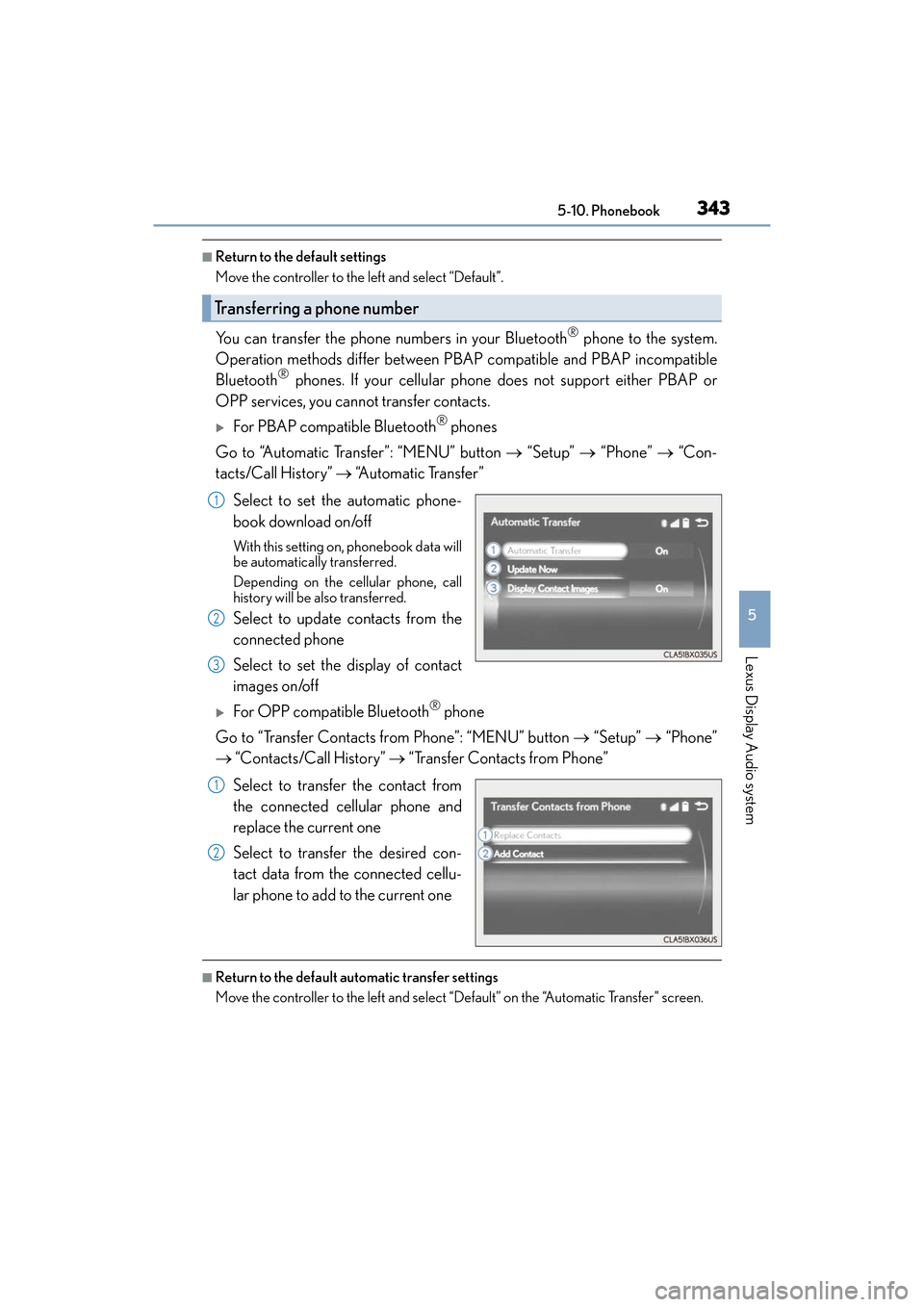
Go to “Automatic Transfer”: “MENU” button → “Setup” → “Phone” → “Con-
tacts/Call History” → “Automatic Transfer”
Select to set the automatic phone-
book download on/off
With this setting on, phonebook data will
be automatically transferred.
Depending on the cellular phone, call
history will be also transferred.
Select to update contacts from the
connected phone
Select to set the display of contact
images on/off
XFor OPP compatible Bluetooth® phone
Go to “Transfer Contacts from Phone”: “MENU” button → “Setup” → “Phone”
→ “Contacts/Call History” → “Transfer Contacts from Phone”
Select to transfer the contact from
the connected cellular phone and
replace the current one
Select to transfer the desired con-
tact data from the connected cellu-
lar phone to add to the current one
■Return to the default automatic transfer settings
Move the controller to the left and select “Default” on the “Automatic Transfer” screen.
Transferring a phone number
1
2
3
1
2
Page 346 of 584
3445-10. Phonebook
ES350_OM_OM33C68U_(U)
You can register the desired contact from the phonebook. Up to 15 contacts per
phone can be registered. Go to “Add Favorite”: “MENU” button → “Setup” → “Phone” → “Contacts/
Call History” → “Add Favorite”
Choose the contact to register.
Go to “Remove Favorite”: “MENU” button → “Setup” → “Phone” → “Con-
tacts/Call History” → “Remove Favorite”
Select the desired contacts.
You can select all contacts by selecting “Select All”.
Move the controller to the left and select “Remove”.
Go to “Delete Contact”: “MENU” button → “Setup” → “Phone” → “Con-
tacts/Call History” → “Delete Contact”
Select the desired contacts.
You can select all contacts by selecting “Select All”.
Move the controller to the left and select “Delete”.
■Phonebook data
Phonebook data is managed separately for every registered phone. When one phone is
connected, you cannot read the registered data of the other phones.
■When transferring contacts
Transfer contacts while the engine is running.
If the cellular phone is OPP or PBAP compatible, you may need to input “1234” on the
cellular phone for OBEX certification.
■When you have selected “Replace Contacts” or “Add Contact” to transfer contacts
If the cellular phone does not support OPP service, you cannot use these functions. You
can transfer the phonebook data only by operating your phone.
■Transferring contacts while Bluetooth® audio is playing
Bluetooth® audio will disconnect. It will reconnect automatically when data transfer fin-
ishes. It may not reconnect depending on the phone which is connected.
Registering favorites
1
2
Removing favorites
Deleting the contacts data
1
2
3
1
2
3
Page 349 of 584
ES350_OM_OM33C68U_(U)
3475-11. Bluetooth®
5
Lexus Display Audio system
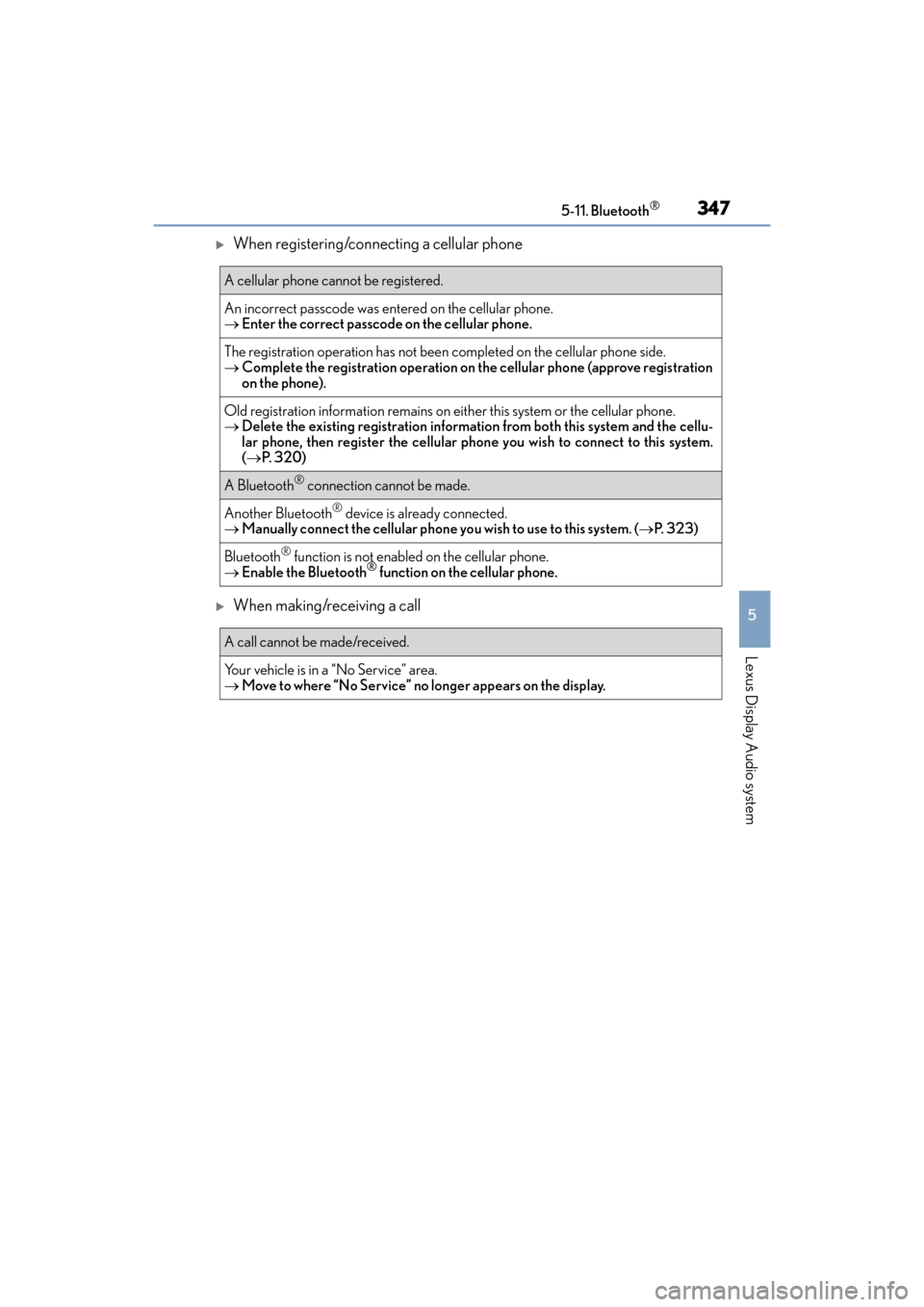
XWhen registering/connecting a cellular phone
XWhen making/receiving a call
A cellular phone cannot be registered.
An incorrect passcode was entered on the cellular phone.
→Enter the correct passcode on the cellular phone.
The registration operation has not been completed on the cellular phone side.
→ Complete the registration operation on the cellular phone (approve registration
on the phone).
Old registration information remains on ei ther this system or the cellular phone.
→ Delete the existing registration informat ion from both this system and the cellu-
lar phone, then register the cellular phon e you wish to connect to this system.
( → P. 3 2 0 )
A Bluetooth® connection cannot be made.
Another Bluetooth® device is already connected.
→ Manually connect the cellular phone you wish to use to this system. ( →P. 323)
Bluetooth® function is not enabled on the cellular phone.
→ Enable the Bluetooth® function on the cellular phone.
A call cannot be made/received.
Your vehicle is in a “No Service” area.
→Move to where “No Service” no longer appears on the display.
Page 352 of 584
350
ES350_OM_OM33C68U_(U)5-11. Bluetooth
®
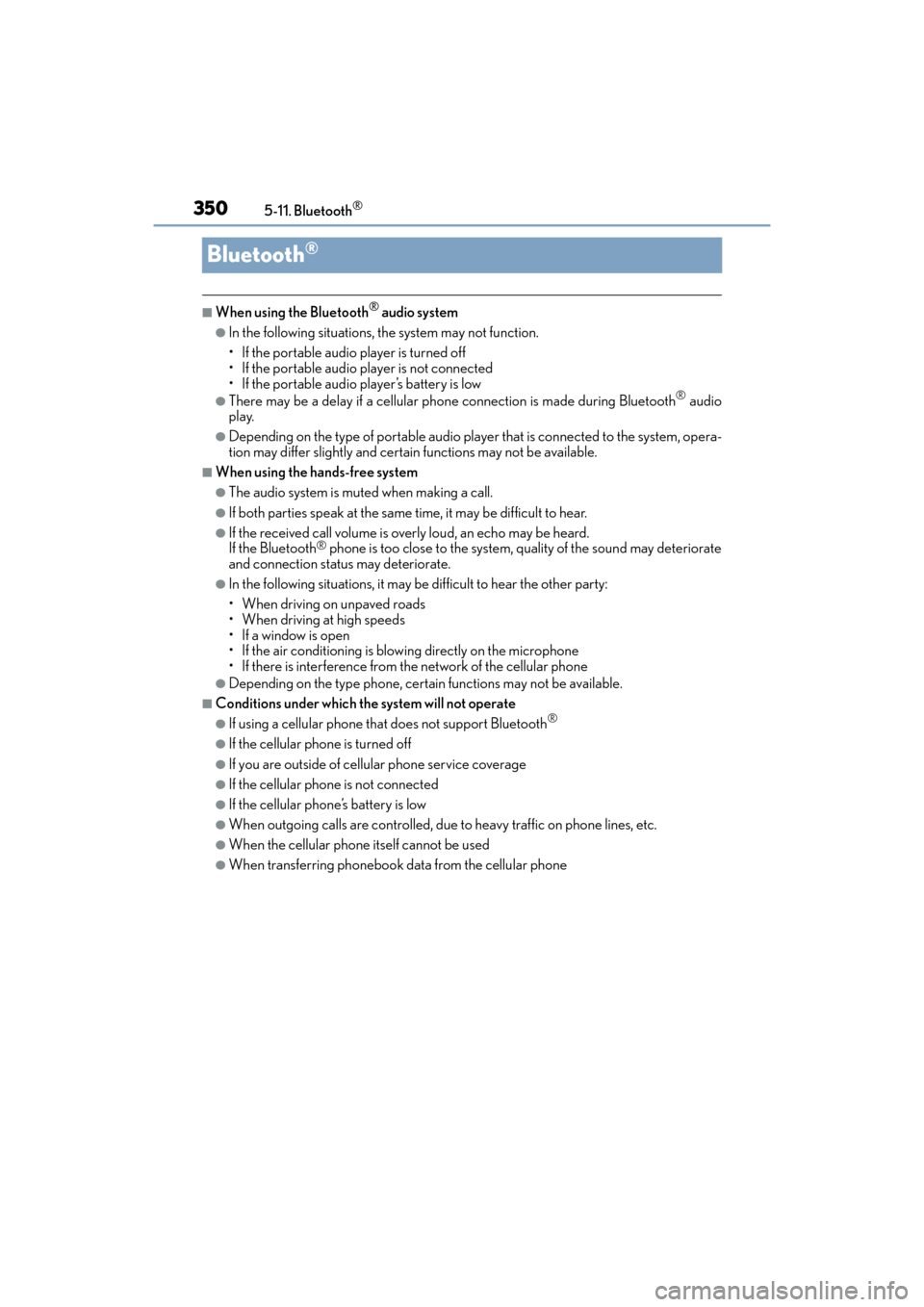
Bluetooth®
■When using the Bluetooth® audio system
●In the following situations, the system may not function.
• If the portable audio player is turned off
• If the portable audio player is not connected
• If the portable audio player’s battery is low
●There may be a delay if a cellular phone
connection is made during Bluetooth® audio
play.
●Depending on the type of portable audio player that is connected to the system, opera-
tion may differ slightly and certain functions may not be available.
■When using the hands-free system
●The audio system is muted when making a call.
●If both parties speak at the same time, it may be difficult to hear.
●If the received call volume is overly loud, an echo may be heard.
If the Bluetooth® phone is too close to the system, quality of the sound may deteriorate
and connection status may deteriorate.
●In the following situations, it may be difficult to hear the other party:
• When driving on unpaved roads
• When driving at high speeds
•If a window is open
• If the air conditioning is blowing directly on the microphone
• If there is interference from the network of the cellular phone
●Depending on the type phone, certain functions may not be available.
■Conditions under which the system will not operate
●If using a cellular phone that does not support Bluetooth®
●If the cellular phone is turned off
●If you are outside of cellular phone service coverage
●If the cellular phone is not connected
●If the cellular phone’s battery is low
●When outgoing calls are controlled, due to heavy traffic on phone lines, etc.
●When the cellular phone itself cannot be used
●When transferring phonebook data from the cellular phone
Page 354 of 584
3525-11. Bluetooth®
ES350_OM_OM33C68U_(U)
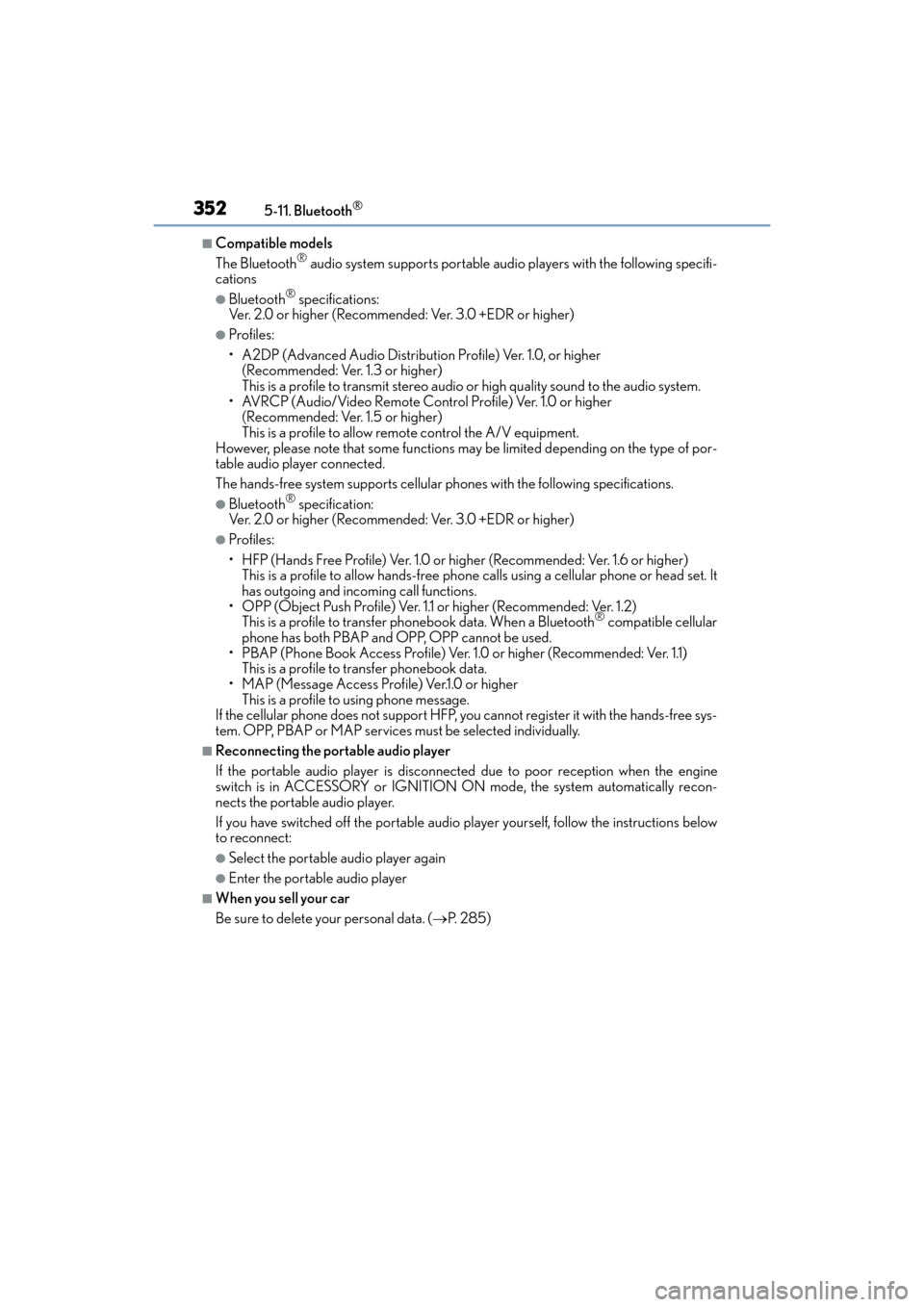
■Compatible models
The Bluetooth® audio system supports portable audio players with the following specifi-
cations
●Bluetooth® specifications:
Ver. 2.0 or higher (Recommended: Ver. 3.0 +EDR or higher)
●Profiles:
• A2DP (Advanced Audio Distribution Profile) Ver. 1.0, or higher (Recommended: Ver. 1.3 or higher)
This is a profile to transmit stereo audio or high quality sound to the audio system.
• AVRCP (Audio/Video Remote Control Profile) Ver. 1.0 or higher (Recommended: Ver. 1.5 or higher)
This is a profile to allow re mote control the A/V equipment.
However, please note that some functions may be limited depending on the type of por-
table audio player connected.
The hands-free system supports cellular ph ones with the following specifications.
●Bluetooth® specification:
Ver. 2.0 or higher (Recommended: Ver. 3.0 +EDR or higher)
●Profiles:
• HFP (Hands Free Profile) Ver. 1.0 or higher (Recommended: Ver. 1.6 or higher) This is a profile to allow hands-free phone calls using a cellular phone or head set. It
has outgoing and incoming call functions.
• OPP (Object Push Profile) Ver. 1.1 or higher (Recommended: Ver. 1.2) This is a profile to transfer phonebook data. When a Bluetooth
® compatible cellular
phone has both PBAP and OPP, OPP cannot be used.
• PBAP (Phone Book Access Profile) Ver. 1.0 or higher (Recommended: Ver. 1.1) This is a profile to transfer phonebook data.
• MAP (Message Access Profile) Ver.1.0 or higher
This is a profile to using phone message.
If the cellular phone does not support HFP, you cannot register it with the hands-free sys-
tem. OPP, PBAP or MAP services must be selected individually.
■Reconnecting the portable audio player
If the portable audio player is disconnected due to poor reception when the engine
switch is in ACCESSORY or IGNITION ON mode, the system automatically recon-
nects the portable audio player.
If you have switched off the portable audio player yourself, follow the instructions below
to reconnect:
●Select the portable audio player again
●Enter the portable audio player
■When you sell your car
Be sure to delete your personal data. ( →P. 2 8 5 )
Page 369 of 584
367
ES350_OM_OM33C68U_(U)
6Interior features
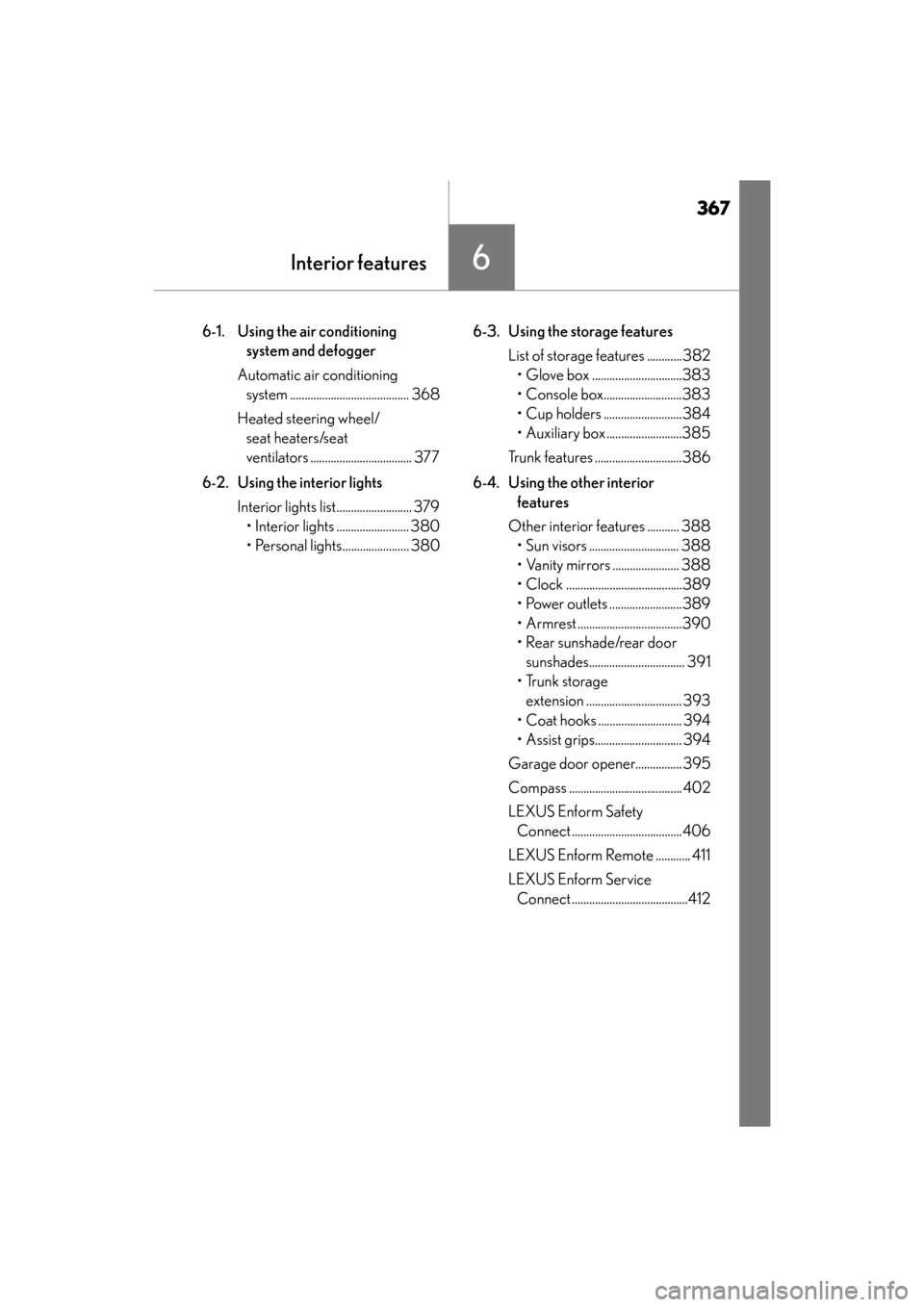
6-1. Using the air conditioning system and defogger
Automatic air conditioning system ......................................... 368
Heated steering wheel/ seat heaters/seat
ventilators ................................... 377
6-2. Using the interior lights Interior lights list.......................... 379• Interior lights ......................... 380
• Personal lights....................... 380 6-3. Using the storage features
List of storage features ............382• Glove box ...............................383
• Console box...........................383
• Cup holders ...........................384
• Auxiliary box ..........................385
Trunk features ..............................386
6-4. Using the other interior features
Other interior features ........... 388 • Sun visors ............................... 388
• Vanity mirrors ....................... 388
• Clock ........................................389
• Power outlets .........................389
• Armrest ....................................390
• Rear sunshade/rear door sunshades................................. 391
•Trunk storage extension ................................. 393
• Coat hooks ............................. 394
• Assist grips.............................. 394
Garage door opener................ 395
Compass ....................................... 402
LEXUS Enform Safety Connect ......................................406
LEXUS Enform Remote ............ 411
LEXUS Enform Service Connect ........................................412
Page 408 of 584
406
ES350_OM_OM33C68U_(U)6-4. Using the other interior features
LEXUS Enform Safety Connect∗
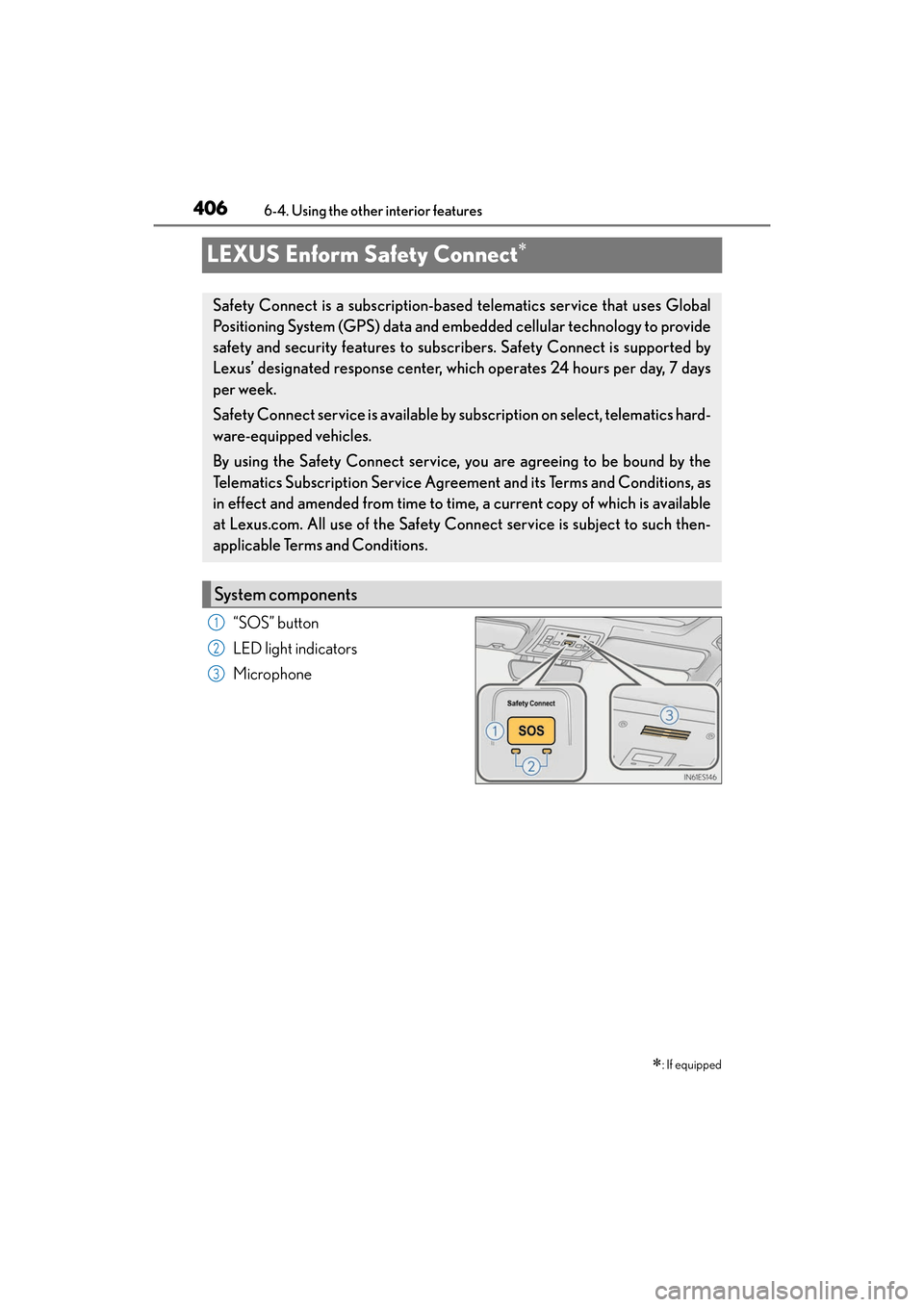
“SOS” button
LED light indicators
Microphone
∗: If equipped
Safety Connect is a subscription-based telematics service that uses Global
Positioning System (GPS) data and embedded cellular technology to provide
safety and security features to subscr
ibers. Safety Connect is supported by
Lexus’ designated response center, which operates 24 hours per day, 7 days
per week.
Safety Connect service is available by subscription on select, telematics hard-
ware-equipped vehicles.
By using the Safety Connect service, you are agreeing to be bound by the
Telematics Subscription Service Agreement and its Terms and Conditions, as
in effect and amended from time to time , a current copy of which is available
at Lexus.com. All use of the Safety Connect service is subject to such then-
applicable Terms and Conditions.
System components
1
2
3
Page 409 of 584
ES350_OM_OM33C68U_(U)
4076-4. Using the other interior features
6
Interior features
Subscribers have the following Safety Connect services available:
●Automatic Collision Notification*
Helps drivers receive necessary response from emergency service providers.
(→ P. 4 0 8 )
*: U.S. Patent No. 7,508,298 B2
●Stolen Vehicle Location
Helps drivers in the event of vehicle theft. ( →P. 4 0 8 )
●Emergency Assistance Button (“SOS”)
Connects drivers to response-center support. ( →P. 4 0 8 )
●Enhanced Roadside Assistance
Provides drivers various on-road assistance. ( →P. 4 0 9 )
After you have signed the Telematics Subscription Service Agreement and are
enrolled, you can begin receiving services.
A variety of subscription terms is available for purchase. Contact your Lexus
dealer, call 1-800-25-LEXUS (1-800-255-3987) or push the “SOS” button in
your vehicle for further subscription details.
■Safety Connect Services Information
●Phone calls using the vehicles Bluetooth® technology will not be possible during Safety
Connect.
●Safety Connect is available beginning Fall 2009 on select Lexus models. Contact with
the Safety Connect response center is dependent upon the telematics device being in
operative condition, cellular connection availability, and GPS satellite signal reception,
which can limit the ability to reach the response center or receive emergency service
support. Enrollment and Telematics Subscrip tion Service Agreement required. A vari-
ety of subscription terms is available; ch arges vary by subscription term selected.
●Automatic Collision Notification, Emergency Assistance and Stolen Vehicle Location
will function in the United States, includ ing Hawaii and Alaska, and in Canada, and
Enhanced Roadside Assistance will function in the United States (except Hawaii) and in
Canada. No Safety Connect services will functi on outside of the United States in coun-
tries other than Canada.
●Safety Connect services are not subject to section 255 of the Telecommunications Act
and the device is not TTY compatible.
■Languages
The Safety Connect response center will offe r support in multiple languages. The Safety
Connect system will offer voice prompts in English and Spanish. Please indicate your lan-
guage of choice when enrolling.
■When contacting the response center
You may be unable to contact the resp onse center if the network is busy.
Services
Subscription