phone Lexus ES350 2020 Owner's Manual / LEXUS 2020 ES350 FROM OCT. 2019 PROD. OWNER'S MANUAL QUICK GUIDE (OM06198U)
[x] Cancel search | Manufacturer: LEXUS, Model Year: 2020, Model line: ES350, Model: Lexus ES350 2020Pages: 94, PDF Size: 1.94 MB
Page 1 of 94
1
ES350_QG_OM06198U_(U)
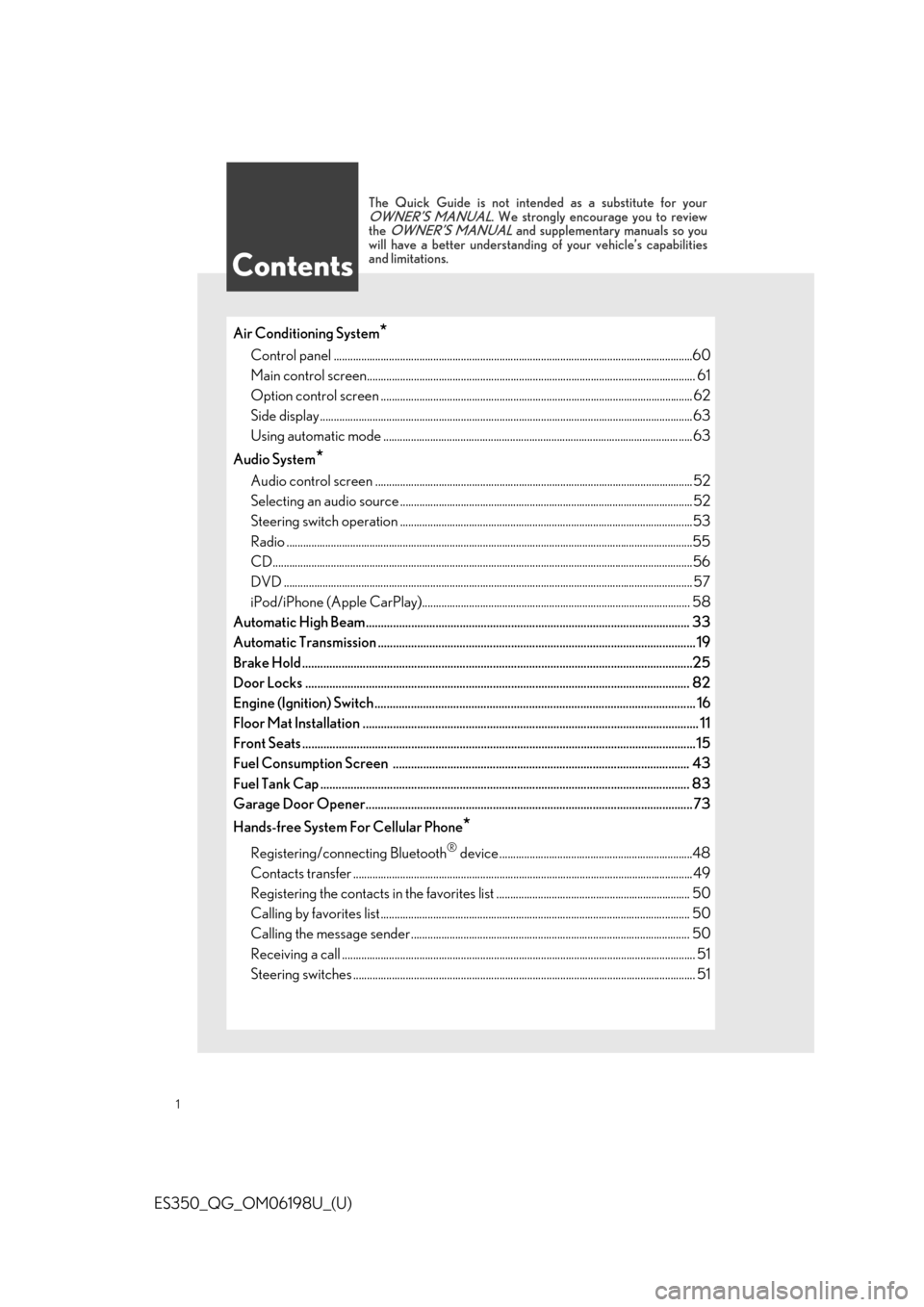
Air Conditioning System*
Control panel ..................................................................................................................................60
Main control screen............................................................................................................ ........... 61
Option control screen .......................................................................................................... ....... 62
Side display................................................................................................................... ....................63
Using automatic mode ........................................................................................................... .....63
Audio System
*
Audio control screen ........................................................................................................... ........52
Selecting an audio source ...................................................................................................... ....52
Steering switch operation ...................................................................................................... ....53
Radio ...................................................................................................................................................55
CD........................................................................................................................................................56
DVD .................................................................................................................................................... 57
iPod/iPhone (Apple CarPlay)................................................................................................. 58
Automatic High Beam........................................................................................................... 3 3
Automatic Transmission ......................................................................................................... 19
Brake Hold ..................................................................................................................... ............25
Door Locks ..................................................................................................................... .......... 82
Engine (Ignition) Switch ....................................................................................................... ... 16
Floor Mat Installation ......................................................................................................... ...... 11
Front Seats .................................................................................................................... ..............15
Fuel Consumption Screen .................................................................................................. 43
Fuel Tank Cap .................................................................................................................. ........ 83
Garage Door Opener............................................................................................................73
Hands-free System For Cellular Phone
*
Registering/connecting Bluetooth® device ......................................................................48
Contacts transfer .............................................................................................................. .............49
Registering the contacts in the favorites list . ..................................................................... 50
Calling by favorites list ...................................................................................................... .......... 50
Calling the message sender..................................................................................................... 50
Receiving a call ............................................................................................................... ................. 51
Steering switches .............................................................................................................. .............. 51
Contents
The Quick Guide is not intended as a substitute for yourOWNER’S MANUAL. We strongly encourage you to review
the OWNER’S MANUAL and supplementary manuals so you
will have a better understanding of your vehicle’s capabilities
and limitations.
Page 2 of 94
2
ES350_QG_OM06198U_(U)
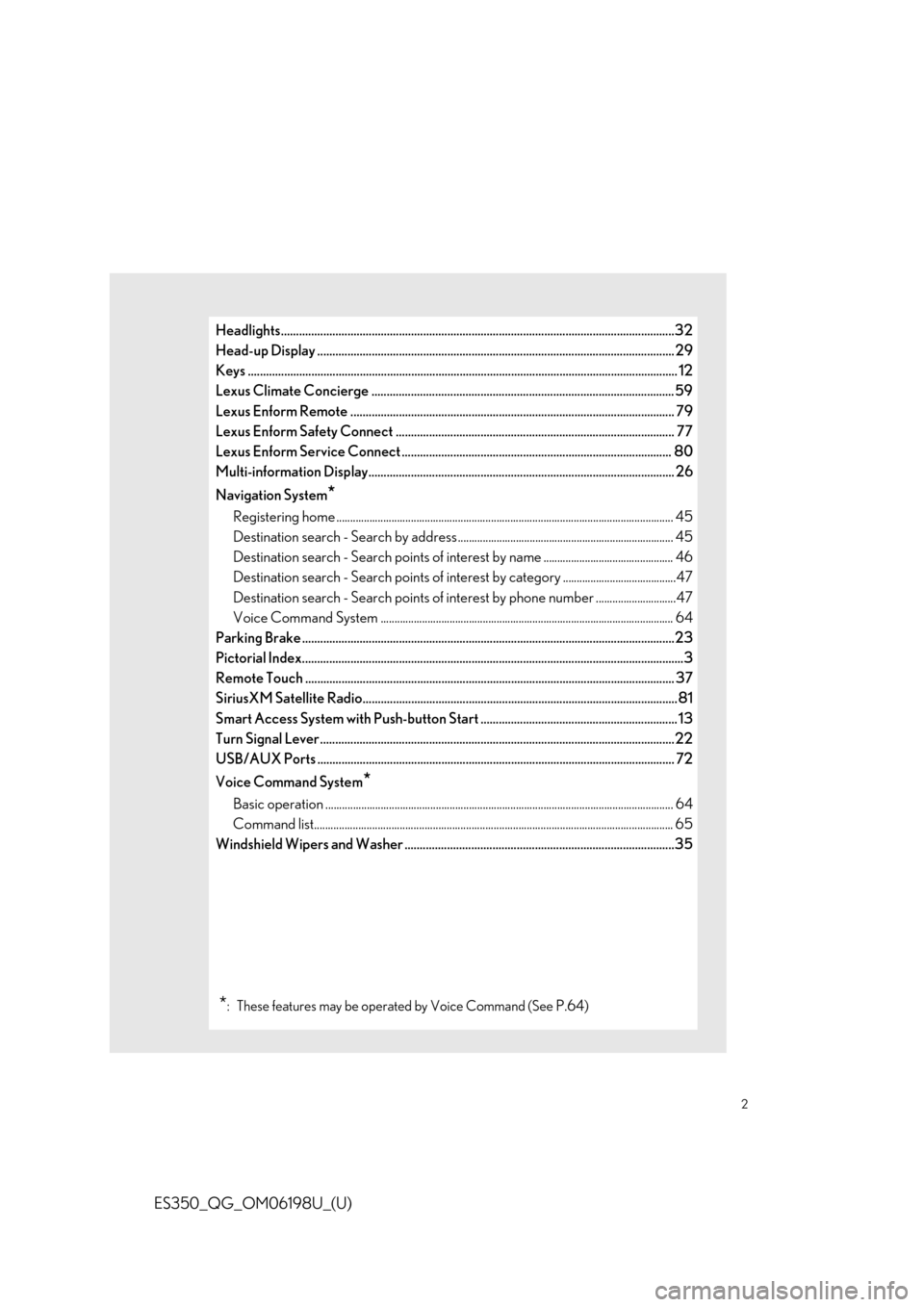
Headlights..................................................................................................................................32
Head-up Display ...................................................................................................................... 29
Keys ........................................................................................................................... ................... 12
Lexus Climate Concierge .................................................................................................... 59
Lexus Enform Remote ........................................................................................................... 7 9
Lexus Enform Safety Connect ............................................................................................ 77
Lexus Enform Service Connect ......................................................................................... 80
Multi-information Display..................................................................................................... 2 6
Navigation System
*
Registering home ............................................................................................................... ........... 45
Destination search - Search by address .............................................................................. 45
Destination search - Search points of intere st by name ............................................... 46
Destination search - Search points of intere st by category .........................................47
Destination search - Search points of interest by phone number .............................47
Voice Command System .......................................................................................................... 6 4
Parking Brake .................................................................................................................. .........23
Pictorial Index................................................................................................................ ..............3
Remote Touch ................................................................................................................... ....... 37
SiriusXM Satellite Radio.......... .............................................................. .................... ............81
Smart Access System with Push-button Start ................................................................. 13
Turn Signal Lever .............................................................................................................. .......22
USB/AUX Ports .................................................................................................................. .... 72
Voice Command System
*
Basic operation ................................................................................................................ .............. 64
Command list................................................................................................................... ............... 65
Windshield Wipers and Washer .........................................................................................35
*: These features may be oper ated by Voice Command (See P.64)
Page 46 of 94
46
ES350_QG_OM06198U_(U)
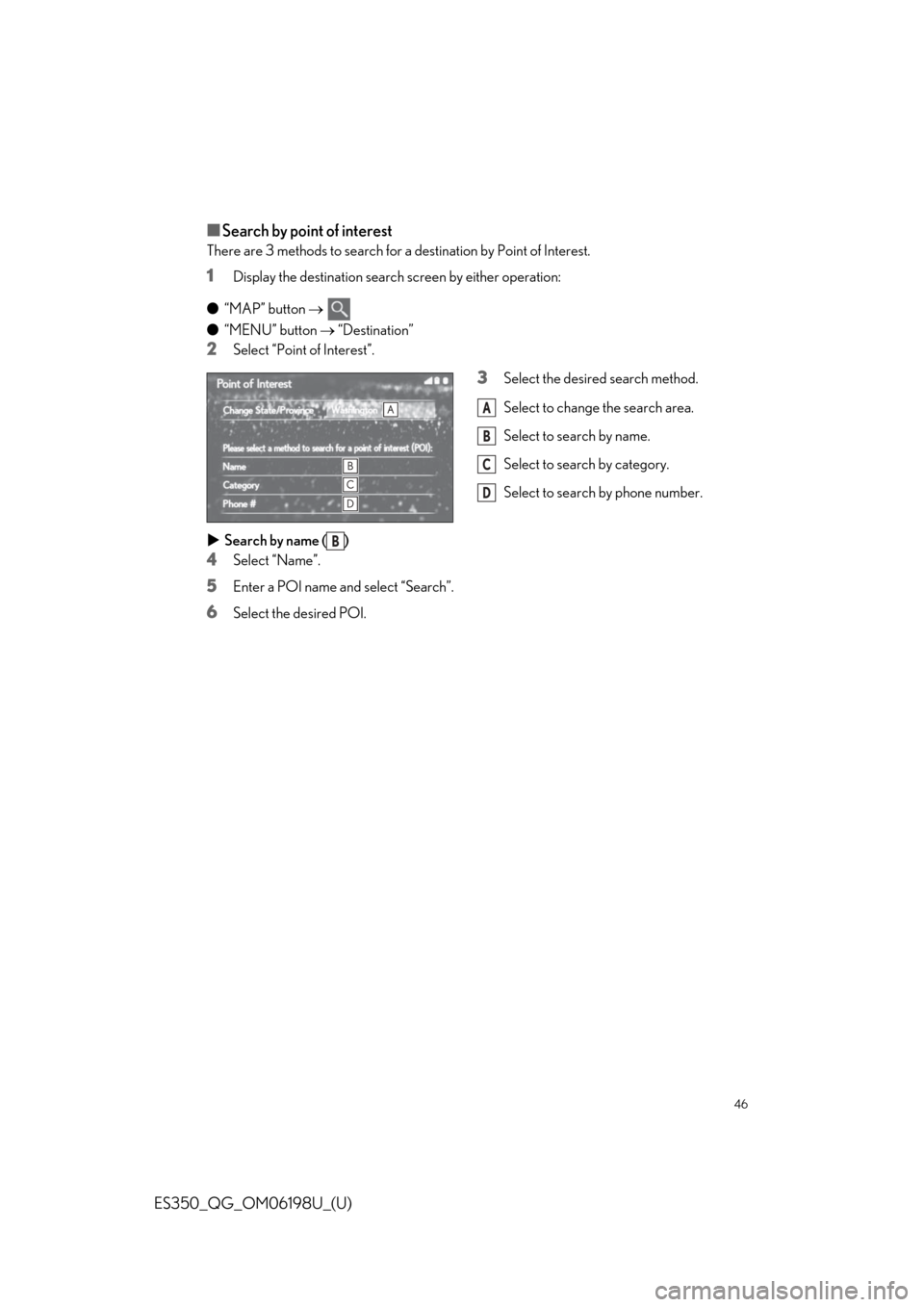
■Search by point of interest
There are 3 methods to search for a destination by Point of Interest.
1Display the destination search screen by either operation:
● “MAP” button
● “MENU” button “Destination”
2Select “Point of Interest”.
3Select the desired search method.
Select to change the search area.
Select to search by name.
Select to search by category.
Select to search by phone number.
Search by name ( )
4Select “Name”.
5Enter a POI name and select “Search”.
6Select the desired POI.
A
B
C
D
B
Page 47 of 94
47
ES350_QG_OM06198U_(U)
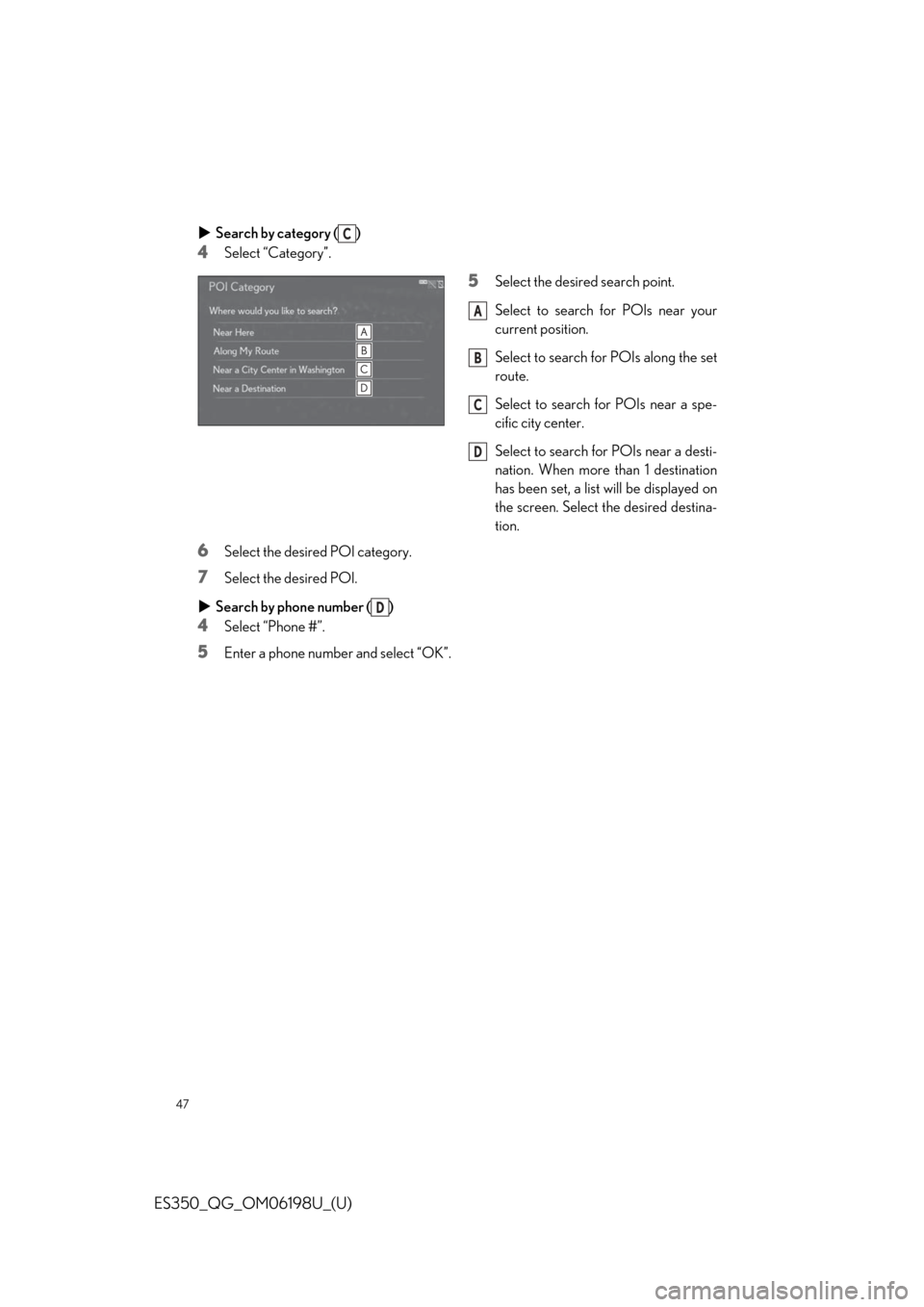
Search by category ( )
4Select “Category”.
5Select the desired search point.
Select to search for POIs near your
current position.
Select to search for POIs along the set
route.
Select to search for POIs near a spe-
cific city center.
Select to search for POIs near a desti-
nation. When more than 1 destination
has been set, a list will be displayed on
the screen. Select the desired destina-
tion.
6Select the desired POI category.
7Select the desired POI.
Search by phone number ( )
4Select “Phone #”.
5Enter a phone number and select “OK”.
C
A
B
C
D
D
Page 48 of 94
48
ES350_QG_OM06198U_(U)
To use the hands-free system, it is necessary to register a Bluetooth® phone with the system.
Refer to http://www.lexus.com/MobileLink
to find approved Bluetooth® phones for this
system.
1Turn the Bluetooth® connection setting of your cellular phone on.
2Press the “MENU” button on the Remote Touch.
3Select “Phone”.
4Select “Yes” to register a phone.
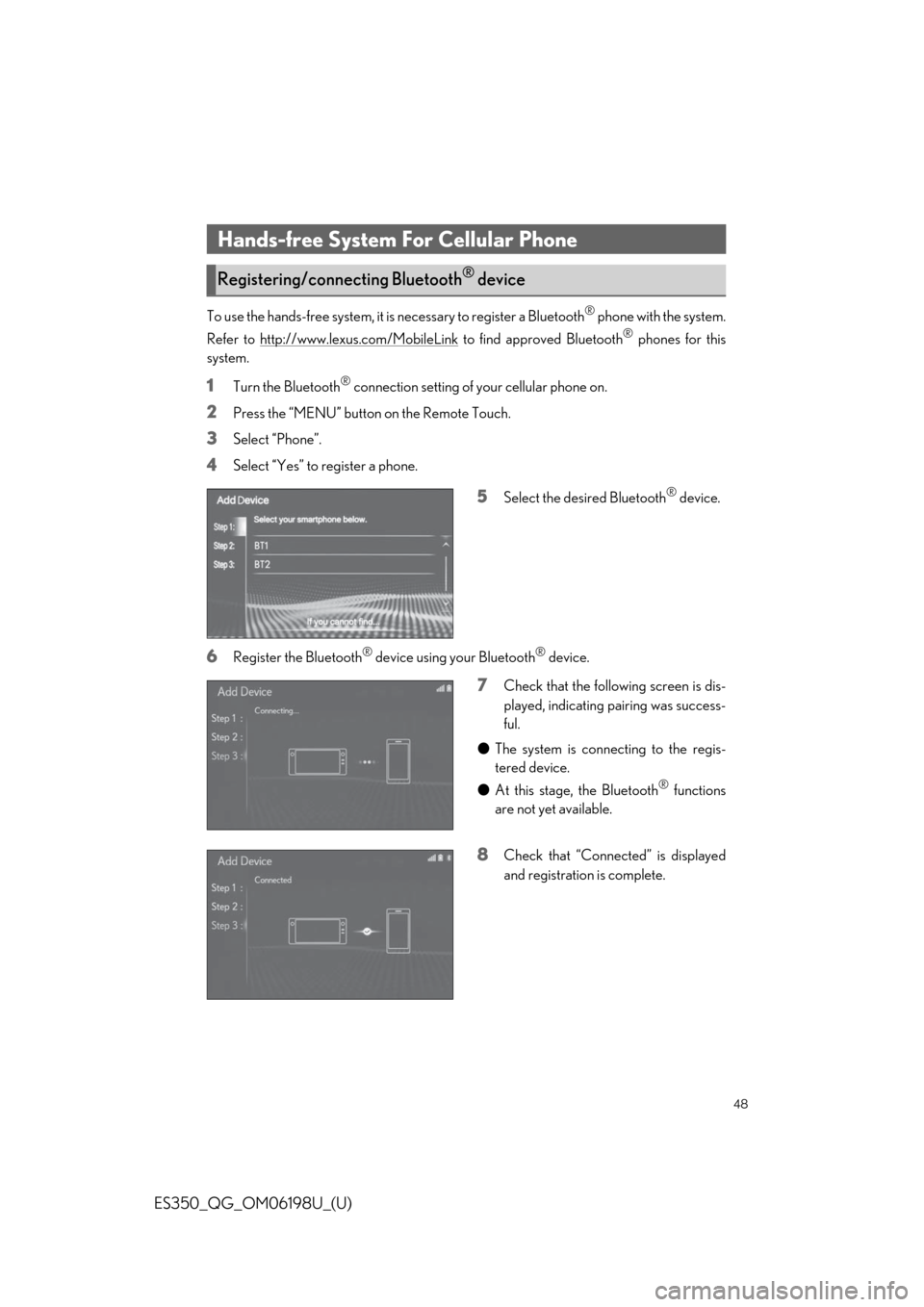
5Select the desired Bluetooth® device.
6Register the Bluetooth® device using your Bluetooth® device.
7Check that the following screen is dis-
played, indicating pairing was success-
ful.
● The system is connecting to the regis-
tered device.
● At this stage, the Bluetooth
® functions
are not yet available.
8Check that “Connect ed” is displayed
and registration is complete.
Hands-free System For Cellular Phone
Registering/connecting Bluetooth® device
Page 49 of 94
49
ES350_QG_OM06198U_(U)
1Display the phone settings screen:
● “MENU” button “Setup” “Phone” on the sub menu
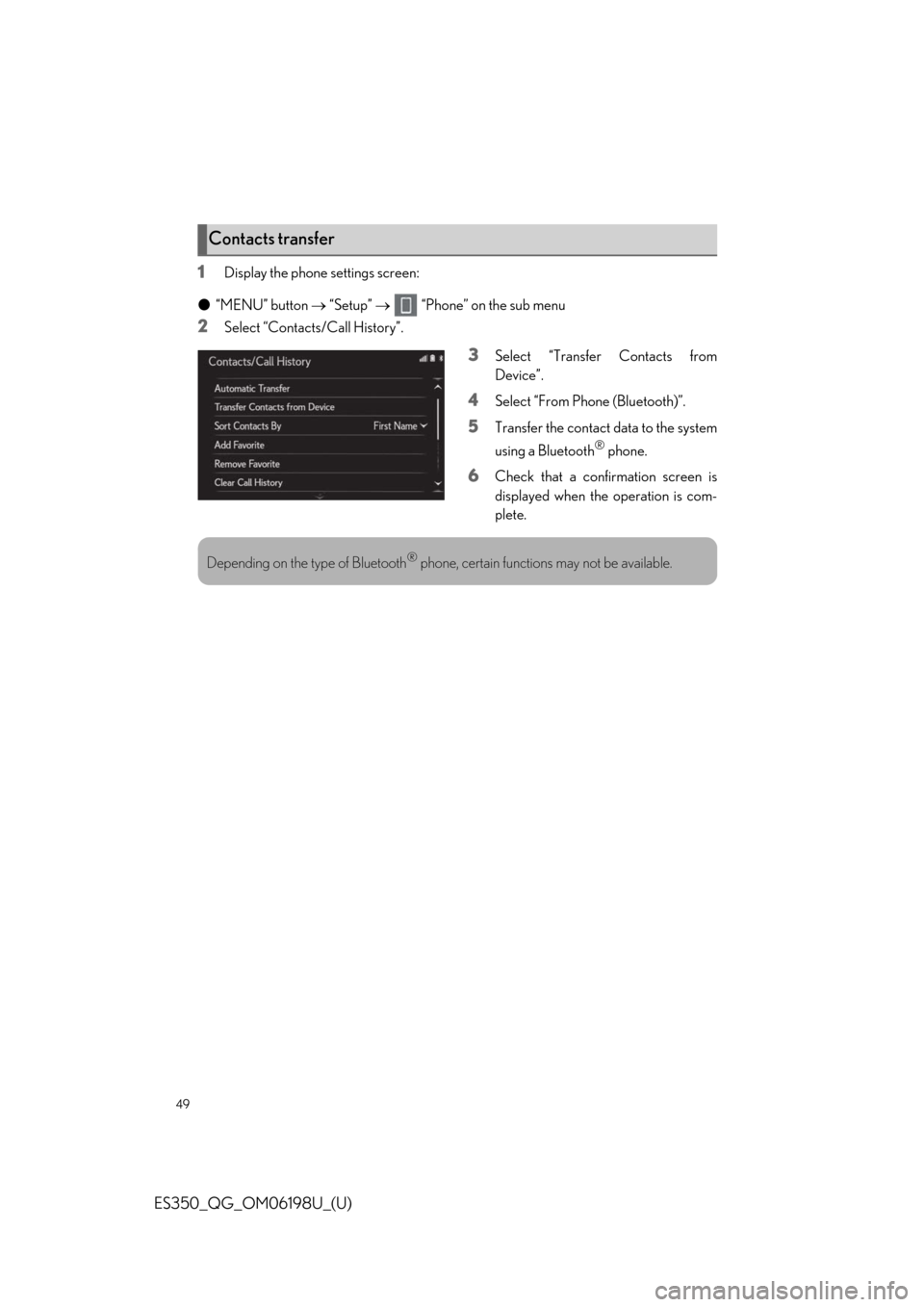
2Select “Contacts/Call History”.
3Select “Transfer Contacts from
Device”.
4Select “From Phone (Bluetooth)”.
5Transfer the contact data to the system
using a Bluetooth
® phone.
6Check that a confirmation screen is
displayed when the operation is com-
plete.
Contacts transfer
Depending on the type of Bluetooth® phone, certain functions may not be available.
Page 50 of 94
50
ES350_QG_OM06198U_(U)
1Display the phone settings screen:
● “MENU” button “Setup” “Phone” on the sub menu
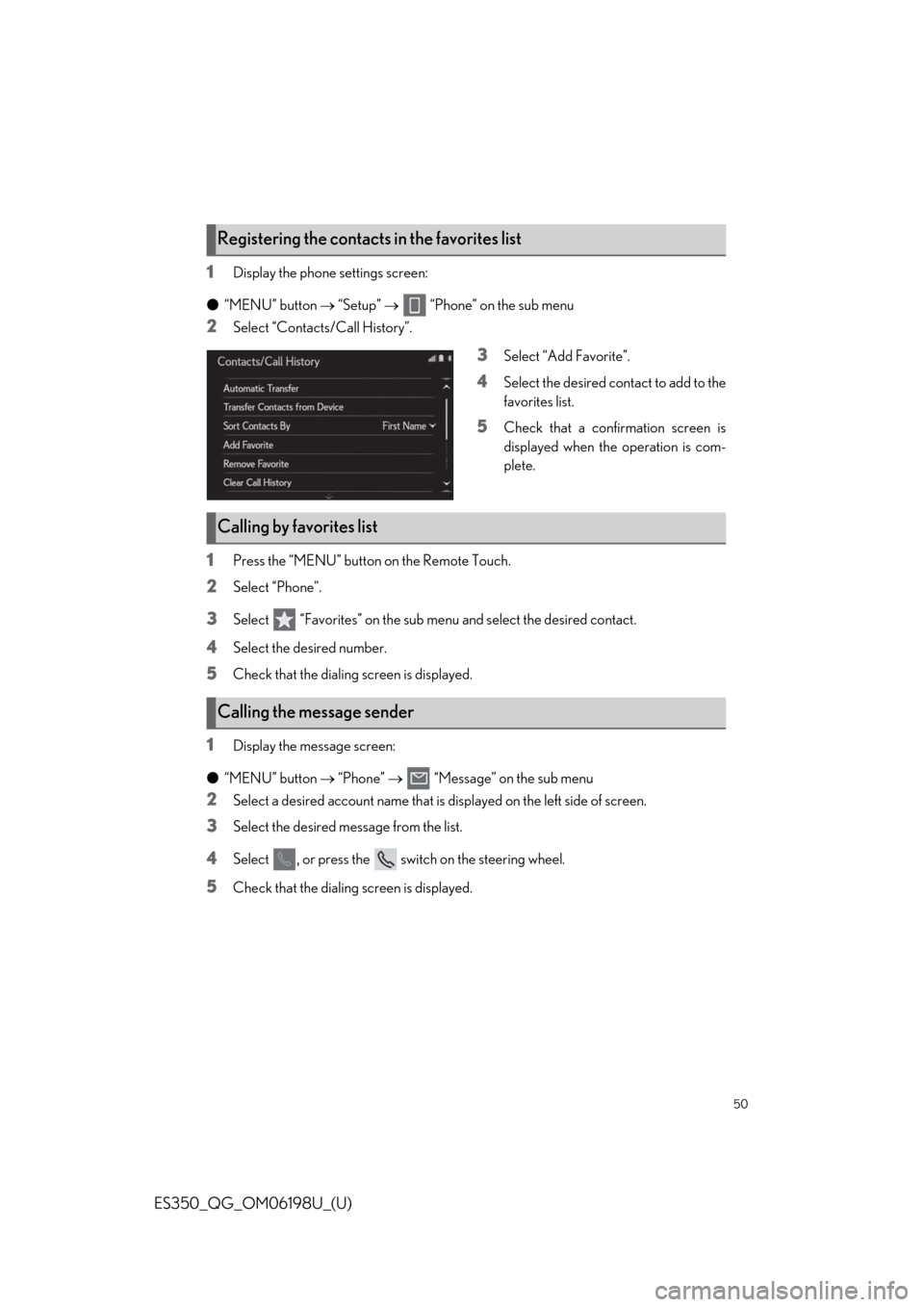
2Select “Contacts/Call History”.
3Select “Add Favorite”.
4Select the desired contact to add to the
favorites list.
5Check that a confir mation screen is
displayed when the operation is com-
plete.
1Press the “MENU” button on the Remote Touch.
2Select “Phone”.
3Select “Favorites” on the sub me nu and select the desired contact.
4Select the desired number.
5Check that the dialing screen is displayed.
1Display the message screen:
● “MENU” button “Phone” “Message” on the sub menu
2Select a desired account name that is displayed on the left side of screen.
3Select the desired message from the list.
4Select , or press the switch on the steering wheel.
5Check that the dialing screen is displayed.
Registering the contacts in the favorites list
Calling by favorites list
Calling the message sender
Page 51 of 94
51
ES350_QG_OM06198U_(U)
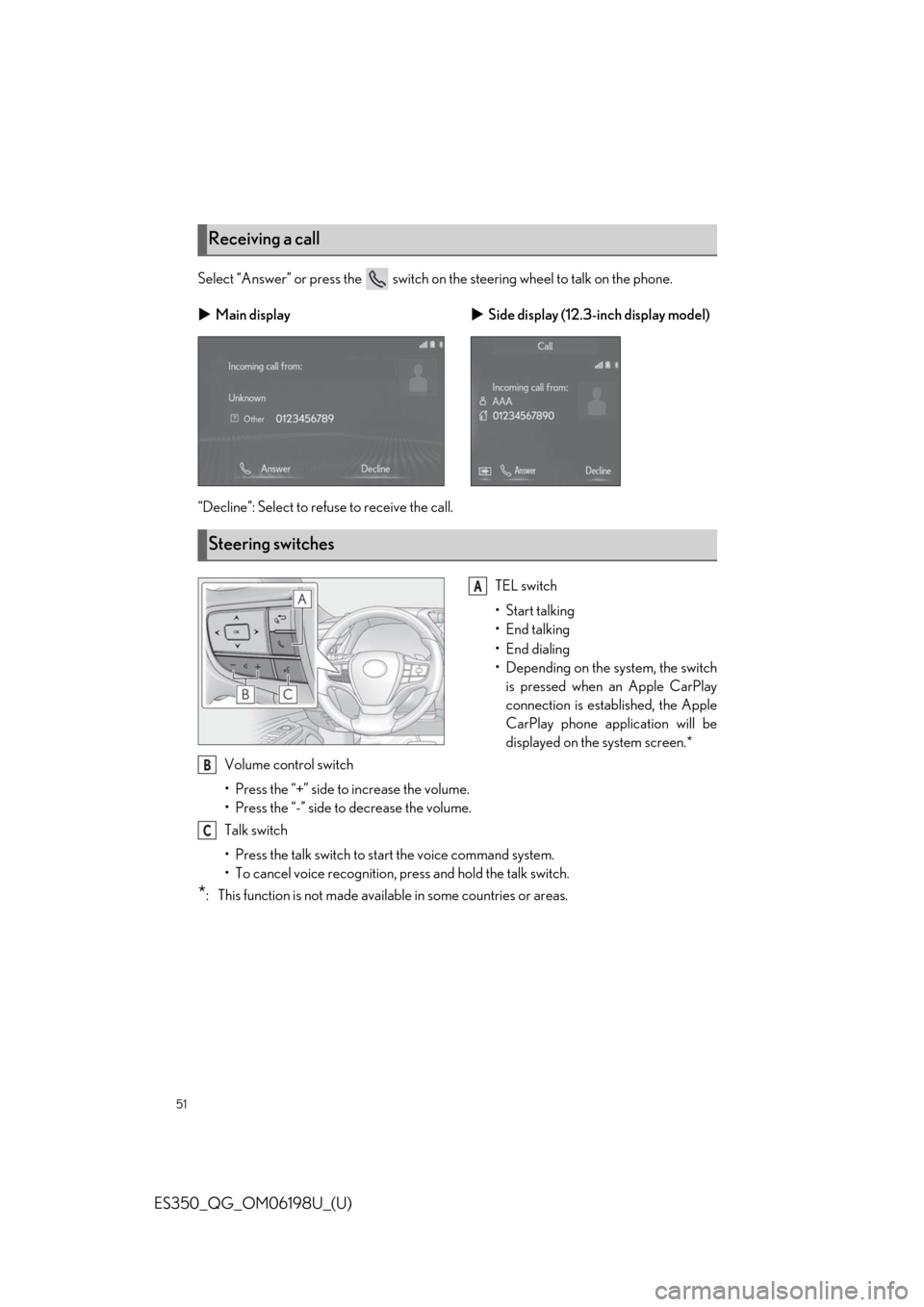
Select “Answer” or press the switch on the steering wheel to talk on the phone.
“Decline”: Select to refuse to receive the call.
TEL switch
• Start talking
• End talking
•End dialing
• Depending on the system, the switchis pressed when an Apple CarPlay
connection is established, the Apple
CarPlay phone application will be
displayed on the system screen.*
Volume control switch
• Press the “+” side to increase the volume.
• Press the “-” side to decrease the volume.
Talk switch
• Press the talk switch to start the voice command system.
• To cancel voice recognition, press and hold the talk switch.
*: This function is not made available in some countries or areas.
Receiving a call
Main display Side display (12.3-inch display model)
Steering switches
A
B
C
Page 53 of 94
53
ES350_QG_OM06198U_(U)
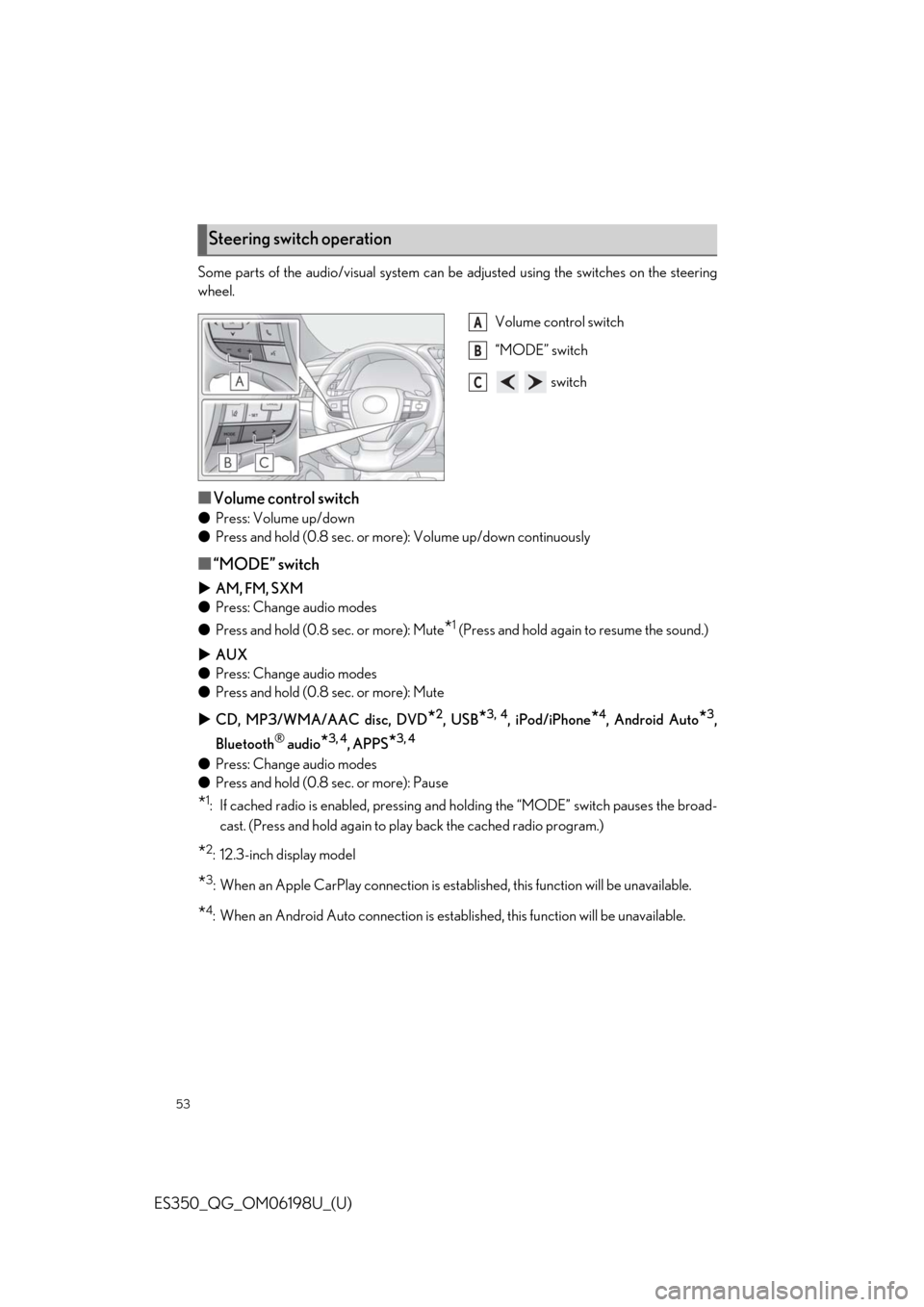
Some parts of the audio/visual system can be adjusted using the switches on the steering
wheel.
Volume control switch
“MODE” switch
switch
■Volume control switch
●Press: Volume up/down
● Press and hold (0.8 sec. or mo re): Volume up/down continuously
■“MODE” switch
AM, FM, SXM
● Press: Change audio modes
● Press and hold (0.8 sec. or more): Mute
*1 (Press and hold again to resume the sound.)
AUX
● Press: Change audio modes
● Press and hold (0.8 sec. or more): Mute
CD, MP3/WMA/AAC disc, DVD
*2, USB*3, 4, iPod/iPhone*4, Android Auto*3,
Bluetooth
® audio*3, 4, APPS*3, 4
● Press: Change audio modes
● Press and hold (0.8 sec. or more): Pause
*1: If cached radio is enabled, pressing and holding the “MODE” switch pauses the broad-
cast. (Press and hold again to play back the cached radio program.)
*2: 12.3-inch display model
*3: When an Apple CarPlay connect ion is established, this function will be unavailable.
*4: When an Android Auto connection is estab lished, this function will be unavailable.
Steering switch operation
A
B
C
Page 54 of 94

54
ES350_QG_OM06198U_(U)
■ switch
AM, FM, HD
● Press: Preset station up/down
● Press and hold (0.8 sec. or more): Seek up/down
● Press and hold (1.5 sec. or more): Seek up /down continuously while the switch is being
pressed
SXM
● Press: Preset channel up/down
● Press and hold (0.8 sec. or more): Seek for stations in the releva nt program type/channel
category
● Press and hold (1.5 sec. or more): Seek for the channel while the switch is being pressed
CD
● Press: Track up/down
● Press and hold (0.8 sec. or more): Fast forward/rewind
MP3/WMA/AAC disc
● Press: File up/down
● Press and hold (0.8 sec. or more): Fast forward/rewind
DVD
*1
●Press: Chapter up/down
● Press and hold (0.8 sec. or more): Fast forward/rewind
USB
*2, 3
●Press: File/Track up/down
● Press and hold (0.8 sec. or more): Fast forward/rewind
iPod/iPhone
*3
●Press: Track up/down
● Press and hold (0.8 sec. or more): Fast forward/rewind
Android Auto
*2
●Press: Track up/down
Bluetooth
® audio*2, 3
●Press: Track up/down
● Press and hold (0.8 sec. or more): Fast forward/rewind
*1: 12.3-inch display model
*2: When an Apple CarPlay connection is establ ished, this function will be unavailable.
*3: When an Android Auto connection is established, this function will be unavailable.