audio Lexus GS300h 2013 Owner's Manual
[x] Cancel search | Manufacturer: LEXUS, Model Year: 2013, Model line: GS300h, Model: Lexus GS300h 2013Pages: 1014
Page 629 of 1014
6095-3. Using the audio system
5
Interior features
GS450h_300h_OM_OM30D53E_(EE)
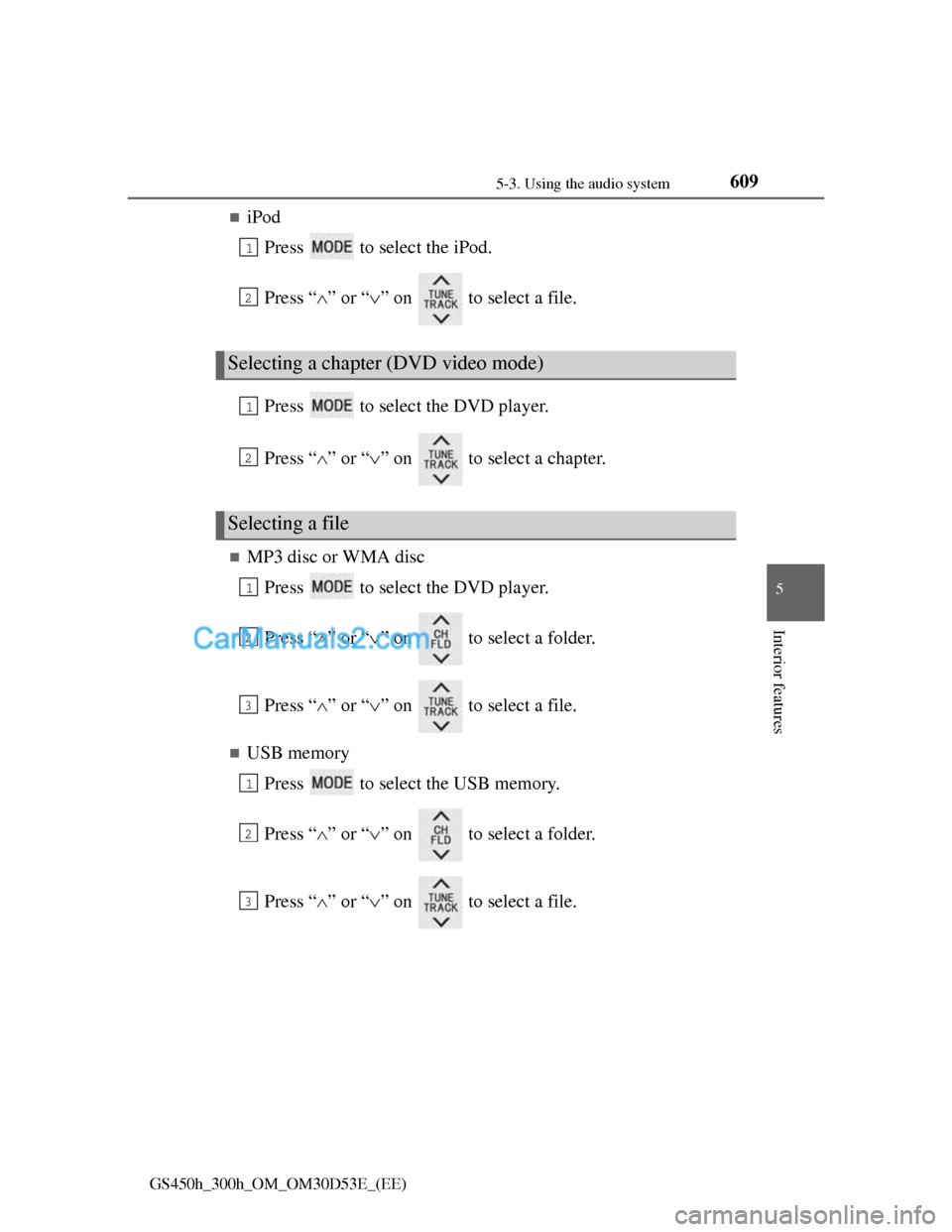
iPod
Press to select the iPod.
Press “” or “” on to select a file.
Press to select the DVD player.
Press “” or “” on to select a chapter.
MP3 disc or WMA disc
Press to select the DVD player.
Press “” or “” on to select a folder.
Press “” or “” on to select a file.
USB memory
Press to select the USB memory.
Press “” or “” on to select a folder.
Press “” or “” on to select a file.
Selecting a chapter (DVD video mode)
Selecting a file
1
2
1
2
1
2
3
1
2
3
Page 630 of 1014
6105-3. Using the audio system
GS450h_300h_OM_OM30D53E_(EE)
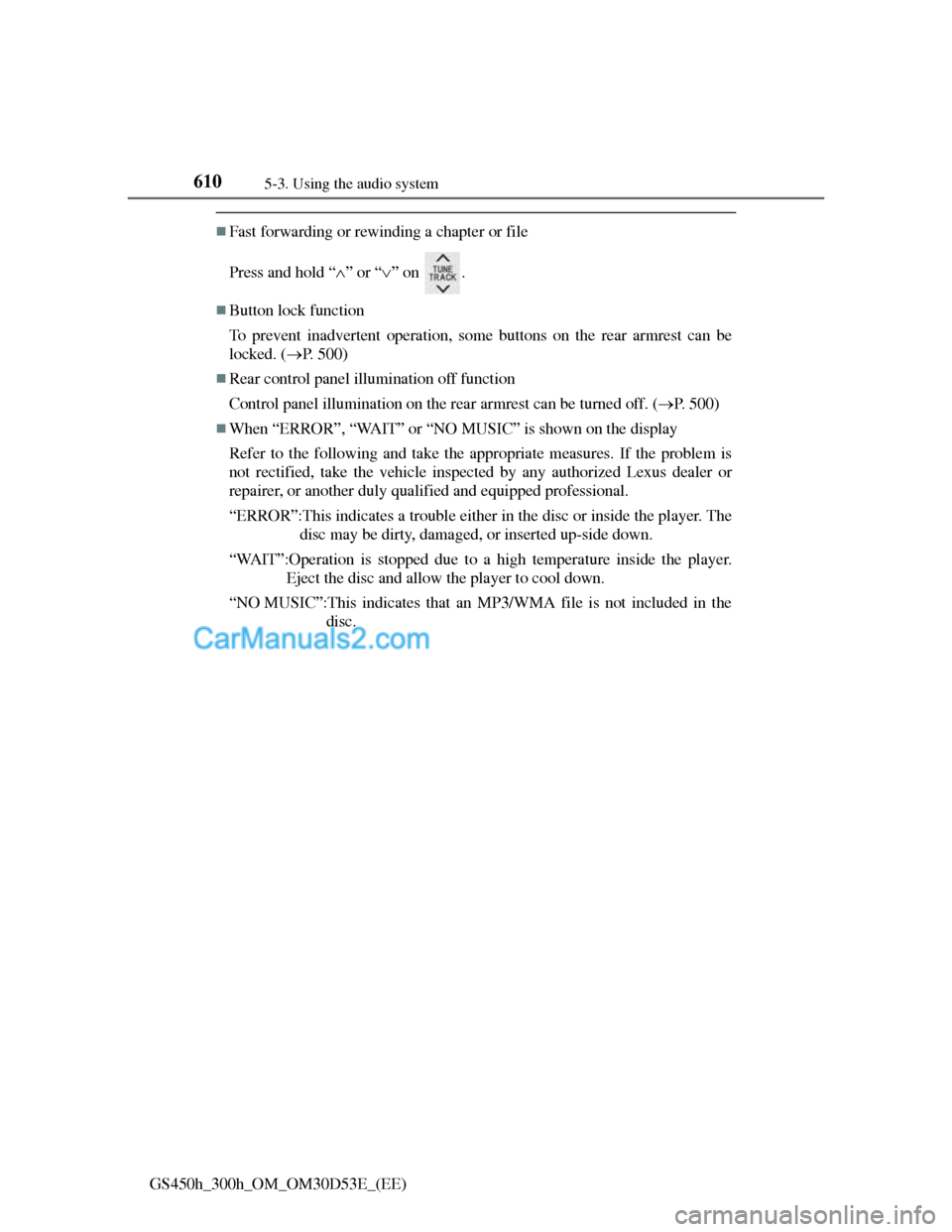
Fast forwarding or rewinding a chapter or file
Press and hold “” or “” on .
Button lock function
To prevent inadvertent operation, some buttons on the rear armrest can be
locked. (P. 500)
Rear control panel illumination off function
Control panel illumination on the rear armrest can be turned off. (P. 500)
When “ERROR”, “WAIT” or “NO MUSIC” is shown on the display
Refer to the following and take the appropriate measures. If the problem is
not rectified, take the vehicle inspected by any authorized Lexus dealer or
repairer, or another duly qualified and equipped professional.
“ERROR”:This indicates a trouble either in the disc or inside the player. The
disc may be dirty, damaged, or inserted up-side down.
“WAIT”:Operation is stopped due to a high temperature inside the player.
Eject the disc and allow the player to cool down.
“NO MUSIC”:This indicates that an MP3/WMA file is not included in the
disc.
Page 631 of 1014
6115-3. Using the audio system
5
Interior features
GS450h_300h_OM_OM30D53E_(EE)
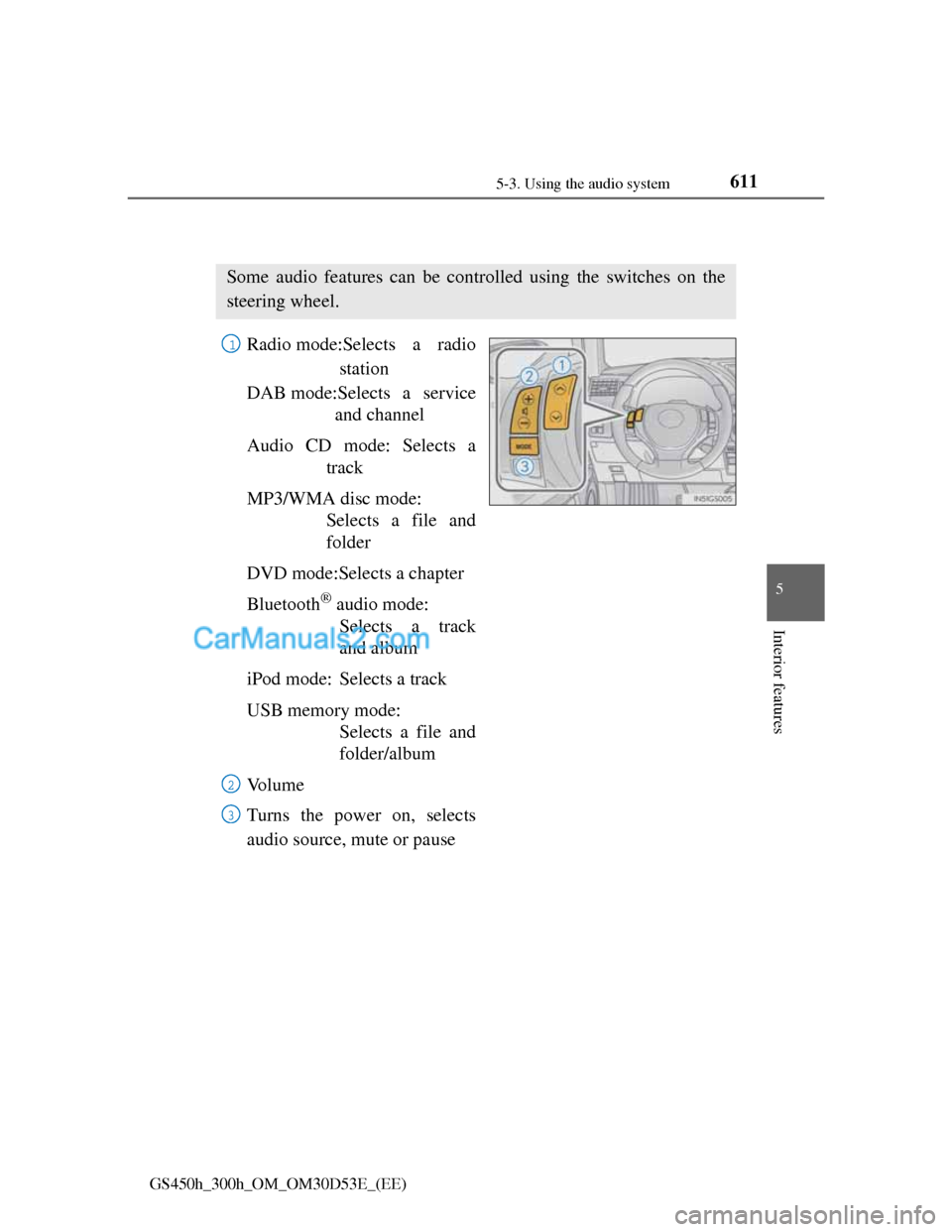
Using the steering wheel audio switches
Radio mode:Selects a radio
station
DAB mode:Selects a service
and channel
Audio CD mode: Selects a
track
MP3/WMA disc mode:
Selects a file and
folder
DVD mode:Selects a chapter
Bluetooth
® audio mode:
Selects a track
and album
iPod mode: Selects a track
USB memory mode:
Selects a file and
folder/album
Vo l u m e
Turns the power on, selects
audio source, mute or pause
Some audio features can be controlled using the switches on the
steering wheel.
1
2
3
Page 632 of 1014
6125-3. Using the audio system
GS450h_300h_OM_OM30D53E_(EE)
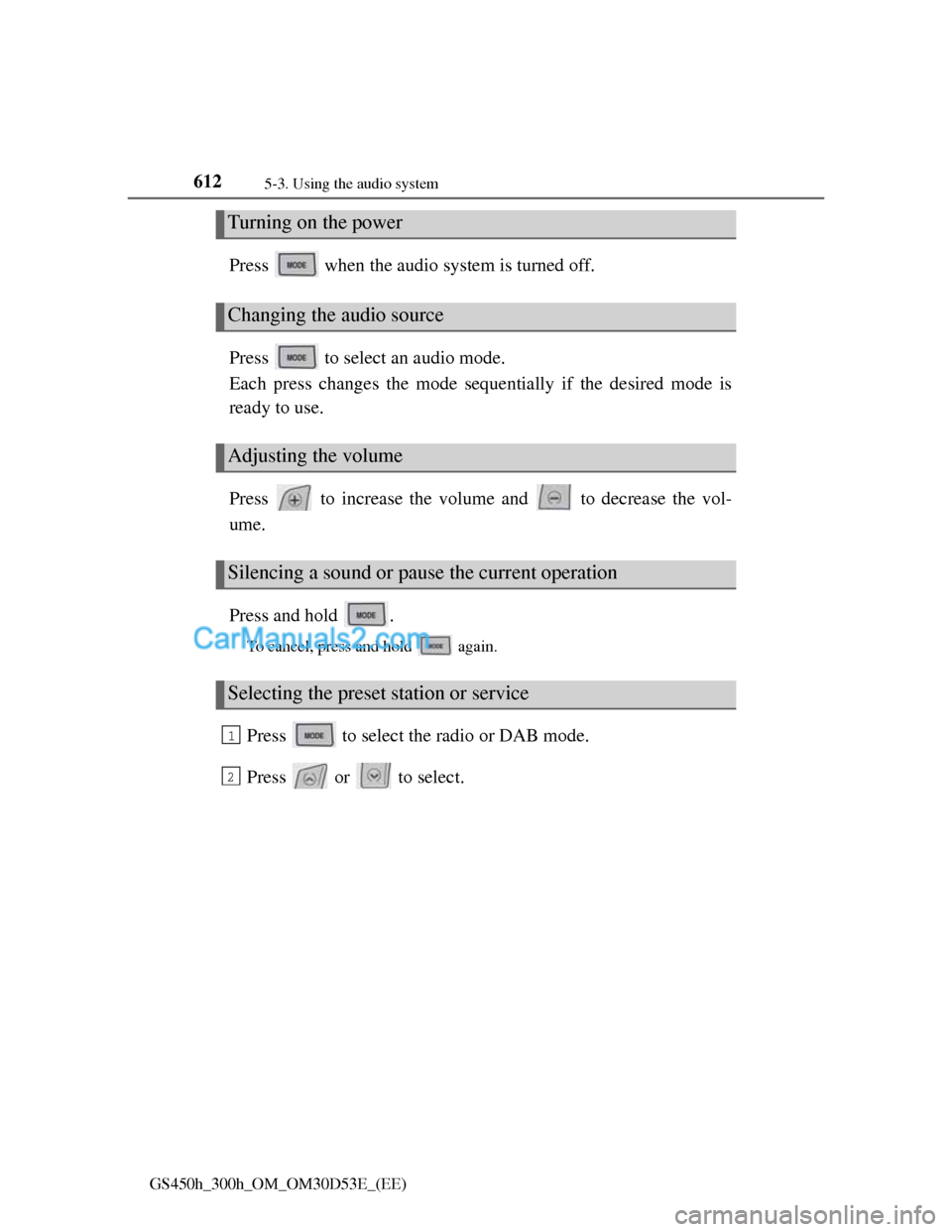
Press when the audio system is turned off.
Press to select an audio mode.
Each press changes the mode sequentially if the desired mode is
ready to use.
Press to increase the volume and to decrease the vol-
ume.
Press and hold .
To cancel, press and hold again.
Press to select the radio or DAB mode.
Press or to select.
Turning on the power
Changing the audio source
Adjusting the volume
Silencing a sound or pause the current operation
Selecting the preset station or service
1
2
Page 633 of 1014
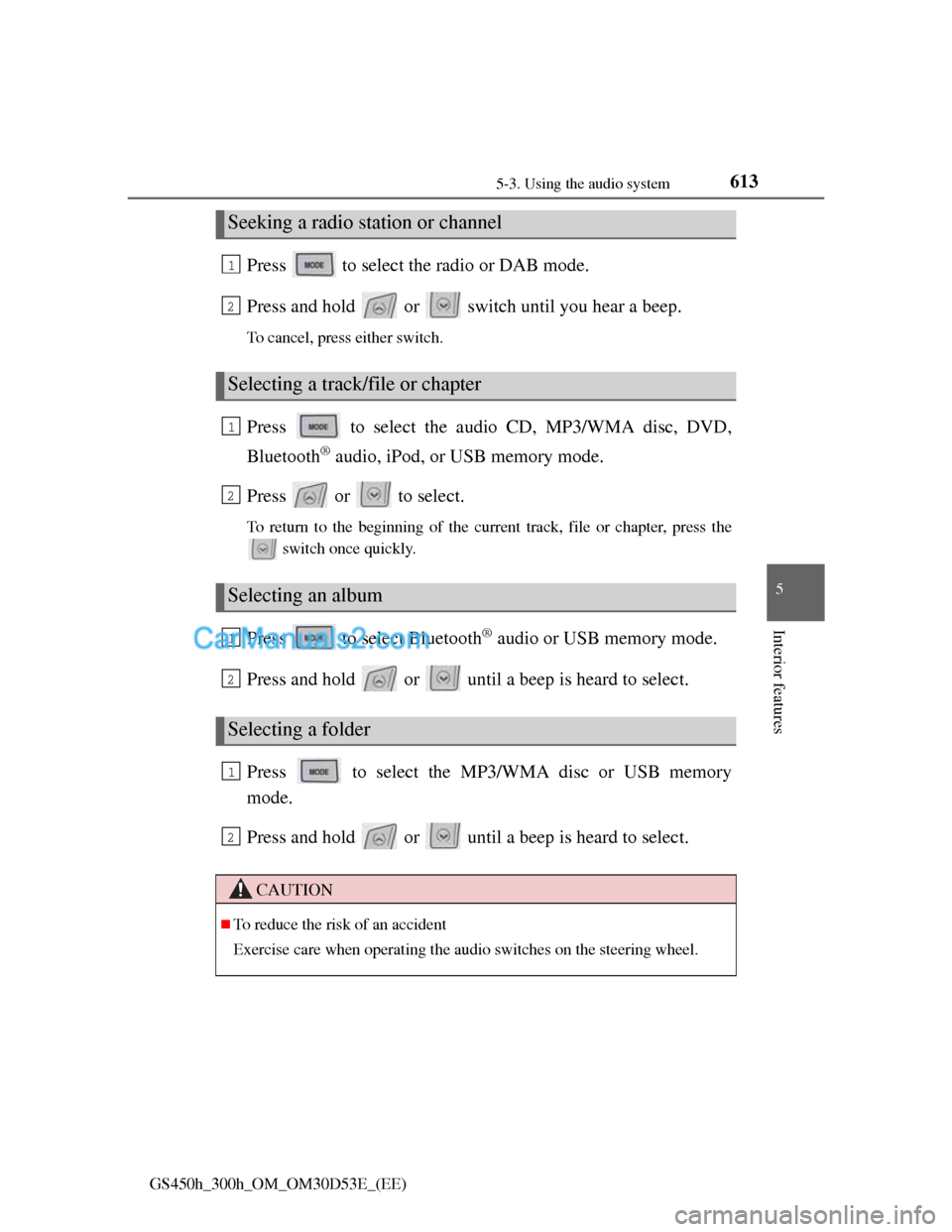
6135-3. Using the audio system
5
Interior features
GS450h_300h_OM_OM30D53E_(EE)
Press to select the radio or DAB mode.
Press and hold or switch until you hear a beep.
To cancel, press either switch.
Press to select the audio CD, MP3/WMA disc, DVD,
Bluetooth
® audio, iPod, or USB memory mode.
Press or to select.
To return to the beginning of the current track, file or chapter, press the
switch once quickly.
Press to select Bluetooth® audio or USB memory mode.
Press and hold or until a beep is heard to select.
Press to select the MP3/WMA disc or USB memory
mode.
Press and hold or until a beep is heard to select.
Seeking a radio station or channel
Selecting a track/file or chapter
Selecting an album
Selecting a folder
CAUTION
To reduce the risk of an accident
Exercise care when operating the audio switches on the steering wheel.
1
2
1
2
1
2
1
2
Page 638 of 1014
6155-4. Using the hands-free phone system(for cellular phone)
5
Interior features
GS450h_300h_OM_OM30D53E_(EE)
When using the hands-free system
The audio system is muted when making a call.
If both parties speak at the same time, it may be difficult to hear.
If the incoming call volume is overly loud, an echo may be heard.
Try to face toward the microphone as much as possible when speaking.
In the following circumstances, it may be difficult to hear the other party:
• When driving on unpaved roads
• When driving at high speeds
• If a window is open
• If the air conditioning is blowing directly on the microphone
• If the air conditioning is set to high
• There is an effect from the network of the cellular phone
Conditions under which the system will not operate
If using a cellular phone that does not support Bluetooth®
If the cellular phone is turned off
If you are outside service range
If the cellular phone is not connected
If the cellular phone’s battery is low
Bluetooth® antenna
The antenna is built into the instrument panel. If the cellular phone is behind
the seat or in the console box, or touching or covered by metal objects, con-
nection status may deteriorate.
Battery charge/Signal status
This display may not correspond exactly with the cellular phone itself.
When the cellular phone is not connected, “No connect” is displayed.
When the cellular phone is out of the service area or in a place inaccessible
by radio waves, “No service” is displayed.
When using Bluetooth® audio and hands-free system at the same time
The following problems may occur.
The Bluetooth® connection may be cut.
Noise may be heard on the Bluetooth® audio playback.
Page 647 of 1014
6245-4. Using the hands-free phone system(for cellular phone)
GS450h_300h_OM_OM30D53E_(EE)
For vehicles sold in Albania
For vehicles sold in Croatia
CAUTION
Caution while driving
Vehicles without navigation system
Do not use the cellular phone or connect the Bluetooth
® system.
Vehicles with navigation system
Use a cellular phone or connect the Bluetooth
® phone only when safe and
legal to do so.
Caution regarding interference with electronic devices
Your audio unit is fitted with Bluetooth® antennas. People with implant-
able cardiac pacemakers, cardiac resynchronization therapy-pacemakers
or implantable cardioverter defibrillators should maintain a reasonable
distance between themselves and the Bluetooth
® antennas. The radio
waves may affect the operation of such devices.
Before using Bluetooth® devices, users of any electrical medical device
other than implantable cardiac pacemakers, cardiac resynchronization
therapy-pacemakers or implantable cardioverter defibrillators should con-
sult the manufacturer of the device for information about its operation
under the influence of radio waves. Radio waves could have unexpected
effects on the operation of such medical devices.
NOTICE
When leaving the vehicle
Do not leave your cellular phone in the vehicle. The inside of the vehicle
may become hot, causing damage to the phone.
Page 652 of 1014
6295-4. Using the hands-free phone system(for cellular phone)
5
Interior features
GS450h_300h_OM_OM30D53E_(EE)
Reconnecting to the Bluetooth® phone
If the system cannot connect due to poor signal strength with the power
switch in ACCESSORY or ON mode, the system will automatically attempt
to reconnect.
If the phone is turned off, the system will not attempt to reconnect. In this
case, it must be connected manually, or the phone must be re-selected or re-
entered.
Connecting the phone while Bluetooth® audio is playing
Bluetooth® audio will stop temporarily.
It may take time to connect.
Connecting the phone while another Bluetooth® device is connected
When another Bluetooth
® device is currently connected, a confirmation mes-
sage will be displayed. To disconnect the Bluetooth® device, select “Yes”.
Connecting the phone while 5 Bluetooth® devices have already been regis-
tered
When 5 Bluetooth
® devices have already been registered, a registered device
needs to be deleted. Select “Yes” to delete one or more.
Select the device to be deleted, then select “Remove”, and “Yes”.
If the Bluetooth® phone has a Bluetooth® audio function
When the Bluetooth
® phone to be registered has a Bluetooth® audio function,
this audio function will be registered automatically at the same time and con-
firmation message may be displayed. If this screen is displayed, select “Yes”
to connect the audio function or select “No” to cancel the connection.
Page 700 of 1014
6775-4. Using the hands-free phone system(for cellular phone)
5
Interior features
GS450h_300h_OM_OM30D53E_(EE)
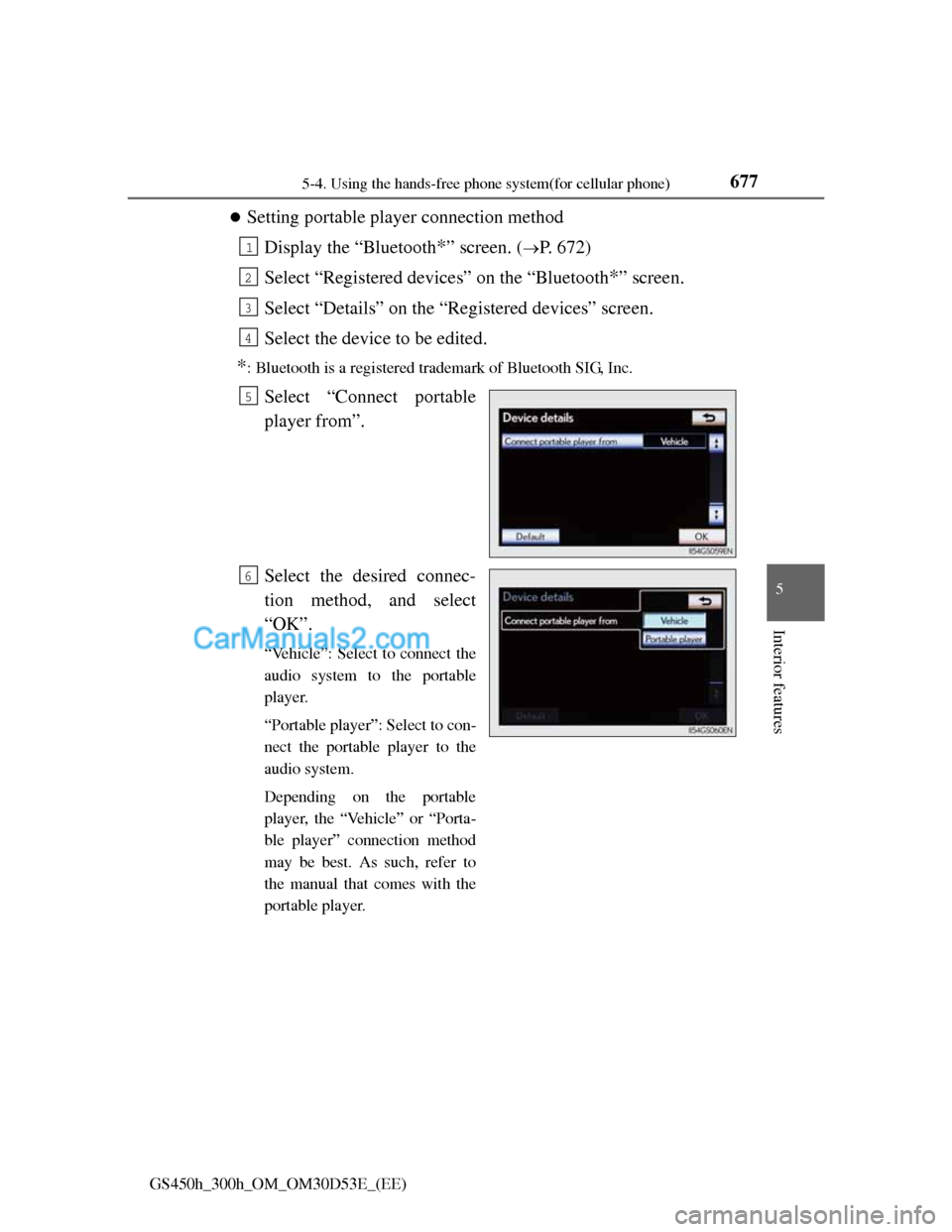
Setting portable player connection method
Display the “Bluetooth
*” screen. (P. 672)
Select “Registered devices” on the “Bluetooth
*” screen.
Select “Details” on the “Registered devices” screen.
Select the device to be edited.
*: Bluetooth is a registered trademark of Bluetooth SIG, Inc.
Select “Connect portable
player from”.
Select the desired connec-
tion method, and select
“OK”.
“Vehicle”: Select to connect the
audio system to the portable
player.
“Portable player”: Select to con-
nect the portable player to the
audio system.
Depending on the portable
player, the “Vehicle” or “Porta-
ble player” connection method
may be best. As such, refer to
the manual that comes with the
portable player.
1
2
3
4
5
6
Page 702 of 1014
6795-4. Using the hands-free phone system(for cellular phone)
5
Interior features
GS450h_300h_OM_OM30D53E_(EE)
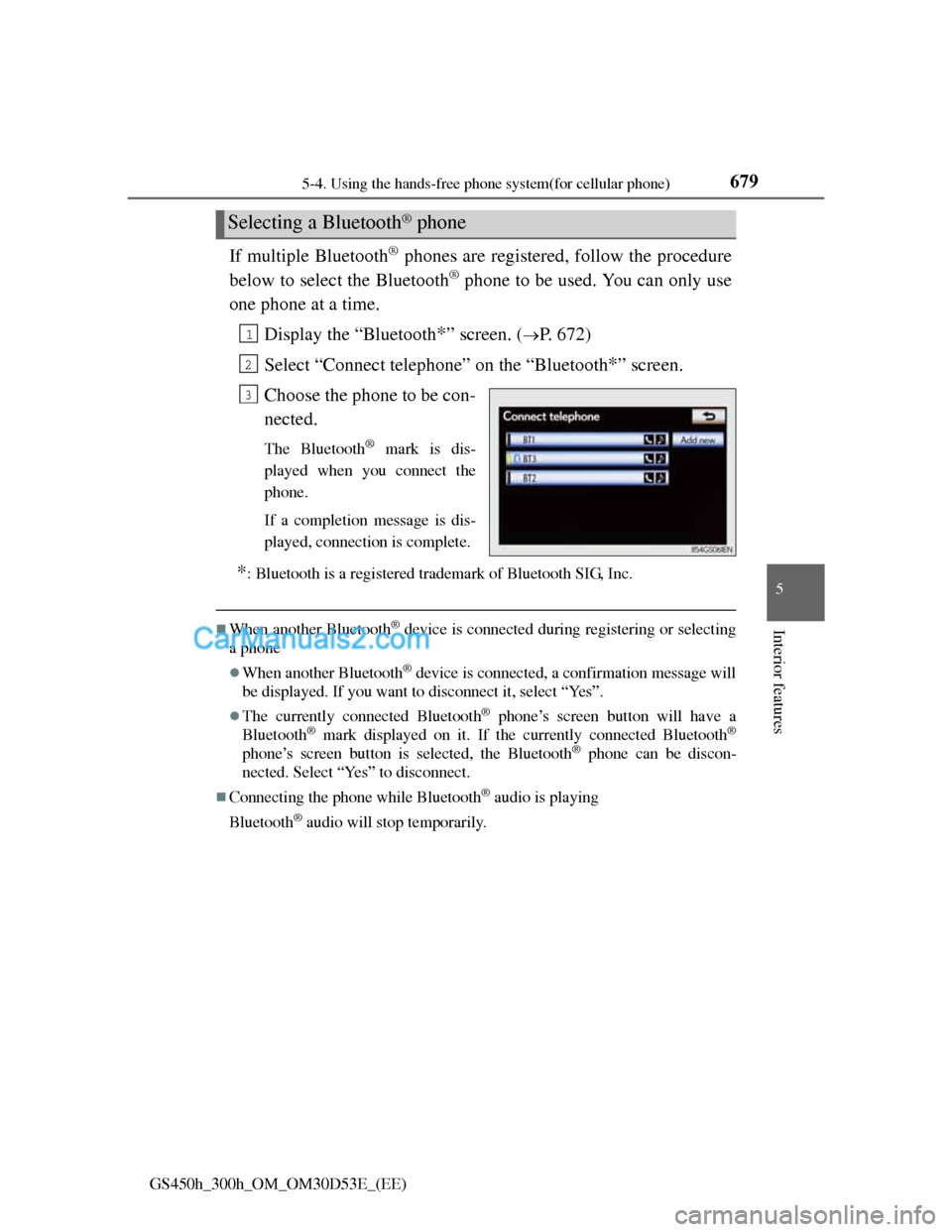
If multiple Bluetooth® phones are registered, follow the procedure
below to select the Bluetooth
® phone to be used. You can only use
one phone at a time.
Display the “Bluetooth
*” screen. (P. 672)
Select “Connect telephone” on the “Bluetooth
*” screen.
Choose the phone to be con-
nected.
The Bluetooth® mark is dis-
played when you connect the
phone.
If a completion message is dis-
played, connection is complete.
*: Bluetooth is a registered trademark of Bluetooth SIG, Inc.
When another Bluetooth® device is connected during registering or selecting
a phone
When another Bluetooth® device is connected, a confirmation message will
be displayed. If you want to disconnect it, select “Yes”.
The currently connected Bluetooth® phone’s screen button will have a
Bluetooth® mark displayed on it. If the currently connected Bluetooth®
phone’s screen button is selected, the Bluetooth® phone can be discon-
nected. Select “Yes” to disconnect.
Connecting the phone while Bluetooth® audio is playing
Bluetooth
® audio will stop temporarily.
Selecting a Bluetooth® phone
1
2
3