USB Lexus GS300h 2013 User Guide
[x] Cancel search | Manufacturer: LEXUS, Model Year: 2013, Model line: GS300h, Model: Lexus GS300h 2013Pages: 1014
Page 607 of 1014
5875-3. Using the audio system
5
Interior features
GS450h_300h_OM_OM30D53E_(EE)
If you select
The display returns to the previous screen.
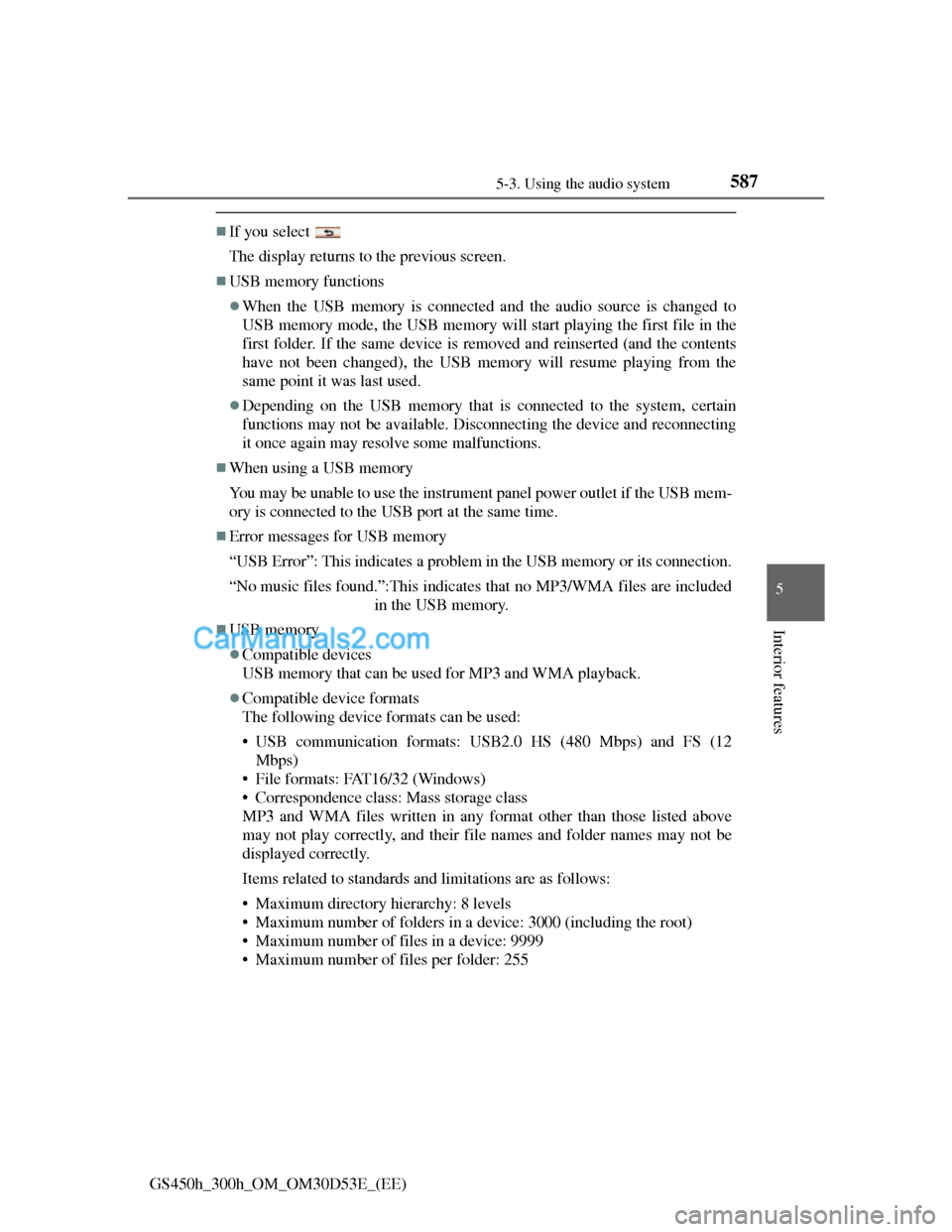
USB memory functions
When the USB memory is connected and the audio source is changed to
USB memory mode, the USB memory will start playing the first file in the
first folder. If the same device is removed and reinserted (and the contents
have not been changed), the USB memory will resume playing from the
same point it was last used.
Depending on the USB memory that is connected to the system, certain
functions may not be available. Disconnecting the device and reconnecting
it once again may resolve some malfunctions.
When using a USB memory
You may be unable to use the instrument panel power outlet if the USB mem-
ory is connected to the USB port at the same time.
Error messages for USB memory
“USB Error”: This indicates a problem in the USB memory or its connection.
“No music files found.”:This indicates that no MP3/WMA files are included
in the USB memory.
USB memory
Compatible devices
USB memory that can be used for MP3 and WMA playback.
Compatible device formats
The following device formats can be used:
• USB communication formats: USB2.0 HS (480 Mbps) and FS (12
Mbps)
• File formats: FAT16/32 (Windows)
• Correspondence class: Mass storage class
MP3 and WMA files written in any format other than those listed above
may not play correctly, and their file names and folder names may not be
displayed correctly.
Items related to standards and limitations are as follows:
• Maximum directory hierarchy: 8 levels
• Maximum number of folders in a device: 3000 (including the root)
• Maximum number of files in a device: 9999
• Maximum number of files per folder: 255
Page 609 of 1014
5895-3. Using the audio system
5
Interior features
GS450h_300h_OM_OM30D53E_(EE)
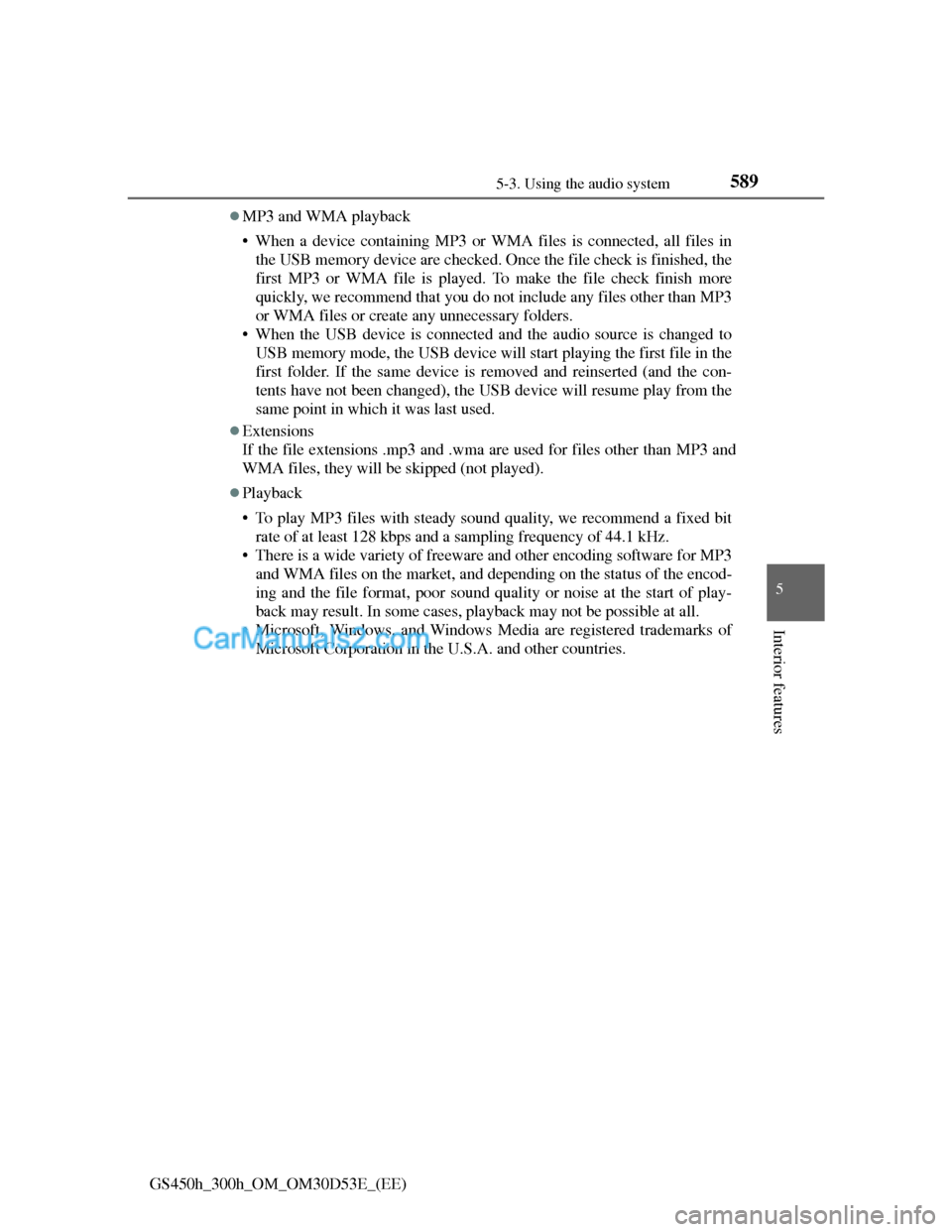
MP3 and WMA playback
• When a device containing MP3 or WMA files is connected, all files in
the USB memory device are checked. Once the file check is finished, the
first MP3 or WMA file is played. To make the file check finish more
quickly, we recommend that you do not include any files other than MP3
or WMA files or create any unnecessary folders.
• When the USB device is connected and the audio source is changed to
USB memory mode, the USB device will start playing the first file in the
first folder. If the same device is removed and reinserted (and the con-
tents have not been changed), the USB device will resume play from the
same point in which it was last used.
Extensions
If the file extensions .mp3 and .wma are used for files other than MP3 and
WMA files, they will be skipped (not played).
Playback
• To play MP3 files with steady sound quality, we recommend a fixed bit
rate of at least 128 kbps and a sampling frequency of 44.1 kHz.
• There is a wide variety of freeware and other encoding software for MP3
and WMA files on the market, and depending on the status of the encod-
ing and the file format, poor sound quality or noise at the start of play-
back may result. In some cases, playback may not be possible at all.
• Microsoft, Windows, and Windows Media are registered trademarks of
Microsoft Corporation in the U.S.A. and other countries.
Page 610 of 1014
5905-3. Using the audio system
GS450h_300h_OM_OM30D53E_(EE)
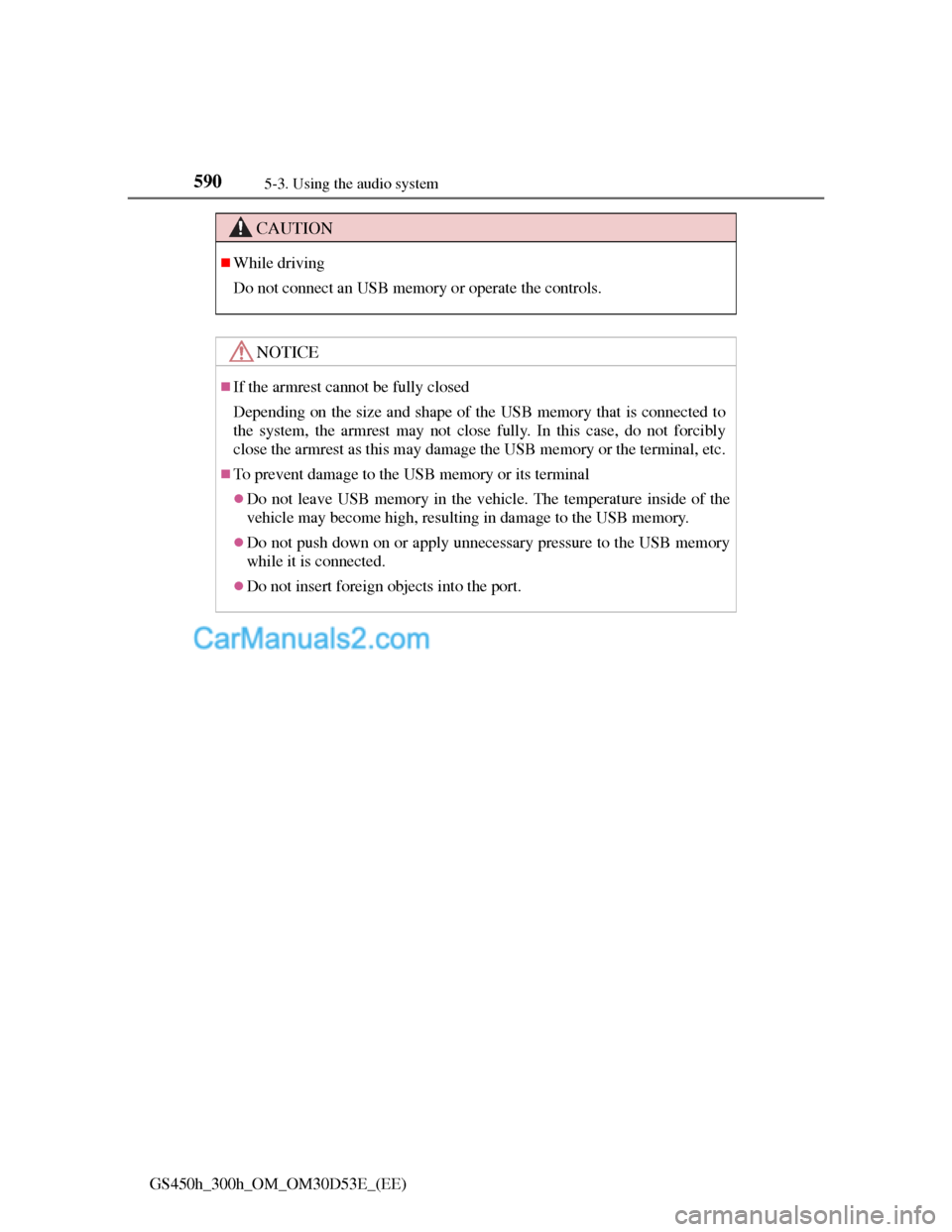
CAUTION
While driving
Do not connect an USB memory or operate the controls.
NOTICE
If the armrest cannot be fully closed
Depending on the size and shape of the USB memory that is connected to
the system, the armrest may not close fully. In this case, do not forcibly
close the armrest as this may damage the USB memory or the terminal, etc.
To prevent damage to the USB memory or its terminal
Do not leave USB memory in the vehicle. The temperature inside of the
vehicle may become high, resulting in damage to the USB memory.
Do not push down on or apply unnecessary pressure to the USB memory
while it is connected.
Do not insert foreign objects into the port.
Page 619 of 1014
599
5 5-3. Using the audio system
Interior features
GS450h_300h_OM_OM30D53E_(EE)
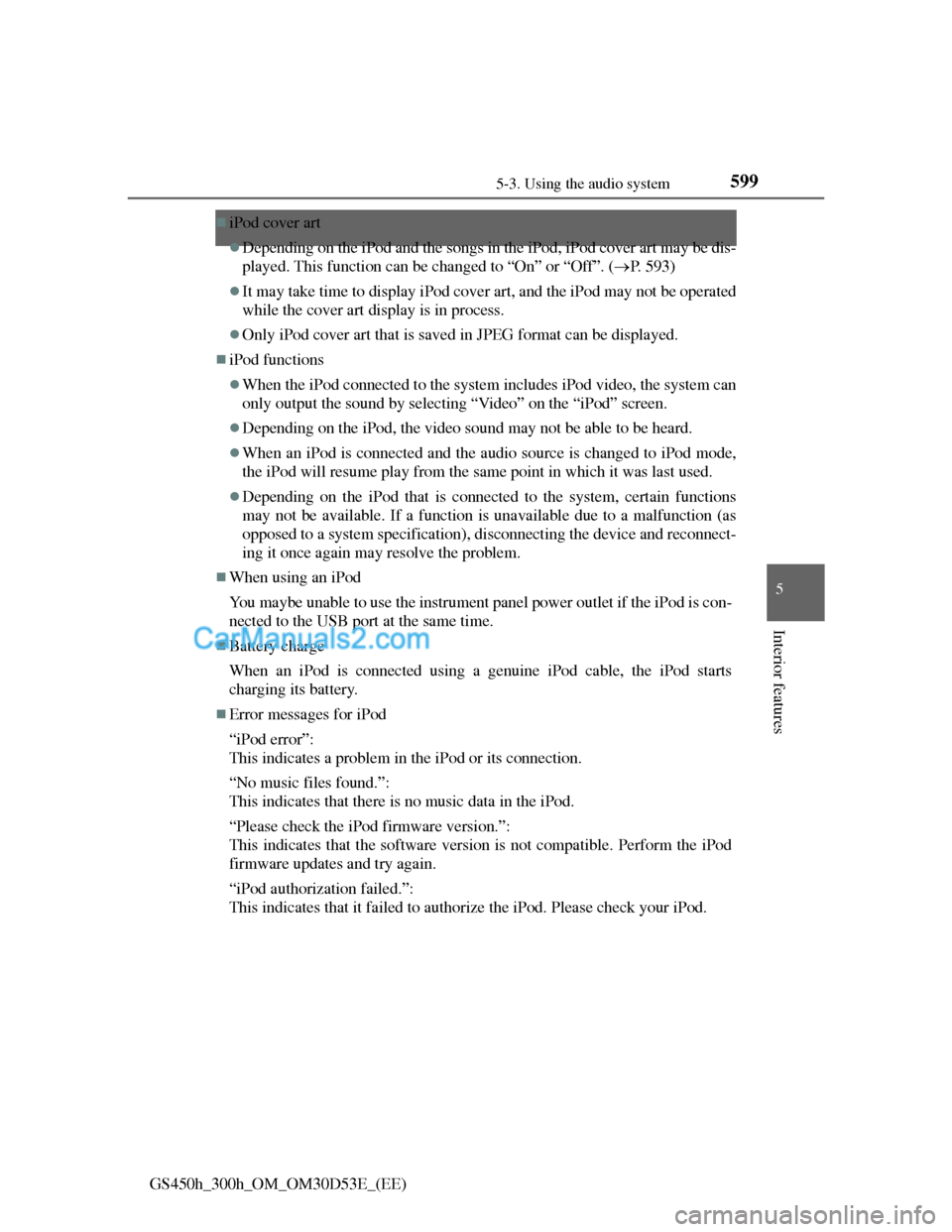
iPod cover art
Depending on the iPod and the songs in the iPod, iPod cover art may be dis-
played. This function can be changed to “On” or “Off”. (P. 593)
It may take time to display iPod cover art, and the iPod may not be operated
while the cover art display is in process.
Only iPod cover art that is saved in JPEG format can be displayed.
iPod functions
When the iPod connected to the system includes iPod video, the system can
only output the sound by selecting “Video” on the “iPod” screen.
Depending on the iPod, the video sound may not be able to be heard.
When an iPod is connected and the audio source is changed to iPod mode,
the iPod will resume play from the same point in which it was last used.
Depending on the iPod that is connected to the system, certain functions
may not be available. If a function is unavailable due to a malfunction (as
opposed to a system specification), disconnecting the device and reconnect-
ing it once again may resolve the problem.
When using an iPod
You maybe unable to use the instrument panel power outlet if the iPod is con-
nected to the USB port at the same time.
Battery charge
When an iPod is connected using a genuine iPod cable, the iPod starts
charging its battery.
Error messages for iPod
“iPod error”:
This indicates a problem in the iPod or its connection.
“No music files found.”:
This indicates that there is no music data in the iPod.
“Please check the iPod firmware version.”:
This indicates that the software version is not compatible. Perform the iPod
firmware updates and try again.
“iPod authorization failed.”:
This indicates that it failed to authorize the iPod. Please check your iPod.
Page 627 of 1014
6075-3. Using the audio system
5
Interior features
GS450h_300h_OM_OM30D53E_(EE)
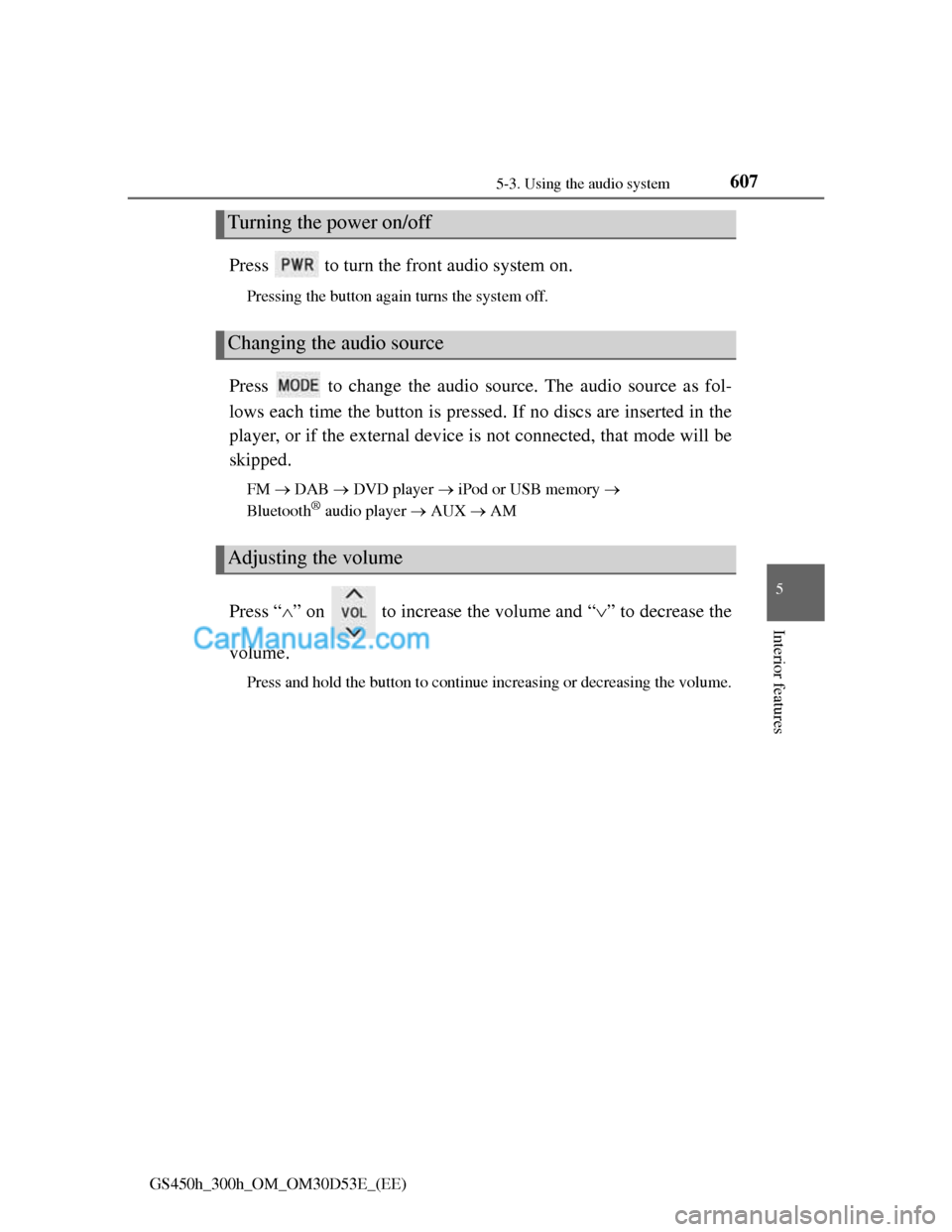
Press to turn the front audio system on.
Pressing the button again turns the system off.
Press to change the audio source. The audio source as fol-
lows each time the button is pressed. If no discs are inserted in the
player, or if the external device is not connected, that mode will be
skipped.
FM DAB DVD player iPod or USB memory
Bluetooth® audio player AUX AM
Press “” on to increase the volume and “” to decrease the
volume.
Press and hold the button to continue increasing or decreasing the volume.
Turning the power on/off
Changing the audio source
Adjusting the volume
Page 629 of 1014
6095-3. Using the audio system
5
Interior features
GS450h_300h_OM_OM30D53E_(EE)
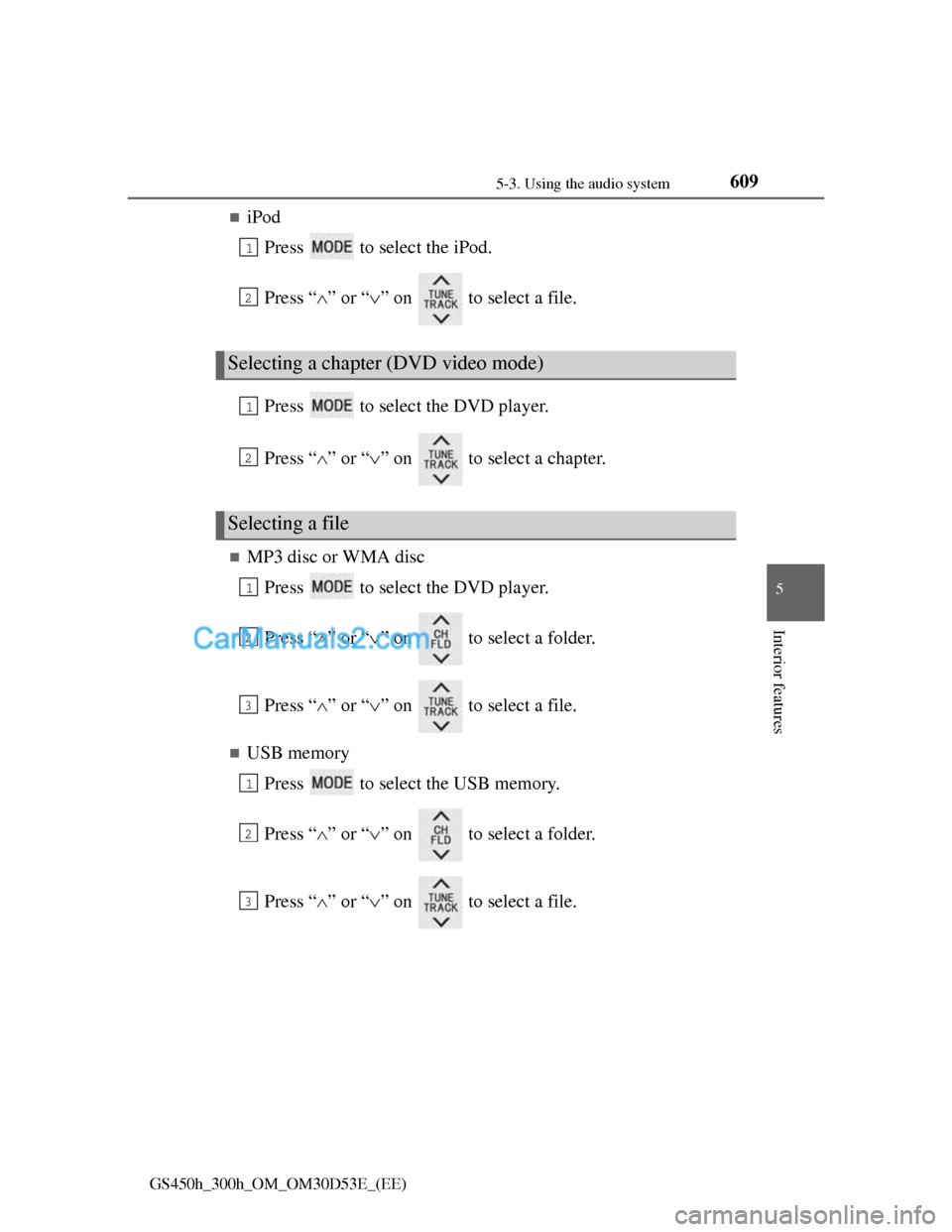
iPod
Press to select the iPod.
Press “” or “” on to select a file.
Press to select the DVD player.
Press “” or “” on to select a chapter.
MP3 disc or WMA disc
Press to select the DVD player.
Press “” or “” on to select a folder.
Press “” or “” on to select a file.
USB memory
Press to select the USB memory.
Press “” or “” on to select a folder.
Press “” or “” on to select a file.
Selecting a chapter (DVD video mode)
Selecting a file
1
2
1
2
1
2
3
1
2
3
Page 631 of 1014
6115-3. Using the audio system
5
Interior features
GS450h_300h_OM_OM30D53E_(EE)
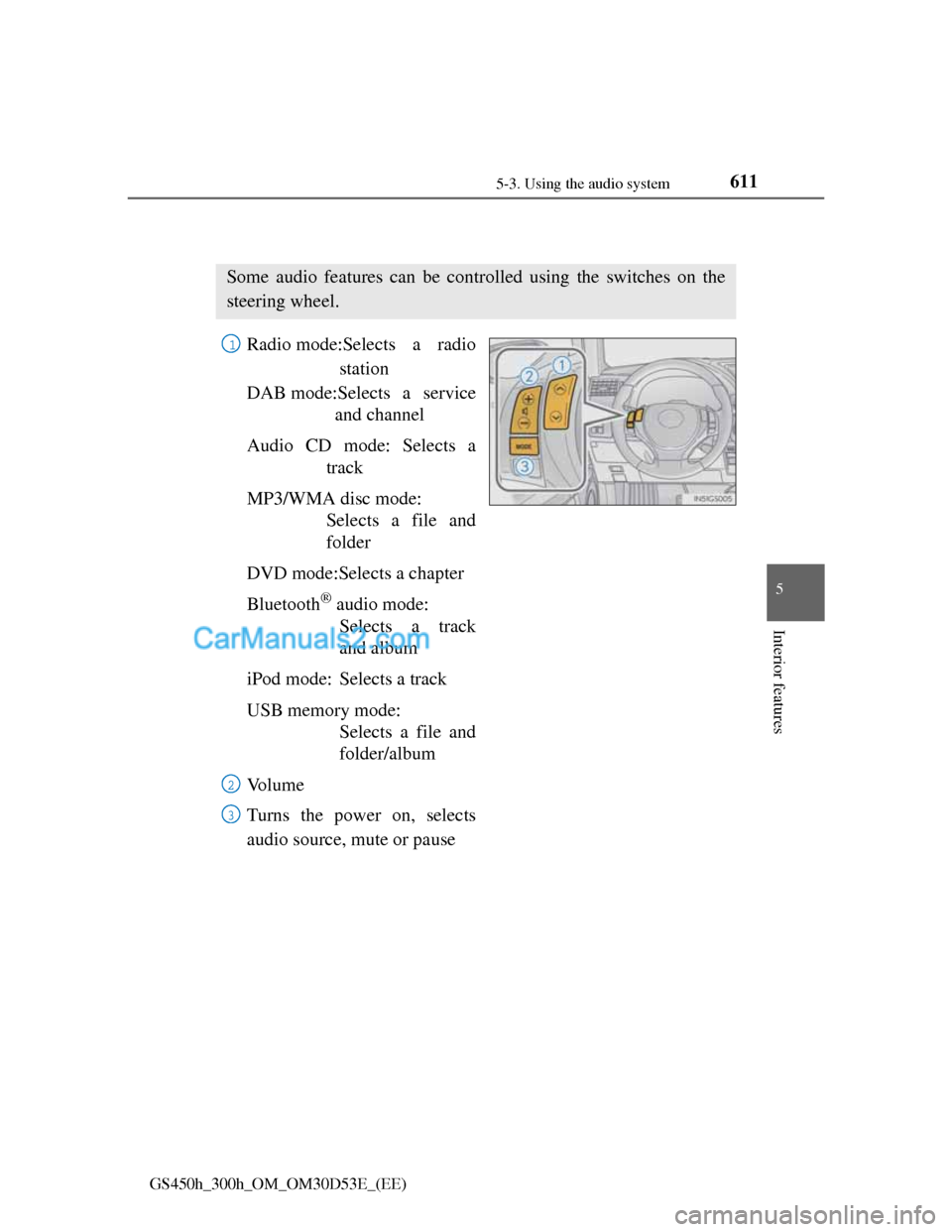
Using the steering wheel audio switches
Radio mode:Selects a radio
station
DAB mode:Selects a service
and channel
Audio CD mode: Selects a
track
MP3/WMA disc mode:
Selects a file and
folder
DVD mode:Selects a chapter
Bluetooth
® audio mode:
Selects a track
and album
iPod mode: Selects a track
USB memory mode:
Selects a file and
folder/album
Vo l u m e
Turns the power on, selects
audio source, mute or pause
Some audio features can be controlled using the switches on the
steering wheel.
1
2
3
Page 633 of 1014
6135-3. Using the audio system
5
Interior features
GS450h_300h_OM_OM30D53E_(EE)
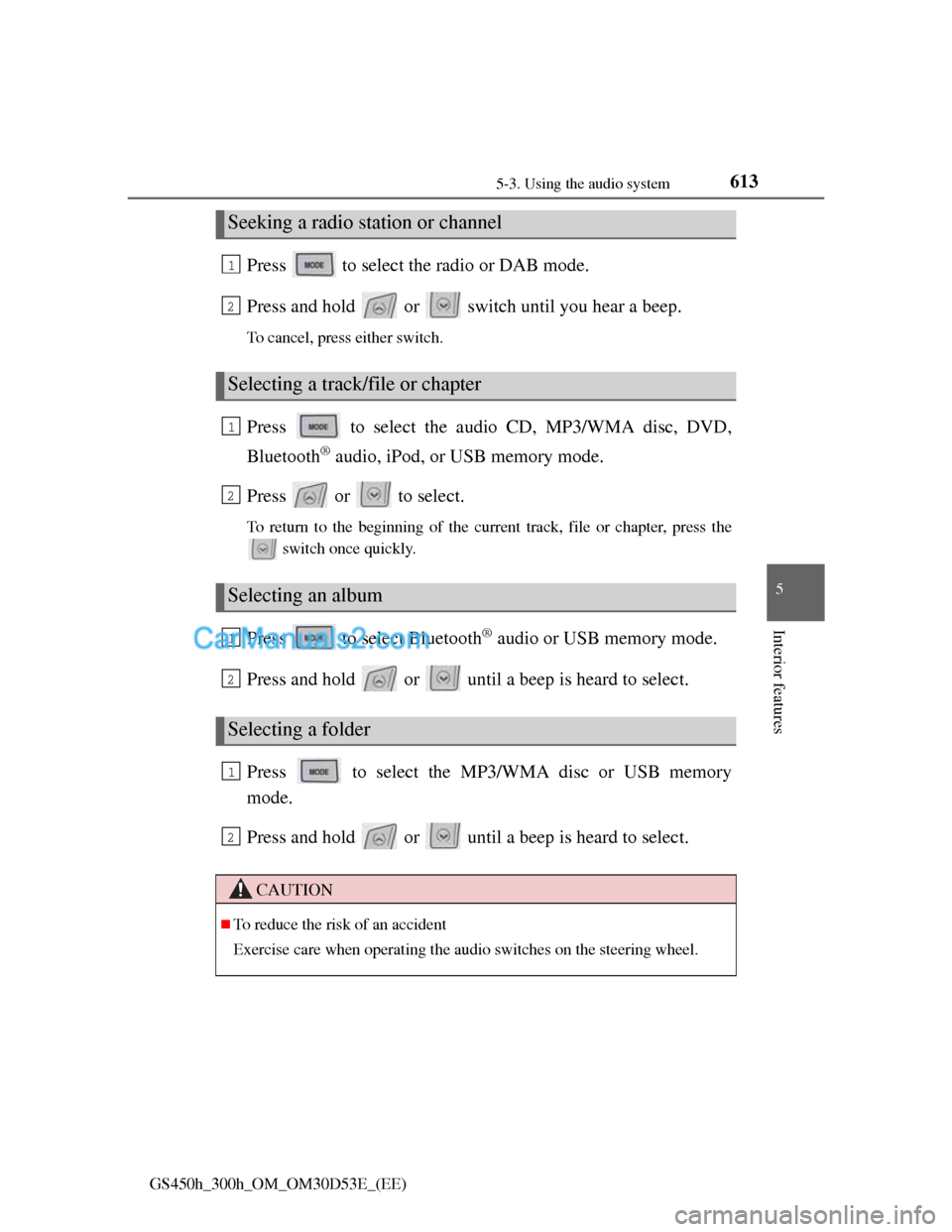
Press to select the radio or DAB mode.
Press and hold or switch until you hear a beep.
To cancel, press either switch.
Press to select the audio CD, MP3/WMA disc, DVD,
Bluetooth
® audio, iPod, or USB memory mode.
Press or to select.
To return to the beginning of the current track, file or chapter, press the
switch once quickly.
Press to select Bluetooth® audio or USB memory mode.
Press and hold or until a beep is heard to select.
Press to select the MP3/WMA disc or USB memory
mode.
Press and hold or until a beep is heard to select.
Seeking a radio station or channel
Selecting a track/file or chapter
Selecting an album
Selecting a folder
CAUTION
To reduce the risk of an accident
Exercise care when operating the audio switches on the steering wheel.
1
2
1
2
1
2
1
2
Page 995 of 1014
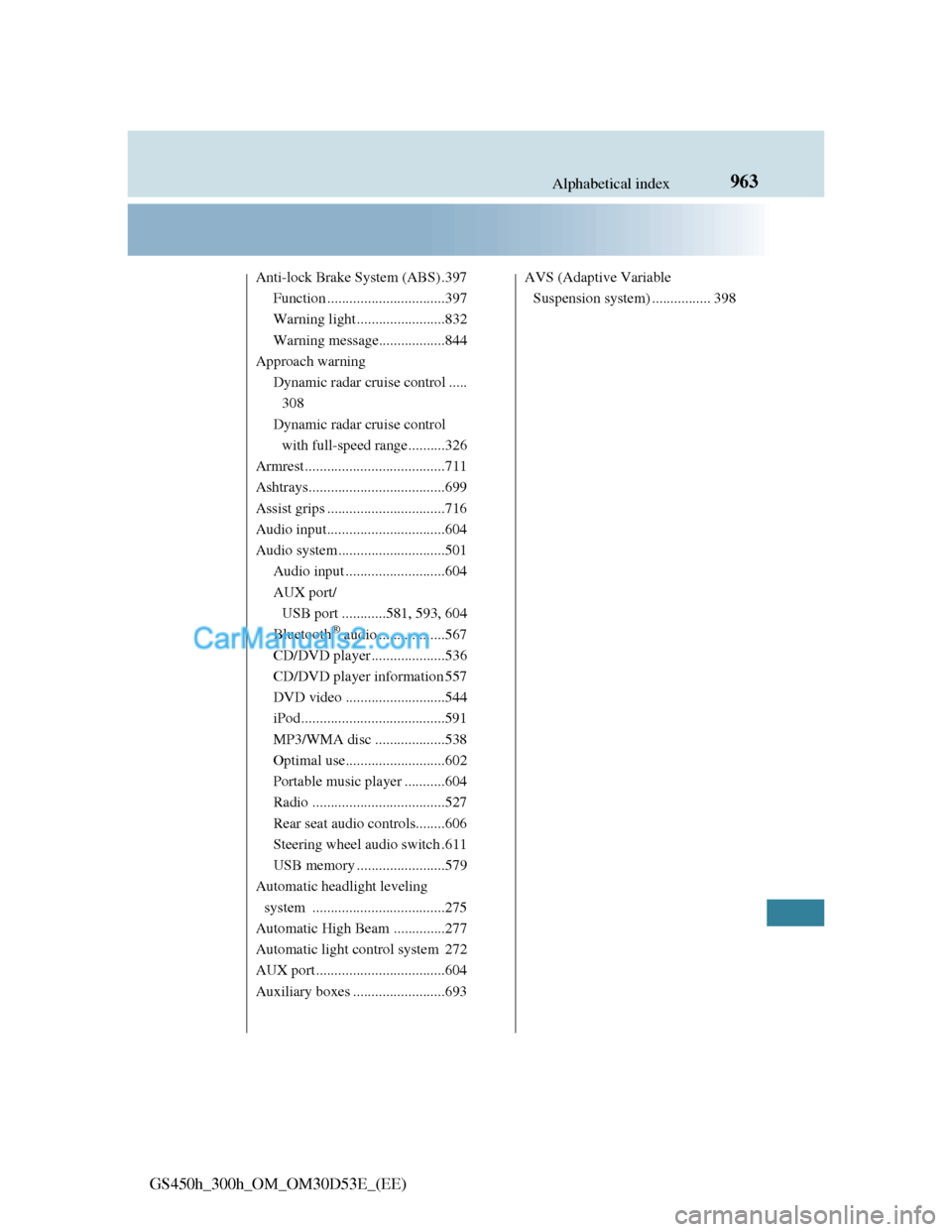
963Alphabetical index
GS450h_300h_OM_OM30D53E_(EE)
Anti-lock Brake System (ABS) .397
Function ................................397
Warning light........................832
Warning message..................844
Approach warning
Dynamic radar cruise control .....
308
Dynamic radar cruise control
with full-speed range..........326
Armrest ......................................711
Ashtrays.....................................699
Assist grips ................................716
Audio input................................604
Audio system .............................501
Audio input ...........................604
AUX port/
USB port ............581, 593, 604
Bluetooth
® audio ..................567
CD/DVD player ....................536
CD/DVD player information 557
DVD video ...........................544
iPod.......................................591
MP3/WMA disc ...................538
Optimal use...........................602
Portable music player ...........604
Radio ....................................527
Rear seat audio controls........606
Steering wheel audio switch .611
USB memory ........................579
Automatic headlight leveling
system ....................................275
Automatic High Beam ..............277
Automatic light control system 272
AUX port ...................................604
Auxiliary boxes .........................693AVS (Adaptive Variable
Suspension system) ................ 398
Page 1011 of 1014
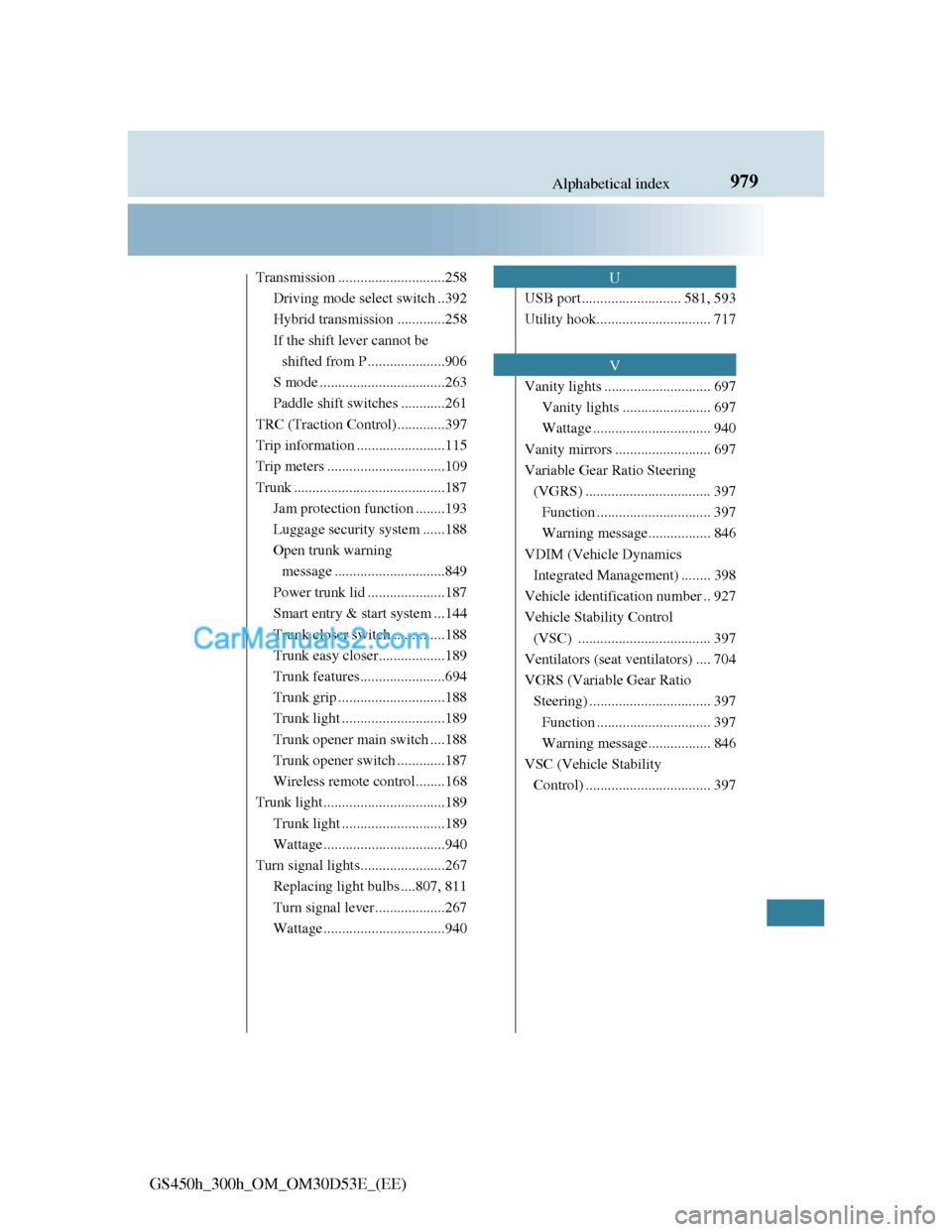
979Alphabetical index
GS450h_300h_OM_OM30D53E_(EE)
Transmission .............................258
Driving mode select switch ..392
Hybrid transmission .............258
If the shift lever cannot be
shifted from P .....................906
S mode ..................................263
Paddle shift switches ............261
TRC (Traction Control).............397
Trip information ........................115
Trip meters ................................109
Trunk .........................................187
Jam protection function ........193
Luggage security system ......188
Open trunk warning
message ..............................849
Power trunk lid .....................187
Smart entry & start system ...144
Trunk closer switch..............188
Trunk easy closer..................189
Trunk features.......................694
Trunk grip .............................188
Trunk light ............................189
Trunk opener main switch ....188
Trunk opener switch .............187
Wireless remote control........168
Trunk light .................................189
Trunk light ............................189
Wattage .................................940
Turn signal lights.......................267
Replacing light bulbs ....807, 811
Turn signal lever ...................267
Wattage .................................940USB port ........................... 581, 593
Utility hook............................... 717
Vanity lights ............................. 697
Vanity lights ........................ 697
Wattage ................................ 940
Vanity mirrors .......................... 697
Variable Gear Ratio Steering
(VGRS) .................................. 397
Function ............................... 397
Warning message................. 846
VDIM (Vehicle Dynamics
Integrated Management) ........ 398
Vehicle identification number .. 927
Vehicle Stability Control
(VSC) .................................... 397
Ventilators (seat ventilators) .... 704
VGRS (Variable Gear Ratio
Steering) ................................. 397
Function ............................... 397
Warning message................. 846
VSC (Vehicle Stability
Control) .................................. 397U
V