cd player Lexus GS350 2009 User Guide
[x] Cancel search | Manufacturer: LEXUS, Model Year: 2009, Model line: GS350, Model: Lexus GS350 2009Pages: 622, PDF Size: 17.98 MB
Page 261 of 622
260
3-3. Using the audio system
GS_G_U (OM30B43U)
April 27, 2009 10:48 am
■Cleaning the cassette player
Cassette player components (heads, capstan, pinch rollers) should be cleaned at
least once a month using a cleaning tape to remove dirt and dust that can easily
build up.
■Using long playing cassette tapes
Avoid using tapes with a length of more than 90 minutes, as the tape used is very
thin and may become tangled in the cassette player.
NOTICE
■Cassette tapes that cannot be used
Do not use a cassette tape if it has been damaged or tangled or if its label is peeling
off. Such tapes may affect playing speed and may also get stuck in the player.
■Cassette player precautions
●Store cassette tapes away from direct sunlight.
●Do not insert anything other than cass ette tapes into the cassette player.
●Do not apply oil to the cassette player.
GS_U_G.book Page 260 Monday, April 27, 2009 10:50 AM
Page 262 of 622
261
3-3. Using the audio system
3
Interior features
GS_G_U (OM30B43U)
April 27, 2009 10:48 am
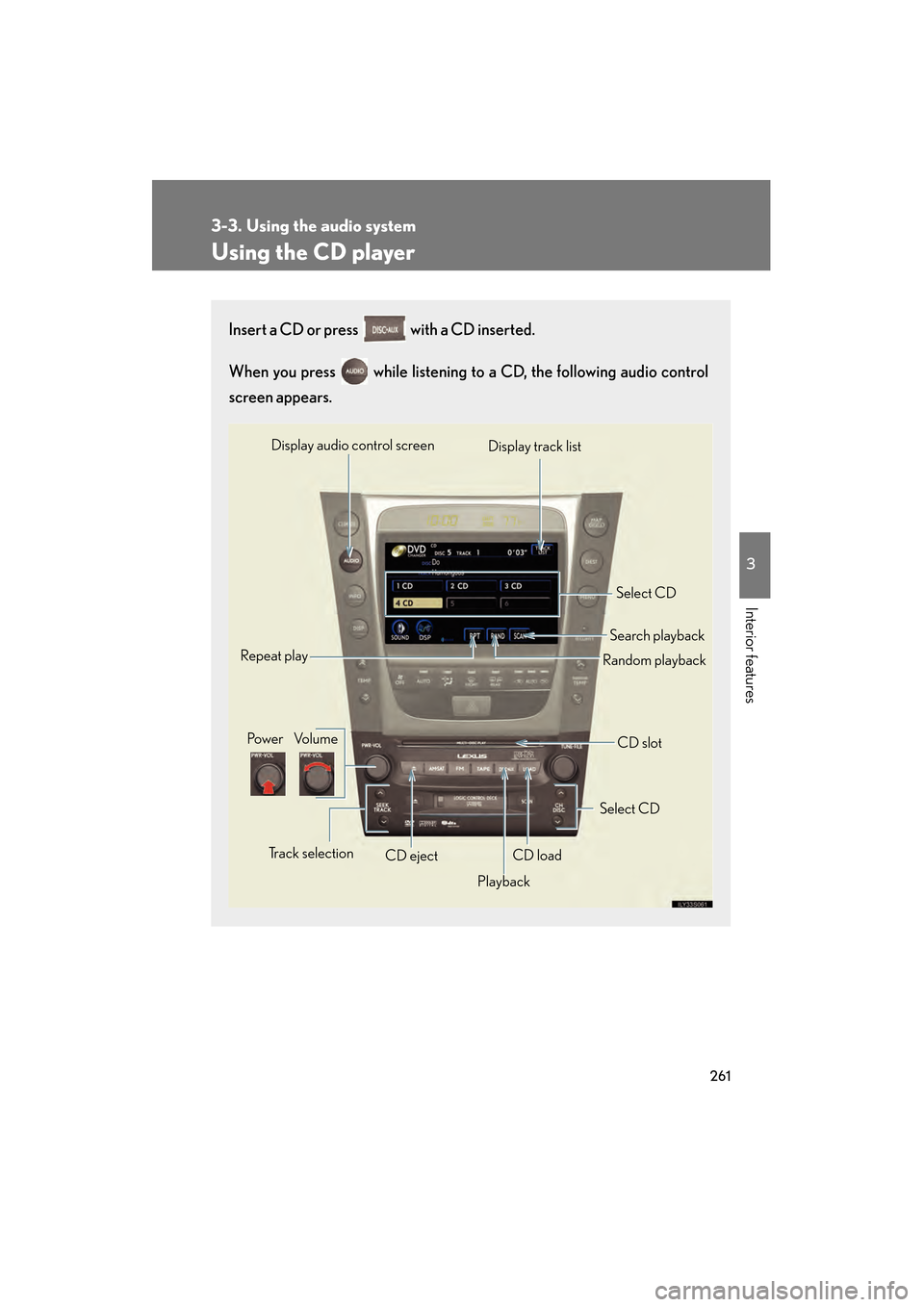
Using the CD player
Insert a CD or press with a CD inserted.
When you press while listening to a CD, the following audio control
screen appears.
Select CD
Display track list
Select CD
Search playback
CD slot
Random playback
Repeat play
Po w e r Vo l u m e
CD ejectPlayback
Track selection CD load
Display audio control screen
GS_U_G.book Page 261 Monday, April 27, 2009 10:50 AM
Page 263 of 622
262
3-3. Using the audio system
GS_G_U (OM30B43U)
April 27, 2009 10:48 am
Loading a CD■ Loading a single CD
Press .
When the indicator changes from flashing amber to green, insert
a CD after the CD/DVD player door opens.
■ Loading multiple CDs
Press and hold until you hear a beep.
When the indicator changes from flashing amber to green, insert
a CD after the CD/DVD player door opens.
After inserting a CD, wait until th e indicator changes from flash-
ing amber to green, then inser t the next CD after the CD/DVD
door has opened.
Repeat steps 2 and 3 until you have inserted all CDs.
To cancel the operation, press the or button. If you do not
insert a CD within 15 seconds, loading will be canceled automatically.
Ejecting CDs
■ Ejecting a CD
To select the CD to be ejected , touch the desired disc number
(1 - 6) on the screen or press ∧ or ∨ on .
Press and remove the CD.
■ Ejecting all CDs
Press and hold until you hear a beep, then remove the CDs.
STEP1
STEP2
STEP1
STEP2
STEP3
STEP1
STEP2
GS_U_G.book Page 262 Monday, April 27, 2009 10:50 AM
Page 268 of 622
267
3-3. Using the audio system
3
Interior features
GS_G_U (OM30B43U)
April 27, 2009 10:48 am
Loading, ejecting and selecting MP3 and WMA discsRefer to the section titled “Usin g the CD player” for details. (→P. 2 6 1 )
Selecting a folder
■ Selecting a folder
Touch “FOLDER ” or “ ” on the screen to select the previ-
ous/next folder.
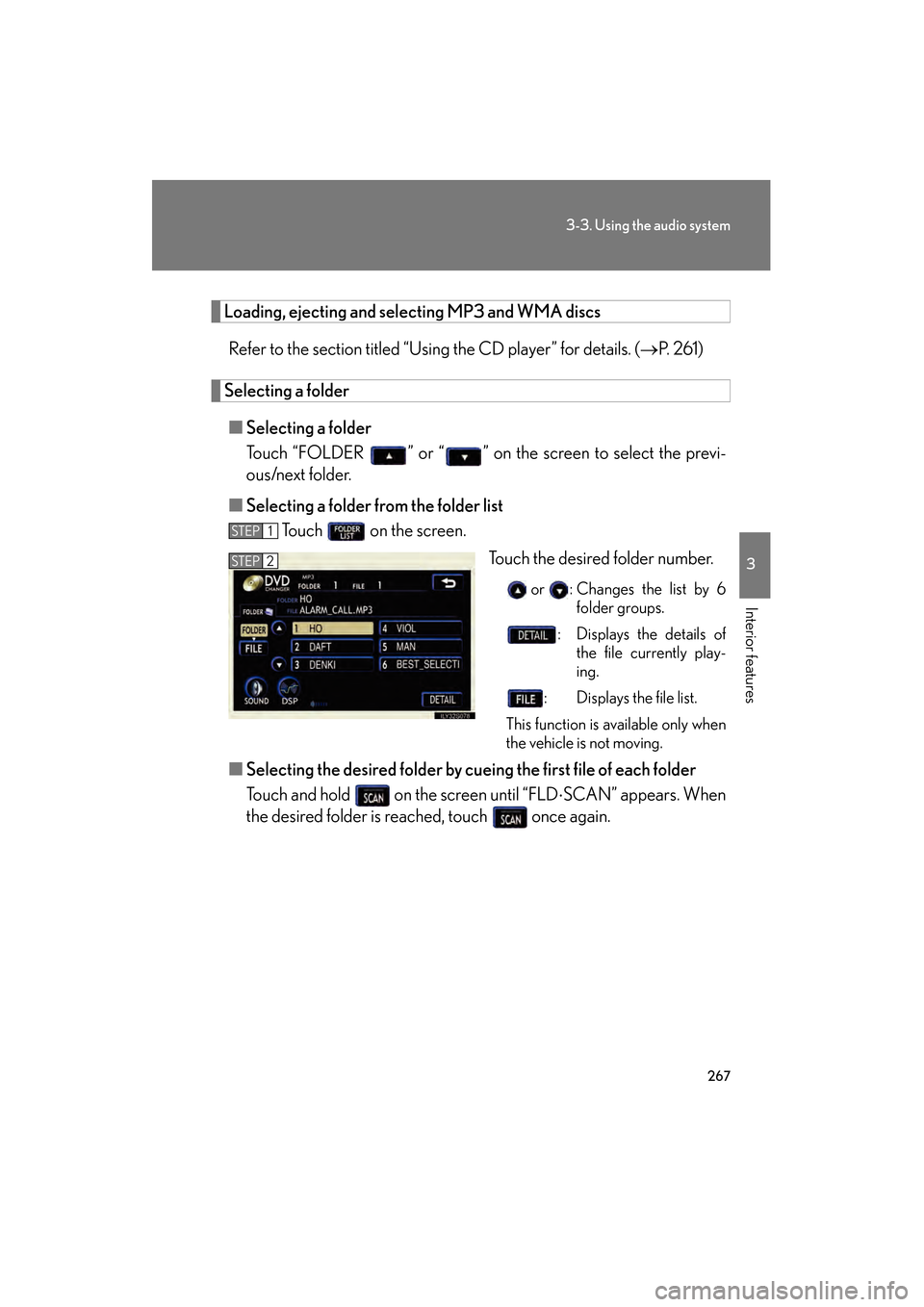
■ Selecting a folder from the folder list
Touch on the screen.
Touch the desired folder number.
or : Changes the list by 6folder groups.
: Displays the details of the file currently play-
ing.
: Displays the file list.
This function is available only when
the vehicle is not moving.
■ Selecting the desired folder by cueing the first file of each folder
Touch and hold on the screen until “FLD ⋅SCAN” appears. When
the desired folder is reached, touch once again.
STEP1
STEP2
GS_U_G.book Page 267 Monday, April 27, 2009 10:50 AM
Page 271 of 622
270
3-3. Using the audio system
GS_G_U (OM30B43U)
April 27, 2009 10:48 am
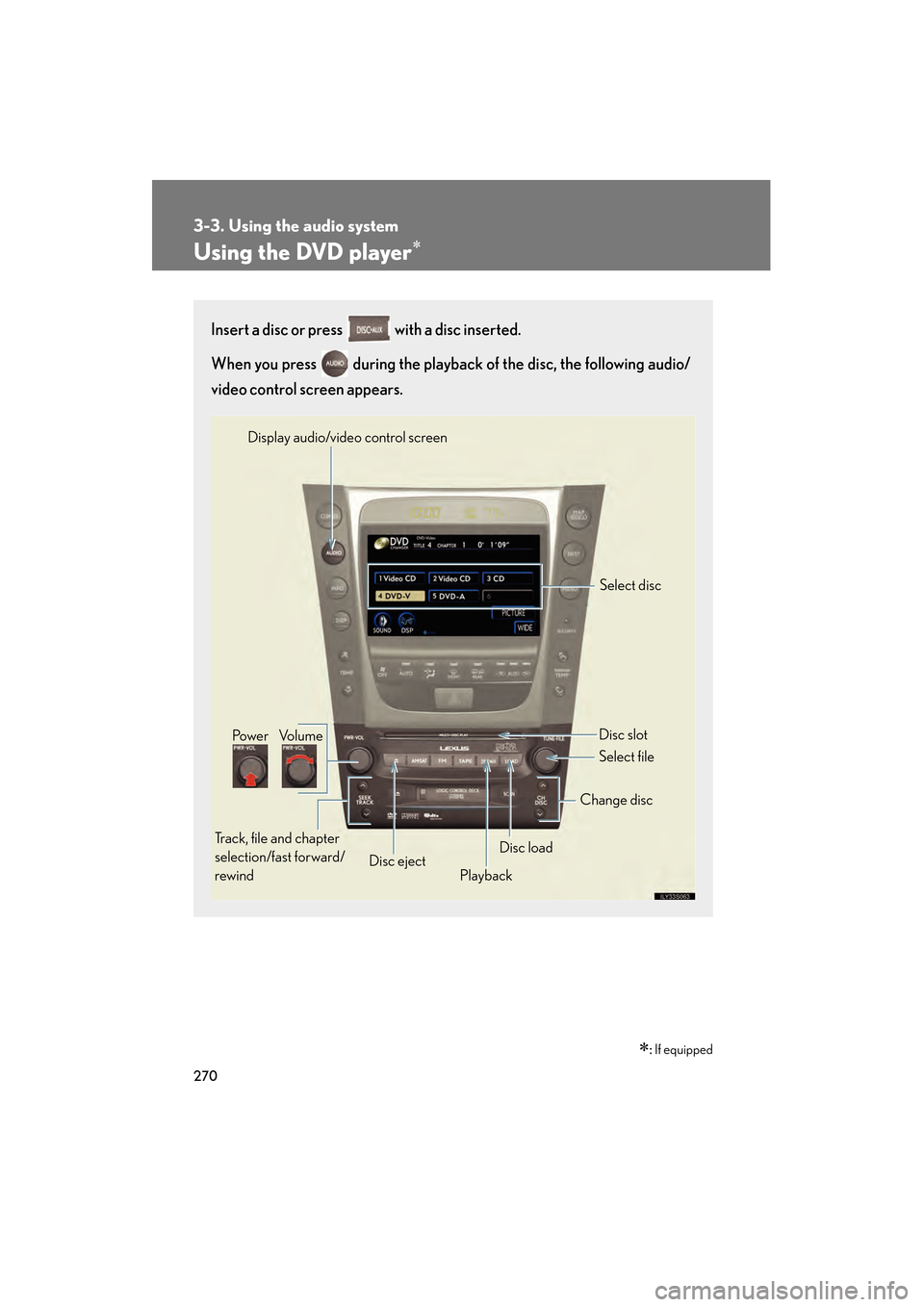
Using the DVD player∗
∗: If equipped
Insert a disc or press with a disc inserted.
When you press during the playback of the disc, the following audio/
video control screen appears.
Po w e r Vo l u m e
Track, file and chapter
selection/fast forward/
rewind Disc eject
PlaybackDisc load Change disc
Display audio/video control screen
Select disc
Disc slot
Select file
GS_U_G.book Page 270 Monday, April 27, 2009 10:50 AM
Page 272 of 622
271
3-3. Using the audio system
3
Interior features
GS_G_U (OM30B43U)
April 27, 2009 10:48 am
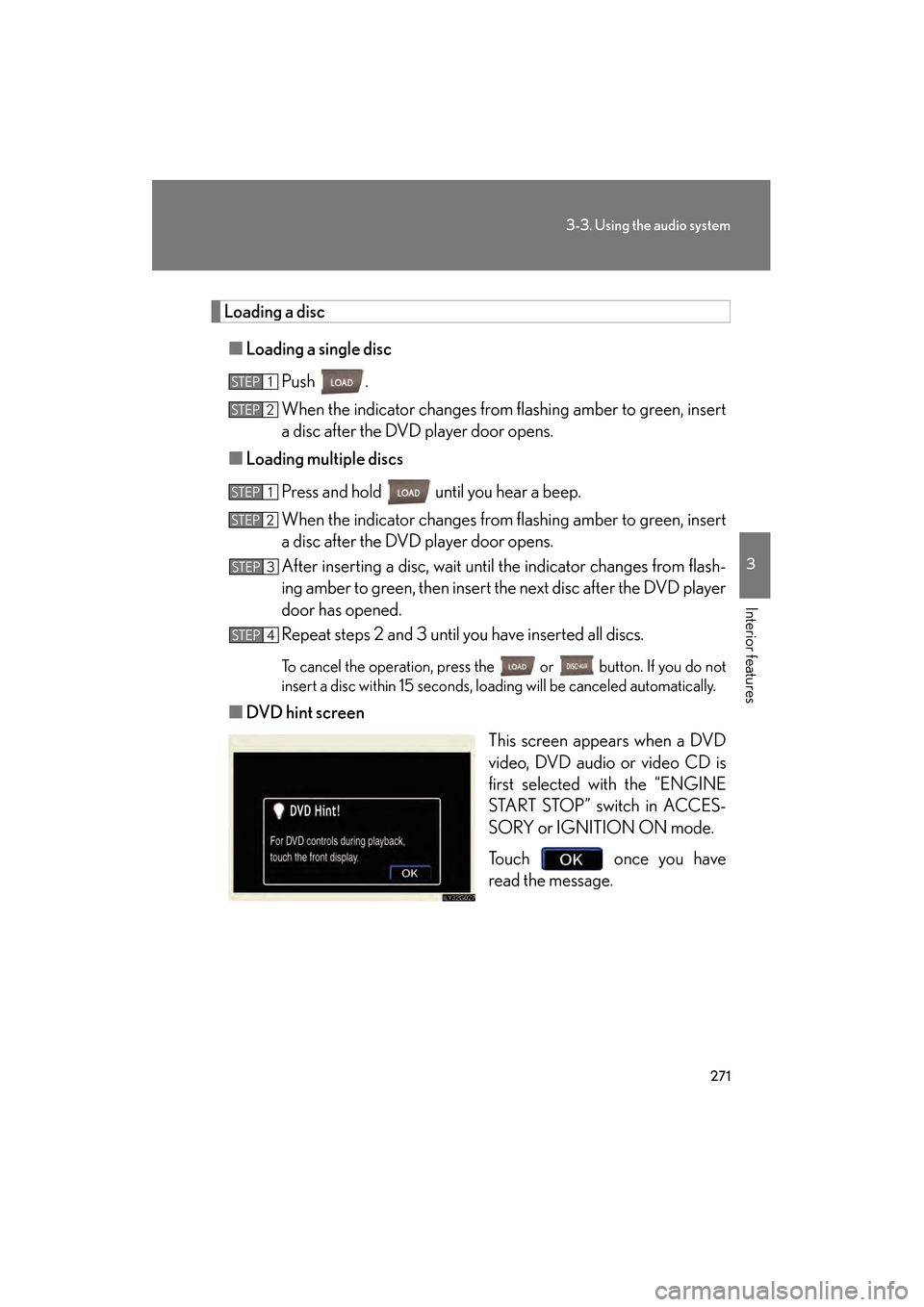
Loading a disc■ Loading a single disc
Push .
When the indicator changes from flashing amber to green, insert
a disc after the DVD player door opens.
■ Loading multiple discs
Press and hold until you hear a beep.
When the indicator changes from flashing amber to green, insert
a disc after the DVD player door opens.
After inserting a disc, wait until the indicator changes from flash-
ing amber to green, then insert the next disc after the DVD player
door has opened.
Repeat steps 2 and 3 until you have inserted all discs.
To cancel the operation, press the or button. If you do not
insert a disc within 15 seconds, loading will be canceled automatically.
■DVD hint screen
This screen appears when a DVD
video, DVD audio or video CD is
first selected with the “ENGINE
START STOP” switch in ACCES-
SORY or IGNITION ON mode.
Touch once you have
read the message.
STEP1
STEP2
STEP1
STEP2
STEP3
STEP4
GS_U_G.book Page 271 Monday, April 27, 2009 10:50 AM
Page 285 of 622
284
3-3. Using the audio system
GS_G_U (OM30B43U)
April 27, 2009 10:48 am
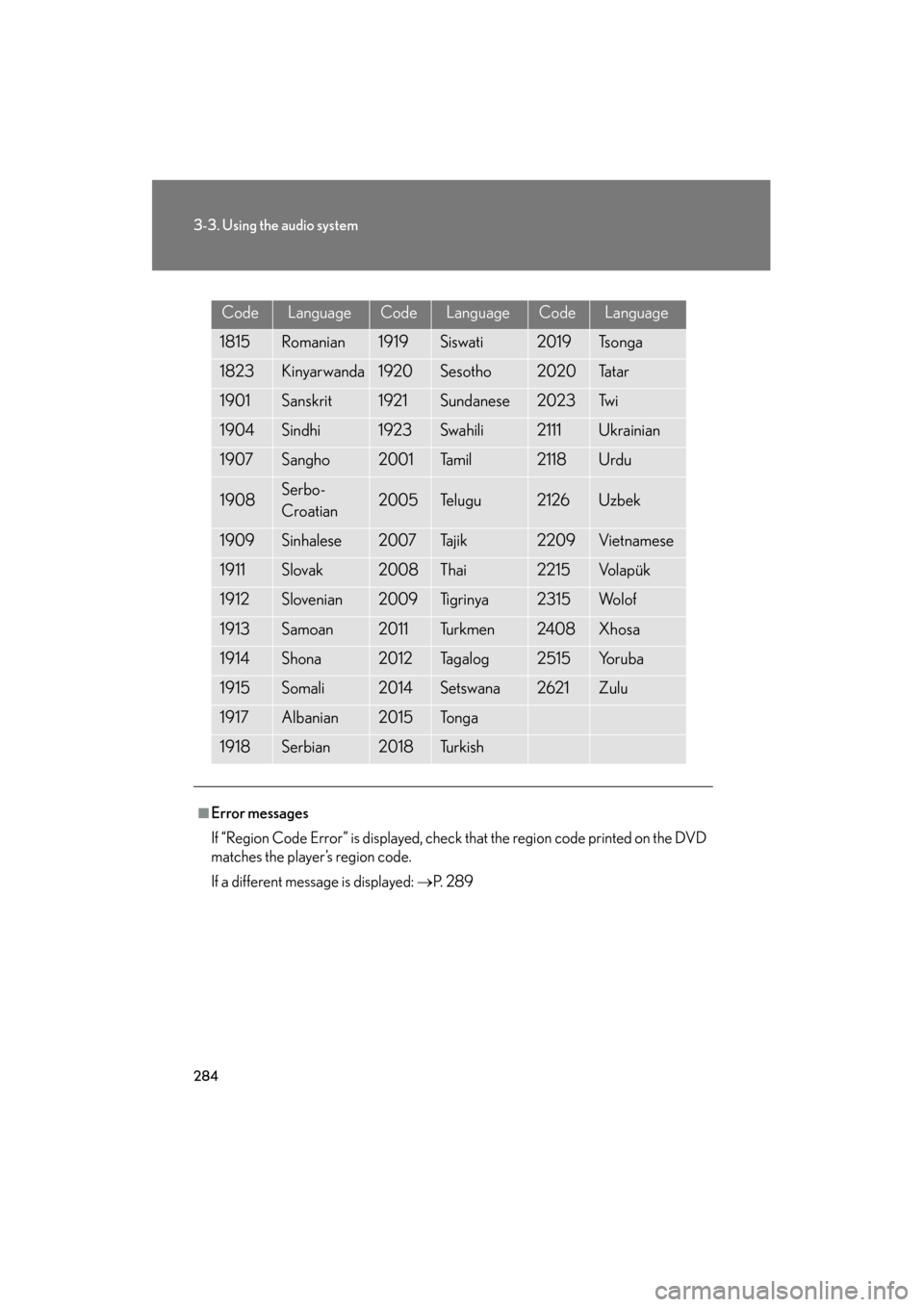
CodeLanguageCodeLanguageCodeLanguage
1815Romanian1919Siswati2019Ts o n g a
1823Kinyarwanda1920Sesotho2020Ta t a r
1901Sanskrit1921Sundanese2023Tw i
1904Sindhi1923Swahili2111Ukrainian
1907Sangho2001Ta m i l2118Urdu
1908Serbo-
Croatian2005Te l u g u2126Uzbek
1909Sinhalese2007Tajik2209Vietnamese
1911Slovak2008Thai2215Vo l a p ü k
1912Slovenian2009Ti g r i n y a2315Wo l o f
1913Samoan2011Tu r k m e n2408Xhosa
1914Shona2012Ta g a l o g2515Yo r u b a
1915Somali2014Setswana2621Zulu
1917Albanian2015To n g a
1918Serbian2018Tu r k i s h
■Error messages
If “Region Code Error” is displayed, check that the region code printed on the DVD
matches the player’s region code.
If a different message is displayed: →P. 2 8 9
GS_U_G.book Page 284 Monday, April 27, 2009 10:50 AM
Page 286 of 622
285
3-3. Using the audio system
3
Interior features
GS_G_U (OM30B43U)
April 27, 2009 10:48 am
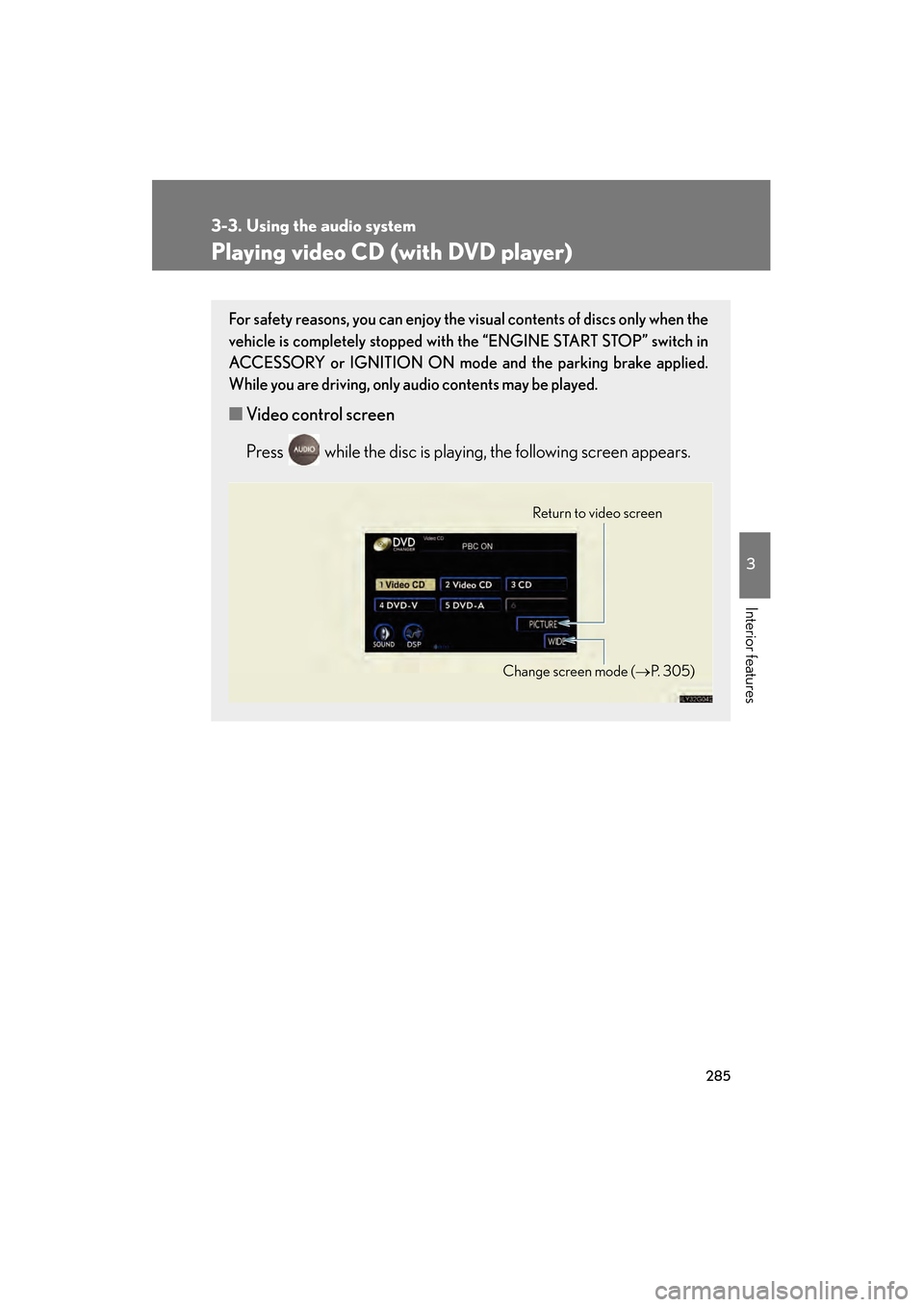
Playing video CD (with DVD player)
For safety reasons, you can enjoy the visual contents of discs only when the
vehicle is completely stopped with the “ENGINE START STOP” switch in
ACCESSORY or IGNITION ON mode and the parking brake applied.
While you are driving, only audio contents may be played.
■ Video control screen
Press while the disc is playing, the following screen appears.
Return to video screen
Change screen mode (→ P. 3 0 5 )
GS_U_G.book Page 285 Monday, April 27, 2009 10:50 AM
Page 290 of 622
289
3-3. Using the audio system
3
Interior features
GS_G_U (OM30B43U)
April 27, 2009 10:48 am
CD/DVD player and DVD video disc information
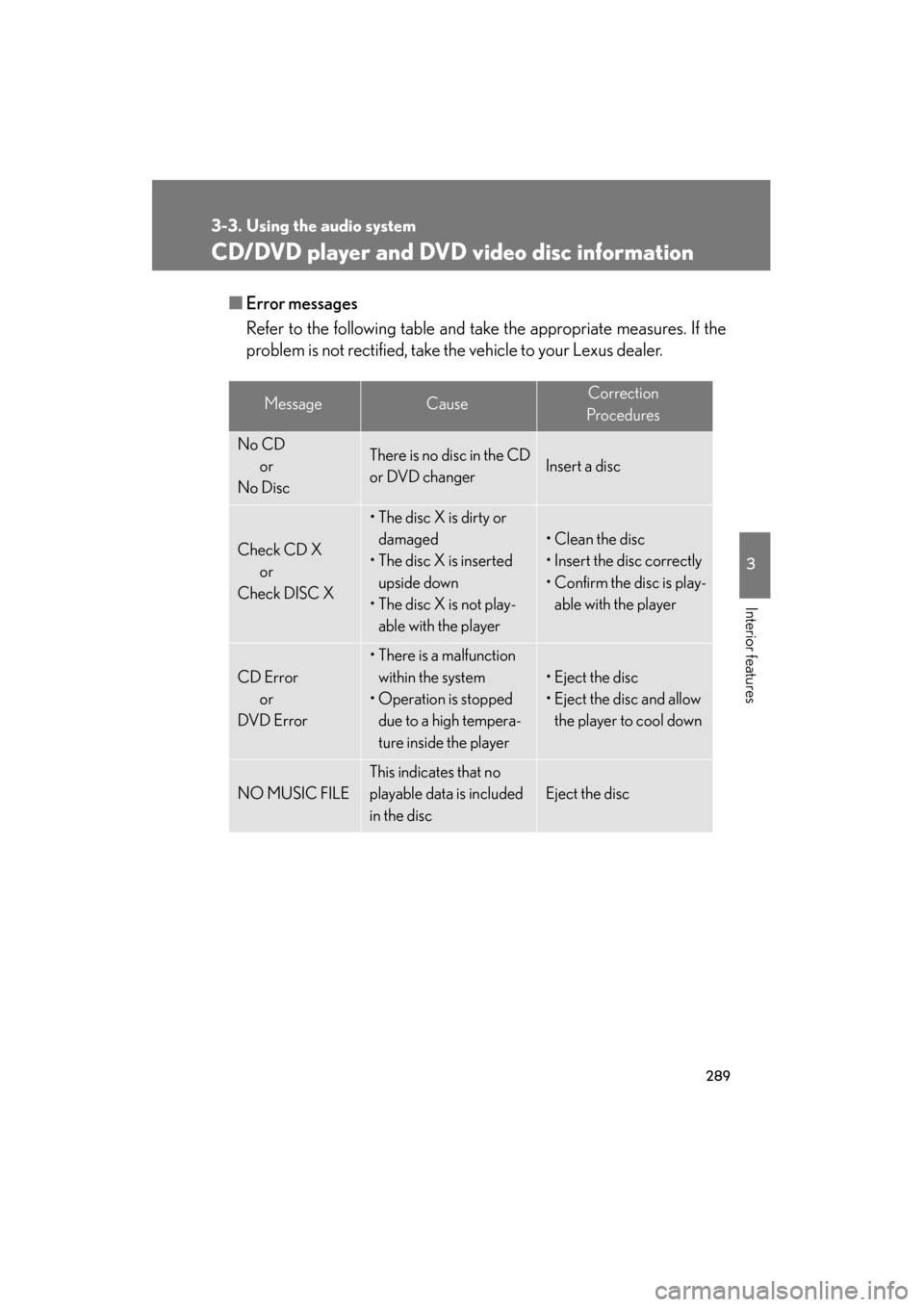
■Error messages
Refer to the following ta ble and take the appropriate measures. If the
problem is not rectified, take the vehicle to your Lexus dealer.
MessageCauseCorrection
Procedures
No CD or
No DiscThere is no disc in the CD
or DVD changerInsert a disc
Check CD X or
Check DISC X
• The disc X is dirty or damaged
• The disc X is inserted
upside down
• The disc X is not play- able with the player
• Clean the disc
• Insert the disc correctly
• Confirm the disc is play-able with the player
CD Error
or
DVD Error
• There is a malfunction within the system
• Operation is stopped due to a high tempera-
ture inside the player
• Eject the disc
• Eject the disc and allow the player to cool down
NO MUSIC FILE
This indicates that no
playable data is included
in the disc
Eject the disc
GS_U_G.book Page 289 Monday, April 27, 2009 10:50 AM
Page 291 of 622
290
3-3. Using the audio system
GS_G_U (OM30B43U)
April 27, 2009 10:48 am
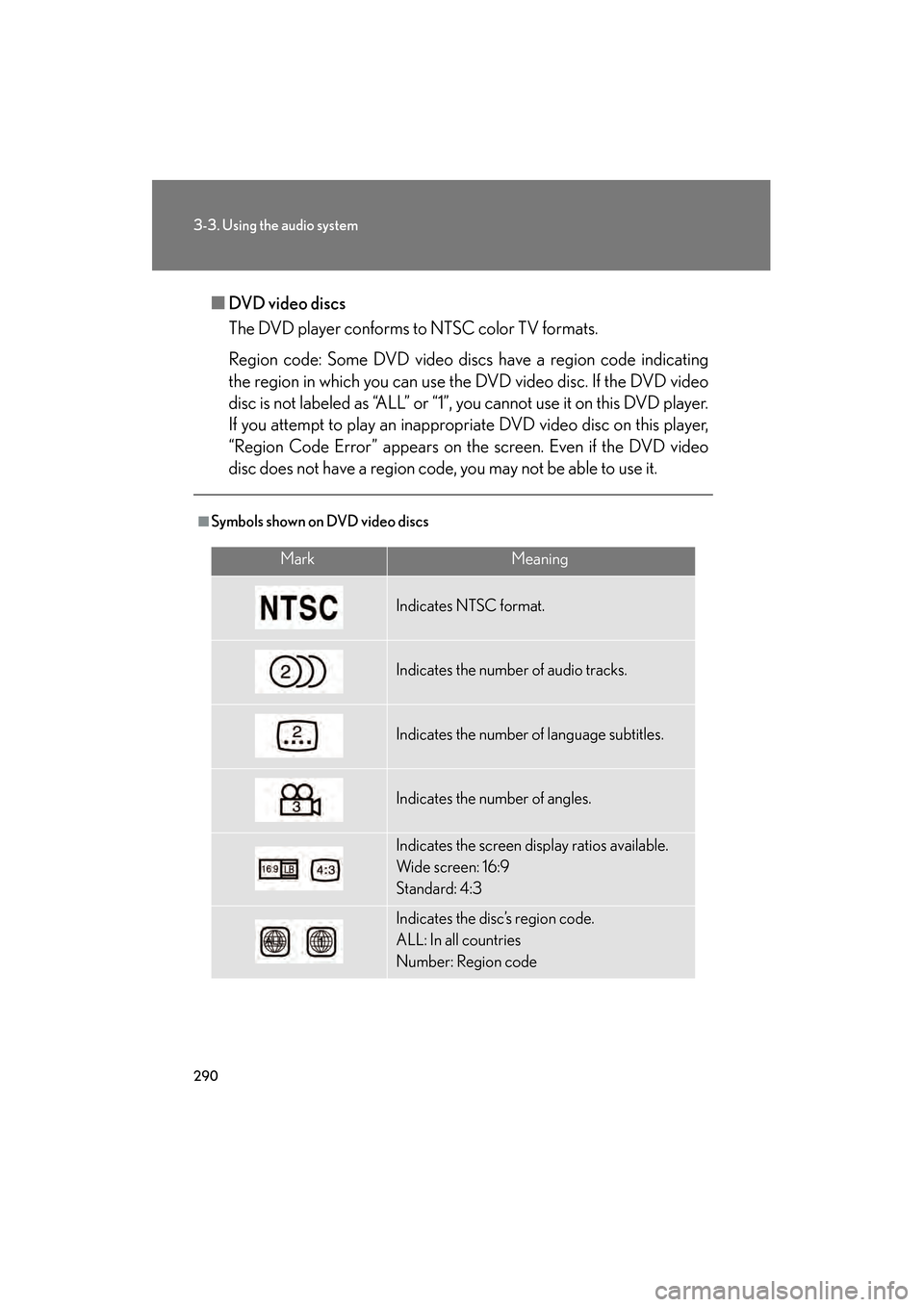
■DVD video discs
The DVD player conforms to NTSC color TV formats.
Region code: Some DVD video disc s have a region code indicating
the region in which you can use the DVD video disc. If the DVD video
disc is not labeled as “ALL” or “1”, you cannot use it on this DVD player.
If you attempt to play an inappropriate DVD video disc on this player,
“Region Code Error” appears on the screen. Even if the DVD video
disc does not have a region code, you may not be able to use it.
■Symbols shown on DVD video discs
MarkMeaning
Indicates NTSC format.
Indicates the number of audio tracks.
Indicates the number of language subtitles.
Indicates the number of angles.
Indicates the screen display ratios available.
Wide screen: 16:9
Standard: 4:3
Indicates the disc’s region code.
ALL: In all countries
Number: Region code
GS_U_G.book Page 290 Monday, April 27, 2009 10:50 AM