phone Lexus GS350 2012 Workshop Manual
[x] Cancel search | Manufacturer: LEXUS, Model Year: 2012, Model line: GS350, Model: Lexus GS350 2012Pages: 914, PDF Size: 49.39 MB
Page 586 of 914
5715-4. Using the hands-free phone system (for cellular phone)
5
Interior features
GS350/250_EE (OM30C36E)
When calling by phone number
Say the phone number one digit at a time. For example, if the phone number
is 2345678, say “two three four five six seven eight”.
As the system cannot recognize additional numbers, say the complete num-
ber without stopping.
When the system recognizes multiple phone numbers, a phone number can-
didate list will be displayed on the screen. If the desired phone number is
not displayed on the top of the screen, say the number of the desired phone
number from the candidate list (1st and 2nd) to select a phone number from
the candidate list
Calling by using the latest call history item
Press on the steering wheel to display the “Telephone” screen.
Press on the steering wheel to display the “Call history” screen.
Press on the steering wheel to select the most recent number in the
history.
Select or press on the steering wheel.
To cancel voice recognition
Press and hold .
Press on the steering wheel.
Select “Cancel”.
When using voice recognition
Use correct commands and speak clearly, otherwise the system may not cor-
rectly recognize the command. Wind or other noises may also cause the sys-
tem not to recognize the desired command.
1
2
3
4
Page 587 of 914
5725-4. Using the hands-free phone system (for cellular phone)
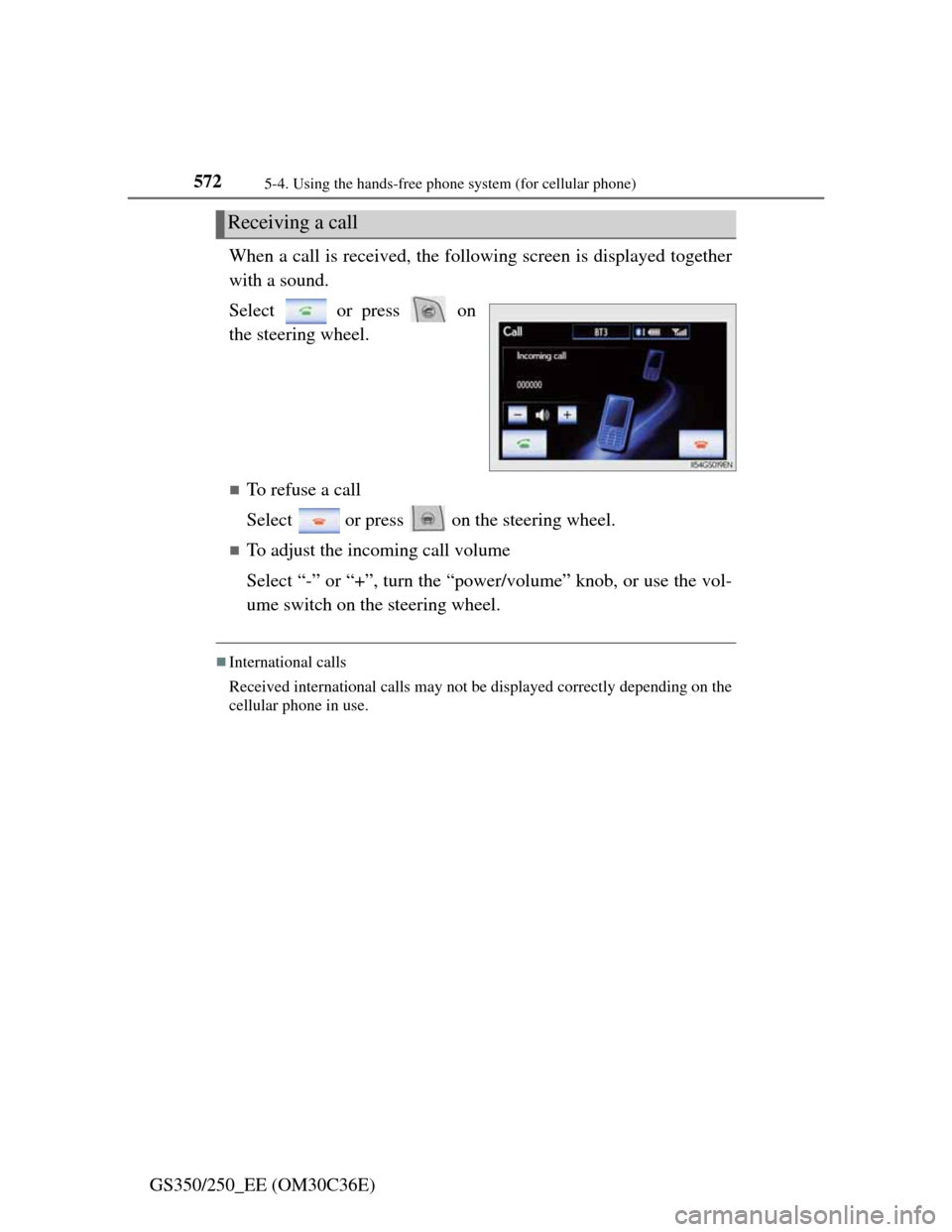
GS350/250_EE (OM30C36E)When a call is received, the following screen is displayed together
with a sound.
Select or press on
the steering wheel.
To refuse a call
Select or press on the steering wheel.
To adjust the incoming call volume
Select “-” or “+”, turn the “power/volume” knob, or use the vol-
ume switch on the steering wheel.
International calls
Received international calls may not be displayed correctly depending on the
cellular phone in use.
Receiving a call
Page 588 of 914
5735-4. Using the hands-free phone system (for cellular phone)
5
Interior features
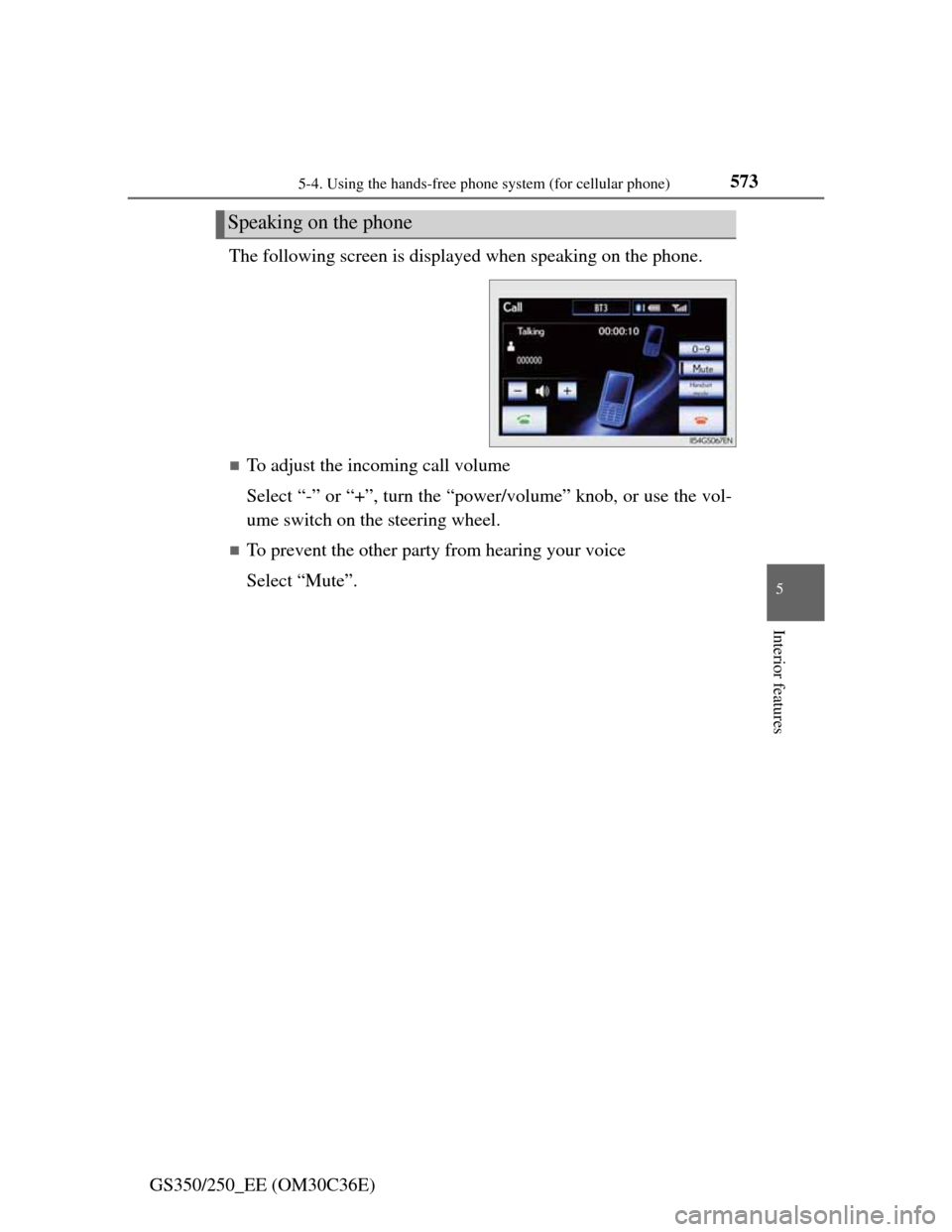
GS350/250_EE (OM30C36E)The following screen is displayed when speaking on the phone.
To adjust the incoming call volume
Select “-” or “+”, turn the “power/volume” knob, or use the vol-
ume switch on the steering wheel.
To prevent the other party from hearing your voice
Select “Mute”.
Speaking on the phone
Page 589 of 914
5745-4. Using the hands-free phone system (for cellular phone)
GS350/250_EE (OM30C36E)
Inputting tones
When using phone services such as an answering service or a
bank, you can store phone numbers and code numbers in the
phonebook.
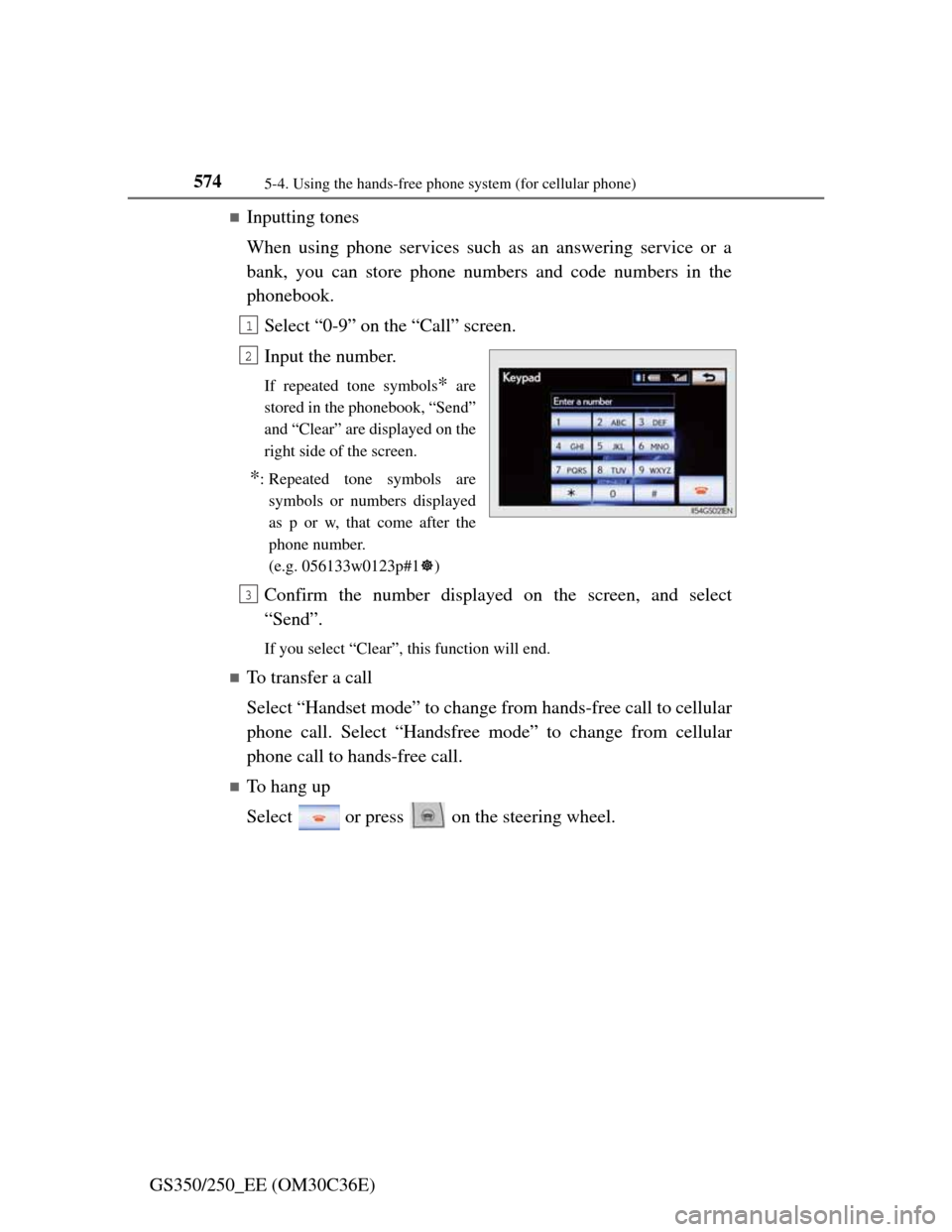
Select “0-9” on the “Call” screen.
Input the number.
If repeated tone symbols* are
stored in the phonebook, “Send”
and “Clear” are displayed on the
right side of the screen.
*: Repeated tone symbols are
symbols or numbers displayed
as p or w, that come after the
phone number.
(e.g. 056133w0123p#1)
Confirm the number displayed on the screen, and select
“Send”.
If you select “Clear”, this function will end.
To transfer a call
Select “Handset mode” to change from hands-free call to cellular
phone call. Select “Handsfree mode” to change from cellular
phone call to hands-free call.
To hang up
Select or press on the steering wheel.
1
2
3
Page 590 of 914
575
5 5-4. Using the hands-free phone system (for cellular phone)
Interior features
GS350/250_EE (OM30C36E)
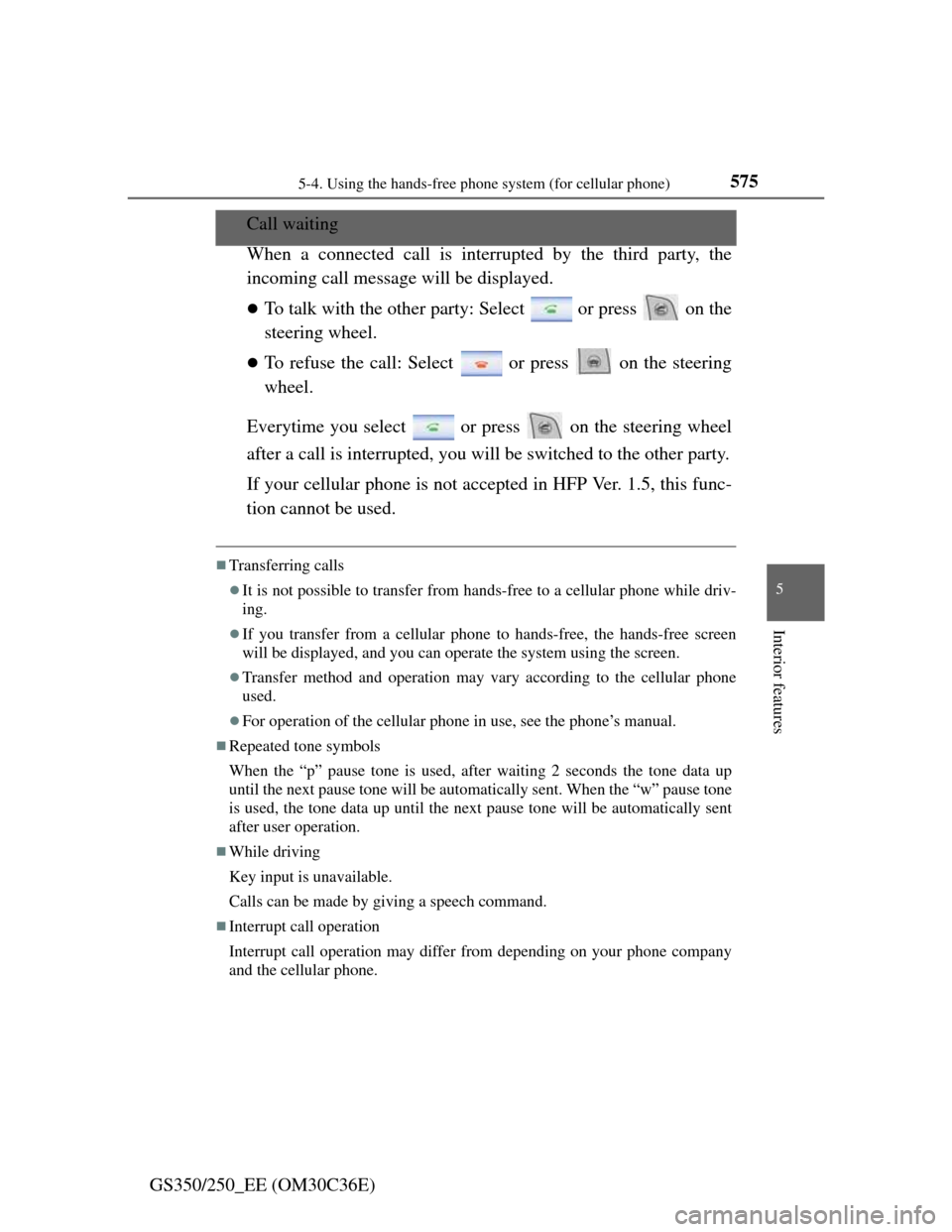
Call waiting
When a connected call is interrupted by the third party, the
incoming call message will be displayed.
To talk with the other party: Select or press on the
steering wheel.
To refuse the call: Select or press on the steering
wheel.
Everytime you select or press on the steering wheel
after a call is interrupted, you will be switched to the other party.
If your cellular phone is not accepted in HFP Ver. 1.5, this func-
tion cannot be used.
Transferring calls
It is not possible to transfer from hands-free to a cellular phone while driv-
ing.
If you transfer from a cellular phone to hands-free, the hands-free screen
will be displayed, and you can operate the system using the screen.
Transfer method and operation may vary according to the cellular phone
used.
For operation of the cellular phone in use, see the phone’s manual.
Repeated tone symbols
When the “p” pause tone is used, after waiting 2 seconds the tone data up
until the next pause tone will be automatically sent. When the “w” pause tone
is used, the tone data up until the next pause tone will be automatically sent
after user operation.
While driving
Key input is unavailable.
Calls can be made by giving a speech command.
Interrupt call operation
Interrupt call operation may differ from depending on your phone company
and the cellular phone.
Page 591 of 914

5765-4. Using the hands-free phone system (for cellular phone)
GS350/250_EE (OM30C36E)Received messages can be forwarded from the connected Blue-
tooth
® phone, enabling checking and replying (Quick reply).
Checking a message
Display the “Telephone” screen. (P. 556)
Select “Messages” on the “Telephone” screen.
When “Message transfer” is set to “Off”, a confirmation screen will be
displayed. Select “Yes”.
Select the desired message
to check.
The text of the message is not
displayed while driving.
Selecting “Previous” or “Next”
displays the previous or next
message.
Select “Play” to start reading out of the message. Select “Stop”
to stop the function.
To adjust the message reading out volume
Select “-” or “+”, turn the “power/volume” knob, or use the vol-
ume switch on the steering wheel.
Replying a message (Quick reply)
Select “Reply” on the
desired message screen.
Using a Bluetooth® phone message
1
2
3
4
1
Page 592 of 914
5775-4. Using the hands-free phone system (for cellular phone)
5
Interior features
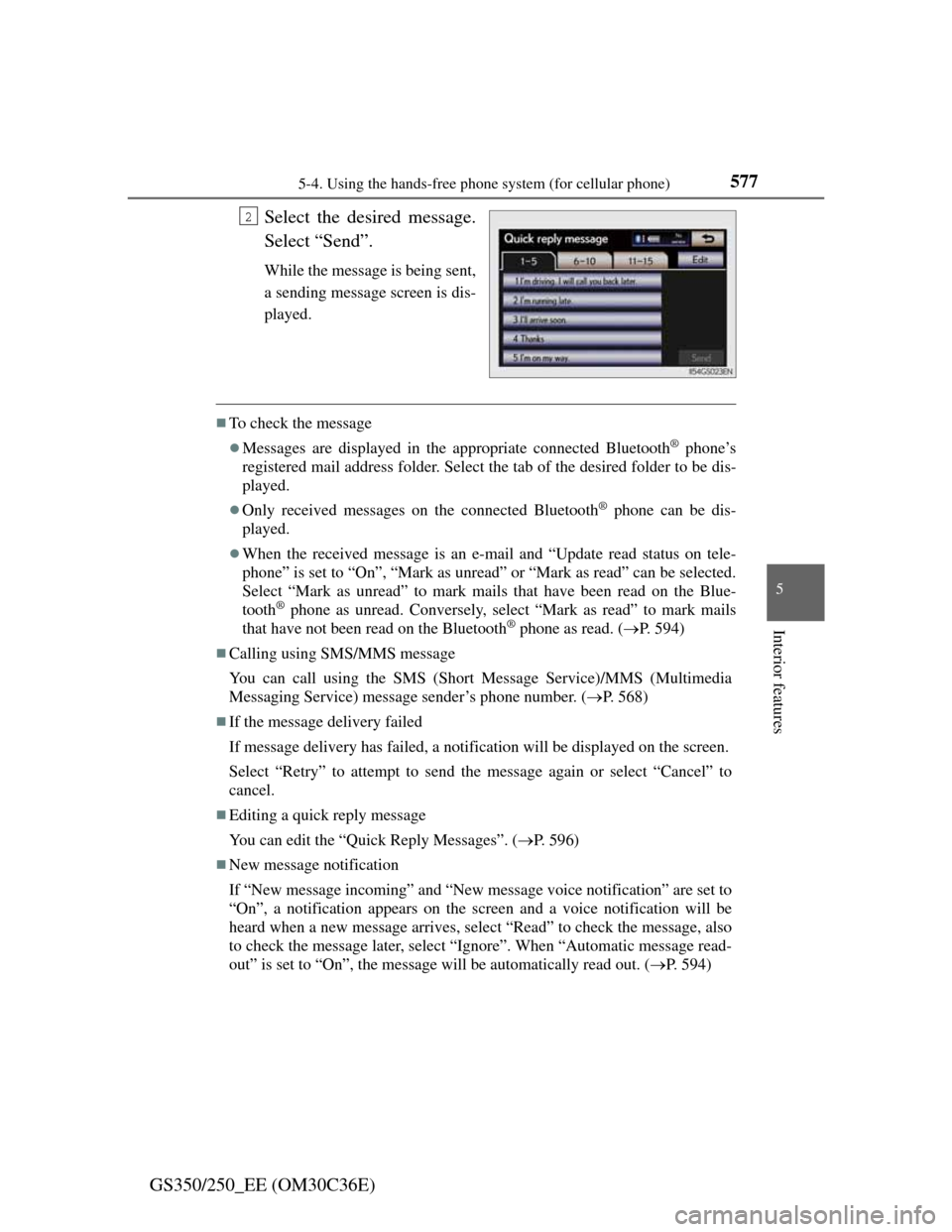
GS350/250_EE (OM30C36E)Select the desired message.
Select “Send”.
While the message is being sent,
a sending message screen is dis-
played.
To check the message
Messages are displayed in the appropriate connected Bluetooth® phone’s
registered mail address folder. Select the tab of the desired folder to be dis-
played.
Only received messages on the connected Bluetooth® phone can be dis-
played.
When the received message is an e-mail and “Update read status on tele-
phone” is set to “On”, “Mark as unread” or “Mark as read” can be selected.
Select “Mark as unread” to mark mails that have been read on the Blue-
tooth
® phone as unread. Conversely, select “Mark as read” to mark mails
that have not been read on the Bluetooth® phone as read. (P. 594)
Calling using SMS/MMS message
You can call using the SMS (Short Message Service)/MMS (Multimedia
Messaging Service) message sender’s phone number. (P. 568)
If the message delivery failed
If message delivery has failed, a notification will be displayed on the screen.
Select “Retry” to attempt to send the message again or select “Cancel” to
cancel.
Editing a quick reply message
You can edit the “Quick Reply Messages”. (P. 596)
New message notification
If “New message incoming” and “New message voice notification” are set to
“On”, a notification appears on the screen and a voice notification will be
heard when a new message arrives, select “Read” to check the message, also
to check the message later, select “Ignore”. When “Automatic message read-
out” is set to “On”, the message will be automatically read out. (P. 594)
2
Page 593 of 914
5785-4. Using the hands-free phone system (for cellular phone)
GS350/250_EE (OM30C36E)
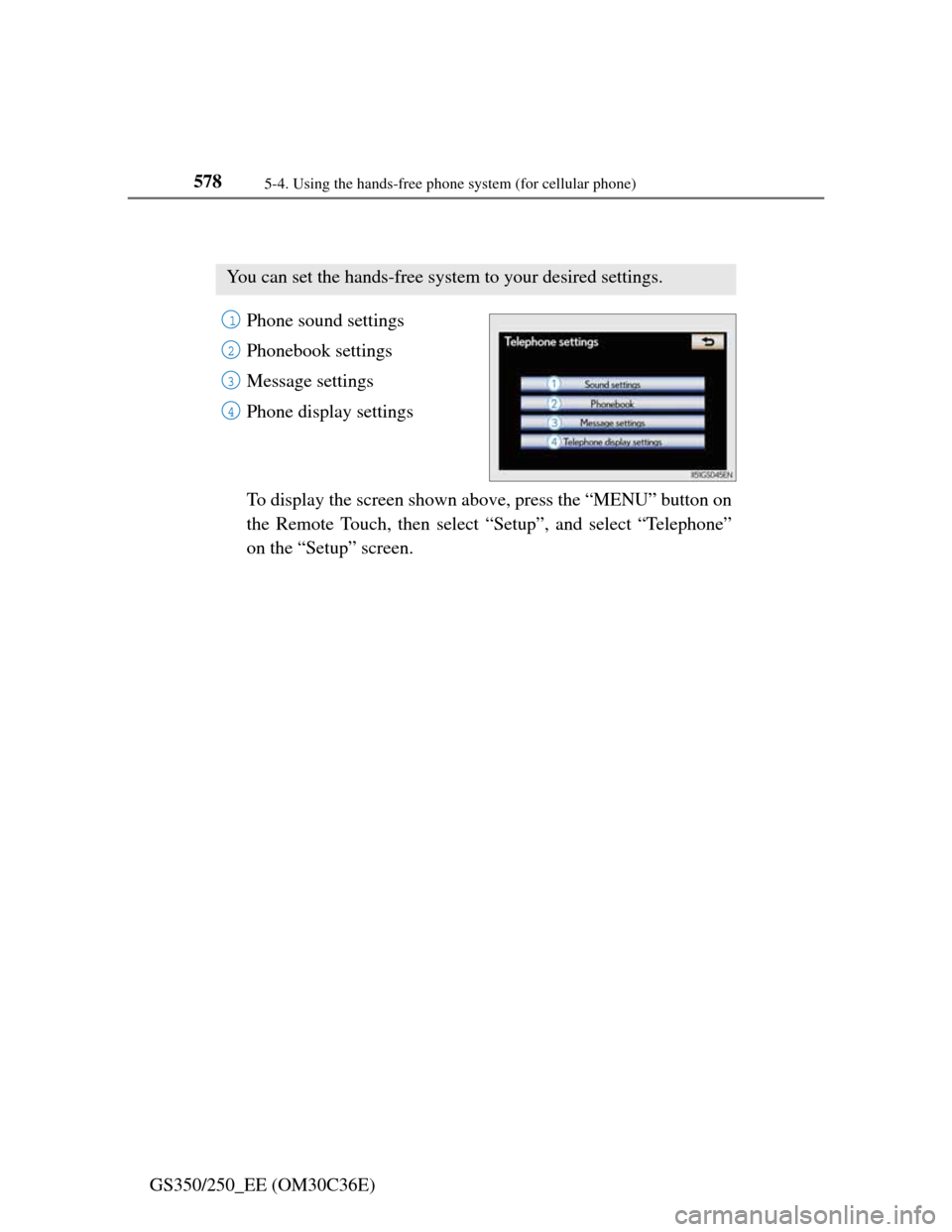
Setting the hands-free system (for cellular phone)
Phone sound settings
Phonebook settings
Message settings
Phone display settings
To display the screen shown above, press the “MENU” button on
the Remote Touch, then select “Setup”, and select “Telephone”
on the “Setup” screen.
You can set the hands-free system to your desired settings.
1
2
3
4
Page 594 of 914
5795-4. Using the hands-free phone system (for cellular phone)
5
Interior features
GS350/250_EE (OM30C36E)
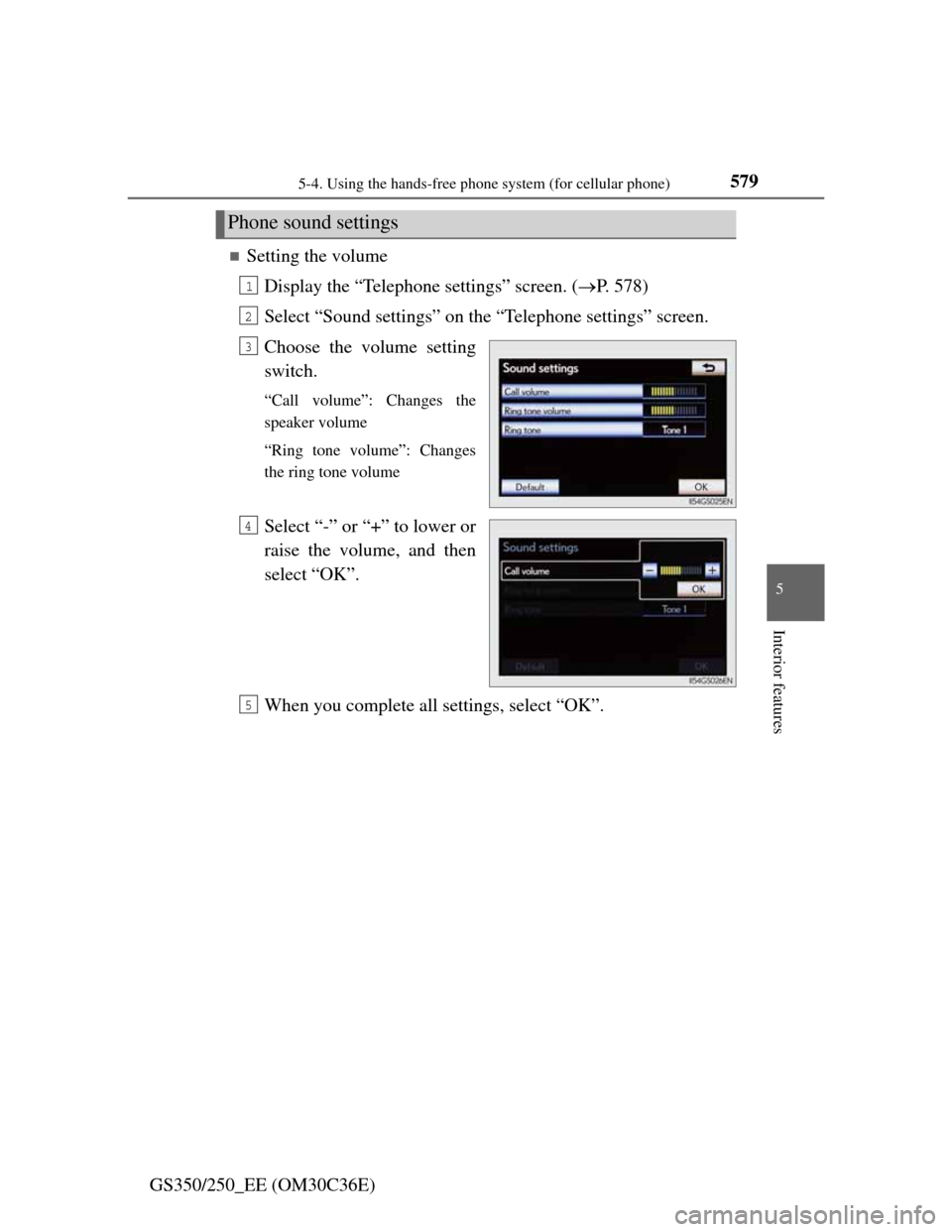
Setting the volume
Display the “Telephone settings” screen. (P. 578)
Select “Sound settings” on the “Telephone settings” screen.
Choose the volume setting
switch.
“Call volume”: Changes the
speaker volume
“Ring tone volume”: Changes
the ring tone volume
Select “-” or “+” to lower or
raise the volume, and then
select “OK”.
When you complete all settings, select “OK”.
Phone sound settings
1
2
3
4
5
Page 595 of 914
5805-4. Using the hands-free phone system (for cellular phone)
GS350/250_EE (OM30C36E)
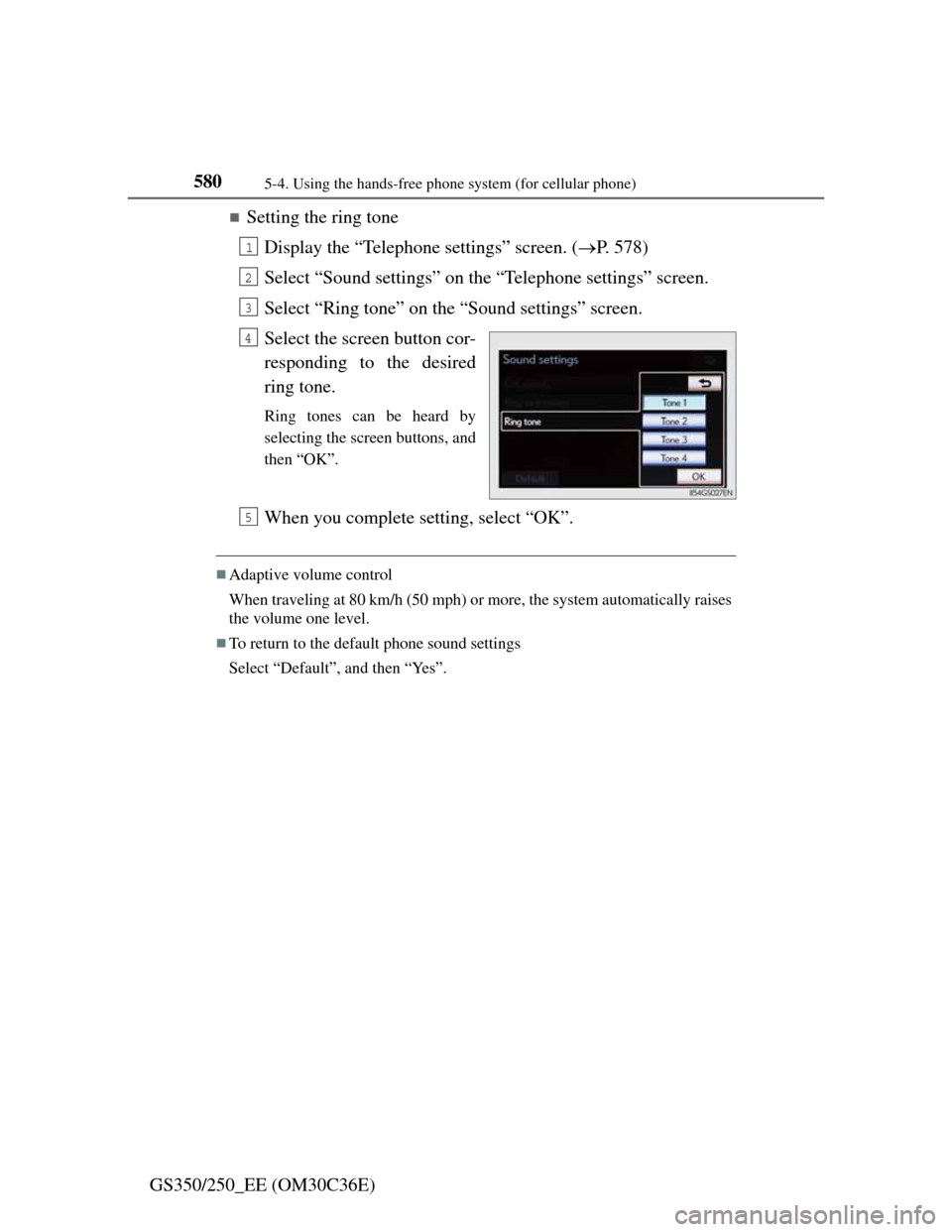
Setting the ring tone
Display the “Telephone settings” screen. (P. 578)
Select “Sound settings” on the “Telephone settings” screen.
Select “Ring tone” on the “Sound settings” screen.
Select the screen button cor-
responding to the desired
ring tone.
Ring tones can be heard by
selecting the screen buttons, and
then “OK”.
When you complete setting, select “OK”.
Adaptive volume control
When traveling at 80 km/h (50 mph) or more, the system automatically raises
the volume one level.
To return to the default phone sound settings
Select “Default”, and then “Yes”.
1
2
3
4
5