remote Lexus GS350 2013 Using the interior lights /
[x] Cancel search | Manufacturer: LEXUS, Model Year: 2013, Model line: GS350, Model: Lexus GS350 2013Pages: 94, PDF Size: 2.07 MB
Page 57 of 94
57
GS350_QG_U (OM30C68U)
Hands-free System For Cellular Phone
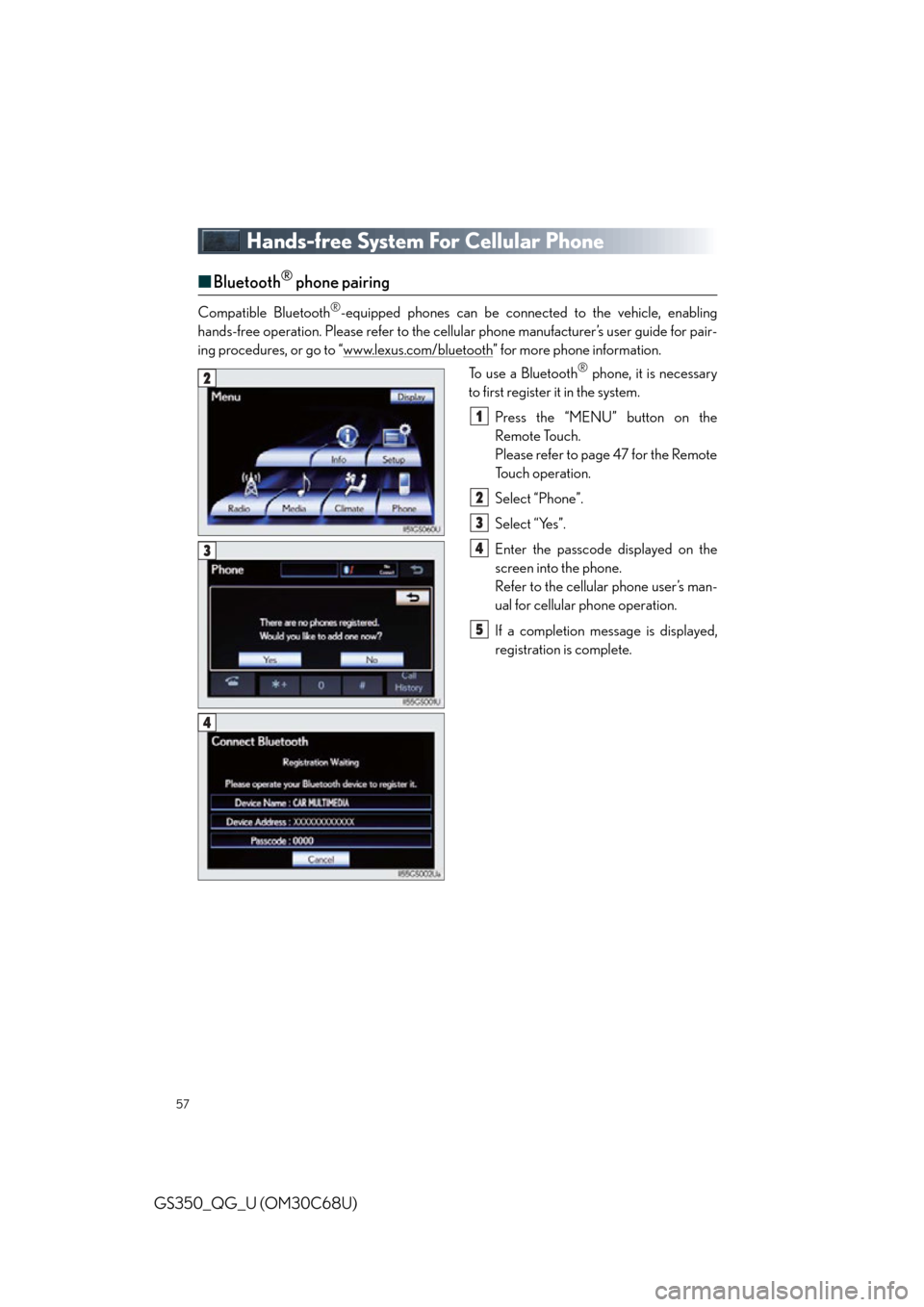
■Bluetooth® phone pairing
Compatible Bluetooth®-equipped phones can be connected to the vehicle, enabling
hands-free operation. Please refer to the cellular phone manufacturer’s user guide for pair-
ing procedures, or go to “www.lexus.com/bluetooth
” for more phone information.
To use a Bluetooth
® phone, it is necessary
to first register it in the system.
Press the “MENU” button on the
Remote Touch.
Please refer to page 47 for the Remote
To u c h o p e r a t i o n .
Select “Phone”.
Select “Yes”.
Enter the passcode displayed on the
screen into the phone.
Refer to the cellular phone user’s man-
ual for cellular phone operation.
If a completion message is displayed,
registration is complete.2
1
2
3
4
5
3
4
Page 58 of 94
58
GS350_QG_U (OM30C68U)
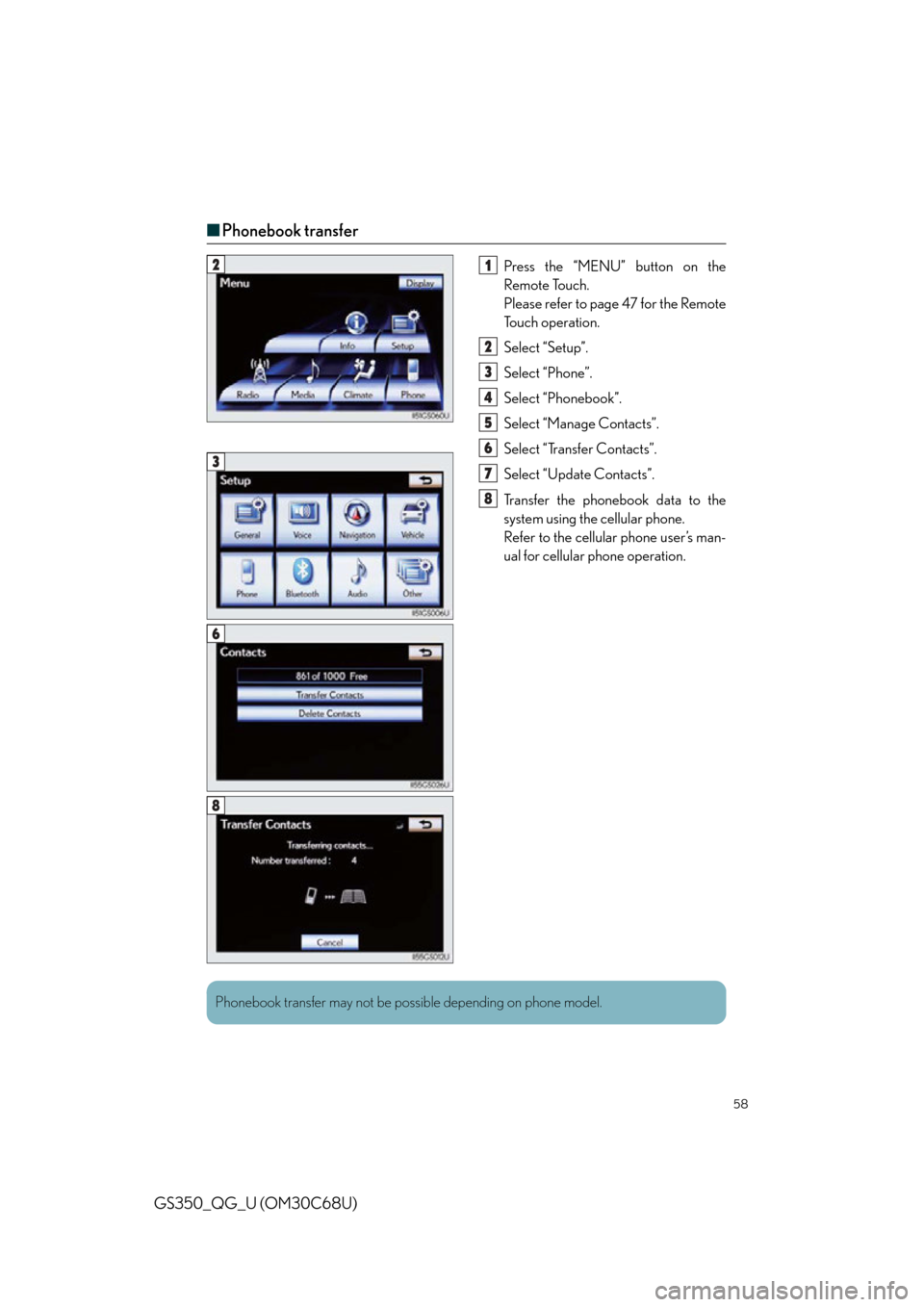
■Phonebook transfer
Press the “MENU” button on the
Remote Touch.
Please refer to page 47 for the Remote
To u c h o p e r a t i o n .
Select “Setup”.
Select “Phone”.
Select “Phonebook”.
Select “Manage Contacts”.
Select “Transfer Contacts”.
Select “Update Contacts”.
Transfer the phonebook data to the
system using the cellular phone.
Refer to the cellular phone user’s man-
ual for cellular phone operation.21
2
3
4
5
6
7
8
3
6
8
Phonebook transfer may not be possible depending on phone model.
Page 59 of 94
59
GS350_QG_U (OM30C68U)
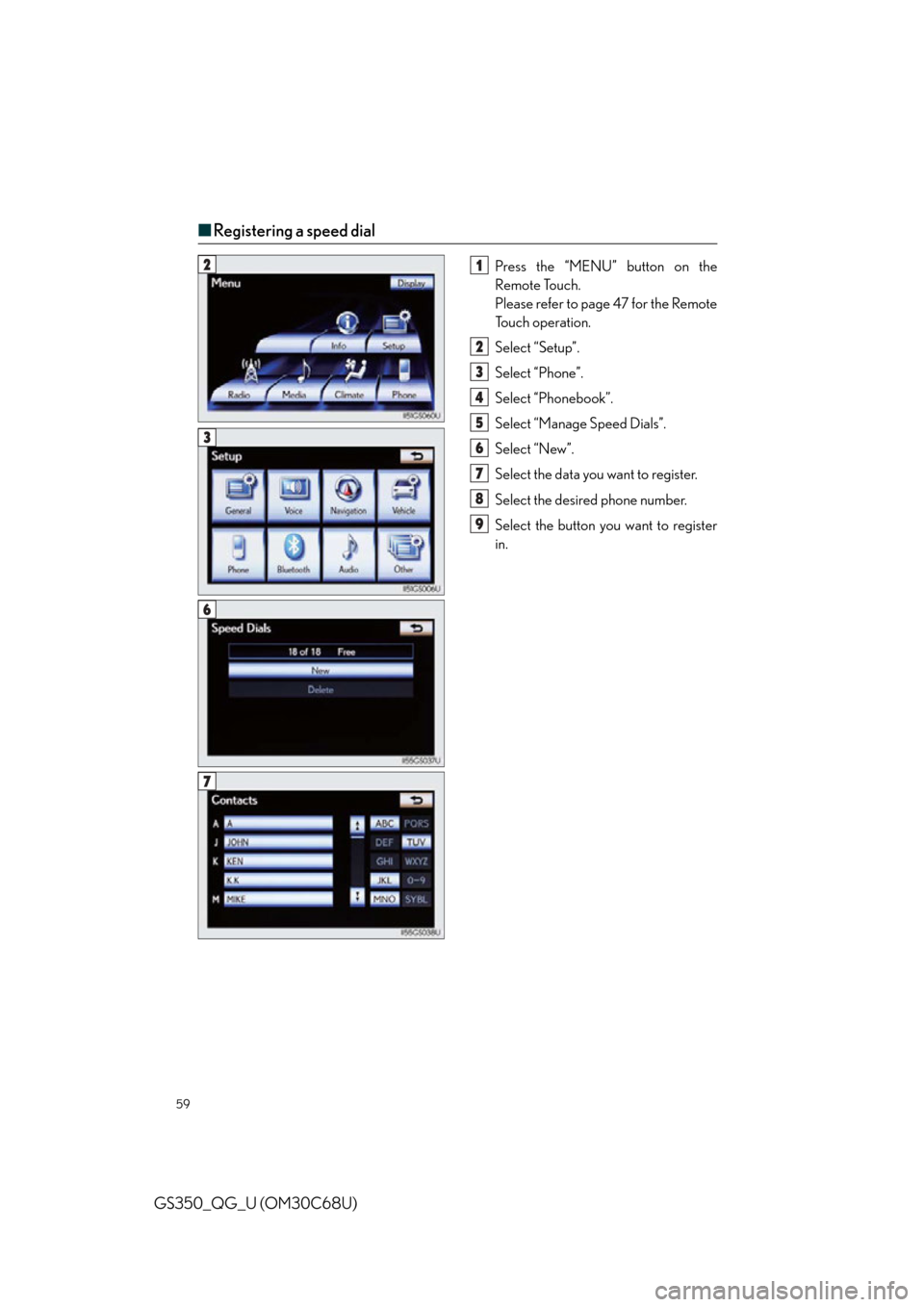
■Registering a speed dial
Press the “MENU” button on the
Remote Touch.
Please refer to page 47 for the Remote
To u c h o p e r a t i o n .
Select “Setup”.
Select “Phone”.
Select “Phonebook”.
Select “Manage Speed Dials”.
Select “New”.
Select the data you want to register.
Select the desired phone number.
Select the button you want to register
in.21
2
3
4
5
6
7
8
9
3
6
7
Page 61 of 94
61
GS350_QG_U (OM30C68U)
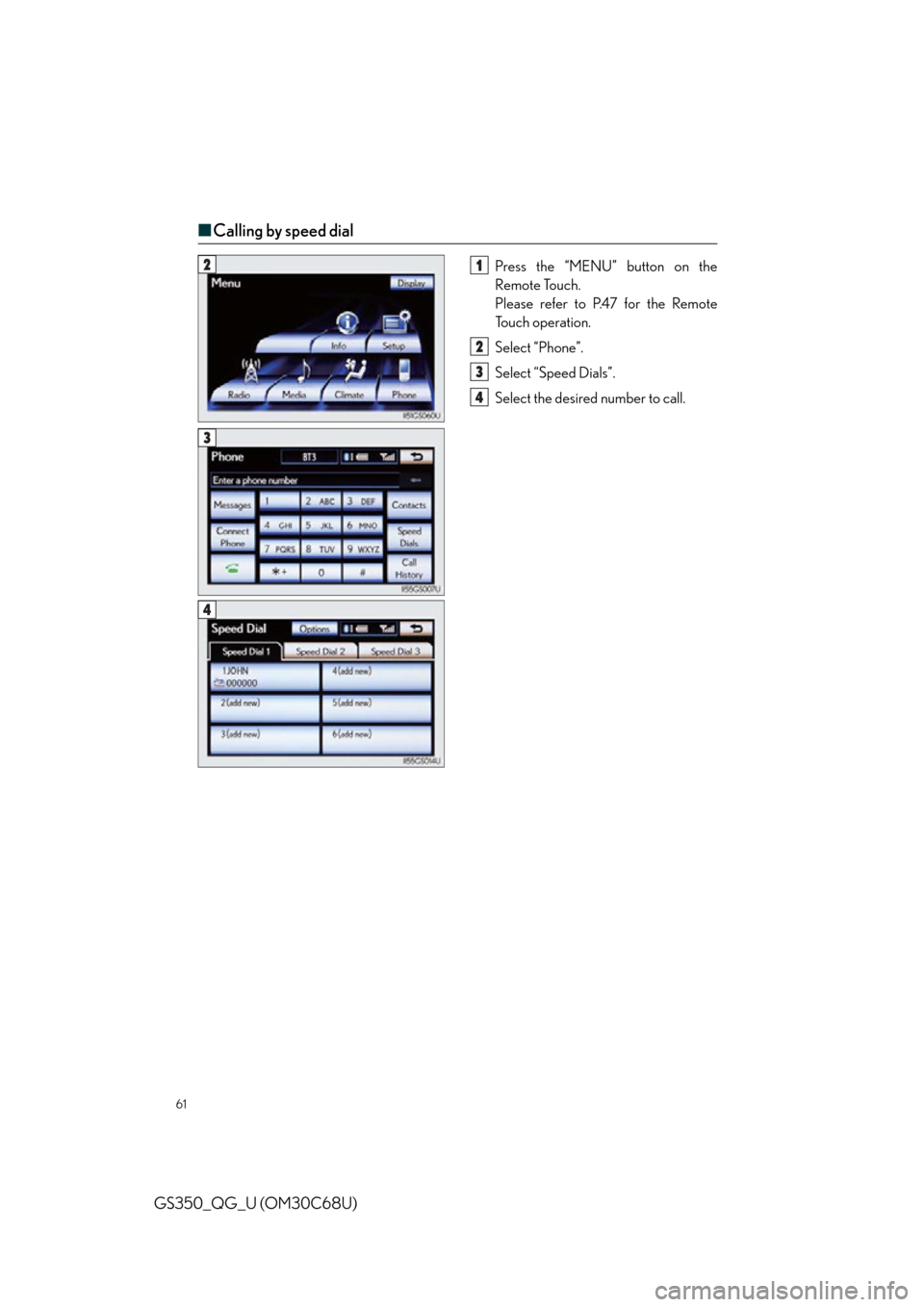
■Calling by speed dial
Press the “MENU” button on the
Remote Touch.
Please refer to P.47 for the Remote
To u c h o p e r a t i o n .
Select “Phone”.
Select “Speed Dials”.
Select the desired number to call.21
2
3
4
3
4
Page 62 of 94

62
GS350_QG_U (OM30C68U)
■Calling using SMS/MMS message
Press the “MENU” button on the
Remote Touch.
Please refer to P.47 for the Remote
To u c h o p e r a t i o n .
Select “Phone”.
Select “Messages”.
Select “SMS/MMS” tab.
Select the desired received message
from the displayed list.
Press on the steering wheel.21
2
3
4
5
6
3
The tab display may vary depending on the type of cellular phone.
Page 64 of 94
64
GS350_QG_U (OM30C68U)
Audio System
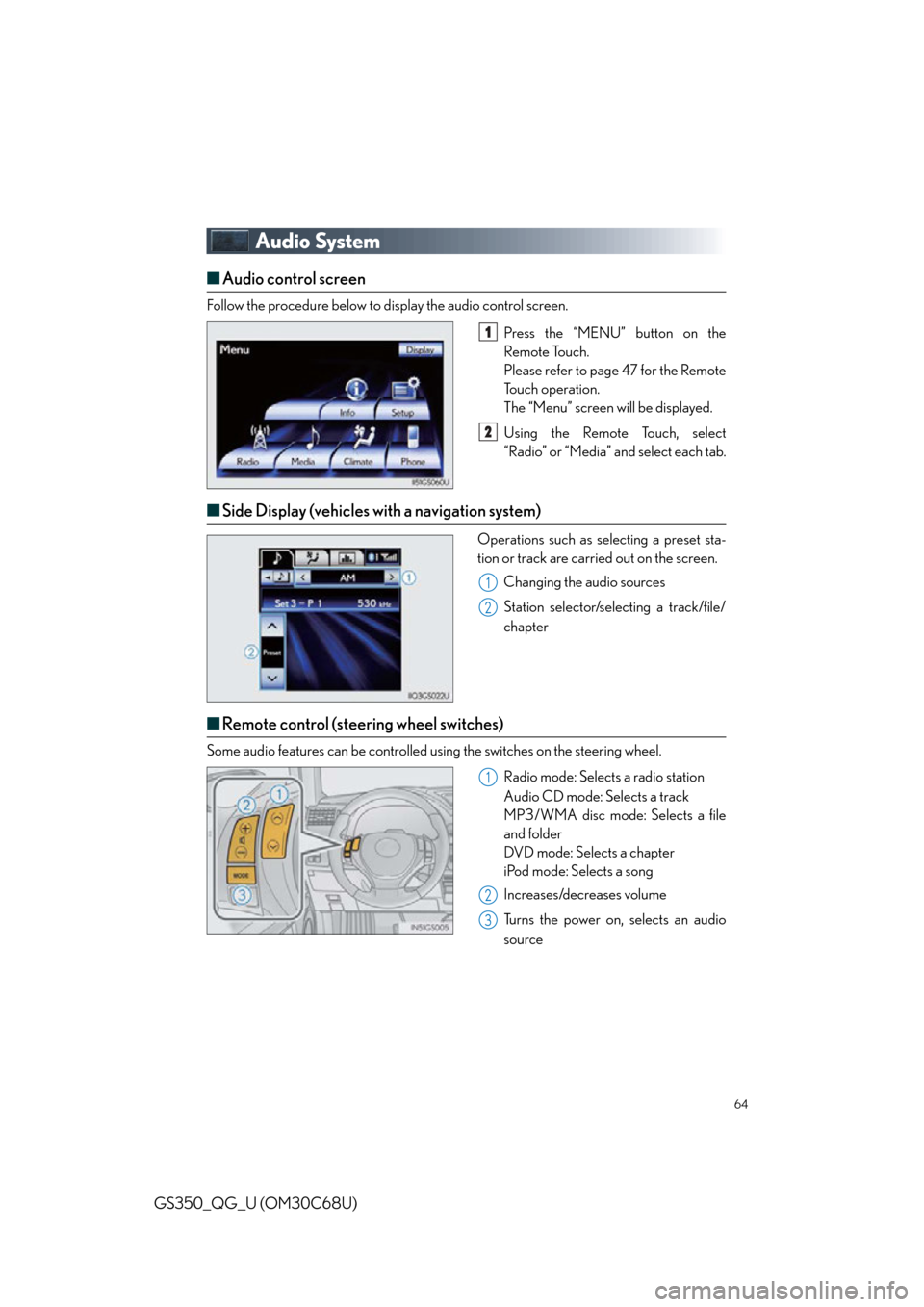
■Audio control screen
Follow the procedure below to display the audio control screen.
Press the “MENU” button on the
Remote Touch.
Please refer to page 47 for the Remote
To u c h o p e r a t i o n .
The “Menu” screen will be displayed.
Using the Remote Touch, select
“Radio” or “Media” and select each tab.
■Side Display (vehicles with a navigation system)
Operations such as selecting a preset sta-
tion or track are carried out on the screen.
Changing the audio sources
Station selector/selecting a track/file/
chapter
■Remote control (steering wheel switches)
Some audio features can be controlled using the switches on the steering wheel.
Radio mode: Selects a radio station
Audio CD mode: Selects a track
MP3/WMA disc mode: Selects a file
and folder
DVD mode: Selects a chapter
iPod mode: Selects a song
Increases/decreases volume
Turns the power on, selects an audio
source
1
2
1
2
1
2
3
Page 65 of 94
65
GS350_QG_U (OM30C68U)
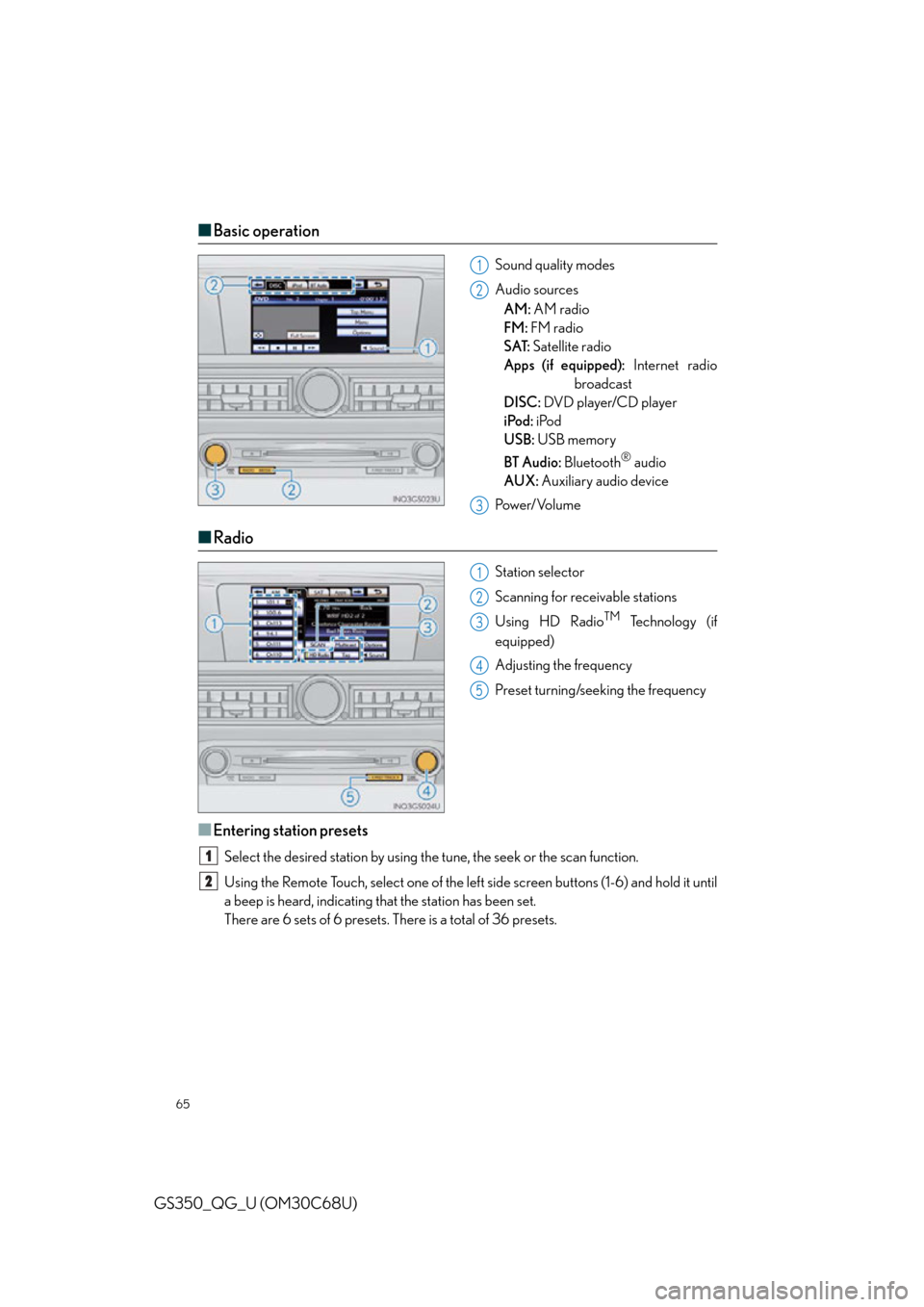
■Basic operation
Sound quality modes
Audio sources
AM: AM radio
FM: FM radio
SAT: Satellite radio
Apps (if equipped): Internet radio
broadcast
DISC: DVD player/CD player
iPod: iPod
USB: USB memory
BT Audio: Bluetooth
® audio
AUX: Auxiliary audio device
Pow e r/ Vo l u m e
■ Radio
Station selector
Scanning for receivable stations
Using HD Radio
TM Te c h n o l o g y ( i f
equipped)
Adjusting the frequency
Preset turning/seeking the frequency
■Entering station presets
Select the desired station by using the tune, the seek or the scan function.
Using the Remote Touch, select one of the left side screen buttons (1-6) and hold it until
a beep is heard, indicating that the station has been set.
There are 6 sets of 6 presets. There is a total of 36 presets.
1
2
3
1
2
3
4
5
1
2
Page 83 of 94
83
GS350_QG_U (OM30C68U)
Door Locks
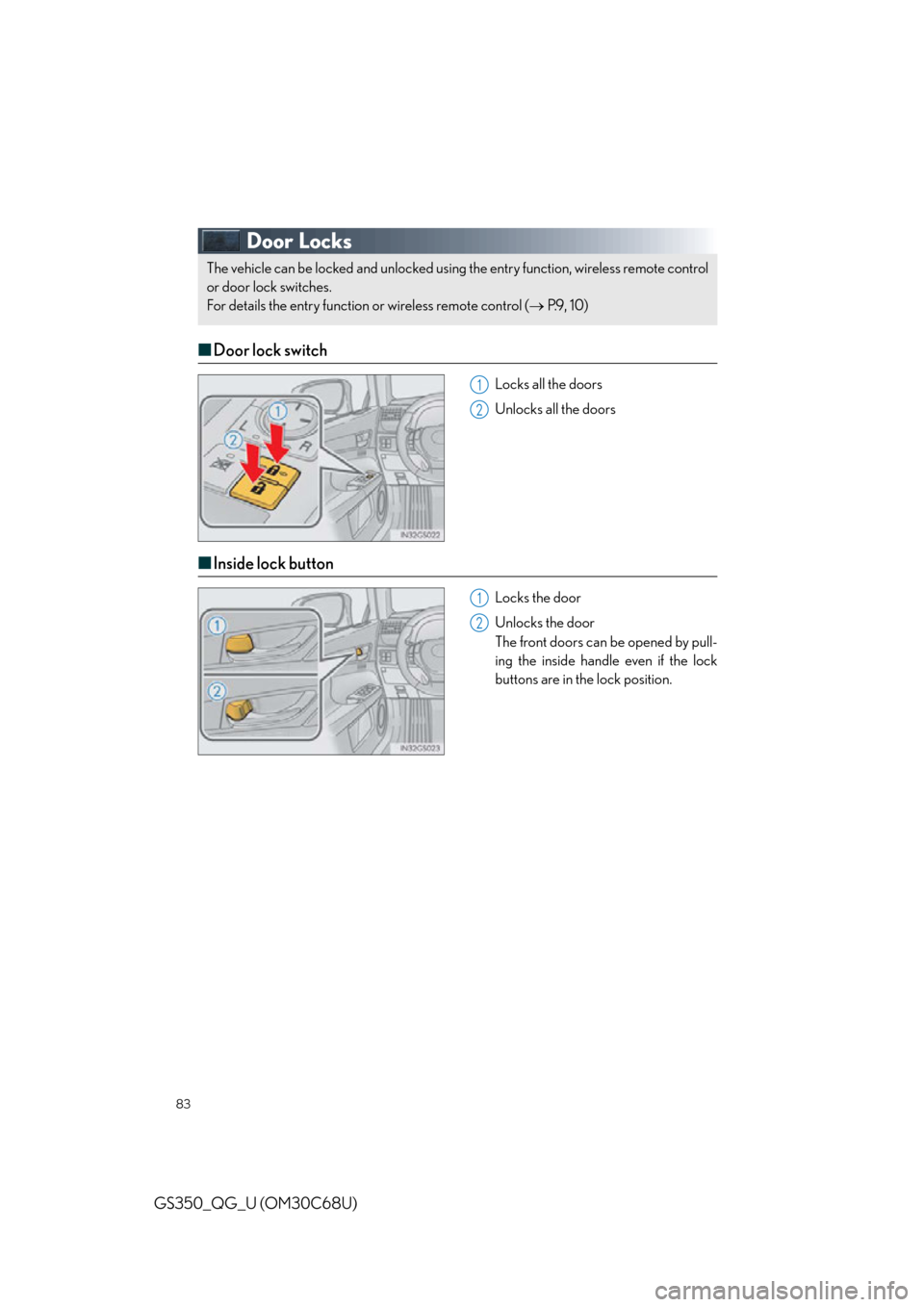
■Door lock switch
Locks all the doors
Unlocks all the doors
■Inside lock button
Locks the door
Unlocks the door
The front doors can be opened by pull-
ing the inside handle even if the lock
buttons are in the lock position.
The vehicle can be locked and unlocked using the entry function, wireless remote control
or door lock switches.
For details the entry function or wireless remote control ( P.9 , 1 0 )
1
2
1
2
Page 88 of 94
88
GS350_QG_U (OM30C68U)
Trunk
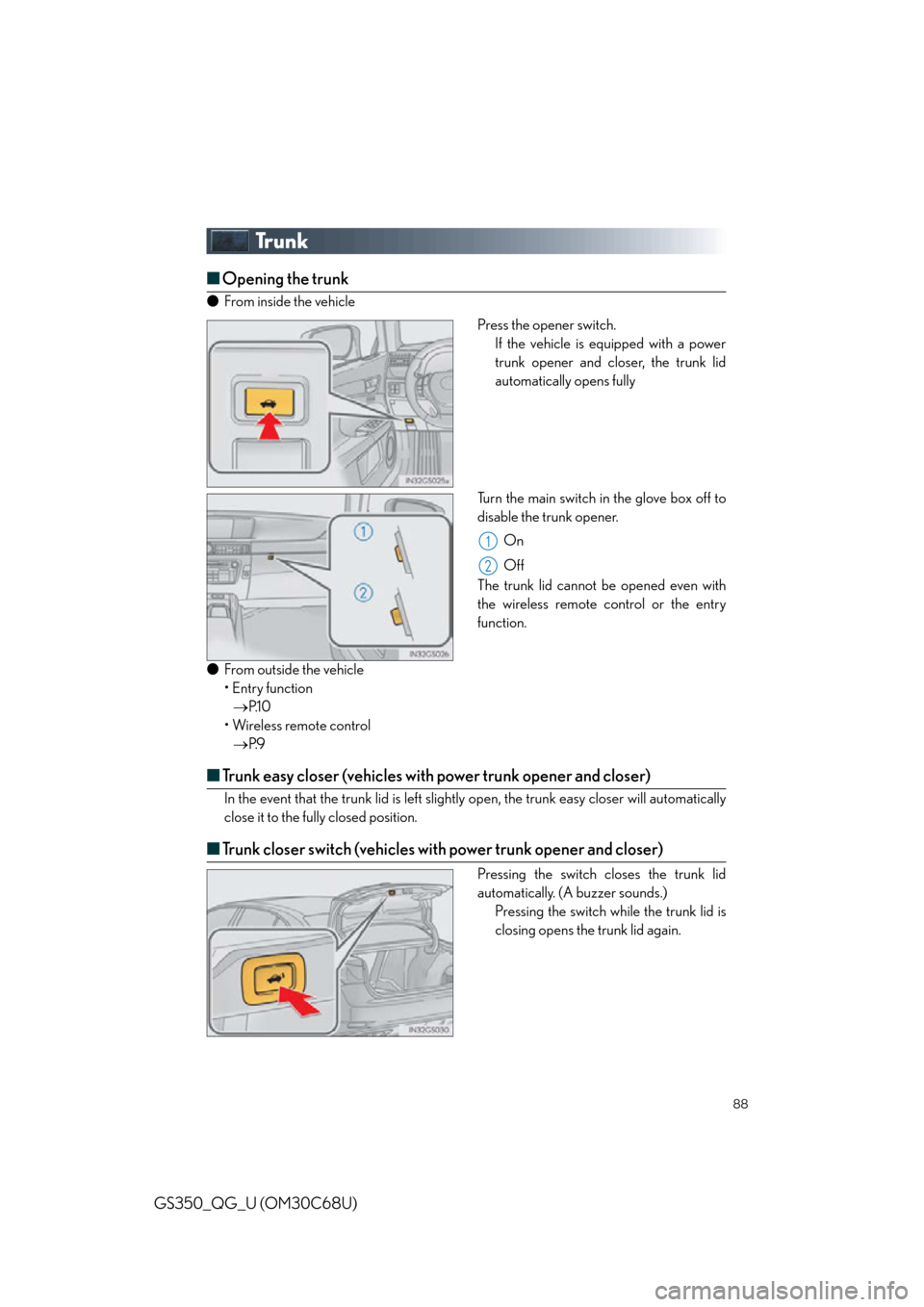
■Opening the trunk
● From inside the vehicle
Press the opener switch.If the vehicle is equipped with a power
trunk opener and closer, the trunk lid
automatically opens fully
Turn the main switch in the glove box off to
disable the trunk opener. On
Off
The trunk lid cannot be opened even with
the wireless remote control or the entry
function.
● From outside the vehicle
• Entry function
P.1 0
• Wireless remote control P.9
■Trunk easy closer (vehicles with power trunk opener and closer)
In the event that the trunk lid is left slightly open, the trunk easy closer will automatically
close it to the fully closed position.
■ Trunk closer switch (vehicles with power trunk opener and closer)
Pressing the switch closes the trunk lid
automatically. (A buzzer sounds.)
Pressing the switch while the trunk lid is
closing opens the trunk lid again.
1
2