ad blue Lexus GS350 2014 Navigation manual
[x] Cancel search | Manufacturer: LEXUS, Model Year: 2014, Model line: GS350, Model: Lexus GS350 2014Pages: 438, PDF Size: 54.27 MB
Page 355 of 438

355
1. TELEPHONE OPERATION (HANDS-FREE SYSTEM FOR CELLULAR PHONES)
GS_Navi+MM_OM30E40E_(EE)
14.07.24 15:56
TELEPHONE
7
5. TALKING ON THE Bluetooth® PHONE
While talking on the telephone, this
screen is displayed. The operations out-
lined below can be performed on this
screen.
The side display can be operated from
the side screen. (→P.424) (Vehicles
with navigation system)
No.FunctionPage
Select to change handset
modes between hands-free
and cellular phone.
Select to start talking with
the other party.357
Select “+” or “-” to adjust
the volume of the other par-
ty’s voice.
Select to display the dial
pad to send tones.356
Select to mute your voice to
the other party.
Select to adjust your voice
volume that the other party
hears from their speaker.
357
Select to send tones. This
button only appears when a
number that contains a (w)
is dialed in hands-free
mode.
356
Select to hang up the tele-
phone.
INFORMATION
●
When cellular phone call is changed to
hands-free call, the hands-free screen will
be displayed and its functions can be
operated on the screen.
●Changing between cellular phone call
and hands-free call can be performed by
operating the cellular phone directly.
●Transferring methods and operations will
be different depending on the type of cel-
lular phone you have.
●For the operation of the cellular phone,
see the manual that comes with it.
No.FunctionPage
GS_Navi+MM_OM30E40E_(EE).book Page 355 Thursday, July 24, 201 4 3:57 PM
Page 358 of 438
358
1. TELEPHONE OPERATION (HANDS-FREE SYSTEM FOR CELLULAR PHONES)
GS_Navi+MM_OM30E40E_(EE)
14.07.24 15:56
6. Bluetooth® PHONE MESSAGE FUNCTION
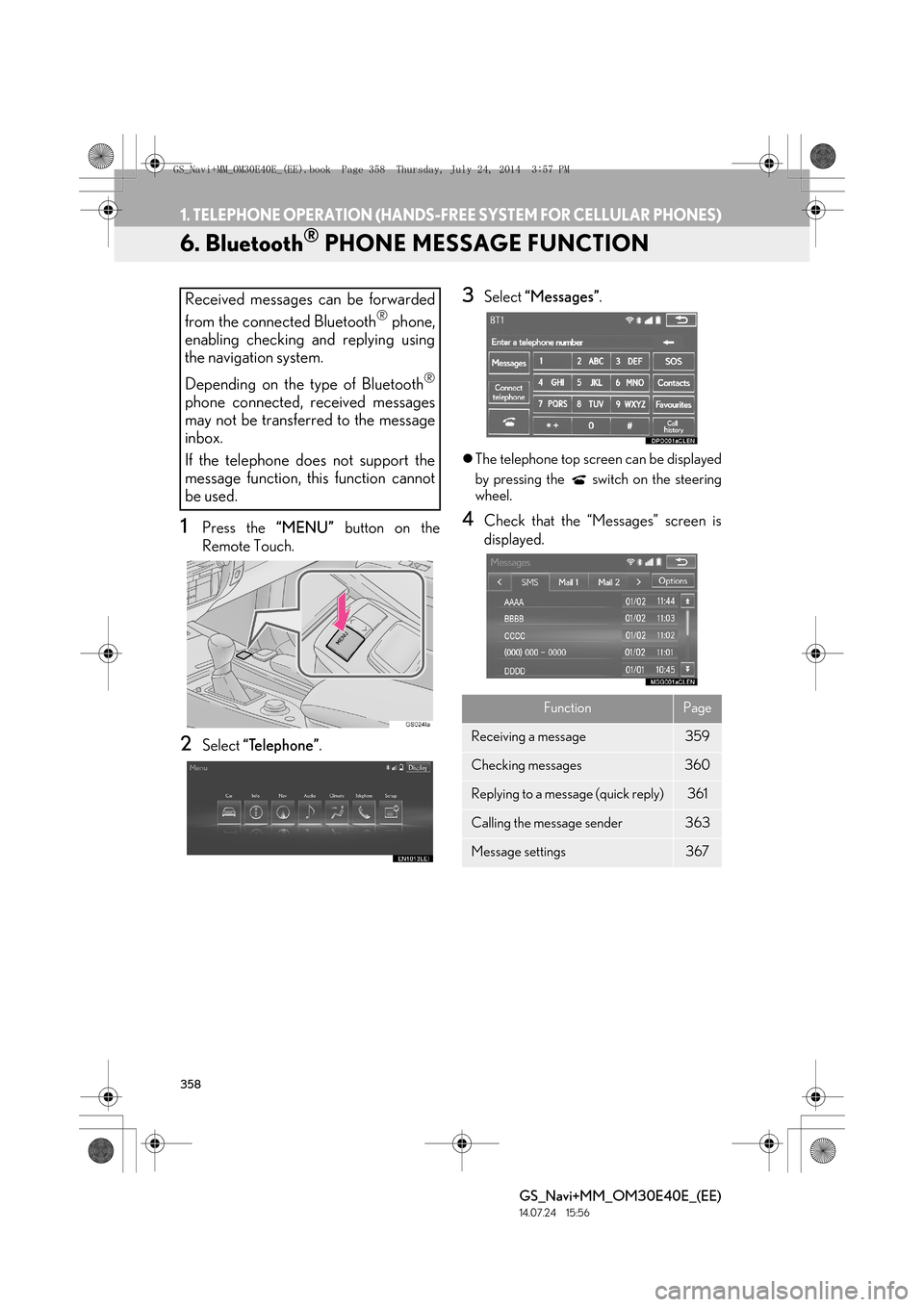
1Press the “MENU” button on the
Remote Touch.
2Select “Telephone” .
3Select “Messages” .
zThe telephone top screen can be displayed
by pressing the switch on the steering
wheel.
4Check that the “Messages” screen is
displayed.
Received messages can be forwarded
from the connected Bluetooth
® phone,
enabling checking and replying using
the navigation system.
Depending on the type of Bluetooth
®
phone connected, received messages
may not be transferred to the message
inbox.
If the telephone does not support the
message function, this function cannot
be used.
FunctionPage
Receiving a message359
Checking messages 360
Replying to a message (quick reply)361
Calling the message sender363
Message settings367
GS_Navi+MM_OM30E40E_(EE).book Page 358 Thursday, July 24, 201 4 3:57 PM
Page 360 of 438
360
1. TELEPHONE OPERATION (HANDS-FREE SYSTEM FOR CELLULAR PHONES)
GS_Navi+MM_OM30E40E_(EE)
14.07.24 15:56
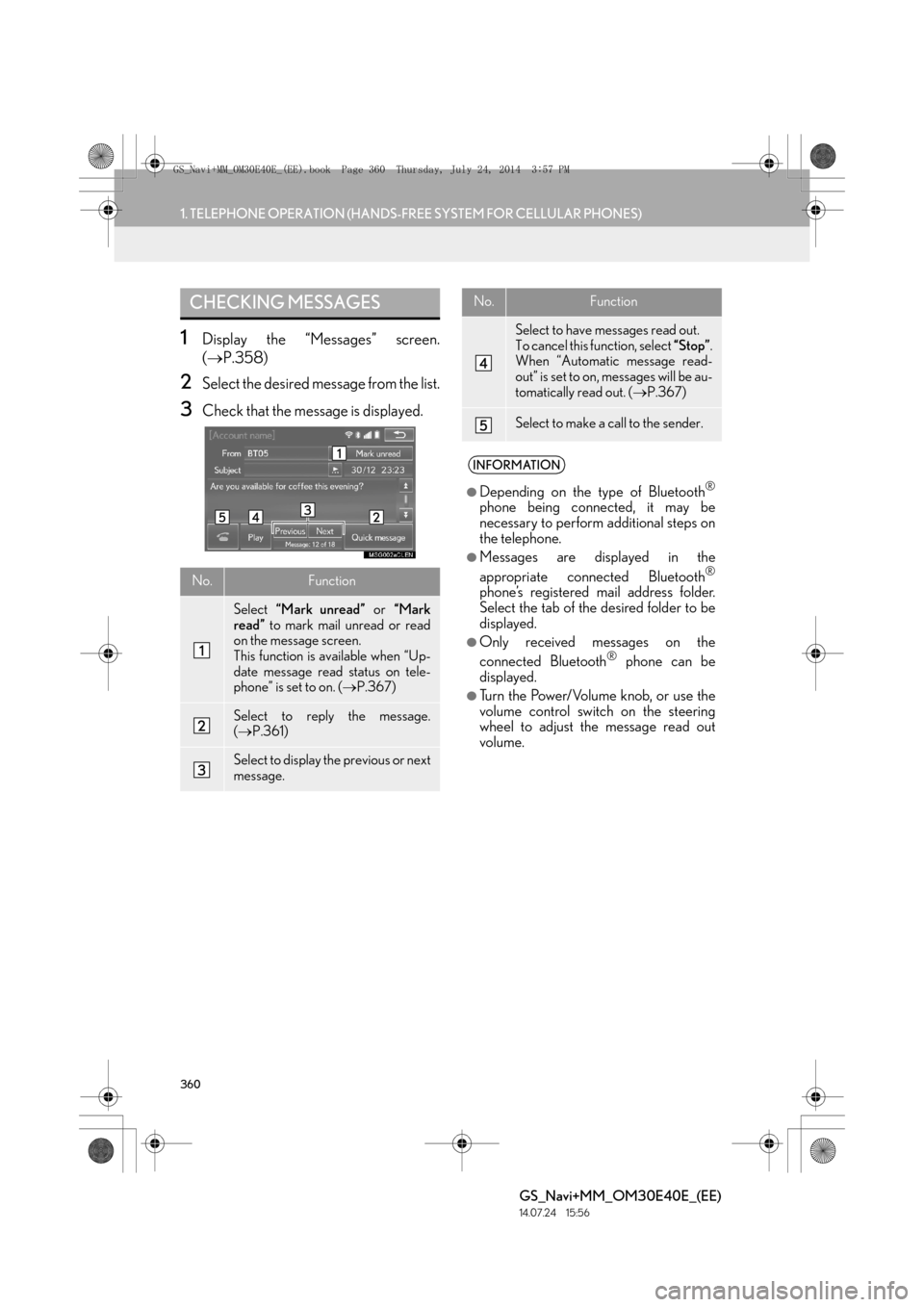
1Display the “Messages” screen.
(→ P.358)
2Select the desired message from the list.
3Check that the message is displayed.
CHECKING MESSAGES
No.Function
Select “Mark unread” or “Mark
read” to mark mail unread or read
on the message screen.
This function is available when “Up-
date message read status on tele-
phone” is set to on. ( →P.367)
Select to reply the message.
(→ P.361)
Select to display the previous or next
message.
Select to have messages read out.
To cancel this function, select “Stop”.
When “Automatic message read-
out” is set to on, messages will be au-
tomatically read out. ( →P.367)
Select to make a call to the sender.
INFORMATION
●
Depending on the type of Bluetooth®
phone being connected, it may be
necessary to perform additional steps on
the telephone.
●Messages are displayed in the
appropriate connected Bluetooth®
phone’s registered mail address folder.
Select the tab of the desired folder to be
displayed.
●Only received messages on the
connected Bluetooth® phone can be
displayed.
●Turn the Power/Volume knob, or use the
volume control switch on the steering
wheel to adjust the message read out
volume.
No.Function
GS_Navi+MM_OM30E40E_(EE).book Page 360 Thursday, July 24, 201 4 3:57 PM
Page 369 of 438
369
2. SETUP
TELEPHONE
GS_Navi+MM_OM30E40E_(EE)
14.07.24 15:56
7
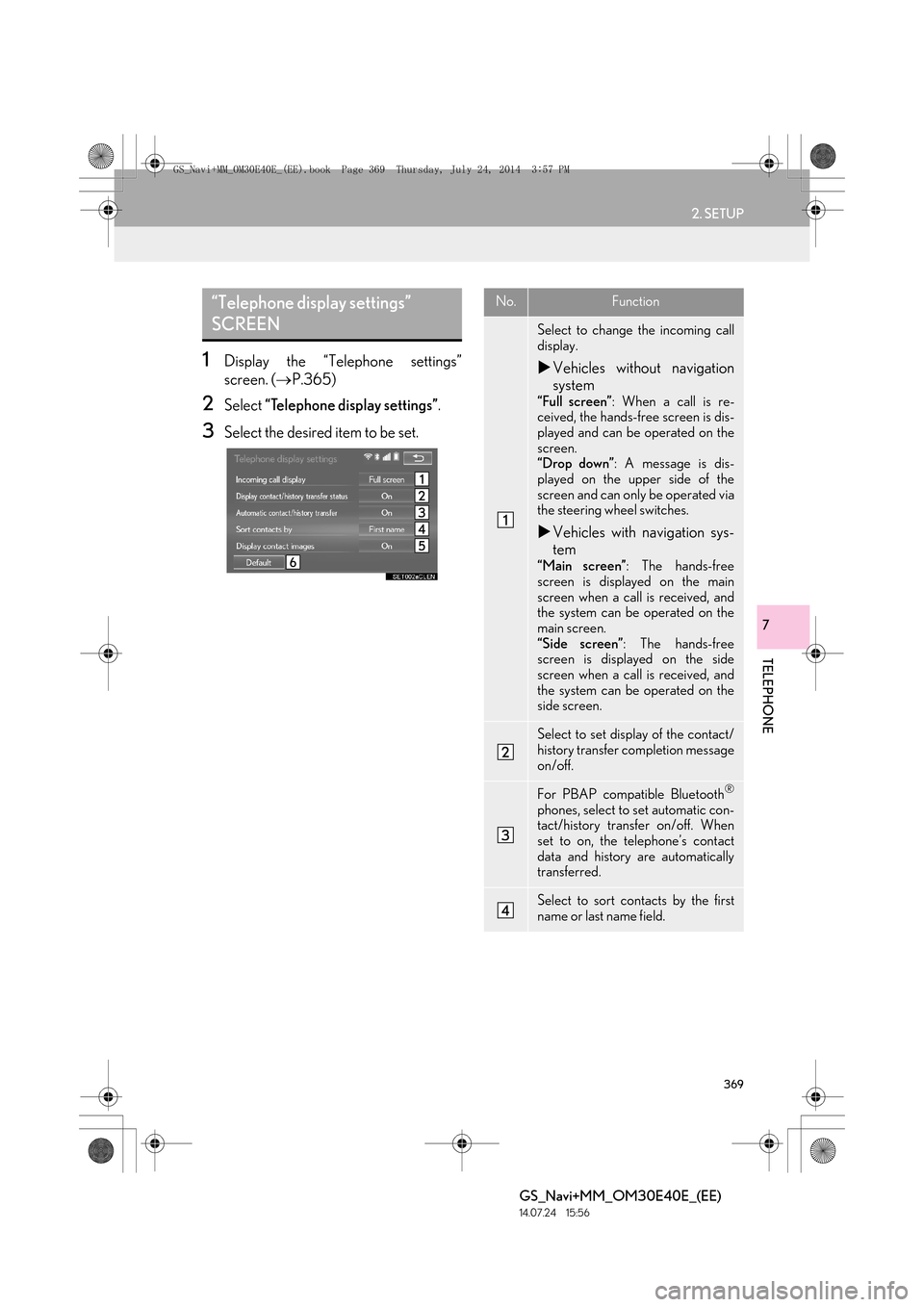
1Display the “Telephone settings”
screen. (→P.365)
2Select “Telephone display settings” .
3Select the desired item to be set.
“Telephone display settings”
SCREENNo.Function
Select to change the incoming call
display.
XVehicles without navigation
system
“Full screen” : When a call is re-
ceived, the hands-free screen is dis-
played and can be operated on the
screen.
“Drop down” : A message is dis-
played on the upper side of the
screen and can only be operated via
the steering wheel switches.
X Vehicles with navigation sys-
tem
“Main screen” : The hands-free
screen is displayed on the main
screen when a call is received, and
the system can be operated on the
main screen.
“Side screen” : The hands-free
screen is displayed on the side
screen when a call is received, and
the system can be operated on the
side screen.
Select to set display of the contact/
history transfer completion message
on/off.
For PBAP compatible Bluetooth®
phones, select to set automatic con-
tact/history transfer on/off. When
set to on, the telephone’s contact
data and history are automatically
transferred.
Select to sort contacts by the first
name or last name field.
GS_Navi+MM_OM30E40E_(EE).book Page 369 Thursday, July 24, 201 4 3:57 PM
Page 373 of 438

373
2. SETUP
TELEPHONE
GS_Navi+MM_OM30E40E_(EE)
14.07.24 15:56
7
1Display the “Contacts” screen.
(→ P.372)
2Select “Manage contacts” .
3Select the desired item to be set.
*: For PBAP compatible Bluetooth
®
phones, this function is available when
“Automatic contact/history transfer” is
set to off. ( →P.369)
■DISPLAYING THE “Contacts”
SCREEN IN A DIFFERENT WAY
1Display the telephone top screen.
(→ P.346)
2Select “Contacts” .
3Select “Options” .
4Select “Manage contacts” .
“Contacts” SCREEN
No.FunctionPage
Select to transfer contacts
from the connected tele-
phone.374
*Select to add new contacts
to the contact list.376
*Select to edit contacts in
the contact list.377
*Select to delete contacts
from the contact list.379
GS_Navi+MM_OM30E40E_(EE).book Page 373 Thursday, July 24, 201 4 3:57 PM
Page 374 of 438

374
2. SETUP
GS_Navi+MM_OM30E40E_(EE)
14.07.24 15:56
■FOR PBAP COMPATIBLE
Bluetooth
® PHONES
1Select “Transfer contacts” .
zContacts are transferred automatically.
X When “Automatic contact/history trans-
fer” is set to on ( →P.369)
2Check that a confirmation screen is dis-
played when the operation is complete.
zThis operation may be unnecessary
depending on the type of cellular phone.
z Depending on the type of cellular phone,
OBEX authentication may be required
when transferring contact data. Enter
“1234” into the Bluetooth
® phone.
z If another Bluetooth
® device is connected
when transferring contact data, depending
on the telephone, the connected
Bluetooth
® device may need to be discon-
nected.
z Depending on the type of Bluetooth
®
phone being connected, it may be neces-
sary to perform additional steps on the
phone.
X When “Automatic contact/history trans-
fer” is set to off ( →P.369)
2Follow the steps in “FOR PBAP IN-
COMPATIBLE BUT OPP COMPATI-
BLE Bluetooth
® PHONES” from
“STEP 2”. ( →P.375)
TRANSFER CONTACTS FROM
TELEPHONE
Operation methods differ between
PBAP compatible and PBAP incompat-
ible but OPP compatible Bluetooth
®
phones.
If your cellular phone is neither PBAP
nor OPP compatible, the contacts can-
not be transferred.
GS_Navi+MM_OM30E40E_(EE).book Page 374 Thursday, July 24, 201 4 3:57 PM
Page 375 of 438

375
2. SETUP
TELEPHONE
GS_Navi+MM_OM30E40E_(EE)
14.07.24 15:56
7
■FOR PBAP INCOMPATIBLE BUT
OPP COMPATIBLE Bluetooth
®
PHONES
1Select “Transfer contacts” .
2Select “Replace contacts” or “Add con-
tact” .
“Replace contacts” : Select to transfer the
contact from the connected cellular phone
and replace the current one.
“Add contact” : Select to transfer the de-
sired contact data from the connected cel-
lular phone to add to the current one.
3Transfer the contact data to the system
using a Bluetooth
® phone.
z This operation may be unnecessary
depending on the type of cellular phone.
z Depending on the type of cellular phone,
OBEX authentication may be required
when transferring contact data. Enter
“1234” into the Bluetooth
® phone.
z To cancel this function, select “Cancel”.
4Select “Done” when it appears on the
screen.
5Check that a confirmation screen is dis-
played when the operation is complete.
This operation cannot be performed
while driving.
GS_Navi+MM_OM30E40E_(EE).book Page 375 Thursday, July 24, 201 4 3:57 PM
Page 376 of 438

376
2. SETUP
GS_Navi+MM_OM30E40E_(EE)
14.07.24 15:56
■UPDATING THE CONTACTS IN A
DIFFERENT WAY (FROM THE “Call
history” SCREEN)
1Display the telephone top screen.
(→ P.346)
2Select “Call history” and select a con-
tact not yet registered in the contact list.
3Select “Update contact” .
4Select the desired contact.
5Select a telephone type for the tele-
phone number.
1Select “New contact” .
2Enter the name and select “OK”.
3Enter the telephone number and select
“OK” .
For PBAP compatible Bluetooth®
phones, this function is available when
“Automatic contact/history transfer” is
set to off. ( →P.369)
REGISTERING A NEW
CONTACT TO THE CONTACT
LIST
New contact data can be registered.
Up to 4 numbers per person can be reg-
istered. For PBAP compatible
Bluetooth
® phones, this function is
available when “Automatic contact/his-
tory transfer” is set to off. (→P.369)
GS_Navi+MM_OM30E40E_(EE).book Page 376 Thursday, July 24, 201 4 3:57 PM
Page 377 of 438

377
2. SETUP
TELEPHONE
GS_Navi+MM_OM30E40E_(EE)
14.07.24 15:56
7
4Select the telephone type for the tele-
phone number.
5To add another number to this contact,
select “Yes”.
■REGISTERING A NEW CONTACT
IN A DIFFERENT WAY (FROM THE
“Call history” SCREEN)
1Display the telephone top screen.
(→ P.346)
2Select “Call history” and select a con-
tact not yet registered in the contact list.
3Select “Add to contacts” .
4Follow the steps in “REGISTERING A
NEW CONTACT TO THE CON-
TACTS LIST” from “STEP 2”.
(→ P.376)
1Select “Edit contact” .
2Select the desired contact.
3Select corresponding to the de-
sired name or number.
EDITING THE CONTACT
DATA
For PBAP compatible Bluetooth
®
phones, this function is available when
“Automatic contact/history transfer” is
set to off. ( →P.369)
GS_Navi+MM_OM30E40E_(EE).book Page 377 Thursday, July 24, 201 4 3:57 PM
Page 379 of 438

379
2. SETUP
TELEPHONE
GS_Navi+MM_OM30E40E_(EE)
14.07.24 15:56
7
1Select “Delete contacts” .
2Select the desired contact and select
“Delete”.
3Select “Yes” when the confirmation
screen appears.
■ DELETING THE CONTACT IN A
DIFFERENT WAY (FROM THE
“Contact details” SCREEN)
1Display the telephone top screen.
(→ P.346)
2Select “Contacts” , “Call history” or
“Favourites” and select the desired
contact.
3Select “Delete contact” .
4Select “Yes” when the confirmation
screen appears.
DELETING THE CONTACT
DATA
For PBAP compatible Bluetooth
®
phones, this function is available when
“Automatic contact/history transfer” is
set to off. ( →P.369)
INFORMATION
●
Multiple data can be selected and
deleted at the same time.
INFORMATION
●
When a Bluetooth® phone is deleted, the
contact data will be deleted at the same
time.
GS_Navi+MM_OM30E40E_(EE).book Page 379 Thursday, July 24, 201 4 3:57 PM