display Lexus GS350 2015 Manual PDF
[x] Cancel search | Manufacturer: LEXUS, Model Year: 2015, Model line: GS350, Model: Lexus GS350 2015Pages: 615, PDF Size: 12.93 MB
Page 293 of 615
GS350_OM_OM30F69U_(U)
2915-1. Remote Touch screen
5
Interior features
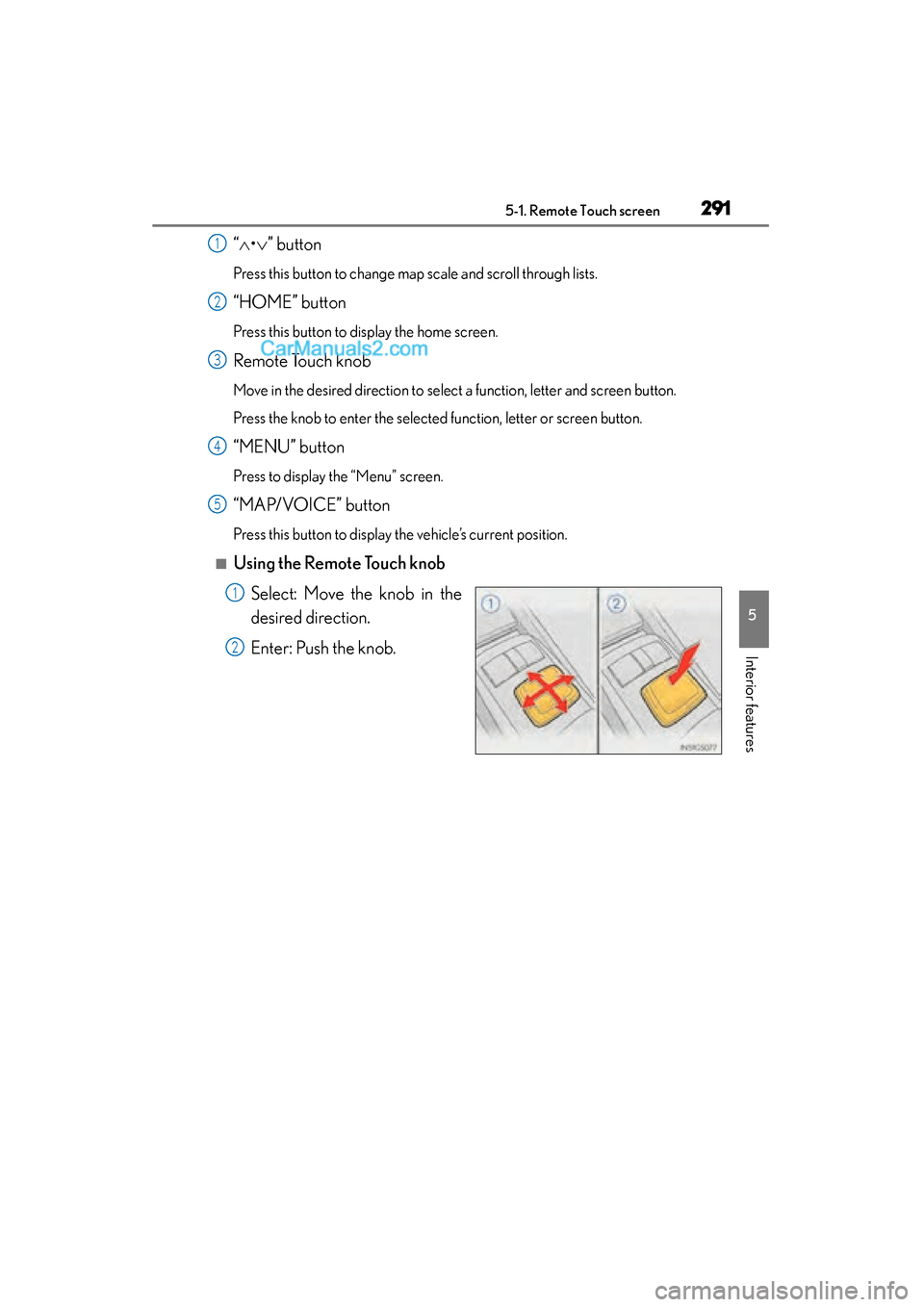
“∧ •∨ ” button
Press this button to change map scale and scroll through lists.
“HOME” button
Press this button to display the home screen.
Remote Touch knob
Move in the desired direction to select a function, letter and screen button.
Press the knob to enter the selected function, letter or screen button.
“MENU” button
Press to display the “Menu” screen.
“MAP/VOICE” button
Press this button to display the vehicle’s current position.
■Using the Remote Touch knob
Select: Move the knob in the
desired direction.
Enter: Push the knob.
1
2
3
4
5
1
2
GS350_OM_OM30F69U_(U).book Page 291 Monday, January 19, 2015 2:53 PM
Page 294 of 615
292
GS350_OM_OM30F69U_(U)
5-1. Remote Touch screen
■Screen display during low temperatures
When the ambient temperature is extremely low, screen response may be delayed
even if the Remote Touch is operated.
CAUTION
■When using the Remote Touch
●Do not allow fingers, fingernails or hair to become caught in the Remote Touch as
this may cause an injury.
●Be careful when selecting the Remote Touch in extreme temperatures as it may
become very hot or cold due to the temperature inside the vehicle.
NOTICE
■To prevent damage to the Remote Touch
●Do not allow the Remote Touch to come into contact with food, liquid, stickers or
lit cigarettes as doing so may cause it to change color, emit a strange odor or stop
functioning.
●Do not subject the Remote Touch to excessive pressure or strong impact as the
knob may bend or break off.
●Do not allow coins, contact lenses or other such items to become caught in the
Remote Touch as this may cause it to stop functioning.
●Items of clothing may rip if they become caught on the Remote Touch knob.
●If your hand or any object is on the Remote Touch knob when the engine switch is
turned to ACCESSORY mode, the Remote Touch knob may not operate prop-
erly.
GS350_OM_OM30F69U_(U).book Page 292 Monday, January 19, 2015 2:53 PM
Page 295 of 615
GS350_OM_OM30F69U_(U)
2935-1. Remote Touch screen
5
Interior features
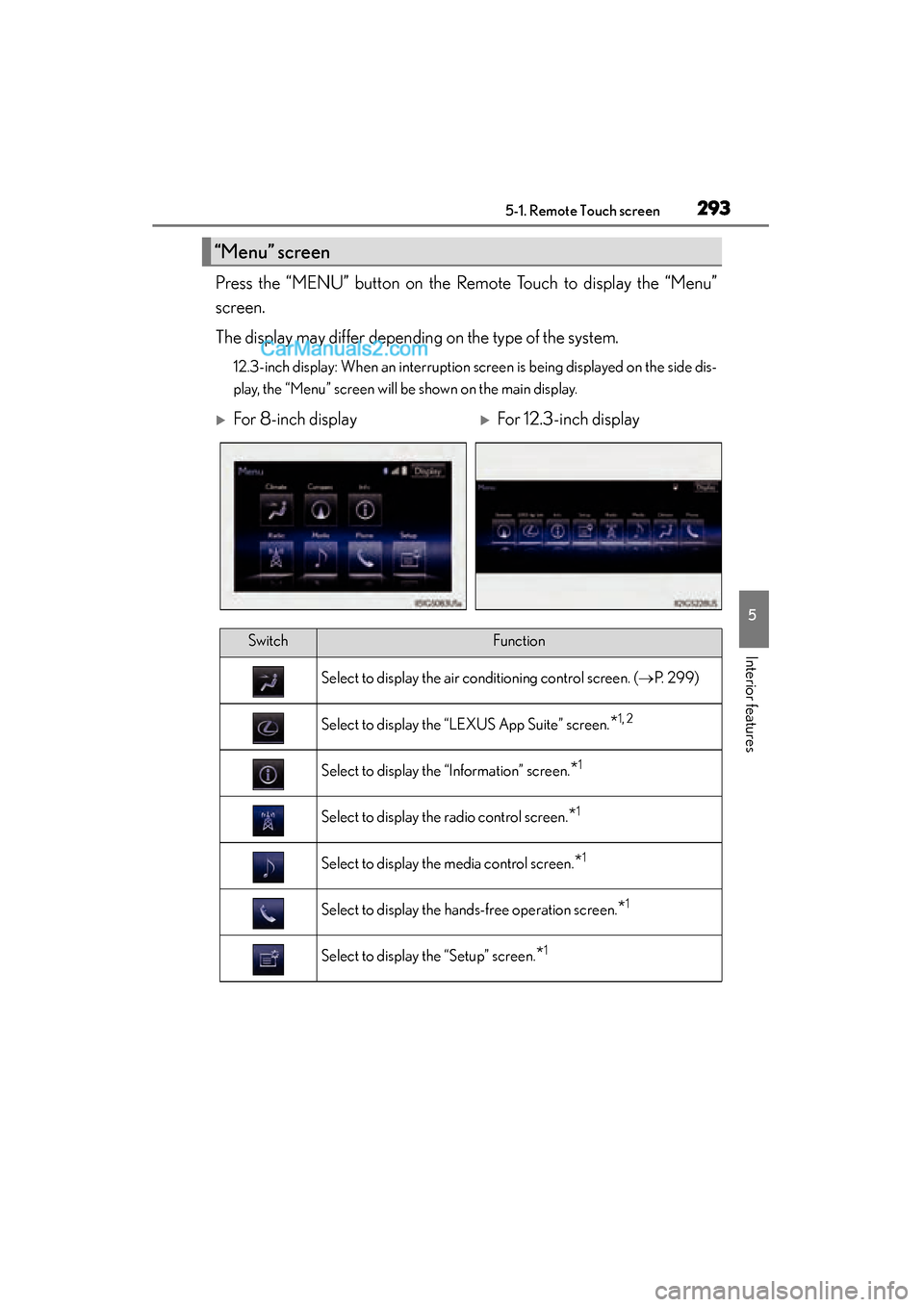
Press the “MENU” button on the Remote Touch to display the “Menu”
screen.
The display may differ depending on the type of the system.
12.3-inch display: When an interruption screen is being displayed on the side dis-
play, the “Menu” screen will be shown on the main display.
“Menu” screen
XFor 8-inch displayXFor 12.3-inch display
SwitchFunction
Select to display the air conditioning control screen. (→P. 299)
Select to display the “LEXUS App Suite” screen.*1, 2
Select to display the “Information” screen.*1
Select to display the radio control screen.*1
Select to display the media control screen.*1
Select to display the hands-free operation screen.*1
Select to display the “Setup” screen.*1
GS350_OM_OM30F69U_(U).book Page 293 Monday, January 19, 2015 2:53 PM
Page 296 of 615
294
GS350_OM_OM30F69U_(U)
5-1. Remote Touch screen
*1: Refer to the “NAVIGATION AND MULTIMEDIA SYSTEM OWNER’SMANUAL”.
*2: If equipped
“Display”Select to adjust the contrast and brightness of the screens, turn
the screen off, etc.
*1
Select to display the compass mode screen (8-inch display) or the
“Destination” screen (12.3-inch display).
*1
SwitchFunction
GS350_OM_OM30F69U_(U).book Page 294 Monday, January 19, 2015 2:53 PM
Page 297 of 615
GS350_OM_OM30F69U_(U)
2955-1. Remote Touch screen
5
Interior features
The 12.3-inch display has a display area which is 1.5 times wider than that
of the 8-inch display.
■Full screen display
The initial screen and “Menu” screen fill the entirety of the display area.
12.3-inch display operation
GS350_OM_OM30F69U_(U).book Page 295 Monday, January 19, 2015 2:53 PM
Page 298 of 615
296
GS350_OM_OM30F69U_(U)
5-1. Remote Touch screen
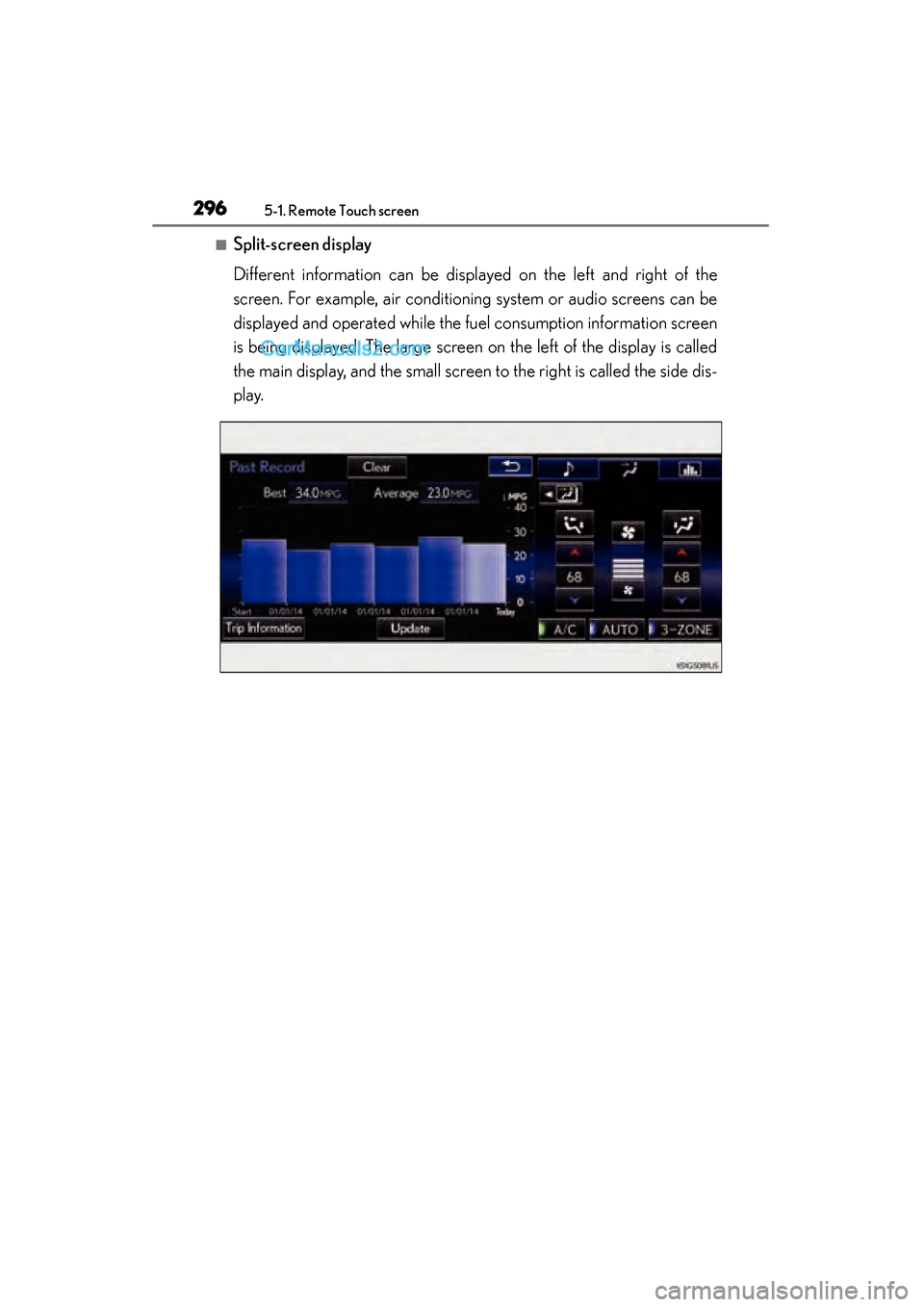
■Split-screen display
Different information can be displayed on the left and right of the
screen. For example, air conditioning system or audio screens can be
displayed and operated while the fuel consumption information screen
is being displayed. The large screen on the left of the display is called
the main display, and the small screen to the right is called the side dis-
play.
GS350_OM_OM30F69U_(U).book Page 296 Monday, January 19, 2015 2:53 PM
Page 299 of 615
GS350_OM_OM30F69U_(U)
2975-1. Remote Touch screen
5
Interior features
For details of the functions and operation of the main display, refer to the
respective section.
■Selecting the operation screen
When selecting the side display, move the Remote Touch knob to the
right until is displayed at the boundary between the main display
and the side display, and then move it further to the right. When select-
ing the main display, move the Remote Touch knob to the left until is
displayed at the boundary between the main display and the side dis-
play, and then move it further to the left.
12.3-inch display function
GS350_OM_OM30F69U_(U).book Page 297 Monday, January 19, 2015 2:53 PM
Page 300 of 615
298
GS350_OM_OM30F69U_(U)
5-1. Remote Touch screen
■Display the side display
XBasic screens
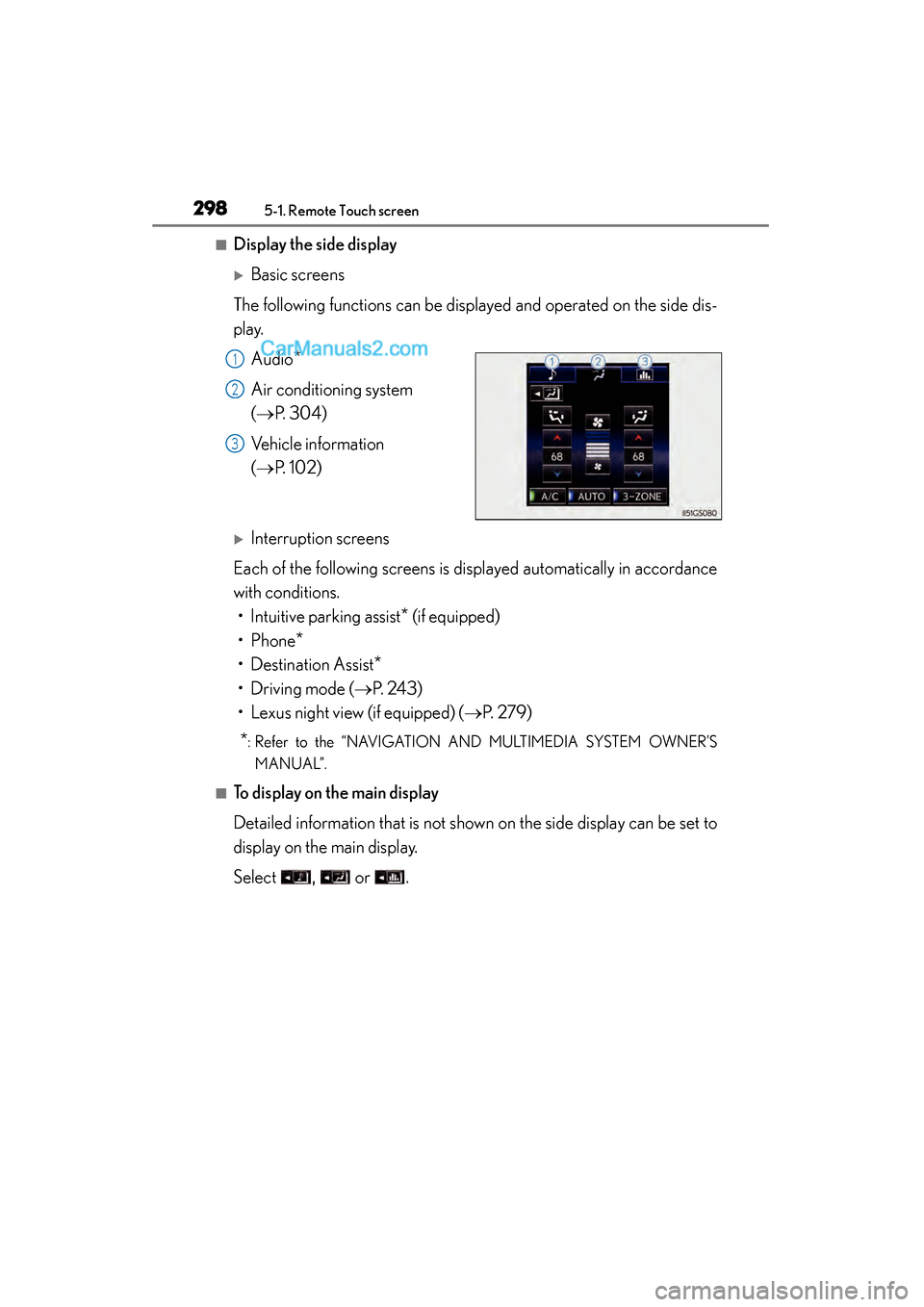
The following functions can be displayed and operated on the side dis-
play. Audio
*
Air conditioning system
(→ P. 304)
Vehicle information
(→ P. 1 0 2 )
XInterruption screens
Each of the following screens is displayed automatically in accordance
with conditions. • Intuitive parking assist
* (if equipped)
•Phone
*
• Destination Assist*
• Driving mode (→ P. 243)
• Lexus night view (if equipped) ( →P. 2 7 9 )
*: Refer to the “NAVIGATION AND MULTIMEDIA SYSTEM OWNER’S
MANUAL”.
■To display on the main display
Detailed information that is not shown on the side display can be set to
display on the main display.
Select , or .
1
2
3
GS350_OM_OM30F69U_(U).book Page 298 Monday, January 19, 2015 2:53 PM
Page 301 of 615
299
GS350_OM_OM30F69U_(U)5-2. Using the air conditioning system and defogger
5
Interior features
Front automatic air conditioning system
Air outlets and fan speed are automat ically adjusted according to the
temperature setting.
Press the “MENU” button on the Remote Touch, then select to
display the air conditioning operation screen.
Vehicles with a 12.3-inch display: The air conditioning system can be
displayed and operated on the side display. ( →P. 2 9 5 )
The display and button positions will di ffer depending on the type of the
system.
GS350_OM_OM30F69U_(U).book Page 299 Monday, January 19, 2015 2:53 PM
Page 304 of 615
302
GS350_OM_OM30F69U_(U)
5-2. Using the air conditioning system and defogger
Fan speed control
Air flows to the feet and the
windshield defogger operates.
Outside temperature
Right-hand front seat side tem-
perature display
Right-hand front seat side tem-
perature control
Option control screen
Front seat air outlet selector
Option function on/off indica-
tors
Off
Automatic modeLeft-hand front seat side tem-
perature control
Left-hand front seat side tem-
perature display
Windshield defogger
Outside air or recirculated
mode
Air outlet selector
S-FLOW mode
Left-hand front seat side air out-
let selector
Right-hand front seat side air
outlet selector
Rear air conditioning operation
screen1
2
3
4
5
6
7
8
9
10
11
12
13
14
15
16
17
18
19
GS350_OM_OM30F69U_(U).book Page 302 Monday, January 19, 2015 2:53 PM