phone Lexus GS350 2015 Quick Guide
[x] Cancel search | Manufacturer: LEXUS, Model Year: 2015, Model line: GS350, Model: Lexus GS350 2015Pages: 96, PDF Size: 2.89 MB
Page 3 of 96
2
GS350_QG_OM30F71U_(U)
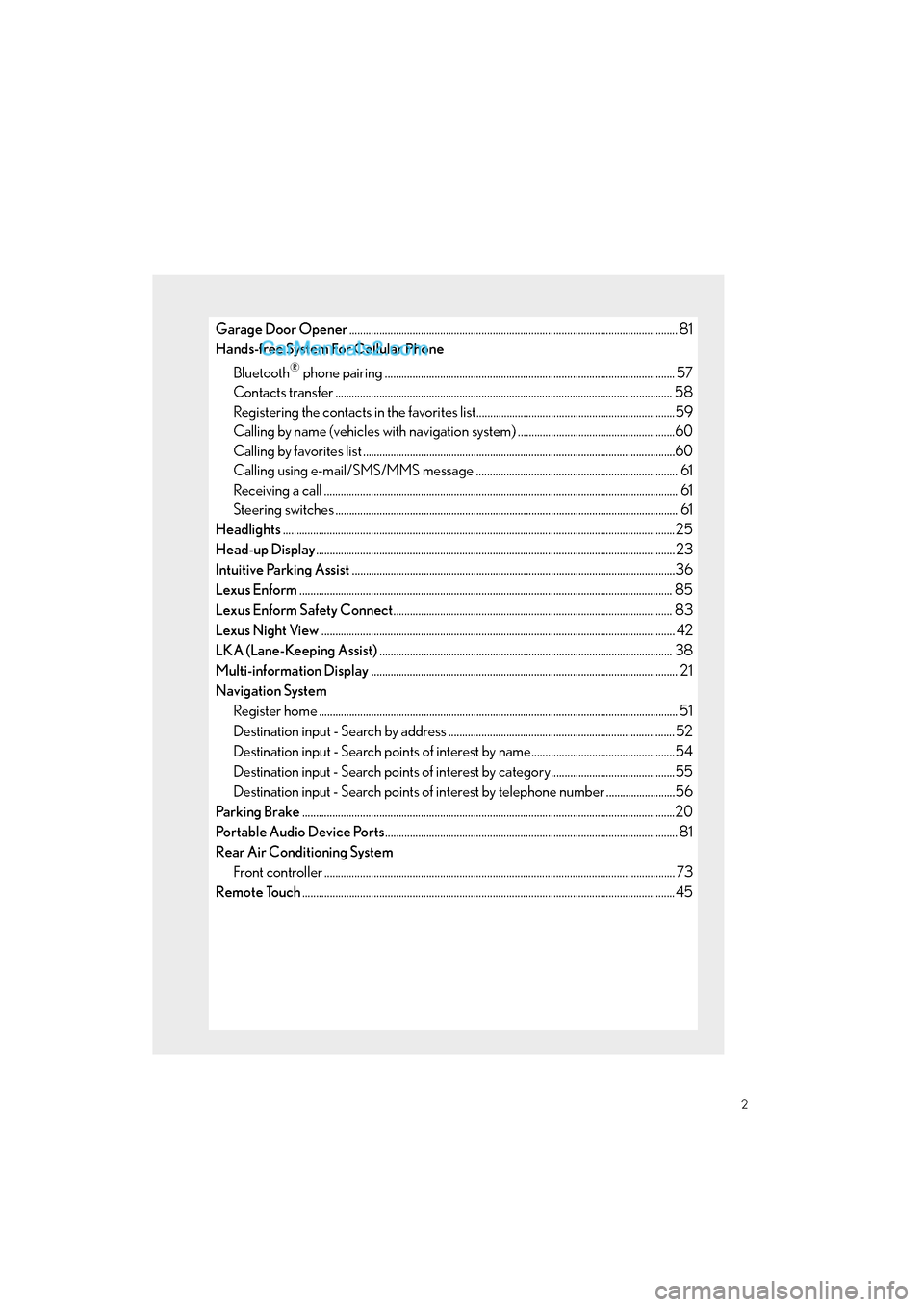
Garage Door Opener....................................................................................................................... 81
Hands-free System For Cellular Phone
Bluetooth
® phone pairing ......................................................................................................... 57
Contacts transfer .............................................................................................................. ............ 58
Registering the contacts in the favorites list........................................................................59
Calling by name (vehicles with navigation system) .........................................................60
Calling by favorites list ...................................................................................................... ...........60
Calling using e-mail/SMS/MMS message ......................................................................... 61
Receiving a call ............................................................................................................... ................. 61
Steering switches .............................................................................................................. .............. 61
Headlights ..............................................................................................................................................25
Head-up Display ..................................................................................................................................23
Intuitive Parking Assist .....................................................................................................................36
Lexus Enform ....................................................................................................................................... 85
Lexus Enform Safety Connect ..................................................................................................... 83
Lexus Night View ............................................................................................................................... .42
LKA (Lane-Keeping Assist) .......................................................................................................... 38
Multi-information Display ............................................................................................................... 21
Navigation System Register home .................................................................................................................. ................ 51
Destination input - Search by address .................................................................................. 52
Destination input - Search points of interest by name....................................................54
Destination input - Search points of in terest by category.............................................55
Destination input - Search points of in terest by telephone number .........................56
Pa r k i ng Bra ke .......................................................................................................................................20
Po r t a b l e A u d i o D e v i c e Po r t s .......................................................................................................... 81
Rear Air Conditioning System Front controller ............................................................................................................... ................ 73
Remote Touch ....................................................................................................................................... 45
GS350_QG_OM30F71U_(U).book Page 2 Monday, January 19, 2015 4:43 PM
Page 9 of 96
8
GS350_QG_OM30F71U_(U)
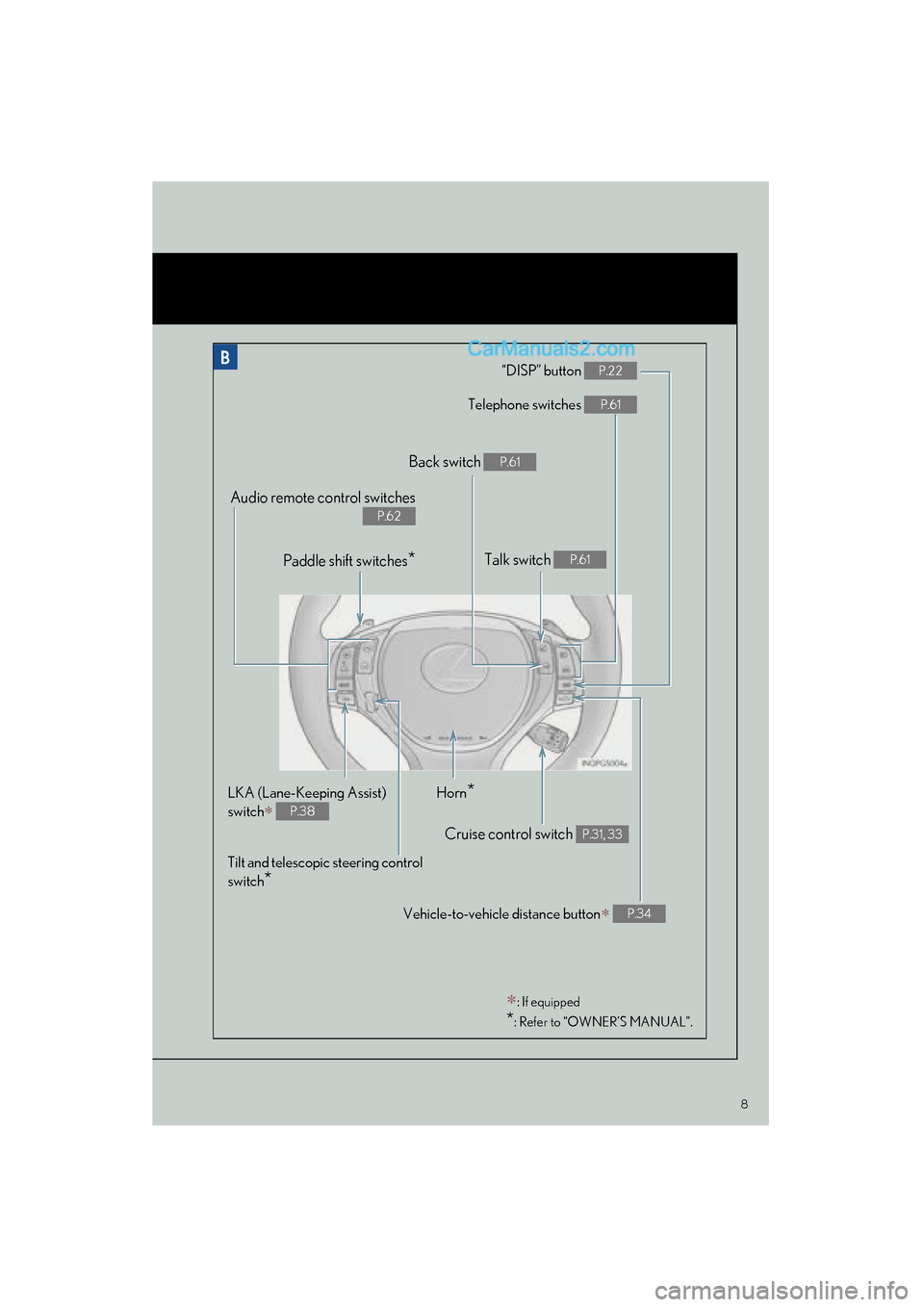
“DISP” button P.22
Telephone switches P.61
Vehicle-to-vehicle distance button∗ P.34
Back switch P.61
Talk switch P.61
Audio remote control switches
P.62
Paddle shift switches*
LKA (Lane-Keeping Assist)
switch
∗ P.38
Cruise control switch P.31, 33
Horn*
Tilt and telescopic steering control
switch
*
∗: If equipped
*: Refer to “OWNER’S MANUAL”.
GS350_QG_OM30F71U_(U).book Page 8 Monday, January 19, 2015 4:43 PM
Page 47 of 96
46
GS350_QG_OM30F71U_(U)
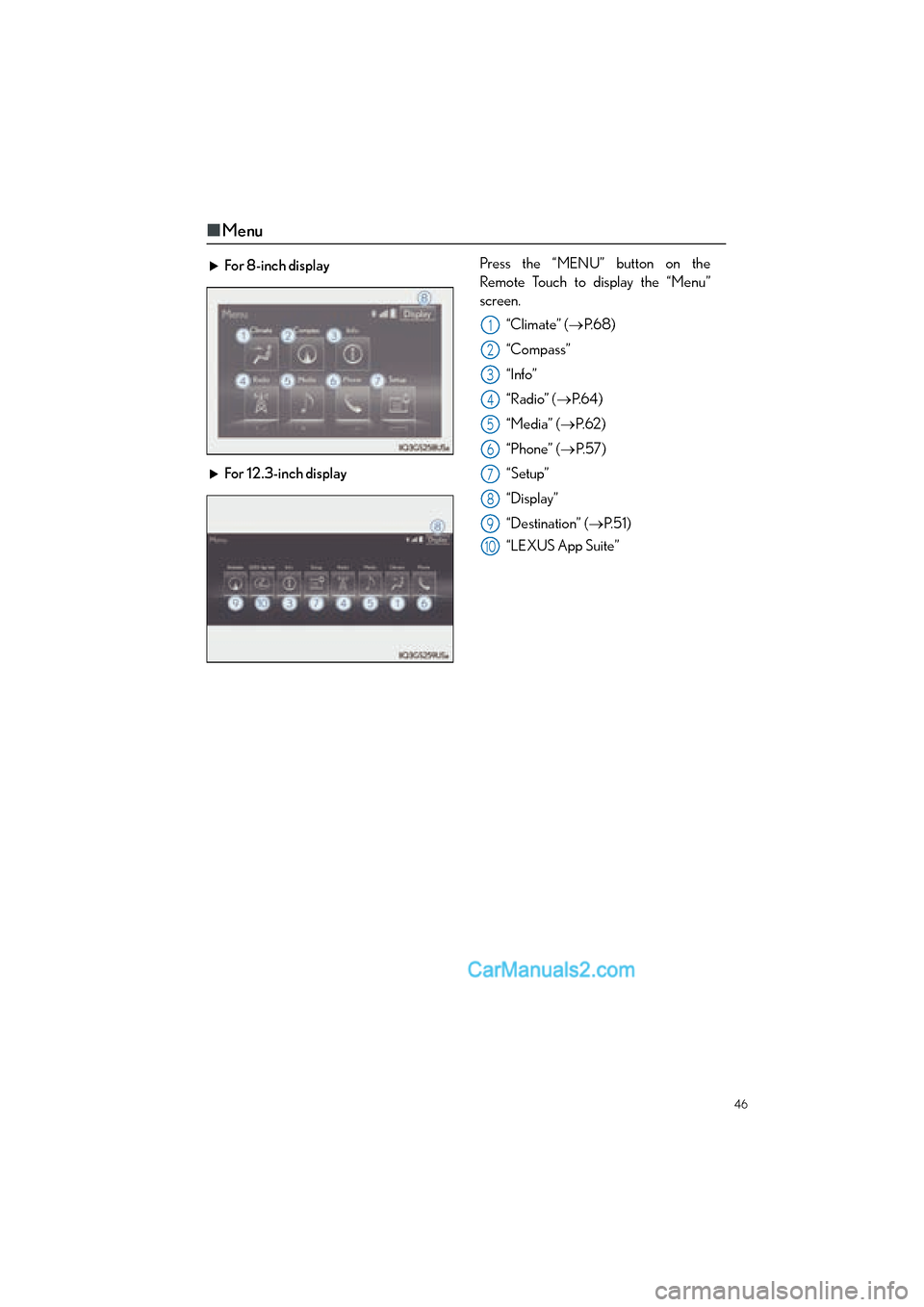
■Menu
For 8-inch display Press the “MENU” button on the
Remote Touch to display the “Menu”
screen.
“Climate” ( →P. 6 8 )
“Compass”
“Info”
“Radio” ( →P. 6 4 )
“Media” ( →P. 6 2 )
“Phone” ( →P. 5 7 )
“Setup”
“Display”
“Destination” (→ P. 5 1 )
“LEXUS App Suite”
For 12.3-inch display
1
2
3
4
5
6
7
8
9
10
GS350_QG_OM30F71U_(U).book Page 46 Monday, January 19, 2015 4:43 PM
Page 51 of 96
50
GS350_QG_OM30F71U_(U)
■Selecting the operation screen
When selecting the side display, move the Remote Touch knob to the right until is dis-
played at the boundary between the main display and the side display, and then move it fur-
ther to the right. When selecting the main display, move the Remote Touch knob to the left
until is displayed at the boundary between the main display and the side display, and
then move it further to the left.
■ Display the side display
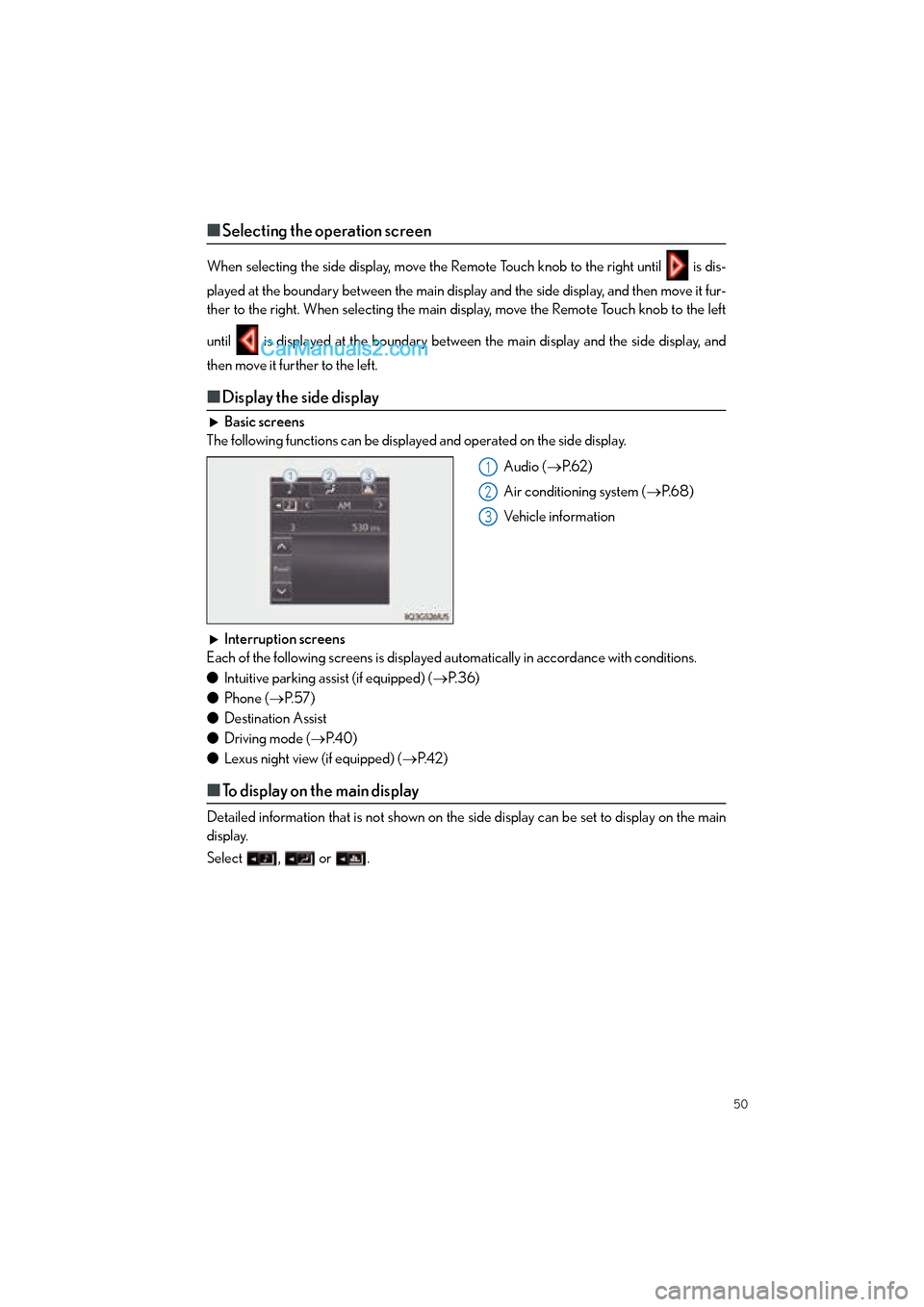
Basic screens
The following functions can be displayed and operated on the side display.
Audio (→P. 6 2 )
Air conditioning system ( →P. 6 8 )
Vehicle information
Interruption screens
Each of the following screens is displayed automatically in accordance with conditions.
● Intuitive parking assist (if equipped) ( →P. 3 6 )
● Phone ( →P. 5 7 )
● Destination Assist
● Driving mode ( →P. 4 0 )
● Lexus night view (if equipped) ( →P. 4 2 )
■To display on the main display
Detailed information that is not shown on the side display can be set to display on the main
display.
Select , or .
1
2
3
GS350_QG_OM30F71U_(U).book Page 50 Monday, January 19, 2015 4:43 PM
Page 57 of 96
56
GS350_QG_OM30F71U_(U)
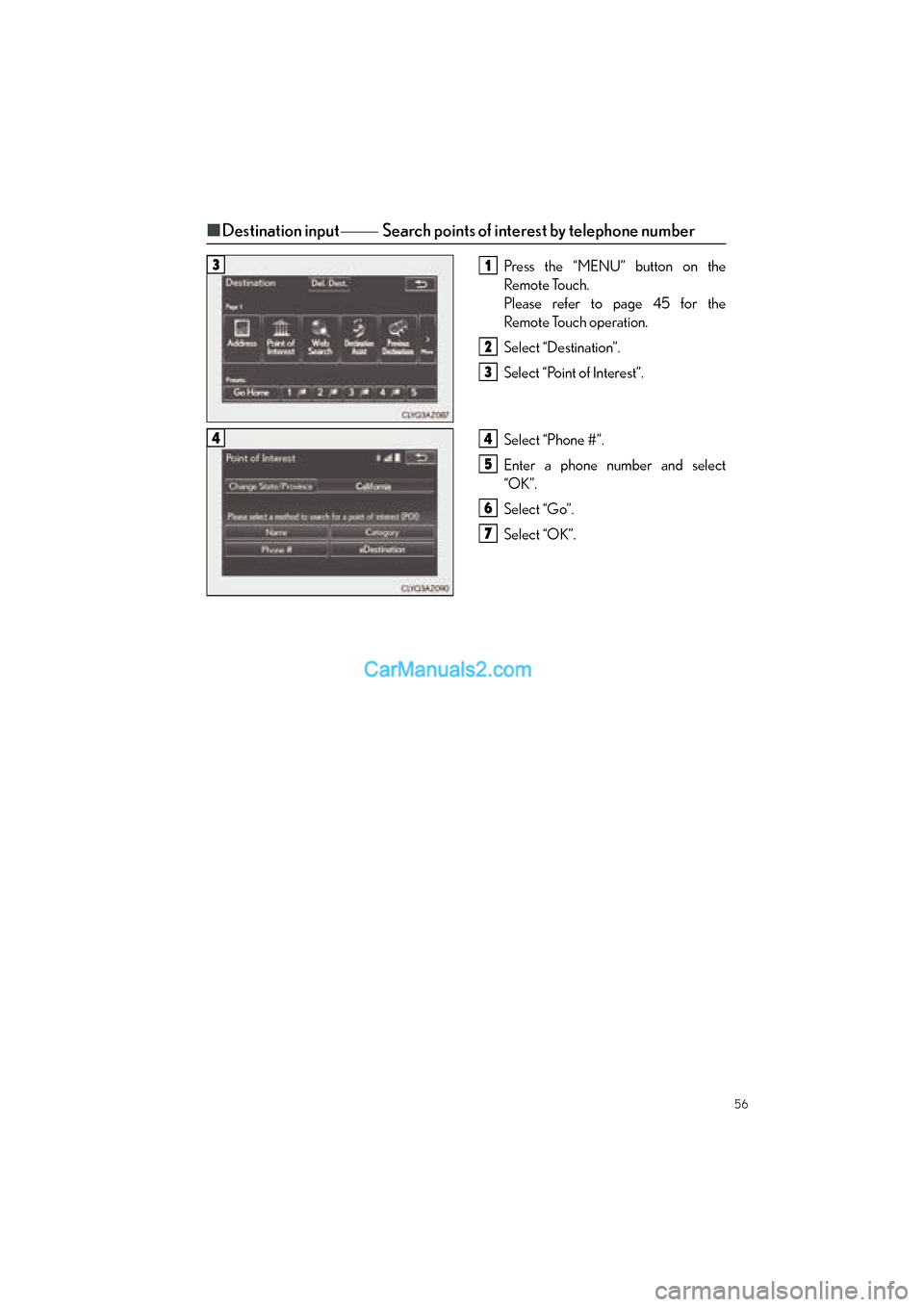
■Destination input Search points of interest by telephone number
Press the “MENU” button on the
Remote Touch.
Please refer to page 45 for the
Remote Touch operation.
Select “Destination”.
Select “Point of Interest”.
Select “Phone #”.
Enter a phone number and select
“OK”.
Select “Go”.
Select “OK”.31
2
3
44
5
6
7
GS350_QG_OM30F71U_(U).book Page 56 Monday, January 19, 2015 4:43 PM
Page 58 of 96
57
GS350_QG_OM30F71U_(U)
Hands-free System For Cellular Phone
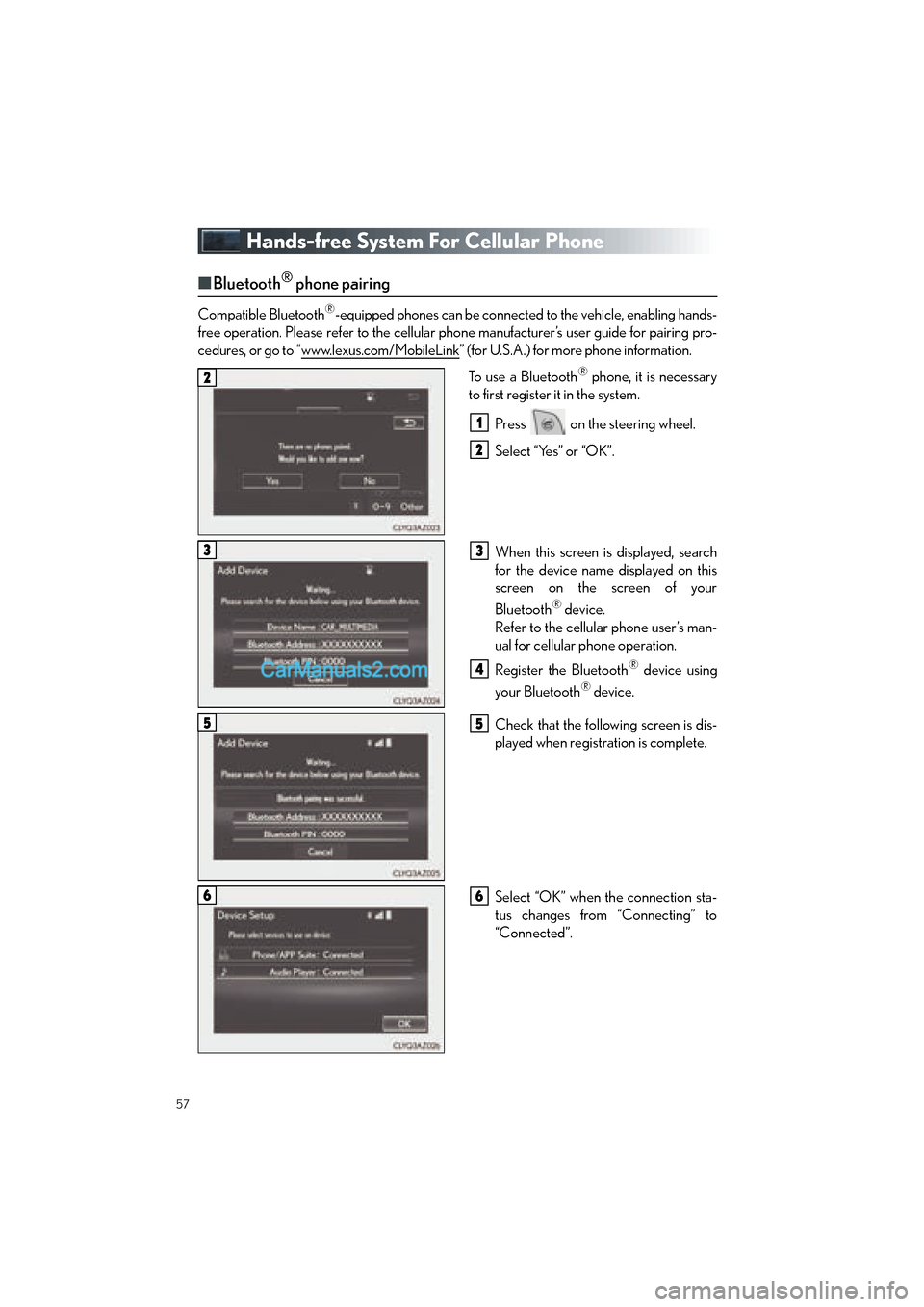
■Bluetooth® phone pairing
Compatible Bluetooth®-equipped phones can be connected to the vehicle, enabling hands-
free operation. Please refer to the cellular phone manufacturer’s user guide for pairing pro-
cedures, or go to “www.lexus.com/MobileLink
” (for U.S.A.) for more phone information.
To use a Bluetooth
® phone, it is necessary
to first register it in the system.
Press on the steering wheel.
Select “Yes” or “OK”.
When this screen is displayed, search
for the device name displayed on this
screen on the screen of your
Bluetooth
® device.
Refer to the cellular phone user’s man-
ual for cellular phone operation.
Register the Bluetooth
® device using
your Bluetooth
® device.
Check that the following screen is dis-
played when registration is complete.
Select “OK” when the connection sta-
tus changes from “Connecting” to
“Connected”.
2
1
2
33
4
55
66
GS350_QG_OM30F71U_(U).book Page 57 Monday, January 19, 2015 4:43 PM
Page 59 of 96
58
GS350_QG_OM30F71U_(U)
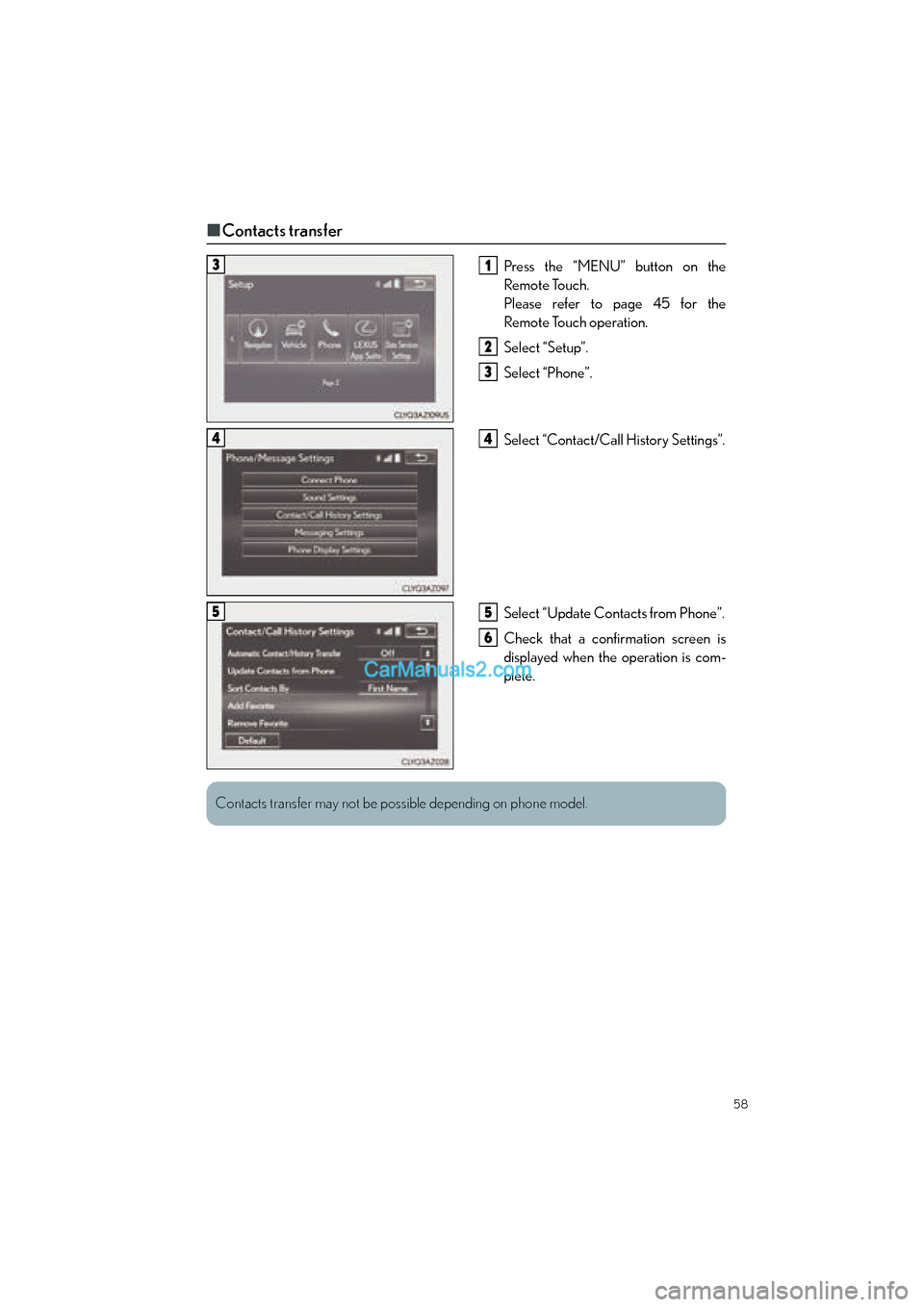
■Contacts transfer
Press the “MENU” button on the
Remote Touch.
Please refer to page 45 for the
Remote Touch operation.
Select “Setup”.
Select “Phone”.
Select “Contact/Ca ll History Settings”.
Select “Update Contacts from Phone”.
Check that a confirmation screen is
displayed when the operation is com-
plete.31
2
3
44
55
6
Contacts transfer may not be possible depending on phone model.
GS350_QG_OM30F71U_(U).book Page 58 Monday, January 19, 2015 4:43 PM
Page 60 of 96

59
GS350_QG_OM30F71U_(U)
■Registering the contacts in the favorites list
Press the “MENU” button on the
Remote Touch.
Please refer to page 45 for the
Remote Touch operation.
Select “Setup”.
Select “Phone”.
Select “Contact/Call History Settings”.
Select “Add Favorite”.
Select the desired contact to add to the
favorites list.
Check that a confirmation screen is
displayed when the operation is com-
plete.31
2
3
44
55
66
7
GS350_QG_OM30F71U_(U).book Page 59 Monday, January 19, 2015 4:43 PM
Page 61 of 96

60
GS350_QG_OM30F71U_(U)
■Calling by name (vehicles with navigation system)
You can call by giving a name registered in the contacts. For details, refer to the
“NAVIGATION AND MULTIMEDIA SYSTEM OWNER’S MANUAL”.
Press .
Say “Call
■Calling by favorites list
Press on the steering wheel.
Select the “Favorites” tab and select
the desired contact.
Select the desired number.
Check that the “Call” screen is dis-
played.
11
2
: Pressing this switch turns the voice command system on. Say a command after the
beep.
21
2
33
4
GS350_QG_OM30F71U_(U).book Page 60 Monday, January 19, 2015 4:43 PM
Page 62 of 96

61
GS350_QG_OM30F71U_(U)
■Calling using e-mail/SMS/MMS message
Press on the steering wheel.
Select .
Select the desired message.
Select .
Check that the “Call” screen is dis-
played.
■Receiving a call
When a call is received, this screen is
displayed with a sound.
Press on the steering wheel to
talk on the phone.
To refuse the call, press on the steer-
ing wheel.
■ Steering switches
Sending/Receiving/“Phone” screen
display
End call/Refuse call
Start the voice command system
Increases/decreases volume
21
2
3
4
5
The tab display may vary depending on the type of cellular phone.
11
2
1
2
3
4
GS350_QG_OM30F71U_(U).book Page 61 Monday, January 19, 2015 4:43 PM